Our readers keep the lights on and my smoothie glass nicely filled. As an Amazon Associate, I earn from qualifying purchases.
A drawing tablet with a screen solves the hand-eye disconnect that plagues pad-only setups. You draw directly on the display, so your strokes land exactly where your eyes look, eliminating the guesswork that slows down beginners and frustrates pros. The technology has matured to the point where you no longer have to choose between color accuracy, pen responsiveness, and a realistic paper texture — modern screens deliver all three.
I’m Mohammad Maruf — the founder and writer behind WellFizz. I’ve spent countless hours analyzing the technical specs, real-world driver stability, and display quality trade-offs across the current generation of pen displays to help you find the right creative tool for your workflow.
Whether you are upgrading from a pad or buying your first screen tablet, this guide covers the key specs that separate a good drawing tablet with screen from a frustrating one that wastes your time with lag, parallax, or washed-out colors.
How To Choose The Best Drawing Tablet With Screen
Buying your first pen display means navigating laminated glass, color gamut percentages, pressure curves, and connection standards. Focus on these three factors to avoid a purchase you will regret after the first serious drawing session.
Display Technology and Parallax
The distance between the glass surface and the LCD panel beneath it is called parallax. A non-laminated screen creates an irritating gap where your pen tip appears offset from the actual pixel. Full-laminated displays bond the glass directly to the LCD, reducing parallax to near zero. Look for terms like “full lamination,” “bonded glass,” or “AG etched glass with full lamination” — these deliver the most natural eye-hand coordination.
Pen Pressure and Tilt Sensitivity
Pressure sensitivity ranges from 4096 levels on budget standalone tablets to 16384 levels on the latest Huion and XP-Pen models. Higher levels allow smoother transitions from feather-light fades to full-opacity strokes. Tilt support (usually 60 degrees) is essential for shading and calligraphy brushes. The initial activation force (IAF) — measured in grams — determines how light a touch the pen registers. A 2g IAF means even the faintest stroke registers without requiring you to press down.
Connection and Standalone Capability
Most tethered pen displays require a USB-C or HDMI connection to a computer. Single-cable USB-C setups (with DisplayPort Alt Mode) keep your desk clean but depend on your laptop or desktop supporting that standard. Standalone tablets like the PicassoTab A10 and Wacom MovinkPad run Android natively and need no computer at all — ideal for travel, sketching on the couch, or introducing a child to digital art without a pricey laptop in the chain.
Quick Comparison
On smaller screens, swipe sideways to see the full table.
| Model | Category | Best For | Key Spec | Amazon |
|---|---|---|---|---|
| Wacom Cintiq 16 | Premium | Professional color work | 2.5K 2560×1600 IPS | Amazon |
| HUION KAMVAS 16 (Gen 3) | Premium | High-res illustration | 2.5K QHD 2560×1440 | Amazon |
| XPPen Artist 22 2nd | Premium | Large canvas work | 21.5″ 1920×1080 | Amazon |
| Wacom MovinkPad 11 | Premium | Portable standalone | Android, 8GB RAM | Amazon |
| HUION Kamvas 13 (Gen 3) | Mid-Range | Compact studio drawing | 13.3″ 1920×1080 | Amazon |
| XPPen Artist 13.3 Pro V2 | Mid-Range | Color-accurate design | 95% P3, Red Dial | Amazon |
| XP-PEN Artist 12 3rd | Mid-Range | Budget entry tethered | 11.9″ 1920×1080 | Amazon |
| PicassoTab A10 | Budget | Beginner standalone | Android, 6GB RAM | Amazon |
| XPPen Artist 13.3 Pro V2 (5) | Mid-Range | Smooth driver setup | 1920×1080, 16K Pen | Amazon |
In‑Depth Reviews
1. HUION KAMVAS 16 (Gen 3)

The Kamvas 16 (Gen 3) delivers a 2.5K QHD resolution at 2560×1440 on a 15.8-inch screen, achieving 186 PPI for a noticeably sharper image than standard 1080p displays. The PenTech 4.0 stylus registers 16384 pressure levels with a 2g initial activation force, so ultra-light shading strokes register without forced pressing. The nano-etched Canvas Glass 2.0 eliminates sparkle and reduces glare while maintaining a paper-like drag resistance.
Color accuracy reaches Delta E under 1.5 with 99% sRGB and 90% Adobe RGB coverage, making this screen suitable for print-adjacent design work where color consistency matters. Dual dial controllers and six silent press keys provide physical shortcuts that reduce reliance on keyboard combos during long sessions. The full-laminated construction keeps parallax near zero, so your pen tip aligns with the cursor exactly.
Connectivity is handled through a full-featured USB-C cable or the included 3-in-1 HDMI setup. The tablet works with Windows, macOS, and Android devices supporting USB 3.1 Gen 1 and DP 1.2. The ST300 adjustable stand provides a stable base, though some users report the stand’s angle adjustment feels stiff initially. The 2.7-pound weight keeps it manageable for a mid-size studio setup.
Why it’s great
- Sharp 2.5K resolution eliminates pixel grid on detailed line art
- 16384 pressure levels with 2g IAF capture the lightest sketch strokes
- Dual dials speed up canvas rotation and brush size changes
Good to know
- Adjustable stand feels stiff during initial angle changes
- Driver does not default to pen display when the screen is turned off
2. Wacom Cintiq 16

The Wacom Cintiq 16 pairs a 16-inch IPS display with a 2560×1600 WQXGA resolution, delivering 100% sRGB and 99% DCI-P3 color coverage. The Pro Pen 3 offers 8192 pressure levels with tilt support and three programmable shortcut keys housed in a slim barrel. The anti-glare glass reduces reflections without introducing the sparkle effect that plagues some matte finishes.
Built-in fold-out legs provide a 20-degree working angle out of the box, and the display supports VESA mounting for custom arm setups. The 8-bit color depth with 16.7 million colors handles smooth gradients for illustration and concept art. Connection requires USB-C with DisplayPort Alt Mode or Thunderbolt 3 or 4 — verify your computer’s port compatibility before purchase.
Some users note that the Pro Pen 3 in the box lacks the interchangeable grips and weights of the standalone version, and the lack of physical shortcut keys on the display itself means you rely entirely on keyboard shortcuts or the pen buttons. The screen has a subtle parallax compared to fully bonded displays, though the difference is minimal for most drawing tasks.
Why it’s great
- Wide DCI-P3 gamut matches modern monitor color standards
- Pro Pen 3 delivers consistent Wacom feel with reliable pressure curves
- VESA mount compatible for ergonomic arm setups
Good to know
- No stand included beyond the built-in fold-out legs
- Requires separate mini HDMI cable for non-USB-C computers
3. XPPen Artist 22 2nd

The Artist 22 2nd offers a 21.5-inch 1920×1080 display with 122% sRGB and 90% Adobe RGB color coverage, giving you a spacious canvas for multi-window workflows and full-arm gestures. The PA6 battery-free stylus delivers 8192 pressure levels with 60-degree tilt support, and the included pen holder stores eight replacement nibs. The adjustable stand allows angle changes from 16 to 90 degrees, accommodating both desk and tabletop use.
The matte screen finish reduces glare effectively, and the full 1080p resolution across a nearly 22-inch diagonal results in a comfortable pixel density for drawing without needing to zoom constantly. Connection supports USB-C to USB-C direct wiring for modern MacBooks and Windows laptops with DP Alt Mode, plus legacy HDMI for older systems. The 3.08-kilogram frame provides a sturdy footprint that resists sliding during vigorous sketching.
Some users note that the lack of touch input means all navigation requires the pen or separate input device, and the side buttons are not backlit, making them harder to locate in dim lighting. The driver interface has been updated but a minority of users report needing to toggle display settings to fix initial cursor alignment on dual-monitor setups.
Why it’s great
- Large 21.5-inch screen reduces constant zooming and panning
- Wide 122% sRGB gamut handles vibrant color palettes
- Adjustable stand from 16 to 90 degrees for ergonomic positioning
Good to know
- No touchscreen input — pen or keyboard navigation only
- Side shortcut keys lack backlighting for low-light use
4. Wacom MovinkPad 11
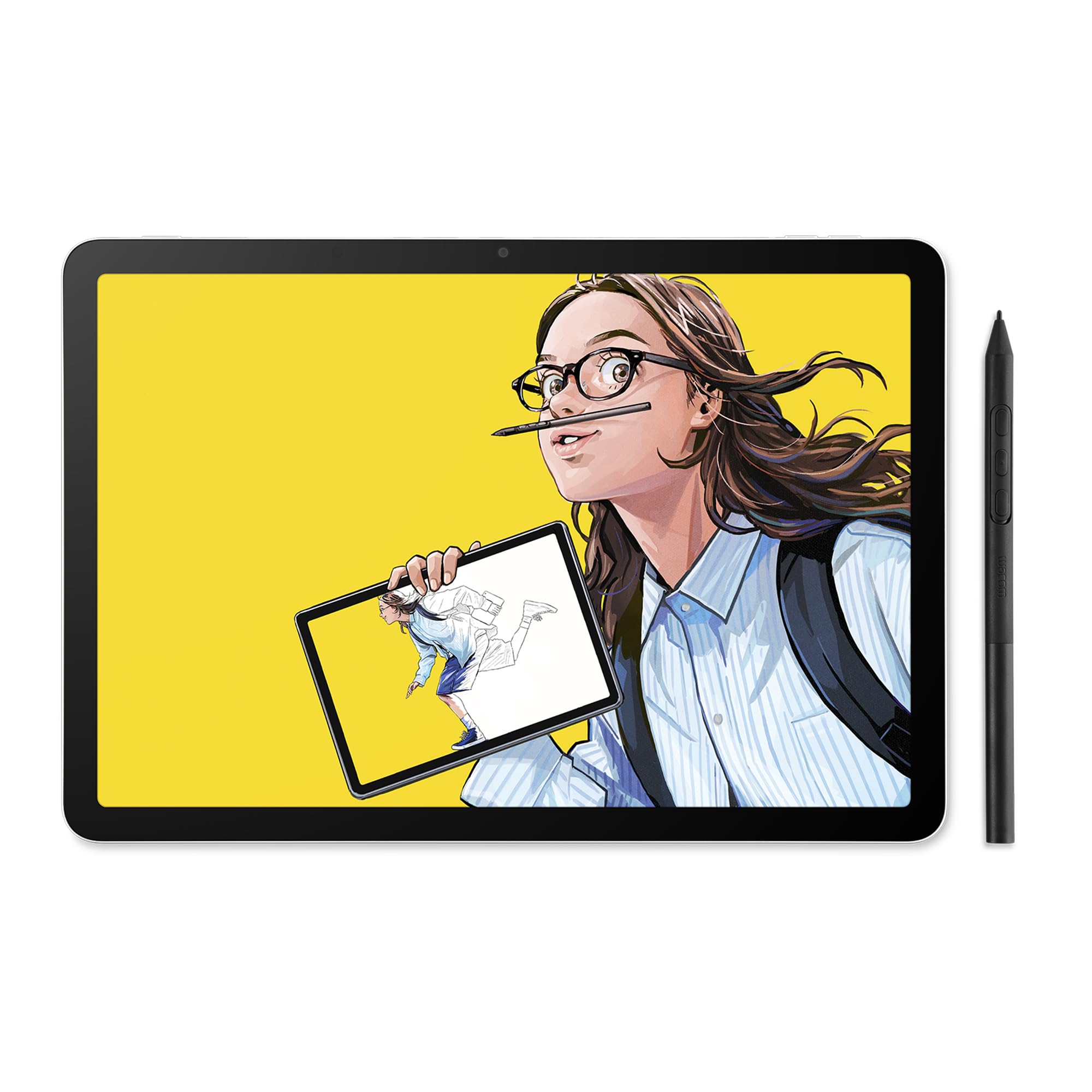
The MovinkPad 11 is a standalone Android 14 drawing tablet with a battery-free Pro Pen 3 that delivers 8192 pressure levels and three shortcut keys. The 11.45-inch anti-glare etched glass screen eliminates the need for a separate computer — you draw directly on the device. The Quick Draw feature launches the Wacom Canvas app by tapping and holding the pen on the screen, mimicking the reflex of opening a physical sketchbook.
With 8GB of RAM and 128GB of storage, the MovinkPad handles Clip Studio Paint Debut, Infinite Painter, and other Android creative apps without the lag you might expect from a mobile device. The 1.3-pound weight makes it lighter than most laptops and comfortable to hold for extended cafe or travel sketching sessions. It supports third-party pens from Dr. Grip, LAMY, and STAEDTLER for those who prefer a specific barrel feel.
Some users report that the processor struggles with heavy effects like liquefy filters and complex textured brushes, and the lack of a headphone jack limits private audio monitoring. The touch screen can be finicky at times, and the Android file system is less intuitive than desktop OS for organizing large project folders.
Why it’s great
- No computer required — fully standalone with Android apps
- Quick Draw feature launches sketch app instantly
- Light 1.3 lb design fits in most backpacks
Good to know
- Processor lags on heavy filter effects and large brush textures
- No headphone jack for private audio
5. HUION Kamvas 13 (Gen 3)

The Kamvas 13 (Gen 3) brings PenTech 4.0 technology — 16384 pressure levels with a 2g initial activation force — to a compact 13.3-inch form factor. The Canvas Glass 2.0 uses nano-etching to reduce sparkle and provide a paper-like surface texture while maintaining full lamination for minimal parallax. Color accuracy reaches Delta E under 1.5 with 99% sRGB coverage and Rec.709 gamut support.
A dual-dial controller and five programmable shortcut keys streamline navigation without reaching for your keyboard. The single USB-C cable connection simplifies desk setup, though the 3-in-1 cable is included for users whose computers lack full-featured USB-C ports. The ST300 adjustable stand provides multiple angles for comfortable long-session drawing.
Some users note the 200-nit brightness is noticeably dimmer than premium displays, making the screen harder to read in brightly lit rooms or near windows. The device is not a standalone tablet — it requires connection to a Windows, macOS, or Android host device with USB 3.1 Gen 1 and DP 1.2 support.
Why it’s great
- PenTech 4.0 with 16384 levels at a mid-range price point
- Anti-sparkle Canvas Glass 2.0 reduces eye strain
- Compact 1.96 lb chassis fits in most laptop bags
Good to know
- 200-nit brightness struggles in direct sunlight or bright rooms
- Requires connection to a computer or Android device
6. XP-PEN Artist 13.3 Pro V2

The Artist 13.3 Pro V2 features a cinema-grade 95% P3 color gamut alongside 99% sRGB and 89% Adobe RGB coverage, making it one of the most color-accurate options at its price level. The X3 Pro smart chip stylus delivers 16384 pressure levels with a center accuracy of ±0.4mm and a built-in digital eraser on the tail. The fully laminated display with anti-glare film eliminates parallax while providing pencil-like drag resistance.
The iconic red dial roller and eight customizable shortcut keys let you adjust brush size, zoom, and undo functions without lifting your hand. The metal back panel dissipates heat faster than plastic competitors, keeping the screen comfortable during marathon sessions. Dual-mode switching lets you toggle between pen display mode and pen tablet mode — the screen turns off to save laptop battery and reduce neck strain when you prefer to look at your primary monitor.
Connection options include full-featured USB-C for single-cable setups and a traditional 3-in-1 HDMI cable for older devices. Ensure your host device supports USB 3.1 DP 1.2 for direct USB-C use. The tablet is not standalone — it must be connected to a computer.
Why it’s great
- Wide 95% P3 gamut for accurate color reproduction
- Dual pen display and pen tablet modes for flexible workflow
- Metal back panel improves heat dissipation
Good to know
- Requires USB 3.1 DP 1.2 for single-cable USB-C setup
- Built-in digital eraser requires a few days to adjust hand position
7. XPPen Artist 12 3rd
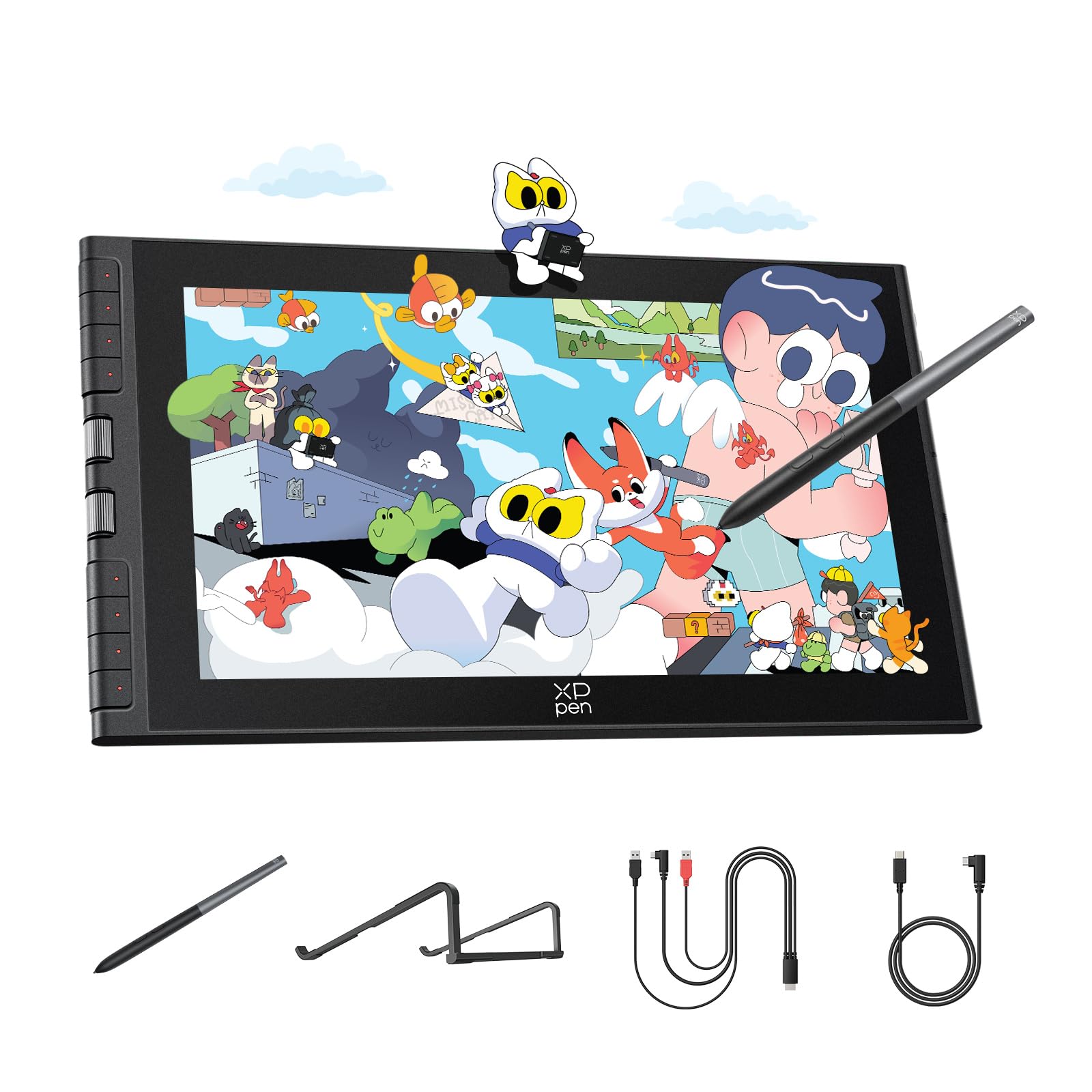
The Artist 12 (3rd Gen) packs dual X-Dial wheels and eight customizable keys into an 11.9-inch frame that weighs only 1.58 pounds. The X4 chip pen delivers 16384 pressure levels with a 2g initial activation force and 60-degree tilt support, and the magnetic pen attachment prevents the stylus from rolling off your desk. The AG etched glass with full lamination reduces glare by 85% and eliminates parallax for a paper-like drawing experience.
Color accuracy hits 99% sRGB with Delta E under 1.5 and factory pre-calibration, so you do not need to tweak color profiles before your first project. The 33% narrower bezels compared to previous generations provide more active drawing area in a compact chassis. Single USB-C connectivity keeps the desk clean, and the included foldable stand provides a 20-degree angle for ergonomic drawing.
A minority of Chromebook and Android users report that the shortcut buttons and dials do not function on those platforms due to missing driver support — functionality is fully available on Windows and macOS after a firmware update. The 1920×1080 resolution on an 11.9-inch screen delivers adequate pixel density but feels cramped for multi-window workflows or large canvas painting.
Why it’s great
- Dual X-Dial wheels speed up brush size and canvas zoom adjustments
- Magnetic pen holder prevents stylus loss during transport
- Factory pre-calibrated with Delta E under 1.5 out of the box
Good to know
- Shortcut keys and dials do not work on Chromebook or Android
- 11.9-inch screen feels small for detailed large-canvas artwork
8. XPPen Artist 13.3 Pro V2

This version of the Artist 13.3 Pro V2 emphasizes a user-friendly setup process with an updated driver that automatically configures brightness, contrast, and color temperature settings on Windows. The X3 Pro smart chip stylus offers 16384 pressure levels with a 90ms initial response rate and 20% improved accuracy over prior generations. The full-laminated screen with AG film delivers 99% sRGB and 95% P3 color coverage with a 1000:1 contrast ratio.
The red dial quick key and eight customizable shortcut keys simplify navigation for users who are less familiar with complex keyboard shortcuts. The adjustable S01 foldable stand provides a stable base for the 2.5-pound tablet and includes a 90-degree angle adjustment for comfortable head positioning. The tablet supports Windows, macOS, ChromeOS, Android, and Linux — the broadest compatibility among mid-range models.
Some users report that the pen tip can scratch the screen surface over time, and a few units experience driver-related pen misalignment when used in dual-monitor setups where the resolution differs between screens. The tablet is not standalone and requires a USB-C connection to a compatible host device.
Why it’s great
- Updated driver simplifies initial setup for less tech-savvy users
- Broad compatibility across six operating systems
- 90-degree adjustable stand reduces neck strain
Good to know
- Pen tip can scratch screen without a protector
- Pen alignment may drift on mixed-resolution dual-monitor setups
9. PicassoTab A10
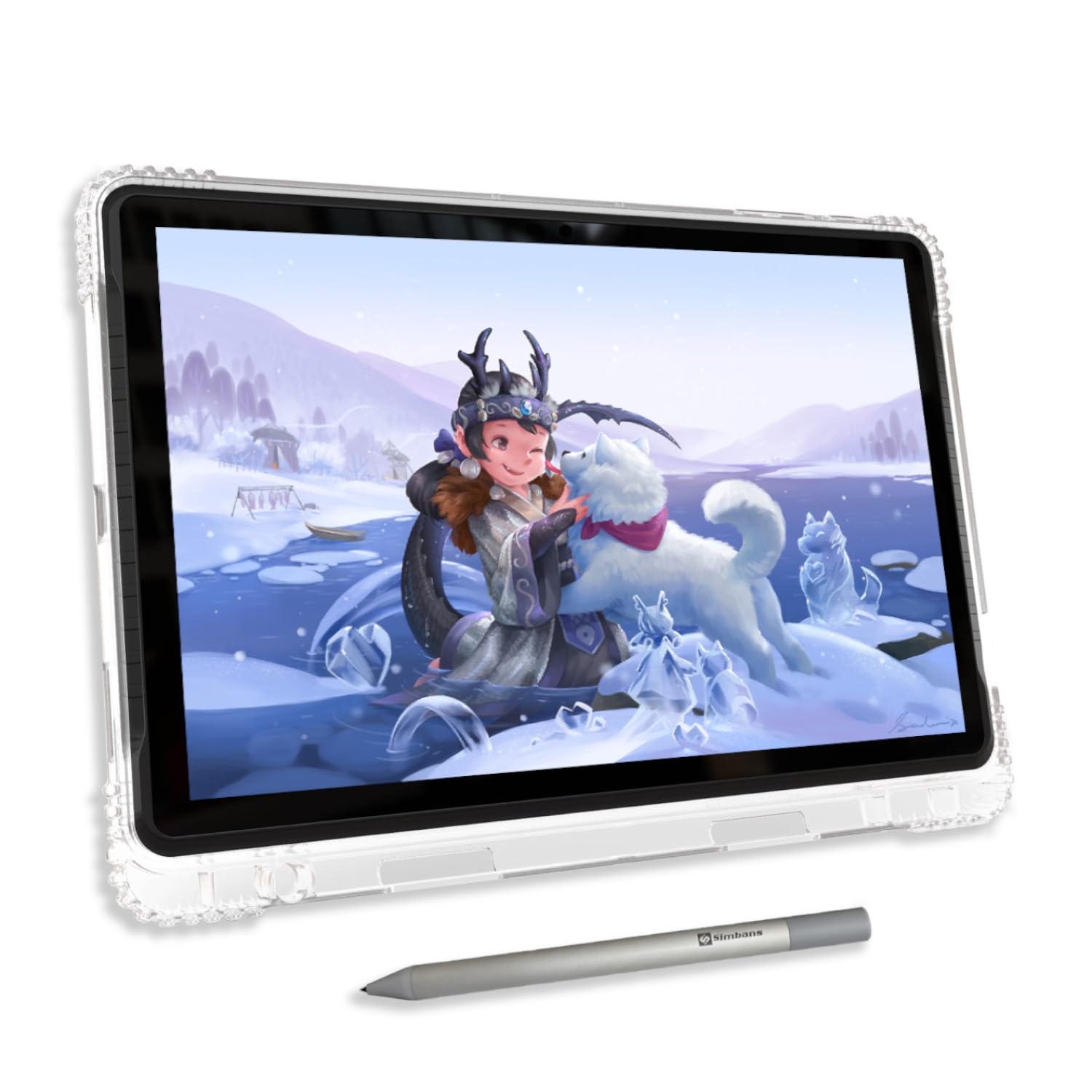
The PicassoTab A10 is a fully standalone Android 14 drawing tablet that requires no computer. The 10-inch fully laminated IPS HD display reduces parallax and features an anti-glare finish for outdoor visibility. The Picasso Pen 3 offers 4096 pressure levels with palm rejection — adequate for beginner sketching and note-taking, though less granular than the 16K pens on higher-end models.
The tablet ships with lifetime pro subscriptions to Concepts (premium drawing app), Infinite Painter, and FlipaClip for animation, plus a VIP tutorial package called Artixo for guided learning. The octa-core processor, 6GB of RAM, and 128GB of internal storage (expandable to 1TB) provide enough power for casual art apps, web browsing, and media consumption. The included accessory kit — case, glove, screen protector, stylus, charger — means you can start drawing immediately without additional purchases.
The 2000×1200 resolution on the 10-inch display is sharp for its class, but the 4096 pressure sensitivity limit means fine pressure transitions are less nuanced than on professional models. The default stylus nib is hard and can scratch the screen over time — applying the included screen protector is advised. Performance slows when running complex filter effects or multi-layer files.
Why it’s great
- Works out of the box with no computer — true standalone device
- Lifetime pro art apps and tutorials included at no extra cost
- Complete accessory kit means no additional purchases needed
Good to know
- 4096 pressure sensitivity lacks nuance for professional shading
- Hard default nib can scratch the screen without a protector
FAQ
What is the difference between a drawing tablet with screen and a standalone drawing tablet?
Can I use a drawing tablet with screen as my only monitor?
Do I need a computer for a drawing tablet with screen?
What should I check before buying a drawing tablet with screen?
Final Thoughts: The Verdict
For most users, the drawing tablet with screen winner is the HUION KAMVAS 16 (Gen 3) because it combines a sharp 2.5K display, industry-leading 16384 pressure sensitivity, and professional color accuracy at a price that undercuts equivalent Wacom models. If you want a portable standalone device that requires no computer, grab the Wacom MovinkPad 11. And for large-canvas studio work where screen real estate matters most, nothing beats the XPPen Artist 22 2nd with its 21.5-inch display and wide color gamut.

Mo Maruf
I created WellFizz to bridge the gap between vague wellness advice and actionable solutions. My mission is simple: to decode the research and give you practical tools you can actually use.
Beyond the data, I am a passionate traveler. I believe that stepping away from the screen to explore new environments is essential for mental clarity and physical vitality.