Our readers keep the lights on and my smoothie glass nicely filled. As an Amazon Associate, I earn from qualifying purchases.
A drawing tablet with a screen isn’t a luxury anymore — it’s the standard. But between the marketing specs about pressure levels and color gamuts, the real question is whether the pen actually feels like a pencil and the cursor stays glued to the nib without that floating gap that breaks your concentration. The difference between a good creative session and a frustrating one comes down to parallax control, initial activation force on the stylus, and whether the driver handles your operating system without a fight.
I’m Mohammad Maruf — the founder and writer behind WellFizz. I’ve spent hundreds of hours analyzing display lamination techniques, smart chip stylus architectures, and real-world compatibility reports across Windows, macOS, Chromebook, Android, and Linux to separate the hardware that delivers from the spec sheets that exaggerate.
This guide walks through nine models that cover the full spectrum — from budget-friendly screened tablets to professional 4K workstations — and explains exactly which specs actually matter for drawing, painting, and design. Whether you’re a student sketching on a Chromebook or a professional retouching at 4K, these are the best drawing tablet pc options that earned their place through real hardware decisions.
How To Choose The Best Drawing Tablet PC
Buying a pen display means weighing four core decisions: screen lamination type, pressure sensitivity architecture, color accuracy ceiling, and OS compatibility depth. Each decision affects how the tablet feels under your hand day after day. Here is what to look for in each area.
Full Lamination vs. Air Gap Displays
Full lamination bonds the glass to the LCD panel, eliminating the air gap. This kills parallax — the visual offset between where the pen tip touches the glass and where the cursor appears. On air-gap displays, that offset can reach 2-3 millimeters, making fine lines feel disconnected. Every model in this guide uses full lamination, but the quality of the anti-glare coating varies. AG etched glass reduces glare without adding the grainy sparkle that cheaper films cause.
Pressure Sensitivity: Beyond the Number
8192 pressure levels is the baseline for modern pen displays. The step up to 16,384 levels matters most in the lightest range — below 10 grams of force — where standard 8K sensors sometimes skip or jump. Smart chip styluses (X3 Pro, PenTech 4.0) process pressure data faster and reduce line wobble during slow diagonal strokes. The real spec to check is initial activation force (IAF). A 2-gram IAF registers the lightest feather touch, while 5-gram IAF requires slightly more pressure to trigger.
Color Gamut Coverage and Delta E
99% sRGB is the minimum for accurate digital art. 95% DCI-P3 is better for cinema and print work. The delta E (ΔE) number tells you color deviation — under 1.5 means the display is factory calibrated to a professional standard. Pay attention to whether the tablet includes brightness and color temperature OSD controls, especially if you work in environments with changing ambient light.
Connectivity and Driver Support
Single USB-C cable connectivity is convenient but requires your computer to support DisplayPort Alt Mode over USB 3.1 Gen 1 or later. If your laptop lacks DP Alt Mode, you will need the legacy 3-in-1 cable (HDMI + USB + power). Android support is limited to devices with USB 3.1 Gen 1 and DP 1.2 — many phones and tablets do not meet this spec. Driver maturity varies between brands; check recent user reports for your operating system version before purchasing, especially on Linux and newer macOS builds.
Quick Comparison
On smaller screens, swipe sideways to see the full table.
| Model | Category | Best For | Key Spec | Amazon |
|---|---|---|---|---|
| XP-Pen Artist 13.3 Pro V2 | Mid-Range | Intricate line art & manga | 16K pressure + 95% P3 gamut | Amazon |
| Huion Kamvas 13 Gen 3 | Mid-Range | Portable studio work | 16K pressure + Canvas Glass 2.0 | Amazon |
| XP-Pen Artist 12 3rd Gen | Entry-Level | Ultra-portable sketching | 16K pressure + X-Dial wheels | Amazon |
| XPPen Artist13.3 Pro V2 | Mid-Range | All-day comfort drawing | 16K pressure + Red Dial | Amazon |
| Huion Kamvas 16 (2021) | Mid-Range | Large canvas on a budget | 8K pressure + 10 express keys | Amazon |
| XP-Pen Artist 15.6 Pro | Mid-Range | Wide color gamut work | 8K pressure + 120% sRGB | Amazon |
| Huion Kamvas Pro 16 4K | Premium | Photo retouching at 4K | 4K UHD + 120% sRGB | Amazon |
| Wacom Cintiq 16 | Premium | Professional animation | 2.5K WQXGA + 99% DCI-P3 | Amazon |
| Wacom Cintiq Pro 22 | Professional | Studio-grade 4K creation | 21.5″ 4K 120Hz touch | Amazon |
In‑Depth Reviews
1. XP-Pen Artist 13.3 Pro V2

The XP-Pen Artist 13.3 Pro V2 delivers the highest pressure sensitivity on the market at 16,384 levels, paired with a cinema-grade 95% DCI-P3 color gamut that rivals displays costing twice as much. The fully laminated screen with anti-glare film eliminates parallax effectively, and the X3 Pro smart chip stylus processes strokes 1.5 times faster than standard 8K pens, virtually erasing diagonal line wobble that plagues slower drivers. The built-in digital eraser on the tail removes the need to toggle tools constantly.
The metal back panel dissipates heat noticeably faster than plastic competitors, keeping the screen cool during extended sessions. Dual USB-C connectivity supports single-cable setups on devices with DP Alt Mode, and the included foldable stand provides a stable 20-degree angle. The red dial roller and eight customizable express keys cover essential shortcuts — brush size, zoom, undo — without reaching for the keyboard.
Setup is straightforward on Windows and macOS, though Android users must confirm their device supports USB 3.1 DP 1.2. Some users report the driver is fussy on M1 Macs with dual monitors, requiring a firmware update to fix pen alignment. Overall, this is the most feature-dense mid-range pen display available right now.
Why it’s great
- Industry-first 16K pressure with 2g initial activation force for feather-light strokes
- 95% DCI-P3 and 99% sRGB coverage with factory calibration
- Premium metal back improves heat dissipation and build rigidity
Good to know
- Single USB-C cable requires computer with DP Alt Mode; older laptops need separate HDMI cable
- Driver alignment can misbehave on M1 Macs with mismatched display resolutions
2. Huion Kamvas 13 Gen 3

The Huion Kamvas 13 Gen 3 introduces Canvas Glass 2.0, an anti-sparkle etched surface that reduces glare significantly without the grainy texture than can blur fine lines. The fully laminated 13.3-inch display delivers 99% sRGB with an average ΔE under 1.5, backed by a factory calibration report included in the box. The PenTech 4.0 stylus reaches 16,384 pressure levels with a 2-gram initial activation force, matching XP-Pen’s top tier in responsiveness.
The dual dial buttons and five programmable shortcut keys sit on the left bezel, giving quick access to brush controls and canvas navigation. The included ST300 adjustable stand supports multiple angles, though some users note the legs feel plastic and do not lock into position securely. The tablet weighs 1.96 pounds and is thin enough to slip into most laptop bags.
Compatibility covers Windows, macOS, Linux (Ubuntu), and Android devices with USB 3.1 DP 1.2. The 3-in-1 cable is included, but the full-featured USB-C cable that enables single-cable connection is sold separately — a minor cost consideration. On Linux, basic pen and display functions work, but the shortcut wheels and keys lack driver support for multi-key combinations.
Why it’s great
- Canvas Glass 2.0 eliminates sparkle and glare without blurring detail
- Factory calibration report guarantees ΔE under 1.5 out of the box
- 16K pressure with extremely low 2g activation force
Good to know
- USB-C single-cable connectivity requires a separate cable purchase
- Stand does not lock into position; can shift during use
3. XPPen Artist 12 3rd Gen
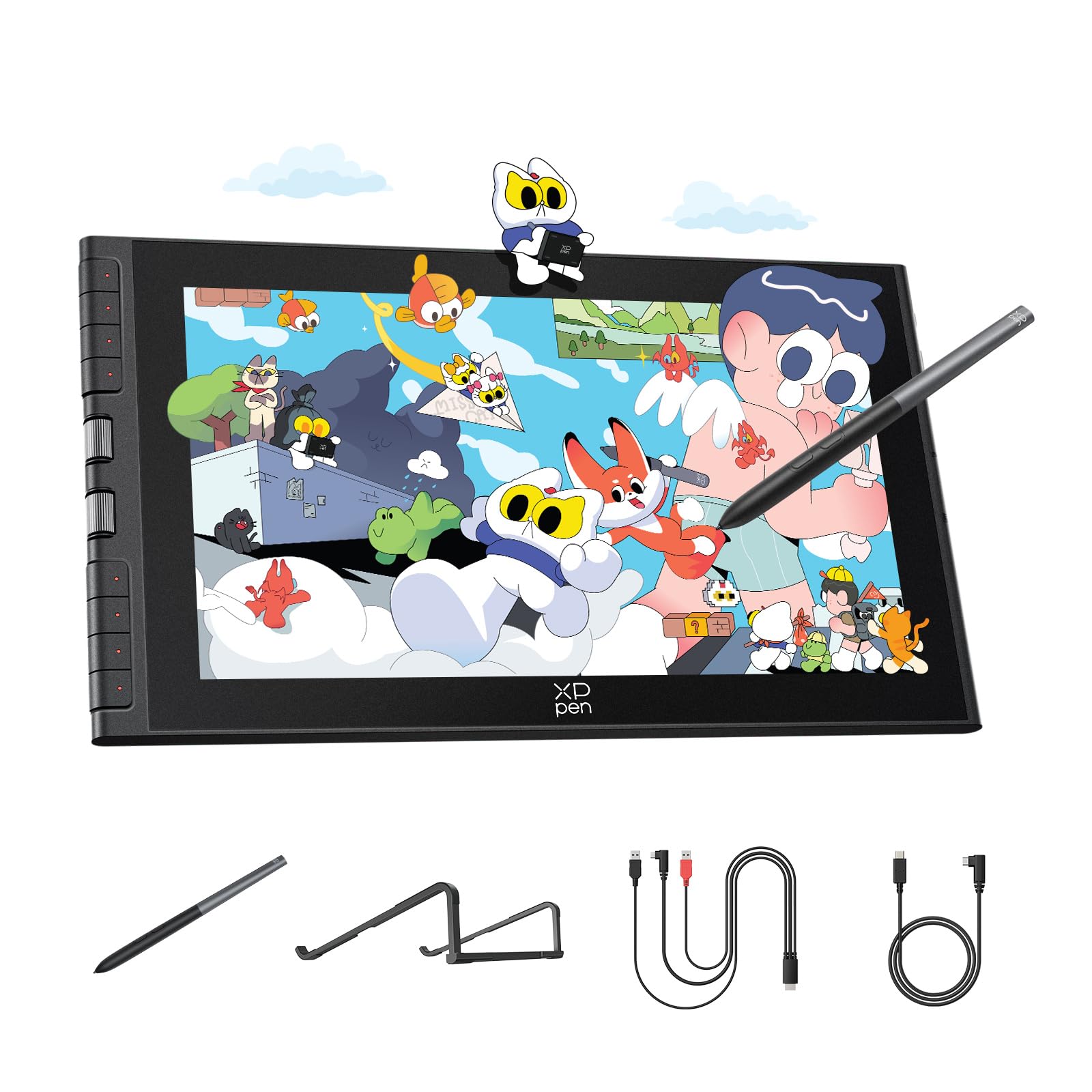
The XPPen Artist 12 3rd Gen packs a 16K pressure X4 pen, dual X-Dial wheels, and eight customizable keys into an 11.9-inch frame that weighs just under 1.6 pounds. The AG etched glass reduces glare by 85% and resists fingerprints effectively, while full lamination keeps parallax near zero. This is the lightest and most portable screened tablet in the lineup, designed for artists who work in cafes, on trains, or between classrooms.
The dual X-Dial wheels are a genuine productivity upgrade — they let you adjust brush size and canvas zoom independently without cycling through menu layers. The 33 percent narrower bezel compared to the previous generation increases the active area proportion without growing the device footprint. The magnetic pen attaches to the side of the tablet, preventing loss during transit.
The 1920×1080 resolution at 11.9 inches provides a crisp 185 PPI, suitable for detailed illustration work. Color accuracy hits 99% sRGB with ΔE under 1.5. Connectivity uses a single USB-C cable for DP Alt Mode devices, with a 3-in-1 cable included for legacy setups. Some users report that function keys do not work on Chromebook or Android due to driver limitations — check your OS before buying if button mapping is critical.
Why it’s great
- Ultra-portable 1.58-pound design with 85% glare reduction
- Dual X-Dial wheels let you control brush size and zoom independently
- Full lamination with near-zero parallax on a bright 1080p display
Good to know
- Shortcut keys and dials may not function on Chromebook or Android
- 11.9-inch screen feels cramped for multi-panel layout work
4. XPPen Artist13.3 Pro V2 (Red Dial)

The XPPen Upgraded Artist13.3 Pro V2 is effectively the same core hardware as the standard Artist 13.3 Pro V2 but with an emphasis on beginner-friendly driver design and the Red Dial roller. The 13.3-inch fully laminated display with AG film covers 125% sRGB area ratio and 95% P3 coverage, with a brightness of 250 cd/m² and a 1000:1 contrast ratio. The X3 Pro smart chip stylus delivers 16,384 pressure levels with a 2g activation force and 60 degrees of tilt support.
The Red Dial is positioned for natural hand placement during drawing, reducing wrist strain over long sessions. The eight customizable express keys sit in a vertical column on the left bezel. The adjustable stand AC42 supports a 90-degree range, accommodating both nearly flat sketching and upright reference viewing. Unlike the Artist 12 3rd Gen, this model includes both a full-featured USB-C cable and a legacy 3-in-1 cable in the box.
Driver updates are streamlined with a single-install package that automatically configures pen pressure, display brightness, and contrast settings. Compatibility spans Windows 7+, macOS 10.13+, ChromeOS 88+, Android (USB 3.1 DP 1.2), and Linux. As with the sibling model, some users on dual-monitor M1 Mac setups encounter pen alignment issues when displays run at different resolutions.
Why it’s great
- 125% sRGB area ratio and 95% DCI-P3 coverage for vibrant, accurate color
- 90-degree adjustable stand reduces neck fatigue during long sessions
- Includes both USB-C and legacy 3-in-1 cables — no extra purchase needed
Good to know
- Pen alignment can drift on M1 Macs with mixed monitor resolutions
- Brightness caps at 250 cd/m²; not ideal for very bright studio environments
5. Huion Kamvas 16 (2021)

The Huion Kamvas 16 (2021) offers a 15.6-inch full-laminated display with anti-glare film for well under the typical price of large-format pen displays. The 1920×1080 resolution paired with 120% sRGB color gamut volume ensures vibrant, saturated colors suitable for comic coloring and photo editing. The PW517 battery-free stylus provides 8,192 pressure levels with ±60 degrees of tilt support, which covers the needs of most illustrators and designers.
Ten programmable shortcut keys line the left bezel, giving direct access to layer switching, brush size adjustments, and undo operations without reaching for a keyboard. The included ST300 adjustable stand provides multiple angles for ergonomic comfort, though the plastic legs feel less sturdy than premium metal alternatives. The tablet is 0.47 inches thin and weighs 2.78 pounds, making it portable enough to move between home and studio.
Connectivity includes both a 3-in-1 cable and a full-featured USB-C to USB-C cable. Android support requires USB 3.1 Gen 1 with DP 1.2. Some users report an initial “device disconnected” error that resolves with a driver tool downloaded from Huion’s support forums — not a dealbreaker, but worth knowing before setup. The lack of touch gestures on Mac is a notable omission if you are used to iPad-style navigation.
Why it’s great
- Generous 15.6-inch drawing area at a budget-friendly price point
- Ten programmable express keys reduce reliance on keyboard shortcuts
- Includes both USB-C and 3-in-1 cables for maximum compatibility
Good to know
- No touch gesture support on Mac; iPad users will miss pinch-to-zoom
- Stand legs do not lock; tablet can shift with dynamic drawing movements
6. XP-Pen Artist 15.6 Pro

The XP-Pen Artist 15.6 Pro delivers a 15.6-inch full-laminated IPS display with 120% sRGB (88% NTSC) color gamut and a 178-degree viewing angle, making it a strong choice for photographers and designers who work with wide color spaces. The 1920×1080 resolution on this size yields 142 PPI — less sharp than smaller 1080p screens, but acceptable for general illustration and photo editing. The PA2 battery-free stylus provides 8,192 pressure levels with tilt support.
The standout hardware feature is the Red Dial interface, which fits under the non-drawing hand and controls zoom, brush size, and canvas rotation. Eight customizable express keys on the left bezel handle common shortcuts. The slim 11mm profile and aluminum back give the device a premium feel, and the easily accessible screen brightness button lets you adjust luminance without digging into menus.
Compatibility covers Windows 7+, macOS 10.10+, ChromeOS 88+, and Linux. The 3-in-1 cable is the primary connection method; the device does not support single USB-C, which adds cable clutter. Some M1 Mac users report driver fussiness when using the tablet as an extended display via a hub — a direct HDMI connection resolves most issues. Colors appear slightly oversaturated out of the box, so a calibration tool is recommended for color-critical work.
Why it’s great
- Wide 120% sRGB gamut with 178-degree viewing angle for accurate color work
- Red Dial wheel and eight keys reduce keyboard dependency during workflow
- Premium 11mm thin aluminum build with dedicated brightness button
Good to know
- No single USB-C connection option; requires 3-in-1 cable setup
- Colors lean oversaturated out of the box; calibration recommended
7. Huion Kamvas Pro 16 4K
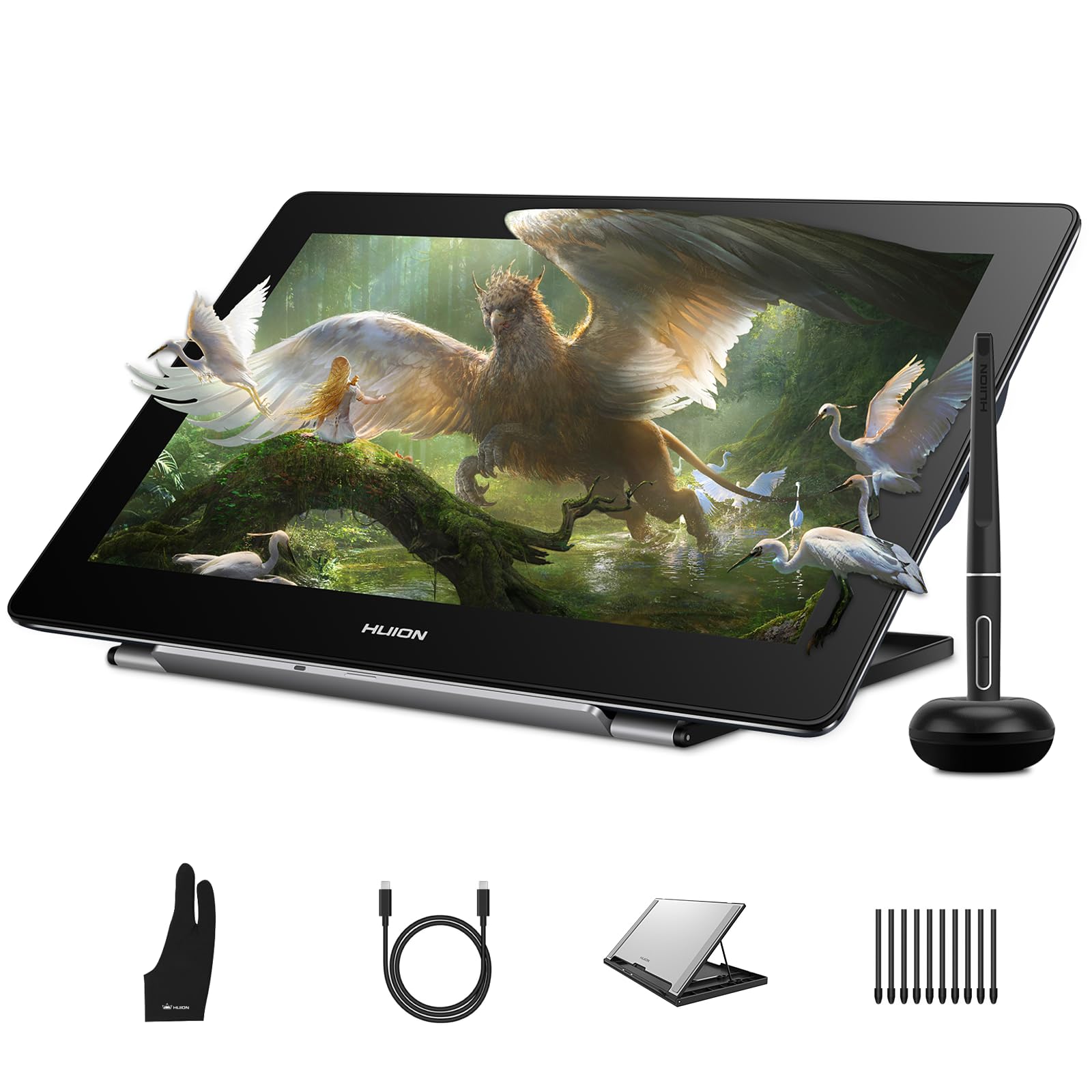
The Huion Kamvas Pro 16 4K is the only model in this roundup with a true 3840×2160 UHD resolution on a 15.6-inch panel, delivering a pixel density of 282 PPI. That sharpness makes a visible difference in photo retouching, where individual skin pores and texture details snap into focus, and in 3D modeling wireframes. The 120% sRGB color gamut with 16.7 million colors at 8-bit depth ensures smooth gradients without banding.
The PW517 stylus with PenTech 3.0 achieves ±0.3mm accuracy with 8,192 pressure levels. The fully laminated anti-glare screen eliminates parallax effectively. Dual USB-C ports support plug-and-play connectivity across Windows, Mac, Linux, and Android (USB 3.1 DP 1.2), and the included adjustable stand offers ergonomic angles between 20 and 80 degrees. The tablet does not include the legacy 3-in-1 cable, so older computers without DP Alt Mode require a separate adapter.
The build quality is solid, with a silver aluminum chassis that dissipates heat well during long rendering sessions. The stand’s plastic hinge mechanism is the weakest component — it does not lock securely and can slip under heavy pen pressure. Users running Linux may need to configure the driver manually, but basic pen and display functions work out of the box on Ubuntu 20.04 LTS.
Why it’s great
- True 4K UHD 282 PPI resolution for ultra-fine detail work
- 120% sRGB with factory calibration for accurate color reproduction
- Dual USB-C ports support seamless switching between devices
Good to know
- No legacy 3-in-1 cable included; older computers need separate adapter
- Stand legs do not lock; may shift under aggressive pen strokes
8. Wacom Cintiq 16

The Wacom Cintiq 16 features a 16-inch IPS display with 2560×1600 WQXGA resolution, which is sharper than standard 1080p and close to 4K density without the GPU strain. The 99% DCI-P3 and 100% sRGB coverage with 8-bit color depth delivers professional-grade color fidelity. The Pro Pen 3 offers 8,192 pressure levels with tilt support and three customizable side switches, plus a pen holder that mounts to either side of the display.
Build-in fold-out legs provide a fixed 20-degree working angle without a separate stand. The anti-glare glass surface reduces reflections effectively, though some users note it introduces a slight “sparkle” effect on solid white backgrounds — the trade-off for reduced glare is acceptable for most. The USB-C connection supports DisplayPort Alt Mode and Thunderbolt 3/4, but the box does not include a mini-HDMI cable, which may be required for computers without DP Alt Mode.
The Cintiq 16 lacks programmable shortcut keys entirely, relying on the Pro Pen 3’s side switches and on-screen menus for tool access. This is a deliberate simplicity choice that some professionals appreciate and others find limiting. Wacom’s driver ecosystem is the most mature in the industry, with consistent updates and broad software support across Photoshop, Clip Studio Paint, Blender, and ZBrush.
Why it’s great
- 2560×1600 WQXGA resolution provides sharp detail without 4K GPU demands
- 99% DCI-P3 coverage with mature Wacom driver ecosystem
- Pro Pen 3 with customizable grips, weights, and side button plates
Good to know
- No built-in shortcut keys; all tool access is via pen buttons or on-screen menus
- Mini-HDMI cable not included; separate purchase may be required
9. Wacom Cintiq Pro 22

The Wacom Cintiq Pro 22 is the flagship pen display for creative professionals who demand uncompromising performance. The 21.5-inch Ultra HD 4K display (3840×2160) supports 10-bit color depth with 99% DCI-P3 and Adobe RGB coverage, delivering over a billion colors without banding. The 120Hz refresh rate eliminates cursor lag entirely, making brush strokes feel immediate and fluid — a noticeable upgrade from the 60Hz standard.
The Pro Pen 3 includes three side switches, customizable pen grips, and adjustable weight and center of balance, allowing each user to tune the pen feel to their preference. The 10-point multi-touch display supports gestures for zoom, pan, and rotate directly on the canvas. Eight ExpressKeys and adjustable on-screen menus provide shortcut access without external keyboards. The Easy Stand offers fixed-angle ergonomic positioning, though many professionals mount the display on a third-party arm for full flexibility.
Connectivity is comprehensive with USB-C (DP Alt Mode), USB-C data, USB-A, HDMI, and Mini DisplayPort inputs, ensuring compatibility across Windows, macOS, and Linux workstations. The fan noise is minimal at normal brightness levels, and the etched glass surface provides a paper-like drawing feel. The 11-pound weight and large footprint require dedicated desk space — this is not a portable device. The price reflects the industry-standard build quality, driver reliability, and color accuracy that animation studios and design agencies rely on.
Why it’s great
- 4K 120Hz display with 10-bit color for zero-lag, banding-free professional work
- Pro Pen 3 with fully adjustable weight, balance, and button configuration
- Industry-standard driver ecosystem with consistent cross-platform support
Good to know
- Large 11-pound device with dedicated desk space requirements
- Touch gestures can interfere with Canvas navigation in some apps; may need disabling
FAQ
Can I use a drawing tablet PC without a computer?
Do I need 16K pressure sensitivity or is 8K enough?
What cable do I need to connect a drawing tablet to my laptop?
Can I use a drawing tablet with a Chromebook or Android phone?
Is a drawing tablet PC better than an iPad for digital art?
Final Thoughts: The Verdict
For most users, the best drawing tablet pc winner is the XP-Pen Artist 13.3 Pro V2 because it combines 16K pressure sensitivity, cinema-grade 95% DCI-P3 color, and a metal build at a mid-range price that outspecs everything in its tier. If you want absolute portability for sketching on the go, grab the XPPen Artist 12 3rd Gen — its dual X-Dial wheels and 1.58-pound frame make it the most travel-friendly option. And for studio-grade color work where pixel density and 10-bit depth are non-negotiable, nothing beats the Huion Kamvas Pro 16 4K.

Mo Maruf
I created WellFizz to bridge the gap between vague wellness advice and actionable solutions. My mission is simple: to decode the research and give you practical tools you can actually use.
Beyond the data, I am a passionate traveler. I believe that stepping away from the screen to explore new environments is essential for mental clarity and physical vitality.