Our readers keep the lights on and my smoothie glass nicely filled. As an Amazon Associate, I earn from qualifying purchases.
Your laptop’s single USB-C port is a bottleneck. It forces you to choose between charging, connecting a monitor, or transferring files — a juggling act that kills productivity. A proper USB-C docking station turns that one port into a command center, letting you run dual monitors, wired Ethernet, and multiple peripherals through a single cable connection.
I’m Mohammad Maruf — the founder and writer behind WellFizz. I analyze spec sheets, read hundreds of real user reports, and compare port configurations across dozens of models to find which hubs actually deliver on their promises without overheating or failing early.
best docking station usb c buyers need a dock that matches their laptop’s video output capabilities, delivers enough power for sustained work, and offers reliable data transfer at meaningful speeds.
How To Choose The Best Docking Station USB C
Every USB-C hub looks similar at a glance, but small differences in port specs, video protocol, and power output determine whether it will serve you for years or frustrate you within weeks. Focus on four factors — compatibility, display support, data speed, and power delivery — and you will avoid the most common buying mistakes.
DisplayPort Alt Mode Is Non-Negotiable
Your laptop’s USB-C port must support DisplayPort Alternate Mode (or Thunderbolt 3/4/5) for any video output to pass through the dock. If your device lacks this feature, an HDMI port on the hub will do nothing. Check your laptop’s specs before buying — entry-level Chromebooks and some budget Windows ultrabooks often omit DP Alt Mode entirely.
Video Resolution and Monitor Count
Single-monitor docks cap at 4K@60Hz through one HDMI or DisplayPort. Dual-monitor docks split bandwidth: both ports may run 4K@60Hz if the laptop supports DisplayPort 1.4, or one may drop to 4K@30Hz if limited to DP 1.2. For Mac users, most USB-C docks mirror the same image across external displays unless the hub uses DisplayLink technology, which enables extended dual monitors on M-series Macs.
Power Delivery and Device Charging
Look for 85W to 100W power delivery if you want to keep a 13- to 16-inch laptop charged under full load. Lower PD ratings — 60W or below — can slowly drain a laptop during heavy video or processing work. The hub itself also draws power, so any dock advertised with 100W input typically delivers around 87W to the laptop, with the remainder powering the hub and connected peripherals.
Data Transfer Speeds
A dock may list both USB 3.1 and USB 2.0 ports. The 3.1 ports run at up to 10 Gbps — essential for external SSDs and large file transfers. The 2.0 ports cap at 480 Mbps, which is fine for a mouse or keyboard but painfully slow for storage. Confirm the total number of high-speed ports before buying, especially if you move large media files regularly.
Quick Comparison
On smaller screens, swipe sideways to see the full table.
| Model | Category | Best For | Key Spec | Amazon |
|---|---|---|---|---|
| Anker Nano 13-in-1 | Modular | Home office with modular needs | Detachable 6-in-1 hub, 100W PD | Amazon |
| Plugable UD-6950PDH | Mac DisplayLink | M-series Mac dual extended monitors | DisplayLink, dual 4K@60Hz | Amazon |
| Anker Prime 14-Port | High-Power | Heavy multi-device charging | 160W total output, smart display | Amazon |
| Acer 11-in-1 | Triple Display | Triple monitor Windows setups | 8K DP, dual HDMI 4K@60Hz | Amazon |
| VVB 14-in-1 | Value | Dual monitor Dell/HP setups | 2x HDMI+DP, 100W PD | Amazon |
| Selore 14-in-1 | Windows Workhorse | Triple display on Windows | 3x 10Gbps USB-A/C, VGA | Amazon |
| Anker 7-in-1 | Essential | Light travel and basic connectivity | 4K@30Hz HDMI, 85W PD | Amazon |
In‑Depth Reviews
1. Anker Nano 13-in-1 Laptop Docking Station
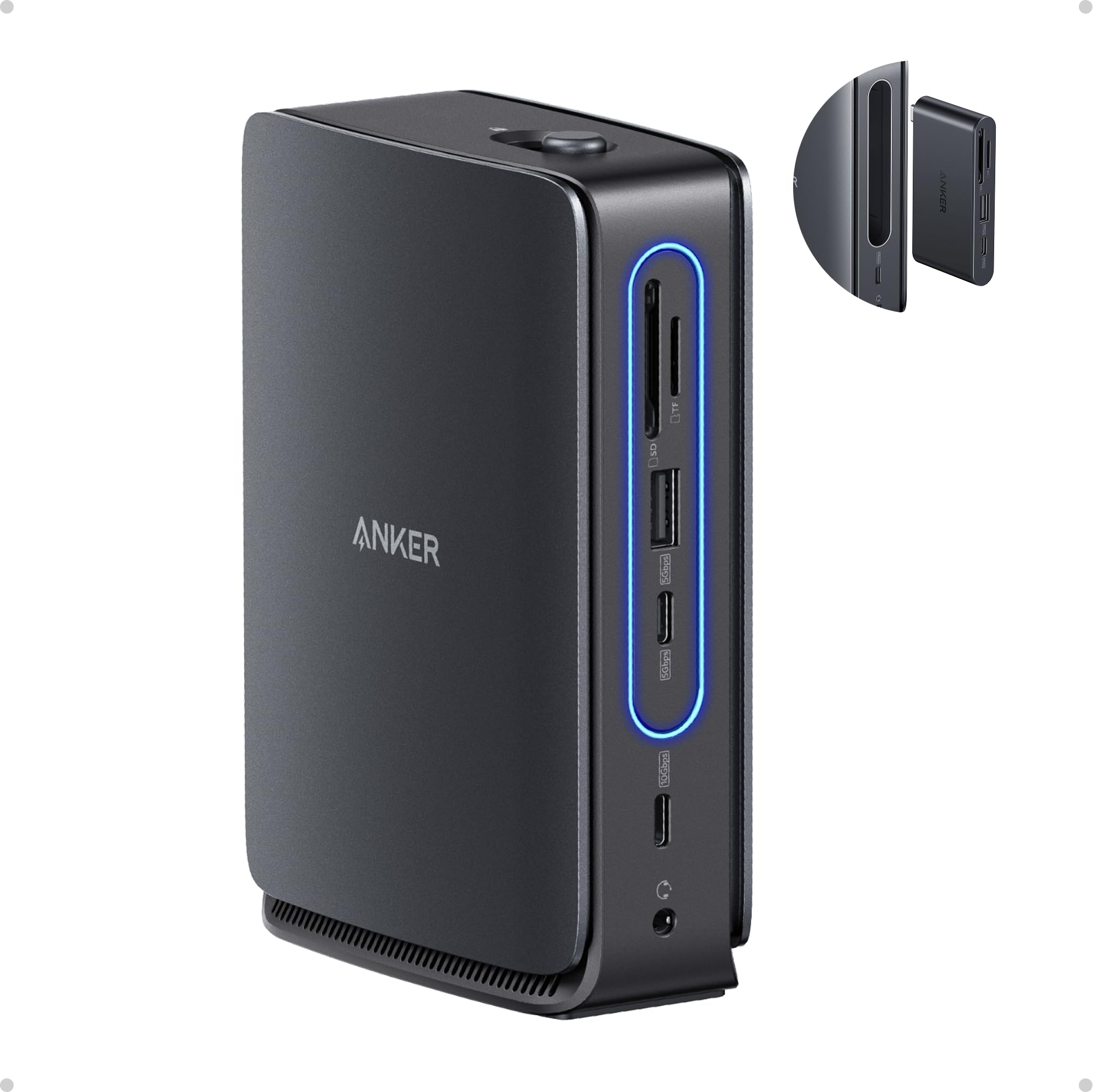
What sets the Nano apart is its detachable 6-in-1 hub that snaps off from the main base, giving you a portable adapter for travel without leaving your entire desktop setup behind. The main dock provides triple-screen output through two HDMI ports and one DisplayPort, supporting up to 4K resolution across all three when used with a DP 1.4 Windows laptop. On macOS, the external monitors mirror identical content, but the flexibility of having a modular system is unmatched in this price tier.
Power delivery reaches 100W to the laptop while the dock itself accepts up to 140W input from the included adapter, ensuring stable power even with multiple peripherals drawing current. The three USB-A ports and two USB-C data ports all run at 10 Gbps, making large file transfers fast. The dock stays cool under load according to user reports, and the detachable hub includes an extra HDMI and USB-C port for quick mobile use.
The all-plastic construction feels lighter than premium aluminum docks, and the mini hub disconnects too easily if bumped. Setup is plug-and-play on Windows and ChromeOS without drivers, but macOS users should note the mirroring limitation. For Windows users who want a flexible two-in-one system, this is the most thoughtful design available.
Why it’s great
- Detachable hub doubles as a travel adapter
- Triple 4K monitors on DP 1.4 Windows laptops
- Cools well even under sustained load
Good to know
- Plastic build feels less premium than metal docks
- Mini hub dislodges easily when bumped
- MacOS mirrors displays only
2. Plugable UD-6950PDH

This is the dock that solves Apple’s artificial display limitation. MacBooks with M1, M2, M3, M4, and M5 chips natively support only one external monitor, but the Plugable uses DisplayLink technology to drive two extended 4K displays at 60Hz each. You install a free driver, connect the dock, and suddenly your MacBook Air or entry-level MacBook Pro runs a three-screen setup including the built-in display.
The aluminum housing in space gray matches Apple’s aesthetic, and the 14-in-1 port selection includes two HDMI ports, one DisplayPort, front-facing USB-C and USB-A for easy access, three additional USB 3.0 ports, SD and microSD readers, a 3.5mm headset jack, and gigabit Ethernet. Power delivery delivers up to 100W to the laptop, and users confirm the dock handles gaming and streaming without lag on Windows and macOS.
The biggest catch is the driver requirement — it is not plug-and-play on Mac, and some users initially miss the software step. HDCP is not supported, so copy-protected video content cannot play through the dock. The unit also lacks a few USB ports compared to competitors, but for Mac users who demand real dual extended monitors, this is the proven solution.
Why it’s great
- Enables dual extended 4K displays on M-series Macs
- Premium aluminum build matches Apple gear
- Works seamlessly with Windows and Surface, too
Good to know
- Requires DisplayLink driver installation on Mac
- HDCP not supported for copy-protected content
- Fewer USB ports than some 14-in-1 competitors
3. Anker Prime Docking Station

Anker’s Prime dock targets users who charge multiple devices simultaneously. The total 160W output splits across three USB-C ports delivering up to 100W each and one USB-A port at 12W — enough to charge a laptop, tablet, and phone all at once without slowing the laptop charge. A built-in front screen displays real-time power draw per port, giving you visibility into which device is pulling the most wattage.
The 14-in-1 configuration includes two HDMI ports supporting dual 2K@60Hz displays on DP 1.4 laptops, three USB-C data ports, five USB-A ports, an audio jack, and gigabit Ethernet. All data ports run at up to 10 Gbps. The dock works plug-and-play on Windows and ChromeOS without drivers, and it stays cool to the touch even under extended load. Users report stable network performance and crystal-clear 1080p at 120Hz video output.
The price is significantly higher than mid-range docks, and there is no SD card slot or DisplayPort — a surprising omission at this tier. The dual HDMI output delivers 2K resolution but not full 4K, which limits value for 4K monitor owners. For professionals who prioritize charging speed and real-time power monitoring over maximum video resolution, the Prime delivers unmatched convenience.
Why it’s great
- 160W total output charges laptop, tablet, and phone together
- Front display shows live power draw per port
- Completely plug-and-play on Windows and ChromeOS
Good to know
- No SD card reader or DisplayPort
- Dual displays capped at 2K@60Hz, not 4K
- Premium price requires clear need for multi-device charging
4. Acer 11-in-1 USB C Docking Station
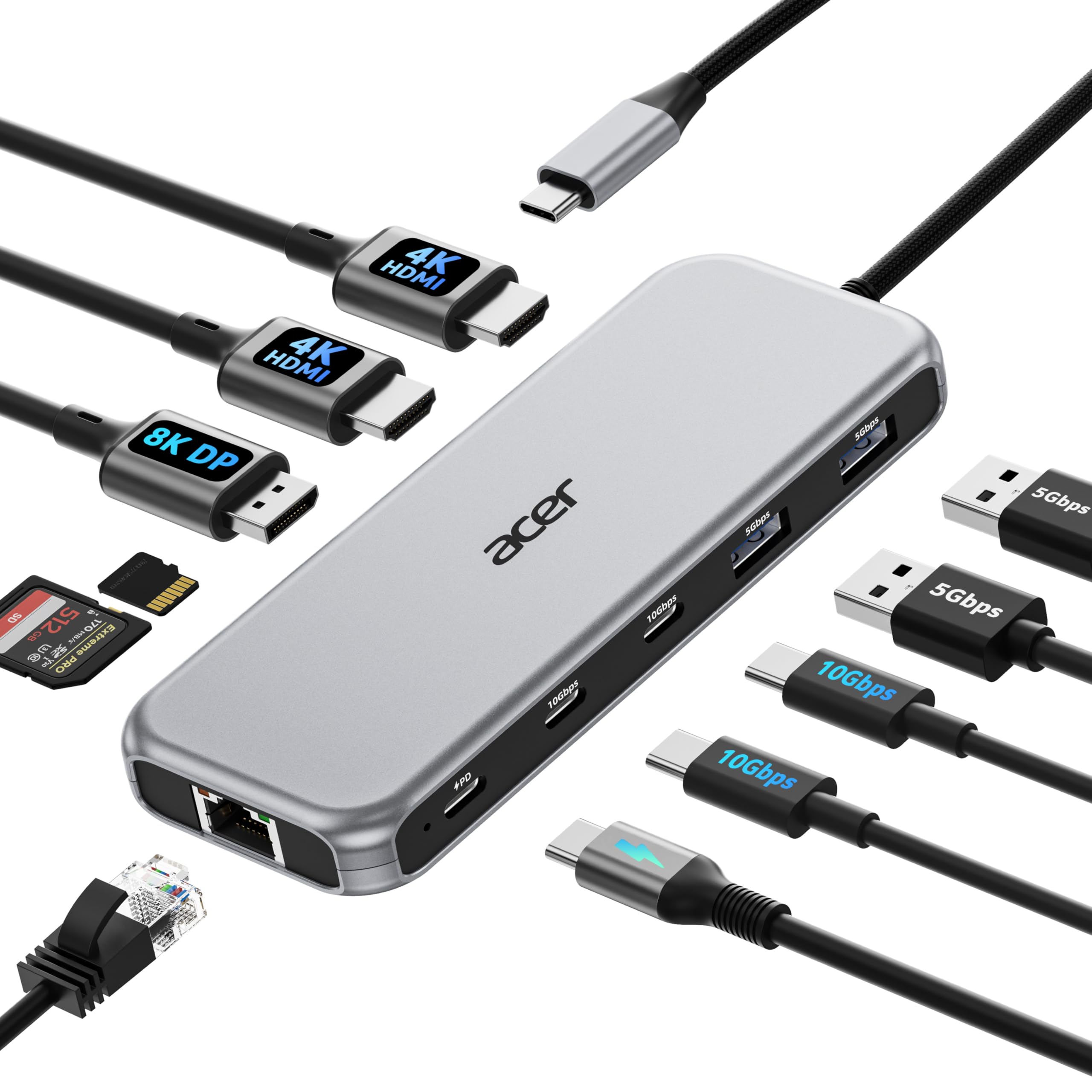
Acer’s dock stands out for its DisplayPort 8K@30Hz output — rare at this price point. The port layout includes two HDMI ports supporting 4K@60Hz each, one DisplayPort, two USB-C ports at 10 Gbps, two USB-A ports at 5 Gbps, gigabit Ethernet, and SD/MicroSD card slots. When running triple displays on a DP 1.4 Windows laptop, the system automatically allocates resolutions based on each monitor’s EDID, typically delivering 4K@60Hz plus 4K@60Hz plus 1080P@60Hz.
Power delivery reaches 100W input with 85W safely delivered to the laptop. Users confirm the dock runs warm — but less warm than many Dell docks — and that the 9-inch hardwired cable is unusually short. Acer’s customer service has offered full refunds to customers who found the cable length problematic. Setup is truly plug-and-play with no driver installation needed on Windows or macOS.
Early quality issues appear in user reports: one buyer received a unit with non-functional USB-A ports after a month, though the return process was straightforward. The plastic enclosure feels solid but not luxurious. For Windows users who want 8K DisplayPort capability and triple monitors without spending premium money, this dock punches above its tier.
Why it’s great
- DisplayPort supports 8K@30Hz output
- Triple display setup with auto resolution allocation
- Generous port selection at mid-range pricing
Good to know
- Hardwired 9-inch cable is very short
- Mixed reliability reports on USB-A ports
- Runs warmer than some aluminum competitors
5. VVB 14-in-1 USB C Laptop Docking Station

VVB packs a 14-in-1 configuration into an aluminum housing at a surprisingly accessible price point. The port selection includes two HDMI ports, one DisplayPort, two USB-A 3.1 ports at 10 Gbps, two USB 2.0 ports, one USB-C data port, one USB-C 2.0 port, a 100W PD pass-through, gigabit Ethernet, SD/MicroSD reader, and a 3.5mm audio jack. The dual monitor support runs at 4K@30Hz and 1080P@60Hz on DP 1.4 systems, which is adequate for office productivity but not ideal for video editors.
Power delivery input reaches 100W with safe output capped at 87W. Users report the dock is compact and keeps desk clutter low, with easy plug-and-play setup on Windows laptops from Dell, Lenovo, and HP.
A critical warning: multiple users report the HDMI outputs failing after a few weeks or months, though the seller generally offers full refunds after issues surface. The included USB-C cable is also shorter than ideal for desktop use. For budget-conscious buyers who need dual monitors and are willing to test the unit immediately, the VVB offers strong specs on paper but inconsistent long-term reliability.
Why it’s great
- Aluminum build feels premium for the price
- 14 ports including DisplayPort and audio jack
- Compact footprint saves desk space
Good to know
- HDMI failures reported within first weeks
- Short USB-C cable limits desk layout options
- Dual monitor resolution capped at 4K@30Hz
6. Selore 14-in-1 USB C Docking Station

Selore differentiates itself by including a VGA port alongside dual HDMI outputs, making it compatible with older projectors and monitors still common in conference rooms and schools. The triple-display mode works only on Windows laptops with DP 1.4 support, offering three different screens simultaneously. MacBooks mirror the same image across all connected displays.
The port selection includes three 10 Gbps USB-A/C ports — a standout feature at this tier — plus two USB 2.0 ports for slower peripherals, SD/MicroSD readers, gigabit Ethernet, a 3.5mm audio jack, and 100W PD input with 87W safe output to the laptop. Users consistently praise the straightforward plug-and-play experience and the ability to plug a keyboard, mouse, monitor, and charging cable without any configuration.
The plastic enclosure does not feel as durable as aluminum competitors, and several users report that the unit’s electronics tend to degrade after 12 to 18 months of regular use. The VGA port tops out at 1080P, which is fine for legacy projectors but not for modern high-resolution displays. For Windows users who need VGA compatibility and value multiple high-speed USB ports, the Selore is a capable choice if you accept the shorter expected lifespan.
Why it’s great
- VGA port works with older monitors and projectors
- Three 10Gbps USB-A/C ports for fast file access
- Triple display support on Windows DP 1.4 laptops
Good to know
- Plastic build feels less substantial than metal hubs
- Electronics may degrade after 12 to 18 months
- VGA output limited to 1080P resolution
7. Anker 7-in-1 USB C Hub
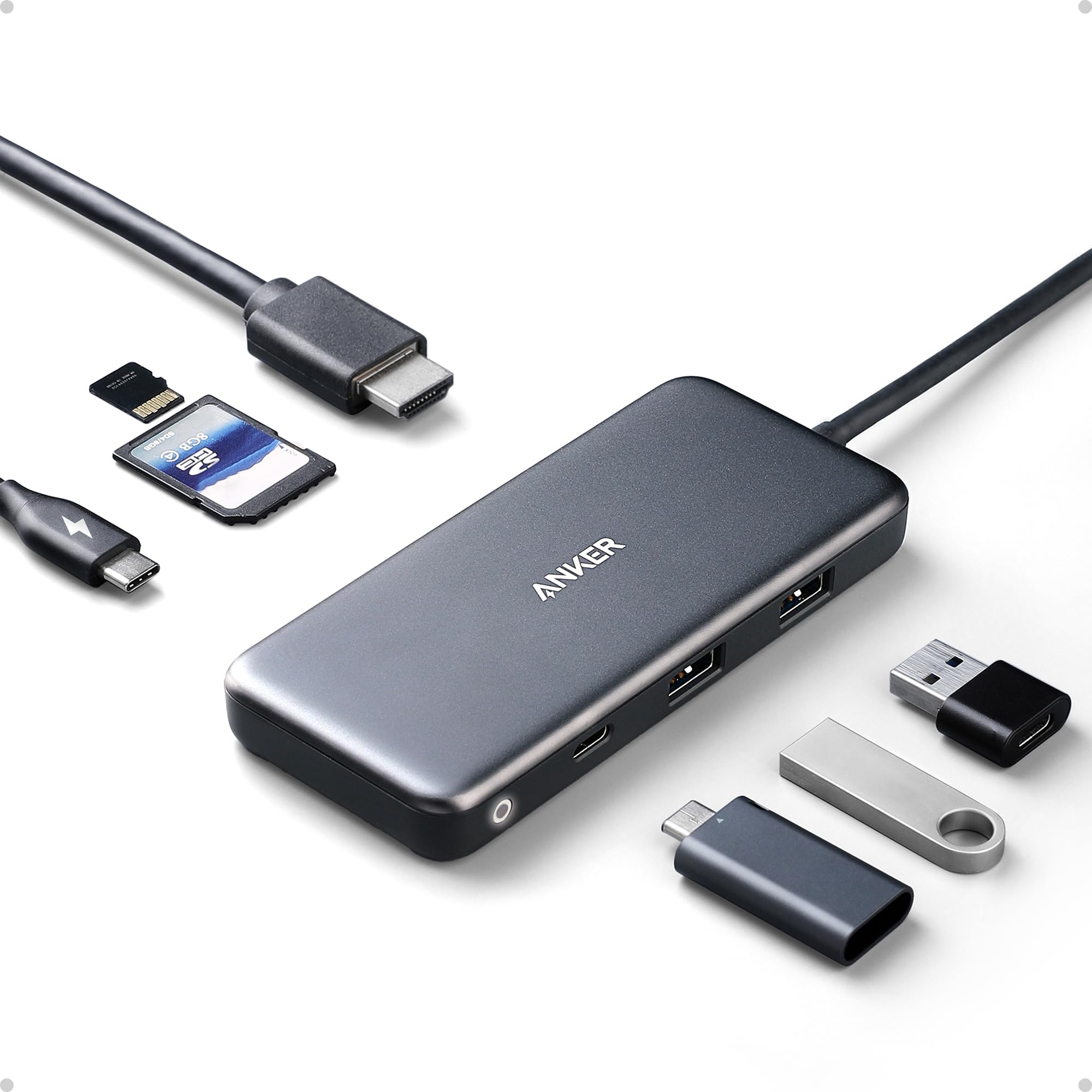
Anker’s 7-in-1 hub is the lightest and most portable option here, weighing just 0.22 pounds and slim enough to slide into a laptop sleeve. The port selection covers the essentials: one 4K@30Hz HDMI output, one USB-C data port, two USB-A ports at 5 Gbps, and SD/MicroSD card readers. The 85W power delivery pass-through keeps a MacBook Pro or Dell XPS charged during normal workloads, though the hub lacks a separate power adapter — you must provide your own 100W USB-C charger.
User reports highlight exceptional durability: one reviewer used the hub for three-plus years through drops, scratches, and even a brief dunk in water, and it still worked. The hub supports multiple devices — iPad, Android tablets, external drives, HDMI projectors — without configuration. Anker’s brand reliability means compatibility with most USB-C laptops is near-universal.
The 4K@30Hz HDMI output is fine for presentations and secondary monitors but will feel sluggish for gaming or video editing where 60Hz matters. The data ports cap at 5 Gbps rather than 10 Gbps, so large file transfers are slower than with mid-range competitors. For travelers and students who need a compact, bombproof hub for basic connectivity, this remains a top choice.
Why it’s great
- Extremely durable — proven after years of abuse
- Ultra-light and pocket-friendly design
- Reliable plug-and-play across Mac and Windows
Good to know
- HDMI limited to 4K@30Hz, not 60Hz
- Data speed maxes out at 5 Gbps
- Requires buying a separate USB-C power adapter
FAQ
Does my laptop need Thunderbolt 3 for a USB-C dock to work?
Why do some dual monitor docks only mirror my Mac display?
Can I use a USB-C dock with an iPad or Android tablet?
How much power does a USB-C dock draw when idle?
Final Thoughts: The Verdict
For most users, the best docking station usb c winner is the Anker Nano 13-in-1 because the detachable hub gives you a full desktop dock and a portable adapter in one unit, with triple 4K display support and robust 100W power delivery. If you use a MacBook with an M-series chip and need two extended monitors, grab the Plugable UD-6950PDH — it is the only reliable way to bypass Apple’s single-display limit. And for users who charge a laptop, tablet, and phone simultaneously while monitoring power draw, nothing beats the Anker Prime 14-Port with its 160W total output and live power display.

Mo Maruf
I created WellFizz to bridge the gap between vague wellness advice and actionable solutions. My mission is simple: to decode the research and give you practical tools you can actually use.
Beyond the data, I am a passionate traveler. I believe that stepping away from the screen to explore new environments is essential for mental clarity and physical vitality.