Our readers keep the lights on and my smoothie glass nicely filled. As an Amazon Associate, I earn from qualifying purchases.
An architecture mouse is not a luxury; it is a daily tool that determines whether your wrist survives a 5-hour Revit session or quits before lunch. The wrong shape, sensor, or button layout introduces cumulative strain that no software update can fix, making the choice of pointer one of the most consequential hardware decisions a designer makes.
I’m Mohammad Maruf — the founder and writer behind WellFizz. I analyze consumer hardware specifications to separate genuine ergonomic engineering from marketing fluff, and I have evaluated over 60 pointing devices across vertical, trackball, and CAD-native categories to understand what truly reduces fatigue during extended modeling work.
This guide examines seven carefully selected options and explains the specific design decisions, sensor capabilities, and button configurations that matter most, so you can confidently choose the best architecture mouse for your workflow and workstation.
How To Choose The Best Architecture Mouse
Choosing an architecture mouse requires balancing three competing demands: sustained comfort during extended modeling, precise cursor control for fine selection and orbit, and button configurability to reduce repetitive keystrokes. The following criteria are non-negotiable for daily CAD use.
Ergonomic form and hand orientation
The most important single factor is how the mouse positions your forearm, wrist, and hand. A traditional flat mouse forces forearm pronation, twisting the radius bone over the ulna. A vertical grip — between 57 and 70 degrees — maintains a neutral handshake posture. For architecture work lasting four or more hours, this geometry directly determines whether you develop discomfort. Trackball mice offer a different approach: they keep your hand stationary while your thumb or fingers roll the ball, eliminating all arm and wrist movement for cursor control.
Sensor resolution and polling rate
A standard office mouse with 1000 DPI feels imprecise when you are trying to snap a vertex or select a thin wall section in plan view. Look for at least 4000 DPI with adjustable CPI steps so you can slow the cursor for detailed work and speed it up for broad navigation. Polling rate — how often the mouse reports its position to the computer — should be 500 Hz or higher. At 1000 Hz the cursor appears buttery smooth during orbit maneuvers, which reduces micro-adjustments and the muscle tension they cause.
Button count and middle-click substitution
CAD software relies heavily on the middle mouse button for orbit and pan. On many mice the scroll-wheel click is stiff and fatiguing after repeated use. Dedicated middle-click buttons — either a third physical button or a programmable side button — eliminate that strain entirely. Minimum viable button count for architecture work is five: left, right, middle, forward, and back. Seven or more gives you room to assign view commands, undo, or object snap toggles without touching the keyboard.
Quick Comparison
On smaller screens, swipe sideways to see the full table.
| Model | Category | Best For | Key Spec | Amazon |
|---|---|---|---|---|
| 3Dconnexion CadMouse Pro Wireless | CAD Native | All-day Revit and AutoCAD precision | 7200 DPI optical sensor, 7 buttons | Amazon |
| Razer Pro Click V2 Vertical | Vertical | Hybrid productivity with wrist relief | Focus Pro 30K sensor, 6 buttons | Amazon |
| 3Dconnexion SpaceMouse Wireless | 3D Controller | 6-DOF orbit in complex 3D models | Rechargeable, 1 month battery | Amazon |
| ELECOM Huge Plus Trackball | Finger Trackball | Zero wrist movement cursor control | 52mm ball, 10 buttons, 5 months battery | Amazon |
| Evoluent VMDLW Vertical Large | Vertical | Large hands and chronic wrist strain | 6 buttons, 4 DPI levels, pinky support | Amazon |
| Logitech Lift for Mac Vertical | Compact Vertical | Small-to-medium hands, silent office | 57-degree angle, 24-month battery | Amazon |
| Logitech Ergo M575S Trackball | Thumb Trackball | Compact desk and travel or casual CAD | Thumb control, 18-month battery | Amazon |
In‑Depth Reviews
1. 3Dconnexion CadMouse Pro Wireless
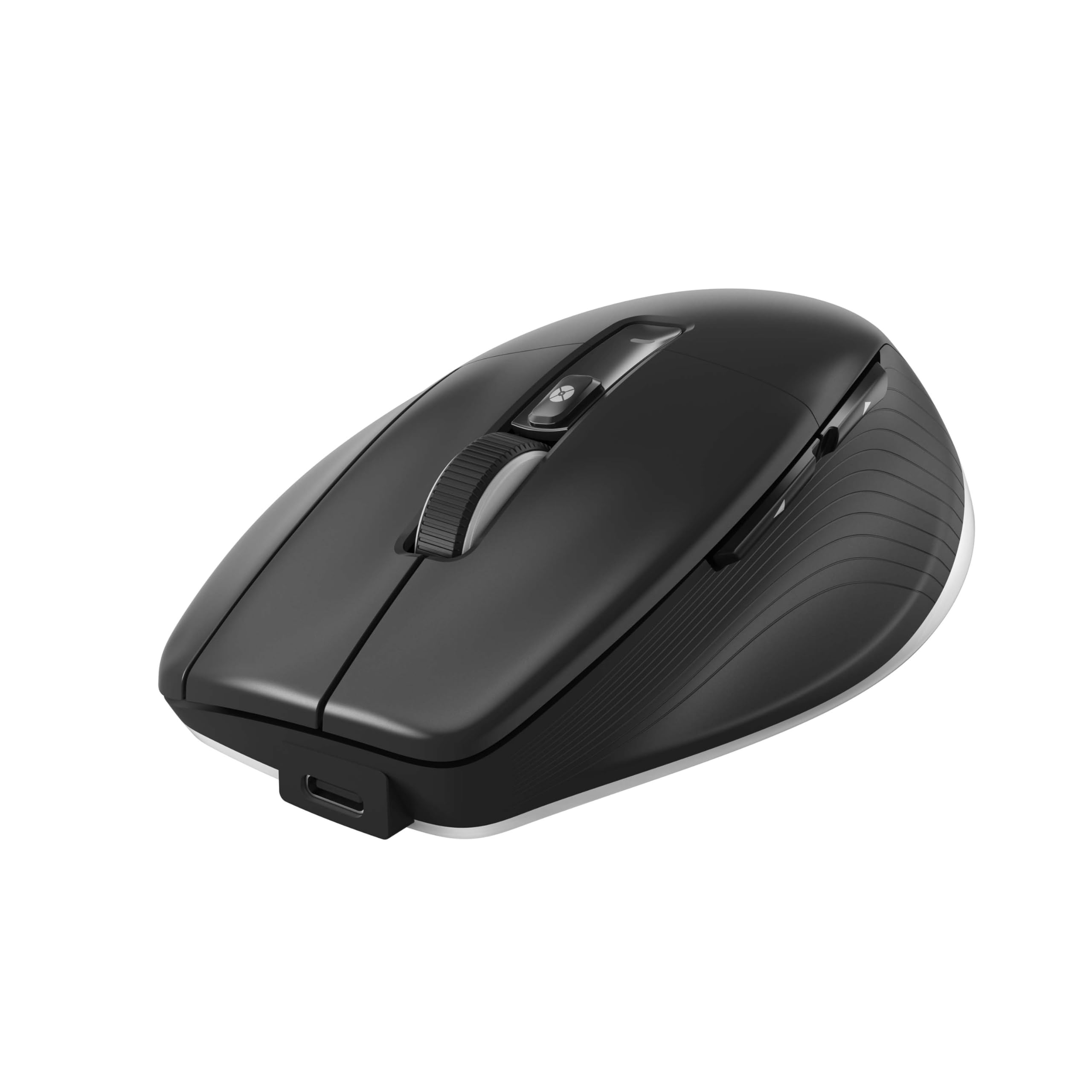
The CadMouse Pro Wireless is the only pointing device engineered specifically for CAD workflows rather than adapted from gaming or office designs. Its 7200 DPI optical sensor delivers resolution that makes fine vertex snapping feel instantaneous, and the 7-button layout includes a dedicated middle-click button that entirely eliminates the need to press the scroll wheel for orbit and pan — a critical feature for anyone who has felt that stiff wheel click after a hundred orbits during a single model review.
The smart mouse wheel offers two scrolling modes: a free-spin for rapid document navigation and a detented mode for precise step-through in layer panels. The USB-C charging works with a braided cable that does not drag, and the mouse supports 2.4 GHz RF and Bluetooth, allowing you to switch between a desktop workstation and a laptop on site without re-pairing. The glossy finish is the only surface that requires occasional wiping, but the tracking consistency across different desk materials is reliable.
Users report that the driver software unlocks full CAD macro assignment, but the mouse works correctly out of the box on Windows 11 without additional configuration. The battery lasts approximately two months under daily use, and the charging cycle is fast enough that a lunch break plug-in prevents any downtime. For architects who spend more than six hours a day in modeling software, the CadMouse Pro Wireless earns its position as the primary pointer because every button and sensor decision was made with your exact use case in mind.
Why it’s great
- Full-size middle-click button prevents scroll wheel strain
- 7200 DPI sensor provides precise control for selection and snapping
- Smart wheel with free-spin and detent modes for versatile scrolling
Good to know
- Glossy finish attracts fingerprints and may feel slick
- Battery life shorter than vertical options at about two months
2. Razer Pro Click V2 Vertical

The Razer Pro Click V2 Vertical brings genuine vertical ergonomics — a natural handshake angle that keeps your forearm untwisted — combined with the highest sensor resolution in this roundup. The Focus Pro 30K Optical Sensor tracks on glass with 99.8 percent resolution accuracy, which means no cursor skips even when you are working on a reflective desk surface or a glass overlay. With 1000 Hz polling, orbit movements in Rhino or SketchUp appear fluid without the micro-stutter that lower polling rates can introduce during fast rotations.
The six-button layout includes a dedicated middle-click button, which is essential for avoiding the scroll wheel during CAD operation. The magnetic dongle tray is a thoughtful detail that reduces the chance of losing the 2.4 GHz receiver. Razer Synapse software allows deep customization, including the ability to assign Ctrl+Z or object snap toggles to the side buttons, and the optional AI prompt feature — while not CAD-specific — shows the software platform’s flexibility. The battery life of up to six months is realistic with mixed usage; at 1000 Hz polling you will see closer to six weeks, which is still strong for a wireless mouse.
The vertical shape works best for medium-to-large hands; users with smaller hands may find the Logitech Lift more proportional. The thumb buttons are positioned such that accidental back/forward presses happen during the first week of adjustment, but most users adapt within a few sessions. For architects who want wrist relief without sacrificing sensor performance, the Pro Click V2 delivers a rare combination of comfort and gaming-grade tracking in a productivity-oriented shell.
Why it’s great
- 30K optical sensor tracks flawlessly on glass surfaces
- 1000 Hz polling for smooth and responsive cursor movement
- Dedicated middle-click button spares the scroll wheel
Good to know
- Thumb buttons may cause accidental back/forward presses initially
- AI feature irrelevant for CAD; software customization is the real value
3. 3Dconnexion SpaceMouse Wireless

The SpaceMouse Wireless is not a replacement for your primary mouse; it is a second controller that handles what a mouse does poorly — simultaneous six-degree-of-freedom navigation. By pushing, pulling, tilting, and twisting the cap, you can orbit, zoom, and pan your 3D model in a single fluid motion without switching tools or holding down the middle mouse button. For architects working in Revit, SketchUp, or Rhino, this transforms the navigation experience from a series of discrete clicks into a continuous spatial exploration.
The wireless edition connects via Bluetooth or a 2.4 GHz dongle, and the rechargeable battery lasts roughly one month between charges — less if you use the dongle at higher polling rates. The heavy, grippy base keeps the unit planted on your desk, and the included carry case makes it portable enough to bring between the office and home workstation. The two programmable side buttons are mapped to common commands out of the box, but the 3Dconnexion software allows you to assign virtually any keyboard shortcut or macro to them. Users who map Ctrl to a side button in Solidworks report that it dramatically speeds up selection workflows.
The learning curve is real: most users need about a week to move from conscious effort to instinctual use. After that adjustment period, the SpaceMouse makes orbiting a complex assembly feel like rotating an object in your hand rather than manipulating it through discrete clicks and scrolls. For any architect who spends significant time navigating 3D models, this peripheral reduces cognitive load and physical motion in ways a traditional mouse alone cannot achieve.
Why it’s great
- One-handed 6-DOF navigation reduces repetitive mouse orbit clicks
- Heavy base and grippy bottom keep it stable during use
- Comes with a durable carry case for transport between workspaces
Good to know
- Requires one week of adjustment before navigation becomes instinctual
- No onboard storage for the USB dongle, which risks loss during travel
4. ELECOM Huge Plus Wireless Trackball
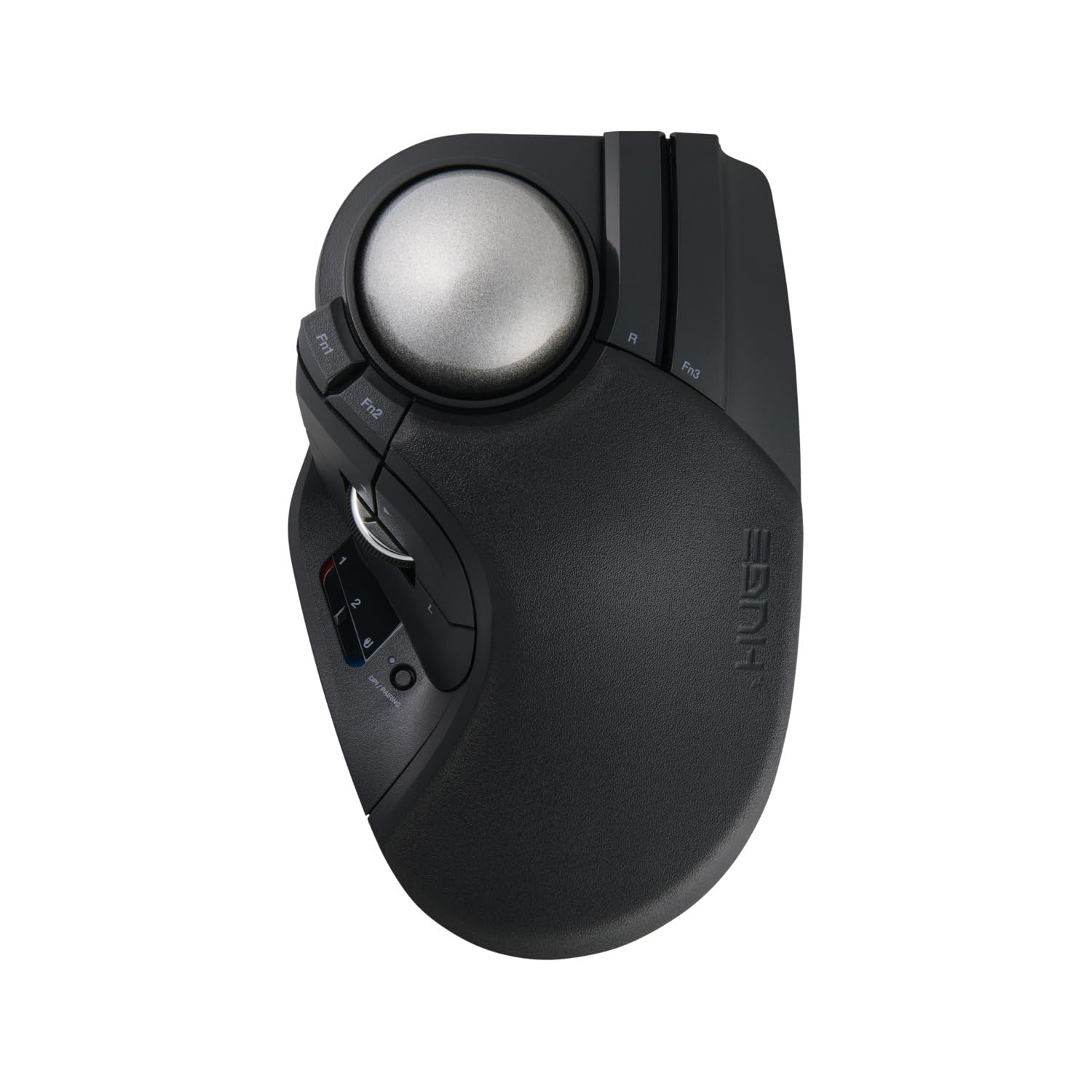
The ELECOM Huge Plus is a finger-operated trackball with a 52 mm ball that allows you to control the cursor using your index, middle, and ring fingers while your hand remains completely stationary. For architects who already experience wrist or forearm discomfort from traditional mice, this design eliminates all arm movement from cursor positioning. The ball glides on user-swappable MinebeaMitsumi steel bearings — included with the unit — that eliminate the stiction and sticking that plague cheaper trackballs. Users can upgrade to ruby bearings for even lower friction.
The ten programmable buttons offer more customization than any other device in this roundup. You can assign orbit to a left-hand button, pan to a right-hand button, and still have room for undo, redo, and layer toggle without ever reaching for the keyboard. The tri-mode connectivity (Bluetooth, 2.4 GHz, and wired USB-C) lets you switch between three devices instantly, making it practical for architects who move between a desktop workstation and a laptop or tablet during site visits. The silent clicks and rechargeable lithium-ion battery — lasting up to 5 months per charge — make it suitable for shared office environments where noise is a concern.
The aggressive slope of the ergonomic shell may feel unfamiliar for the first few days, and users with very large hands may find that the palm rest sits too low — some have 3D-printed palm support attachments to address this. At 125 Hz polling over wireless, the cursor feels slightly less smooth than a 1000 Hz wired connection, but switching to USB-C wired mode resolves this for gaming or ultra-precise modeling tasks. For architects who want a trackball that prioritizes smoothness and customizability, the Huge Plus is the current benchmark.
Why it’s great
- Large 52mm ball with swappable steel bearings eliminates stiction
- Three connectivity modes allow seamless device switching
- Silent clicks and rechargeable battery suit quiet office environments
Good to know
- Aggressive ergonomic slope may have limited palm support for larger hands
- Wireless polling at 125 Hz; switch to wired for smoother cursor response
5. Evoluent VMDLW Vertical Mouse Large

Evoluent invented the vertical mouse in 1994, and the VMDLW model represents over three decades of iterative refinement focused on a single goal: eliminating wrist strain by maintaining a neutral handshake position. The large size is genuinely large — it accommodates hands that feel cramped in Logitech or Razer vertical offerings. The pinky support is a unique feature that prevents your smallest finger from dragging against the desk, a source of irritation that becomes noticeable only after hours of use.
The six-button layout includes a DPI toggle on top with four adjustable speed levels, controlled by a dedicated button and indicated by LEDs — no software required for basic operation. The optional Evoluent Mouse Manager software unlocks extensive customization for Windows users, including screen brightness control, button reassignment, and application-specific profiles. The wireless receiver uses standard USB-A, and the AA battery provides approximately one month of daily use, depending on the surface and speed settings.
Users report that the vertical angle eliminates wrist pain that other mice could not address, though the glossy plastic surface causes some hand slippage during extended use — several users have added friction tape to the thumb groove area. The sensor requires a mouse pad for consistent tracking on glossy or uneven desks; it does not track on glass. For architects with larger hands who have not found relief from other vertical designs, the Evoluent VMDLW addresses that specific ergonomic gap better than any alternative, provided you pair it with a suitable mouse pad.
Why it’s great
- Pinky support prevents finger drag during extended pointer movement
- Large size accommodates bigger hands that smaller vertical mice cannot
- Onboard DPI button and indicator lights require no software for speed adjustment
Good to know
- Glossy plastic surface can cause hand slippage during longer sessions
- Requires a mouse pad; does not track reliably on glass or reflective surfaces
6. Logitech Lift for Mac Vertical

The Logitech Lift for Mac is a small-to-medium-handed architect’s entry into vertical ergonomics without the bulk of larger vertical mice. Its 57-degree angle places your hand in a natural handshake position while the sculpted rubber side grip provides a secure hold even during fast movements. The primary selling point is the sound profile: every click is whisper-quiet, and the magnetic SmartWheel scrolls silently with no tactile detent, making this the best choice for shared studio environments where noise from clicking and scrolling distracts colleagues.
Connectivity is Bluetooth-only, which means no receiver to lose — a welcome simplification for MacBook Pro and iMac users. The mouse remembers up to three paired devices and switches between them with a single button press. The single AA battery lasts up to 24 months, which is exceptional for a wireless vertical mouse, and the 54 percent post-consumer recycled plastic construction aligns with sustainability goals often present in architecture firms. The four customizable buttons — left, right, middle, and a gesture button — are sufficient for basic CAD shortcuts but fall short for heavy macro users who need more physical inputs.
The vertical shape requires a short adjustment period, typically two to three days, after which most users report reduced forearm tension compared to a flat mouse. The lack of a dongle eliminates receiver-related connectivity issues, but Bluetooth can introduce slight latency that is noticeable during rapid orbit movements in demanding 3D scenes. For architects with small-to-medium hands who value silence and a smaller footprint, the Lift delivers reliable ergonomic improvement at a mid-range investment, though power users may want more buttons.
Why it’s great
- Silent magnetic SmartWheel and quiet clicks suit noise-sensitive offices
- AA battery lasts up to 24 months, eliminating recharge anxiety
- Smart rubber side grip prevents slipping during precise movements
Good to know
- Bluetooth-only connection may introduce minor latency in demanding 3D scenes
- Four programmable buttons are limited for CAD users who need extensive macros
7. Logitech Ergo M575S Trackball

The Logitech Ergo M575S offers a thumb-operated trackball that lets you control the cursor by rolling the ball with your thumb while your hand rests in a sculpted palm cradle. For architects with limited desk space — think small studio desks, drafting tables, or even a lap workstation — this mouse eliminates the need to move your arm entirely. The trackball stays stationary; only your thumb moves. Logi Ergo Lab testing reports 25 percent less muscle strain in the forearm compared to a traditional mouse, and the design is validated by professional ergonomists.
The sculpted shape accommodates most hand sizes comfortably, and the quiet clicks reduce noise in shared spaces. Connectivity is flexible: Bluetooth or the included Logi Bolt USB receiver, with the ability to pair with two devices simultaneously. Battery life is an outstanding 18 months from a single AA battery, and the plastic construction uses 52 percent certified post-consumer recycled material. The Logi Options+ app allows customization of the three buttons and cursor speed, though the low button count limits macro-heavy workflows.
Thumb-operated trackballs have a steeper learning curve than finger-operated models because the thumb is less dexterous than the fingers for fine cursor movements. Architects who do precise vertex selection may find the thumb ball less accurate initially, though most adapt within a week. The Logi Bolt receiver is not backward-compatible with older Logitech Unifying receivers, so existing peripherals will require separate dongles. For maximum portability or a zero-arm-movement setup, the M575S is a reliable entry point into trackball ergonomics that requires minimal desk real estate.
Why it’s great
- Eliminates all arm movement, freeing desk space for drawing tablets or blueprints
- 18-month AA battery life is the longest of any mouse in this guide
- Quiet clicks and ergonomic certification from Logi Ergo Lab
Good to know
- Thumb-operated trackball has a steeper learning curve for fine cursor work
- Logi Bolt receiver is incompatible with older Unifying peripherals
FAQ
Is a vertical mouse or a trackball better for CAD work?
How many programmable buttons do I need for Revit or AutoCAD?
Can I use a gaming mouse for architecture software?
Final Thoughts: The Verdict
For most users, the best architecture mouse winner is the 3Dconnexion CadMouse Pro Wireless because its 7200 DPI sensor and dedicated middle-click button are engineered specifically for the repetitive orbit-and-select demands of CAD software, delivering precision without forcing your hand into an awkward grip. If you want wrist relief and a high-resolution tracking surface, grab the Razer Pro Click V2 Vertical. And for architects who navigate complex 3D models all day, nothing beats the 3Dconnexion SpaceMouse Wireless as a secondary controller that transforms spatial navigation into a fluid, one-handed experience.

Mo Maruf
I created WellFizz to bridge the gap between vague wellness advice and actionable solutions. My mission is simple: to decode the research and give you practical tools you can actually use.
Beyond the data, I am a passionate traveler. I believe that stepping away from the screen to explore new environments is essential for mental clarity and physical vitality.