Our readers keep the lights on and my smoothie glass nicely filled. As an Amazon Associate, I earn from qualifying purchases.
That single USB-C cable is supposed to simplify your desk. Instead, you end up juggling a tangle of adapters, hoping your monitors wake from sleep, and watching your laptop battery drain while you work. A proper docking station solves all of that — turning one port into a complete workstation with multiple displays, fast networking, and enough juice to keep your laptop charged all day.
I’m Mohammad Maruf — the founder and writer behind WellFizz. I’ve spent hundreds of hours analyzing port configurations, power delivery specs, and real-world compatibility data across dozens of docking stations to find the models that actually deliver on their promises.
Whether you need triple 4K monitors for trading or a simple dual-screen setup for spreadsheets, this guide breaks down the top contenders so you can pick the right best docking station for your specific laptop and workflow.
How To Choose The Best Docking Station
Not all docks handle the same workload. The right one depends on your laptop’s port capabilities, how many external monitors you need, and whether you value raw speed or sheer port quantity. Here are the three factors that matter most.
Monitor Support & Connection Standard
This is the biggest differentiator. A Thunderbolt 4 dock delivers native dual 4K 60Hz on Macs and Windows without extra software. DisplayLink docks bypass hardware limits — letting M-series Macs run three external displays — but require a driver install and can block DRM content like Netflix. USB-C Alt Mode docks are simpler but limited to one or two monitors depending on your laptop.
Power Delivery Output
Check the wattage your laptop demands under load. A 100W PD port is the standard for most 13- to 15-inch laptops, but heavy machines like gaming notebooks or mobile workstations may need up to 140W. If the dock can’t keep up, your battery drains even while plugged in. Always aim for at least 85W pass-through for reliable all-day charging.
Port Selection & Data Speeds
Count the ports you actually use daily. If you connect an external SSD, look for 10Gbps USB-C or USB-A ports. If you rely on wired networking, a 2.5Gbps Ethernet port is a noticeable upgrade over gigabit. SD card readers, 3.5mm audio jacks, and front-facing USB ports for quick device charging separate a good dock from a great one.
Quick Comparison
On smaller screens, swipe sideways to see the full table.
| Model | Category | Best For | Key Spec | Amazon |
|---|---|---|---|---|
| TobenONE DisplayLink | Premium | Triple 4K on Mac/Windows | 120W adapter, 6x video ports | Amazon |
| Plugable Thunderbolt 4 | Premium | Dual 4K plug-and-play Mac | 100W PD, 2.5Gb Ethernet | Amazon |
| Anker Prime DL7400 | Premium | Triple display + power user | 140W upstream, built-in fan | Amazon |
| Anker Prime 14-in-1 | Mid-Range | USB-C multipurpose desk | 160W total, smart display | Amazon |
| WAVLINK DisplayLink | Mid-Range | Triple monitors on M-series Mac | 130W adapter, 10Gbps USB-C | Amazon |
| Dell Pro Dock WD25 | Mid-Range | Commercial Dell/PC setups | 100W PD, 4K native support | Amazon |
| MOKiN 17-in-1 | Budget | Budget triple-display setup | Smart LCD, 3x HDMI + 2x DP | Amazon |
In‑Depth Reviews
1. TobenONE DisplayLink Docking Station

The TobenONE is a DisplayLink powerhouse built for users who need three external monitors from a single USB-C cable. With three HDMI and three DisplayPort outputs, you can mix and match video interfaces to create a triple 4K 60Hz setup that works on both Mac and Windows. The included 120W power adapter delivers a certified 96W to your laptop while reserving 18W for a secondary device via the front USB-C port.
Data transfer is handled by four USB 3.1 ports and two Type-C ports, all running at 10Gbps. The SD and microSD slots read at 104MB/s, making this dock a solid choice for photographers and video editors who offload cards frequently. The compact footprint — just 4.3 inches tall — keeps desk clutter low despite the port density.
On the downside, DisplayLink drivers are mandatory for macOS, and DRM-protected streaming services like Netflix will show a black screen on extended displays. Some users report intermittent signal loss on the third HDMI port after months of use, though customer support is responsive with replacements. The dock also requires a manual power-on each time you connect, which adds a small friction point.
Why it’s great
- True triple 4K 60Hz on Mac and Windows
- 120W adapter with certified 96W laptop charging
- Flexible 6-port video array (HDMI + DP)
Good to know
- DisplayLink driver required for macOS
- DRM streaming blocked on extended displays
- Manual power-on needed each session
2. Plugable 16-in-1 Thunderbolt 4 Dock

Named Laptop Mag’s 2025 Dock of the Year, the Plugable Thunderbolt 4 dock delivers a clean dual 4K 60Hz experience on M4 and M5 Macs without any driver installation. The 16-in-1 layout includes two HDMI and two DisplayPort outputs, seven USB ports, a 2.5Gbps Ethernet jack, and SD/microSD slots, all powered by 100W UL-certified pass-through charging.
Compatibility is broad — it works with Thunderbolt 5, Thunderbolt 4, USB4, and USB-C laptops. The included 40Gbps Thunderbolt 4 cable is a premium touch that ensures full bandwidth from day one. On Windows, you can drive dual monitors at full resolution with zero configuration, and the dock automatically adjusts power delivery for lower-wattage systems.
Where it stumbles is Ethernet reliability. Some users report inconsistent 2.5Gb speeds under heavy load, requiring a power cycle to restore performance. A small number of units arrive with non-functional video ports, though Plugable’s support team is well-regarded for quick replacements. If you need triple monitors or don’t have a Thunderbolt 4 laptop, this dock isn’t the right fit.
Why it’s great
- True plug-and-play dual 4K on Mac without drivers
- 100W UL-certified pass-through charging
- 7 USB ports and 2.5Gb Ethernet included
Good to know
- No triple-monitor support for base M3/M4 Macs
- 2.5Gb Ethernet can drop under sustained load
- Requires Thunderbolt 4 for full functionality
3. Anker Prime Docking Station (DL7400)
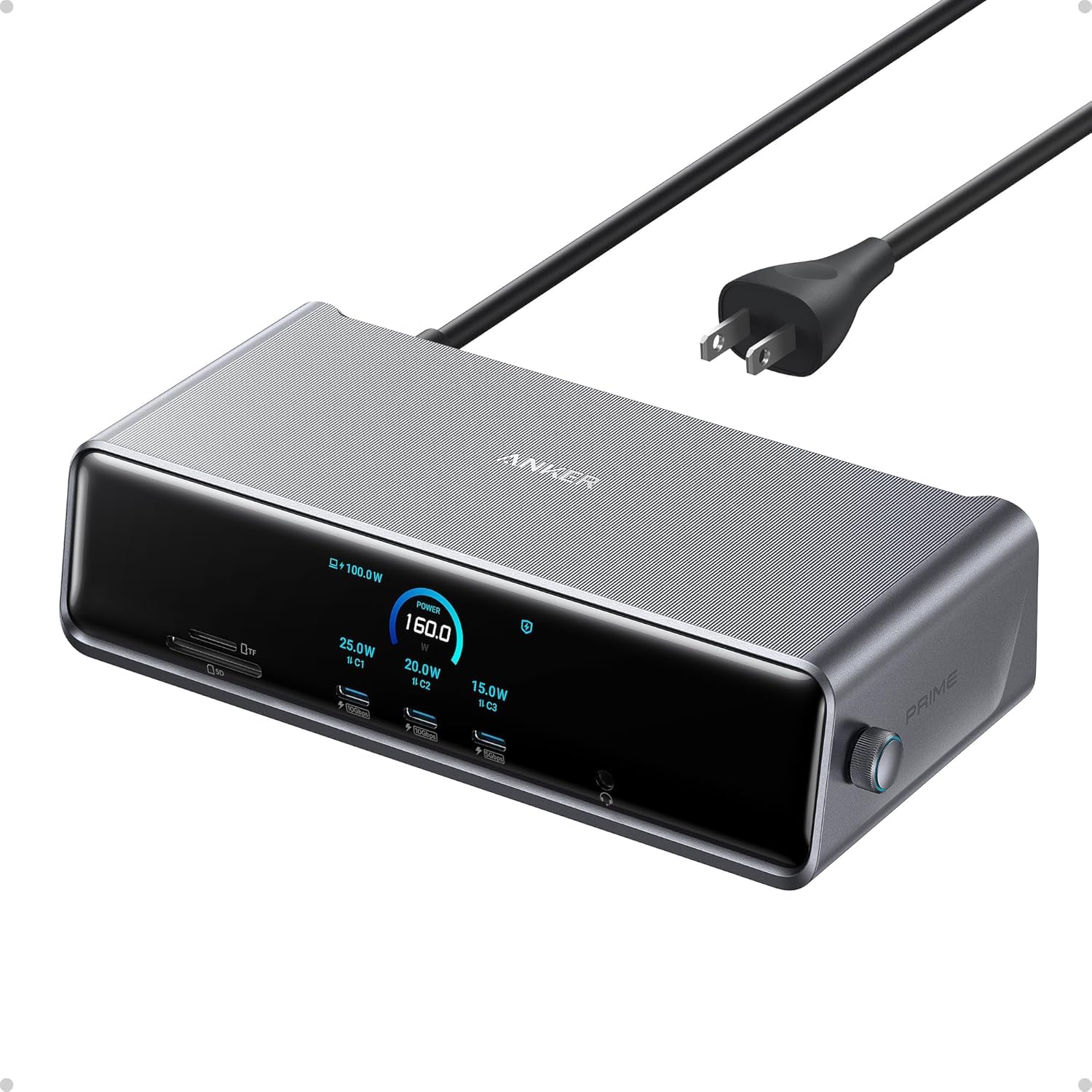
The Anker Prime DL7400 is engineered for power users who keep their laptops under intense load. Its upstream USB-C port delivers up to 140W to the host laptop — enough to keep a gaming notebook or mobile workstation charged even during rendering. The built-in cooling fan and ActiveShield 3.0 temperature management prevent thermal throttling during extended use.
This 14-in-1 dock supports triple 4K 60Hz displays on Windows via DisplayLink, with a smart display that shows real-time charging wattage, display performance, and fan mode. Port selection includes two HDMI ports, one DisplayPort, two 100W USB-C ports, two 5Gbps USB-A ports, a 2.5Gbps Ethernet jack, and an SD/TF card reader. The front-facing ports are especially useful for quick device connections.
The trade-off is a mandatory DisplayLink driver installation that can trip up less technical users. DRM-protected streaming services show a black screen on extended monitors unless you disable hardware acceleration in your browser. Some users also report intermittent monitor flickering that requires a dock reset. Setup takes about 20 minutes of fine-tuning to get everything running smoothly.
Why it’s great
- 140W upstream charging for demanding laptops
- Built-in fan and active thermal management
- Triple 4K 60Hz via DisplayLink on Windows
Good to know
- DisplayLink driver required for multi-monitor
- DRM streaming blocked on extended displays
- Setup involves multiple configuration steps
4. Anker Prime Docking Station (14-in-1)

The non-DisplayLink Anker Prime 14-in-1 focuses on raw charging throughput and data speed rather than multi-monitor expansion. With 160W total output spread across three USB-C ports and one USB-A port, it can charge a laptop, tablet, and phone simultaneously. The front-facing smart display shows real-time power draw and data speed, giving you instant feedback on your connected devices.
Dual HDMI ports support 2K 60Hz on DP 1.4 laptops or 1080p 60Hz on older DP 1.2 systems — fine for productivity work but not suitable for high-resolution creative workflows. All data ports run at 10Gbps, and the 10 USB ports provide plenty of room for peripherals, external drives, and charging cables. The compact aluminum chassis stays cool to the touch even under load.
The limitations are clear. There’s no DisplayPort or SD card reader, and macOS users get mirrored displays on both external monitors rather than extended desktops. The 10Gbps USB speed, while fast, falls short of Thunderbolt 4 bandwidth. If you need triple monitors or full 4K resolution, this dock won’t satisfy those requirements.
Why it’s great
- 160W total output charges multiple devices fast
- Smart display shows real-time power and data stats
- 10 USB ports cover most peripheral needs
Good to know
- MacOS mirrors displays, doesn’t extend
- No DisplayPort or SD card reader
- Limited to 2K resolution on dual monitors
5. WAVLINK DisplayLink Docking Station

The WAVLINK DisplayLink dock is a dedicated triple-monitor solution for M-series Mac users who can’t run multiple external displays natively. It combines three HDMI ports and two DisplayPort outputs with a DisplayLink 6350 chipset that delivers dual 2K 60Hz on the secondary ports. The primary HDMI Alt Mode port outputs a true 4K 60Hz signal for your main editing or coding monitor.
With a 130W power adapter, the host USB-C port provides up to 100W charging for the laptop. The 15-in-1 layout includes two 10Gbps USB-C ports, three 5Gbps USB-A ports, gigabit Ethernet, and a 104MB/s SD/TF card reader. Setup requires installing the DisplayLink driver and granting macOS permissions — a process that takes about 10 minutes but is straightforward.
Users report stable performance on Windows 11 and MacBook Pro M2/M3 machines with no flickering or sleep-wake issues. The compact silver chassis takes up minimal desk space. The main drawbacks are the mandatory driver installation and the fact that only one of the HDMI or DP ports on each secondary channel can be active at a time, limiting your video output combinations.
Why it’s great
- Enables triple monitors on M-series Macs
- 100W PD from 130W adapter
- 10Gbps USB-C ports for fast data transfer
Good to know
- DisplayLink driver and permissions required
- Secondary ports limited to 2K resolution
- HDMI and DP share bandwidth on secondary channels
6. Dell Pro Dock WD25
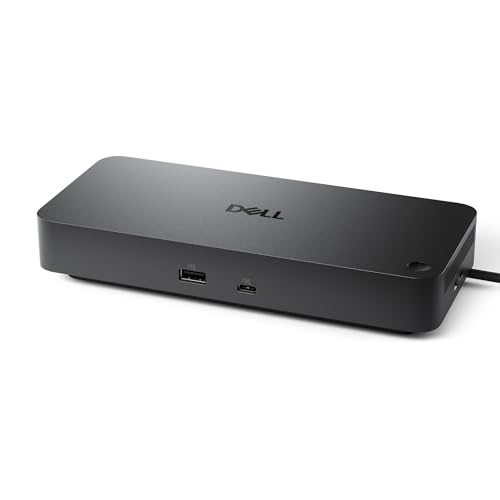
The Dell Pro Dock WD25 is a commercial-grade USB-C dock built for IT-managed environments. It supports up to four high-resolution displays natively via DisplayPort and HDMI, with 100W power delivery to keep AI PCs and standard laptops charged. The ambidextrous USB-C cable can be routed left or right for clean cable management, and the reinforced USB-C connector is designed for daily hot-plugging in shared workspaces.
Compatibility spans Windows 11, Windows 10, Ubuntu 24.04, Red Hat Enterprise Linux 9.6+, and ChromeOS 137 — rare lateral support that IT departments value. The dock uses at least 65% postconsumer recycled materials and achieves up to 72% reduction in standby power consumption compared to earlier Dell docks. Port selection includes six USB ports, one HDMI, and DisplayPort outputs.
Home users will find the WD25 limited. There’s no SD card reader, no 2.5Gb Ethernet, and the 10-port count is modest compared to consumer-focused alternatives. Plug-and-play performance is excellent with Dell laptops but may require driver downloads for non-Dell machines. The professional price tag reflects its enterprise build quality rather than consumer-friendly features.
Why it’s great
- Native support for up to four high-res displays
- Rugged USB-C connector for heavy daily use
- Broad OS support including Linux and ChromeOS
Good to know
- No SD card reader or 2.5Gb Ethernet
- Limited to 10 ports total
- Best compatibility with Dell laptops
7. MOKiN 17-in-1 USB C Docking Station
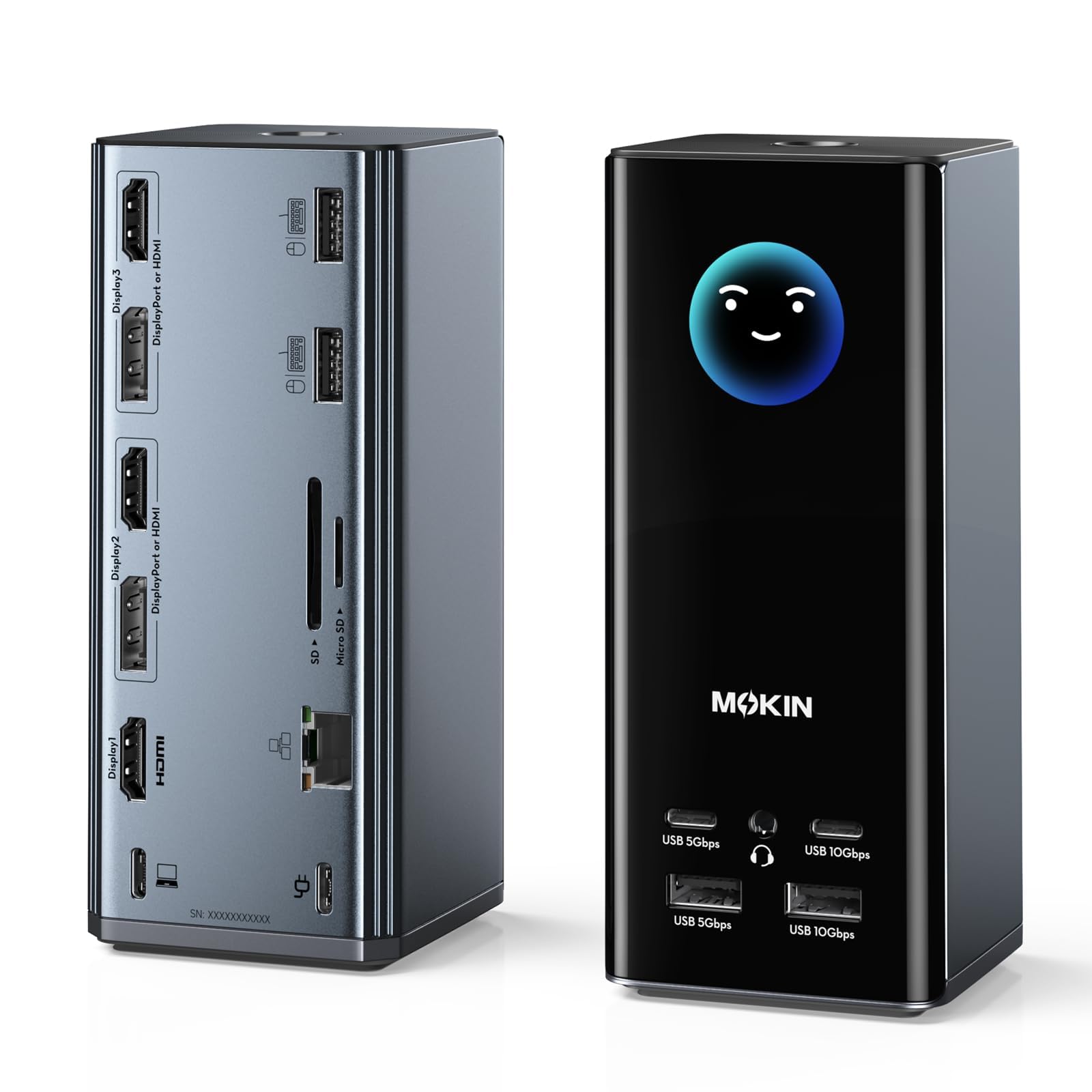
The MOKiN 17-in-1 dock packs an impressive feature set at a budget-friendly price point, including a unique smart LCD screen. This screen displays real-time charging wattage, monitor resolutions, and port connection status — a premium visual feedback system you normally see on docks costing twice as much. The LCD also shows local weather via built-in WiFi, which is a novel convenience for quick morning glances.
Video output is handled by three HDMI and two DisplayPort ports, allowing flexible combinations for triple displays. On Windows, you can run three independent 4K 60Hz monitors. Data transfer reaches 10Gbps on two of the USB-C and USB-A ports, and the gigabit Ethernet port provides stable wired networking. A privacy lock button lets you double-tap to blank all screens instantly.
Reliability is the biggest concern here. Some customers report complete failure after about a month of use, and the integrated WiFi has been flagged as a security risk because it broadcasts an open SSID connected to an Arduino server. Mac compatibility is inconsistent — one reviewer couldn’t get it working with macOS 26 on Apple Silicon. The tower design can tip over if cables aren’t managed neatly.
Why it’s great
- Smart LCD shows charging, display, and weather info
- Triple 4K 60Hz on Windows with flexible HDMI/DP
- Privacy lock button to blank screens
Good to know
- WiFi security vulnerability with open SSID
- Some units fail within weeks of use
- Mac compatibility is inconsistent
FAQ
Can a docking station run three monitors from a MacBook Air?
Why do some docks block Netflix and other streaming services?
What is the difference between 10Gbps and 40Gbps in a docking station?
Final Thoughts: The Verdict
For most users, the best docking station winner is the TobenONE DisplayLink Docking Station because it delivers true triple 4K 60Hz on both Mac and Windows with a generous port selection and a powerful 120W adapter. If you want native plug-and-play dual monitors without any driver fuss, grab the Plugable Thunderbolt 4 Dock. And for heavy workstation users who need 140W charging and active cooling during sustained loads, nothing beats the Anker Prime DL7400.

Mo Maruf
I created WellFizz to bridge the gap between vague wellness advice and actionable solutions. My mission is simple: to decode the research and give you practical tools you can actually use.
Beyond the data, I am a passionate traveler. I believe that stepping away from the screen to explore new environments is essential for mental clarity and physical vitality.