Our readers keep the lights on and my smoothie glass nicely filled. As an Amazon Associate, I earn from qualifying purchases.
The gap between an idea and its execution often comes down to the tool between your hand and the screen. Latency, color drift, or a lack of pressure sensitivity can turn a fluid sketching session into a frustrating exercise in technical troubleshooting. Finding a setup that gets out of your way and lets your stylus do the thinking is the real challenge.
I’m Mohammad Maruf — the founder and writer behind WellFizz. My research focuses on how hardware specs like pressure levels, color gamut coverage, and laminated screen technology translate into real-world creative performance for digital artists.
This guide breaks down the top contenders across every workflow, from standalone mobile canvases to pro-grade desktop displays, to help you find the right best device for digital art for your specific creative needs and budget.
How To Choose The Best Device For Digital Art
Selecting a digital art device isn’t just about the biggest screen or highest resolution. You need to match the tool’s core specs to your specific workflow, whether you’re sketching on the couch or rendering detailed illustrations at a desk.
Pressure Sensitivity and Pen Technology
This determines how naturally the pen responds to your hand. Entry-level tablets offer 2048 or 4096 levels, while modern pro models hit 8192 or even 16384. Higher pressure levels allow for finer control between a light whisper of a line and a bold stroke. Battery-free pens are preferred for their consistent weight and lack of charging downtime.
Laminated vs. Non-Laminated Screens
A fully laminated display bonds the glass and LCD layers together, eliminating the air gap. This brings the cursor directly under the pen tip, effectively removing parallax. For artists who need precision line work, especially at lower angles, full lamination is a non-negotiable feature. Non-laminated screens can feel floaty and inaccurate by comparison.
Color Accuracy and Gamut Coverage
If you create art for print or professional display, accurate colors are critical. Look for sRGB and Adobe RGB coverage percentages. A Delta E value under 2 indicates excellent color fidelity. Models with factory calibration reports offer extra confidence that what you see on screen matches the final output.
Portability and Standalone Functionality
A tethered pen display requires a computer to function, making it powerful but desk-bound. Standalone tablets with built-in Android OS let you draw anywhere without a laptop, ideal for field sketching or quick concept work. Consider battery life, storage, and app compatibility if you prioritize mobility over raw desktop power.
Quick Comparison
On smaller screens, swipe sideways to see the full table.
| Model | Category | Best For | Key Spec | Amazon |
|---|---|---|---|---|
| HUION Kamvas 13 (Gen 3) | Pen Display | All-around desktop creator | 16384 Pressure Levels | Amazon |
| XP-PEN Artist 13.3 Pro V2 | Pen Display | Portable precision work | 16384 Pressure + Eraser | Amazon |
| Wacom MovinkPad 11 | Standalone Tablet | Anywhere sketching | Android 14, 8GB RAM | Amazon |
| XPPen Artist Pro 24 Gen2 | Pro Pen Display | Professional studio work | 4K, 99% Adobe RGB | Amazon |
| HUION Kamvas Pro 16 4K | Pro Pen Display | Detail-oriented illustration | 4K UHD, 120% sRGB | Amazon |
| XPPen Artist12 Pro | Pen Display | Beginners entering pen displays | 11.6″, 60° Tilt | Amazon |
| HUION Inspiroy 2 Large | Screenless Tablet | Budget-friendly art entry | 10.5 x 6.56 inch active area | Amazon |
| Frunsi RubensTab T8 | Standalone Tablet | Beginner standalone use | Android 13, 8-Inch | Amazon |
| XPPen Artist 13.3 Pro V2 (Model 2) | Pen Display | Value-focused color work | 95% P3, 16384 Pressure | Amazon |
In‑Depth Reviews
1. HUION Kamvas 13 (Gen 3)

This 13.3-inch pen display hits a remarkable balance of pro-level specs and accessibility. The full-laminated screen employs HUION’s new Canvas Glass 2.0 which cuts glare drastically, making it comfortable for extended sessions. With 16384 levels of pressure sensitivity and a 2g initial activation force, the PenTech 4.0 stylus feels immediate responsive to the lightest touch.
Color accuracy is a standout feature here. The factory calibration report ensures a Delta E of under 1.5 combined with 99% sRGB coverage. The anti-sparkle coating provides a paper-like texture that reduces eye fatigue, while the dual dial and five programmable shortcut keys streamline your workflow across apps like Clip Studio Paint and Photoshop.
The adjustable ST300 stand offers comfortable viewing angles right out of the box. It connects to Windows, Mac, and Android devices (with USB3.1 DP1.2 support), though the 3-in-1 cable can feel a bit bulky for tight desk setups. The screen brightness maxes out around 200 nits, which is adequate indoors but may feel dim in brightly lit rooms.
Why it’s great
- Exceptional 16384 pressure sensitivity with ultra-low activation force
- Factory-calibrated Delta E < 1.5 for reliable color
- Anti-sparkle glass minimizes glare and provides a textured feel
Good to know
- Max brightness of 200 nits can feel dim in bright rooms
- Requires a computer to function — not standalone
2. XP-PEN Artist 13.3 Pro V2

The Artist 13.3 Pro V2 represents a significant leap in pen technology. Its X3 Pro smart chip stylus delivers 16384 levels of pressure sensitivity — double the industry standard of 8192 — with remarkable precision at the center (within ±0.4mm). The full-laminated 13.3-inch display eliminates parallax, and the included foldable stand makes it a complete portable package.
Color performance is cinema-grade, covering 99% sRGB and 95% P3 gamut. The AG anti-glare film reduces reflections while providing a subtle textured resistance that feels close to pencil on paper. The red dial roller and eight customizable shortcut keys give you tactile control over brush size, zoom, and undo without reaching for a keyboard.
A standout convenience is the dual-mode system. You can switch between pen display mode (drawing directly on the screen) and pen tablet mode (screen off for use as a traditional pad) to save laptop battery or reduce neck strain. Setup requires a driver download, and the USB-C connection only works with devices supporting USB3.1 DP1.2. Some users reported initial firmware updates necessary for Chromebook compatibility.
Why it’s great
- Industry-leading 16384 pressure sensitivity for ultra-fine control
- Dual pen display and pen tablet modes for flexibility
- Excellent 95% P3 color gamut coverage
Good to know
- Driver setup can be tricky on Chromebook and some Linux systems
- Not a standalone device — requires a computer connection
3. XPPen Artist Pro 24 Gen2

This is a professional-grade 23.8-inch behemoth with true 4K UHD resolution. The Calman-verified display delivers a Delta E of under 1 with 99% Adobe RGB and 98% P3 coverage, making it ideal for photographers, illustrators, and designers who need absolute color confidence. The 1.07 billion colors (8-bit + Hi-FRC) produce smooth gradients without banding.
The dual stylus system is a thoughtful touch. You get both a slim stylus with a thinner nib for detailed line work and a standard smart chip stylus with a felt nib for a paper-like feel plus a digital eraser. Both offer 16384 pressure levels and 60 degrees of tilt functionality. The included ACK05 wireless Keydial with 40 customizable shortcuts and a physical dial reduces hand strain during long sessions.
The AG etched glass with anti-fingerprint coating keeps the viewing area clean and minimizes glare. The S02 stand allows single-handed angle adjustment from 16 to 72 degrees. However, the massive 19-pound weight and 24-inch form factor require significant desk space. Some early production units experienced image burn-in, though the manufacturer’s warranty support has been responsive in most cases.
Why it’s great
- Calman-verified Delta E < 1 for professional-grade color accuracy
- Dual 16384-pressure styluses with different nib feels
- Wireless Keydial remote for customizable shortcuts
Good to know
- Very heavy and requires significant desk space
- Some quality control reports of image retention in early units
4. Wacom MovinkPad 11

The MovinkPad 11 is a complete standalone drawing solution running Android 14. Its 11.45-inch anti-glare etched glass screen paired with the battery-free Pro Pen 3 delivers 8192 pressure levels and an organic drawing feel without needing a computer. The Quick Draw feature launches Wacom Canvas instantly by tapping the pen to the screen, mimicking the immediacy of a physical sketchbook.
With 8GB of RAM and 128GB of internal storage, it handles apps like Clip Studio Paint and SketchBook smoothly. The tablet weighs only 1.3 pounds, making it lighter than most laptops and genuinely portable for mobile artists and field sketching. The Wacom Shelf feature organizes your sketches and reference images in one accessible gallery view.
The slim Pro Pen 3 stores replacement nibs in its back end and includes three customizable buttons. Battery life is strong, supporting long drawing sessions away from a charger. The screen’s matte finish reduces glare outdoors. However, the processor is not as powerful as a desktop-grade laptop, so heavy multitasking or rendering complex effects can cause some slowdown. There is no headphone jack, and the file transfer system is less intuitive than on a desktop OS.
Why it’s great
- True standalone drawing with no computer required
- Ultralight 1.3-pound design for real portability
- Instant Quick Draw mode mimics a physical sketchbook
Good to know
- Processor can feel slow for complex multitasking and effects
- No headphone jack included
5. HUION Kamvas Pro 16 4K
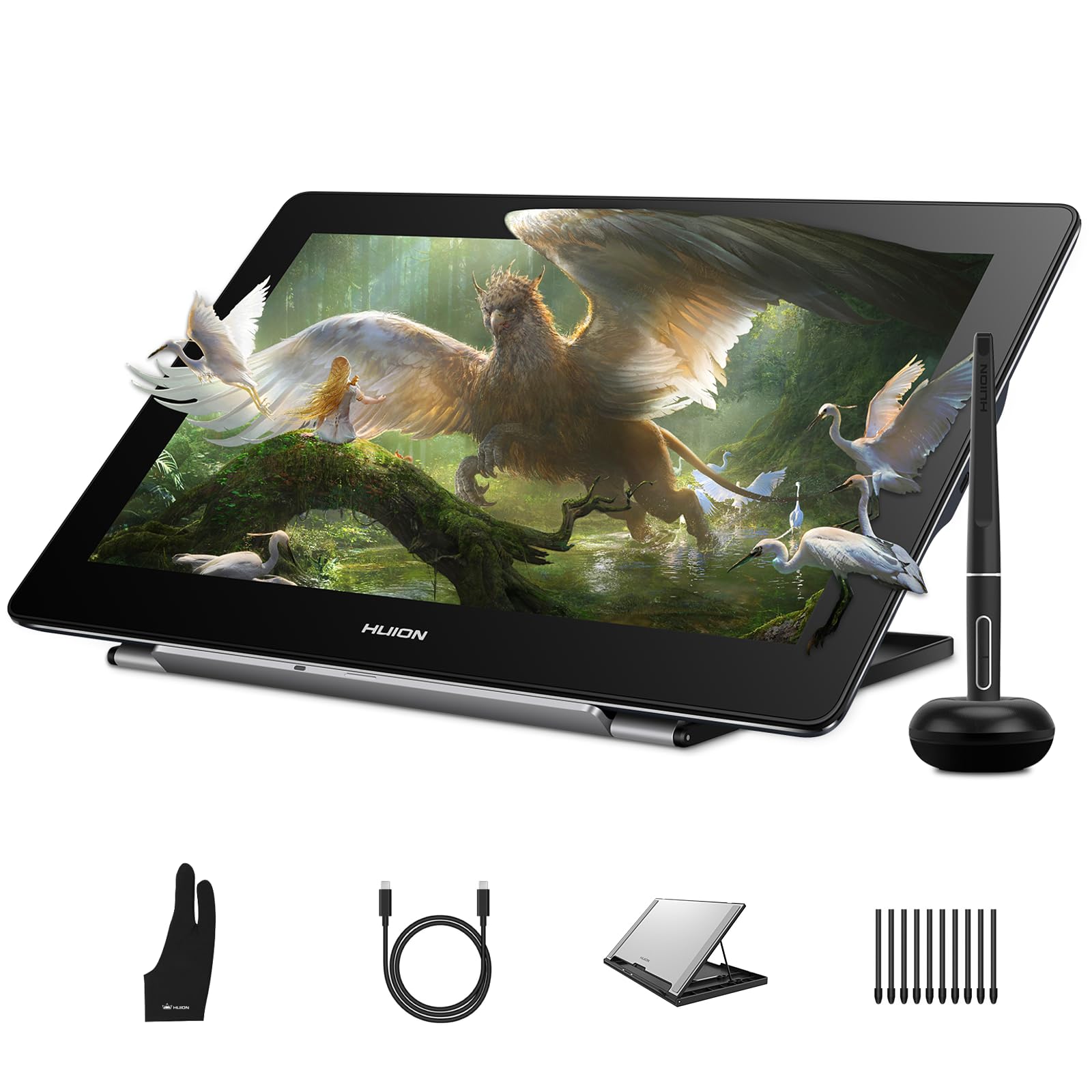
The Kamvas Pro 16 delivers a genuine 4K UHD (3840×2160) resolution on a 15.6-inch fully laminated display. This pixel density is exceptional for photo retouching and 3D modeling where fine detail matters. The 120% sRGB color gamut ensures vibrant, saturated colors, though the 8192 pressure levels of the PenTech 3.0 stylus are a step behind the newer 16384 models in this guide.
The anti-glare coating and full lamination work together to reduce reflections and eliminate parallax, giving you a direct pen-on-paper feel. The adjustable stand offers a wide 20 to 80 degree angle range, and dual USB-C ports allow easy connection to Windows, Mac, and Android devices without hunting for adapters. The PW517 pen tracks accurately even at the screen edges.
One trade-off is the cable length, which is only about 4 feet — you may need extensions for a traditional desktop setup. The stand does not lock into position and can shift slightly during use. Some users also find the pen buttons easy to press accidentally. It runs warm near the port side during extended sessions but stays within comfortable limits.
Why it’s great
- True 4K resolution for pixel-level detail work
- Dual USB-C ports for flexible device compatibility
- Fully laminated anti-glare screen reduces parallax
Good to know
- Short cable length requires extensions for most desktop setups
- Pen buttons are easy to press accidentally
6. XPPen Artist 13.3 Pro V2 (Alternate Listing)

This variant of the Artist 13.3 Pro V2 emphasizes color with a 125% sRGB and 95% P3 color gamut area ratio. The 16384 pressure levels from the X3 Pro Smart Chip ensure every stroke is captured with precision, and the 60-degree tilt support allows natural shading techniques. The full-laminated AG film screen reduces parallax to nearly zero while providing a paper-like texture.
The red dial and eight customizable shortcut keys are designed for beginners and junior illustrators to master essential controls like brush size and zoom quickly. The driver has been updated for easier setup with clear on-screen instructions, which is helpful for less tech-savvy users. The 250 cd/m² brightness and 1000:1 contrast ratio deliver vivid images with good shadow detail.
The AC42 adjustable stand provides a stable base with a 90-degree angle range and promotes better posture during long drawing sessions. Like all pen displays here, this requires a computer connection to function. A minor quirk reported is that pen misalignment can occur if both monitors do not have matching 1080p resolution settings on some dual-display Windows setups.
Why it’s great
- Wide 125% sRGB color gamut for vivid, punchy visuals
- Updated driver interface makes setup beginner-friendly
- Ergonomic adjustable stand supports multiple angles
Good to know
- Requires a computer connection — not standalone
- Pen alignment can drift on multi-monitor setups with mismatched resolutions
7. XPPen Artist12 Pro

The Artist12 Pro is an excellent entry point for artists moving from a screenless tablet to their first pen display. The 11.6-inch fully laminated screen supports 60-degree tilt functionality, allowing natural shading without constantly adjusting brush settings. The 8192 levels of pressure sensitivity provide ample responsiveness for sketching, line art, and coloring in apps like Krita and Clip Studio Paint.
The red dial interface lets you zoom, adjust brush size, and scroll with a single hand. Eight customizable shortcut keys streampline common functions and reduce reliance on keyboard shortcuts. The included portable stand prevents shaking and offers a comfortable viewing angle. A 3-in-1 cable simplifies connection to your desktop or laptop.
Setup is generally straightforward, though the driver can be finicky on M1 Macs, requiring multiple downloads. The screen has noticeable surface glare which can be distracting in rooms with overhead lighting. The stand only offers a single angle, which may not suit all ergonomic preferences. It’s important to check your desk space before purchasing, as the footprint is larger than the 11.6-inch screen suggests.
Why it’s great
- Affordable way to experience a fully laminated pen display
- Red dial and shortcut keys speed up workflow
- 60-degree tilt support for natural shading
Good to know
- Driver can be problematic on M1 Mac systems
- Screen glare can be noticeable in bright environments
8. HUION Inspiroy 2 Large

The Inspiroy 2 Large is a screenless drawing tablet with a generous 10.5 x 6.56 inch active area. It relies on hand-eye coordination (drawing on the tablet while looking at your monitor), which takes some adjustment but offers a large, affordable canvas. PenTech 3.0 delivers reliable tracking with minimal wobble or lag.
The PW110 pen is slimmer than previous HUION models with a soft silicone grip for comfort during long sessions. The unique scroll wheel and three sets of eight programmable shortcut keys can be customized per application, greatly improving workflow efficiency. It connects via USB-C to Windows, Mac, Linux, and Android devices (version 6.0 or later).
Build quality is solid for its price tier, with a slim profile that fits easily into a laptop bag. The battery-free pen means you never need to charge it. Beginners sometimes find the hand-eye coordination tricky at first, though most acclimate quickly. Some users expressed a preference for a USB-C connection on the tablet itself rather than the Micro-B port used here.
Why it’s great
- Large active area at an accessible price point
- Battery-free pen with comfortable silicone grip
- Customizable scroll wheel and shortcut keys for workflow
Good to know
- Requires hand-eye coordination with a monitor — no screen on the tablet
- Uses Micro-B connection rather than USB-C
9. Frunsi RubensTab T8

The RubensTab T8 is an 8-inch standalone drawing tablet running Android 13, designed for beginners and younger artists who want to draw without connecting to a computer. The 1200×800 resolution display is adequate for basic sketching, and the 2048 pressure levels offer entry-level responsiveness. Pre-installed drawing apps like SketchBook and ibis Paint X get you started immediately.
Powered by an MTK quad-core CPU with 4GB of RAM and 64GB of expandable storage (up to 256GB via microSD), it handles casual drawing apps and media consumption with reasonable speed. The 4000mAh battery provides up to 20 hours of battery life under light use, though heavy drawing in apps like SketchBook reduces that to around 3.5 hours. The included detachable keyboard and screen protector add value.
Performance is limited compared to full desktop setups. Slight input lag appears with complex brushes, and the 2048 pressure sensitivity feels coarse next to premium pens. There is no palm rejection system, which can be frustrating during detailed work. The tablet also runs Android apps, which means you have access to the full Google Play store for entertainment and productivity.
Why it’s great
- Truly standalone — no computer needed
- Pre-installed drawing apps for immediate use
- Expandable storage and long battery life
Good to know
- Only 2048 pressure sensitivity levels feel coarse
- No palm rejection — can cause accidental marks during drawing
FAQ
Is a screenless tablet or a pen display better for a beginner?
How many pressure sensitivity levels do I really need for professional work?
Final Thoughts: The Verdict
For most users, the device for digital art winner is the HUION Kamvas 13 (Gen 3) because it combines a fully laminated 13.3-inch screen, 16384 pressure sensitivity, factory-calibrated Delta E under 1.5, and dual dial controls at a balanced price. If you want true standalone portability, grab the Wacom MovinkPad 11. And for a professional studio setup that demands 4K resolution and Calman-verified color accuracy, nothing beats the XPPen Artist Pro 24 Gen2.

Mo Maruf
I created WellFizz to bridge the gap between vague wellness advice and actionable solutions. My mission is simple: to decode the research and give you practical tools you can actually use.
Beyond the data, I am a passionate traveler. I believe that stepping away from the screen to explore new environments is essential for mental clarity and physical vitality.