Our readers keep the lights on and my smoothie glass nicely filled. As an Amazon Associate, I earn from qualifying purchases.
Choosing a first graphics tablet is often overwhelming. The market is flooded with spec sheets and competing claims, but the real question is simple: which model translates your hand movements into digital lines without frustration, lag, or a steep learning curve.
I’m Mohammad Maruf — the founder and writer behind WellFizz. I’ve spent many hours analyzing pressure curves, driver stability, and active area dimensions across dozens of entry-level pen tablets to isolate the models that actually serve a new artist well.
This guide breaks down the seven top contenders to help you find your perfect match among the best drawing tablet for beginners options available today.
How To Choose The Best Drawing Tablet For Beginners
Picking your first pen tablet boils down to matching hardware specs to your specific use case. Three factors dominate this decision: the active surface area, the stylus technology, and the driver ecosystem.
Active Area Size
A larger active area (e.g., 10 x 6 inches) lets you make sweeping arm motions, which feels more natural once you adjust. A smaller area (e.g., 6 x 3.7 inches) forces more wrist movement but is far more portable. Beginners who plan to draw at a desk should prioritize a medium or large surface. Those who need to sketch on a cafe table or between classes will appreciate a compact footprint.
Pressure Sensitivity Levels
Pressure sensitivity determines how the software reads hard versus soft pen presses. Entry-level models commonly offer 8192 levels, while some newer options reach 16384. For a beginner, 8192 levels is more than sufficient — the human hand cannot reliably distinguish finer gradations until much later in skill development. Focus instead on whether the pen feels responsive out of the box without excessive calibration.
Stylus Power and Ergonomics
Battery-free pens are a huge convenience for beginners because they never need charging and maintain consistent weight. Look for a slim barrel with a soft silicone grip if you expect long drawing sessions. The presence of side buttons and a tilt function (often 60 degrees) adds expressive control without forcing you to reach for the keyboard.
Quick Comparison
On smaller screens, swipe sideways to see the full table.
| Model | Category | Best For | Key Spec | Amazon |
|---|---|---|---|---|
| Wacom Intuos Small Bluetooth | Premium | Wireless flexibility & brand reliability | Active area 6 x 3.7 inches | Amazon |
| HUION Inspiroy 2 Large | Premium | Max drawing space & multi-set shortcuts | Active area 10.5 x 6.56 inches | Amazon |
| HUION Inspiroy 2 Medium | Mid-Range | Scroll wheel workflow & ample surface | PenTech 3.0 with 60° tilt | Amazon |
| HUION Inspiroy 2 Small | Mid-Range | Portable daily carry with scroll wheel | Battery-free PW110 stylus | Amazon |
| UGEE M708 V3 | Budget-Friendly | Large surface on a tight budget | Pressure sensitivity 16384 levels | Amazon |
| XPPen Deco 01 V3 | Budget-Friendly | High pressure resolution & Android support | 16384 pressure levels, 60° tilt | Amazon |
| HUION Inspiroy H1060P | Budget-Friendly | Maximum express keys for shortcuts | Active area 10 x 6.25 inches | Amazon |
In‑Depth Reviews
1. Wacom Intuos Small Bluetooth
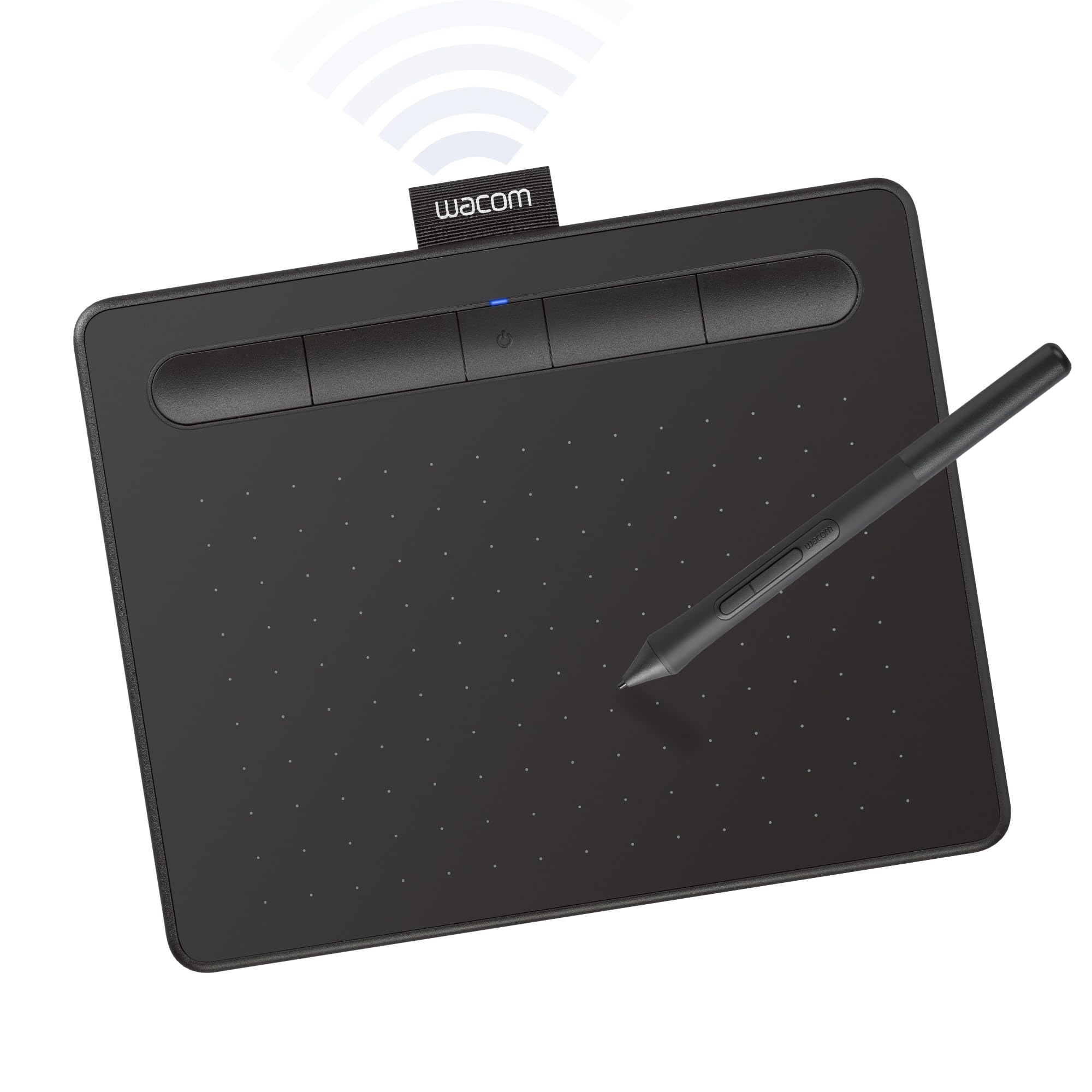
The Wacom Intuos Small Bluetooth is the most trusted entry point into digital art, backed by over four decades of pen display engineering. Its compact active area of 6 x 3.7 inches makes it extremely portable, fitting easily into a laptop bag for note-taking or sketching on the go. The battery-free EMR pen delivers the familiar “pen on paper” feel that Wacom users swear by, with four customizable ExpressKeys that keep essential commands within reach.
Wireless connectivity via Bluetooth adds real flexibility — you can draw from the couch or in a classroom without a cable tethering you to the desk. The included software bundle and online training provide structured learning for beginners who want to build skills methodically. The driver is polished and stable across Windows, macOS, Android, and ChromeOS, reducing setup headaches for first-time users.
The small size can feel cramped for artists who prefer broad arm strokes, and the pen lacks the tilt sensitivity found on pricier models. Bluetooth mode introduces slight input lag that some users notice during fast linework; wired mode eliminates this. The pen barrel can become uncomfortable during sessions longer than three hours, and the side buttons are easy to press accidentally.
Why it’s great
- Industry-leading driver stability across multiple OS.
- Wireless Bluetooth freedom for untethered drawing.
- Compact footprint ideal for students and travelers.
Good to know
- Small active area limits sweeping arm motions.
- Bluetooth mode can introduce slight input lag.
- Pen lacks tilt support found on competitors.
2. HUION Inspiroy 2 Large

The HUION Inspiroy 2 Large offers the biggest active area in this lineup at 10.5 x 6.56 inches, giving beginners room to make natural, shoulder-driven strokes without feeling constrained. It runs on the upgraded PenTech 3.0 engine, which minimizes cursor wobble and lag, producing lines that feel responsive and stable. The new PW110 stylus features a slimmer body with a soft silicone grip, addressing the ergonomic complaints common on earlier Huion models.
Three sets of eight programmable press keys plus a dedicated scroll wheel provide a huge range of customizable shortcuts — you can assign different layouts for Photoshop, Krita, and Clip Studio Paint. The tablet connects via USB-C and includes an OTG adapter for Android devices, making it a versatile tool for studio and mobile use. The surface has a paper-like texture that provides pleasant friction without wearing down nibs too quickly.
The driver software on Windows has a few rough edges: some users report that button mappings don’t carry between applications without replugging the tablet, and the pen’s lack of a distinct shape means you may lose orientation during long sessions. The initial 1-40% pressure range requires software compensation in some drawing programs.
Why it’s great
- Generous 10.5 x 6.56 inch drawing surface.
- Three customizable shortcut sets with scroll wheel.
- Paper-like surface texture aids natural pen control.
Good to know
- Driver may need replugging after app switching.
- Pen barrel is round with no orientation indicator.
- Lower 1-40% pressure range may need tuning.
3. HUION Inspiroy 2 Medium

The HUION Inspiroy 2 Medium strikes a smart balance between a roomy 8.7 x 5.4 inch active area and a portable chassis that fits alongside a laptop keyboard. Its unique scroll wheel sets it apart from most competitors at this tier — you can zoom, rotate the canvas, or scroll through layers without lifting the pen. The PenTech 3.0 engine delivers smooth, jitter-free lines, and the PW110 stylus supports 60 degrees of tilt for natural shading and brush variation.
Eight customizable press keys plus three group-switching keys effectively give you 24 shortcut assignments across different creative profiles. The tablet works out of the box on Windows, macOS, Linux, Android, and ChromeOS with minimal driver fumbling. The USB-C cable and included OTG adapter make it simple to pair with a smartphone for on-the-spot sketching.
The scroll wheel requires a deliberate push to register, which some users find stiff compared to a mouse wheel. The rubber stoppers on the underside are small, and the green color on the shortcut keys is very dark, making them hard to see in low light. Left-handed users report that the Huion app does not rotate the tablet orientation for the driver interface, requiring a manual workaround.
Why it’s great
- Dedicated scroll wheel speeds up canvas navigation.
- Ample 8 programmable keys with group switching.
- Good tilt support and battery-free stylus.
Good to know
- Scroll wheel feels stiff on first presses.
- Dark green key labels are hard to read.
- Driver lacks proper left-handed UI rotation.
4. HUION Inspiroy 2 Small

The HUION Inspiroy 2 Small is a travel-friendly pen tablet that doesn’t skimp on core features. Despite its diminutive size — it sits comfortably on a laptop keyboard — it includes the same PenTech 3.0 processor and PW110 battery-free stylus found in its larger siblings. The scroll wheel and six programmable express keys provide a surprising amount of workflow control for such a compact device.
The tablet is available in a pink color variant that appeals to users who want a personalized look alongside the standard black. It connects via USB-C and works natively with Android 6.0 or later devices, letting you draw directly on your phone or tablet screen. The included OTG adapter and extra nibs mean you can start creating immediately without additional purchases.
The small active area requires more wrist movement, which may lead to fatigue during extended sessions. Some users report that the nib wears down faster than expected, and the scroll wheel is difficult to press, requiring a firm push. The tablet lacks Bluetooth, so you are always tethered by the USB cable.
Why it’s great
- Ultra-compact design for travel and tight desks.
- Scroll wheel and express keys in a small package.
- Pink color option adds personal style.
Good to know
- Small surface forces wrist-dominant drawing.
- Nib wears down relatively quickly.
- No Bluetooth; wired connection only.
5. UGEE M708 V3
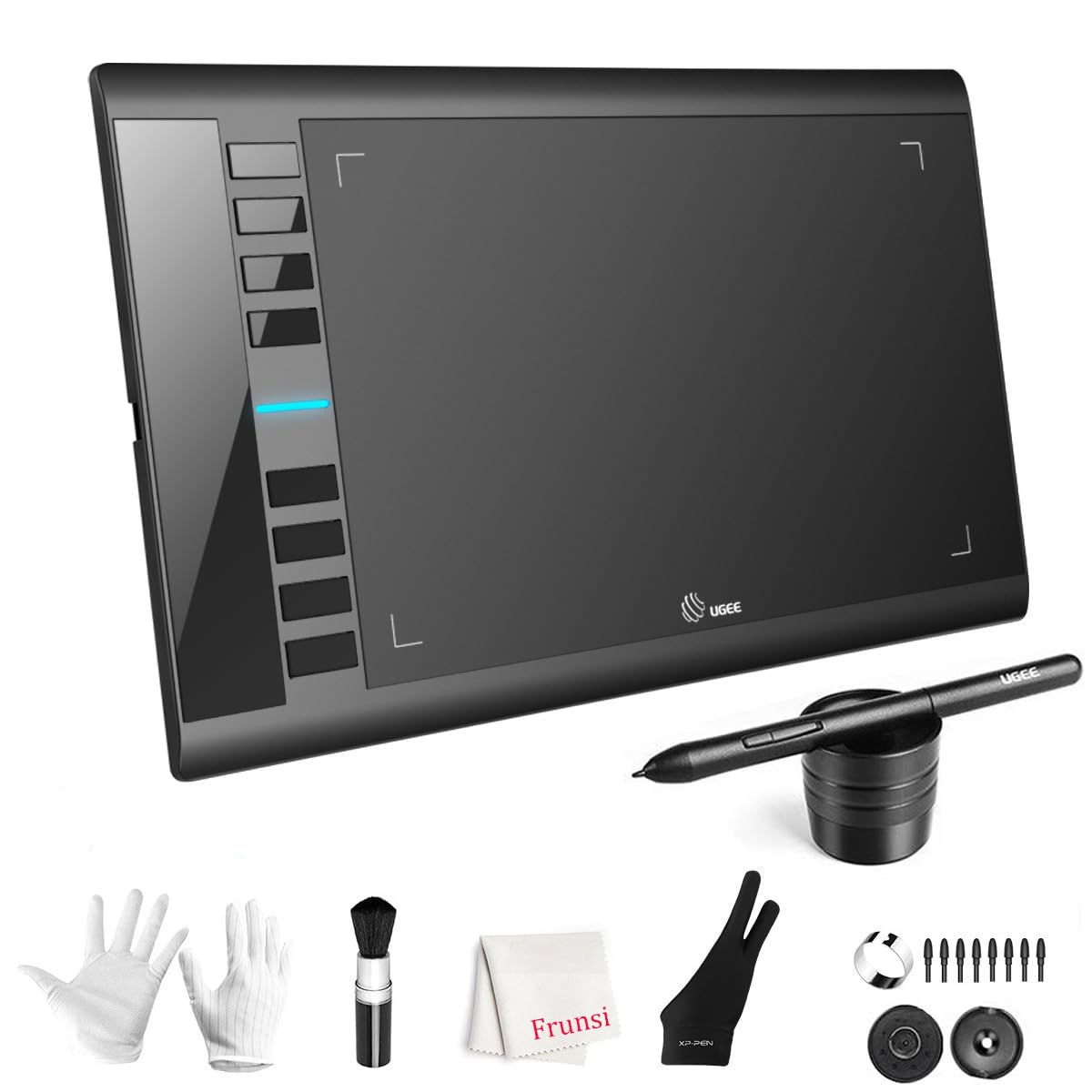
The UGEE M708 V3 delivers a 10 x 6 inch active area at a budget-friendly price point, making it one of the most affordable large-surface tablets for new artists. It uses a passive stylus rated at 16384 levels of pressure sensitivity, providing fine control over line weight and opacity. The tablet surface has a papery texture that provides satisfying friction, reducing the slippery feel common on cheaper pads.
Eight customizable express keys sit on the left side, giving quick access to undo, zoom, brush size, and other frequent commands. The tablet supports USB-C connectivity and includes adapters for older USB-A ports, easing compatibility with modern laptops. It works with Windows 11, macOS, Android 10, ChromeOS 88, and Linux, covering almost every platform a beginner might use.
The manual is very basic and does not explain advanced driver settings, so you may need to search online for configuration tutorials. The pen lacks a dedicated eraser end, which some artists find inconvenient.
Why it’s great
- Large 10 x 6 inch drawing area at a low cost.
- 16384 levels of pressure sensitivity for fine detail.
- Paper-textured surface improves pen control.
Good to know
- Short stylus detection range is hard to learn.
- Basic manual skips important driver details.
- No eraser on the pen tail.
6. XPPen Deco 01 V3

The XPPen Deco 01 V3 is an updated entry-level tablet that punches above its weight with 16384 levels of pressure sensitivity and 60 degrees of tilt support. The active area measures 10 x 6.25 inches, providing a full-arm drawing experience that helps beginners develop natural stroke habits. The battery-free stylus eliminates charging anxiety and maintains consistent weight throughout every session.
Eight customizable express keys are positioned for both right- and left-handed users, and the tablet’s 8 mm thin profile makes it easy to slip into a backpack. The Deco 01 V3 uses a new high-tech IC chip that reduces line jitter, producing smoother curves even during fast sketching. It includes a protective film, artist glove, stylus stand, and ten spare nibs, offering a complete starter package.
Android compatibility is advertised, but several users report that the tablet does not work reliably with Samsung Galaxy S-series phones or other non-standard Android devices — it is best treated as a PC/Mac tablet first. The included artist glove is too tight for larger hands, and the surface scratches easily if you apply heavy pressure. The driver on Windows can occasionally conflict with other input devices.
Why it’s great
- 16384 pressure levels for nuanced line work.
- Full 60-degree tilt support for natural shading.
- Large active area with a very slim profile.
Good to know
- Android support is inconsistent across phone models.
- Surface scratches more easily than expected.
- Glove is too small for larger hands.
7. HUION Inspiroy H1060P

The HUION Inspiroy H1060P is a proven workhorse that offers twelve physical express keys and sixteen additional soft keys — the most shortcut flexibility in this lineup. Its 10 x 6.25 inch active area provides ample room for detailed illustrations, and the symmetrical design works well for both right- and left-handed users after a 180-degree rotation in the driver. The PW100 battery-free stylus supports 60 degrees of tilt, enabling expressive brushwork without battery concerns.
The H1060P is widely regarded as a reliable, durable tablet that has served many commission artists and students for years. It connects via Micro USB (with a USB-C adapter included) and works on Windows 7 and later, macOS 10.12 and later, Android 6.0 and later, and Linux with Xorg. The driver allows you to map each of the 28 total shortcut slots to specific keyboard commands for different creative applications.
The PW100 stylus requires charging, which is unusual among modern budget tablets and can interrupt long drawing sessions if you forget to top it up. The tablet is thicker (10 mm) than newer competitors and lacks a scroll wheel, relying entirely on button presses for navigation. Android support does not extend to iPhones or iPads, and Samsung Galaxy S-series phones may not show the cursor correctly.
Why it’s great
- 28 total shortcut slots (12 physical + 16 soft keys).
- Large symmetrical design works for left- and right-handers.
- Proven reliability with years of positive user feedback.
Good to know
- Stylus needs charging unlike battery-free rivals.
- Thicker build and no scroll wheel.
- Android compatibility issues on some phones.
FAQ
Do I need a drawing tablet with a screen as a beginner?
What is the minimum active area size I should consider?
Is a battery-free stylus really better for beginners?
Final Thoughts: The Verdict
For most users, the best drawing tablet for beginners winner is the Wacom Intuos Small Bluetooth because it combines bulletproof driver stability, wireless freedom, and the industry-standard pen feel that makes the learning curve as gentle as possible. If you want a large canvas with a scroll wheel for efficient navigation, grab the HUION Inspiroy 2 Medium. And for the absolute biggest drawing surface at the lowest entry cost, nothing beats the UGEE M708 V3.

Mo Maruf
I created WellFizz to bridge the gap between vague wellness advice and actionable solutions. My mission is simple: to decode the research and give you practical tools you can actually use.
Beyond the data, I am a passionate traveler. I believe that stepping away from the screen to explore new environments is essential for mental clarity and physical vitality.