Our readers keep the lights on and my smoothie glass nicely filled. As an Amazon Associate, I earn from qualifying purchases.
The difference between a good design tablet and a great one comes down to three measurable things: how the pen behaves at the edge of the screen, how the display renders the 47th shade of a gradient, and whether the device gets in your way when inspiration strikes. Every millisecond of lag, every degree of parallax, and every skipped pressure level degrades your connection to the canvas.
I’m Mohammad Maruf — the founder and writer behind WellFizz. I’ve spent hundreds of hours mapping the processor benchmarks, display gamut coverage, pressure-sensitivity curves, battery-drain rates, and real-world jitter tests across the current landscape of drawing-focused tablets to isolate exactly what separates an adequate sketchpad from a true design workstation.
After evaluating eleven distinct models ranging from standalone Android powerhouses to tethered professional pen displays, the only conclusion that matters is whether the best tablet for design actually feels like an extension of your hand when you need it most, not like a piece of hardware you have to fight against.
How To Choose The Best Tablet For Design
Design professionals and serious hobbyists share the same core need: the tablet must disappear as a barrier between intent and execution. Every spec choice — screen technology, pen protocol, operating system — either advances or obstructs that goal. Understanding three structural decisions will prevent the most expensive mistake you can make in this category.
Standalone vs. Tethered: The Fundamental Fork in the Road
A standalone tablet runs its own operating system (typically Android) and lets you draw anywhere without a computer. A tethered pen display is essentially a second monitor with digitizer layers — it requires a laptop or desktop to function. Standalone units like the XPPen Magic Drawing Pad or Wacom MovinkPad 11 offer mobility and a distraction-free environment. Tethered units like the XPPen Artist Pro 19 Gen2 or Wacom Cintiq 16 connect to your existing workstation and deliver higher color accuracy, larger screen real estate, and zero battery anxiety during marathon rendering. Pick the architecture based on whether you sketch on a train or refine final deliverables at a desk.
The Display Triangle: Lamination, Resolution, and Gamut
Full lamination bonds the glass panel to the LCD layer, eliminating the air gap that creates parallax — the visible offset between the pen tip and the actual pixel response. Without full lamination, your strokes appear slightly detached from the glass surface. Resolution determines how sharp your zoomed-in linework appears: 2K (2000×1200 or 2400×1600) is adequate for most illustration, while 4K (3840×2160) on the XPPen Artist Pro 19 Gen2 lets you work on poster-sized compositions at pixel-level detail. Color gamut coverage matters most if your output goes to print: 100% sRGB is the web standard, but 96% Adobe RGB or 98% Display P3 ensures your print proofs match what you see on screen.
Pen Protocol: Pressure, Tilt, and Battery
Pressure sensitivity is measured in levels — 4096 is the baseline, 8192 appears on Wacom’s Pro Pen 3 and the Huion Kamvas Pro 16 V2, and 16384 is the current ceiling found on the XPPen Magic Drawing Pad and XPPen Artist Pro 19 Gen2. Higher levels translate to finer gradations between a whisper-thin hairline and a bold stroke, though the application must support that resolution. Tilt recognition (typically 60 degrees) enables shading and calligraphic effects. Battery-free pens, used by Wacom and Huion, never need charging and maintain consistent weight. Pens that require periodic charging, like those on the UGEE UT2 and UT3, add one more variable to your creative flow — manageable if you remember to plug them in alongside your tablet.
Quick Comparison
On smaller screens, swipe sideways to see the full table.
| Model | Category | Best For | Key Spec | Amazon |
|---|---|---|---|---|
| Wacom MovinkPad 11 | Standalone | Sketchbook portability | 8192 pressure, 1.3 lbs | Amazon |
| XPPen Magic Drawing Pad | Standalone | Paper-like standalone drawing | 16384 pressure, AG-etched glass | Amazon |
| Apple iPad Pro 13-inch M5 | Standalone | Professional ecosystem & AI workflows | Ultra Retina XDR, M5 chip | Amazon |
| XPPen Artist Pro 19 Gen2 | Pen Display | 4K color-critical studio work | 3840×2160, 16384 pressure | Amazon |
| Wacom Cintiq 16 | Pen Display | Industry-standard tethered drawing | 2560×1600, 8192 pressure | Amazon |
| HUION Kamvas Pro 16 V2 | Pen Display | Budget-friendly screened tablet | 16384 pressure, Smart Touch Bar | Amazon |
| Wacom Intuos Pro Medium | Pen Tablet | Desktop pen-on-paper feel | 8192 pressure, 10 ExpressKeys | Amazon |
| HUION KAMVAS Slate 11 | Standalone | Entry-level mobile art | 90Hz refresh, 8000mAh battery | Amazon |
| TCL NXTPAPER 14 | Standalone | Sheet music & eye-friendly reading | 14.3″ 2.4K, 4096 pressure | Amazon |
| UGEE UT3 Fun Drawing Pad | Standalone | Large-screen budget standalone | 14.25″ 2.4K, 10000mAh | Amazon |
| UGEE UT2 Drawing Pad | Standalone | Ultra-portable Android sketching | 10.36″ 2K, 466g | Amazon |
In‑Depth Reviews
1. Wacom MovinkPad 11

The Wacom MovinkPad 11 is the first standalone Android tablet from Wacom that doesn’t compromise on pen feel — the Slim Pro Pen 3 delivers 8,192 pressure levels with tilt support, and the anti-glare etched glass screen provides the same textured resistance you’d expect from a Cintiq, but without the cable tether. At just 1.3 pounds and 11.45 inches, it slips into a messenger bag and launches directly into Wacom Canvas with the Quick Draw tap-and-hold gesture, making it the closest thing to a digital sketchbook currently available.
The Android 14 operating system runs 8GB of RAM with 128GB of storage, and the device includes two years of Clip Studio Paint Debut out of the box. The matte screen eliminates distracting reflections even under overhead studio lights, and the battery-free pen means you never scramble for a charger mid-session. The palm rejection feels natural from the first stroke, with no accidental marks appearing when your hand rests on the glass during long shading sessions.
Where the MovinkPad 11 really excels is in its simplicity — there’s no boot sequence into Windows, no driver installation, no cable management. You tap the pen to the screen and you’re drawing. For professionals who need a dedicated capture device for ideas away from the desk, and who value the Wacom ecosystem’s mature line-drawing algorithms, this is the most coherent standalone drawing tablet available today.
Why it’s great
- Battery-free Pro Pen 3 with 8192 levels and tilt feels identical to desktop Wacom pens
- Weighs 1.3 lbs — lighter than most laptops and genuinely bag-friendly
- Quick Draw gesture launches drawing app instantly, preserving the sketchbook mindset
Good to know
- No headphone jack — relies on Bluetooth audio
- Processor lags on heavy effects like liquefy in higher-end photo apps
- No included protective case increases risk of screen damage in transit
2. XPPen Magic Drawing Pad

The XPPen Magic Drawing Pad is the only standalone drawing tablet that pairs an industry-first 16,384 pressure sensitivity level with a fully laminated AG-etched glass screen, creating a pen-on-paper feel that rivals any tethered device. The 12.2-inch display runs at 2160×1440 resolution with a 3:2 aspect ratio — close to A4 proportions — and covers 115% sRGB with 16.77 million colors for vibrant, print-ready output. The X3 Pro Slim Stylus requires no charging, no pairing, and responds to 60 degrees of tilt.
Running Android 14 with 8GB of RAM and 256GB of internal storage (expandable via microSD to 1TB), the Magic Drawing Pad handles Clip Studio Paint and ibisPaint X without stuttering. The 8,000mAh battery delivers up to thirteen hours of continuous creation, and the TÜV Rheinland eye-comfort certification means you can work into the night without the usual blue-light headache. The 6.9mm thin profile and 599-gram weight make it genuinely portable.
Where this tablet separates itself from both the Wacom MovinkPad and the Apple iPad Pro is the pen technology itself — XPPen’s 16K pressure sensitivity detects changes in force that sub-8K pens simply miss, allowing for hyper-nuanced line weights in fine illustration work. The lack of OS update guarantees beyond Android 14 is a concern for long-term buyers, but at this price point versus the iPad Pro, the raw drawing experience is unmatched.
Why it’s great
- 16384 pressure sensitivity is the highest available on any standalone tablet — detects micro-pressure changes other pens miss
- AG-etched glass provides authentic paper-like texture without oil buildup or glare
- 13-hour battery life means you rarely need to charge mid-project
Good to know
- Tilt function is less accurate than Wacom’s Pro Pen 3 implementation
- Android OS updates beyond version 14 are not guaranteed by XPPen
- Pre-installed apps may not suit every workflow; you’ll likely replace them with third-party alternatives
3. Apple iPad Pro 13-inch (M5)
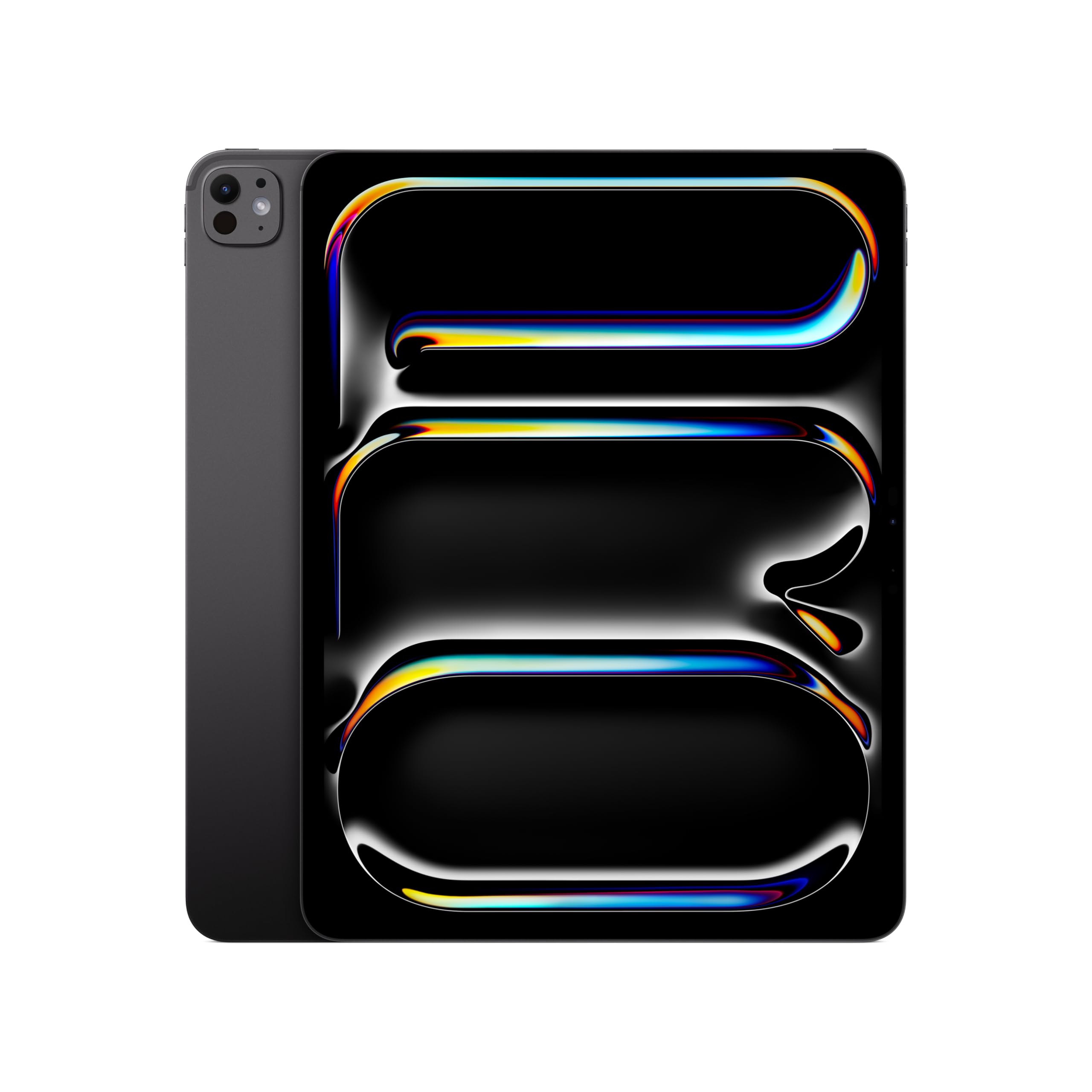
The Apple iPad Pro 13-inch with the M5 chip represents the most powerful standalone design tablet money can buy, combining the Ultra Retina XDR display’s extreme brightness and contrast with the M5’s Neural Engine for AI-assisted workflows in apps like Procreate and Shapr 3D. The 13-inch screen matches an 8.5×11-inch sheet of paper nearly exactly, and the 0.2-inch thin chassis makes it feel impossibly slim for the hardware inside. With Wi-Fi 7, Face ID, and a landscape 12MP Center Stage camera, it’s also the most versatile tablet here for video calls, 3D modeling, and multitasking across iOS design tools.
The Apple Pencil Pro adds squeeze gesture and barrel roll for expressive brush control, though the pen itself connects magnetically and charges from the iPad’s side — a different workflow from Wacom’s battery-free approach. The M5 chip handles 3D rendering, layer-heavy compositions, and video editing without breaking a sweat, and iPadOS 26’s windowing system lets you run reference images side-by-side with your canvas. The all-day battery life easily covers an eight-hour studio session.
The decisive factor here is the ecosystem lock-in and the price premium. The iPad Pro demands an additional investment in the Apple Pencil Pro and, for serious tablet-style drawing, a third-party matte screen protector to replicate the paper feel that the XPPen Magic Drawing Pad and Wacom MovinkPad 11 deliver out of the box. If you already work in Apple’s ecosystem and need a device that functions equally well for design, video, and productivity, the iPad Pro is the most capable all-rounder in this guide.
Why it’s great
- M5 chip provides desktop-class rendering performance for 3D modeling and heavy layer work
- Ultra Retina XDR display offers extreme brightness and contrast unmatched by any other standalone tablet
- Access to iOS-exclusive apps like Procreate and Forge that lack Android equivalents
Good to know
- Requires separate purchase of Apple Pencil Pro and matte screen protector for optimal drawing feel
- Premium pricing elevates the total investment well above Android standalone competition
- iPadOS file management and app-locking behavior can frustrate users accustomed to open Android systems
4. XPPen Artist Pro 19 Gen2

The XPPen Artist Pro 19 Gen2 is the only pen display in this lineup that delivers true 4K UHD resolution (3840×2160) across an 18.4-inch canvas, and it backs that resolution with Calman-verified color accuracy at Delta E < 1.5. That combination — 4K pixel density plus 96% Adobe RGB and 98% Display P3 coverage — means what you see on this display will match your print proofs and video-grade color grading with almost no deviation. The AG-etched glass is TÜV SÜD certified and provides the paper-like resistance that keeps your hand stable during long detailing sessions.
XPPen includes two styluses in the box: the X3 Pro Roller Stylus with a textured grip and rotating wheel, and the X3 Pro Slim Stylus with removable buttons to prevent accidental presses. Both offer 16,384 pressure levels with a 3-gram initial activation force — practically zero preload before the line starts. The ACK05 wireless shortcut keyboard adds a physical dial and ten customizable keys, freeing you from keyboard dependency while working. The full-laminated display eliminates the air gap so your strokes land exactly where you aim them.
This is a tethered pen display — it requires a computer with USB-C DisplayPort Alt Mode or HDMI input. The dual USB-C cable setup allows hot-switching between a MacBook and a Windows workstation on the same desk. The 18.4-inch active area is large enough to display an A3 spread at full size, making it ideal for poster design, storyboarding, and illustration work that benefits from seeing the whole canvas rather than zooming in and out repeatedly. The weight and size mean it stays on a desk rather than traveling in a bag.
Why it’s great
- 4K resolution on an 18.4-inch screen allows pixel-level detail without zooming on large compositions
- Dual stylus system covers both precise linework (Slim) and expressive stroking (Roller) out of the box
- Calman-verified Delta E < 1.5 ensures color-critical work matches print and grade standards
Good to know
- Requires a connected computer — not a standalone device for mobile use
- Heavy chassis at over 4 pounds is strictly a desktop station
- No touchscreen support — all interactions rely on stylus, keyboard, or the included remote
5. Wacom Cintiq 16

The Wacom Cintiq 16 sets the benchmark for tethered pen displays with its 2.5K WQXGA (2560×1600) 16-inch IPS panel, 99% DCI-P3 and 100% sRGB coverage, and the Pro Pen 3 with 8,192 pressure levels and tilt support. The built-in fold-out legs provide a 20-degree working angle out of the box, and the anti-glare glass reduces reflections without introducing the rainbow sparkle effect that can plague cheaper etched surfaces. This is the device that most professional studios default to when budget allows one pen display per workstation.
The Pro Pen 3 is Wacom’s most refined stylus to date, with a slim barrel, three customizable side buttons, and a holder that mounts magnetically to either side of the display. The 8-bit color depth produces 16.7 million colors with smooth gradients, and the lack of full lamination creates a slight air gap that some artists actually prefer for the subtle cushioning it provides — though this is a minority opinion. The connection uses a single USB-C cable with DisplayPort Alt Mode or Thunderbolt 3/4, keeping the desk free of cable spaghetti.
The Cintiq 16’s primary limitation is that it includes only the bare essentials: no shortcut buttons on the display itself, no stand beyond the fold-out legs, and no mini-HDMI cable in the box. Artists who rely on physical shortcuts will need to keep a separate keyboard or purchase the optional Wacom ExpressKey Remote. For pure drawing feel, however, the Pro Pen 3’s line-drawing algorithms remain the gold standard against which all other pen displays are measured.
Why it’s great
- Pro Pen 3 offers the most natural, lag-free drawing feel in the industry with 8192 levels
- 16-inch 2.5K display with 99% DCI-P3 meets professional color grading standards
- Single USB-C connection simplifies desk setup and cable management
Good to know
- No built-in shortcut keys or touch controls on the display itself
- Fold-out legs offer limited ergonomics; an adjustable stand is a worthwhile upgrade
- Requires a computer — no standalone functionality for mobile use
6. HUION Kamvas Pro 16 V2

The HUION Kamvas Pro 16 V2 delivers 16,384 pressure levels via the battery-free PW600A pen with Pentech 4.0 — that’s double the pressure resolution of Wacom’s Pro Pen 3 — on a 15.6-inch full-laminated anti-glare display with 120% sRGB color gamut coverage. The Smart Touch Bar adds zoom, brush size, and scroll control directly on the bezel, and the six customizable Express Keys handle shortcuts without needing an external keyboard. At this price point for a 16-inch pen display, the spec-to-dollar ratio is aggressive.
The full-lamination eliminates parallax, so the pen tip meets the LCD layer directly beneath the glass, and the anti-glare Canvas Glass 2.0 reduces eye strain during multi-hour sessions. The 3-in-1 cable handles power, video, and data through a single recessed Type-C port that locks securely to prevent accidental disconnects. The included ST200 aluminum stand offers six angle positions from 14.5 to 45 degrees with anti-slip pads to keep the tablet planted during vigorous shading.
Where the Kamvas Pro 16 V2 falls short of the Wacom Cintiq 16 and XPPen Artist Pro 19 Gen2 is in peak brightness — at roughly 200 nits, it’s noticeably dimmer than premium competition, making it harder to use in brightly lit rooms. The pen’s side buttons feel slightly stiff, and the tablet runs warm on the connection port side after three hours of continuous use. For beginner and intermediate artists moving up from a tablet without a screen, the value proposition is undeniable.
Why it’s great
- 16,384 pressure levels with Pentech 4.0 provide finer line-weight control than Wacom’s current pen
- Full-laminated anti-glare display eliminates parallax and reduces eye strain
- Smart Touch Bar and six Express Keys mimic a shortcut keyboard directly on the bezel
Good to know
- Peak brightness of 200 nits makes outdoor or bright-room use challenging
- Runs warm on the connection side during extended drawing sessions
- 3-in-1 cable design can create routing difficulties depending on your computer’s port layout
7. Wacom Intuos Pro Medium (2025)

The Wacom Intuos Pro Medium is a pen tablet — no screen, just a drawing surface that maps to your computer monitor — and it remains the most refined tool for artists who prefer to look at their primary display while drawing. The 2025 edition houses the Pro Pen 3 with 8,192 pressure levels, tilt support, and three side buttons, plus ten customizable ExpressKeys and two mechanical dials for speed-scrolling, zooming, and brush-size adjustment. The 16:9 active area spans 11.4 by 8.1 inches with a magnesium-alloy chassis that measures just 4mm at its thinnest point.
Bluetooth 5.3 connectivity is flawless on macOS, allowing wireless operation without driver latency, and the dual-channel support lets you pair the tablet with two computers and toggle between them. The Pro Pen 3’s modular design lets you switch between slim, straight, and flared grips by swapping the included accessories, and the balance weights let you tune the pen’s center of gravity to your preference. The surface texture provides just enough friction to mimic the drag of a pencil on paper.
The Intuos Pro Medium’s primary audience is the professional who already owns a premium monitor and wants the most accurate input device available without paying for a redundant screen. It occupies minimal desk space, travels easily in a laptop bag, and works with every creative application on Windows and macOS. The lack of a display means you must develop hand-eye coordination with the cursor — a skill that becomes automatic after a few days — but the trade-off is significantly lower cost and a larger active area per dollar than any pen display.
Why it’s great
- Pro Pen 3 modular grip system fits any hand size and drawing style
- Two mechanical dials and ten ExpressKeys provide extensive shortcut control without a keyboard
- Magnesium alloy chassis is thin, light, and durable for studio and travel use
Good to know
- No screen — requires hand-eye coordination with cursor on a separate monitor
- Bluetooth on Windows 11 reportedly less stable than wired USB-C connection
- Touch sensitivity from the 2017 model removed in this edition
8. HUION KAMVAS Slate 11

The HUION KAMVAS Slate 11 is a standalone Android 14 drawing tablet that prioritizes smooth visual feedback — the 90Hz refresh rate on its 10.95-inch full-HD display (1920×1200, 207 PPI) makes panning, zooming, and brushstroke appearance noticeably smoother than standard 60Hz tablets. The full-laminated anti-glare screen uses nano-etched matte glass to reduce glare and provide paper-like texture, and the 8,000mAh battery keeps you drawing for a full day without reaching for a charger.
The H-Pencil stylus offers 4,096 pressure levels with 60-degree tilt recognition, and the tablet comes pre-installed with Clip Studio Paint and ibisPaint X, including up to three months of free membership. The 8-core CPU with 8GB of RAM and 128GB of storage (expandable to 1TB) handles multitasking across drawing apps and reference images without major slowdowns. The aluminum-backed chassis feels more premium than the price suggests, and the included leather case transforms into an adjustable stand.
The Slate 11 occupies a specific niche: it’s the most affordable full-laminated standalone drawing tablet with a 90Hz screen from a major brand. The pressure sensitivity stops at 4096 levels — half of what the XPPen Magic Drawing Pad offers — and the pre-installed software workflow may need adjustment for users accustomed to dedicated desktop apps. Some units have reported palm rejection issues that require a learning curve with pen mode settings. For the beginner digital artist or the student building their first mobile studio, the Slate 11 represents a strong entry point.
Why it’s great
- 90Hz refresh rate provides visibly smoother pen tracking than standard 60Hz standalone tablets
- Full-laminated anti-glare screen eliminates parallax at a budget price point
- Pre-installed Clip Studio Paint with free membership saves immediate software costs
Good to know
- 4096 pressure levels are half the resolution of mid-range competition
- Some units exhibit palm rejection inconsistencies that require driver tweaks
- Build quality reports include DOA screens and customer service variability
9. TCL NXTPAPER 14
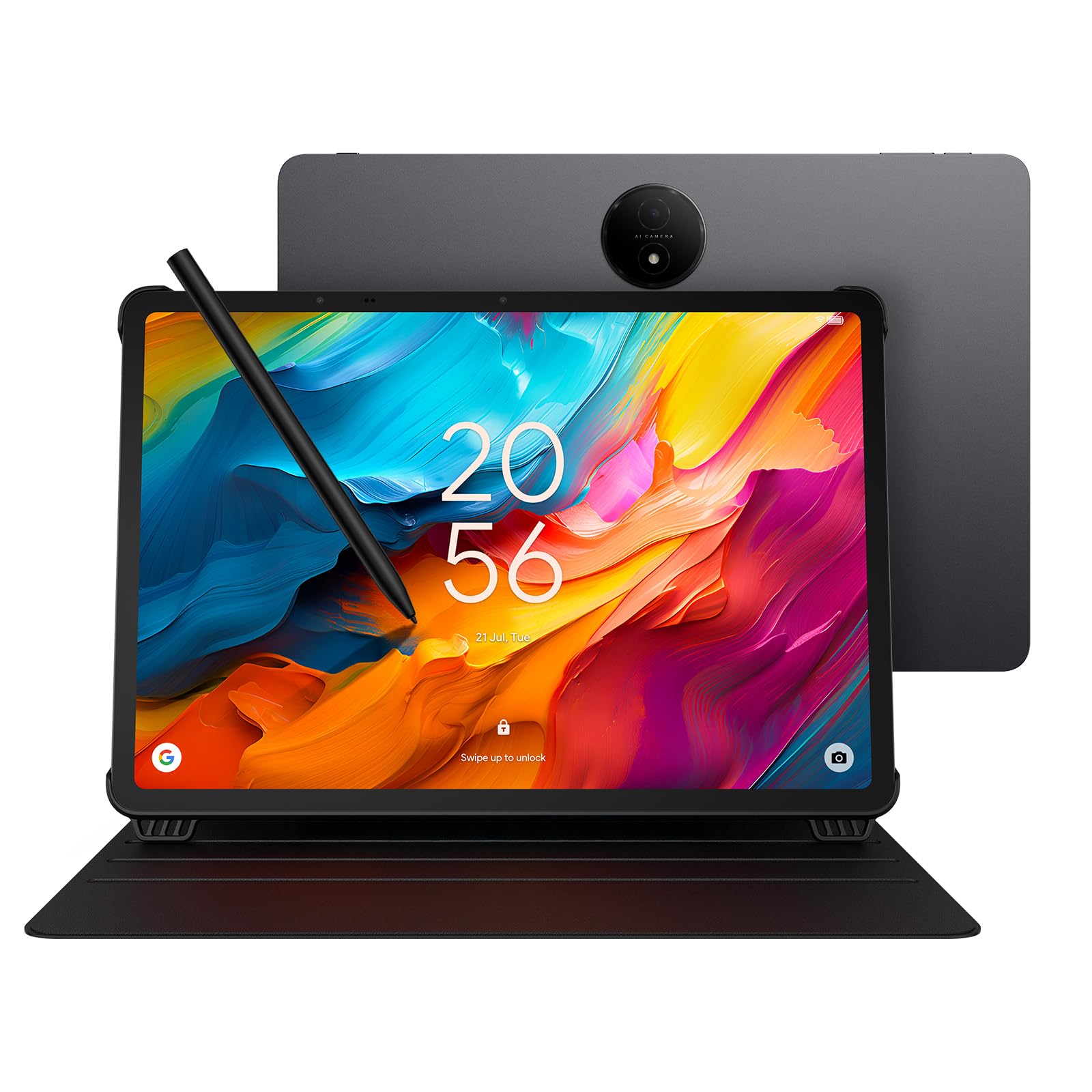
The TCL NXTPAPER 14 is a 14.3-inch Android tablet whose primary innovation is NXTPAPER 3.0 display technology — an anti-glare coating combined with DC dimming and blue-light reduction that produces a paper-like viewing experience without the low refresh rate of E Ink. The 2.4K resolution (2400×1600) delivers sharp text and images, and the dedicated NXTPAPER Key lets you toggle between Regular Mode (vibrant video), Color Paper Mode (soft tones for comics and art), and Ink Paper Mode (e-paper texture for reading and note-taking).
The included T-PEN stylus offers 4,096 pressure levels for sketching and note-taking, and the MediaTek Helio G99 processor with 8GB of RAM plus an additional 8GB of expandable memory handles multitasking with floating windows and split-screen workflows. The 10,000mAh battery provides extended runtime — fully rechargeable in about two hours with 33W fast charging. The tablet weighs 1.67 pounds and measures 0.27 inches thin, making it remarkably portable for a 14-inch device.
The NXTPAPER 14 is not a dedicated drawing tablet in the way the XPPen Magic Drawing Pad or Wacom MovinkPad 11 are — the 4096 pressure levels and the stylus feel are adequate for sketching and note-taking but fall short of the precision required for professional illustration or linework. Where this tablet truly excels is as a multi-purpose device for musicians reading sheet music (the A4-size screen handles a full page at once), for students who read digital textbooks for hours, and for anyone who needs a large-screen tablet that dramatically reduces eye fatigue compared to standard LCD and OLED panels.
Why it’s great
- NXTPAPER 3.0 technology dramatically reduces eye strain during long reading and sketching sessions
- 14.3-inch 2.4K screen rivals A4 paper size for sheet music and document viewing
- Three display modes provide flexibility for reading, drawing, and video consumption
Good to know
- 4096 pressure levels and stylus feel are inadequate for professional digital art
- No microSD card slot, no headphone jack, no included charger in the box
- Processor performance lags behind flagship tablets when running demanding apps
10. UGEE UT3 Fun Drawing Pad

The UGEE UT3 Fun Drawing Pad is a 14.25-inch standalone Android 14 drawing tablet that offers the largest screen in the budget standalone category at a 2.4K resolution (2400×1600) with a full-laminated nano-matte finish. The NTSC >72% color gamut and 16.7 million colors provide passable color reproduction for illustration and sketching. The 10,000mAh battery with 27W fast charging ensures you can work through a full day without hunting for an outlet.
The stylus offers 4,096 pressure levels with 60-degree tilt support, and the tablet includes a U-Key for switching between Regular, Ink Paper, and Color Paper display modes — similar to the TCL NXTPAPER but without the sophisticated eye-care engineering. The 6nm octa-core processor with 8GB of RAM and 256GB of onboard storage handles Krita and other Google Play drawing apps without major lag. The 6.95mm thin profile and 760-gram weight make it one of the largest tablets you can still comfortably hold for extended periods.
The UT3’s weaknesses are the same as most budget standalone drawing tablets: the pressure sensitivity tops out at 4096 levels (matching entry-level devices), the pen requires charging via USB-C and will interrupt your session if you forget to plug it in overnight, and the 2.4K resolution, while sharp, doesn’t match the pixel density of the XPPen Magic Drawing Pad or the iPad Pro. For the artist who needs the largest possible canvas on a standalone Android tablet without spending premium money, the UGEE UT3 provides the most screen real estate per dollar in this guide.
Why it’s great
- 14.25-inch 2.4K screen offers the largest standalone canvas at a budget price
- Full-laminated nano-matte finish reduces glare and provides paper-like texture
- 10,000mAh battery with 27W fast charging supports all-day drawing sessions
Good to know
- Pen requires USB-C charging — a dead pen stops your session completely
- 4096 pressure levels are entry-level spec, not suitable for professional nuanced linework
- No microSD card slot limits storage expansion for large design project files
11. UGEE UT2 Drawing Pad
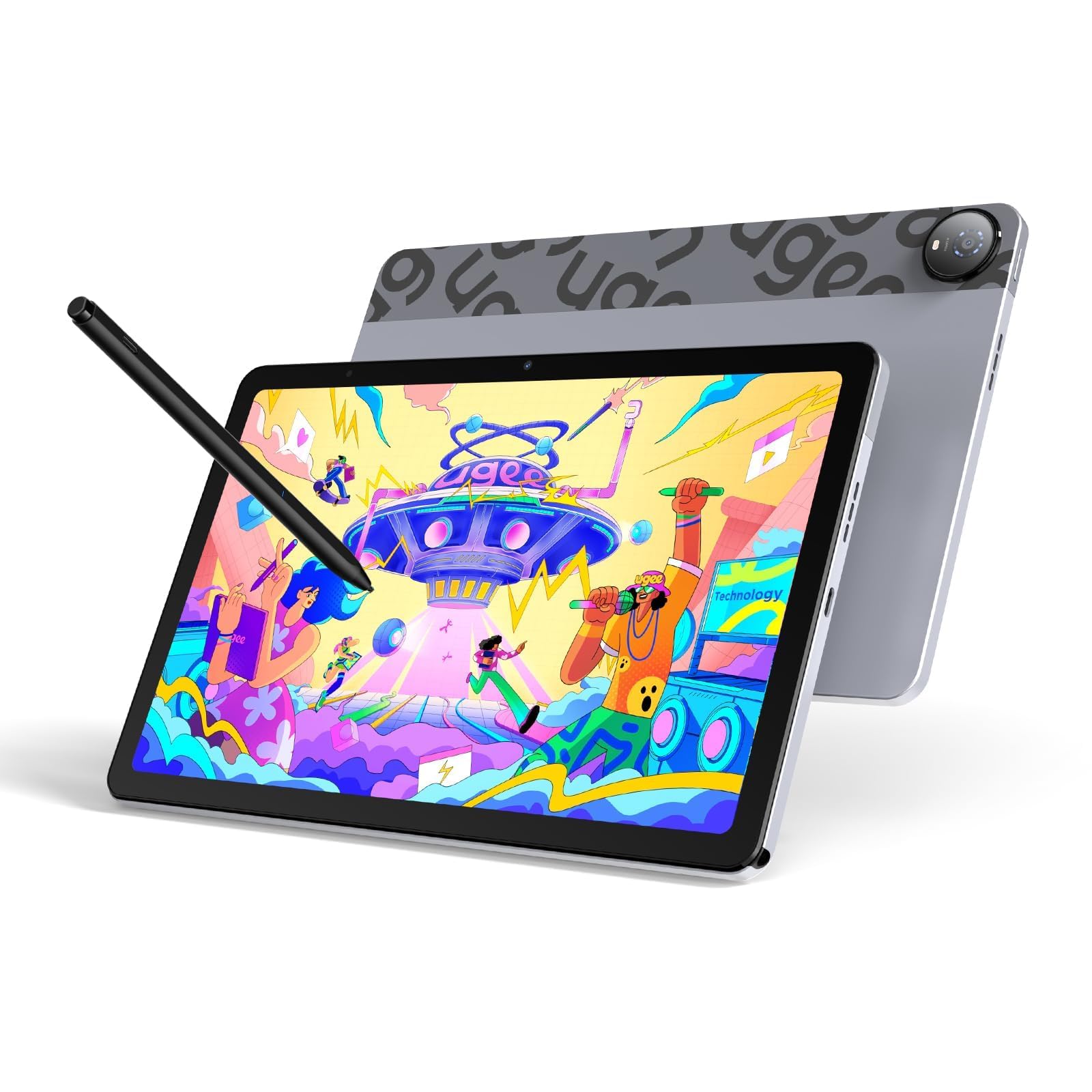
The UGEE UT2 Drawing Pad is the lightest standalone drawing tablet in this guide at 466 grams — thinner than most smartphones at 6.95mm — making it the device you can actually keep in your bag every single day without noticing the weight. The 10.36-inch 2K display (2000×1200, 277 PPI) uses a nano-etched matte glass surface with 100% sRGB coverage, and the Mediatek Helio G99 processor with 6GB of RAM and 128GB of storage (expandable to 1TB) runs Android 14 smoothly for Krita, Clip Studio Paint, and ibisPaint X.
The UT2’s stylus offers 4,096 pressure levels with a 130-hour battery life — significantly longer than most rechargeable pens — and the 7,000mAh tablet battery delivers around 9 hours of continuous drawing with 18W fast charging that hits 50% in 60 minutes. The included multi-angle leather case adjusts from 15 to 75 degrees, transforming any surface into a stable drawing station. The ultra-light 13-gram stylus glides effortlessly, and the pen mode prevents accidental touch inputs from your palm.
The trade-off for this extreme portability is the smaller 10.36-inch screen — adequate for sketching and note-taking but cramped for detailed illustration work that requires zooming and panning constantly. The 4096 pressure levels match entry-level expectations, and the pen needs a cap press to activate each drawing session, which adds a minor friction point when inspiration strikes suddenly. For the artist whose primary requirement is a portable sketchpad that fits in a jacket pocket rather than a studio canvas, the UGEE UT2 is uniquely suited to that role.
Why it’s great
- Weighs 466 grams and measures 6.95mm — genuinely pocketable for a full drawing tablet
- 2K resolution on a 10.36-inch screen delivers high pixel density (277 PPI) for sharp linework
- Stylus battery lasts 130 hours, dramatically outlasting typical rechargeable pens
Good to know
- Small 10.36-inch screen requires frequent zooming for detailed illustration work
- 4096 pressure levels limit line-weight nuance for professional applications
- Pen requires cap press to activate each session — an extra step between idea and execution
FAQ
Is 4096 pressure sensitivity enough for professional design work?
Should I buy a standalone drawing tablet or a tethered pen display?
Why do some drawing tablets use matte glass while others are glossy?
Final Thoughts: The Verdict
For most users, the best tablet for design winner is the Wacom MovinkPad 11 because it combines Wacom’s industry-leading pen feel with true standalone portability and zero cable dependency, making it the device that disappears into your creative flow rather than demanding attention from it. If you want the highest pressure sensitivity and a paper-like AG-etched screen, grab the XPPen Magic Drawing Pad. And for 4K color-critical studio work that demands maximum canvas size with dual stylus support, nothing beats the XPPen Artist Pro 19 Gen2.

Mo Maruf
I created WellFizz to bridge the gap between vague wellness advice and actionable solutions. My mission is simple: to decode the research and give you practical tools you can actually use.
Beyond the data, I am a passionate traveler. I believe that stepping away from the screen to explore new environments is essential for mental clarity and physical vitality.