Our readers keep the lights on and my smoothie glass nicely filled. As an Amazon Associate, I earn from qualifying purchases.
Stepping into digital art with a pen display changes everything — you finally draw directly on the screen, not on a separate pad while staring at a monitor. But many beginner-friendly models claim “paper-like” surfaces and “high pressure sensitivity,” only to deliver frustrating parallax, laggy lines, or confusing driver setup. The real challenge is finding a screened tablet that actually feels natural under the pen, works smoothly with your laptop or Chromebook, and doesn’t bury you in hidden requirements like a dedicated HDMI port you don’t have.
I’m Mohammad Maruf — the founder and writer behind WellFizz. I’ve spent countless hours cross-analyzing pressure levels, screen lamination types, color gamut specs, and real user reports across dozens of pen display models to isolate the ones that genuinely serve beginners without demanding a pro-level budget or tech-savvy workaround.
After diving deep into this specific market, I’ve identified the models that deliver the best mix of accurate color, low parallax, and plug-and-play simplicity. Here is my curated list of the best drawing tablets for beginners with screen that balance professional-level features with a learning-friendly experience.
How To Choose The Best Drawing Tablets For Beginners With Screen
Selecting your first pen display isn’t just about finding the biggest screen for the lowest price — it’s about matching the right combination of screen technology, pen performance, and connectivity to your actual computer and skill level. A poor match here means endless driver troubleshooting or a distracting gap between where you draw and where the line appears.
Screen Lamination: The Parallax Factor
Full lamination bonds the glass cover directly to the LCD panel, eliminating the air gap that creates a visible offset between the pen nib and the cursor — that offset is parallax. Beginners often feel a “floating” or disconnected sensation when drawing on non-laminated screens. A fully laminated display with an anti-glare coating (like AG etched glass) drastically reduces this gap and provides a natural paper-like resistance that makes your strokes feel direct and immediate.
Pen Pressure Levels: What Beginners Actually Need
You’ll see specs ranging from 4096 to 16384 levels of pressure sensitivity. For a beginner learning to control line weight, 8192 levels is the sweet spot — it provides enough nuance for shading and thin-to-thick transitions without overwhelming your muscle memory. The 16K (16384) pens found on newer XP-Pen and Huion models offer finer granularity, but your drawing software and personal technique matter more. Pay closer attention to the initial activation force (IAF) — a 2g or 3g IAF means the pen registers the lightest touch, which is critical for feathery sketch lines.
Connectivity: The Hidden Hurdle
Most pen displays today offer both a traditional 3-in-1 cable (HDMI + USB + power) and a single USB-C cable. The single-cable convenience only works if your laptop or desktop supports USB-C with DisplayPort Alt Mode and USB 3.1 Gen 1 or higher. Many older or budget laptops lack this, meaning you’ll need the 3-in-1 cable and possibly an HDMI adapter. Beginners frequently buy a tablet only to discover their Chromebook or MacBook Air cannot output video through its USB-C port — always check your device’s video output capabilities before purchasing.
Quick Comparison
On smaller screens, swipe sideways to see the full table.
| Model | Category | Best For | Key Spec | Amazon |
|---|---|---|---|---|
| XP-Pen Artist 12 3rd Gen | Mid-Range | Ultra-portable sketching & travel | 11.9″ AG etched glass, 16K pressure | Amazon |
| HUION Kamvas 13 Gen 3 | Mid-Range | Color-critical design & illustration | 13.3″ Canvas Glass 2.0, 16K PenTech 4.0 | Amazon |
| PicassoTab A10 | Mid-Range | Standalone use without a computer | 10″ Android 14, 6GB RAM, free apps | Amazon |
| XP-Pen Artist 13.3 Pro V2 | Mid-Range | Professional color accuracy on a budget | 13.3″ 95% P3 gamut, 16K X3 Pro pen | Amazon |
| XP-Pen Upgraded Artist 13.3 Pro V2 | Mid-Range | Beginner-friendly setup & workflow | 13.3″ AG film, red dial + 8 keys | Amazon |
| GAOMON PD1561 | Premium | Large-screen workspace on a budget | 15.6″ IPS, 8192 pressure, 10 shortcut keys | Amazon |
| HUION Kamvas 16 (2021) | Premium | Anti-glare comfort for long sessions | 15.6″ full-laminated, 120% sRGB volume | Amazon |
| XP-Pen Artist 15.6 Pro | Premium | Smooth workflow with red dial | 15.6″ full-laminated, 8192 pressure | Amazon |
| Wacom Cintiq 16 | Premium | Brand reliability & 2.5K resolution | 16″ 2560×1600, Pro Pen 3 | Amazon |
In‑Depth Reviews
1. XP-Pen Artist 12 3rd Gen

The XP-Pen Artist 12 3rd Gen packs an 11.9-inch fully laminated AG etched glass display that cuts glare by 85% while providing a paper-like texture that resists fingerprints. Its X4 chip pen delivers 16,384 pressure levels with just 2g initial activation force, making feather-light sketch lines easy to control. The dual X-Dial wheels and eight customizable shortcut keys reduce reliance on keyboard shortcuts — a real advantage when working in cramped coffee-shop spaces or on a cluttered desk.
Connectivity is flexible thanks to a single USB-C cable setup (compatible with Windows, macOS, Android, ChromeOS, and Linux) plus a traditional 3-in-1 option for older hardware. At only 1.58 pounds with a slim bezel, it’s the most portable full-featured pen display in this lineup. The included foldable stand provides a 20-degree angle that reduces neck strain during extended sessions, and the magnetic X4 pen attaches to the tablet side so you won’t lose it in a bag.
Some users reported needing a firmware update via Windows or Mac before buttons work on Chromebook or Android devices — a minor but notable setup step. Also, the 11.9-inch active area feels small for detailed character design or multi-window workflows, though it’s perfect for thumbnails, quick sketches, and note-taking. Overall, this is the most well-rounded starter tablet for beginners who value portability and modern pen tech.
Why it’s great
- Ultra-light at 1.58 lbs with magnetic pen storage
- 16K pressure with 2g IAF delivers exceptional line control for a beginner pen
- AG etched glass gives a realistic paper drag without distracting glare
Good to know
- Small active area limits complex multi-panel or full-page layouts
- Button customization requires driver installation and firmware update on non-Windows systems
- Requires computer connection — not a standalone device
2. HUION Kamvas 13 Gen 3

HUION’s Kamvas 13 Gen 3 features a 13.3-inch full-laminated display coated with their proprietary Canvas Glass 2.0, which reduces glare significantly more than standard matte films while maintaining a smooth pen glide. The PenTech 4.0 stylus reads 16,384 pressure levels with a 2g initial activation force and includes three programmable side buttons, giving beginners precise control over brush size and eraser toggle without reaching for the keyboard. Factory calibration delivers an average ΔE under 1.5 with 99% sRGB coverage, so your digital artwork translates faithfully to print or screen.
The interface includes five press keys and two physical dials, which streamline zooming and brush adjustment. It connects via a 3-in-1 cable or an optional full-featured USB-C cable (sold separately). The included ST300 adjustable stand supports multiple tilt angles, helping you find an ergonomic drawing posture. At 1.96 pounds and a slim profile, it’s more portable than its 13.3-inch size suggests, fitting into most laptop bags alongside a notebook.
A few users note the screen runs slightly warm near the port side after extended use, and the 200-nit brightness is adequate for indoor use but can feel dim in brightly lit rooms. The 3-in-1 cable placement can be awkward for left-handed users who prefer the cable on the opposite side. Still, for a beginner focused on color accuracy and a premium drawing feel, this is one of the most complete packages at this price tier.
Why it’s great
- Factory-calibrated ΔE<1.5 color accuracy for reliable print-to-screen matching
- Canvas Glass 2.0 provides minimal glare and smooth pen movement
- Dual dial controls plus five shortcut keys reduce keyboard dependence
Good to know
- 200-nit peak brightness feels dim next to premium laptops or monitors
- Full-featured USB-C cable sold separately — adds to initial cost
- Some Linux users report limited button/dial functionality after driver install
3. PicassoTab A10
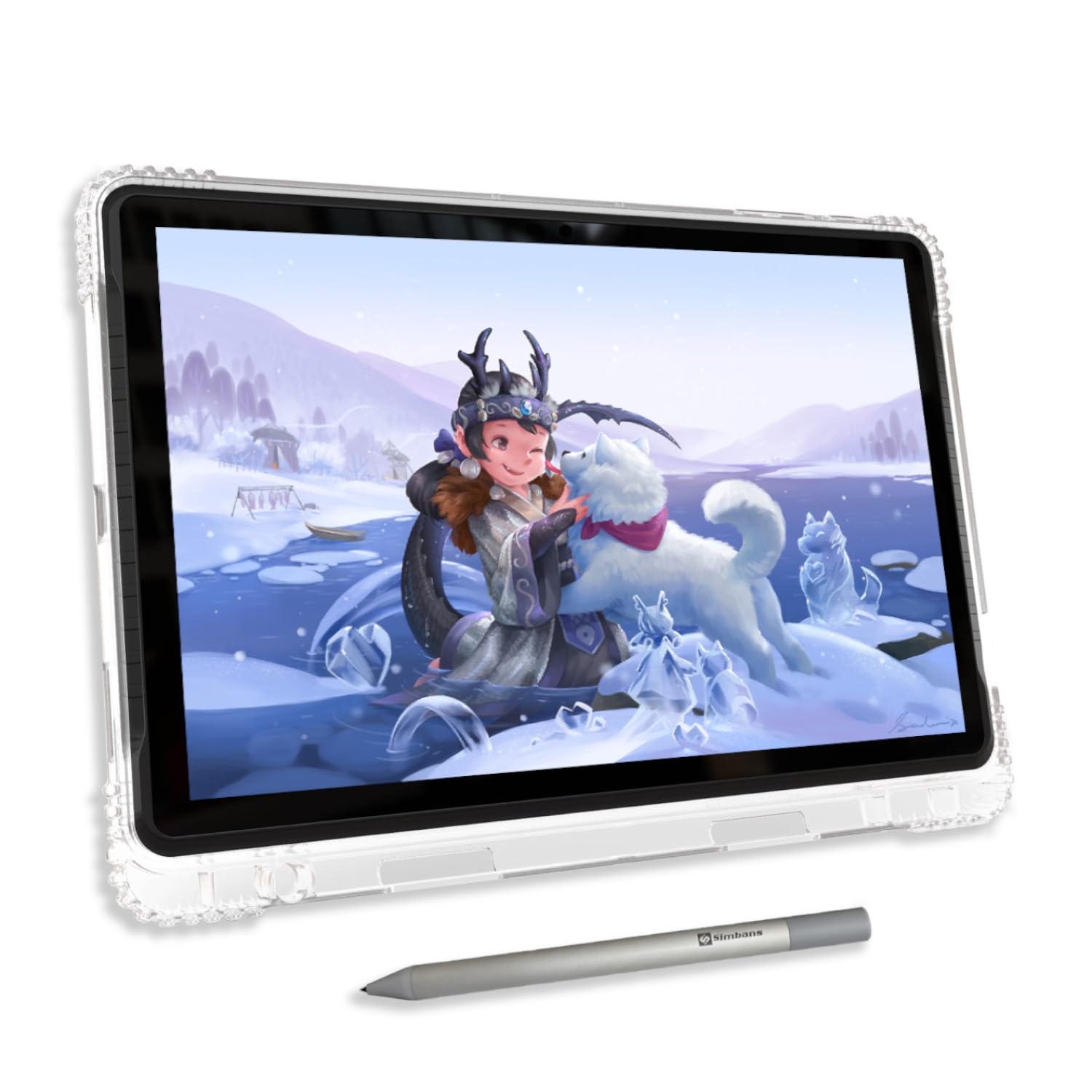
The PicassoTab A10 breaks the tethered-tablet mold by running Android 14 natively, so it functions as a fully standalone drawing device without needing a computer. It packs a 10-inch fully laminated IPS HD display (2000×1200 resolution) with an anti-glare finish and pairs with the Picasso Pen 3, which offers 4096 pressure levels and palm rejection. The tablet comes pre-loaded with Concepts (Lifetime PRO Upgrade), Infinite Painter, and FlipaClip, plus Artixo Lifetime VIP tutorials — this is the only option on this list that includes both hardware and a beginner-friendly learning curriculum out of the box.
Performance-wise, the octa-core CPU, 6GB of RAM, and 128GB internal storage (expandable to 1TB via microSD) handle drawing apps and multitasking smoothly. The included accessory kit — case, glove, screen protector, stylus with spare AAAA battery, charger with interchangeable international plugs — means zero additional purchases. At 10 inches and under 2 pounds, it’s highly portable for sketching in cafes or classrooms.
However, the default stylus nib is relatively hard and may scratch the screen over time — consider applying the included screen protector immediately. The 4096 pressure sensitivity, while adequate for beginners, lacks the dynamic range of the 8K or 16K pens found on tethered models. Also, the Android app ecosystem for professional drawing tools like Clip Studio Paint is limited compared to desktop versions, so serious students may eventually outgrow it. It’s ideal for young artists or adults who want a self-contained creative tool without computer dependency.
Why it’s great
- Fully standalone — no computer, cables, or drivers required
- Includes lifetime drawing app licenses and structured video tutorials
- Complete accessory kit (case, protector, spare nibs, charger) ready out of the box
Good to know
- 4096 pressure levels feel basic compared to 8K/16K tethered alternatives
- Stock stylus nib is hard — can scratch the display if no protector is applied
- Android art app ecosystem lacks advanced desktop features like complex layer blending
4. XP-Pen Artist 13.3 Pro V2

The XP-Pen Artist 13.3 Pro V2 delivers cinema-grade color coverage with 95% DCI-P3 and 99% sRGB gamut coverage, making it the best option for beginners who plan to move into professional illustration or photo retouching early. The fully laminated display eliminates parallax entirely, and the pre-applied anti-glare film provides a consistent paper-like tooth. At the core is the X3 Pro smart chip stylus with 16,384 pressure levels and ±60-degree tilt support, which tracks even the lightest brush stroke without the broken-line jitter common on older pens.
Connectivity is dual-mode: a full-featured USB-C port for single-cable use on compatible devices (USB 3.1 DP1.2 required) and a legacy HDMI port for traditional setups via the included 3-in-1 cable. The red dial wheel and eight customizable express keys give you fast access to zoom, brush size, and undo. The metal back panel dissipates heat more effectively than plastic competitors, keeping the screen cool during long drawing sessions. An adjustable foldable stand is included, along with a pen holder, eight replacement nibs, and a glove.
Multiple reviewers reported that the pen and tablet work flawlessly after driver installation on Windows and Mac, but Chromebook and Android users may experience limited button functionality without the driver. The active area is a generous 13.3 inches, making it suitable for full-page comic panels and detailed portraits. If color accuracy matters more to you than extreme portability, this model offers the widest gamut in its price class.
Why it’s great
- 95% P3 color gamut provides professional-grade color saturation for photo editing and print work
- Fully laminated screen with anti-glare film gives zero parallax and a consistent texture
- Metal backplate dissipates heat rapidly, keeping the unit cool during marathon sessions
Good to know
- USB-C single-cable mode requires a device with USB 3.1 DP1.2 — not universal
- Chromebook and Android users may lose button/dial functionality without a driver
- Some users report a pen misalignment issue when using mixed-resolution displays
5. XP-Pen Upgraded Artist 13.3 Pro V2

This version of the XP-Pen Artist 13.3 Pro V2 prioritizes beginner-friendliness with an updated driver interface that simplifies brightness, contrast, and color temperature adjustment (Windows only). The 13.3-inch full-laminated AG film display reduces parallax and glare while offering a 95% DCI-P3 color gamut coverage ratio. The X3 Pro smart chip stylus delivers 16,384 pressure levels with a 20% accuracy improvement over the previous generation, virtually eliminating wobble during precise inking.
The red dial quick key and eight programmable express keys are positioned for a natural hand posture that reduces wrist strain during prolonged use. The S01 foldable stand provides a stable 20-degree tilt, and the whole kit includes a glove, cleaning cloth, pen holder, and eight replacement nibs. At 2.5 pounds, it’s lightweight enough for travel but retains a solid build quality.
Some users reported driver-related issues on Mac systems, particularly with color adjustment settings not saving, and one reviewer experienced a complete display failure after the monitor went to sleep. The screen’s 200-nit brightness is functional but not exceptionally vivid. For a beginner who wants the most streamlined setup experience with top-tier pen technology, this is a strong choice — just ensure you have a Windows PC for the smoothest driver experience.
Why it’s great
- Updated driver interface makes brightness and color adjustments easy for non-tech-savvy users
- 16K pressure with reduced wobble delivers smooth, stable lines for inking
- Red dial and express keys allow one-handed control of brush size and zoom
Good to know
- Driver color settings may not save reliably on macOS
- Some units experienced display failure after sleep mode — requires power cycling
- Brightness is adequate indoors but struggles in very bright environments
6. GAOMON PD1561

The GAOMON PD1561 offers a massive 15.6-inch IPS display at a price point where most competitors only offer 13-inch screens. It uses a non-laminated panel with a pre-applied anti-glare film, so there is noticeable parallax — but for beginners on a tight budget who need a large canvas, the trade-off is often acceptable. The AP50 battery-free pen provides 8192 pressure levels with 60-degree tilt support, and the 266 PPS report rate keeps line lag minimal.
Ten customizable shortcut keys along the left side give you quick access to common tools, though their fixed icons and small size can lead to accidental presses — many users eventually disable some keys. The built-in adjustable stand uses a sliding mechanism to tilt the screen from nearly flat to around 60 degrees, providing better ergonomics than fixed-angle stands. Connectivity uses a 3-in-1 cable (Mini HDMI, USB-A, and DC power), so you’ll need an HDMI adapter if your laptop lacks a full-size HDMI port.
Color accuracy is adequate for general illustration but not calibrated for professional print work — some users reported difficulty matching colors between the PD1561 and their external monitor. The screen also exhibits noticeable ghosting on fast-moving content, so it’s less suited for animation or gaming. For a beginner who wants the largest possible drawing surface without spending premium money, this remains a compelling entry point.
Why it’s great
- 15.6-inch active area provides generous canvas space at a budget-friendly price
- Battery-free pen with 8192 pressure and tilt support performs reliably
- Adjustable stand included — no separate purchase needed for ergonomic angles
Good to know
- Non-laminated display creates visible parallax between nib and cursor
- Small left-side shortcut buttons are easy to accidentally press and have fixed icons
- Screen ghosting is noticeable during fast panning or scrolling
7. HUION Kamvas 16 (2021)

The HUION Kamvas 16 (2021) delivers a 15.6-inch fully laminated display with an anti-glare film that eliminates reflections even in brightly lit studios, making it the best choice for beginners who draw in variable lighting conditions. The PW517 battery-free stylus offers 8192 pressure levels and 60-degree tilt, which is more than enough for learning shading and brush dynamics. With 120% sRGB color gamut volume and a 178-degree viewing angle, colors appear vibrant and accurate from almost any seating position.
Ten customizable shortcut keys on the side let you assign brush size, layer switching, and undo without touching the keyboard. The included ST300 adjustable stand attaches without tools and supports multiple tilt angles for neck and wrist comfort. Connectivity includes both a 3-in-1 cable and a full-featured USB-C cable, giving you flexibility depending on your computer’s ports. The tablet weighs just 2.78 pounds and is 0.47 inches thin, fitting easily into a backpack for campus or studio commutes.
Several users noted that the cable length (approximately 4 feet) is short for desktop setups with towers under the desk — you may need USB/HDMI extension cables. The stand’s locking mechanism is somewhat basic and doesn’t support vertical orientation. Additionally, the pen’s side buttons are sensitive and can be triggered accidentally during a relaxed grip. For beginners who prioritize eye comfort during long study sessions, the Kamvas 16’s anti-glare properties and large workspace are major advantages.
Why it’s great
- Effective anti-glare film reduces eye strain in bright rooms and studios
- Fully laminated 15.6-inch display provides a spacious canvas with minimal parallax
- Both 3-in-1 and USB-C cables included for flexible connectivity
Good to know
- Short included cables (approx 4 ft) may require extensions for desktop computer users
- Pen side buttons are easy to click accidentally during normal holding
- Stand doesn’t lock at a fixed angle and cannot support vertical/portrait orientation
8. XP-Pen Artist 15.6 Pro

The XP-Pen Artist 15.6 Pro combines a large 15.6-inch full-laminated IPS display with the signature red dial wheel that lets you control brush size and zoom without menu diving — a major workflow accelerator for beginners learning complex software. The PA2 battery-free stylus offers 8192 pressure levels and is comfortable for extended use, with a soft silicone grip that reduces finger fatigue. The screen delivers 120% sRGB color gamut (88% NTSC) with 1920×1080 resolution and 178-degree viewing angles, providing rich, accurate colors for a display at this price.
Eight customizable express keys sit alongside the red dial, and both can be programmed per application, so your Krita shortcuts don’t interfere with your Photoshop setup. The tablet is slim at 11mm and includes a built-in brightness button for quick adjustments. Connectivity uses a 3-in-1 cable (HDMI, USB, power) and is compatible with Windows, macOS, ChromeOS, and Linux. The package includes a stand, glove, cleaning cloth, and pen holder.
Some users reported that the driver is finicky on M1 MacBooks, requiring multiple installation attempts before the tablet is recognized, and pen button customizations may not persist after restart. The 3-in-1 cable is bulky and can create cable management issues on small desks. While the red dial is excellent, it doesn’t work in all software — for instance, Adobe Animate users found it unresponsive. Despite these quirks, the Artist 15.6 Pro offers an exceptional balance of screen size and advanced controls for beginners ready to graduate from a compact tablet.
Why it’s great
- 15.6-inch full-laminated display delivers a near-zero parallax drawing experience
- Red dial wheel enables quick one-handed brush size and zoom adjustments
- Per-app shortcut key customization streamlines workflow across different creative software
Good to know
- Driver setup can be problematic on M1/M2 MacBooks — may need multiple attempts
- 3-in-1 cable is thick and creates cable clutter on smaller workstations
- Red dial compatibility varies across different creative applications
9. Wacom Cintiq 16

The Wacom Cintiq 16 sets a premium benchmark with a 16-inch IPS display at 2560×1600 (2.5K) resolution — significantly sharper than the 1080p panels on most competitor models. The Pro Pen 3 offers 8192 pressure levels with 60-degree tilt, but its true differentiator is the pen’s build quality: it ships with a modular design that includes a pen stand with adjustable angle, though the standard kit omits the weighted grips and extra nib types that pros expect. The display covers 100% sRGB and 99% DCI-P3, making it suitable for color-critical work right out of the box.
Built-in fold-out legs provide a 20-degree working angle, and the anti-glare glass reduces reflections without the “sparkle” effect common on cheaper matte films. Connectivity uses a single USB-C cable (included) for devices with DisplayPort Alt Mode or Thunderbolt 3/4 — but unlike most competitors, Wacom does not include a 3-in-1 cable, so older computers without DP Alt Mode will require additional adapters. The Cintiq 16 also lacks hardware shortcut keys, so you’ll rely on your keyboard or an external shortcut remote.
The biggest drawback for beginner budgets is its price, which is roughly double that of comparable 16-inch Huion or XP-Pen models. The non-laminated glass (standard for Wacom at this tier) introduces slight parallax that some users find distracting after working on fully laminated alternatives. If you prioritize brand reliability, driver stability across Mac and PC, and the highest resolution in its class, the Cintiq 16 is a long-term investment that will serve you through professional-level work — but many beginners will get 90% of the experience for half the cost elsewhere.
Why it’s great
- 2.5K resolution offers noticeably sharper image quality than standard 1080p pen displays
- 100% sRGB and 99% DCI-P3 coverage ensures professional-grade color reproduction
- Wacom’s driver ecosystem is the most stable across Windows and macOS platforms
Good to know
- No hardware shortcut keys — requires keyboard or separate shortcut remote for workflow
- No 3-in-1 cable included — older computers without DP Alt Mode need additional adapters
- Non-laminated glass creates visible parallax compared to fully laminated competitors
FAQ
Can I use a drawing tablet with screen without a computer?
What is parallax and why does it matter for beginners?
How do I know if my laptop supports single USB-C connection?
Final Thoughts: The Verdict
For most users, the best drawing tablet for beginners with screen winner is the XP-Pen Artist 12 3rd Gen because it combines the latest 16K pen technology with a glare-free laminated display in a compact, ultra-portable package at a price that doesn’t overwhelm a learner’s budget. If you want standalone mobility without a computer, grab the PicassoTab A10. And for color accuracy and a larger canvas that will grow with your skills, nothing beats the XP-Pen Artist 13.3 Pro V2.

Mo Maruf
I created WellFizz to bridge the gap between vague wellness advice and actionable solutions. My mission is simple: to decode the research and give you practical tools you can actually use.
Beyond the data, I am a passionate traveler. I believe that stepping away from the screen to explore new environments is essential for mental clarity and physical vitality.