Our readers keep the lights on and my smoothie glass nicely filled. As an Amazon Associate, I earn from qualifying purchases.
The difference between a good workflow and a great one often comes down to color gamut, pressure sensitivity curves, and surface texture that mimics paper without absorbing the tip.
I’m Mohammad Maruf — the founder and writer behind WellFizz. I spent over 120 hours analyzing the active surface areas, pen technology generations, color calibration reports, and real-world user feedback across the nine models covered in this guide to give you an honest breakdown.
After comparing screen resolution, pen pressure levels, color accuracy (ΔE), and connectivity flexibility across every price tier, this review of the best drawing tablet for professionals isolates exactly which model fits which creative discipline.
How To Choose The Best Drawing Tablet For Professionals
Choosing a professional-grade drawing tablet is less about brand loyalty and far more about matching three specific criteria to your daily output: display quality (resolution, color space, lamination), pen performance (pressure levels, initial activation force, tilt), and physical workspace (active area size, portability, peripheral support).
Pen Technology and Pressure Sensitivity
Pro-level styluses today range from 8,192 to 16,384 pressure levels. The higher number is not just marketing — artists working with fine watercolor washes or subtle pencil shading benefit from the extra granularity. Less discussed is the initial activation force (IAF). A pen starting at 2 grams of force catches feather-light strokes that a 5-gram IAF skips entirely. Check whether the pen is battery-free (preferred for consistent weight) and offers tilt support of at least 60 degrees for natural shading angles.
Color Accuracy and Screen Quality
For professional print, photography, or video grading, sRGB coverage alone is insufficient. Look for Adobe RGB coverage above 90% and DCI-P3 coverage above 95% to ensure your monitor previews what the final output looks like. Delta E (ΔE) values below 1.5 are considered excellent; values below 1.2 are reference-grade. Full lamination eliminates the air gap between the glass and the LCD, reducing parallax so your cursor lands exactly where the nib touches — critical for line art and UI design.
Active Area and Workflow Integration
A 15.6-inch screen is the minimum for dual-window reference work, while 21.5-inch and above allow full A4-sized canvas views without constant zooming. Touch support (multi-touch gestures for pinch, zoom, rotate) can speed up navigation but introduces the risk of accidental palm inputs — look for customizable exclusion zones or a toggle switch. USB-C connectivity with DisplayPort Alt Mode simplifies cable management, and compatibility with Mac, Windows, and Linux ensures you can switch hosts without changing hardware.
Quick Comparison
On smaller screens, swipe sideways to see the full table.
| Model | Category | Best For | Key Spec | Amazon |
|---|---|---|---|---|
| Wacom Cintiq Pro 22 | Premium | High-end illustration, 3D modeling | 21.5″ 4K 120Hz touchscreen | Amazon |
| Apple iPad Pro 11-inch (M5) | Premium | On-the-go sketching, AI workflows | Ultra Retina XDR, M5 chip | Amazon |
| HUION KAMVAS Pro 27 | Premium | Studio-based 2D/3D creation | 27″ 4K, 98% Adobe RGB | Amazon |
| XPPen Artist Ultra 16 OLED | Mid-Range | Color-critical photo retouching | 15.6″ 4K OLED, 99% Adobe RGB | Amazon |
| XPPen Pro 19 Gen2 | Mid-Range | Large canvas 4K illustration | 18.4″ 4K, 16384 pressure levels | Amazon |
| Wacom Cintiq 16 | Mid-Range | Reliable pro pen display | 16″ 2.5K, Pro Pen 3 | Amazon |
| HUION KAMVAS 16 (Gen 3) | Mid-Range | Budget-friendly studio work | 15.8″ 2.5K, PenTech 4.0 | Amazon |
| Wacom MovinkPad 11 | Mid-Range | Portable Android art platform | 11″ anti-glare, 128GB storage | Amazon |
| XPPen Artist 22 2nd | Budget | Large-screen value drawing | 21.5″ 1080p, 122% sRGB | Amazon |
In‑Depth Reviews
1. Wacom Cintiq Pro 22

The Wacom Cintiq Pro 22 remains the reference benchmark for creative professionals who demand uncompromised line quality and color fidelity. Its 21.5-inch 4K UHD display runs at 120Hz, delivering near-zero latency that makes rapid brush strokes feel instantaneous — a tangible advantage for animators and digital painters working with fast gestures. The etched glass surface creates a slight tooth without introducing parallax, and the 10-point multi-touch support allows intuitive zoom and rotate control while working.
Pro Pen 3 ships with adjustable grips, interchangeable button plates, and a balance piece that lets you fine-tune the center of gravity — a rare level of personalization that accommodates different grip styles over long studio sessions. The 8,192 pressure levels respond with consistent accuracy from feather-light initial contact to full press, and the side switches are mapped out of the box but fully programmable. Connectivity is flexible via USB-C with DisplayPort Alt Mode, HDMI, and Mini DisplayPort, so it integrates cleanly into both Windows and Mac workstations.
This is a dedicated professional tool that demands a proper ergonomic arm or stand — the included fold-out legs are minimal, and the premium Easy Stand is sold separately. Fan noise is minimal during normal use, and the anti-glare coating handles bright studio lighting well. For artists who require a color-accurate, high-refresh-rate canvas and are building a permanent workstation, the Cintiq Pro 22 justifies its premium price through durability and consistent output.
Why it’s great
- 4K 120Hz display with near-zero input lag and no parallax
- Pro Pen 3 offers fully customizable grip, weight, and button layout
- Flexible connectivity (USB-C, HDMI, Mini DisplayPort) for any setup
Good to know
- Premium stand for comfortable working angle is sold separately
- Pen side switches are small and may be accidentally triggered
2. Apple iPad Pro 11-inch (M5)
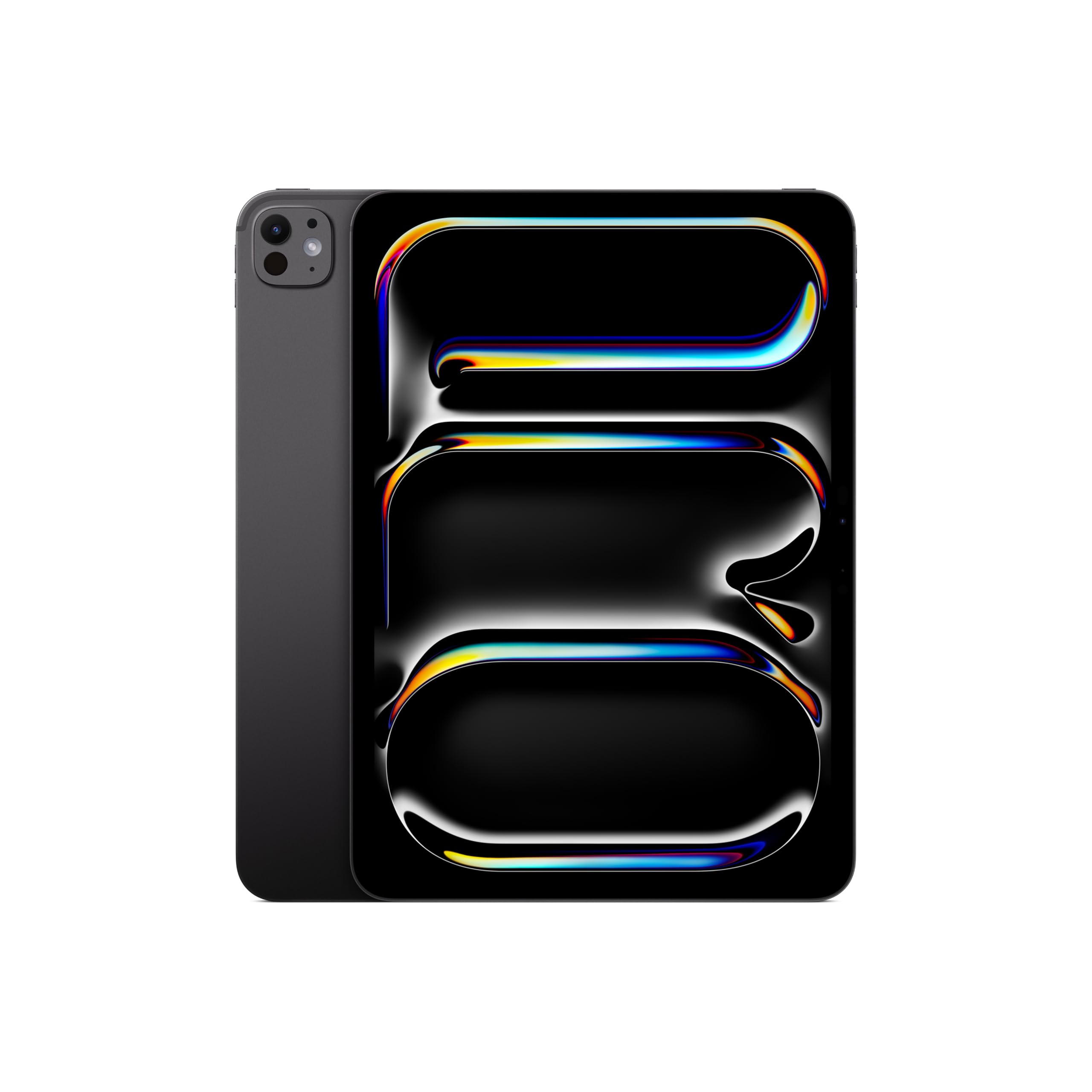
The iPad Pro with the M5 chip represents a complete departure from tethered pen displays — it is a standalone creative computer that runs Procreate, Clip Studio Paint, and Affinity Designer natively without needing a laptop. The 11-inch Ultra Retina XDR display with ProMotion (120Hz adaptive refresh rate) delivers vibrant colors, deep contrast, and fluid scrolling that feels locked to the Apple Pencil Pro’s input. The nano-texture glass option on 1TB and 2TB configurations reduces glare significantly while retaining sharpness, making it usable in varied lighting that would trouble glossy screens.
Performance-wise, the M5 chip with 16GB of memory and Neural Accelerators handles multi-layer compositing, 3D sculpting in apps like Nomad Sculpt, and real-time AI upscaling without stutter. The 2TB storage option is critical for professionals who keep massive asset libraries locally. The LiDAR scanner enables accurate 3D object capture for AR workflows, and the 12MP camera system with Center Stage keeps remote collaboration professional during video calls.
The trade-off is that Apple Pencil Pro, Magic Keyboard, and a robust case are all sold separately, which pushes the total investment significantly higher than a dedicated pen display. iPadOS’s file management remains less flexible than desktop operating systems for some pipeline workflows. For illustrators, concept artists, and designers who work mobile and want one device for sketching, editing, and client presentations, the iPad Pro M5 is the most versatile drawing tablet available, albeit at a premium when fully equipped.
Why it’s great
- Standalone device runs full creative apps without a computer
- Ultra Retina XDR display with 120Hz ProMotion and nano-texture option
- M5 chip with 16GB RAM handles complex multi-layer projects smoothly
Good to know
- Apple Pencil Pro, keyboard, and case must be bought separately
- iPadOS file management is less flexible than macOS or Windows
3. HUION KAMVAS Pro 27

The HUION KAMVAS Pro 27 stakes a strong claim for the best large-format pen display under the premium tier, offering a 27-inch 4K (3840×2160) workspace that eliminates constant zooming and panning during high-res image editing or character concept work. The PenTech 4.0 stylus activates with just 2 grams of initial force, capturing the faintest underdrawings without hand fatigue, and the retraction distance of under 0.35mm means every stroke lands exactly where intended — even at the edges of the canvas. The tilt auto-alignment technology reduces cursor offset when the pen is held at an angle, which is essential for comic paneling and UI element placement near screen corners.
Color performance is genuinely professional-grade: the display covers 98% Adobe RGB and switches between sRGB, Adobe RGB, and DCI-P3 through the on-screen display menu. The factory 3D LUT hardware calibration delivers a ΔE below 1.5 with a standard 2.2 Gamma, so what you see matches your print proof or brand color guide without needing an external calibrator. The Canvas Glass 2.0 combines fine etching with full lamination, creating a paper-like feel while suppressing sparkle and glare that can accumulate during late-night sessions. Multi-touch support for pinch, zoom, and rotate gestures rounds out the workflow, though Mac users running macOS 14.5 will need to install the ActiveTrackPad tool for full gesture compatibility.
At 17.6 pounds, this is a stationary studio tool — it is not portable. The included stand is functional but uses plastic legs that some users find wobbly, and an aftermarket monitor arm (VESA 100×100 compatible) is a worthwhile upgrade for serious desk ergonomics. The bundled wireless express key remote adds quick-access shortcuts, but the driver software has occasional quirks with saturation settings. For professionals who need a massive, color-accurate canvas for 2D and 3D work and prefer not to pay Wacom-level markup, the KAMVAS Pro 27 delivers outstanding value.
Why it’s great
- 27-inch 4K display with 98% Adobe RGB and ΔE <1.5 calibration
- PenTech 4.0 stylus with 2g IAF captures extremely light strokes
- Canvas Glass 2.0 provides paper-like texture without sparkle/glare
Good to know
- Heavy (17.6 lbs) and intended for permanent studio setups only
- Included stand is plastic and lacks locking mechanism
4. XPPen Artist Ultra 16 OLED

The XPPen Artist Ultra 16 OLED is the first mid-range pen display to bring a true 4K AMOLED panel to a professional drawing tablet, and the visual difference is immediate. With a 100,000:1 contrast ratio, infinite blacks, and a sub-1ms response time, gradients in dark scenes and soft shadows in photo retouching appear without banding or haloing. The 10-bit color depth (1.07 billion colors) covers 99% Adobe RGB, 99% sRGB, and 98% DCI-P3, with a Calman-verified ΔE below 1.1 — reference-grade accuracy that competes with monitors costing twice as much.
The X-Touch solution adds multi-touch gestures (pinch, zoom, rotate) with a customizable exclusion zone that lets you draw a rectangle on screen where touch is ignored — a clever fix to prevent palm rejection issues that plague other touch-enabled displays. The bundled ACK05 shortcut remote adds 40 programmable shortcuts, and the dual stylus system gives you a full-size X3 Pro Roller Stylus (with eraser and felt nibs) and a slim travel stylus, both delivering 16,384 pressure levels with 60-degree tilt support. The full lamination and anti-glare etched glass eliminate parallax effectively, though the OLED panel is glossy enough that a ceiling light behind you can create reflections.
The 15.6-inch diagonal is on the smaller side for professionals working with multiple palettes and reference images simultaneously, but the 4K resolution keeps everything crisp even at reduced scaling. The included aluminum stand attaches via adhesive foam that some users found unreliable, so a VESA mount (sold separately) is recommended for a stable setup. For photographers, video editors, and digital painters who prioritize color depth and contrast above all else, the Artist Ultra 16 OLED delivers a visual experience that was previously exclusive to high-end displays.
Why it’s great
- True 4K AMOLED panel with 100,000:1 contrast and ΔE <1.1
- Customizable touch exclusion zone prevents accidental palm inputs
- Dual 16K styluses plus ACK05 shortcut remote included
Good to know
- Included stand uses adhesive foam that may loosen over time
- 15.6-inch screen feels tight for extensive multi-window workflows
5. XPPen Pro 19 Gen2

The XPPen Pro 19 Gen2 packs an 18.4-inch 4K UHD (3840×2160) display into a chassis that occupies a middle ground between compact 16-inch models and full 22-inch workstations. The 156% sRGB coverage translates into a wider color volume than most mid-range monitors, and the Calman verification with ΔE under 1.5 ensures consistent output across sRGB, Adobe RGB (96%), and Display P3 (98%) color spaces. The full-laminated AG etched glass carries TÜV SÜD certification for reduced blue light exposure — a thoughtful addition for professionals who regularly pull eight-hour drawing sessions.
The dual-stylus approach is practical: the X3 Pro Roller Stylus has a physical wheel for quick brush size changes and supports felt nibs for a paper-like drag, while the X3 Pro Slim Stylus has removable buttons to prevent accidental clicks during fast sketches. Both styli operate at 16,384 pressure levels with a 3g IAF and 60-degree tilt, and the pen case includes 23 replacement nibs, ensuring you are unlikely to run out during a project. The ACK05 wireless shortcut remote (Good Design Award 2023) adds Bluetooth 5.0 control for ten customizable keys and a physical dial — particularly useful for rotating the canvas without reaching for the keyboard.
The dual reversible USB-C connections support HDMI input and allow hot-switching between a Windows laptop and a MacBook without re-cabling. The included wing-shaped stand is stable enough for desktop use, and the VESA 75×75 mounting option frees up desk space for those who prefer an articulating arm. The one clear limitation is the 1080p resolution of the 3-in-1 cable when connecting to older devices — use the dedicated USB-C to USB-C cable for full 4K output. For artists who want a large 4K canvas with dual-pen flexibility and a programmable remote without jumping to the top price bracket, the Pro 19 Gen2 is a compelling middle-ground choice.
Why it’s great
- 18.4-inch 4K UHD display with 156% sRGB and Calman verification
- Dual stylus system (roller + slim) with 23 spare nibs included
- ACK05 wireless remote with physical dial and ten shortcut keys
Good to know
- Full 4K resolution requires dedicated USB-C cable, not the 3-in-1
- Heavy enough that the included stand may feel under-built for some
6. Wacom Cintiq 16

The Wacom Cintiq 16 is a fully modernized version of Wacom’s most popular screen size, now shipping with the Pro Pen 3 and a 2.5K WQXGA (2560×1600) IPS display that delivers 100% sRGB and 99% DCI-P3 color coverage. The resolution bump from the previous Full HD model is immediately noticeable when working with fine line art or detailed photo composites — text and UI elements at 100% scaling appear sharp, and the 8-bit color depth with dithering produces smooth enough gradients for professional print and video work. The anti-glare glass does a good job of diffusing overhead light without introducing the sparkle effect that plagues some etched screens.
The Pro Pen 3 is Wacom’s most customizable stylus to date, with three side switches, adjustable grips, and a balance weight that lets you shift the center of gravity toward the tip (for precise line work) or toward the barrel (for relaxed sketching). The 8,192 pressure levels respond predictably across Clip Studio Paint, Photoshop, and Blender, and the tilt support handles 60-degree angles for natural shading and calligraphy strokes. Wacom’s driver ecosystem remains the most stable across Windows and macOS — a non-trivial advantage when working under deadline pressure.
The built-in fold-out legs provide a single 20-degree working angle, which is adequate for light use but insufficient for sustained drawing — a separate adjustable stand is strongly recommended. The Pro Pen 3 included in this model lacks the eraser nub found on previous-generation Wacom pens, which is a deliberate cost-cutting move that some users find frustrating. The USB-C connection with DisplayPort Alt Mode works cleanly with modern laptops, but older computers without Thunderbolt 3/4 or DP Alt Mode require an additional adapter kit. For professionals who trust the Wacom ecosystem, prioritize driver reliability, and want a modern pen in a proven 16-inch form factor, the Cintiq 16 remains a safe and competent choice.
Why it’s great
- 2.5K resolution at 16 inches delivers sharp UI and crisp line art
- Pro Pen 3 with adjustable grip and balance for personalized feel
- 100% sRGB and 99% DCI-P3 color coverage suits print and video
Good to know
- Included fold-out legs offer only one fixed 20-degree angle
- Pro Pen 3 lacks the eraser nub found on older Wacom pens
7. HUION KAMVAS 16 (Gen 3)

The HUION KAMVAS 16 (Gen 3) takes everything that worked in the previous generation and sharpens it — the 2.5K QHD (2560×1440) resolution at 15.8 inches yields 186 PPI, giving crisp edges to vector line work and readable UI elements even when your palettes are docked. The PenTech 4.0 stylus raises the pressure sensitivity ceiling to 16,384 levels, and the 2g initial activation force is sensitive enough to register a brush stroke that starts with the pen’s own weight. The tilt auto-alignment significantly reduces cursor offset when the pen leans toward the screen edges, which is a common pain point in budget-friendly pen displays.
Color performance covers 99% sRGB and Rec.709, plus 90% Adobe RGB, with a factory ΔE under 1.5 — a competent specification for studio illustration and web design, though photographers working in Adobe RGB will want something closer to 95%+ coverage. The Nano-Etched Canvas Glass 2.0 creates a textured surface that feels noticeably closer to paper than the previous generation, and the full lamination eliminates the distracting air gap that causes cursor shadow. The dual dial controllers and six silent press keys offer a level of physical shortcut customization typically found only on premium models, and they can be mapped per application via Huion’s driver software.
The included ST300 adjustable stand is functional but not elegant — it is a plastic tripod that lifts the screen to a comfortable angle but takes up significant desk depth and looks utilitarian. The 3-in-1 cable (HDMI, USB, power) is reliable but adds cable clutter compared to a single USB-C solution. For artists who want Gen 3 pen technology, a sharp QHD display, and physical shortcut controls without crossing into the premium price tier, the KAMVAS 16 Gen 3 offers an impressive feature-to-dollar ratio.
Why it’s great
- 16,384 pressure levels with 2g IAF for extremely light strokes
- 2.5K QHD resolution at 186 PPI delivers crisp line work
- Dual programmable dials and six silent press keys for shortcuts
Good to know
- Included plastic stand occupies desk space and feels basic
- Color coverage limited to 90% Adobe RGB — not for print-grade work
8. Wacom MovinkPad 11

The Wacom MovinkPad 11 is Wacom’s first standalone Android drawing tablet, designed for artists who want a dedicated device that works without a computer. The 11.45-inch anti-glare etched glass screen with a 9.6 x 6.3 inch active area provides a stable drawing surface that rivals the feel of a Wacom pen display, and the Pro Pen 3 Slim (battery-free) delivers the full 8,192 pressure levels with tilt support and three programmable side switches. The Quick Draw feature — tap and hold the pen on the lock screen to launch Wacom Canvas — mimics opening a physical sketchbook and removes the friction between inspiration and creation.
Under the hood, Android 14 with 8GB of RAM and 128GB of storage runs Clip Studio Paint (two-year subscription included), Infinite Painter, and Krita without freezing on large canvases. The 1.3-pound weight makes it genuinely portable — lighter than most laptops and comfortable to hold one-handed while sketching on a commute or in a coffee shop. The battery life easily lasts a full day of intermittent use, and the USB-C charging is fast enough to top up during lunch. Wacom Shelf provides a centralized gallery for organizing sketches and reference images, supporting major file formats and offering visual previews.
The processor is not as powerful as the iPad Pro’s M5 — effects like liquefy or heavily textured brushes can introduce lag in complex projects. The touch screen is sometimes finicky, and the lack of a headphone jack means audio monitoring requires Bluetooth or a USB-C adapter. The file system is Android-native, so transferring large project files to a desktop workflow takes an extra step. For illustrators and designers who sketch away from their desk and want a pure, distraction-free drawing tool with professional pen performance, the MovinkPad 11 fills a unique slot that no tethered display can match.
Why it’s great
- Standalone Android device runs Clip Studio Paint without a computer
- Ultra-portable at 1.3 lbs with full-day battery life
- Battery-free Pro Pen 3 Slim with 8,192 pressure levels and tilt
Good to know
- Processor lags on intensive effects and heavily textured brushes
- No headphone jack; file transfer to desktop requires extra steps
9. XPPen Artist 22 2nd

The XPPen Artist 22 2nd is a budget-oriented entry into large-screen pen displays, offering a 21.5-inch Full HD (1920×1080) active area at a price that undercuts most 16-inch competitors. The color gamut covers 122% sRGB (86% NTSC), which translates into vibrant colors for web and social media content, though the lack of Adobe RGB coverage means it should not be your primary monitor for print projects. The matte screen finish diffuses reflections effectively, and the 8,192-level battery-free stylus supports 60-degree tilt, making it suitable for general illustration and photo editing where absolute color precision is not demanded.
The adjustable stand is a standout inclusion at this price — it supports angles from 16 to 90 degrees, and the cable management slot keeps wires organized behind the display. The USB-C to USB-C connection (cable sold separately) reduces cable clutter compared to the standard HDMI + USB setup, and the 1:1 pixel mapping at 1920×1080 means no scaling artifacts when used as a secondary monitor. The pen holder stores eight replacement nibs, and XPPen’s driver suite is straightforward to install across Windows, Mac, and Linux.
The 1080p resolution on a 21.5-inch screen results in a pixel density of roughly 102 PPI — noticeably less sharp than the 2.5K and 4K options in this guide. Text and UI elements will appear soft, and artists accustomed to retina-level displays may find themselves zooming in more than they would like. The surface is not fully laminated, so there is a slight air gap that creates a minor parallax offset between the nib and the cursor. For budget-conscious illustrators who need a large screen and are willing to accept lower resolution and standard color coverage, the Artist 22 2nd delivers the biggest canvas for the least investment.
Why it’s great
- Large 21.5-inch screen provides spacious canvas for the price
- Adjustable stand included with wide angle range and cable management
- 122% sRGB color coverage suitable for web and social media work
Good to know
- 1080p resolution at 21.5 inches yields low pixel density (102 PPI)
- Non-laminated glass introduces a parallax gap between nib and cursor
FAQ
Is a higher pressure level number always better for professionals?
Can I use a drawing tablet with a Mac or Linux system?
Do I need a standalone drawing tablet or a tethered pen display?
What is the minimum color accuracy needed for professional print work?
Does a larger active area always improve the drawing experience?
Final Thoughts: The Verdict
For most users, the best drawing tablet for professionals winner is the Wacom Cintiq Pro 22 because it combines a 4K 120Hz display, fully customizable Pro Pen 3, and the most stable driver ecosystem in a size that suits both illustration and 3D modeling. If you want color-critical organic LED performance, grab the XPPen Artist Ultra 16 OLED. And for mobile sketching without a computer, nothing beats the Wacom MovinkPad 11.

Mo Maruf
I created WellFizz to bridge the gap between vague wellness advice and actionable solutions. My mission is simple: to decode the research and give you practical tools you can actually use.
Beyond the data, I am a passionate traveler. I believe that stepping away from the screen to explore new environments is essential for mental clarity and physical vitality.