Our readers keep the lights on and my smoothie glass nicely filled. As an Amazon Associate, I earn from qualifying purchases.
Manga artists live and die by the quality of their lines. A tremble in the hand you can correct, but a wobble from the hardware ruins an entire page. The wrong tablet introduces parallax, lag, or a scratchy surface that fights your pen instead of following it. The right tablet becomes invisible — it sits under your hand and simply lets the ink flow from your brain to the panel.
I’m Mohammad Maruf — the founder and writer behind WellFizz. I’ve spent hundreds of hours cross-referencing pressure levels, surface textures, screen lamination methods, and driver stability across dozens of models so you don’t have to guess which one handles your specific manga workflow.
Whether you are sketching screentones, inking speed lines, or blocking out narrative panels, finding the right hardware means understanding how each spec affects your actual drawing hand. This guide cuts through the marketing to help you choose the best drawing tablet for manga based on real performance, not abstract claims.
How To Choose The Best Drawing Tablet For Manga
Manga has specific demands that a general illustration tablet might not satisfy. The speed of your line art, the sensitivity needed for screentone shading, and the ergonomics of long hours hunched over a panel all matter. Ignore marketing fluff about “premium experience” and focus on the measurable specs that directly affect your workflow.
Pressure Sensitivity and Initial Activation Force
For manga inking, you need a pen that registers the lightest feather touch (for thin, delicate tails on speed lines) and the firmest press (for bold, solid panel borders). Look for at least 8192 levels of pressure, but 16384 is becoming the standard for serious line work. Equally important is the initial activation force (IAF) — measured in grams. A lower IAF (around 2g to 3g) means the pen recognizes the instant your nib touches the surface, avoiding that frustrating gap where nothing happens before the line appears.
Screen vs. Screenless: Parallax and Eye-Hand Coordination
A screened display lets you draw directly on the image, which eliminates the need to look up at a monitor while your hand moves on a separate pad. For manga, where precise panel boundaries and character expressions are critical, a display with full lamination removes the air gap between the glass and the LCD panel, reducing parallax to near zero. If you prefer a screenless tablet, you will need to develop the hand-eye coordination of drawing on one surface while watching another — some artists prefer this for posture, but it is a real learning curve.
Surface Texture and Glare Reduction
The drawing surface should mimic the slight drag of paper on a nib — not so rough that it wears down your pen tips in a week, and not so slick that the pen slides uncontrollably. Etched glass, often called AG (anti-glare) glass, provides a paper-like feel while cutting reflections. For manga artists who work under variable lighting, a matte surface that reduces 85% or more of glare helps you see your fine lines without squinting.
Standalone vs. Computer-Dependent
A standalone drawing tablet runs its own operating system (usually Android) with pre-installed drawing apps, freeing you from a laptop or desktop. This matters if you sketch manga panels on the train, in a café, or at a convention. However, standalone models typically have lower pressure sensitivity and less power than computer-connected pen displays. If you rely on Clip Studio Paint’s full suite of manga-specific tools (3D models, screentone generators), a computer-dependent model is the safer bet.
Shortcut Keys and Dial Wheels
Manga workflows involve constant switching between brush types, undo functions, zoom, and layer navigation. A tablet with dedicated shortcut keys and a scroll wheel or dial can save you from breaking your drawing rhythm to reach for a keyboard. Look for at least four to eight customizable express keys and consider models with a physical dial that maps to brush size or canvas rotation — these are game-changers for fast panel-to-panel editing.
Quick Comparison
On smaller screens, swipe sideways to see the full table.
| Model | Category | Best For | Key Spec | Amazon |
|---|---|---|---|---|
| XP-PEN Artist 13.3 Pro V2 | Pen Display | Manga line art with 16K pressure | 16384 pressure levels, 95% P3, Full Lamination | Amazon |
| HUION Kamvas 13 (Gen 3) | Pen Display | Color-critical manga cover art | 16384 pressure, 99% sRGB, Paper-Feel Glass | Amazon |
| XP-PEN Artist 12 3rd | Pen Display | Portable sketching on AG etched glass | 16384 pressure, 99% sRGB, AG Etched Glass | Amazon |
| XPPen Artist12 Pro | Pen Display | Budget-friendly screened tablet | 8192 pressure, Full Lamination, Red Dial | Amazon |
| Frunsi T8 Standalone | Standalone Tablet | Drawing without a computer | 2048 pressure, 8″ 1200×800, Android 13 | Amazon |
| HUION Inspiroy 2 Large | Screenless Pad | Largest active area for broad strokes | 10.5×6.56in area, Scroll Wheel, PenTech 3.0 | Amazon |
| HUION Inspiroy 2 Medium | Screenless Pad | Travel-friendly entry-level pad | 8.7×5.4in area, 60° Tilt, USB-C | Amazon |
In‑Depth Reviews
1. XP-PEN Artist 13.3 Pro V2

The XP-PEN Artist 13.3 Pro V2 sets a new bar for manga-specific hardware with its X3 Pro smart chip delivering 16,384 pressure levels — double the standard 8192. For inking fine line art, this translates to incredibly nuanced transitions from whisper-thin hair strokes to bold panel borders without any jagged stepping. The fully laminated 13.3-inch display eliminates virtually all parallax, so your cursor sits exactly where the nib touches, which is critical for precise framing of manga panels. The built-in digital eraser on the pen tail is a subtle but powerful addition for artists who switch rapidly between drawing and erasing screentones.
The color performance is equally impressive for artists who handle colored covers or promotional art. With 99% sRGB, 89% Adobe RGB, and 95% P3 coverage at 1920×1080 resolution, what you see on the screen matches your printed output closely. The pre-applied anti-glare film provides a natural paper-like drag without being overly abrasive on nibs. The metal back panel also acts as a heat sink, keeping the screen cool during long sessions — a thoughtful detail for manga artists who often work through the night to meet deadlines.
Connectivity is flexible with a full-featured USB-C port for single-cable setups on modern devices and a legacy 3-in-1 cable option for older computers. The eight customizable express keys plus the red dial roller let you map brush size, zoom, and undo without touching a keyboard. The included foldable stand offers a comfortable 20-degree angle, reducing neck strain during extended panel work. Driver setup requires a firmware update on some systems, but once configured, the tablet is stable across Windows, macOS, ChromeOS, and Android.
Why it’s great
- World-first 16384 pressure sensitivity for ultra-fine line control
- Fully laminated display eliminates parallax completely
- Dual USB-C and legacy cable support for any setup
- Digital eraser on pen tail speeds up screentone work
Good to know
- Not a standalone tablet — requires connection to a computer
- Full-featured USB-C connection needs a device with USB3.1 DP1.2
- Some users report needing a firmware update before full functionality
2. HUION Kamvas 13 (Gen 3)

The HUION Kamvas 13 (Gen 3) brings PenTech 4.0 to the mid-range segment, offering 16,384 levels of pressure sensitivity with an initial activation force of just 2 grams. This is ideal for manga artists who rely on the lightest touch for feathery screentone details and hatching patterns. The brand-new Canvas Glass 2.0 with anti-sparkle coating significantly reduces glare compared to standard glossy displays, making it easier to see subtle gray tones and fine line work even under harsh lighting. The fully laminated 13.3-inch screen further reduces parallax, so the pen tip and cursor remain aligned.
Color accuracy is a standout feature here. With 99% sRGB coverage and an average Delta E of less than 1.5, the Kamvas 13 (Gen 3) comes with a factory calibration report, ensuring your manga covers and colored pages print true to what you see on screen. The 5 programmable shortcut keys plus dual dial buttons provide quick access to brush size, canvas rotation, and undo — functions that speed up the panel-to-panel workflow significantly. The included ST300 adjustable stand offers multiple viewing angles, which is a boon for ergonomics during those eight-hour drawing sessions.
Connectivity uses a 3-in-1 cable or a full-featured USB-C cable (sold separately). The tablet is compatible with Windows, macOS, Android devices supporting USB3.1 DP1.2, and Linux (Ubuntu 20.04 LTS). The pen holder keeps the PW600L stylus and spare nibs organized. A few users note the screen brightness caps at around 200 nits, so it may feel dim compared to laptop displays, but the anti-glare surface compensates well. The unit also runs warm on the port side after extended use, though the metal heat sink design prevents overheating.
Why it’s great
- Factory-calibrated with Delta E 1.5 color accuracy
- Canvas Glass 2.0 with anti-sparkle coating reduces eye strain
- Dual dial wheels for efficient brush and canvas control
- PenTech 4.0 delivers 2g IAF for feather-light strokes
Good to know
- Screen brightness is relatively low at 200 nits
- USB-C full-featured cable sold separately
- Tablet gets warm on the port side after three hours
3. XP-PEN Artist 12 3rd
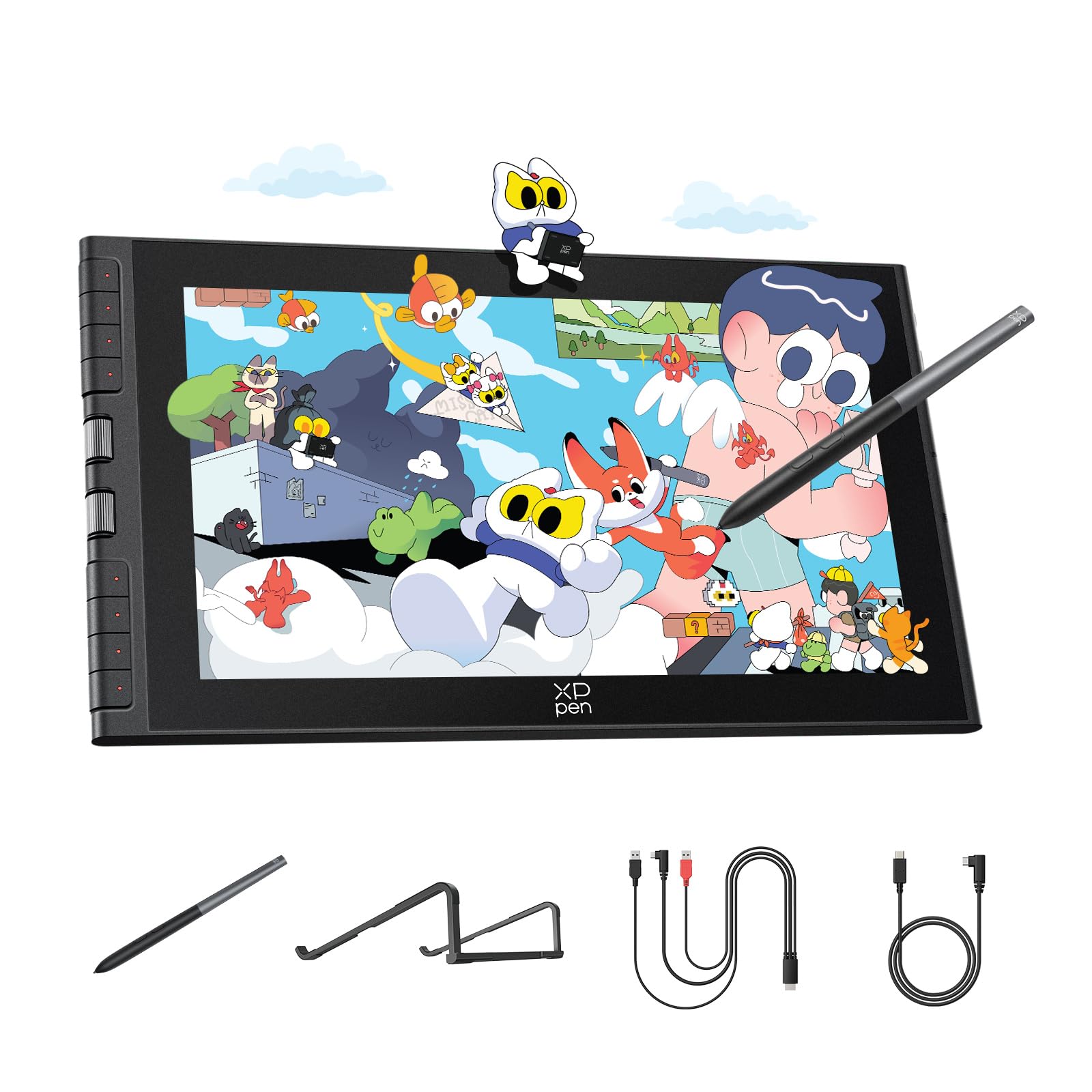
The XP-PEN Artist 12 3rd generation is a portable pen display that punches above its size class, particularly for artists who work on the go. The 11.9-inch screen features AG (anti-glare) etched glass that cuts 85% of reflections and provides a paper-like drawing texture. This is crucial for manga artists who frequently switch between coffee shops, studio spaces, and conventions — you do not want a glossy screen that turns into a mirror under overhead lights. Full lamination keeps parallax to a minimum, so your pen tip and cursor remain aligned during precise inking of small character details.
The X4 chip delivers 16,384 pressure levels with an initial activation force that responds to the lightest brush of the nib. The magnetic X4 pen attaches to the side of the tablet, preventing the common frustration of a lost stylus. The dual X-Dial wheels are the headliner feature here: one wheel adjusts brush size while the other controls canvas zoom, which can save up to 40% of the time spent fiddling with keyboard shortcuts during fast panel editing. The 33% narrower bezels also maximize the drawing area within a compact footprint.
Color performance is factory-calibrated to 99% sRGB with a Delta E of less than 1.5, making it reliable for colored manga pages and promotional artwork. The single USB-C cable connection simplifies setup, keeping your workspace clean. Compatibility spans Windows, macOS, Android 10.0 or later, ChromeOS, and Linux. The included foldable stand provides a 20-degree ergonomic angle. A small trade-off: the 11.9-inch size might feel cramped for artists who prefer a larger canvas, but for portability, it is a near-perfect balance.
Why it’s great
- AG etched glass with 85% glare reduction for variable lighting
- Dual X-Dial wheels for instant brush size and zoom control
- Magnetic pen attachment prevents stylus loss
- Factory-calibrated Delta E 1.5 color accuracy
Good to know
- 11.9-inch screen may feel small for panel-heavy layouts
- Requires firmware update on Chromebook/Android for full button function
- Weight of 1.58 lbs is light but bezels still feel compact
4. XPPen Artist12 Pro

The XPPen Artist12 Pro is a proven entry point into screened drawing tablets that remains highly relevant for manga beginners and budget-conscious artists. It features an 11.6-inch fully laminated display that virtually eliminates parallax — a critical feature for artists transitioning from screenless tablets who need accurate pen-to-cursor alignment. The 8192 levels of pressure sensitivity with 60-degree tilt support handle the demands of inking and shading, though the jump to 16384 on newer models is noticeable for ultra-fine line work. The red dial interface provides a convenient way to adjust brush size or zoom without reaching for a keyboard.
Eight customizable express keys sit along the left side, allowing you to map common manga shortcuts like undo, layer change, and brush switch. The included foldable stand prevents shaking and offers a comfortable working angle. The 3-in-1 cable design simplifies connectivity, though it does require a computer with HDMI and USB ports. The 72% NTSC color gamut is adequate for line art and grayscale manga but may fall short for artists producing highly saturated colored covers that demand sRGB coverage above 90%. Calibration can improve perceived color, but the panel is not factory-calibrated.
One of the strongest points of the Artist12 Pro is its community-tested driver stability across Windows and macOS. Setup is straightforward — install the driver, plug in the 3-in-1 cable, and you are drawing within ten minutes. The battery-free stylus with soft silicone grip feels natural in the hand, and the included multi-function pen holder keeps nibs organized. The surface is slightly glossy, which can cause reflections in bright environments, but the full lamination makes up for it with crisp image clarity. For manga artists stepping up from a screenless pad, this is a reliable, affordable bridge.
Why it’s great
- Fully laminated screen eliminates parallax at a low entry cost
- Red dial interface speeds up brush and canvas adjustments
- Easy driver setup under ten minutes on Windows and macOS
- Battery-free stylus with soft silicone grip reduces hand fatigue
Good to know
- Color gamut (72% NTSC) is limited for color-critical work
- Glossy screen surface reflects light in direct overhead conditions
- Stand offers only a single fixed angle
5. Frunsi T8 Standalone

The Frunsi T8 is a standalone drawing tablet running Android 13, which means it does not require a computer or laptop to function. For manga artists who want to sketch rough panel layouts during commutes, at cafés, or while traveling light, this freedom from cables is transformative. It features an 8-inch 1200×800 FHD display, a quad-core processor, 4GB of RAM, and 64GB of internal storage (expandable to 256GB). Pre-installed apps like SketchBook, ArtFlow, and ibis Paint X allow you to start drawing immediately. The included detachable keyboard and magnetic stand add flexibility for note-taking or typing.
The 2048 levels of pressure sensitivity are a step down from the 8192 or 16384 found on computer-dependent pen displays. This becomes evident when you try to execute very fine line weight transitions typical of manga inking — the response is less nuanced, and some diagonal lines can exhibit slight jitter. However, for sketching, rough blocking of panels, and practicing character designs, the T8 performs adequately. The 4000mAh battery is rated for up to 20 hours of use, though real-world drawing in SketchBook yields closer to 3.5 hours per charge, which is still respectable for a portable device.
The biggest compromise is the absence of full palm rejection and a dedicated pressure-control app, which can cause accidental marks if your palm rests on the screen. The included stylus feels good in hand and the drawing surface has a pleasant texture. The T8 handles Clip Studio Paint with minor lag, though heavier brush engines cause stutter. Customer support is notably responsive, with fast warranty replacements reported. For a budget-friendly standalone tablet that lets you draw manga anywhere, the T8 is a unique option, but serious panel work will benefit from a higher-pressure model.
Why it’s great
- True standalone operation — no computer needed
- Pre-installed manga-friendly apps like SketchBook and ibis Paint X
- Portable 8-inch size with expandable storage up to 256GB
- Responsive customer service with fast warranty replacement
Good to know
- Pressure sensitivity limited to 2048 levels — less nuanced for fine inking
- No built-in palm rejection can cause accidental marks
- Battery life in heavy drawing use is about 3.5 hours, not 20
6. HUION Inspiroy 2 Large

The HUION Inspiroy 2 Large is a screenless (pen pad) tablet that offers one of the largest active areas in its price tier — 10.5 x 6.56 inches. For manga artists who prefer the traditional experience of drawing on a pad while looking at a monitor, this generous surface allows for broad sweeping arm movements and full-page panel layouts without feeling cramped. The PenTech 3.0 stylus provides smooth, accurate tracking with no noticeable lag or wobble, and the 60-degree tilt support enables natural shading strokes. The battery-free design means you never worry about charging the pen.
The three-set programmable shortcut keys (eight per set) give you up to 24 customizable shortcuts across different profiles, which is excellent for switching between brush, eraser, and layer tools without touching a keyboard. The unique scroll wheel can be mapped to zoom, brush size, or canvas rotation. The tablet is ultra-slim and lightweight at 1.2 pounds, sliding easily into a laptop bag. Compatibility covers Windows, macOS, Linux, and Android (via USB-C OTG adapter), making it a versatile companion for both desktop and mobile setups.
One limitation is the lack of a screen — you must develop hand-eye coordination to draw on the pad while watching your monitor, which can take time for manga artists used to direct drawing surfaces. The surface texture is smooth but provides enough drag for controlled inking. Some users note the included Micro B connection (on some units) instead of USB-C, though the cable is included. The software for button mapping occasionally requires a restart after changes. For artists who want a large, silent, and highly customizable pad without the distraction of a screen, the Inspiroy 2 Large is a strong contender.
Why it’s great
- Very large active drawing area for full-page manga panels
- Three sets of eight shortcut keys for extensive tool mapping
- Ultra-slim and lightweight design for easy travel
- Battery-free stylus with tilt support and no wobble
Good to know
- Screenless design requires hand-eye coordination adjustment
- Some units use Micro B instead of USB-C connection
- Button mapping software may need app restart after changes
7. HUION Inspiroy 2 Medium

The HUION Inspiroy 2 Medium is the most accessible entry point for manga artists who want a reliable, screenless drawing tablet without overspending. Its 8.7 x 5.4-inch active area is compact enough to fit in a laptop bag alongside a notebook, yet large enough to sketch a full comic page without excessive scrolling. The PenTech 3.0 stylus delivers precise line control with no noticeable jitter, making it suitable for the clean, consistent lines manga demands. The ergonomic PW110 pen has a slimmer body and soft silicone grip, reducing hand fatigue during extended inking sessions.
The tablet features a programmable scroll wheel and eight customizable press keys, plus three group keys for switching between different mapping profiles. This allows you to assign zoom, brush size, undo, and layer navigation to physical buttons, keeping your eyes on the canvas rather than hunting for keys. Setup is straightforward: plug in the USB-C cable (included), install the driver, and you are ready to draw. Compatibility with Windows, macOS, Linux, Android, and ChromeOS makes it a versatile tool for any workflow. The battery-free stylus includes a pen holder and ten replacement nibs.
The surface texture offers a pleasant drag that feels similar to drawing on smooth paper. At just 420 grams, it is one of the lightest tablets in its class. The main trade-off is the compact active area — artists used to sweeping arm movements for wide panels may find it restrictive. Some users report the nib wears down faster than expected, though replacements are included. The green color variant is darker than product photos suggest, and the rubber stoppers on the bottom are small, but these are minor quibbles. For manga beginners or artists who need a portable, no-fuss pad, the Inspiroy 2 Medium delivers excellent value.
Why it’s great
- Compact and ultralight design at 420 grams for true portability
- PenTech 3.0 delivers precise, jitter-free line control
- Programmable scroll wheel and eight shortcut keys
- USB-C connectivity with broad OS compatibility
Good to know
- Active area may feel small for full-page panel layouts
- Pen nibs wear down faster than some competitors
- Color options are limited and darker than online photos suggest
FAQ
Do I need 16384 pressure levels for manga or is 8192 enough?
What surface texture is best for manga inking?
Can I use a screenless tablet for professional manga?
Is a standalone tablet good enough for manga?
How many shortcut keys do I need for manga workflows?
Final Thoughts: The Verdict
For most users, the drawing tablet for manga winner is the XP-PEN Artist 13.3 Pro V2 because its 16384 pressure sensitivity, fully laminated display, and dual USB-C connectivity provide the best overall balance of precision and portability for serious panel work. If you want a factory-calibrated display with anti-sparkle glass for eye comfort during long studio hours, grab the HUION Kamvas 13 (Gen 3). And for artists who need to draw anywhere without a computer, nothing beats the freedom of the Frunsi T8.

Mo Maruf
I created WellFizz to bridge the gap between vague wellness advice and actionable solutions. My mission is simple: to decode the research and give you practical tools you can actually use.
Beyond the data, I am a passionate traveler. I believe that stepping away from the screen to explore new environments is essential for mental clarity and physical vitality.