Our readers keep the lights on and my smoothie glass nicely filled. As an Amazon Associate, I earn from qualifying purchases.
Staring at a single laptop screen while juggling trading charts, code editors, or video timelines is a bottleneck that kills productivity. A true four-monitor docking station solves this, turning your laptop into a command center with seamless multi-display output, peripheral connectivity, and laptop charging through a single USB-C or Thunderbolt cable. But not all docks can actually drive four distinct, stable displays at a usable resolution — the wrong unit introduces flicker, handshake issues, or caps you at two screens.
I’m Mohammad Maruf — the founder and writer behind WellFizz. I’ve spent hundreds of hours analyzing DisplayLink implementations, Thunderbolt 4/5 bandwidth allocation, power delivery specifications, and port configurations to separate the docks that genuinely deliver quad-monitor productivity from those that fall short.
Whether you are a financial analyst running real-time dashboards, a developer debugging across multiple IDEs, or a creative professional managing asset libraries, the docking station for 4 monitors you choose determines whether your workflow soars or stutters.
How To Choose The Best Docking Station For 4 Monitors
Selecting a quad-display dock requires more than just counting HDMI ports. You must understand the underlying video technology, your laptop’s native capabilities, and the physical connector layout that matches your monitors. Here are the critical factors.
DisplayLink vs. Thunderbolt Native Video
Most docks capable of four independent monitors rely on DisplayLink technology, which uses a combination of USB video and your laptop’s display output to create additional screens. Windows laptops with a full-featured USB-C port supporting DisplayPort Alt Mode and MST can often drive four monitors natively through hybrid docks. On macOS, DisplayLink is required for any setup beyond the laptop’s built-in display plus one or two external screens — Apple Silicon Macs do not support MST, so the fourth monitor must be handled by DisplayLink regardless of the dock.
Resolution, Refresh Rate, and Bandwidth
A dock that claims four displays may drop from 4K at 60Hz down to 30Hz when all four ports are active, or limit you to 1080p. Look for explicit specification of 4K@60Hz on all ports simultaneously. Thunderbolt 5 docks push this to 8K@60Hz or dual 4K@240Hz, but require compatible hosts. On Thunderbolt 4 hosts, a DisplayLink hybrid dock like the Plugable UD-3900C4 uses two dedicated HDMI ports for native DisplayPort Alt Mode and two for DisplayLink, ensuring each monitor maintains 1080p@60Hz for four-screen setups on Windows.
Power Delivery and Peripheral Ports
A quad-monitor setup is typically wired to a high-performance laptop that demands significant power. Look for at least 96W-100W PD to keep a 16-inch MacBook Pro or Dell Precision running at full performance without draining. The dock should also offer enough USB-A and USB-C ports (at least 4-6 total) for your keyboard, mouse, webcam, and external storage. Built-in SD card readers, 2.5GbE or 10GbE ethernet, and a 3.5mm audio jack add significant convenience for content creators and IT professionals.
Quick Comparison
On smaller screens, swipe sideways to see the full table.
| Model | Category | Best For | Key Spec | Amazon |
|---|---|---|---|---|
| CalDigit TS5 PLUS | Thunderbolt 5 | Maximum bandwidth & 10GbE | 140W PD, 20 ports, 10Gb Ethernet | Amazon |
| Anker Prime TB5 | Thunderbolt 5 | Future-proof TB5 & cooling | 140W PD, Active cooling, 8K@60Hz | Amazon |
| Kensington SD5900T | Thunderbolt 4 | Quad 4K on MacBook Pro/Max | 100W PD, 2x HDMI + DP + 2x TB4 | Amazon |
| TobenONE 4xHDMI | DisplayLink | Windows quad 4K via 4 HDMI | 100W PD, 18-in-1, 4x HDMI | Amazon |
| Plugable UD-3900C4 | Hybrid DisplayLink | Four 1080p monitors on Windows | 96W PD, 14 ports, 4x HDMI | Amazon |
| Lenovo ThinkPad USB4 Dock 5500 | USB4 | Lenovo ecosystem & IT fleet mgmt | 100W PD, 8K/dual 4K@144Hz | Amazon |
| TobenONE DisplayLink (UDS033) | DisplayLink | Flexible DP/HDMI combos on Windows | 96W PD, 18 ports, 3xHDMI+3xDP | Amazon |
| Dell Pro Smart Dock SD25 | USB-C | IT-managed Dell fleet deployment | 130W PD, 6 ports, Wi-Fi manage | Amazon |
| StarTech Quad 4K60 USB-C | DisplayLink | Cost-effective quad 4K60 hub | 100W PD passthrough, 4x HDMI | Amazon |
In-Depth Reviews
1. CalDigit TS5 PLUS Thunderbolt 5 Dock

The CalDigit TS5 PLUS is the absolute peak of Thunderbolt 5 docking, offering an unprecedented 20 ports including dual 10GbE, three Thunderbolt 5 downstream ports, and a dedicated 140W host charging channel. The 330W power supply guarantees every port — including the USB-C and Thunderbolt downstream ports that each deliver up to 36W — runs at full spec simultaneously with zero dynamic power sharing. On a MacBook Pro M4 Max or a Thunderbolt 5 Windows laptop, you can drive dual 8K@60Hz displays or dual 4K@240Hz, making this the most future-proof quad-capable dock available today.
The dual USB controller design is a standout for professionals who connect multiple high-speed SSDs and card readers simultaneously. Rather than sharing a single 10Gbps controller across all USB ports, the TS5 PLUS dedicates one controller to the front ports and another to the rear, eliminating data bottlenecks. The SD 4.0 UHS-II card reader is genuinely fast for photographers, and the 10GbE port connects directly to NAS systems for video editors and network engineers.
Build quality is exceptional — the aluminum heat-sink chassis keeps temperatures manageable under sustained load, and the braided 1.0m Thunderbolt 5 cable is high-quality. Some early users on M5 Max MacBooks have reported intermittent network interface drops, which CalDigit is actively addressing via driver updates. For users who need the absolute maximum bandwidth, port count, and power delivery for a quad-monitor Thunderbolt setup, the TS5 PLUS is the uncontested leader.
Why it’s great
- 140W dedicated host charging and full 36W on downstream ports simultaneously
- Dual USB controllers prevent bottlenecks when multiple high-speed devices are connected
- 10GbE Ethernet and SD 4.0 UHS-II readers for demanding creative and IT workflows
Good to know
- High premium price positions it as an investment for serious professionals only
- Requires Thunderbolt 5 or USB4 v2 host for full performance; limited on TB4 hosts
- Some M5 Max Mac users report intermittent network interface drops awaiting driver fixes
2. Anker Prime TB5 Docking Station

The Anker Prime TB5 is a compact, actively cooled 14-in-1 Thunderbolt 5 dock that makes the jump to 80Gbps bandwidth without the enormous footprint of the CalDigit. Its key differentiator is the integrated active cooling system that prevents thermal throttling when driving dual 8K@60Hz displays or transferring massive files. The Thunderbolt 5 upstream port delivers the full 140W PD 3.1 to host laptops, and the two downstream Thunderbolt 5 ports can daisy-chain storage and additional displays.
For quad-monitor setups, this dock excels on Thunderbolt 5 Windows laptops that support dual 8K@60Hz or dual 4K@240Hz via its single HDMI 2.1 or DisplayPort 2.1 port combined with two Thunderbolt 5 downstream video outputs. Note that MacBooks with standard M1/M2/M3 chips support only one external display, while M4 Pro/Max MacBooks can drive dual displays. The front USB-C ports share 45W total, which is enough for fast phone charging but not for powering another laptop.
Design is sleek and compact, with a clean desk profile. The included 3.3ft Thunderbolt 5 cable is a nice touch. The SD card slot is limited to UHS-I speeds (~104MB/s), which is slow for professional photographers. Some users note a low hum from the headphone jack when idle. For a moderately priced entry into Thunderbolt 5 with active cooling that keeps performance stable under prolonged quad-monitor use, the Anker Prime TB5 delivers strong value.
Why it’s great
- Active cooling prevents thermal throttling during sustained multi-display and data transfer loads
- Delivers 140W PD 3.1 to host via Thunderbolt 5, keeping high-performance laptops fully charged
- Compact footprint with Thunderbolt 5 downstream ports for daisy-chaining devices
Good to know
- SD card slot is UHS-I only, too slow for high-resolution photo and video transfers
- MacBook users with base M1-M3 chips are limited to a single external display
- Front headphone jack has a low electrical hum when no audio is playing
3. Kensington SD5900T Thunderbolt 4 DisplayLink Dock
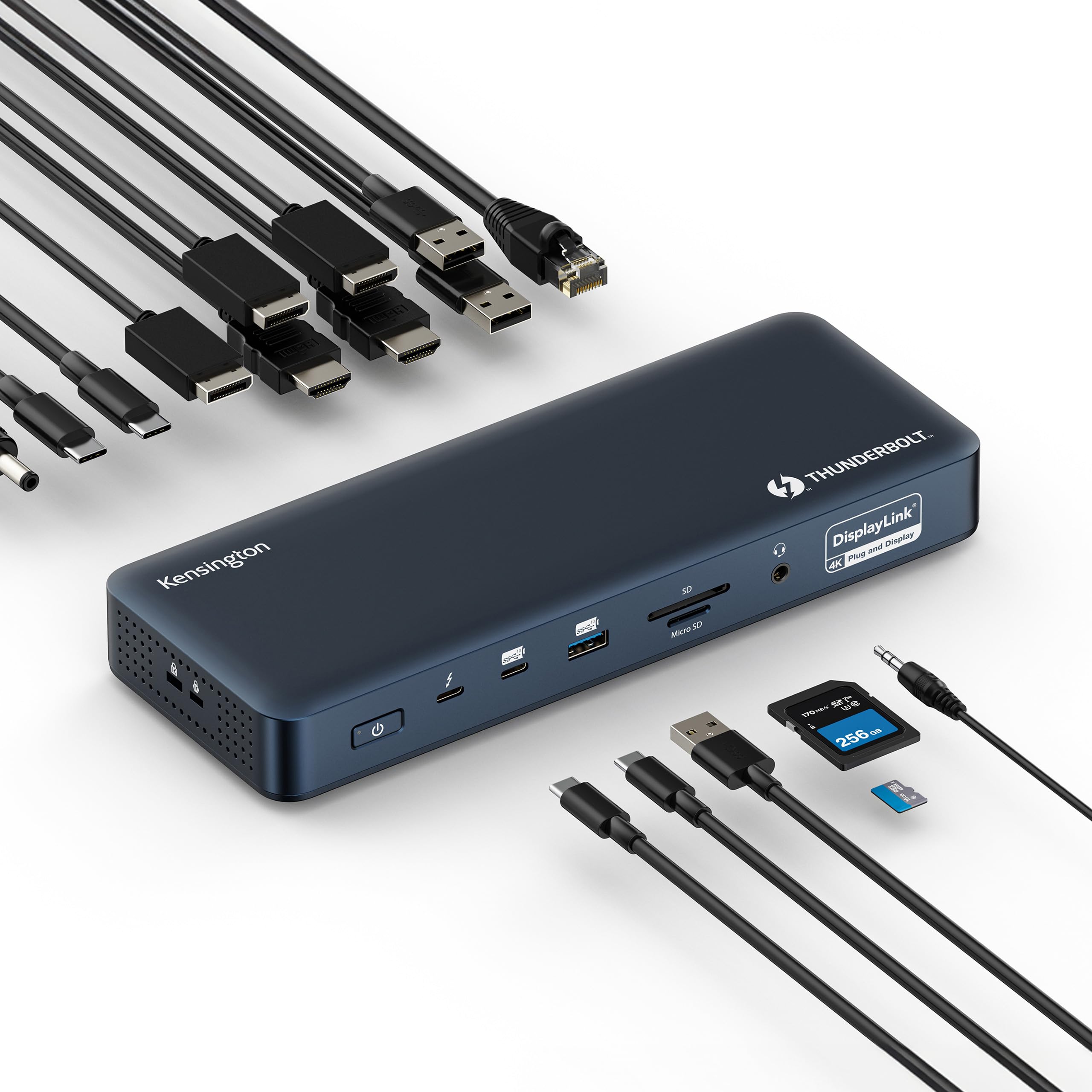
The Kensington SD5900T blends Thunderbolt 4 bandwidth with DisplayLink technology to deliver quad 4K@60Hz output specifically for MacBook Pro and Air models with M1/M2/M3/M4 Pro and Max chipsets. Where many Thunderbolt docks max out at two displays on macOS, this one uses a combination of two HDMI 2.0/DisplayPort 1.4 ports, one dedicated DisplayPort, and two Thunderbolt 4 downstream ports to reach four screens. On base M1/M2 Macs with the lid closed, it supports triple 4K@60Hz; on Pro/Max and M3 base chips with lid closed, full quad 4K is achievable.
The 16-in-1 port layout is well thought out for creative professionals: dual card readers (SD and microSD), 2.5Gbps Ethernet, 3.5mm combo audio, and six USB ports including a 10Gbps USB-C and a 10Gbps USB-A. The 100W PD (96W certified) keeps a 16-inch MacBook Pro charged even under heavy GPU load. Build quality is premium with a midnight blue aluminum casing made from 100% post-consumer recycled material, and the zero-footprint mounting option saves desk space.
Setup requires installing the DisplayLink Manager app on macOS, which some users find a minor inconvenience. A few units have shipped without the Thunderbolt cable in the box. Kensington’s 3-year warranty and lifetime technical support provide peace of mind. For Mac users who need a reliable, certified path to four external monitors without compromising on Thunderbolt 4 speeds for peripherals, the SD5900T is the specialized tool for the job.
Why it’s great
- True quad 4K@60Hz on MacBook Pro/Max chipsets via hybrid DisplayLink + TB4 ports
- Zero-footprint mounting option and 100% PCR aluminum construction for a clean, sustainable desk
- Includes 2.5GbE, dual card readers, and a full set of high-speed USB ports
Good to know
- Requires DisplayLink Manager app installation on macOS for multi-monitor functionality
- Some units have shipped without the required Thunderbolt cable included in the box
- Does not support quad displays on base M1/M2 MacBooks — only triple
4. TobenONE DisplayLink Docking Station (4 HDMI)
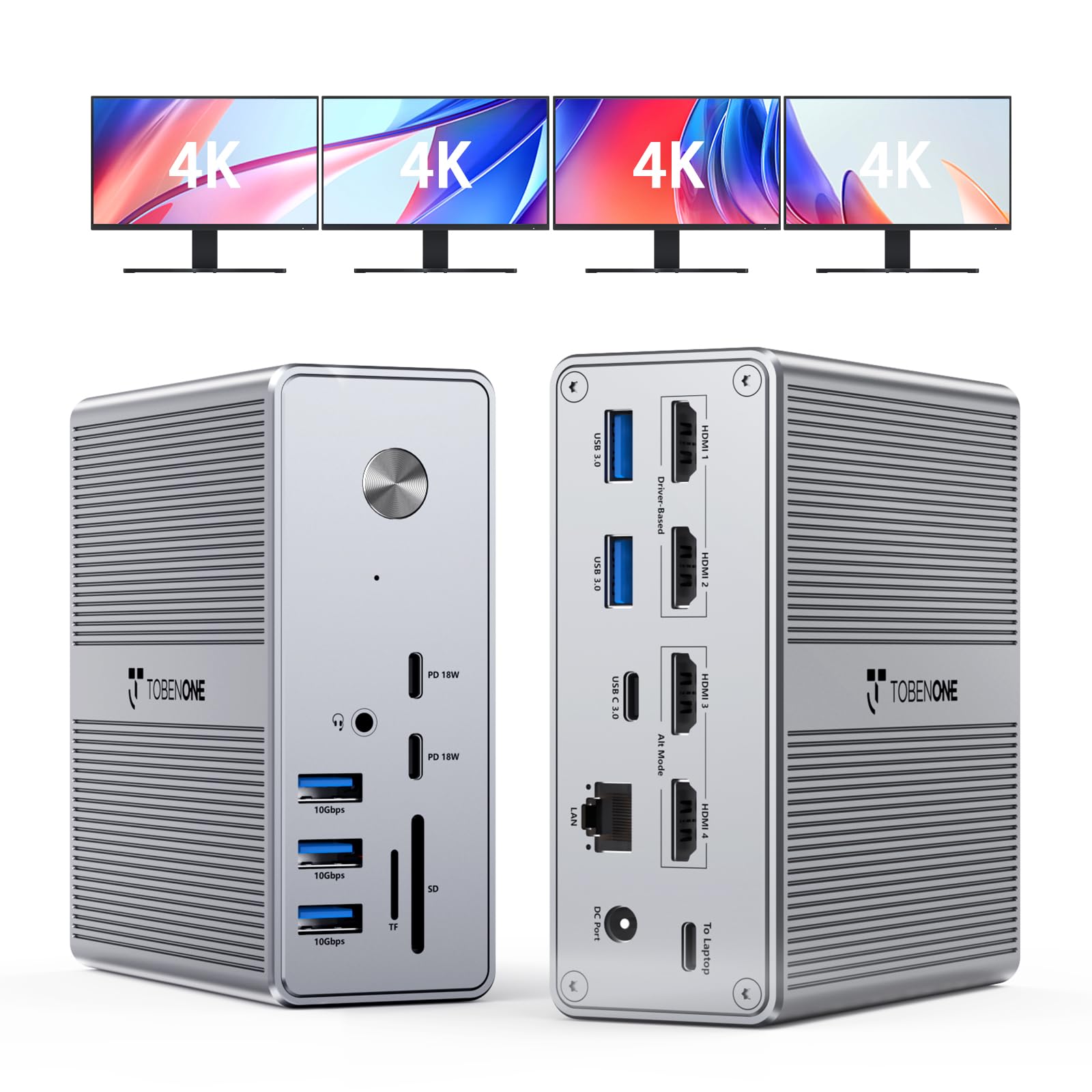
The TobenONE 4 HDMI dock is built for Windows users who need a simple, all-HDMI path to quad 4K@60Hz. With four dedicated HDMI ports, it eliminates the need for adapter cables or DisplayPort converters. Powered by DisplayLink, the dock works with Thunderbolt 5/4/3, USB4, and full-featured USB-C laptops. The included 120W power adapter delivers 100W to the host laptop (96W certified) and 18W to front USB-C for phone charging, so you can leave the laptop’s own charger behind.
The 18-port layout is comprehensive: 4 HDMI, 3 USB 3.2, 2 USB 3.0, 3 USB-C 3.0, SD/microSD, Gigabit Ethernet, and a 3.5mm audio jack. Build quality is solid with a compact footprint. On macOS, the dock is limited to three external displays (HDMI 3 and HDMI 4 cannot both be used), but on Windows it drives four monitors smoothly for financial analysis, development, and general office productivity.
Setup requires installing DisplayLink drivers, which are automatically fetched via Windows Update in most cases. User reports indicate stable performance with no flickering or signal drops on Dell Precision and HP ZBook laptops. For IT buyers equipping Windows workstations with a straightforward, high-port-count quad monitor solution, this TobenONE is a strong mid-premium contender.
Why it’s great
- Four dedicated HDMI ports for simple cable management — no adapters needed for quad 4K
- 120W power adapter ensures 96W certified host charging plus 18W fast-charge for phones
- 18 ports including 8 USB ports and SD/microSD card readers for maximum peripheral connectivity
Good to know
- macOS supports a maximum of three external displays, not four
- Requires DisplayLink driver installation before use on both Windows and Mac
- Cannot stream Netflix or paid streaming services via HDMI on macOS due to HDCP limitations
5. Plugable 14-in-1 USB-C Docking Station (UD-3900C4)

The Plugable UD-3900C4 uses a clever hybrid approach: HDMI 1 and 2 are driven by DisplayLink, while HDMI 3 and 4 rely on your laptop’s native DisplayPort Alt Mode and MST support. This means Windows laptops with a compatible USB-C port can run four 1080p @ 60Hz monitors without overloading a single controller. The dock is TAA-compliant, making it a safe choice for government and enterprise procurement.
Port selection is practical for daily office use: 4 HDMI, 4 USB 3.0, 1 USB-C (5Gbps + 20W charging), Gigabit Ethernet, SD card reader, and separate audio in/out jacks. The 96W laptop charging keeps most ultrabooks powered. On macOS, the dock supports three extended displays with the fourth mirroring, which is consistent with macOS display architecture limitations.
Plugable’s customer support is a standout — several users report units that failed after 18 months being replaced promptly with no hassle, backed by a 2-year warranty and lifetime support. A minority of users experience flickering during screen sharing or video editing on lower-RAM systems (16GB or less recommended). For enterprise deployments and hot desks where consistent four-monitor output is required on Windows, the UD-3900C4 is a proven, well-supported choice.
Why it’s great
- Hybrid DisplayLink + Alt Mode MST delivers four 1080p@60Hz monitors on compatible Windows laptops
- TAA-compliant for government, education, and enterprise procurement requirements
- Excellent 2-year warranty and responsive North American customer support for replacements
Good to know
- macOS users are limited to three extended displays; the fourth mirrors
- Flickering can occur during video editing or screen sharing on systems with less than 16GB RAM
- HDMI 3 and 4 require a USB-C port with native DisplayPort Alt Mode support to function
6. Lenovo ThinkPad USB 4 Smart Dock 5500
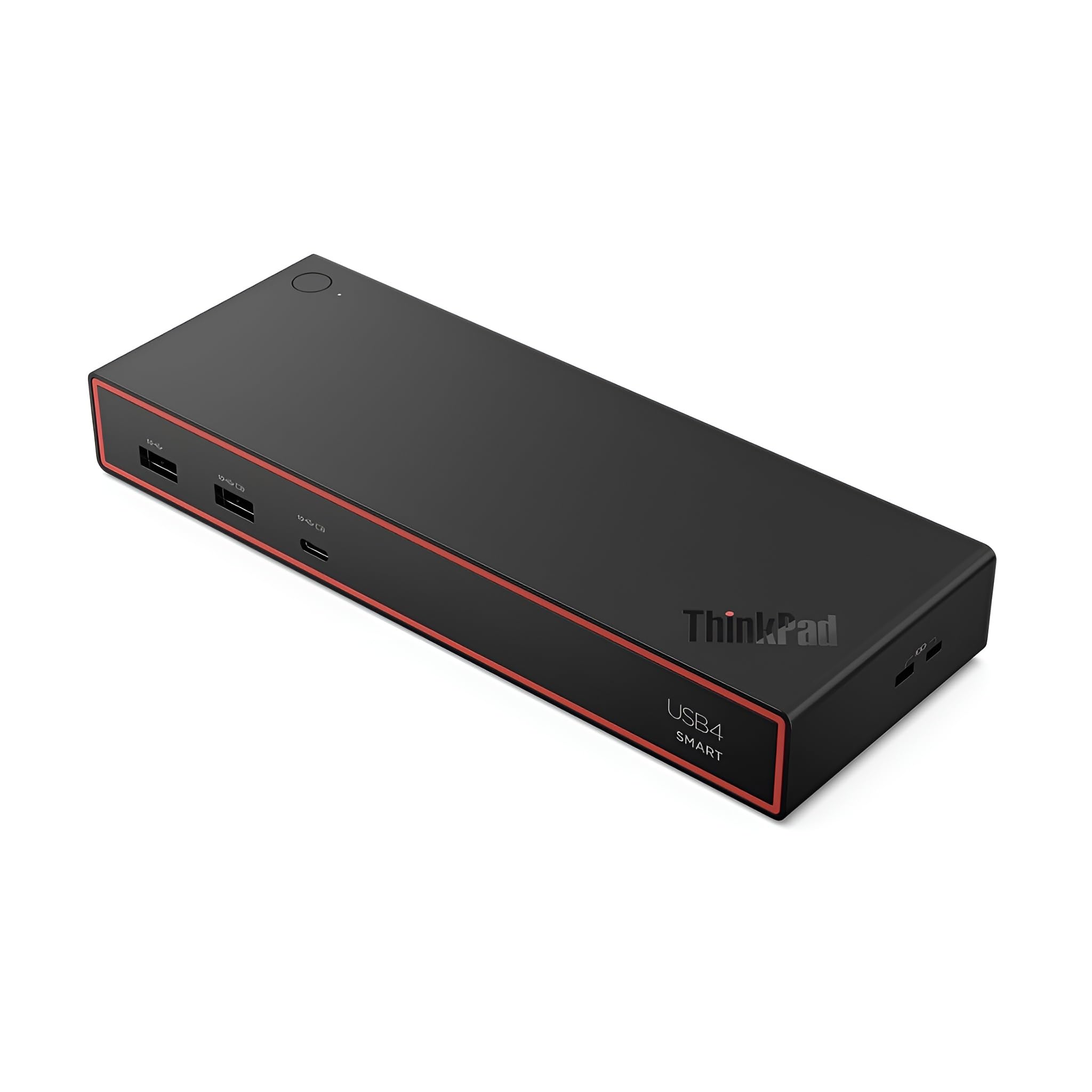
The Lenovo ThinkPad USB 4 Smart Dock 5500 delivers 40Gbps bandwidth via USB4 technology, quadrupling USB-C 3.2 Gen 2 throughput. It supports one 8K@60Hz display or dual 4K@144Hz monitors, making it ideal for high-refresh-rate workflows. With 100W PD 3.1, it charges even power-hungry 16-inch workstations without a separate adapter. The 135W power supply ensures consistent headroom for all connected peripherals.
This dock is designed with enterprise IT in mind. The cloud-based Lenovo Accessories Fleet Manager allows administrators to remotely manage firmware updates, configurations, and diagnostics across a fleet of docks. This reduces IT overhead in large deployments. The 11-port layout includes a mix of USB-C, USB-A, HDMI, DisplayPort, and Ethernet, but notably only has a single HDMI port, so driving four monitors requires using multiple DisplayPort connections or daisy-chaining where supported.
Compatibility extends beyond Lenovo laptops — it works with Dell, HP, and other USB4 and Thunderbolt systems. One reviewer noted that it solved a persistent monitor handshake issue on a Lenovo L14 Gen 5 AMD that other Thunderbolt docks could not handle. For organizations standardized on Lenovo hardware that need centralized dock management and high-bandwidth USB4 connectivity, the ThinkPad Smart Dock 5500 is the strategic pick.
Why it’s great
- USB4 delivers 40Gbps bandwidth and supports 8K@60Hz single display output
- Cloud-based Lenovo Accessories Fleet Manager for remote IT administration and firmware updates
- 135W power supply with 100W PD 3.1 keeps even 16-inch laptops charged under heavy load
Good to know
- Only a single HDMI port — quad-monitor setups require DisplayPort connections or daisy-chaining
- Some Lenovo laptop users report intermittent charging or display connection issues
- Best suited for Lenovo ecosystem environments; limited remote management for non-Lenovo fleets
7. TobenONE DisplayLink Docking Station (UDS033)

The TobenONE UDS033 stands out for its flexible video output configuration, offering three HDMI and three DisplayPort ports. This allows users to mix and match connections — all HDMI, all DP, or any combination — to match existing monitor cables without needing adapters. On Windows, the dock can drive up to four 4K@60Hz monitors if the laptop’s USB-C port supports video output; macOS is limited to three monitors.
With 18 ports total, it includes 4 USB 3.1 (10Gbps), 2 USB-C, SD/microSD, Gigabit Ethernet, and a 3.5mm audio jack. The included 120W power adapter delivers 100W (96W certified) to the laptop. Build quality is solid, and the dock runs cool under load. DisplayLink driver installation is required on both Windows and Mac, and macOS users need to grant screen recording permissions in System Preferences.
A practical consideration: the dock does not support Netflix or other DRM-protected streaming services via the DisplayLink video ports due to HDCP limitations. Customer support is responsive — users who encountered HDMI port issues after several months reported quick replacements or refunds. For Windows users who want the freedom to choose between HDMI and DisplayPort cables without sacrificing performance, this TobenONE model is a versatile mid-range option.
Why it’s great
- Three HDMI and three DisplayPort ports offer maximum cable flexibility without adapters
- Windows supports up to four 4K@60Hz monitors when using a compatible USB-C laptop
- 120W power adapter provides 96W certified charging to the host laptop
Good to know
- macOS users are limited to three monitors; the fourth is not supported
- Cannot stream Netflix or other paid streaming services via DisplayLink video ports
- Some users report intermittent HDMI port signal loss after months of use, though support is responsive
8. Dell Pro Smart Dock SD25
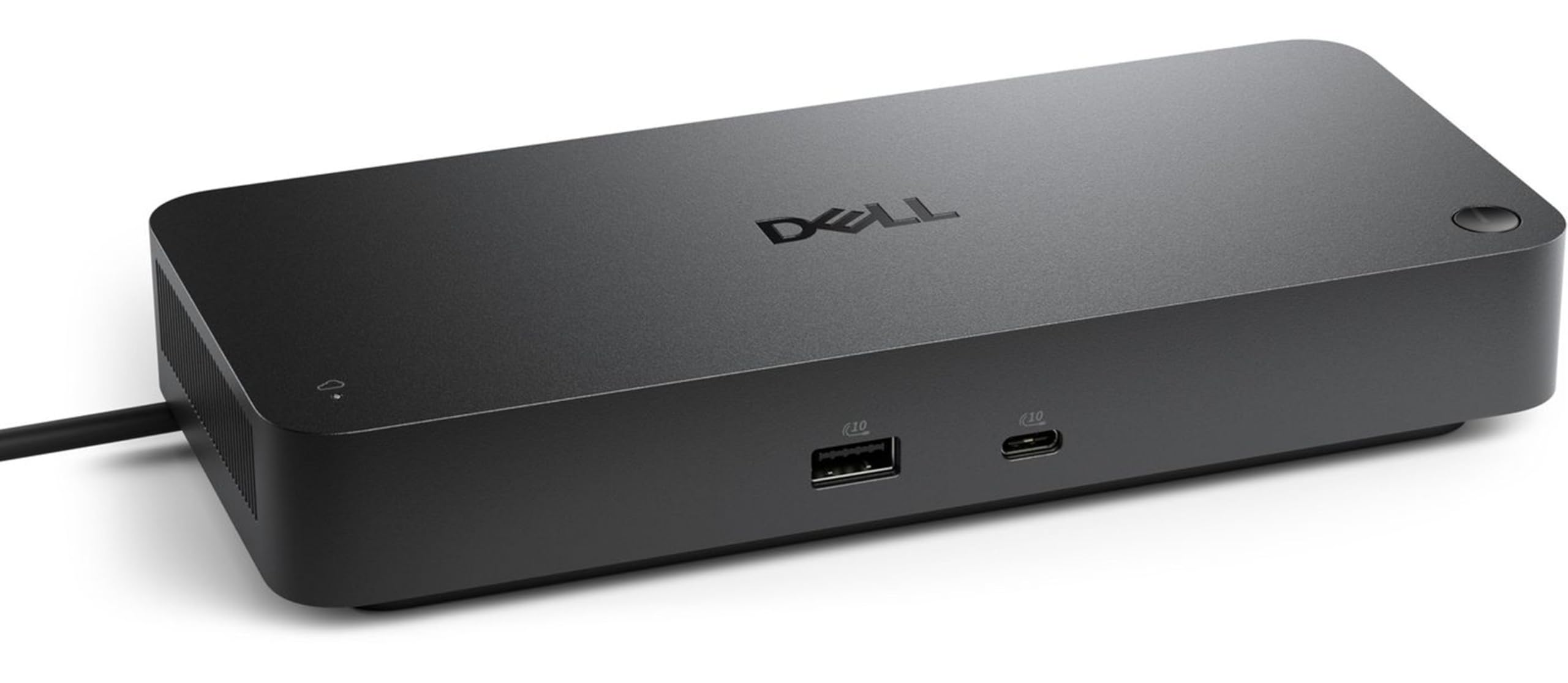
The Dell Pro Smart Dock SD25 is engineered for enterprise deployment, offering 130W power delivery and remote management capabilities via the Dell Device Management Console. This is the industry’s first holistic peripheral management solution that allows IT administrators to configure, deploy, and update docks over Wi-Fi without end-user involvement. WPA-3 192-bit encryption secures Wi-Fi communication, and tamper-resistant hardware encryption protects sensitive data.
With six ports (including USB-C, HDMI, DisplayPort, and Ethernet), the SD25 is designed for connectivity rather than a high port count. The ambidextrous USB-C cable can be routed left or right, a thoughtful detail for desk cable management. Note that it has only one HDMI port, so driving four monitors requires leveraging the DisplayPort outputs or daisy-chaining MST monitors.
For organizations already using Dell laptops and infrastructure, this dock integrates seamlessly. Users report it works reliably with Dell Latitude and Precision lines, with some reporting out-of-the-box 4-year lifespan from previous Dell dock models. If your IT department values centralized firmware management, security compliance, and sustainability (65% post-consumer recycled materials), the SD25 is the smart organizational buy, even if it isn’t the highest-port-count option.
Why it’s great
- Enterprise-grade remote management via Dell Device Management Console for IT fleet control
- 130W power delivery keeps high-performance Dell laptops charged under full load
- WPA-3 encryption and tamper-resistant hardware for secure data handling
Good to know
- Only one HDMI port — quad-monitor setups require DisplayPort connections or MST daisy-chaining
- Limited port count (6 total) compared to third-party 14-20 port competitors
- Best value is within Dell-centric IT environments; remote management features are Dell-specific
9. StarTech USB-C Quad 4K60 Workstation Dock
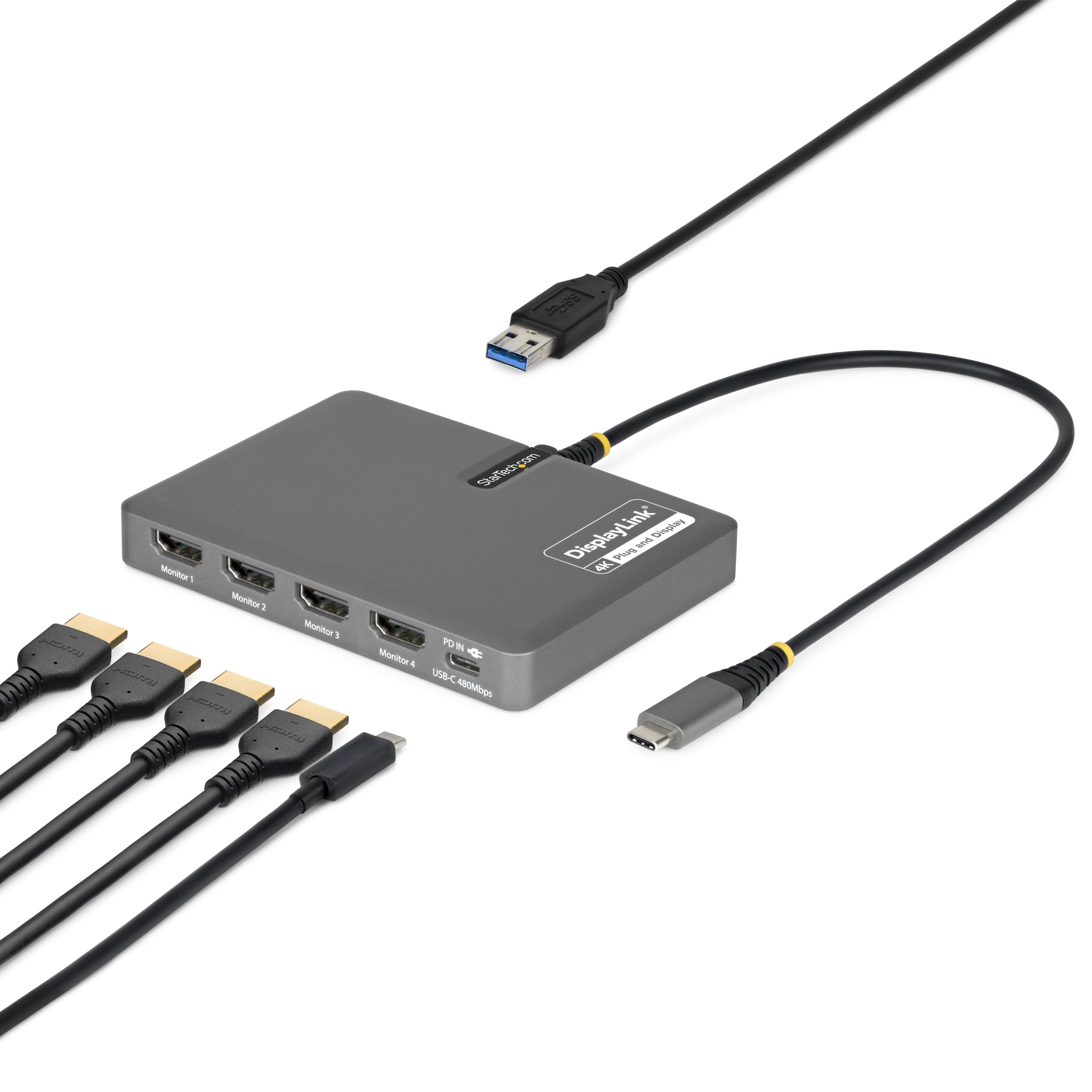
The StarTech Quad 4K60 adapter provides an entry-level on-ramp to quad-monitor productivity at a highly accessible price point. It connects four 4K@60Hz HDMI monitors through a single USB-C host cable, with 140W power delivery passthrough for charging the laptop. The compact, travel-ready form factor (4.7″ x 3.4″ x 0.6″) makes it easy to move between home and office setups.
Powered by the DisplayLink DL7400 chipset, this dock supports Windows, macOS, and ChromeOS with plug-and-play driver installation on most Windows systems. It includes a single USB-A 2.0 passthrough port for connecting a wireless keyboard/mouse dongle. Port selection is minimal — four HDMI plus one USB-A — so you will need additional hubs for wired peripherals or Ethernet.
User feedback is largely positive: reviewers successfully connected four monitors to Lenovo T14 and Dell laptops, with clear picture quality for document work. Some users reported that the USB port doesn’t reliably support mouse and keyboard dongles simultaneously, and the dock lacks Ethernet and SD card slots. For budget-conscious buyers who already have a separate USB hub and do not need wired networking, this StarTech adapter offers the most affordable path to true quad 4K60 output.
Why it’s great
- Most affordable way to connect four 4K@60Hz monitors via a single USB-C cable
- 140W power delivery passthrough charges the host laptop through the dock
- Ultra-compact form factor ideal for hot-desking and travel between office locations
Good to know
- Only one USB-A 2.0 port — insufficient for multiple wired peripherals; needs a separate hub
- No Ethernet port, SD card reader, or audio jack for additional connectivity
- Some users report the USB passthrough port does not reliably support mouse/keyboard dongles
FAQ
Will a docking station for 4 monitors work with Apple Silicon MacBooks?
Can I run 4K@60Hz on all four monitors simultaneously?
What is the difference between DisplayLink and a regular docking station?
Why won’t Netflix play on my external monitors through the dock?
Final Thoughts: The Verdict
For most users, the docking station for 4 monitors winner is the TobenONE 4 HDMI because it delivers true quad 4K@60Hz on Windows through a simple, all-HDMI layout with 18 ports and 100W charging at a mid-premium price. If you need maximum bandwidth for dual 8K or 4K 240Hz workflows, grab the CalDigit TS5 PLUS. And for Mac users who specifically need quad displays on a Pro/Max chipset, nothing beats the Kensington SD5900T with its hybrid Thunderbolt 4 and DisplayLink architecture.

Mo Maruf
I created WellFizz to bridge the gap between vague wellness advice and actionable solutions. My mission is simple: to decode the research and give you practical tools you can actually use.
Beyond the data, I am a passionate traveler. I believe that stepping away from the screen to explore new environments is essential for mental clarity and physical vitality.