Our readers keep the lights on and my smoothie glass nicely filled. As an Amazon Associate, I earn from qualifying purchases.
A digitizer tablet bridges the gap between a traditional pencil and a digital canvas, but choosing one means deciding between a screen-less pad, a standalone device, or a full pen display. The wrong pick can introduce parallax, lag, or a texture you simply won’t enjoy drawing on for hours.
I’m Mohammad Maruf — the founder and writer behind WellFizz. I’ve spent countless hours analyzing pressure sensitivity ratings, screen lamination types, battery-free pen technology, and driver compatibility across the leading digitizer tablet models to help you separate specs from marketing claims.
Whether you’re sketching on a bus or rendering 4K illustrations in a studio, the right best digitizer tablet depends on matching your workflow to measurable differences in resolution, color accuracy, and pressure levels.
How To Choose The Best Digitizer Tablet
The ideal digitizer tablet balances active area size, pressure sensitivity, screen quality (if applicable), and compatibility with your operating system and software. Beginners often fixate on price alone, but skipping driver support or display lamination usually leads to frustration within weeks.
Pressure Sensitivity and Tilt Support
Pressure sensitivity determines how finely the pen registers changes in force — from a faint whisper of a line to a bold stroke. Entry-level tablets start at 2048 levels, while premium models reach 16384. Tilt support (typically up to 60 degrees) adds natural brush-like shading, making it essential for illustrators who angle their pen.
Pen Display vs Screenless Tablet vs Standalone
A pen display (like the XPPen or Huion Kamvas series) functions as a second monitor you draw directly on, offering the most intuitive hand-eye coordination. A screenless tablet (like the HUION Inspiroy Frego) requires you to look up at your computer monitor while drawing on the pad — cheaper but less natural for beginners. Standalone tablets (like the PicassoTab X11 or Frunsi T8) run Android and include pre-loaded drawing apps, eliminating the need for a PC entirely while limiting the raw power of desktop software.
Active Area and Portability
The active area (measured in inches) directly affects your drawing range. Small tablets (8-10 inches) are highly portable but may feel cramped for detailed work. Medium tablets (11-13 inches) offer a solid balance for studio and travel use. Large displays (16 inches and above) provide a near-paper-sized canvas but sacrifice portability — especially models weighing over 4 pounds.
Quick Comparison
On smaller screens, swipe sideways to see the full table.
| Model | Category | Best For | Key Spec | Amazon |
|---|---|---|---|---|
| Wacom Cintiq Pro 22 | Premium Pen Display | Professional 4K Rendering | 21.5″ UHD 4K, 120Hz, 10-bit | Amazon |
| Wacom Cintiq 16 | Premium Pen Display | Industry-Standard Art | 16″ 2.5K, 8192 Pressure | Amazon |
| HUION Kamvas 13 Gen 3 | Mid-Range Pen Display | Color-Critical Illustration | 13.3″ Full Lamination, 99% sRGB | Amazon |
| XPPen Artist 13.3 Pro V2 | Mid-Range Pen Display | Wide Color Gamut Work | 125% sRGB, 16384 Pressure | Amazon |
| XPPen Artist 12 3rd | Entry-Level Pen Display | Portable Student Setup | 11.9″ AG Etched Glass, 16K Pen | Amazon |
| PicassoTab X11 | Standalone Tablet | No-PC Mobile Art | 11″ 2K Laminated, 4096 Pen | Amazon |
| Frunsi RubensTab T8 | Standalone Tablet | Beginner Standalone Drawing | 8″ FHD, 2048 Pressure, Android 13 | Amazon |
| HUION Inspiroy Frego M | Screenless Tablet | Budget Wireless Workflow | 10×6.25″ Area, Bluetooth, 24h Battery | Amazon |
| HUIHUANG Android 16 Tablet | General Purpose Tablet | Kid-Friendly Learning | 10.1″ FHD, 32GB RAM, 6000mAh | Amazon |
In‑Depth Reviews
1. Wacom Cintiq Pro 22

The Wacom Cintiq Pro 22 is the definitive professional-grade pen display, offering a 21.5-inch Ultra HD 4K resolution with a 120Hz refresh rate that delivers near-zero latency and fluid brushwork. The 10-bit color depth and etched glass surface provide exceptional color fidelity and a subtle paper texture without the rainbow sparkle effect seen on some competitors.
Pro Pen 3 offers 8192 pressure levels, customizable grips, and adjustable weight and center of balance, which allows fine-tuning for different drawing styles. The 10-point multi-touch support and eight ExpressKeys integrate smoothly into complex workflows in Clip Studio Paint, Photoshop, and 3D modeling software, making it a true studio-oriented tool.
On the downside, the Easy Stand is overpriced and feels wobbly at certain angles — many professionals opt for an Ergotron arm instead. The fan is audible under load, and the pen holder can block ventilation ports or ExpressKeys depending on placement. Still, for color-critical, high-precision work, this is the current benchmark.
Why it’s great
- Stunning 4K 120Hz display with 10-bit color
- Customizable Pro Pen 3 with adjustable weight
- Excellent multi-touch and ExpressKey customization
Good to know
- Stand is wobbly and sold at a premium
- Fan noise noticeable under sustained load
- Pen holder can block ports or buttons
2. Wacom Cintiq 16

The Wacom Cintiq 16 delivers a 16-inch IPS display with 2.5K WQXGA resolution (2560 x 1600), offering sharp detail for digital art and design without reaching the premium price of the Pro 22. The anti-glare glass minimizes reflections effectively, and the Pro Pen 3 provides a battery-free experience with 8192 pressure levels and tilt support up to 60 degrees.
Color coverage includes 99% DCI-P3 and 100% sRGB with 8-bit color depth, making it a solid choice for illustrators and animators who require accurate color reproduction but don’t need 4K density. The built-in fold-out legs offer a fixed 20-degree working angle, though an adjustable stand is recommended for long sessions to reduce neck strain.
The biggest drawback is the lack of customizable shortcut keys — there are no ExpressKeys on the display itself, forcing reliance on keyboard shortcuts or an external remote. Additionally, a mini-HDMI cable is not included, so you will need to purchase one separately if your computer lacks USB-C with DisplayPort Alt Mode or Thunderbolt 3/4.
Why it’s great
- Sharp 2.5K resolution with wide color gamut
- Battery-free Pro Pen 3 with excellent feel
- Anti-glare glass with no rainbow sparkle
Good to know
- No built-in shortcut keys
- Mini-HDMI cable not included in box
- Fixed stand; adjustable stand sold separately
3. HUION Kamvas 13 (Gen 3)

The HUION Kamvas 13 (Gen 3) arrives with a fully laminated 13.3-inch display and the new Anti-Sparkle Canvas Glass 2.0, which cuts glare significantly while maintaining a smooth, paper-like texture. The full lamination eliminates the parallax gap almost entirely — the pen tip meets the cursor directly under the glass, a feature previously reserved for higher-tier models.
With PenTech 4.0, the tablet supports 16384 levels of pressure sensitivity and a 2-gram initial activation force, allowing for incredibly faint, feather-light lines. The factory calibration report confirms an average Delta E of less than 1.5 and 99% sRGB coverage, so colors are consistent out of the box — no manual adjustment required.
One drawback is the display brightness, which maxes out at around 200 nits — adequate for indoor studio use but noticeably dim compared to laptops or high-end monitors. The 3-in-1 cable is functional but can be cumbersome with tight port layouts. Users on Linux report that the dial wheels and buttons lose multi-key assignment capability, though basic drawing functionality works fine.
Why it’s great
- Excellent 16K pressure with 2g activation force
- Factory calibrated Delta E < 1.5 accuracy
- Full lamination removes parallax effectively
Good to know
- Screen brightness limited to ~200 nits
- 3-in-1 cable can be awkward in tight spaces
- Linux button/dial support is limited
4. XPPen Artist 13.3 Pro V2

The XPPen Artist 13.3 Pro V2 stands out with its industry-leading 125% sRGB, 107% Adobe RGB, and 95% DCI-P3 color gamut area ratio, delivering richer color saturation than most competitors in this price tier. The full-laminated AG film display reduces glare and parallax, and the 250 cd/m² brightness with a 1000:1 contrast ratio ensures vivid, detailed visuals for animation, photography, and graphic design.
The X3 Pro smart chip stylus offers 16384 pressure levels with a 90ms initial response rate and improved accuracy, virtually eliminating broken lines or lag during fast strokes. The red Dial Quick Key simplifies zooming and brush sizing, while the eight customizable ExpressKeys reduce dependency on a keyboard for frequently used shortcuts.
Some users have reported driver bugs that cause pen misalignment when using a dual-monitor setup with mismatched resolutions — setting both displays to 1080p resolves the issue but may frustrate those using 4K monitors. The included stand is sturdy, though it only offers a fixed angle without further adjustment options.
Why it’s great
- Exceptional color gamut (125% sRGB, 95% P3)
- X3 Pro stylus with fast response and high accuracy
- Red Dial and 8 customizable keys streamline workflow
Good to know
- Driver may misalign pen in dual 4K + 1080p setups
- Stand offers no height or tilt adjustment
- Pen can scratch screen — screen protector recommended
5. XPPen Artist 12 3rd
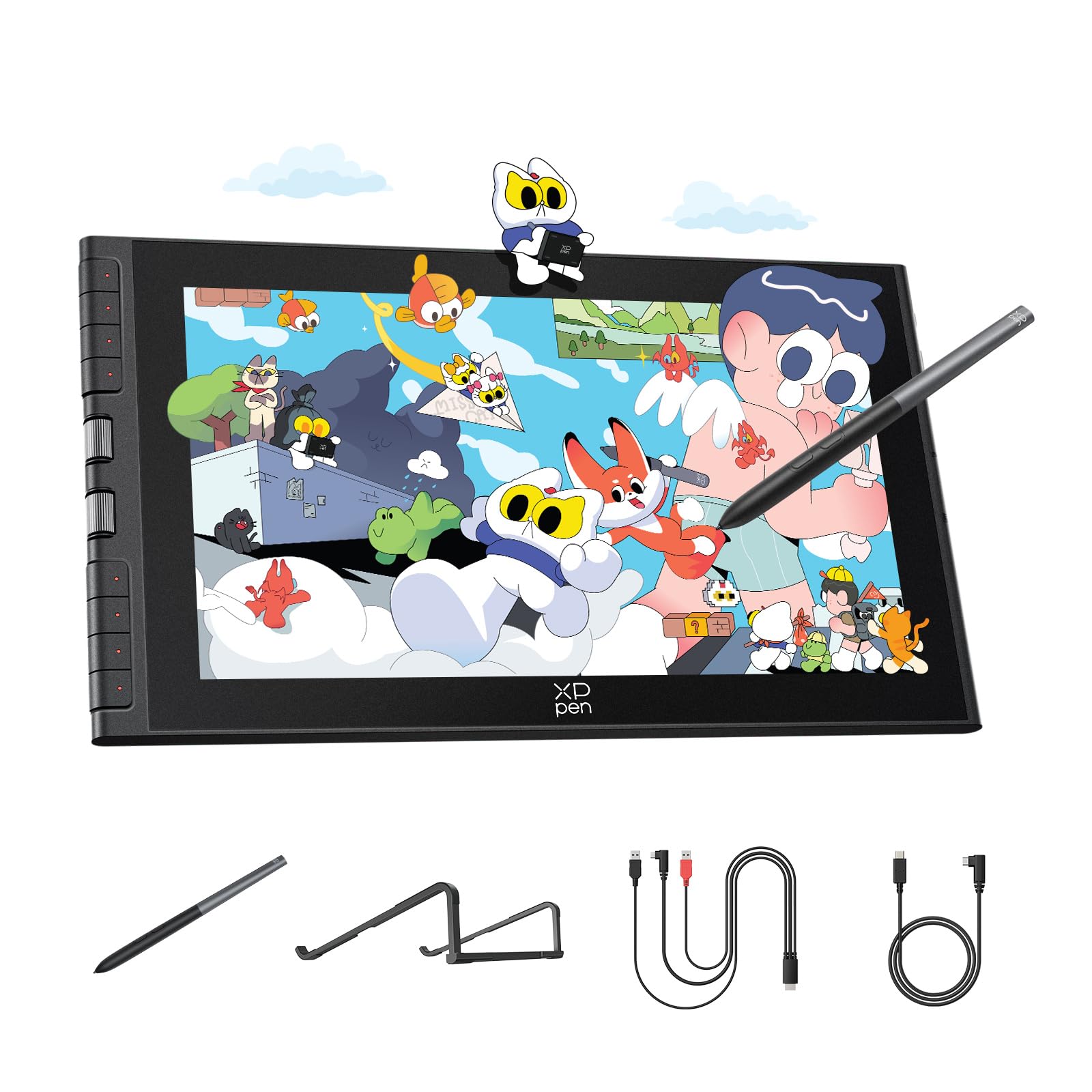
The XPPen Artist 12 3rd packs a 16K pressure-sensitive X4 Pen and an 11.9-inch AG etched glass display into a highly portable 1.58-pound package, making it one of the most travel-friendly pen displays available. The AG etched glass reduces 85% of glare and resists fingerprints, while full lamination keeps parallax to a minimum for more accurate cursor placement.
The dual X-Dial wheels allow for instant brush size and canvas zoom adjustments, which XPPen claims saves 40% in operation time compared to keyboard shortcuts. The 33% narrower bezels maximize the drawing area relative to the overall footprint, and the eight customizable keys sit flush against the bezel to prevent accidental presses during drawing.
The small 11.9-inch active area can feel cramped for artists used to larger canvases, and the 1920×1080 resolution is adequate but not sharp for detailed 4K reference work. Additionally, driver functionality on Chromebook and Android platforms is limited — the shortcut keys and X-Dial may not work, though pen input still functions.
Why it’s great
- Ultra-portable at 1.58 lbs with great build
- AG etched glass feels like paper and resists glare
- Dual X-Dial wheels speed up zoom and brush control
Good to know
- Small screen may feel restricted for detailed work
- Limited button/dial support on Chromebook/Android
- 1080p resolution is adequate but not exceptional
6. PicassoTab X11

The PicassoTab X11 is a standalone drawing tablet that runs a custom Graphics Tablet OS and does not require a computer, making it ideal for artists who want a dedicated portable canvas. The 11-inch fully laminated 2K display reduces glare and parallax significantly, providing a smooth, paper-like surface that feels natural for sketching and painting on the go.
The included stylus supports 4096 pressure levels and the tablet ships with Concepts (with a Lifetime PRO Upgrade), Infinite Painter, and FlipaClip, plus lifetime VIP access to Artixo tutorials. The Octa-Core CPU, 6GB RAM, and 128GB storage handle moderate drawing apps and light multitasking without noticeable lag.
The stylus requires AAAA batteries and has been reported to disconnect randomly, requiring physical tapping on the screen to re-establish connection. Palm rejection is inconsistent even with the included glove, and the custom OS limits access to the full Google Play Store, restricting software choice compared to standard Android tablets.
Why it’s great
- Fully standalone — no PC required
- Laminated 2K display with good color accuracy
- Comes with premium drawing apps and tutorials
Good to know
- Stylus needs AAAA batteries and may disconnect
- Palm rejection is weak compared to pen displays
- Custom OS limits full Play Store access
7. Frunsi RubensTab T8

The Frunsi RubensTab T8 is an entry-level standalone drawing tablet that runs Android 13 and comes pre-loaded with drawing apps and tutorials, eliminating the setup complexity often intimidating for new artists. The 8-inch 1200×800 display is compact enough to slip into a bag, and the included detachable keyboard, stylus, screen protector, and cleaning cloth provide a complete kit right out of the box.
The MTK quad-core CPU paired with 4GB RAM and 64GB storage (expandable to 256GB) runs SketchBook, Krita, HiPaint, and IbisPaint X well at lower brush sizes, though heavy brushes and slow diagonal strokes may introduce slight jitter that smoothing can mitigate. The 4000mAh battery is rated for up to 20 hours of drawing, though real-world use in Sketchbook yields about 3.5 hours per charge.
The 2048 levels of pressure sensitivity are adequate for beginners but noticeably less nuanced than the 16K pens on higher-end models. The tablet lacks built-in palm rejection and a dedicated pressure control app, so users must rely on software-level settings. Customer service has received strong praise for fast, friendly warranty replacements when issues arise.
Why it’s great
- Complete kit with keyboard, stylus, and case
- Pre-loaded apps and tutorials for easy start
- Excellent customer support for replacements
Good to know
- No palm rejection or pressure control app
- Battery life shorter under heavy drawing usage
- 2048 pressure sensitivity feels basic for nuanced work
8. HUION Inspiroy Frego M

The HUION Inspiroy Frego M is a screenless drawing tablet that connects via Bluetooth or USB-C, offering exceptional portability with a 24-hour battery life and a lightweight 546-gram design. The 10 x 6.25-inch active area is slightly smaller than an A4 sheet, providing enough room for comfortable drawing without dominating a desk or backpack.
The PW550S pen features a slim 9.5mm diameter with two programmable side keys for eraser, brush, zoom, and undo functions. While the tablet has no physical shortcut keys on the body, the minimalist design keeps the surface clean and clutter-free. The sloped curved edges and wrist rest at the bottom reduce hand fatigue during extended use, and the symmetrical layout works equally well for left- and right-handed artists.
As a screenless tablet, it requires looking up at your monitor while drawing on the pad, which can feel unnatural for beginners accustomed to pen displays. The drawing surface has a slightly scratchy texture that some users dislike with both standard and felt nibs. The included artist glove is functional but can cause a sweaty hand over long sessions.
Why it’s great
- Excellent 24-hour battery life with Bluetooth
- Lightweight and highly portable at 546g
- Ergonomic wrist rest and sloped edges for comfort
Good to know
- Screenless design requires looking at monitor
- Drawing surface feels scratchy to some users
- Glove may cause sweaty hands during long sessions
9. HUIHUANG Android 16 Tablet
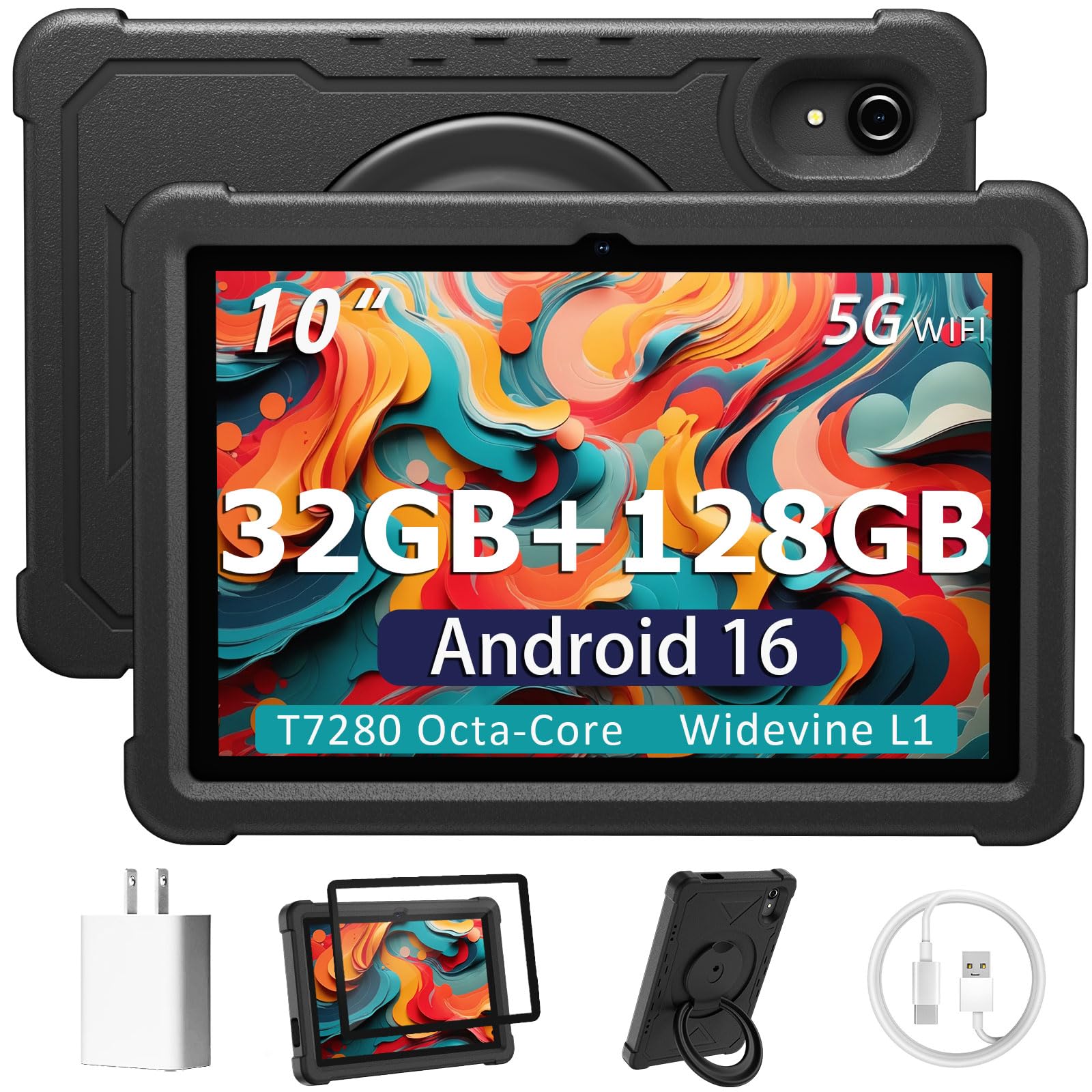
The HUIHUANG Android 16 Tablet is a general-purpose tablet designed for everyday use and learning rather than professional illustration, offering a 10.1-inch FHD IPS display with a 6000mAh battery for extended streaming, browsing, and video calls. The 32GB RAM (8GB physical plus 24GB virtual) and 128GB ROM provide ample memory for multitasking between apps, and the 1TB TF card expansion ensures plenty of storage for offline content.
The T7280 Octa-Core processor handles HD video, casual games, and basic photo editing without stutter. The included rotatable EVA case protects against drops and doubles as a 360-degree swivel stand, making it easy to adjust viewing angles for typing or drawing. Google Kids Space and Family Link parental controls allow parents to manage app access and screen time, making it a solid choice for a child’s first tablet.
This is not a dedicated digitizer tablet — it lacks a pressure-sensitive stylus for precise drawing and is not optimized for art software like Clip Studio Paint or Krita. The cameras (2MP front, 8MP rear) are basic and suitable only for video calls. While it can run drawing apps from the Play Store, the experience lacks the pen support and low parallax of a proper pen display or standalone drawing tablet.
Why it’s great
- Large 6000mAh battery for all-day use
- Sturdy EVA case with 360-degree swivel stand
- Parental controls via Google Kids Space
Good to know
- No pressure-sensitive stylus included
- Not optimized for professional drawing apps
- Cameras are basic — suitable for calls only
FAQ
Can I use a digitizer tablet with an Android phone or iPad?
Do I need a screen protector for my pen display?
Why does my drawing tablet have diagonal line jitter?
Final Thoughts: The Verdict
For most users, the best digitizer tablet winner is the HUION Kamvas 13 (Gen 3) because it combines full-lamination, 16384 pressure sensitivity, and factory-calibrated color accuracy at a price tier that doesn’t require a professional budget. If you want a wide color gamut and a red dial for faster shortcuts, grab the XPPen Artist 13.3 Pro V2. And for studio-grade 4K resolution and 120Hz fluidity, nothing beats the Wacom Cintiq Pro 22.

Mo Maruf
I created WellFizz to bridge the gap between vague wellness advice and actionable solutions. My mission is simple: to decode the research and give you practical tools you can actually use.
Beyond the data, I am a passionate traveler. I believe that stepping away from the screen to explore new environments is essential for mental clarity and physical vitality.