Our readers keep the lights on and my smoothie glass nicely filled. As an Amazon Associate, I earn from qualifying purchases.
The gap between eye and hand disappears the moment your cursor tracks perfectly under the nib, without the wobble and parallax that plague budget screens. A digital tablet for drawing is less about the screen size and more about the engineering beneath the glass — the pressure curve, the laminated bond, and the refresh cadence that determines whether your line work feels fluid or sticky.
I’m Mohammad Maruf — the founder and writer behind WellFizz. I’ve spent hundreds of hours analyzing the pressure sensitivity curves, laminated display stacks, and driver stability reports across the entire drawing tablet market to isolate the models that actually deliver on their spec sheet promises.
This guide breaks down nine distinct models to help you match the right hardware to your specific drawing style. Whether you prioritize 4K resolution for detailed illustration or a battery-free stylus with 16K levels of pressure, finding the right digital tablet for drawing means prioritizing the specs that matter most to your workflow.
How To Choose The Best Digital Tablet For Drawing
Selecting the right drawing tablet comes down to understanding three core variables: the display type (pen display vs. pen tablet), the pressure sensitivity and initial activation force of the stylus, and the color accuracy specifications that match your output medium. Ignore the marketing fluff about “premium experience” and focus on the tangible metrics that define your day-to-day drawing.
Full Lamination vs. Air Gap Displays
A fully laminated screen bonds the glass, touch layer, and LCD panel into a single unit with no internal air gap. This eliminates parallax — the visual offset between where the pen tip touches the glass and where the cursor appears. Non-laminated screens (often found on entry-level pen displays) create a floating cursor effect that throws off fine line work. Always verify that a pen display lists “full lamination” in its spec sheet before purchasing.
Pressure Sensitivity and Initial Activation Force
The standard has moved from 8192 levels to 16384 (16K) levels of pressure sensitivity. Higher levels give you finer gradation between light and heavy strokes, which matters for pencil shading and ink brushwork. More important than the absolute number is the initial activation force (IAF) — measured in grams. An IAF of 2g to 3g means the tablet registers the lightest contact, mimicking a real pencil. Models with higher IAF require more deliberate pressure, which fatigues your hand over long sessions.
Color Gamut Coverage for Your Output
If you print your work, target at least 96% Adobe RGB coverage. For screen-only delivery (web, animation, gaming assets), 99% sRGB is sufficient. Gamuts like Display P3 and DCI-P3 matter for cinematic and HDR workflows. A Calman verification (Delta E under 1.5) ensures the panel ships with factory color calibration, saving you the cost of an external calibrator.
Quick Comparison
On smaller screens, swipe sideways to see the full table.
| Model | Category | Best For | Key Spec | Amazon |
|---|---|---|---|---|
| XPPen Artist Pro 19 Gen2 | Premium | Professional color work | 4K, 98% P3, dual stylus | Amazon |
| Wacom Cintiq Pro 22 | Professional | Industry-standard reliability | 4K, 120Hz, multi-touch | Amazon |
| HUION Kamvas Pro 16 4K | Premium | Detail-oriented digital painting | 4K, 120% sRGB, USB-C | Amazon |
| Wacom Cintiq 16 | Mid-Range | Brand loyalty buyers | 2.5K, 99% DCI-P3, Pro Pen 3 | Amazon |
| HUION Kamvas 13 Gen 3 | Mid-Range | Portable pen display users | 13.3″, 2g IAF, dual dial | Amazon |
| XP-PEN Artist 13.3 Pro V2 | Mid-Range | Color-critical illustration | 16K pressure, 95% P3 | Amazon |
| UGEE UE12 | Value | First-time pen display buyers | 11.6″, 124% sRGB, dual USB-C | Amazon |
| HUION Inspiroy 2 Large | Entry-Level | Budget-conscious beginners | 10.5×6.56″, PenTech 3.0 | Amazon |
In‑Depth Reviews
1. XPPen Artist Pro 19 Gen2

The 18.4-inch 4K panel on this model delivers a pixel density that reveals every micro-bristle of a digital brush. Calman verification with a Delta E under 1.5 means the 98% Display P3 coverage ships accurate out of the box — no tweaking required for print or cinematic grading. The AG etched glass provides a genuine paper-like drag without the rainbow sparkle that plagues cheaper anti-glare treatments.
What sets this apart from other premium offerings is the dual stylus system: a roller-equipped X3 Pro Pen for weighted, traditional feel and a slim stylus with removable side buttons for those who grip tightly. The ACK05 wireless shortcut keyboard adds a physical dial and ten customizable keys, reducing reliance on software menus during complex workflows in Blender or Clip Studio Paint.
The TÜV SÜD certification for blue light reduction matters during marathon sessions, and the dual USB-C reversible ports simplify switching between a MacBook and an Android tablet. At just over 18 inches, this isn’t a portable unit — it demands desk space — but the combination of 4K resolution and dual-nib support makes it a serious contender for professionals who need both precision and color fidelity.
Why it’s great
- Calman-verified Delta E under 1.5 for out-of-box accuracy
- Two distinct stylus options adapt to different drawing grips
- Hardware shortcut keyboard reduces software menu hopping
Good to know
- Large footprint requires dedicated desk space
- No built-in touch gestures for navigation
2. Wacom Cintiq Pro 22

The 21.5-inch Ultra HD 4K display runs at 120Hz, delivering near-zero latency that makes every brush stroke feel instantly registered. The 10-point multi-touch support allows pinch-to-zoom and canvas rotation without reaching for a keyboard, though most users disable touch during actual drawing to avoid accidental marks. The Pro Pen 3 ships with adjustable weight and center of balance, letting you tune the feel from a light fineliner to a heavy marker.
Wacom’s driver ecosystem remains the most stable across Windows, macOS, and Linux — critical for studios that can’t tolerate random disconnections mid-project. The ExpressKeys and on-screen menus are fully customizable, and the Easy Stand provides a fixed-angle height that keeps the screen at a comfortable drawing posture. The etched glass surface delivers a tactile drag that closely mimics traditional media without the sparkle that some anti-glare films introduce.
The trade-off is the highest price point in this roundup, but for commercial artists who bill by the project, the reliability and color consistency often justify the investment. The fan noise is minimal at typical brightness levels, and the 11-pound weight means this is a permanent desk fixture rather than a travel companion. If you work in a shared studio or require consistent cross-platform performance, this remains the benchmark.
Why it’s great
- 120Hz refresh rate eliminates visible cursor lag
- Pro Pen 3 with adjustable weight and balance
- 10-point multi-touch for fluid canvas navigation
Good to know
- Premium pricing far exceeds competitor specs at similar size
- Requires external arm or stand for ergonomic adjustment
3. HUION Kamvas Pro 16 4K
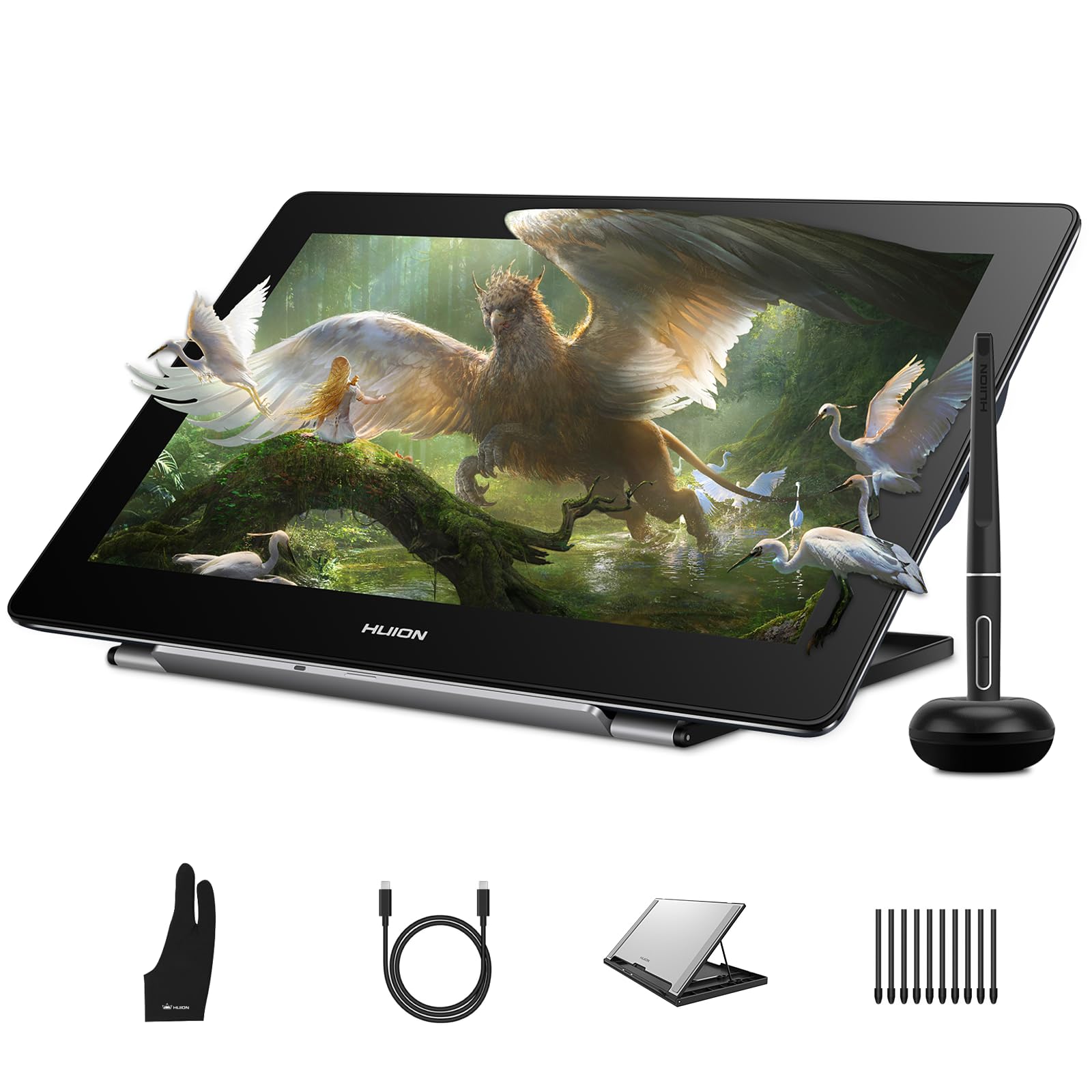
The 16-inch 4K panel (3840×2160) on the Kamvas Pro delivers a pixel density that makes 1080p models look visibly soft when zoomed in on fine line work. The 120% sRGB color gamut and 16.7 million display colors cover a wider range than most mid-range monitors, though the Delta E is not factory-calibrated to the same sub-1.5 standard as the XPPen Pro 19. Full lamination eliminates parallax entirely, which matters when you’re placing precise hatch marks or retouching small photo details.
PenTech 3.0 with the PW517 stylus provides ±0.3mm accuracy even at screen edges, addressing the edge drift that plagues older pen displays. The dual USB-C ports allow plug-and-play switching between a Windows desktop and an Android tablet without re-cabling. The foldable stand adjusts from 20 to 80 degrees, though the included stand feels slightly flimsy compared to the weighted base on the XPPen or Wacom models.
Where this model really shines is value: you’re getting a true 4K pen display with full lamination at roughly half the price of the Wacom Cintiq Pro 16. The trade-off comes in driver polish — some users report the saturation slider in the Huion driver software can behave unpredictably. For the detail-oriented illustrator who prioritizes pixel density over brand prestige, this is the strongest mid-premium option available.
Why it’s great
- True 4K resolution for ultra-fine detail work
- Wide color gamut covers 120% sRGB
- Dual USB-C for flexible device switching
Good to know
- Driver software can have unpredictable color saturation behavior
- Included stand lacks the rigidity of premium competitors
4. Wacom Cintiq 16

The 16-inch IPS display at 2560×1600 resolution hits a sweet spot: sharper than full HD without the GPU requirements of 4K, making it accessible to laptop users running integrated graphics. The 99% DCI-P3 coverage and 100% sRGB ensure cinematic color accuracy, and the 8-bit depth with dithering delivers smooth gradients. Built-in fold-out legs provide a stable 20-degree working angle without needing an accessory stand, though a dedicated stand improves ergonomics for extended use.
The Pro Pen 3 supports 8192 levels of pressure sensitivity with 60 degrees of tilt — more than enough for natural brush behavior in Photoshop and Clip Studio Paint. The pen feels balanced in hand, and the side buttons are responsive without being overly sensitive to accidental presses. Wacom’s driver support is the most reliable across Windows and macOS, with minimal configuration required after installation.
The non-laminated display introduces a slight parallax gap that some artists notice during fine line work, though the anti-glare surface reduces reflections effectively. No shortcut keys are built into the display itself, so you’ll need to rely on keyboard shortcuts or a separate remote. For the artist who wants Wacom build quality and stable drivers without paying the Pro-series premium, this is the most balanced option in Wacom’s lineup.
Why it’s great
- 2.5K resolution without 4K GPU demands
- Industry-leading driver stability across platforms
- Built-in fold-out legs for immediate use
Good to know
- Non-laminated display introduces slight parallax
- No built-in shortcut keys on the tablet
5. HUION Kamvas 13 Gen 3

HUION’s third-generation 13.3-inch pen display introduces Canvas Glass 2.0, an anti-sparkle surface that reduces glare dispersion better than standard etched glass. The full lamination eliminates parallax entirely, and the 2g initial activation force on the PenTech 4.0 stylus registers the faintest contact — essential for light pencil sketching and watercolor washes in Procreate-like workflows. The 16384 pressure sensitivity levels are double the standard, giving finer gradation for subtle opacity changes.
The dual dial system is a genuine productivity upgrade: one dial controls brush size while the other manages zoom or canvas rotation, reducing the need to reach for keyboard shortcuts. Five programmable press keys sit alongside the dials, and the driver allows separate configurations for different software. The USB-C single-cable connection simplifies setup with modern laptops, though Android devices require USB 3.1 with DP 1.2 support.
The 200-nit brightness is the weakest spec here — noticeably dimmer than the 250-nit panels on competitors. In a brightly lit room, the screen can feel subdued, and the color accuracy (99% sRGB with Delta E under 1.5 after factory calibration) is adequate for web work but falls short of Adobe RGB requirements for print production. The included ST300 stand offers adjustable angles but lacks the stability of a metal-backed option.
Why it’s great
- 2g initial activation force for featherlight strokes
- Dual dial system streamlines brush and zoom control
- Full lamination with anti-sparkle glass
Good to know
- 200-nit brightness feels dim in well-lit rooms
- No Adobe RGB coverage for print workflows
6. XP-PEN Artist 13.3 Pro V2

The X3 Pro Smart Chip inside this stylus delivers 16,384 levels of pressure sensitivity with an ultra-low initial activation force, translating every brush feathering and pencil hatch with high fidelity. The 95% Display P3 coverage is cinema-grade — wider than the typical sRGB-only panels found at this tier — making it suitable for illustrators who deliver assets for both screen and print. The full-laminated 13.3-inch screen with anti-glare film eliminates parallax and reduces eye strain during extended sessions.
The red dial roller provides tactile feedback for brush size adjustment and zoom, while eight customizable express keys can be mapped to undo, save, or layer navigation. The metal back panel dissipates heat faster than plastic alternatives, keeping the display comfortable to touch after hours of use. Dual-mode functionality lets you switch between pen display and pen tablet mode (screen off), which saves laptop battery and reduces neck fatigue when using the tablet as a secondary monitor.
The 3-in-1 cable setup is included alongside a full-featured USB-C cable, but the out-of-box experience may require a firmware update before the tablet works reliably with Chromebook or Android devices. Some users report that the express keys stop working on non-Windows platforms after the update, which reduces the value for cross-platform artists. The foldable stand included in the package adds stability, though the plastic construction feels less premium than the unit itself.
Why it’s great
- 16K pressure levels with X3 Pro Smart Chip
- 95% Display P3 for cinema-grade color accuracy
- Metal back panel for effective heat dissipation
Good to know
- Firmware update needed for cross-platform compatibility
- Express key functionality limited on non-Windows systems
7. UGEE UE12

The UE12 delivers a fully laminated 11.6-inch display at a price point that typically buys a non-laminated pen tablet. The zero-parallax design means your cursor sits directly under the nib, making fine line work predictable right from the first stroke. The 124% sRGB color gamut covers more of the spectrum than standard 100% sRGB panels, and the ability to switch between sRGB, Adobe RGB, and DCI-P3 color spaces gives you flexibility depending on your target output medium.
The battery-free stylus offers 16K-level pressure sensitivity and 60-degree tilt recognition, which is impressive for this price tier. The concave-convex design on the eight shortcut keys makes blind operation possible — you can feel which button you’re pressing without looking away from the canvas. Dual USB-C ports allow flexible cable routing, and the 3-in-1 cable supports connection to older devices that lack USB-C with DP Alt Mode.
The 11.6-inch active area is compact enough for a laptop bag but small enough that you’ll be zooming frequently when working on detailed illustrations. Customers report that the included nibs wear down faster than expected — soft nibs paired with the etched glass surface create a paper-like drag but erode quickly under heavy-handed artists. The reported buzzing sound near the power port is intermittent and not present in all units, but worth noting if you work in a silent environment.
Why it’s great
- Full lamination at a non-laminated price point
- Switchable color spaces for different output needs
- Compact and portable for mobile artists
Good to know
- Small active area requires frequent zooming
- Included nibs wear quickly under heavy pressure
8. HUION Inspiroy 2 Large

The Inspiroy 2 Large is a pen tablet, not a pen display — you draw on the tablet surface while looking at your computer monitor. This form factor eliminates the neck strain of looking down at a screen and allows you to use your existing monitor’s color accuracy without compromise. The 10.5 x 6.56-inch active area provides ample room for broad gestures while remaining small enough to fit alongside a laptop. PenTech 3.0 delivers improved pressure sensitivity over the previous generation, with no noticeable wobble during diagonal line work at normal drawing speeds.
The unique scroll wheel and three sets of eight programmable press keys allow deep customization across different applications. You can assign a separate configuration for Photoshop, Clip Studio Paint, and Blender, and the driver remembers which profile to load automatically. The PW110 stylus features a slimmer body and soft silicone grip compared to older HUION pens, reducing hand fatigue during long sketching sessions. The battery-free design means the pen never needs charging and always starts at full sensitivity.
The lack of a screen means you must develop hand-eye coordination to draw while watching a separate display — some beginners find this disorienting initially. The USB-C connection is straightforward, but the tablet uses Micro-B on the device side rather than USB-C, which feels dated. Linux support works out of the box for basic functionality, but button mapping requires third-party tools. For the artist on a strict budget who values a large drawing area over an integrated screen, this remains the most capable option in its price band.
Why it’s great
- Large active area in a slim, portable package
- Scroll wheel and programmable keys improve workflow
- Battery-free stylus with no charging required
Good to know
- Requires hand-eye coordination to draw off-screen
- Uses Micro-B connection instead of USB-C on tablet side
FAQ
Do I need a full-laminated display for professional illustration?
How many pressure sensitivity levels do I actually need?
Can I use a drawing tablet with an Android phone or tablet?
Does higher resolution (4K) matter for drawing tablets?
Why do some drawing tablets make a buzzing noise near the power port?
Final Thoughts: The Verdict
For most users, the digital tablet for drawing winner is the Wacom Cintiq 16 because it balances professional-grade build quality and driver stability at a 2.5K resolution that works with any modern laptop without GPU strain. If you need 4K detail for ultra-fine illustration, grab the HUION Kamvas Pro 16 4K. And for budget-conscious beginners who want a large active area without the cost of an integrated screen, nothing beats the HUION Inspiroy 2 Large.

Mo Maruf
I created WellFizz to bridge the gap between vague wellness advice and actionable solutions. My mission is simple: to decode the research and give you practical tools you can actually use.
Beyond the data, I am a passionate traveler. I believe that stepping away from the screen to explore new environments is essential for mental clarity and physical vitality.