Our readers keep the lights on and my smoothie glass nicely filled. As an Amazon Associate, I earn from qualifying purchases.
The search for the ultimate developer mouse is a battle against repetitive strain, imprecise tracking, and workflow friction. You need a tool that disappears into your hand during marathon coding sessions, not one that demands you adapt to its quirks. A true developer-grade peripheral delivers ergonomic relief, customizable inputs, and multi-device fluidity without sacrificing an ounce of precision.
I’m Mohammad Maruf — the founder and writer behind WellFizz. My approach to this guide involved cross-referencing hundreds of verified user reviews from developers, designers, and power users to isolate the specific specs and real-world behaviors that separate a great mouse from a wrist-injury-inducing one.
Whether you’re navigating complex IDEs or managing a multi-monitor workstation, identifying the best developer mouse means understanding how vertical tilt, sensor DPI, battery longevity, and programmable buttons translate into all-day comfort and productivity.
How To Choose The Best Developer Mouse
Selecting a developer mouse is not about flashy gaming features; it is about ergonomic fit, sensor accuracy, and seamless multi-device integration. Developers often work across a laptop and a desktop rig, requiring a mouse that can hop between them without a hitch. The right choice reduces the risk of repetitive strain injuries and accelerates your workflow with customizable shortcuts.
Ergonomic Design and Tilt Angle
The primary differentiator in this category is the handshake angle. Standard flat mice force your forearm into a pronated position, compressing the carpal tunnel. Vertical mice, with angles ranging from 20 to 65 degrees, keep your wrist in a more neutral posture. Look for a mouse that offers a minimum of a 57-degree tilt if you suffer from wrist fatigue, as this has been shown to reduce muscle activity significantly. For those who prefer a trackball, the tilt angle is still crucial — the Logitech MX Ergo S offers an adjustable 20-degree tilt that still provides substantial relief compared to a flat device.
Sensor Precision and DPI Range
A developer doesn’t need a 50,000 DPI gaming sensor, but you do need smooth, responsive tracking across multiple monitors. A mouse with at least 4000 DPI is ideal for navigating large displays without lifting and re-centering the mouse. The ability to toggle between DPI levels on the fly is a real productivity booster, allowing you to switch from pixel-precise UI adjustments to rapid text selection. High-end models like the Logitech MX Master 3S and 4 offer 8000 DPI tracking that works even on glass surfaces, eliminating the need for a mouse pad.
Connectivity and Multi-Device Support
Developers are rarely tethered to a single machine. The ability to pair a mouse to three devices via Bluetooth or a dedicated USB receiver and switch between them with a single button is not a luxury — it is a necessity. Look for mice that support both Bluetooth and 2.4GHz wireless to ensure low-latency performance on your primary rig while maintaining flexibility for a tablet or laptop. Some premium options also support Logitech’s Flow software, which allows you to seamlessly move the cursor between different computers on the same network.
Customizable Buttons and Software Support
Repetitive tasks like copying, pasting, and switching between desktops eat up time over a full day of work. A developer mouse should have at least 6 programmable buttons that can be mapped to keyboard shortcuts, application launches, or complex macros. The software ecosystem — whether Logi Options+, SABLUTE’s driver, or a third-party tool — must be stable and intuitive. Pay attention to whether the software allows per-application profiles, so your button mappings change automatically when you move from Visual Studio to your terminal.
Quick Comparison
On smaller screens, swipe sideways to see the full table.
| Model | Category | Best For | Key Spec | Amazon |
|---|---|---|---|---|
| Logitech MX Master 4 | Premium | Ultimate workflow customization | Haptic Sense Panel + 8K DPI | Amazon |
| Logitech MX Master 3S | Premium | All-surface tracking & quiet clicks | 8K DPI glass tracking | Amazon |
| Logitech MX Ergo S | Premium | Advanced thumb trackball comfort | 20° tilt, 120 day battery | Amazon |
| Logitech MX Vertical | Mid-Range | Proven ergonomic relief standard | 57° vertical, 10% less muscle strain | Amazon |
| SABLUTE MAM4 | Mid-Range | Large-hand vertical comfort | 8K DPI, 800mAh battery | Amazon |
| Nulea M514 | Budget | Entry-level vertical trackball | 65° vertical, infinite scroll | Amazon |
| PHILIPS Ergonomic Mouse | Budget | Horizontal scroll for spreadsheets | Dual scroll wheels, 5-level DPI | Amazon |
In‑Depth Reviews
1. Logitech MX Master 4
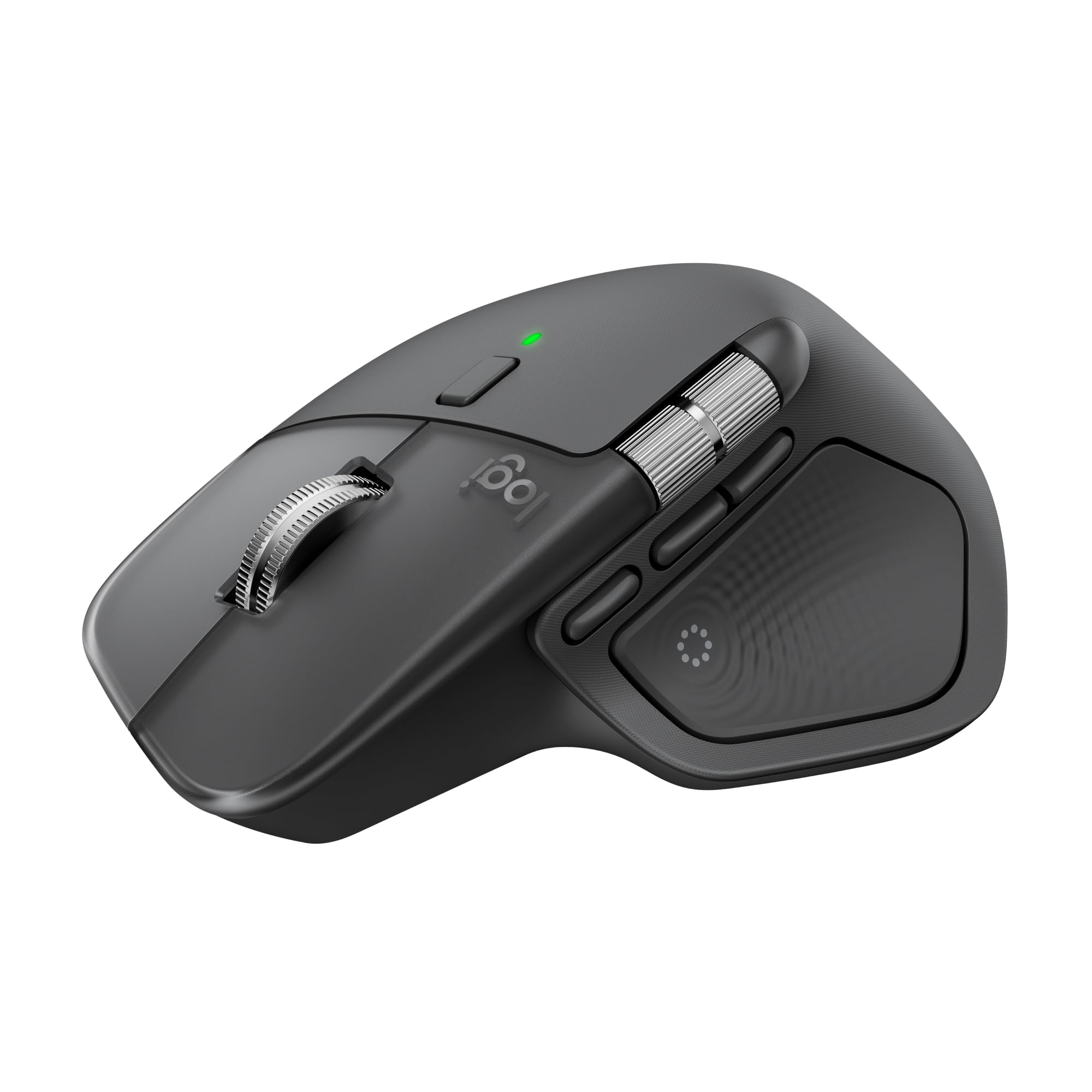
The Logitech MX Master 4 is the current pinnacle of productivity-focused mouse design. Its defining feature is the Haptic Sense Panel — a tactile area on the top of the mouse that provides customizable haptic feedback for app-specific actions, notifications, and shortcuts. The new Actions Ring overlay brings your most-used tools to the cursor, drastically reducing the need to reach for the keyboard. The MagSpeed scroll wheel is Logitech’s finest yet, capable of scrolling a thousand lines per second with pixel-stop precision, all while remaining nearly silent.
Under the hood, the 8K DPI sensor tracks flawlessly on glass, and the dual-mode connectivity (Bluetooth and USB-C dongle) offers a connection range that is noticeably more stable than previous generations. The contoured shape with a natural tilt keeps your wrist in a relaxed position, and the 90% quieter clicks are a boon for shared office environments. With a 70-day battery life and USB-C fast charging, it handles even the heaviest workflow demands without interruption.
User reports consistently emphasize how the Haptic Sense Panel and per-application profiles in Logi Options+ transform repetitive coding tasks into fluid, intuitive motions. One reviewer noted their daily task time dropped from 60 minutes to just 15 after mapping the panel to their most frequent commands. This is a mouse that actively amplifies your efficiency rather than just pointing and clicking.
Why it’s great
- Haptic Sense Panel + Actions Ring for instant tool access
- MagSpeed scroll: 1000 lines per second with silent precision
- 2X more powerful USB-C dongle for rock-solid connectivity
- Excellent battery life and USB-C charging
Good to know
- Premium-tier investment; not an incremental upgrade if you own a Master 3S
- Requires Logi Options+ software for full customization
- Heavier build may not suit users who prefer ultra-light mice
2. Logitech MX Master 3S
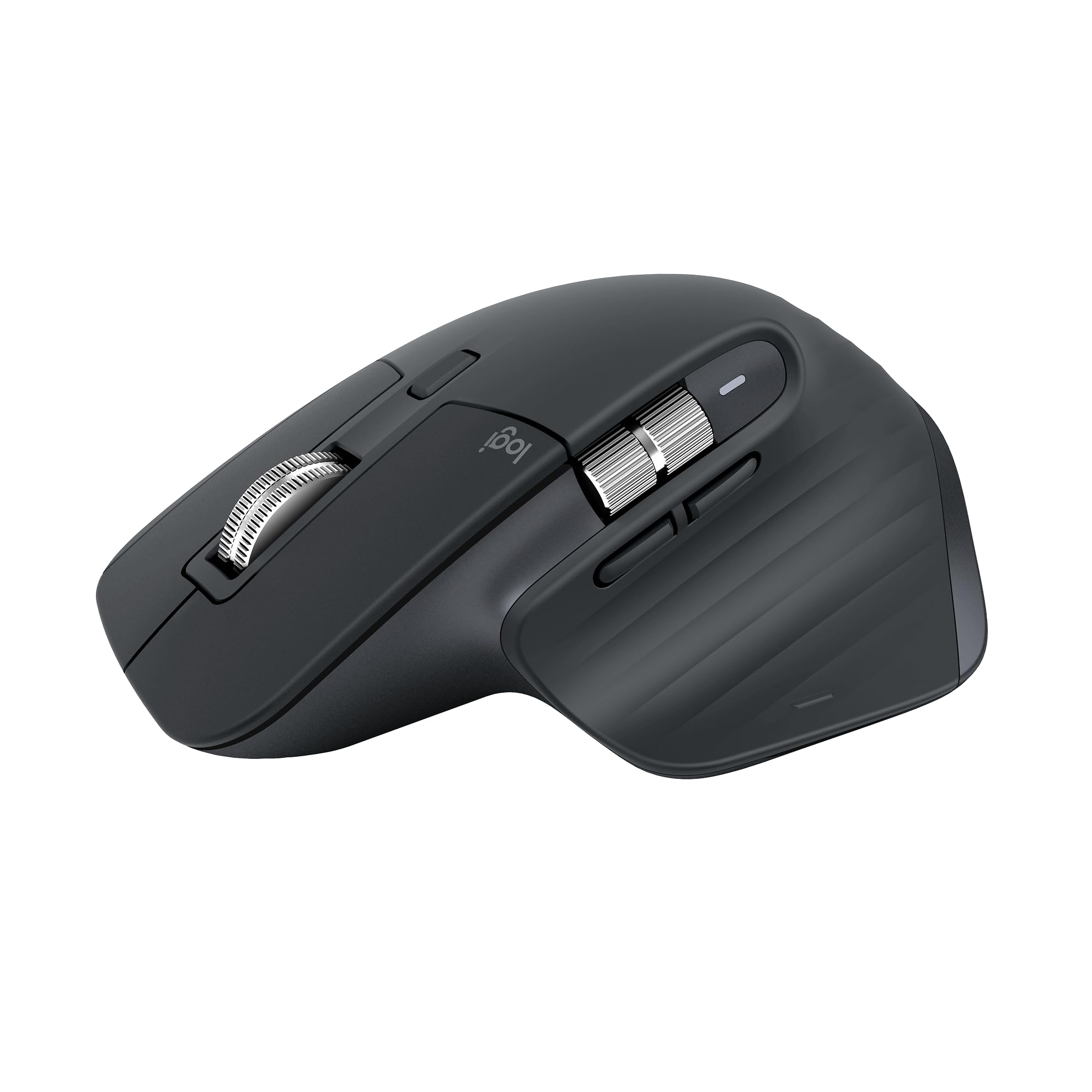
The MX Master 3S is a refined version of the legendary Master 3, featuring an upgraded 8000 DPI sensor that tracks on virtually any surface, including glass. The 90% quieter clicks are a direct response to office noise complaints, and they retain a satisfying tactile feel. The MagSpeed electromagnetic scroll wheel is virtually silent and offers two modes: click-to-click for precise line-by-line navigation and free-spin for rapid scrolling through long code files.
This version is a Bluetooth-only model, which means it lacks the Logi Bolt USB receiver found in the standard edition. For developers who value a clutter-free desk and already have Bluetooth-capable systems, this is not an issue. The ergonomic silhouette with a natural wrist posture and optimally placed thumb controls reduces fatigue during extended sessions. The 70-day battery life ensures you can travel without a charging cable for most trips.
User feedback is overwhelmingly positive regarding the smoothness of the scroll wheel and the reliability of the multi-device Flow feature. One power user who relies on Adobe Suite and AutoCAD noted the mouse survived daily heavy use for years without any sensor degradation. The primary critique from veteran users is that the upgrade from the MX Master 2S or 3 is incremental rather than revolutionary.
Why it’s great
- 8K DPI sensor tracks flawlessly on glass surfaces
- Quiet Clicks reduce auditory distraction by 90%
- MagSpeed scrolling is fast, precise, and nearly silent
- Long 70-day battery life with quick charge
Good to know
- Bluetooth-only model, no USB receiver included
- Customization via Logi Options+ can be inconsistent in some apps
- Not a dramatic upgrade from the previous generation
3. Logitech MX Ergo S

The MX Ergo S is the definitive thumb-operated trackball for developers suffering from wrist strain. Its 20-degree adjustable tilt positions your forearm in a more natural orientation, reducing muscle activity by 27% compared to a standard mouse. The trackball itself allows you to control the cursor without moving the mouse base, which is a game-changer for tight desk spaces or for those with limited surface area. The ball glides on precision bearings with a smooth, fluid motion that makes pixel-level selections easy.
Logitech has upgraded this model with USB-C charging, 80% quieter click switches, and the Logi Bolt wireless technology. The six programmable buttons can be mapped to any shortcut through Logi Options+, and the precision mode button lets you toggle between speed and high-accuracy tracking instantly. The battery life is impressive at up to 120 days, and a one-minute charge provides 24 hours of use. The sculpted design with a soft rubber grip is certified by ergonomists and fits medium to large hands comfortably.
Reviews from developers who made the switch to the MX Ergo S are emphatic — many report the elimination of carpal tunnel symptoms after months of use. The trackball does require a brief learning period for thumb control, but most users adjust within a week and never look back. Some users with smaller hands find the reach to the ball causes fatigue, suggesting this is best suited for those with larger hand spans.
Why it’s great
- 20° tilt reduces muscle strain by 27%
- Thumb-operated trackball eliminates arm movement
- 120 days of battery life with USB-C fast charging
- Quieter, more durable switches than previous models
Good to know
- Requires a learning curve for thumb-based navigation
- Thumb reach may be fatiguing for users with smaller hands
- Silicone surface attracts dust and may show wear over time
4. Logitech MX Vertical

The Logitech MX Vertical is the benchmark that many other ergonomic mice are measured against. Its 57-degree vertical handshake position reduces forearm muscle activity by 10% compared to a standard mouse, according to independent ergonomic testing. The thumb rest is deeply sculpted, preventing your thumb from dragging on the desk surface — a common source of friction and strain with less refined vertical designs. The textured rubber surface provides a secure grip without feeling sticky.
The 4000 DPI high-precision sensor results in four times less hand movement compared to a standard 1000 DPI mouse, which translates directly to reduced fatigue. The cursor speed switch on the top of the mouse allows you to instantly cycle through DPI presets. Connectivity is versatile, supporting Bluetooth and the Logitech Unifying receiver, and it can pair with up to three devices. The battery life is exceptional, lasting up to four months on a single USB-C charge.
Long-term users who have suffered from wrist discomfort report the MX Vertical as a near-magical fix. One reviewer who used the MX Master 2S for years found that the vertical design eliminated wrist issues after nine months of use. A common drawback noted is the horizontal scroll wheel placement, which is less useful than a dedicated vertical scroll wheel. The mouse is also slightly less precise for rapid cursor movements compared to the Master series, but this trade-off is well worth the ergonomic benefit.
Why it’s great
- 57° vertical angle proven to reduce muscle strain
- 4000 DPI sensor reduces hand movement by 4x
- 4-month battery life is industry-leading for a vertical mouse
- Versatile multi-device connectivity
Good to know
- Horizontal scroll wheel is not ideal for fast vertical navigation
- Cursor accuracy is slightly less than flagship Master series
- Vertical design can tip if bumped from the side
5. SABLUTE MAM4
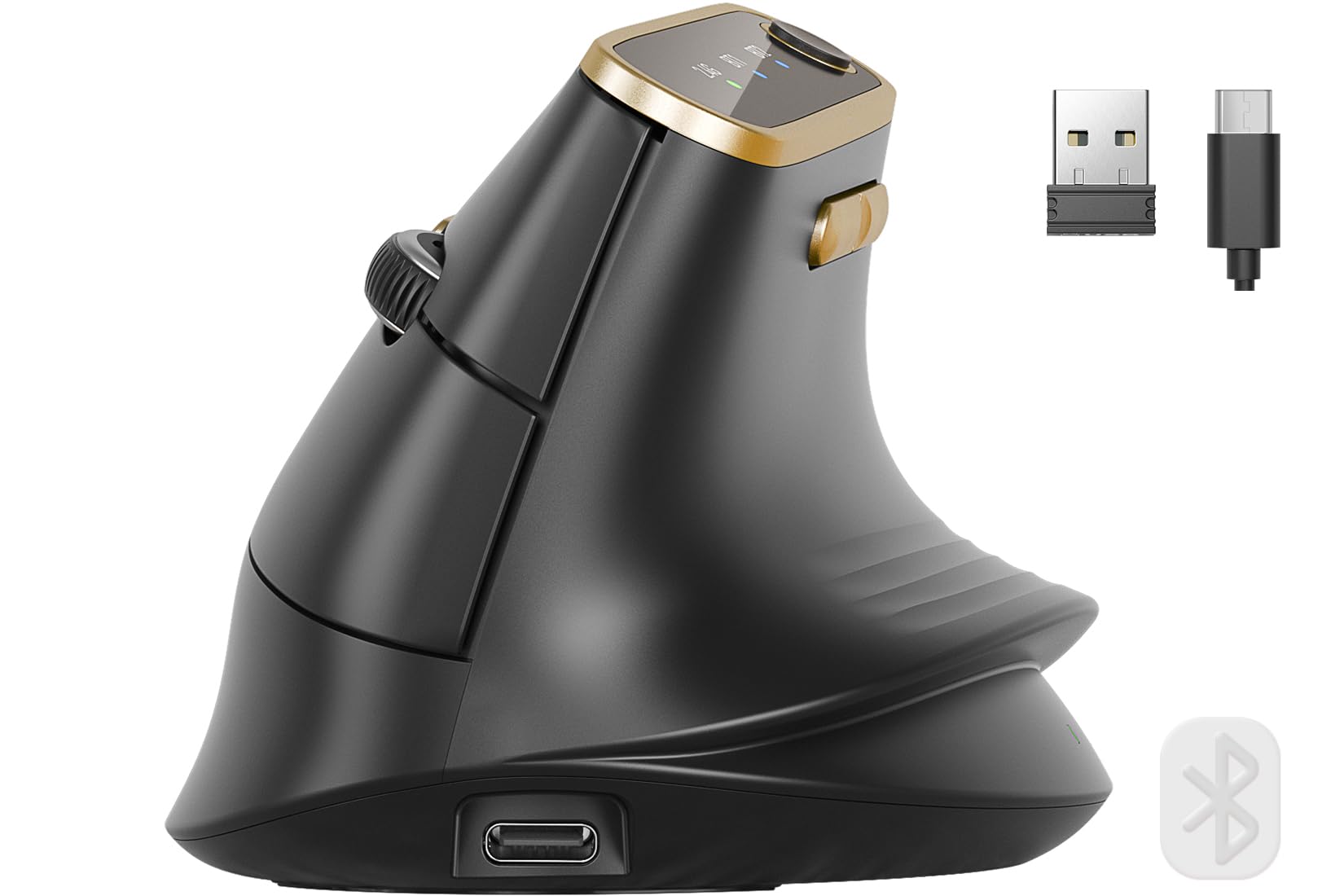
The SABLUTE MAM4 is specifically engineered for medium to large hands — a segment often underserved by vertical mice. Its taller profile and 57-degree angle provide a full-palm resting surface that eliminates the “pinky drag” common in smaller ergonomic designs. The matte plastic chassis feels solid and lightweight, avoiding the sticky rubber coating that degrades over time on some competitors. The gold accent ring adds a subtle touch of class without being flashy.
Performance-wise, the MAM4 is surprisingly potent for its price tier. The optical sensor supports up to 8K DPI (scalable down to 50 DPI) and offers six preset levels with color-coded LED indicators. The ultra-fast metal scroll wheel can fly through a thousand lines in seconds, and all six buttons are fully programmable via the Windows-based driver software. The 800mAh battery is a standout feature — nearly double the capacity of most premium mice — providing up to 30 days of use per charge. The tri-mode connectivity (dual Bluetooth 5.0 and 2.4GHz) allows seamless switching between three devices.
User feedback is consistently positive about the comfort for large hands and the long battery life. Developers using CAD software and BIM tools have reported that the vertical design significantly reduces wrist fatigue during 8-hour workdays. The main caveats are that the software is Windows-only for macro programming (Mac users must configure on a Windows PC first) and the middle mouse button requires slightly more force than expected. The polling rate can be set to 1000Hz via the driver for smoother tracking.
Why it’s great
- Designed specifically for medium-to-large hand comfort
- 8K DPI sensor with 50 DPI fine-tuning capability
- 800mAh battery provides nearly double the capacity of competitors
- Ultra-fast metal scroll wheel for rapid document navigation
Good to know
- Macro programming software only available on Windows
- Middle click requires more pressure than other buttons
- Palm/wrist corner may press into desk for some users
6. Nulea M514
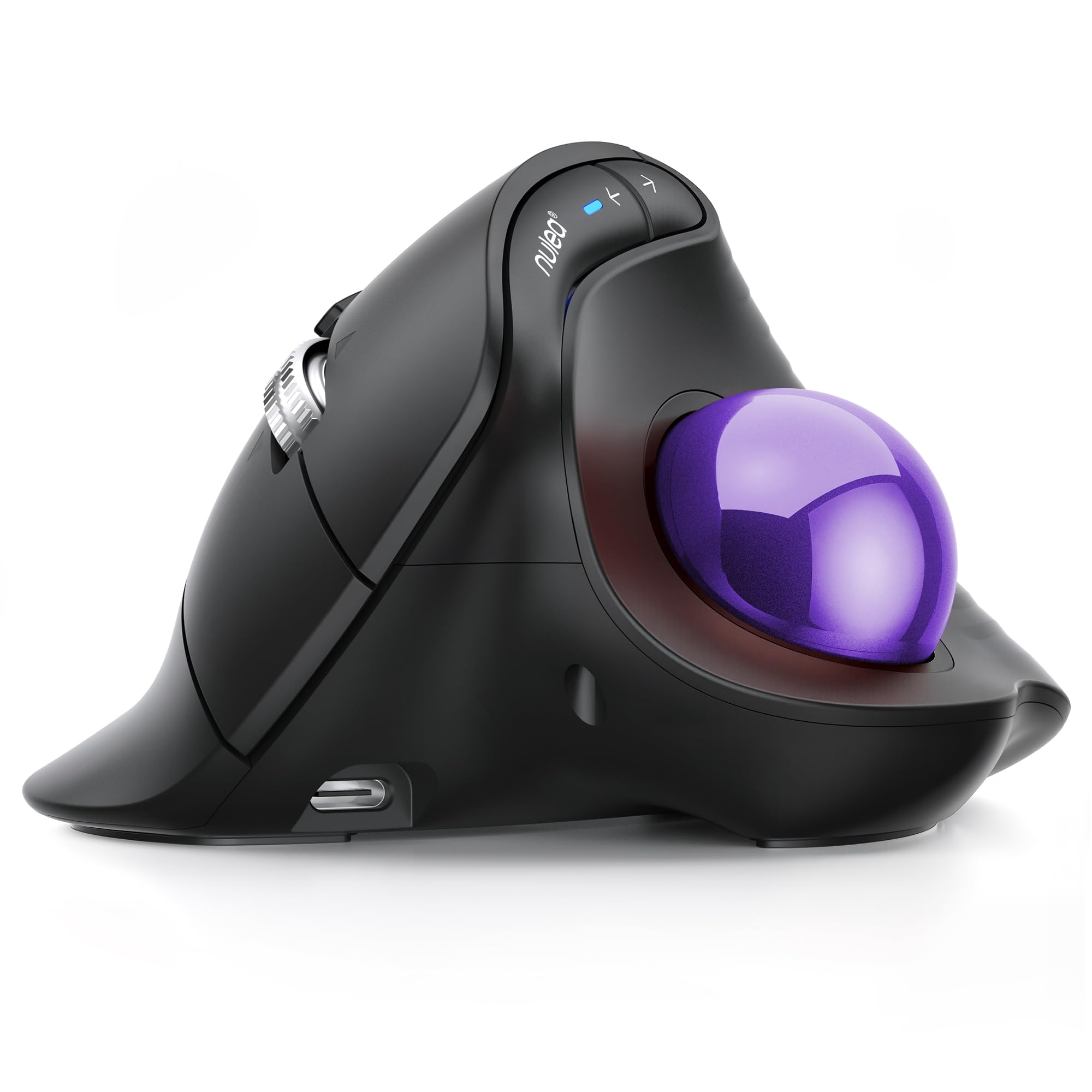
The Nulea M514 is a compelling entry-level option for developers who want to explore the trackball world without a significant financial commitment. Its 65-degree vertical angle is steeper than most competitors, including the Logitech MX Ergo, which some users find even more relaxing for the wrist. The thumb-controlled trackball reduces the need to move your entire arm, making it ideal for cramped desk setups or working on the go. The wave-textured surface and sculpted shape provide a comfortable grip for all-day use.
The unique “Smart Infinite Scroll” wheel automatically switches between precise line-by-line mode and free-spin mode based on your scrolling speed, which is a surprisingly premium feature at this price point. The ball bearings are smooth and provide excellent tracking without lag, easily matching the feel of more expensive trackballs. Connectivity is robust with Bluetooth and a USB receiver, supporting up to three paired devices, and the rechargeable battery eliminates the need for disposable AAs. The three DPI settings (600/800/1000) are sufficient for most productivity tasks, though power users may wish for a higher top end.
Reviews from long-time Logitech MX Ergo users are particularly interesting — many report that the M514 is more comfortable due to the steeper vertical angle. The trackball can be removed easily for cleaning, a major plus for maintaining smooth operation. The primary downsides are the non-programmable buttons (which limits workflow customization) and thumb buttons that are positioned a bit far forward for natural reach. The build quality is good for the price but does not match the heft of premium trackballs.
Why it’s great
- 65° vertical angle offers better wrist alignment than most trackballs
- Smart infinite scroll wheel adapts to your scrolling speed
- Smooth trackball bearings with easy cleaning design
- Multi-device connectivity at an entry-level price point
Good to know
- No programmable buttons, limiting workflow customization
- Thumb buttons are not easily reachable for all hand sizes
- Build quality is not as robust as premium trackballs
7. PHILIPS Ergonomic Wireless Mouse
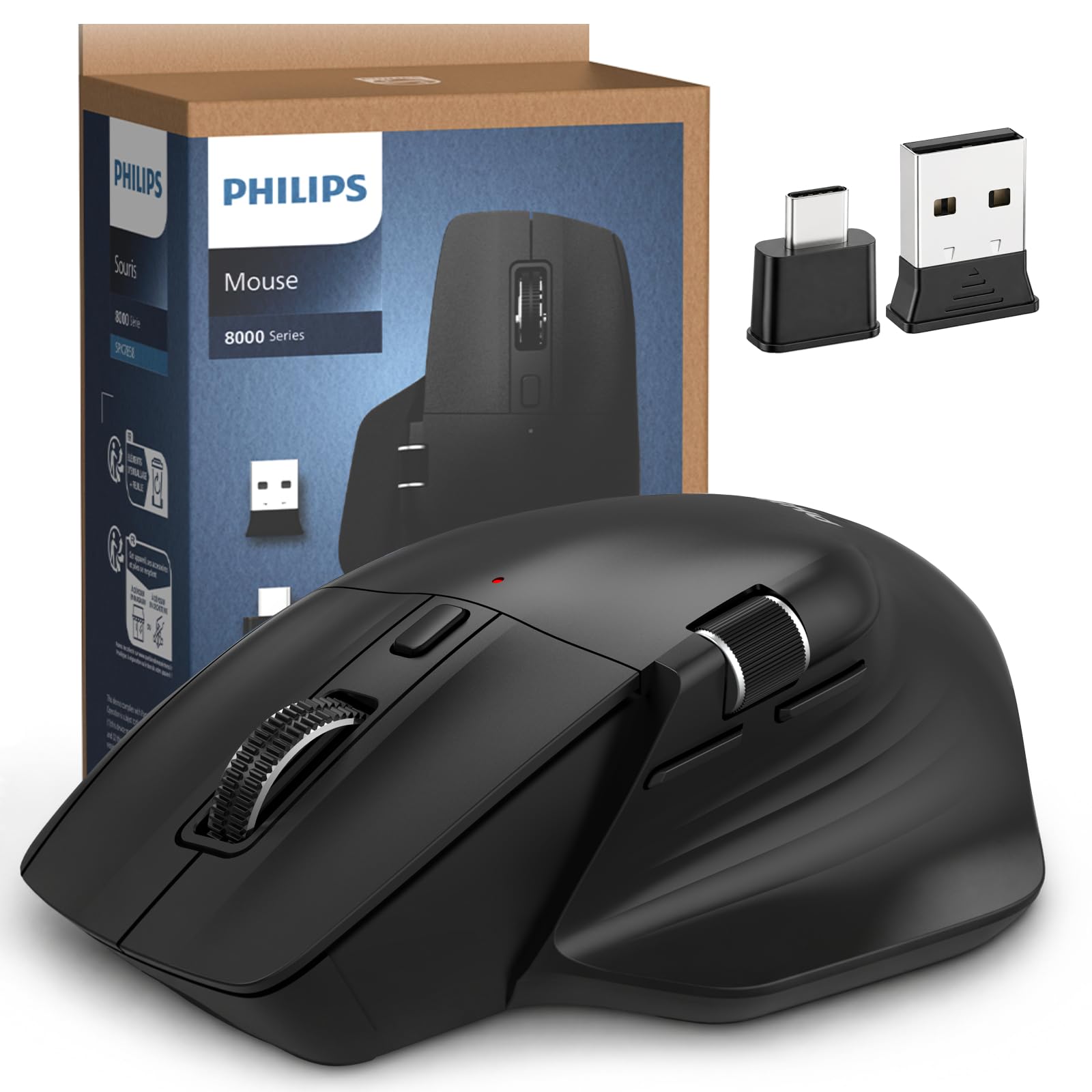
The PHILIPS ergonomic offering distinguishes itself with a unique dual-scroll-wheel design — a textured primary wheel for vertical navigation and a thumb-operated horizontal scroll wheel for quickly slicing through spreadsheet columns or wide code lines. This makes it an excellent choice for developers who spend a significant portion of their day in data-heavy applications like Excel or using wide IDEs. The right-handed contoured shell and anti-slip thumb rest provide a comfortable, natural grip that reduces fatigue.
The sensor supports five adjustable DPI levels (from 800 to 4000), giving you enough flexibility to work on high-resolution monitors without cursor drift. The 500mAh rechargeable battery delivers a claimed 25 days of heavy use, and a 5-minute top-up provides a full hour of tracking — a practical emergency feature for busy developers. The dual 2.4G receiver supports both USB-A and USB-C connections, eliminating the need for a dongle or hub when switching between devices. The mouse can pair with up to three devices via Bluetooth for seamless transitions.
User feedback highlights the comfortable shape and the usefulness of the horizontal scroll wheel for data work. However, some users have reported inconsistent USB connection stability after several days of use, occasionally requiring the receiver to be reseated. The dotted texture on the scroll wheel can feel rough against the skin, and the RGB lighting, while visually appealing, is not customizable or functional from a productivity standpoint. For the price, it offers good value if the dual-wheel feature aligns with your workflow.
Why it’s great
- Dual scroll wheels are ideal for spreadsheet and wide-document navigation
- 5-level DPI (800-4000) suits multi-monitor setups
- Emergency 5-minute charge provides one hour of use
- Includes both USB-A and USB-C receivers
Good to know
- Some users report USB connection instability over time
- Scroll wheel texture can feel rough and cause discomfort
- Non-customizable RGB lighting adds no practical function
FAQ
Does a vertical mouse actually reduce wrist pain for coding?
Which connectivity type is best for multi-device developers?
How many programmable buttons do I really need for development?
Is a trackball better for RSI prevention than a vertical mouse?
Final Thoughts: The Verdict
For most users, the best developer mouse winner is the Logitech MX Master 4 because its Haptic Sense Panel and Actions Ring provide a tangible productivity boost that no other mouse offers. If you want proven ergonomic relief with a traditional vertical design, grab the Logitech MX Vertical. And for the ultimate wrist strain solution with a trackball, nothing beats the Logitech MX Ergo S.

Mo Maruf
I created WellFizz to bridge the gap between vague wellness advice and actionable solutions. My mission is simple: to decode the research and give you practical tools you can actually use.
Beyond the data, I am a passionate traveler. I believe that stepping away from the screen to explore new environments is essential for mental clarity and physical vitality.