Our readers keep the lights on and my smoothie glass nicely filled. As an Amazon Associate, I earn from qualifying purchases.
Your laptop’s processor is a heat machine. Whether you’re deep into a Warzone session or rendering a final cut, the moment internal temps hit the thermal ceiling, performance takes a nosedive. Frame drops, stuttering, and a lap that feels like a stovetop aren’t just annoyances — they’re signs your system is suffocating. A cooling pad is the simplest hardware fix to reclaim that lost performance without opening the chassis.
I’m Mohammad Maruf — the founder and writer behind WellFizz. I’ve spent months analyzing fan configurations, RPM curves, build materials, and real-world temperature deltas across dozens of laptop coolers to separate the effective from the gimmicky.
This guide cuts through the noise of RGB claims and oversized fan counts to identify the best cooling pad for your specific setup, workflow, and budget.
How To Choose The Best Cooling Pad
Every laptop dissipates heat differently: some exhaust through a rear vent, others from the side, and many pull air in from the bottom. Your cooling pad must match that airflow strategy. Picking one for the wrong size or vent location can actually trap heat rather than move it.
Fan Count vs. Fan Positioning
Don’t be seduced by high fan numbers alone. A pad with 13 small fans can be quieter but may not move air as effectively as a pad with two well-placed large fans directly under your laptop’s hottest spots (CPU and GPU). The key metric is CFM (cubic feet per minute) at the fan axis, not the total count.
Build Material and Ergonomic Range
A metal mesh top has near-zero heat soak and provides a rigid surface for airflow to exit freely. ABS plastic enclosures are lighter and quieter but can flex under heavy 17-inch gaming laptops. Height adjustability of at least 6 positions gives you proper screen alignment and wrist posture — a secondary but critical ergonomic benefit.
Exhaust Vacuum vs. Traditional Stand Coolers
If your laptop has a single rear exhaust port and you chase maximum thermal delta, an external vacuum fan (like the KLIM Tempest) attaches directly to the exhaust to force hot air out. These are more effective on specific chassis but require exact fit and can be awkward. Traditional stand coolers are universal but deliver a more modest 5–10°C drop depending on the fan-to-vent alignment.
Quick Comparison
On smaller screens, swipe sideways to see the full table.
| Model | Category | Best For | Key Spec | Amazon |
|---|---|---|---|---|
| KLIM Tempest | Vacuum Exhaust | High-end gaming laptops | 4000 RPM single fan | Amazon |
| havit HV-F2056 | Stand Cooler | 15.6–17″ casual/gaming | 3 fans, 14.96″ wide | Amazon |
| AICHESON AA3 | Stand Cooler | RGB heavy users | 8 fans, 2600‑3000 RPM | Amazon |
| KYOLLY 13‑Fan | Stand Cooler | Value + wide size range | 13 fans + LCD display | Amazon |
| Coolertek Slim | Stand Cooler | Ultra-portable 11–14″ | 2 fans, 550g weight | Amazon |
In‑Depth Reviews
1. KLIM Tempest Laptop Cooler with Vacuum Fan

The KLIM Tempest takes a completely different approach: instead of blowing air up at the laptop, it attaches directly to the side or rear exhaust vent and sucks hot air outward at 4000 RPM. This vacuum method can restore near-original thermal performance on high-TDP gaming laptops (like the Dell X17 R1) that normally throttle during extended sessions. The temperature detection sensor lets the fan auto-adjust speed — ideal for users who want set-and-forget thermal management.
At only 4.2 oz, this cooler is palm-sized and portable, but installation is fiddly. The spring-loaded clamping arms feel cheap, and the included rubber sleeves and foam pads require careful alignment to create a proper seal. Users report that the mounting plate sags slightly, so it works best on laptops with a flat, uninterrupted exhaust path. Cable management is messy, and at max speed the single fan is audibly noticeable.
The 5-year warranty is a strong vote of confidence, and if you have a laptop that matches the Tempest’s dimensions, the thermal improvement is unmatched by any stand cooler at this price. For owners of thick gaming rigs who are tired of throttling in the middle of a match, this is the most targeted solution available.
Why it’s great
- Aggressive 4000 RPM draws hot air directly out of the chassis
- Temperature sensor and automatic speed mode provide hands-off operation
- Extremely portable at 4.2 oz
Good to know
- Mounting mechanism is finicky and may slip on non-standard exhaust grills
- Build quality of the clamping arms feels thin and wobbly
- Noisy at max speed — not ideal for quiet environments
2. havit HV-F2056 Laptop Cooler Cooling Pad

The havit HV-F2056 has been a staple recommendation for years — not because of flashy specs, but because its three 120mm-class fans are positioned to cover the standard CPU/GPU zones on 15.6–17 inch laptops without creating turbulence. The metal mesh surface allows unrestricted airflow upward, and the two adjustable height settings (roughly 15° and 25°) provide basic ergonomic relief. At just 697 grams, it’s light enough to move between desk and lap.
Customer reports show a consistent 5–7°C drop on systems like the HP Envy 17 and Lenovo P15s during heavy office workloads. The three fans are genuinely quiet — you’ll hear air movement more than motor whine. The USB passthrough port is a thoughtful addition for connecting a mouse or SSD without sacrificing a port. However, the blue LED is always on and non-adjustable, which may annoy users who prefer a dark setup.
Durability is decent but not flawless: the rubber grip pads can peel off the perforated surface after several months of use, and the power cord is shorter than ideal. Havit also omits fan speed control, so you’re locked into one speed (which is on the quieter side). For general productivity, light gaming, and media consumption, this pad provides clean, quiet, consistent cooling without any software fuss.
Why it’s great
- Very quiet operation — excellent for open-office or library use
- USB passthrough preserves an additional port for peripherals
- Lightweight and fits most 15–17 inch chassis
Good to know
- Blue LEDs are always on with no off switch or dimmer
- Cord is short — you may need an extender depending on desk layout
- Rubber anti-slip pads can detach over time
3. AICHESON Gaming Laptop Cooling Pad (AA3)

The AICHESON AA3 packs eight fans — four large ones in the center and four smaller units along the edges — spinning between 2600 and 3000 RPM. A roll switch on the side gives you variable fan speed control, so you can dial it up for demanding games or quiet it down for browsing. The aluminum top panel helps with passive heat dissipation, and the 7-position tilt bracket (10° to 30°) is one of the most versatile stands in this class.
Customizable RGB is handled through a fingerprint touch sensor with 10 distinct modes. A long press on the touch sensor turns off the side lighting entirely, which addresses a common pain point for users who want the cooling without the distracting glow. One notable quirk reported by customers: the LED lighting resets to default rainbow mode every time the pad loses power, meaning no memory of your previous color selection. That’s a minor irritation if you unplug the USB habitually.
Regarding durability, this unit has known weak spots. Several reviews mention that the front fan section can stop spinning after a few months, and the support leg on the kickstand can break under repeated angle adjustments. The AICHESON brand does offer a 1-year warranty and responsive customer service, but reliability is a concern if you need daily, long-term use. For RGB-heavy gamers who want an adjustable, high-fan-count stand at a modest entry price, the AA3 delivers on visual and ergonomic features, even if its longevity trails higher-tier options.
Why it’s great
- 8 fan configuration with adjustable speed via roll switch
- 10 RGB modes with touch sensor — plenty of visual customization
- 7 tilt positions for fine-grained screen angle adjustment
Good to know
- RGB mode resets to default on power loss — no setting memory
- Reported long-term durability issues with fan and leg components
- Not stable for lap use; best kept on a desk
4. KYOLLY Gaming Laptop Cooler with 13 Ultra Quiet Fans
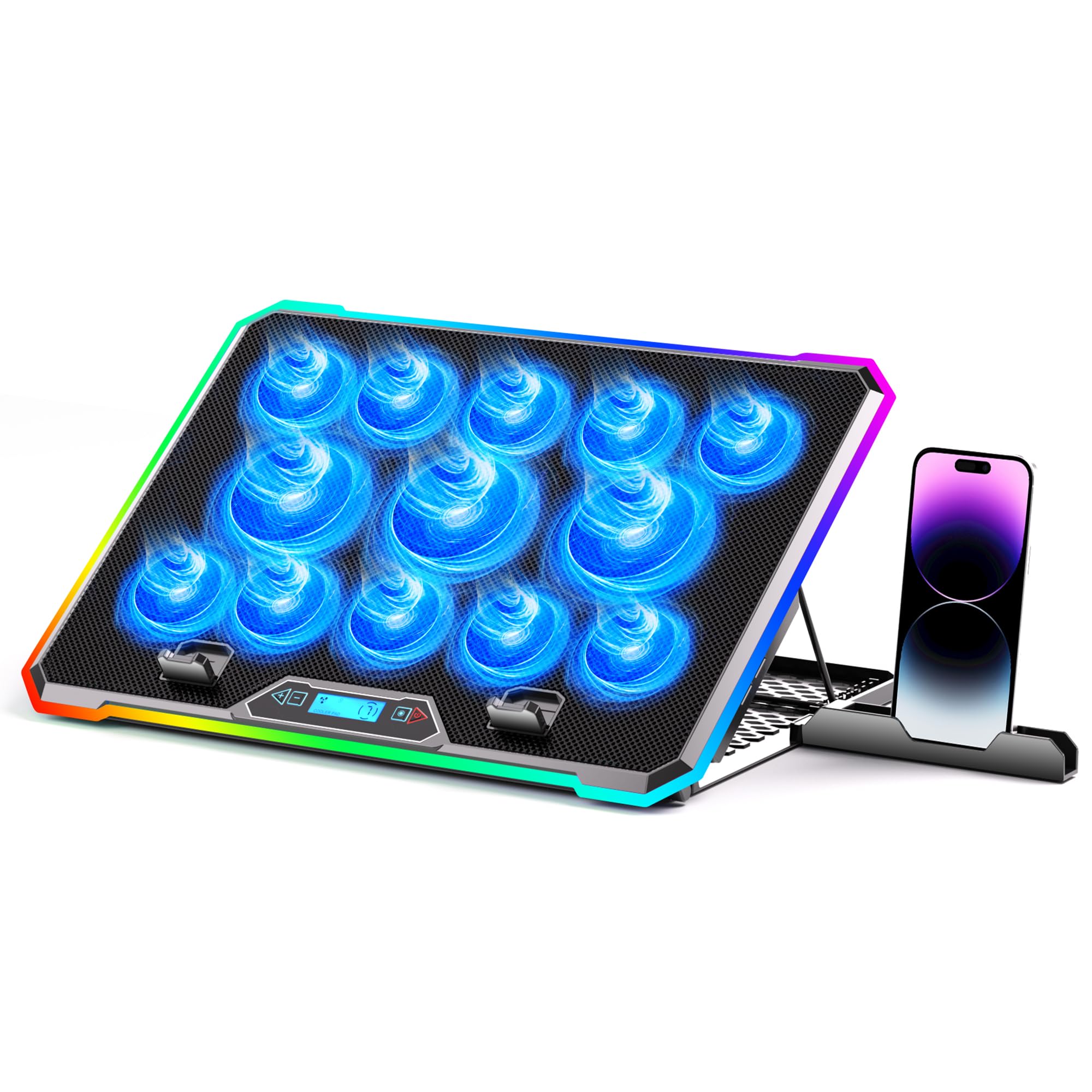
KYOLLY’s 13-fan configuration — three large central fans flanked by ten smaller ones — is an unusual layout that delivers broad surface coverage. The LCD screen displays real-time fan speed, which helps you correlate the roll switch adjustments with actual RPM changes. It also features 10 RGB lighting modes with memory, so the last color you set persists after power cycling — a distinct advantage over the AICHESON pad.
The 9-angle tilt range (10°–45°) gives you more extreme viewing angles than most competitors, useful for drawing tablets or users who prefer a nearly vertical screen position. The non-slip base, combined with anti-slip tabs, holds laptops securely on laps, beds, or uneven surfaces. The built-in silicone phone holder is a nice idea, but it’s shallow and can’t hold a phone with a case reliably — it’s better suited for a bare device.
Button layout is confusing: one switch for fan speed, another for color modes, and a separate button for power. New users may need a few minutes to memorize the controls. Build quality is adequate for the price range, with plastic construction and basic metal reinforcement. Noise levels are genuinely low, making it a good choice for shared workspaces. If you need a wide tilt range, a large fan array, and RGB memory at a budget-friendly price point, the KYOLLY offers strong overall value.
Why it’s great
- 13-fan layout provides broad coverage across large laptop footprints
- 9 tilt positions (10°–45°) give exceptional ergonomic range
- RGB memory setting retains your chosen lighting mode after power off
Good to know
- Button layout is non-intuitive and requires learning
- Phone holder is shallow and won’t fit most cases
- Plastic construction may feel flimsy for heavy daily manipulation
5. Coolertek Portable Slim Quiet Laptop Cooling Pad

The Coolertek Slim is the lightest and most travel-friendly pad in this roundup at just 550 grams and a 12.99 x 9.84-inch footprint. It’s built for sub-14-inch laptops — MacBook Air, Dell XPS 13, ThinkPad X1 Carbon — and is thin enough to fit inside a standard laptop sleeve alongside your machine. The two blue-LED fans are ultra-quiet; customer measurements suggest noise levels around 20–22 dB, barely perceptible in a quiet room.
Cooling performance is surprisingly effective for the size: one user recorded a Samsung 970 EVO M.2 SSD dropping from 65°C to 50–51°C under load, preventing performance throttling. The metal mesh surface provides a rigid, non-absorbent platform, but it lacks traction — several reports note the laptop slid off the pad when used on a lap or soft surface. Use on a flat desk eliminates this issue. There’s no power button; the only way to turn it off is to unplug the USB cable, which is a minor inconvenience.
The two adjustable height levels are adequate for basic ergonomic improvement but less versatile than the multi-angle stands from larger competitors. Build quality feels solid with a metal top and plastic bottom, and the thick rubber feet prevent the pad itself from sliding. For travelers, remote workers, or students who need a lightweight, quiet cooler that fits in their bag and never adds bulk, the Coolertek Slim is the most portable option available.
Why it’s great
- Under 550g and thin enough to fit in most laptop sleeves
- Very quiet fans — suitable for libraries and quiet offices
- Genuinely improves SSD thermal performance on ultrabooks
Good to know
- Metal mesh has no grip — laptop can slide on uneven surfaces
- No power switch; must unplug the USB to turn fans off
- Only two fixed height positions — limited ergonomic adjustability
FAQ
Do cooling pads work on all laptop sizes?
How many fans do I need for gaming cooling?
Can I use a cooling pad on my lap?
Final Thoughts: The Verdict
For most users, the best cooling pad winner is the havit HV-F2056 because it balances quiet operation, dependable cooling, and wide laptop compatibility without overcomplicating the design. If you prefer aggressive heat evacuation for a powerful gaming rig, grab the KLIM Tempest. And for maximum portability with an ultrabook, nothing beats the Coolertek Slim.

Mo Maruf
I created WellFizz to bridge the gap between vague wellness advice and actionable solutions. My mission is simple: to decode the research and give you practical tools you can actually use.
Beyond the data, I am a passionate traveler. I believe that stepping away from the screen to explore new environments is essential for mental clarity and physical vitality.