Our readers keep the lights on and my smoothie glass nicely filled. As an Amazon Associate, I earn from qualifying purchases.
Your brush strokes lag, anchor points snap to the wrong pixel, and after eight hours in Adobe Suite your wrist aches. For a graphic designer, the mouse is not a peripheral — it is the primary input instrument that bridges your intent and the screen. An imprecise or poorly shaped mouse will compromise everything from selection accuracy in Photoshop to line curvature in Illustrator.
I’m Mohammad Maruf — the founder and writer behind WellFizz. I immerse myself in hardware spec sheets and consumer feedback, analyzing scroll wheels, sensor architectures, and ergonomic geometries to separate marketing claims from real-world reliability.
After dissecting dozens of models across all price tiers, I compiled this guide to help you find the best computer mouse for graphic design that balances pixel-perfect tracking with fatigue-free long sessions.
How To Choose The Best Computer Mouse For Graphic Design
Graphic design demands a mouse that feels invisible in your hand, allowing you to focus entirely on the canvas. Prioritize sensor performance, ergonomic fit, and workflow customization over flashy RGB or gaming-centric specs.
Sensor DPI and Tracking Accuracy
A high DPI (dots per inch) sensor allows you to move the cursor across a large 4K or 5K monitor with minimal wrist movement. Look for at least 8,000 DPI with surface tracking that works on textured desks and even glass — you should not need a mouse pad to maintain pixel precision.
Ergonomics for Long Haul Sessions
Design work is rarely a thirty-minute task. A mouse that forces a flat wrist angle will create cumulative fatigue. Vertical or adjustable-tilt designs can reduce forearm strain by nearly a third. The shape must also match your hand size: claw vs. palm grip changes which contours feel natural after six hours.
Programmable Buttons and Custom Profiles
Every time you reach for a keyboard shortcut during a creative flow, you lose momentum. A mouse with six or more programmable buttons lets you assign undo, zoom, brush size, and layer commands directly under your thumb. App-specific profiles automatically switch those assignments when you move from Illustrator to Premiere.
Scroll Wheel Versatility
Timeline scrubbing, zooming, and canvas rotation all depend on scroll wheel quality. A standard notched wheel is adequate, but a free-spinning or a dedicated dial (like a jog wheel) dramatically improves speed. Side-to-side tilt scrolling is also invaluable when navigating wide artboards.
Quick Comparison
On smaller screens, swipe sideways to see the full table.
| Model | Category | Best For | Key Spec | Amazon |
|---|---|---|---|---|
| Logitech MX Master 3S | Premium | Universal creative workflow | 8K DPI, MagSpeed scroll, quiet clicks | Amazon |
| HUION Inspiroy Dial 2 | Premium | Digital painting & illustration | Dual dials, 10.5×6.56″ active area | Amazon |
| ELECOM IST PRO Trackball | Specialty | Minimal hand movement | 36mm trackball, 12K DPI sensor | Amazon |
| Corsair IRONCLAW Wireless SE | Mid-Range | Large hands & multi-taskers | 26K DPI Marksman sensor | Amazon |
| Contour Unimouse | Ergonomic | Wrist pain relief | 35°-70° adjustable tilt angle | Amazon |
| Turtle Beach Kone XP Air | Mid-Range | Lots of programmable inputs | 19K DPI, 29 programmable inputs | Amazon |
| Logitech MX Ergo S | Trackball | Desk space efficiency | 20° tilt, 120-day battery life | Amazon |
In‑Depth Reviews
1. Logitech MX Master 3S
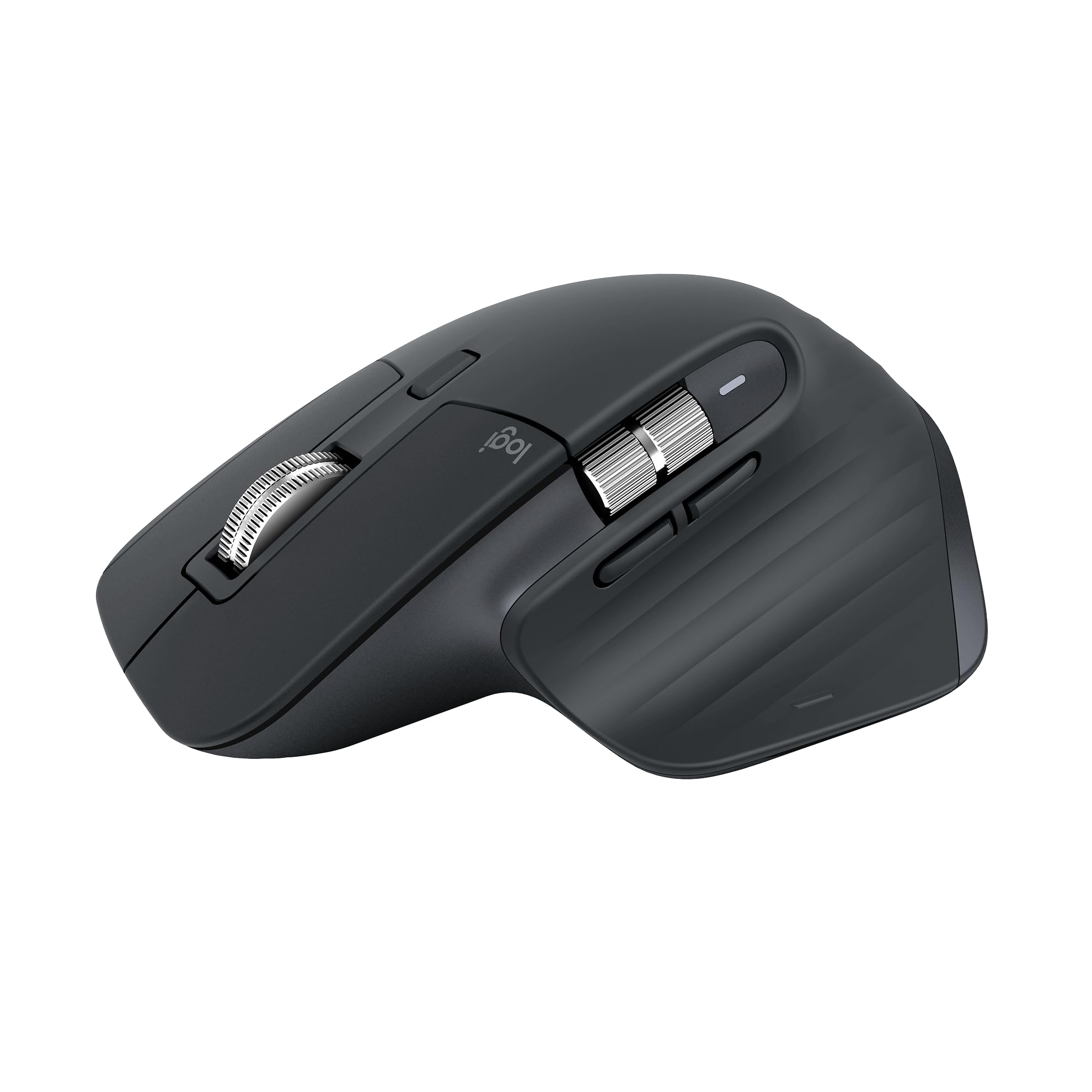
The MX Master 3S is the most versatile design mouse on the market because of its MagSpeed scroll wheel. You can flick the wheel for free-spinning across a long timeline or let it click into ratchet mode for precise zoom levels in Photoshop. The 8,000 DPI sensor tracks on glass and textured wood alike, letting you work from any surface without a pad.
Quiet clicks reduce noise by 90% compared to a standard mechanical switch, which is a genuine advantage during late-night studio sessions or shared coworking spaces. The sculpted right-handed silhouette supports a natural wrist angle, and the thumb rest feels intentional — not an afterthought. Logi Options+ allows you to assign custom shortcuts per application, so your undo and brush resize shortcuts swap automatically when you move from Illustrator to DaVinci Resolve.
The main trade-off is connectivity: this is a Bluetooth-only model with no included USB receiver, which may cause compatibility issues on older PCs that lack Bluetooth 5.0. Some users also find the customization fails to register in certain third-party creative apps. Still, for a balance of precision, comfort, and scroll-wheel innovation, no other mouse covers as many design scenarios this well.
Why it’s great
- MagSpeed scrolling is transformative for timeline editing
- 8K DPI sensor tracks reliably on glass
- Near-silent clicks keep focus intact
Good to know
- Bluetooth only — no USB receiver included
- Some creative apps ignore custom button mappings
2. HUION Inspiroy Dial 2

The Inspiroy Dial 2 is a graphics tablet, not a standalone mouse, but for digital painters and illustrators it is the superior input device. Two physical dials give you instantaneous control over brush size and canvas zoom without needing to touch the keyboard. The 10.5 x 6.56-inch active area maps directly to your monitor, so every stroke lands where the tip is placed.
PenTech 3.0 offers 60 degrees of tilt support and low-latency tracking that feels natural even at high brush speeds. The battery-free stylus never needs charging, and the textured surface mimics the friction of drawing on paper. Six programmable press keys let you assign up to twelve different functions per software, and the symmetrical design accommodates left-handed users equally well. Bluetooth 5.0 runs for up to 18 hours on a single charge.
The biggest caveat is the visual disconnect: your hand moves on the tablet while your eyes remain on the screen, which takes practice. The included battery-free pen is excellent, but only Huion pens and nibs are compatible — no third-party alternatives. If pure illustration is your primary workflow, the Dial 2 offers better ergonomics and brush control than any conventional mouse.
Why it’s great
- Dual dials streamline brush size and zoom
- Battery-free pen with tilt support
- Large textured active area feels like paper
Good to know
- Requires hand-eye coordination adjustment
- No third-party pen or nib support
3. ELECOM IST PRO Trackball Mouse

A trackball mouse is the ultimate solution for designers with limited desk space or wrist issues, and the IST PRO is the most refined thumb-ball model currently available. The 36mm ball allows large cursor movements with just a thumb twitch, reducing strain across the forearm. A PixArt gaming sensor delivers up to 12,000 DPI with a 1000Hz report rate, providing responsive tracking even during rapid selection changes.
Triple connectivity — Bluetooth 5.3, 2.4GHz wireless, and USB-C wired — lets you switch between a desktop, tablet, and smartphone across up to six paired devices. The ten programmable buttons plus a tilt wheel give you full command over shortcuts like brush size, undo, and layer switching. Silent switches keep clicks unobtrusive, and the swappable bearings (steel or ruby included) let you fine-tune the ball’s rolling resistance to your preference.
The precision comes at a higher price point, and the ergonomics are divisive — the tapered back forces a claw-like grip that some find tiring over a full day. The default steel bearings can feel gritty before breaking in, and two AA batteries add bulk. For designers who value desk-space economy and minimal hand travel, this is a specialty tool that performs brilliantly once adapted to.
Why it’s great
- Large 36mm thumb ball reduces wrist movement dramatically
- Swappable bearings customize the feel
- Triple connectivity across six devices
Good to know
- Tapered rear shape forces a claw-like hand posture
- Default bearings may feel rough initially
4. Corsair IRONCLAW Wireless SE
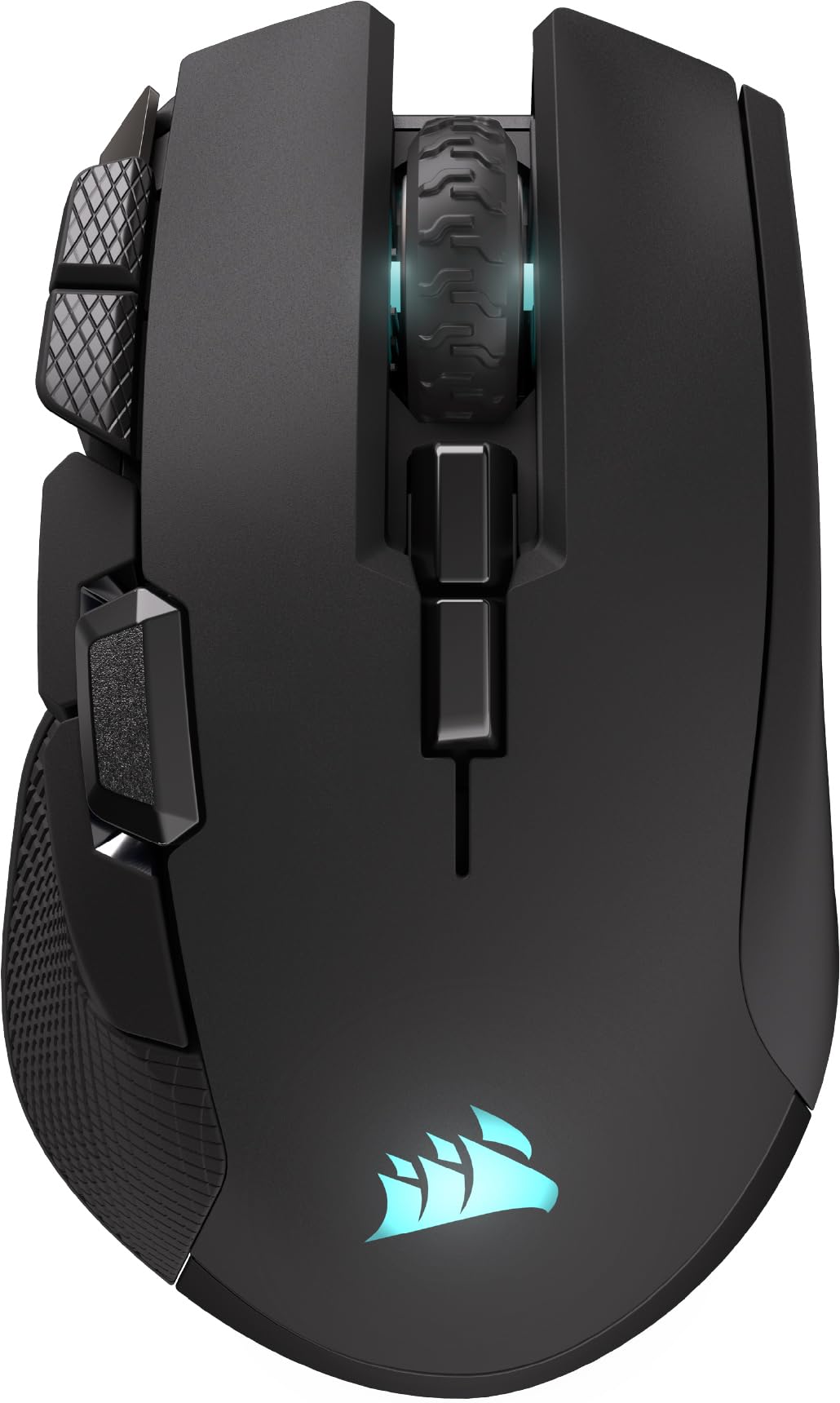
The IRONCLAW is built for designers with larger hands who need a full palm grip. Its asymmetric shape fills the hand without forcing fingers into a cramped claw — the width at 3.15 inches and length at 5.12 inches provide generous real estate. The 26,000 DPI CORSAIR MARKSMAN sensor may seem excessive for design work, but its surface calibration feature adapts to any desk texture, eliminating tracking inconsistency across different surfaces.
Battery life is the showstopper here: up to 285 hours over 2.4GHz wireless and as much as 532 hours via Bluetooth. That translates to weeks of professional use before a charge is needed, which matters when you are deep in a deadline. Ten programmable buttons via iCUE software allow mapping macros and keybinds per application, and three-zone RGB can be toggled off entirely if you prefer a distraction-free workspace.
The downside is the bulk — this is a large mouse that feels heavy if you try to drag it across a pad rather than use its ample battery life as a desk anchor. Some users also report that iCUE did not fully support this model at launch, limiting button customization. For designers with big hands who prioritize battery stamina and palm support, the IRONCLAW is a solid mid-range workhorse.
Why it’s great
- Excellent for palm grip with larger hands
- Incredible battery life — up to 532 hours on Bluetooth
- Surface calibration sensor adapts to any desk material
Good to know
- Large shape may be too bulky for small hands
- iCUE software compatibility reported spotty at launch
5. Contour Unimouse

Designers who already suffer from wrist pain or are trying to prevent it should consider the Unimouse. Its standout feature is the adjustable tilt range from 35 to 70 degrees, which lets you change the angle of your forearm throughout the day — effectively redistributing pressure away from the median nerve. The friction hinge holds its position without slipping, and the fully adjustable thumb rest moves in three dimensions to fit nearly any hand size.
Six programmable buttons plus a smooth scroll wheel allow you to assign undo, brush size, and zoom shortcuts directly under your thumb. The rechargeable battery lasts up to twelve weeks, and connectivity is via a reliable 2.4GHz USB dongle. The matte plastic finish resists fingerprints, and the overall build feels solid enough for daily transportation between desk and home office.
The primary compromise is precision — the optical sensor is adequate for general design work, but it lacks the high DPI and surface calibration found in dedicated creative mice. A low buzzing noise when moving the cursor has been noted by several users, which can be distracting during quiet editing sessions. For ergonomic relief and adjustable posture, however, no other mouse in this list offers this level of customizable angle support.
Why it’s great
- Adjustable tilt from 35° to 70° fights wrist strain
- Fully customizable thumb support fits various hand sizes
- Long 12-week battery life
Good to know
- Some users report a low buzzing noise during use
- Sensor DPI moderate, not suited for ultra-high resolution monitors
6. Turtle Beach Kone XP Air

If your creative workflow relies on many shortcuts — switching tools, layers, blending modes, and brush presets — the Kone XP Air offers 29 programmable inputs via its multi-button layout and 4D scroll wheel. The 19,000 DPI Owl-Eye optical sensor provides smooth tracking for high-resolution displays, and the Titan Switch Optical delivers tactile feedback without the latency of mechanical switches.
Dual wireless connectivity through 2.4GHz and Bluetooth, combined with up to 100 hours of battery life, keeps this mouse going through multiple workdays. The included Rapid Charge Dock eliminates cable clutter, and the PhantomFlex USB-C cable is lightweight enough to use if you ever need a wired connection. Five-zone RGB lighting can be configured to show DPI and profile cues, which helps when switching between precision editing and broad canvas navigation.
The shape is definitely right-handed, and the 4D wheel’s side clicks are stiff enough that they require deliberate force, which can break flow during fast-paced editing. Some users report that software updates occasionally clear saved profiles, forcing a reconfiguration. For designers who live inside complex keyboard shortcuts and want everything under their fingertips, the Kone XP Air is a capable, budget-friendly option with enormous button potential.
Why it’s great
- 29 programmable inputs reduce dependency on keyboard
- 4D wheel gives horizontal scrolling for wide timelines
- Fast-charging dock keeps cable clutter off the desk
Good to know
- Software updates may erase saved button profiles
- Stiff scroll wheel side clicks disrupt fast editing
7. Logitech MX Ergo S

The MX Ergo S upgrades Logitech’s classic thumb-operated trackball with an 80% quieter click mechanism and USB-C charging that delivers 24 hours of use from a one-minute charge. The 20-degree fixed tilt positions your forearm at a more neutral angle than a flat mouse, which has been shown to reduce muscle strain by 27% in controlled studies — a meaningful stat for designers logging ten-hour sessions.
The sculpted design includes a soft rubber grip that accommodates medium to large hands comfortably, and the precision button lets you toggle between fast cursor travel and pixel-level accuracy instantly. Logi Options+ supports six customizable buttons plus Smart Actions, enabling complex macros with a single click. Dual connectivity via Bluetooth or Logi Bolt USB receiver (included) works across Windows, macOS, and Chrome OS, and you can switch between three paired devices.
The fixed angle cannot be adjusted, which limits appeal for users who need a steeper tilt. The silicone coating tends to attract dust and may wear to a shiny plastic finish after heavy use over a year or two. Some users with smaller hands report the Ergo S forces an open grip that increases fatigue. For designers who want the desk-space and ergonomic advantages of a trackball, the Ergo S offers the most polished software ecosystem and longest battery life in its class.
Why it’s great
- 20° tilt reduces forearm strain for long sessions
- USB-C charging yields 120-day battery life
- Silent clicks and smooth ball tracking
Good to know
- Fixed tilt angle — not adjustable for different hand sizes
- Silicone coating attracts dust and may wear over time
FAQ
What DPI is ideal for graphic design on a 4K monitor?
Should I choose a vertical mouse or a trackball for design work?
Final Thoughts: The Verdict
For most users, the best computer mouse for graphic design winner is the Logitech MX Master 3S because its MagSpeed scroll wheel and 8K DPI sensor handle everything from timeline scrubbing to high-res canvas navigation with equal precision. If you want a dedicated drawing tool, grab the HUION Inspiroy Dial 2 for its twin dials and battery-free pen that streamline illustration workflows. And for wrist-conscious designers who need maximum angle adjustability, nothing beats the Contour Unimouse with its 35°-70° tilt range and fully customizable thumb support.

Mo Maruf
I created WellFizz to bridge the gap between vague wellness advice and actionable solutions. My mission is simple: to decode the research and give you practical tools you can actually use.
Beyond the data, I am a passionate traveler. I believe that stepping away from the screen to explore new environments is essential for mental clarity and physical vitality.