Our readers keep the lights on and my smoothie glass nicely filled. As an Amazon Associate, I earn from qualifying purchases.
Precision, comfort, and endurance separate a capable CAD mouse from one that slows your workflow and fatigues your hand. A mouse built for 3D modeling and technical drawing needs a high-resolution sensor for pixel-perfect snapping, a comfortable shape for all-day use, and programmable buttons for viewport commands. The wrong choice leads to wrist strain, missed clicks, and constant mode switching in your software.
I’m Mohammad Maruf — the founder and writer behind WellFizz. I’ve spent hundreds of hours analyzing ergonomic specs, sensor accuracy, button configurations, and polling rates across dozens of models to find the ones that truly serve professional CAD users.
Whether you work in SolidWorks, AutoCAD, Revit, or Fusion 360, this guide cuts through the noise to help you find the best computer mouse for cad that matches your workflow, hand size, and budget.
How To Choose The Best Computer Mouse For CAD
Choosing a CAD mouse is different from picking a general office or gaming mouse. CAD software demands fine control, frequent zooming, orbit commands, and context menus — all while your hand rests on the mouse for hours. Here are the key factors to weigh.
Sensor Resolution and Tracking Accuracy
Look for a sensor with at least 8,000 DPI and a polling rate of 1,000 Hz. High DPI lets you move the cursor quickly across large screens without losing precision when snapping to vertices. A 1,000 Hz polling rate ensures the mouse reports its position every millisecond, eliminating cursor lag during complex orbit and pan operations. Some premium models now offer 35K or higher DPI sensors, but anything above 8K DPI is mainly useful for multi-monitor setups.
Ergonomic Design and Wrist Support
Standard flat mice force your forearm to twist, which over time can cause repetitive strain injuries. For CAD work lasting four or more hours daily, consider a vertical mouse (handshake grip), a trackball (thumb-operated), or an adjustable tilt design. These reduce pronation and relieve pressure on the median nerve. Look for models with sculpted thumb rests, adjustable tilt angles, or a 20-degree incline to keep your wrist in a neutral posture.
Button Programmability and Driver Software
CAD workflows benefit from custom shortcuts for common commands like zoom extents, pan, measure, and viewport switches. Mice with six or more programmable buttons let you assign these actions directly. Ensure the mouse has compatible driver software (Logi Options+, Razer Synapse, or 3Dconnexion driver) that supports per-app profiles — this lets you set CAD-specific functions without interfering with browser or OS controls.
Quick Comparison
On smaller screens, swipe sideways to see the full table.
| Model | Category | Best For | Key Spec | Amazon |
|---|---|---|---|---|
| 3Dconnexion CadMouse Pro Wireless | Professional | Dedicated CAD with full 3-button support | 7,200 DPI optical sensor | Amazon |
| Logitech MX Master 3S | Premium Productivity | Multi-device CAD with MagSpeed scrolling | 8,000 DPI Darkfield sensor | Amazon |
| Razer Basilisk V3 35K | Wired Performance | Zero-lag CAD with HyperScroll tilt wheel | 35,000 DPI Focus Pro Gen-2 | Amazon |
| Contour Unimouse | Adjustable Ergonomics | Customizable tilt angle for wrist relief | 35°–70° adjustable tilt hinge | Amazon |
| Razer Pro Click V2 Vertical | Vertical Ergonomic | Handshake grip with AI prompt shortcuts | 30,000 DPI Focus Pro sensor | Amazon |
| Logitech MX Ergo S | Trackball | Wrist strain relief with thumb ball control | 20-degree tilt, precision mode | Amazon |
| Corsair Scimitar Elite Wireless SE | Macro-Centric | 16-button macro pad for complex hotkeys | 33,000 DPI Marksman sensor | Amazon |
In‑Depth Reviews
1. 3Dconnexion CadMouse Pro Wireless
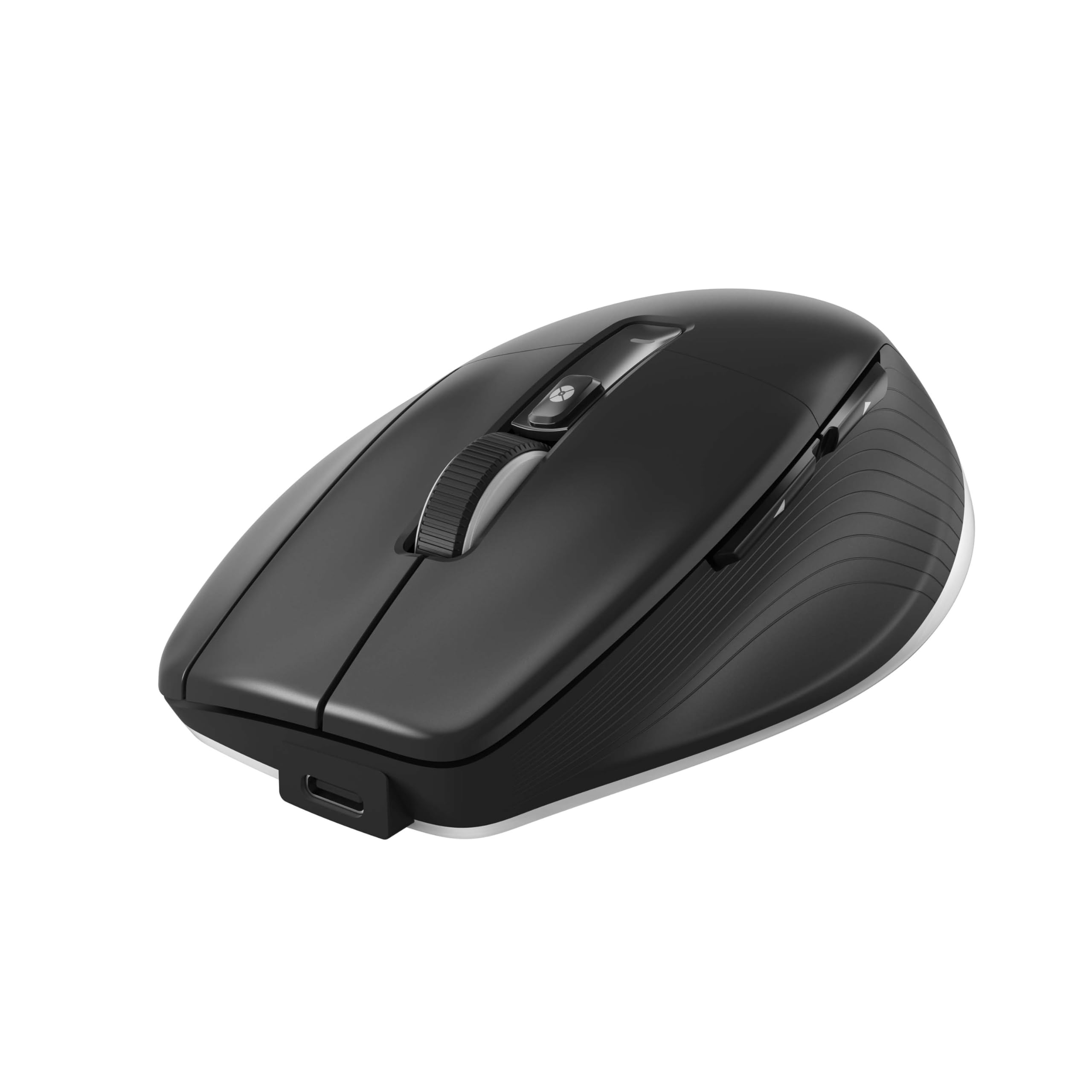
The 3Dconnexion CadMouse Pro Wireless is purpose-built for 3D modeling and technical CAD work. Its 7,200 DPI optical sensor delivers smooth, precise tracking without the oversensitivity of gaming-focused sensors. The standout feature is the three dedicated mouse buttons — a rarity in modern mice — which lets you assign middle-click, right-click, and a third button for viewport orbit or context menus without depending on a scroll wheel click that can wear out quickly.
Build quality is solid with a comfortable palm shape that works for medium to large hands. Connectivity options include 2.4 GHz RF, Bluetooth, and USB-C, giving you flexibility across workstations. The Smart Mouse Wheel 2 offers both free-spin and tactile modes, which is useful for quickly scrolling through long tool palettes or timeline windows. Battery life averages two months on a full charge, and USB-C charging is fast.
Driver support from 3Dconnexion is excellent for Windows and macOS, with per-app profiles that remember your CAD-specific button mappings. The learning curve is minimal for anyone already accustomed to a standard mouse — you gain three-button workflow efficiency immediately without retraining your muscle memory.
Why it’s great
- True three-button layout designed for CAD viewport navigation
- Smooth 7,200 DPI tracking with 1,000 Hz polling rate
- Versatile wireless connectivity (2.4G, Bluetooth, USB-C wired)
Good to know
- Premium price reflects specialized design, not general-purpose use
- No adjustable ergonomic tilt or vertical grip option
2. Logitech MX Master 3S
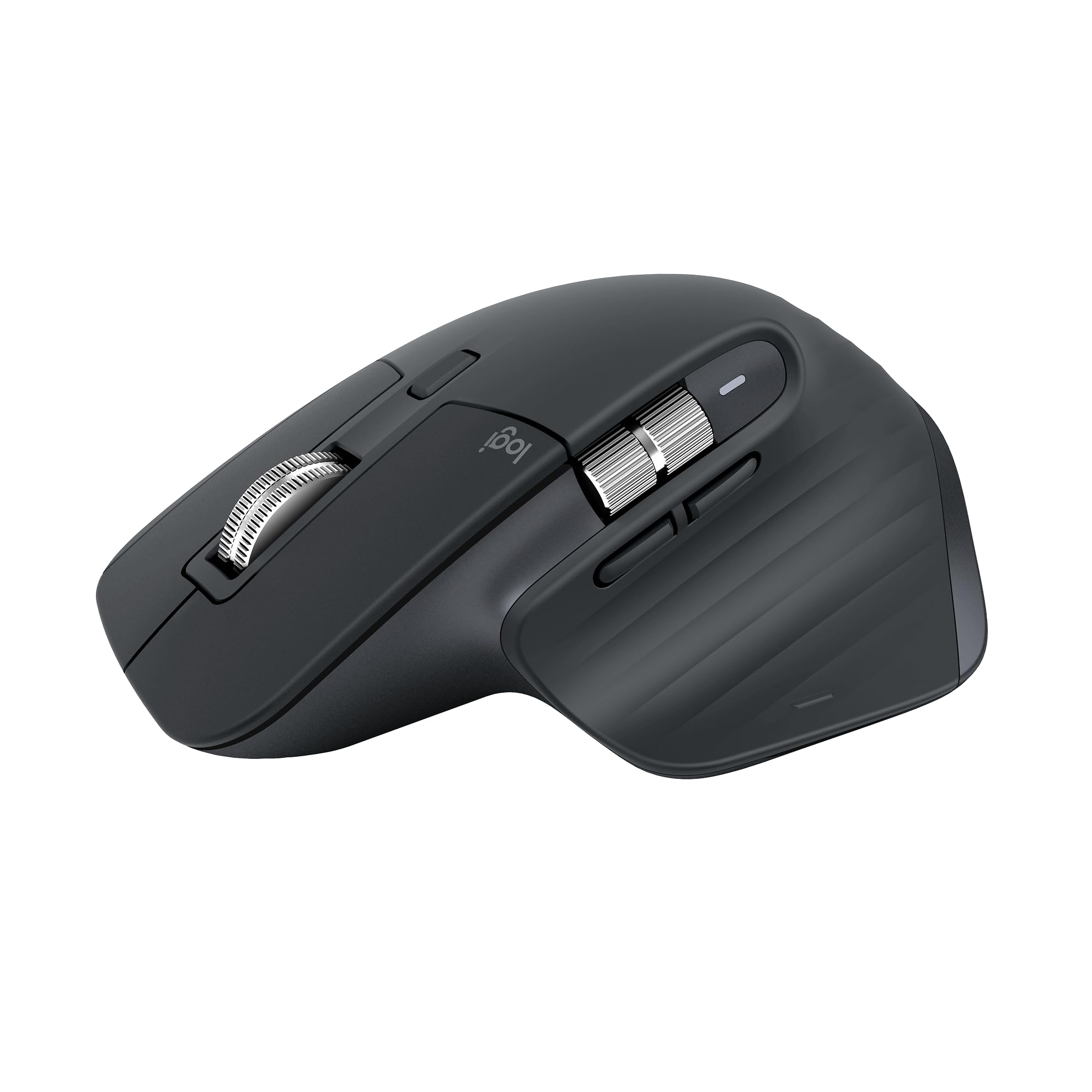
The Logitech MX Master 3S is a productivity powerhouse that translates beautifully to CAD workflows. Its 8,000 DPI Darkfield sensor tracks on any surface — including glass — so you can work from a desk, coffee table, or drafting board without a mouse pad. The MagSpeed electromagnetic scroll wheel is a true advantage for CAD: flick it for free-spin to fly through long property sheets or click into ratchet mode for precise step-through of layer lists and measurement values.
Ergonomically, the sculpted right-hand design supports a natural wrist posture with a dedicated thumb rest and thumb wheel for horizontal scrolling — perfect for panning across wide CAD drawings. The Quiet Clicks reduce click noise by 90 percent, which matters in shared studio or office environments. Seven programmable buttons via Logi Options+ let you assign common commands like zoom window, offset, or dimension tool to each button with per-app profiles.
Battery life reaches up to 70 days on a full charge, and a one-minute quick charge gives you three hours of use. The Bluetooth-only version (no USB receiver) keeps your ports free, but some users may prefer the option for a Logi Bolt receiver for encrypted, low-latency connection.
Why it’s great
- MagSpeed scroll wheel offers both high-speed and precise ratchet modes
- Darkfield sensor tracks on glass without a pad
- Quiet clicks and excellent build quality for shared workspaces
Good to know
- No USB receiver included in Bluetooth Edition
- Not a true three-button mouse; middle-click is on the scroll wheel
3. Razer Basilisk V3 35K

The Razer Basilisk V3 35K brings a wired connection with zero latency, making it a strong choice for CAD users who want instant cursor response without battery anxiety. Its Focus Pro 35K Optical Sensor Gen-2 tracks with 1-DPI step adjustments — meaning you can dial in the exact sensitivity for snapping to grid lines and vertices. The HyperScroll Tilt Wheel is a standout: you can toggle between free-spin infinite scroll and tactile stepped scrolling, or let Smart-Reel auto-switch based on scroll speed.
Thirteen programmable controls, including a multi-function trigger on the left side, give you ample room for CAD macros like orbit, pan, zoom extents, and measure. The ergonomic right-hand shape includes a comfortable thumb rest, and the 11-zone Chroma RGB underglow can be set to static white to avoid distraction. The Razer Optical Mouse Switches Gen-3 are rated for 90 million clicks with a 0.2 ms actuation time — no double-click issues over time.
The Speedflex Cable is woven and lightweight, creating minimal drag on the desk. While the Basilisk V3 is marketed as a gaming mouse, its 35K DPI sensor, configurable free-spin wheel, and high button count make it an unexpectedly capable budget-friendly CAD tool — as long as you don’t mind a wired connection.
Why it’s great
- HyperScroll tilt wheel with free-spin and tactile modes for speed and precision
- 35K DPI sensor with 1-DPI step granularity for exact sensitivity tuning
- Optical switches rated for 90 million clicks with no debounce delay
Good to know
- Wired connection only — no wireless flexibility
- RGB lighting may be excessive for a professional CAD setup
4. Contour Unimouse

The Contour Unimouse is the most adjustable vertical mouse on this list, built for CAD users who need tailored ergonomic support. Its friction hinge allows tilt adjustment from 35 to 70 degrees, so you can switch between a moderate incline for drafting and a steeper angle for modeling. The thumb support slides, pivots, and rotates independently — accommodating different hand sizes and reducing pressure on the thumb base during long extrudes and constraint operations.
Six programmable buttons are managed through the Contour software, allowing you to map CAD commands like snap override, fillet, trim, and view cube selection. The 2.4 GHz wireless connection is reliable with a range extender included in the box, and the rechargeable battery lasts up to 12 weeks on a single charge. The matte plastic finish resists fingerprints and provides a secure grip without rubberized coatings that degrade over time.
The Unimouse is a right-hand-only design, and its size favors medium to large hands. Some users report a subtle electronic buzzing sound from the sensor when moving the mouse — a minor nuisance for those sensitive to low-frequency noise. Overall, if you need to dial in your ergonomic fit precisely, this mouse offers the most customization range.
Why it’s great
- Adjustable tilt from 35° to 70° lets you change posture throughout the day
- Fully customizable thumb support moves in all directions and rotates
- Long 12-week battery life with USB-C charging
Good to know
- No Bluetooth connectivity — only 2.4 GHz dongle
- Some users report audible sensor buzzing on certain surfaces
5. Razer Pro Click V2 Vertical

The Razer Pro Click V2 Vertical adopts a handshake grip design that keeps your wrist in a neutral, forearm-untwisted position — a major benefit for CAD users who spend eight or more hours at the workstation. Its 30,000 DPI Focus Pro Optical Sensor tracks with 99.8 percent resolution accuracy on glass, ensuring your cursor stays locked onto model edges even on unconventional surfaces. Six buttons are placed intuitively: two thumb buttons, two main clicks, a scroll wheel, and a DPI cycle button.
Connectivity is versatile with 2.4 GHz HyperSpeed Wireless, Bluetooth (up to three devices), and USB-C wired mode. The battery life is exceptional at up to six months on a single charge, reducing the need for frequent recharging interruptions. The base support elevates the wrist slightly, minimizing friction with the desk surface. The 18-zone Chroma underglow can be set to static white or turned off entirely to avoid distraction during focused modeling sessions.
The vertical design has a learning curve — expect a few days of adjustment if you’re switching from a flat mouse. Some users with large hands find the mouse slightly too small, leading to a claw-like grip. The AI Prompt Master feature (one-click AI summarization) is unnecessary for CAD work and can be left unassigned.
Why it’s great
- Vertical handshake grip reduces forearm pronation and wrist strain
- Six-month battery life with USB-C fast charging
- High precision 30K DPI sensor with glass tracking support
Good to know
- Smaller size may not fit users with large hands comfortably
- Vertical grip requires adjustment period for muscle memory
6. Logitech MX Ergo S

The Logitech MX Ergo S replaces arm movement with thumb-operated ball tracking, drastically reducing shoulder and elbow fatigue for CAD professionals. The 20-degree fixed tilt positions your hand in a handshake-like orientation, lowering muscle strain in the forearm by 27 percent compared to a flat mouse. This is a great choice if you already experience wrist or tennis elbow pain and still need precise cursor control for modeling tasks.
Six programmable buttons via Logi Options+ let you assign orbit, zoom extents, and other CAD-specific macros. A precision mode button on the front toggles DPI down temporarily for fine adjustments — useful for detailed vertex snapping. The thumb-operated trackball has a smooth, weighted feel with adjustable ball resistance. Battery life reaches up to 120 days on a full charge, and a one-minute USB-C charge gives you 24 hours of use.
The MX Ergo S is designed for medium to large hands, but users with smaller hands may find the open grip causes fatigue rather than relieves it. The ball requires periodic cleaning to maintain smooth tracking — dust from the desk environment can cause stutter. If you can adjust to trackball navigation, this mouse solves wrist problems effectively for CAD work.
Why it’s great
- Thumb trackball eliminates arm movement, reducing shoulder strain
- 20-degree tilt improves forearm posture significantly
- Precision mode button for fine cursor control in detailed modeling
Good to know
- Trackball requires regular cleaning to avoid stutter
- Open hand position may not suit users with smaller hands
7. Corsair Scimitar Elite Wireless SE

The Corsair Scimitar Elite Wireless SE packs 16 programmable buttons — more than any other mouse on this list. For CAD users who rely on a dense set of hotkeys, this means you can assign zoom, pan, orbit, measure, dimension, snap override, and layer controls without ever touching the keyboard. The Marksman 33K DPI optical sensor provides smooth tracking with 1,000 Hz polling, ensuring cursor responsiveness keeps pace with your inputs.
The key slider mechanism lets you physically adjust the position of the side numpad forward or backward to fit your thumb reach — a welcome feature for large hands. Wireless connectivity uses Corsair’s SLIPSTREAM technology with low-latency performance, plus Bluetooth for casual use. Battery life reaches up to 150 hours over Bluetooth, though active use with RGB lighting drains faster. The gunmetal finish with metallic accents looks professional and complements a CAD workstation.
While the Scimitar is classified as an MMO gaming mouse, its high button count and sensor quality translate directly into CAD productivity. The main limitation is size — the wide profile with a side numpad may feel awkward for users who prefer a narrow grip. The Corsair iCUE software is required for button mapping, and some users find it less intuitive than Logi Options+.
Why it’s great
- 16 programmable buttons for extensive CAD macro assignments
- Adjustable side numpad slides forward/back for custom thumb reach
- 33K DPI sensor with 1,000 Hz polling for smooth cursor tracking
Good to know
- Wide body with side numpad may feel cumbersome for small hands
- iCUE software required for full customization, has a learning curve
FAQ
What DPI is best for CAD work?
Is a gaming mouse good for CAD?
How many programmable buttons do I need for CAD workflows?
Final Thoughts: The Verdict
For most users, the computer mouse for cad winner is the 3Dconnexion CadMouse Pro Wireless because it is the only mouse on this list designed entirely around 3D modeling workflows — the true three-button layout alone justifies its placement for anyone working in viewport-heavy software. If you want quiet clicks and the best scroll wheel for navigating long tool palettes, grab the Logitech MX Master 3S. And for wrist strain relief with maximum button customization, nothing beats the Corsair Scimitar Elite Wireless SE and its 16 programmable controls.

Mo Maruf
I created WellFizz to bridge the gap between vague wellness advice and actionable solutions. My mission is simple: to decode the research and give you practical tools you can actually use.
Beyond the data, I am a passionate traveler. I believe that stepping away from the screen to explore new environments is essential for mental clarity and physical vitality.