Our readers keep the lights on and my smoothie glass nicely filled. As an Amazon Associate, I earn from qualifying purchases.
Specs are compiled from manufacturer listings and verified buyer reviews and can change over time — please confirm the key details on the product page before buying.
You sit in front of your home office monitor for hours on end, so it needs to be sharp enough to read comfortably, fast enough to feel fluid, and built to reduce eye fatigue so you can close your laptop and still feel ready for the evening. The wrong pick leaves you squinting at spreadsheets, fighting washed-out colors on a Zoom call, or dealing with that nagging flicker after hour four. The right monitor makes everything from editing a document to watching a quick tutorial feel easy. This guide breaks down five real options so you can match the exact specs to your desk, your eyes, and your budget.
I’m Mohammad Maruf — the founder and writer behind WellFizz. This guide is built by comparing the manufacturers’ published specifications and the patterns across verified customer reviews, so you get each pick’s real strengths and trade-offs instead of marketing spin.
Whether you are setting up a new corner desk or upgrading an old panel, the details that matter are resolution, refresh rate (the number of times per second the screen redraws the image), panel technology, and connectivity (how the monitor plugs into your computer). You will find them all laid out plainly in this review of the best computer monitors for home office setups available right now.
Quick Picks
- Dell 27 Plus 4K Monitor — S2725QS — Best Overall
- MSI PRO MAX 271UPXW12G — Premium Pick
- Lenovo L27q-4a — Best Value
- LG 32MR50C-B Curved Monitor — Large Screen
- Amazon Basics 27 Inch Monitor — Budget Champion
How To Choose The Best Computer Monitors For Home Office
Buying a home office monitor is not about the biggest numbers on the box — it is about matching the panel to your actual daily tasks. A few key specs separate a monitor that feels good from one that causes headaches.
Resolution: How Much Detail You See
Resolution determines how many pixels the screen packs. Full HD (FHD, 1920 x 1080) handles basic email and web browsing but leaves you scrolling in wide spreadsheets. QHD (2560 x 1440) gives you more screen real estate than FHD (1920 x 1080) — enough to see two document windows side by side without squishing them. 4K UHD (3840 x 2160) packs four times the pixels of 1080p, so a single large spreadsheet or a video timeline fits without scrolling. For most home offices, QHD strikes a clean balance between sharpness and price, while 4K is the choice if you frequently work with photos, video, or dense data.
Refresh Rate: Smoothness You Feel in Every Scroll
Refresh rate (measured in Hertz, or Hz, and meaning how many times per second the screen redraws the image) makes scrolling feel smooth. A 60Hz monitor refreshes 60 times a second, which is fine for static typing but can look a little choppy when you drag a window or scroll a webpage. At 100Hz or 120Hz, the cursor and scrolling feel measurably more fluid — the motion is less “stuttery” and more like gliding. You do not need 144Hz or 240Hz for office work; 100Hz to 120Hz is the balance for day-long comfort.
Panel Technology: Color, Contrast, and Viewing Angle
The panel type dictates how colors look and how wide you can sit before the image washes out. IPS (In-Plane Switching) gives the widest viewing angles (up to 178 degrees) and most consistent color, making it the standard pick for shared desks or dual-monitor setups. VA panels offer much higher contrast (darker blacks) but narrower viewing angles — great if you sit directly in front and want deeper blacks for media. OLED (Organic Light Emitting Diode) takes contrast to its absolute peak with per-pixel lighting and true black levels, but comes at a premium. For a typical home office mixing documents, video calls, and occasional media, IPS remains the safest all-rounder.
Connectivity and Ergonomics
Check how the monitor connects to your laptop or desktop. HDMI and DisplayPort (both video cable standards) are the norms, but a USB-C port with power delivery (the ability to charge your device through the same cable) can turn the monitor into a single-cable docking station — your laptop charges and sends video through one wire. Built-in speakers save desk space but almost never sound as full as dedicated ones. An adjustable stand (height, tilt, swivel — meaning you can move the screen up and down, angle it, or rotate it sideways) lets you position the screen at eye level, which directly affects neck and back comfort during long sessions. VESA mounting holes (a standard 100x100mm bolt pattern for attaching an arm or wall mount) are worth having if you want a monitor arm later.
Quick Comparison
| Model | Best For | Resolution | Refresh Rate | Panel Type | Amazon |
|---|---|---|---|---|---|
| Dell S2725QS | Premium 4K All-Rounder | 3840 x 2160 | 120Hz | IPS | Amazon |
| MSI PRO MAX 271UPXW12G | OLED Color Accuracy | 3840 x 2160 | 120Hz | QD-OLED | Amazon |
| Lenovo L27q-4a | Best Value QHD | 2560 x 1440 | 100Hz | IPS | Amazon |
| LG 32MR50C-B | Large rich Screen | 1920 x 1080 | 100Hz | VA | Amazon |
| Amazon Basics 27 | Budget Essential | 1920 x 1080 | 100Hz | IPS | Amazon |
In‑Depth Reviews
1. Dell 27 Plus 4K Monitor — S2725QS

The crisp 4K panel that makes your text look printed, not pixelated.
This Dell delivers a 3840 x 2160 resolution on a 27-inch IPS panel (a screen type that keeps colors consistent from any angle), so you can open two full-size windows side by side and still read every line of a spreadsheet without zooming. The 120Hz refresh rate, versus the 100Hz Lenovo and Amazon Basics, makes every scroll and window drag noticeably smoother, so your wrist feels less tired after a long day. Buyers report it is an “excellent 27″ 4K monitor” that feels like a real step up from 1080p.
Color performance is solid for a productivity screen: sRGB 99% coverage (covering nearly the full standard color range used by web and office software) and a 1500:1 contrast ratio, paired with AMD FreeSync Premium (variable refresh rate technology that prevents screen-tearing). The built-in speakers have been re-engineered for deeper frequency response than the previous generation, so your conference calls sound fuller. The stand gives you full height, tilt, swivel, and pivot adjustments, plus an ultra-thin bezel in an ash white finish that keeps the desk looking clean. A couple of owners mention a slight yellow tint on some units, but the overwhelming feedback points to excellent value and sharp, bright images at this price tier.
Sharp Decision
- 4K sharpness at a sub- price point — crisp text and detailed images
- 120Hz refresh rate makes everyday scrolling feel fluid
- Fully adjustable stand (height, tilt, swivel, pivot) for ergonomic comfort
Heads Up
- Some units may show a yellow tint or slight edge vignetting, per buyer feedback
- Not ideal for competitive gaming due to minor ghosting in fast scenes
Reach for this if: you want a sharp, smooth 4K screen with an adjustable stand and good speakers for a balanced home office.
Look elsewhere if: you need a taller-than-27-inch screen or rely on perfect color uniformity from the start for pro photo editing.
2. MSI PRO MAX 271UPXW12G
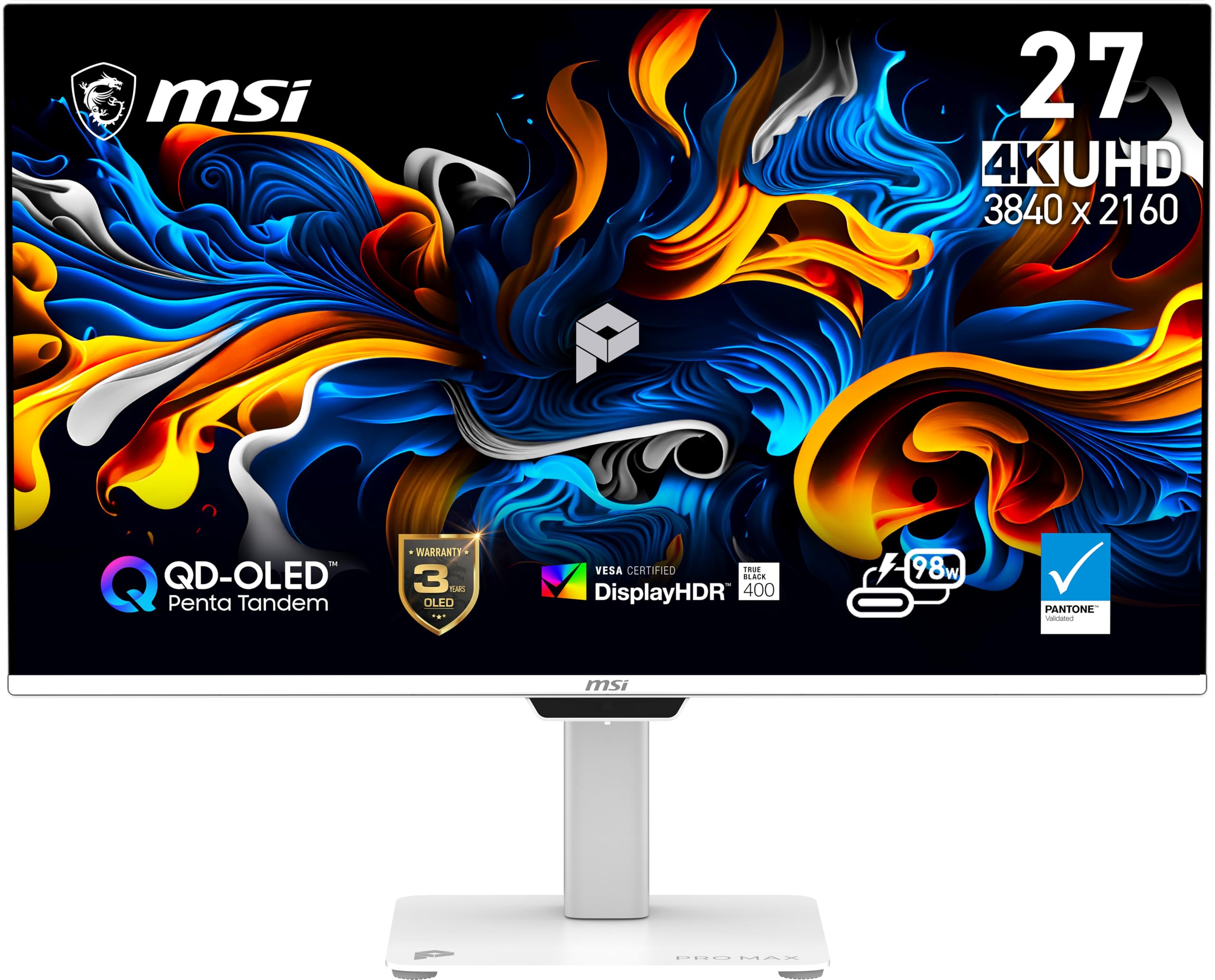
The OLED panel that delivers perfect blacks and the sharpest 4K text you can buy.
Here is where the image quality leap becomes dramatic. The MSI uses a QD-OLED panel (Quantum Dot OLED — each pixel lights itself, producing true blacks rather than the grayish dark you get on a standard LCD) with a 1,500,000:1 contrast ratio. That is 1,000 times the contrast of the Dell or Lenovo IPS panels, which means video editing timelines, dark-mode coding sessions, and HDR (High Dynamic Range — a video standard that shows more detail in bright and dark areas) content look stunningly rich. It hits a peak brightness of 856.5 cd/m² (candelas per square meter, a measure of screen brightness) and carries VESA DisplayHDR True Black 400 certification, so highlights pop while shadows stay inky.
At 4K UHD (3840 x 2160) with a 120Hz refresh rate and FreeSync Premium Pro (variable refresh rate technology), it is equally capable for creative work and light gaming. The dual USB-C hub delivers up to 98W of power delivery — enough to charge most laptops over a single cable while feeding video. MSI includes Mac Optimization Software for macOS color matching and shortcut keys. One reviewer noted a DSC (Display Stream Compression — a way to send high-resolution video over a single cable) conflict in a dual-monitor Mac setup, but a settings adjustment resolved it, and the general verdict is that it is a “breathtakingly beautiful” panel for productivity. The catch: this is the most expensive pick on the list, and the QD-OLED technology means you will want to manage screen-burn-in risk on static desktop elements like taskbars.
Verdict at a glance: Unrivaled image quality and color accuracy for creative professionals who also want a fast 4K experience — but the price and OLED care routine make it overkill for pure spreadsheet work.
3. Lenovo L27q-4a

The QHD monitor that gives you more room than a 1080p panel for only a small step up in price.
If you are tired of scrolling up and down a single document on a 1080p screen, this Lenovo solves it. The 27-inch QHD IPS display (2560 x 1440) has more pixels than FHD (1920 x 1080), so you can keep a web browser side by side with a Word doc without cramping. The 100Hz refresh rate makes all cursor motion feel smoother than the 60Hz standard still common on cheaper monitors. Buyers specifically note it is “ideal for video editing/Photoshop” and praise the “super clear image.”
The MaxxAudio-tuned dual 3W speakers deliver clearer audio than the single-speaker budget options, though a couple of reviewers found the speakers absent despite the listing — check your unit on arrival. Connectivity covers DisplayPort and HDMI, and Eyesafe Display 2.0 with TÜV Low Blue Light certification reduces eye strain during long sessions. Note that the QHD resolution sits between the Dell’s 4K and the Amazon Basics’ 1080p, offering a cleaner middle path: sharper than the LG and Amazon Basics, more affordable than the Dell and MSI.
What Stands Out
- QHD resolution gives noticeably more screen space than 1080p without the GPU demands of 4K
- 100Hz refresh rate paired with 1ms MPRT (Moving Picture Response Time — how fast a pixel changes color) for fluid motion
- Lightweight and compact — customers note it “fits small desks” easily
Watch For
- No built-in speakers on some units despite listed specifications — verify before keeping
- Stand offers tilt only, no height or swivel adjustment
Best for: the home office user who wants noticeably more desk-estate than 1080p but does not need the premium of a 4K panel.
skip it if: you need built-in speakers guaranteed to work from the start, or you require an adjustable stand with height/pivot.
4. LG 32MR50C-B Curved Monitor
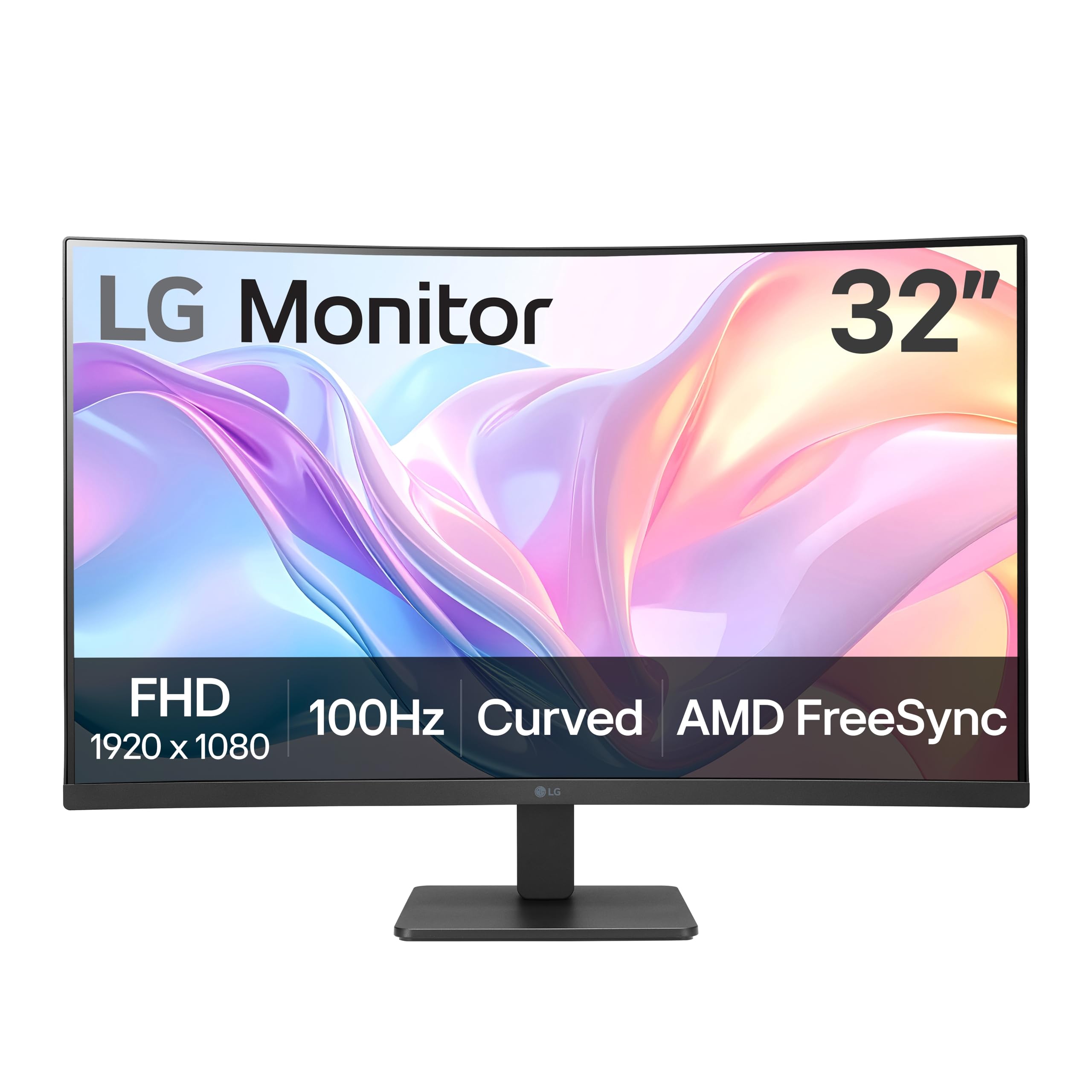
The extra-wide 32-inch panel that lets you see an entire spreadsheet without a single scroll.
This LG is the largest screen in the lineup — a 32-inch FHD curved VA display. That size gives you a 32-inch screen instead of a 27-inch screen, which makes a real difference when you are working across a wide data table or timeline. Reviewers point out “large Excel viewable without scrolling” and praise the “excellent edge-to-edge sharpness.” The VA panel delivers a 3000:1 contrast ratio, versus 1500:1 on the IPS monitors here, so blacks are deeper and media looks richer.
At 1920 x 1080 resolution on a 32-inch panel, the pixel density is lower than a 27-inch 1080p screen, so text will be slightly less sharp if you sit close. The 100Hz refresh rate keeps scrolling smooth, and AMD FreeSync (variable refresh rate that synchronizes the monitor with your graphics card) handles casual gaming well. Reader Mode reduces blue light for comfortable extended reading. The stand offers tilt adjustment but no height adjustment, and the 250 cd/m² brightness is adequate for indoor use. A couple of owners noted the curve can cause dizziness with trifocal glasses, so that is worth checking before buying if you wear progressives.
Why It Works
- 32-inch screen makes large spreadsheets and timelines visible without constant scrolling
- 3000:1 contrast ratio produces deeper blacks than IPS — great for media and presentations
- Curved shape reduces eye strain for some users by keeping the whole screen at a consistent distance
Trade‑Offs
- 1080p resolution on 32 inches means lower pixel density — text is less sharp than a 27-inch QHD/4K
- VA panel has narrower viewing angles than IPS; colors shift if you look from the side
Ideal if: you work across large data tables all day and want the biggest single-screen view for the money, plus deep contrast for media.
Not for you if: you need sharp small text (photo editing, coding) or share your screen with someone sitting beside you.
5. Amazon Basics 27 Inch Monitor

The no-frills 1080p monitor that does the basics well without draining your budget.
This Amazon Basics monitor keeps things simple: a 27-inch IPS panel at 1920 x 1080 resolution with a 100Hz refresh rate. For everyday office tasks — email, documents, web browsing, video calls — the 1080p resolution is perfectly adequate, and the 100Hz refresh rate makes cursor movement feel smoother than the 60Hz standard still found on many entry-level monitors. Shoppers say it is “excellent for office work; durable over years” and appreciate the matte screen that reduces glare from overhead lights.
Built-in speakers save you from buying separate desktop speakers for basic audio, and the 4-port USB hub lets you connect a keyboard and mouse directly to the monitor — a genuinely useful convenience on a budget. The stand offers tilt only (no height adjustment), and a reviewer noted the webcam sits poorly on the thin bezel. The contrast ratio is 1500:1, which is standard for IPS and fine for text-heavy work but not as impactful as the LG’s 3000:1 VA panel. Resolution-wise, it is the lowest on this list at 1920 x 1080, versus the Dell’s 3840 x 2160, but it also carries the most approachable price, making it a straightforward pick for a secondary screen or a first home office setup.
Solid Foundation
- Built-in 4-port USB hub — plug your keyboard and mouse into the monitor, not the PC
- 100Hz refresh rate provides smoother scrolling than 60Hz without costing more
- Matte IPS panel reduces glare and gives consistent colors from any angle
Trade‑Offs
- 1080p resolution leaves less screen space than QHD or 4K — expect more scrolling in wide documents
- Tilt-only stand; no height adjustment means you may need books or a VESA arm for proper ergonomics
Grab it if: you need a reliable, inexpensive 27-inch display for basic office tasks or a second monitor and prefer one-cable USB hub simplicity.
Pass if: you work with large spreadsheets, video timelines, or high-res photos — the 1080p resolution will feel cramped.
Understanding the Specs
Resolution & PPI
Resolution is the total pixel count (horizontal x vertical). PPI (pixels per inch) tells you how sharp the image looks at a given screen size. A 27-inch 1080p monitor runs about 81 PPI — fine for text but you will see individual pixels if you lean in. A 27-inch QHD screen bumps that to roughly 109 PPI, making small font edges smooth. A 27-inch 4K display hits about 163 PPI, where text looks as sharp as printed paper. For office work that involves reading a lot of small text (code, documents, spreadsheets), PPI is more important than sheer diagonal inches.
Panel Type: IPS vs VA vs OLED
IPS panels give the widest viewing angles and consistent color — the image looks the same whether you sit dead center or at a 45-degree angle. VA panels have higher native contrast (typically 3000:1 vs. 1500:1) but narrower viewing angles, so colors wash out faster if you look from the side. OLED lights each pixel individually, producing perfect blacks and infinite contrast, but it costs more and requires caution with static elements (taskbars, logos) that could cause burn-in over years. For a shared desk or multi-monitor setup, IPS is the safest bet. For a single-user media-plus-work desk, VA offers deeper blacks. For pro creative work where color and contrast are everything, OLED is the peak.
FAQ
Is 1080p resolution enough for a home office monitor in 2025?
What refresh rate do I need for office work?
Can I use a curved monitor for office work?
Will my laptop run a 4K monitor?
What is the difference between IPS and VA for a home office?
Do I need built-in speakers in my monitor?
What is VESA compatibility and do I need it?
How important is USB-C with power delivery for home office monitors?
Does a higher contrast ratio matter for office work?
Should I get a 27-inch or 32-inch monitor for my home office?
Final Thoughts: The Verdict
For most buyers, the computer monitors for home office winner is the Dell S2725QS because it delivers genuine 4K sharpness, a smooth 120Hz refresh rate, and a fully adjustable stand without jumping into premium pricing. If you want a QHD balance with very strong value, grab the Lenovo L27q-4a. And for creative professionals who demand OLED-level contrast and color accuracy, the MSI PRO MAX 271UPXW12G is the definitive choice.
How We Picked
We do not accept paid placement. Every pick is matched to a real buyer and a real use-case; we do not hands-on test units.
Sources & Methodology
Specifications: manufacturer listings and product documentation. Review insights: verified customer reviews, as of July 2026. Pricing: not shown on this page (it changes often); check the current price via the retailer link.
As an Amazon Associate, WellFizz earns from qualifying purchases. This does not affect which products we feature.

Mo Maruf
I created WellFizz to bridge the gap between vague wellness advice and actionable solutions. My mission is simple: to decode the research and give you practical tools you can actually use.
Beyond the data, I am a passionate traveler. I believe that stepping away from the screen to explore new environments is essential for mental clarity and physical vitality.