Our readers keep the lights on and my smoothie glass nicely filled. As an Amazon Associate, I earn from qualifying purchases.
Specs are compiled from manufacturer listings and verified buyer reviews and can change over time — please confirm the key details on the product page before buying.
You open a layered Photoshop file full of smart objects, then switch to a 4K video timeline, and your desktop freezes. That same machine that zips through spreadsheets now stutters on every export. This guide looks at the real specs that keep creative work fluid: multi-core processor speed, dedicated graphics memory, and enough RAM (the workspace your computer uses to hold active files) to keep your editing suite and dozens of browser tabs open at once. You get four prebuilt desktops, judged on their actual strengths for photo and video workloads, not gaming marketing.
I’m Mohammad Maruf — the founder and writer behind WellFizz. This guide is built by comparing the manufacturers’ published specifications and the patterns across verified customer reviews, so you get each pick’s real strengths and trade-offs instead of marketing spin.
Whether you are building a home studio or upgrading a shared office workstation, here is what the data reveals about the computer for photo and video editing that actually delivers without draining your budget.
Quick Picks
- HP Envy Desktop PC (Intel Core i9-14900K, 64GB RAM) — Best Overall
- iBUYPOWER Y40 PRO (Ryzen 9 7900X, RTX 5070 Ti 16GB) — GPU Powerhouse
- CyberPowerPC Gamer Xtreme (i7-14700F, RTX 5060 Ti 8GB) — Mid-Range Value
- WIWB High-Performance Desktop (Ryzen 7 5700X, RTX 3050 8GB) — Entry-Level Entry
How To Choose The Best Computer For Photo And Video Editing
Editing software like Adobe Premiere Pro, DaVinci Resolve, and Lightroom leans heavily on the processor (CPU), the graphics card (GPU), and system memory (RAM). A fast gaming PC might look good on paper but can fall short if the GPU lacks enough video memory to handle a 4K timeline or color grading. Here are the three specs to prioritize.
CPU: Multi-Core Speed Is the Real Metric
Video encoding and complex filters spread across multiple cores. A processor with a high “all-core” clock speed (the speed it holds when all cores are busy) beats one that peaks briefly on a single core. Aim for a modern mid-range or high-end chip with at least 8 cores. The base clock matters more than the advertised “turbo” for sustained renders.
GPU: More VRAM Means Smoother Timelines
A dedicated graphics card with its own video memory (VRAM) handles real-time timeline scrubbing, effects, and color grading. For 1080p editing, 8GB is the baseline. For 4K, especially with heavy color work, 12GB or more gives you room to work without the preview stuttering. Games and editing share the same chip, but memory is what keeps the timeline fluid.
RAM and Storage: Your Project Workspace
16GB is the minimum for a smooth experience with a few browser tabs and Lightroom open. 32GB is comfortable for Premiere Pro with multiple apps. A fast NVMe SSD (solid-state drive, which loads projects in seconds) is key; 1TB is a good starting point, but 2TB saves you from juggling external drives mid-project.
Quick Comparison
| Model | Best For | CPU | GPU VRAM | RAM | Amazon |
|---|---|---|---|---|---|
| HP Envy Desktop | Heavy multitasking & stock charting | Intel i9-14900K (6 GHz) | 8 GB GDDR6 | 64 GB | Amazon |
| iBUYPOWER Y40 PRO | 4K video editing & 3D rendering | AMD Ryzen 9 7900X (5.6 GHz) | 16 GB GDDR6 | 32 GB | Amazon |
| CyberPowerPC Gamer Xtreme | Balance of editing and light gaming | Intel i7-14700F (2.1 GHz) | 8 GB GDDR7 | 16 GB | Amazon |
| WIWB High-Performance Desktop | Entry-level editing & 1080p gaming | AMD Ryzen 7 5700X (4.6 GHz) | 8 GB GDDR6 | 16 GB | Amazon |
In‑Depth Reviews
1. HP Envy Desktop PC (Intel Core i9-14900K, 64GB RAM)

A raw-power workstation where CPU and RAM rule, but the GPU is a cap.
The HP Envy is built for the creator who keeps every app, browser tab, and project file open at once. Its 64GB of RAM — a 4.0x gap over the CyberPowerPC’s 16GB — means you can run Premiere, Photoshop, a dozen Chrome tabs, and a background export without hitting a wall. The Intel Core i9-14900K processor, which boosts to 6.00 GHz, is a 2.9x clock-speed advantage over the 2.1 GHz chip in the CyberPowerPC, so renders and batch exports from Lightroom finish noticeably quicker.
The clear trade-off is the graphics card. It uses an NVIDIA GeForce RTX 3050 with 8GB dedicated memory (and up to 16GB total video RAM via shared system memory). For photo editing in Lightroom and 4K timeline previews in Premiere, that 8GB works fine — but if you move into heavy color grading or 3D rendering, the iBUYPOWER’s 16GB VRAM chip is a better fit. Buyers report that “processor loading rarely exceeds 20%” and memory usage rarely goes past 30%, meaning this desktop is running well within its limits even with four 4K displays showing stock charts and data streams.
Unused headroom: The i9-14900K and 64GB RAM combo leaves obvious room for a future GPU upgrade; you are buying the long-term chassis today.
Who it truly serves: Anyone whose editing workflow is bottlenecked by RAM capacity and processor speed — photographers with giant catalogs, stock traders with many data streams, and video editors running multiple concurrent applications.
Bottom line: If your project files and browser tabs are always pushing 32GB of memory, this is the desktop that never asks you to close an app.
Reality check: The 8GB GPU is the weakest link; expect to upgrade the graphics card if you move into 4K color grading or 3D rendering.
2. iBUYPOWER Y40 PRO (Ryzen 9 7900X, RTX 5070 Ti 16GB)

The desktop that laughs at 4K timeline scrubbing, until reliability concerns surface.
The iBUYPOWER Y40 PRO brings the strongest GPU of this group — an NVIDIA GeForce RTX 5070 Ti with 16GB VRAM (video memory dedicated to graphics), which is double the 8GB found on the HP Envy and the CyberPowerPC. For video editors working in DaVinci Resolve or Premiere Pro, that extra video memory means real-time playback of 4K timelines, smoother color grading, and faster effects rendering without the preview freezing. The AMD Ryzen 9 7900X CPU boosts to 5.6 GHz, giving it strong multi-core performance for longer renders.
Where the HP Envy leans on CPU and RAM, this machine leans on the GPU. The 32GB of DDR5 RAM is plenty for most editing workflows, though the 2TB NVMe SSD matches the HP’s storage capacity. The water cooling system keeps the Ryzen 9 cooler under sustained loads, and buyers who got a good unit report it runs “Cyberpunk 2077 super smoothly” and handles multitasking well. However, one reviewer noted the unit “crashed 6 times in 2 weeks,” with customer service suspecting a RAM issue.
NVIDIA Studio drivers: The RTX 5070 Ti is certified for creative apps with special driver optimizations for video editing and 3D design, giving it a real advantage in Adobe and DaVinci workflows that the HP Envy’s RTX 3050 lacks.
Who it truly serves: The editor who prioritizes a fluid 4K timeline experience and wants to dip into 3D rendering without a graphics card upgrade.
The playbook: Pick this if your daily drive is 4K video and you want the GPU to carry the weight — the 16GB VRAM is a genuine difference.
A fair warning: Reports of reliability issues mean you should test the unit thoroughly during the return window and consider an extended warranty.
3. CyberPowerPC Gamer Xtreme (i7-14700F, RTX 5060 Ti 8GB)
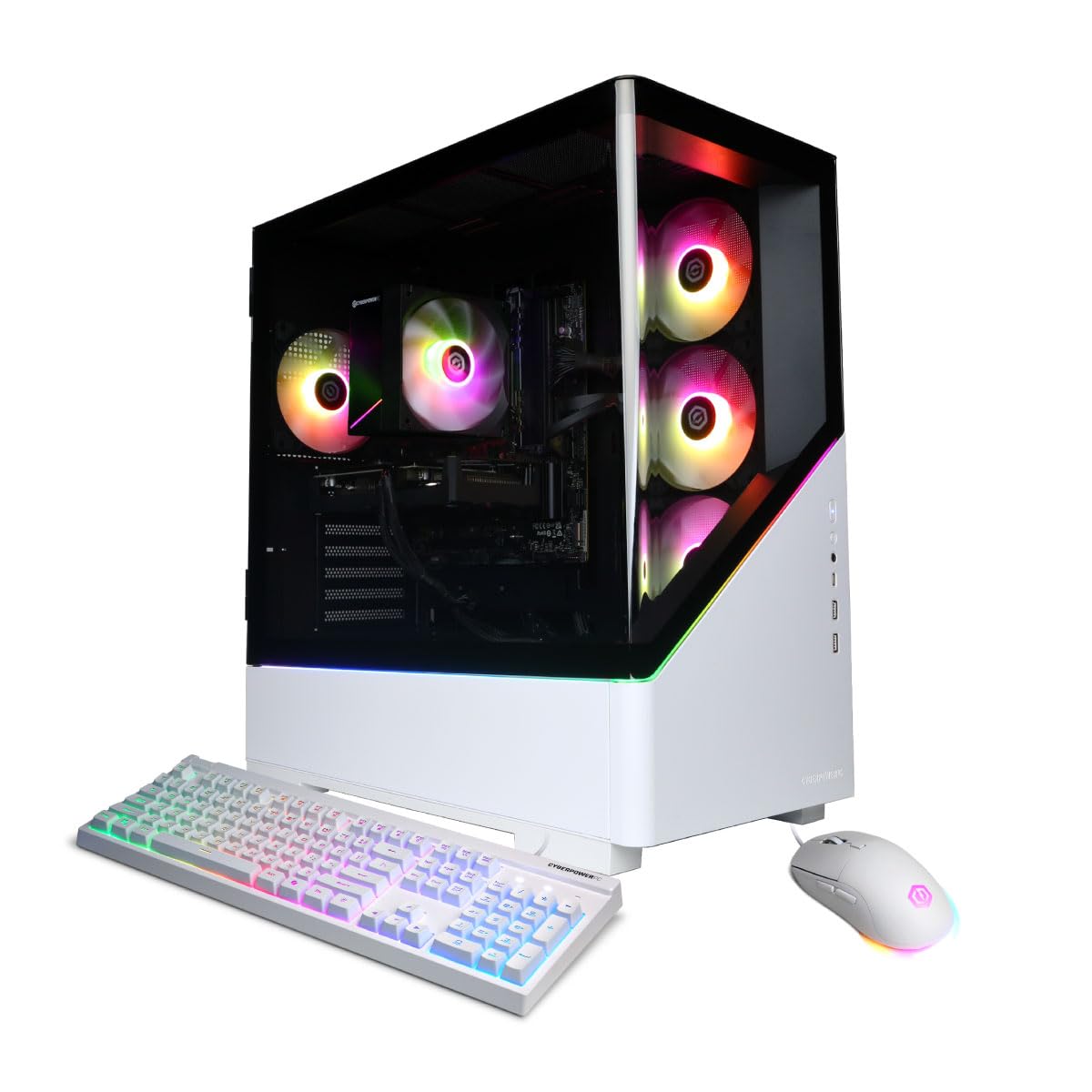
A balanced prebuilt that handles both Premiere renders and a Helldivers 2 session smoothly.
The CyberPowerPC Gamer Xtreme uses an Intel Core i7-14700F processor clocked at 2.1 GHz with 20 cores and an NVIDIA GeForce RTX 5060 Ti with 8GB of GDDR7 memory (a newer, faster memory standard than the GDDR6 in the HP Envy). For a mid-range editing machine, this combination handles 1080p and light 4K timelines without stuttering, and its 16GB of DDR5 RAM is sufficient for a Premiere Pro project with a few supporting apps running.
Unlike the HP Envy’s extreme RAM headroom or the iBUYPOWER’s GPU dominance, this desktop lands in a practical balance. The 1TB PCIe 4.0 NVMe SSD is half the storage of the HP’s 2TB, so you may need an external drive for larger project archives. Owners mention that it “runs Helldivers 2 and Company of Heroes flawlessly, very quiet” — the low noise (buyers call it “very quiet”) is a real advantage in a shared editing space. The 8GB GPU is the same capacity as the HP Envy’s, but the GDDR7 memory offers higher bandwidth, which helps slightly with timeline scrubbing.
Quiet operation: A “very quiet” system is rare in this price bracket and makes it a better fit for a small home office or bedroom studio than the louder fans on some gaming desktops.
Who it truly serves: The editor who needs a capable workstation for 1080p and occasional 4K projects, with enough gaming performance to unwind after a render finishes.
Straight talk: This is the smart pick if you split your time between editing and gaming and want a single desktop that does both without compromise.
The catch: 16GB RAM is the floor for editing; plan to upgrade to 32GB if you run multiple Adobe apps simultaneously.
4. WIWB High-Performance Desktop (Ryzen 7 5700X, RTX 3050 8GB)
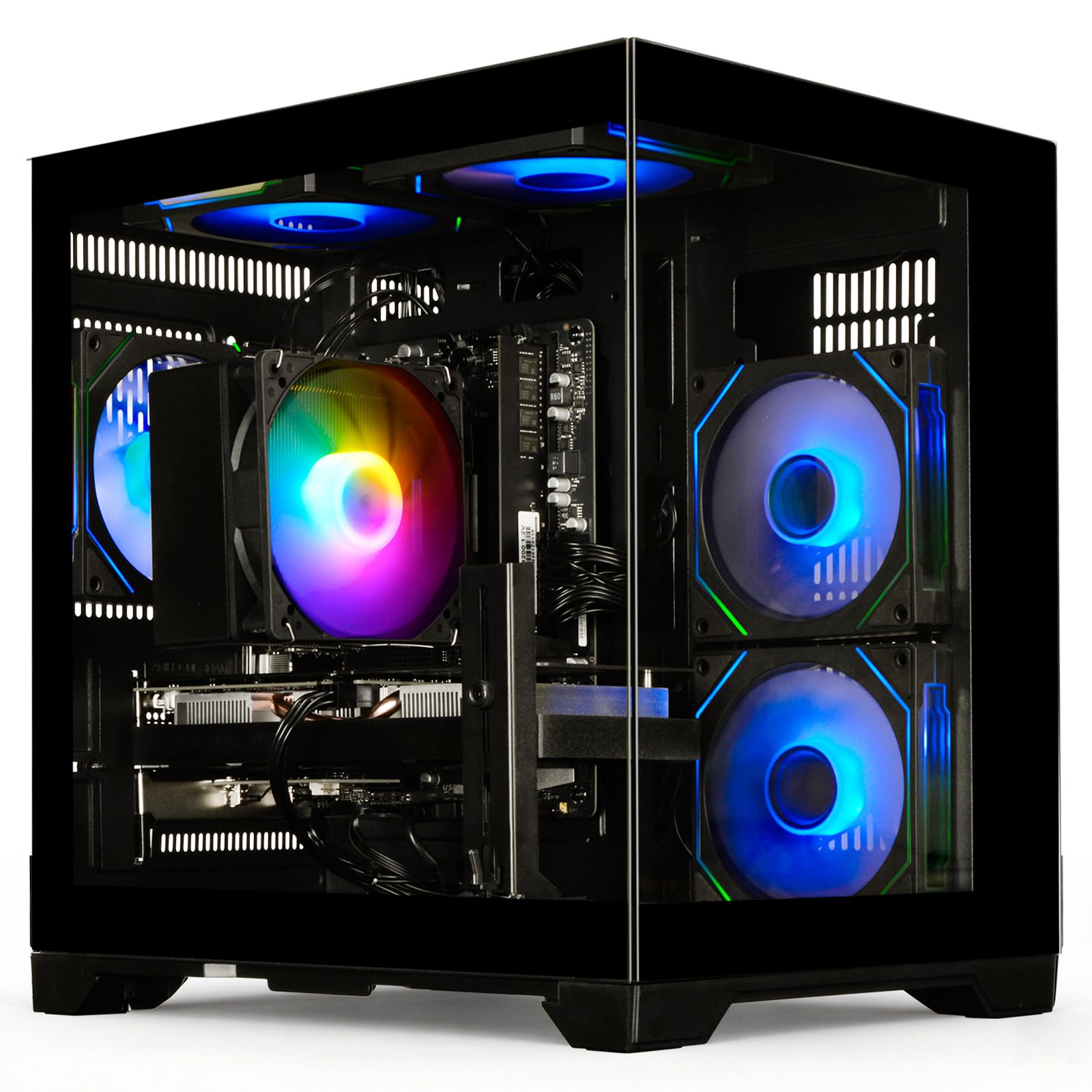
A starter editing desktop that gets you in the door, but you will want to upgrade as projects grow.
The WIWB desktop is the affordable entry point, pairing an AMD Ryzen 7 5700X (8 cores, up to 4.6 GHz) with a GeForce RTX 3050 with 8GB VRAM. For a photographer who edits in Lightroom and does occasional video work in Premiere, this is enough to get started. The 16GB DDR4 RAM is the minimum, and the 512GB NVMe SSD (with up to 3200MB/s read speed) boots your OS and loads projects quickly — but you will fill that drive fast if you store project files locally. The remaining drive bays allow easy upgrades.
The RTX 3050’s 8GB VRAM matches the HP Envy’s capacity, but the older GDDR6 memory and lower core count mean it will struggle with 4K timelines and heavy color grading — a buyer notes that the “8GB GPU struggles with 4K and Flight Simulator 2024 at 1080p, but handles most games well.” The ultra-quiet cooling system, which keeps noise under 30dB, is a nice feature for a shared room. Unlike the HP and iBUYPOWER, this desktop costs noticeably less, so the trade-off is GPU power and storage speed.
Upgrade path: The empty drive bays and standard form factor make it easy to add a 2TB SATA SSD later, turning this into a decent mid-range machine for a small extra investment.
Who it truly serves: The first-time editor on a tight budget who needs a functional, quiet desktop for 1080p work and understands they will need a GPU upgrade for 4K projects.
Honest verdict: Great starting point for learning — but plan to add RAM and a bigger drive within your first year as your projects get more ambitious.
Where it falls short: The 512GB drive feels cramped once you install Premiere, Photoshop, and a few games; half the storage of the CyberPowerPC’s 1TB.
Understanding the Specs
GPU VRAM (Video Memory)
This is the amount of dedicated memory on your graphics card. It acts like a temporary workspace for the video frames you are editing, the color grades you apply, and the effects you stack. More VRAM means your timeline stays fluid at higher resolutions — 8GB is the baseline for 1080p, 12GB or more is ideal for 4K. The iBUYPOWER’s 16GB is a clear advantage over any 8GB card in this guide for a 4K timeline with heavy effects.
CPU Core Clock vs. Boost Clock
The base clock is the speed your processor runs when all cores are busy — this is the number that matters for sustained video renders. The boost clock is a brief peak on a single core, useful for opening apps but misleading for editing performance. The HP Envy’s i9-14900K has a 3.20 GHz base with a 6.0 GHz boost; the CyberPowerPC’s i7-14700F has a 2.1 GHz base. The HP will hold a higher speed during a 20-minute 4K export.
RAM (System Memory)
Your computer uses RAM to hold active project files, browser tabs, and background processes while you edit. 16GB is the minimum for a smooth Lightroom experience. 32GB is comfortable for Premiere Pro with plugins. 64GB, as found on the HP Envy, is overkill for most solo editors but a godsend if you keep Lightroom, Premiere, Photoshop, and a dozen tabs open all day without closing anything.
NVMe SSD vs. SATA SSD
NVMe drives connect directly to the motherboard through the PCIe interface, reaching read speeds over 3000 MB/s. SATA SSDs top out around 550 MB/s. For editing, a fast NVMe drive means your project files open in seconds, and scrubbing through a timeline loads frames faster. The WIWB’s 512GB NVMe is fast but small; the HP’s 2TB NVMe is both fast and spacious.
FAQ
I am a photographer who edits in Lightroom. Do I really need a dedicated graphics card?
Can I use a gaming desktop for video editing?
Is 16GB of RAM enough for 4K video editing?
How much storage do I need for photo and video projects?
What is the difference between GDDR6 and GDDR7 graphics memory?
Should I prioritize a faster CPU or a better GPU for video editing?
Will the iBUYPOWER’s water cooling system help with long renders?
Can I upgrade the graphics card in these prebuilt desktops later?
Do I need Windows 11 Pro for video editing?
What does “quiet operation” mean for an editing workstation?
Final Thoughts: The Verdict
For most users looking for a computer for photo and video editing, the winner is the HP Envy Desktop because its 64GB RAM and i9-14900K processor give you headroom for years of larger projects without ever feeling cramped. If you want a GPU that handles 4K timelines right now, grab the iBUYPOWER Y40 PRO. And for a balanced mid-range pick that keeps the room quiet, the CyberPowerPC Gamer Xtreme offers strong performance at a lower entry point.
How We Picked
We do not accept paid placement. Every pick is matched to a real buyer and a real use-case; we do not hands-on test units.
Sources & Methodology
Specifications: manufacturer listings and product documentation. Review insights: verified customer reviews, as of July 2026. Pricing: not shown on this page (it changes often); check the current price via the retailer link.
As an Amazon Associate, WellFizz earns from qualifying purchases. This does not affect which products we feature.
Related Guides

Mo Maruf
I created WellFizz to bridge the gap between vague wellness advice and actionable solutions. My mission is simple: to decode the research and give you practical tools you can actually use.
Beyond the data, I am a passionate traveler. I believe that stepping away from the screen to explore new environments is essential for mental clarity and physical vitality.