Our readers keep the lights on and my smoothie glass nicely filled. As an Amazon Associate, I earn from qualifying purchases.
Specs are compiled from manufacturer listings and verified buyer reviews and can change over time — please confirm the key details on the product page before buying.
That single USB-C port on your laptop is a bottleneck. Every morning you plug in a monitor, a mouse, a charger, an external drive, and a headset — then you reverse it all when you pack up for a meeting. A good docking station turns that five-minute wrestling match into a single click. The right one also charges your laptop, drives crisp external displays, and moves files faster than your Wi-Fi can dream of.
I’m Mohammad Maruf — the founder and writer behind WellFizz. This guide is built by comparing the manufacturers’ published specifications and the patterns across verified customer reviews, so you get each pick’s real strengths and trade-offs instead of marketing spin.
The truth is, not all docks handle multi-monitor setups the same way, some choke on MacBooks, and a few simply stop working after a month. That is exactly why you need a clear, honest take on the best computer docking station for your specific laptop and workflow.
Our Picks at a Glance


How To Choose The Best Computer Docking Station
A docking station is a central hub that connects all your peripherals to your laptop through a single cable. But picking the wrong one leaves you with blank monitors, slow charging, or a dead port after a few weeks. Here are the three decisions that matter most.
Count the Ports, Then Add Two
It is easy to underestimate how many devices you plug in daily. A monitor, a mouse receiver, a keyboard, an external drive, a webcam, and a headset adds up to six ports before you even think about charging your phone. Aim for at least 10 ports total, and make sure at least one USB-C port sits on the front for quick access. A dock with 13 or 14 ports, like the Anker Prime, gives you breathing room for future gadgets.
Know Your Display Mode: Mirror vs. Extended
macOS and Windows handle multiple external monitors very differently. Most USB-C docks can extend your desktop across multiple screens on Windows, but many only mirror (duplicate) the same image on Macs unless they use DisplayLink technology. If you are a Mac user who needs separate content on each monitor, you need a dock that explicitly supports DisplayLink — like the TobenONE. Windows users have much wider compatibility, but still need to check that their laptop’s USB-C port supports DisplayPort Alt Mode for video output.
Power Delivery: The Charging Math
A dock’s power delivery (PD) rating determines how fast it charges your laptop. Look for a dock that delivers at least 85W to your laptop, which handles most ultrabooks and many workstations. The dock itself needs a higher input power — typically 100W or more — to split that energy between charging your laptop and running your peripherals. A 100W input dock with 85W laptop output is the balance for most buyers. If you run a power-hungry desktop-replacement laptop, consider models that offer 100W output, like the Dell Pro Dock.
Quick Comparison
| Model | Best For | Ports | Max Displays | Laptop Charging | Amazon |
|---|---|---|---|---|---|
| TobenONE DisplayLink★ Best Overall | Mac users needing 3 monitors | 18 | Triple 4K@60Hz | 100W (96W certified) | Amazon |
| WAVLINK 10GbpsBudget Champion | Budget Windows setup | 10 | Dual 4K@60Hz + 30Hz | 85W (needs own charger) | Amazon |
| UGREEN Revodok Pro 3121Versatile Pick | Windows triple 4K | 12 | Triple 4K@30Hz | 85W | Amazon |
| Lenovo USB-C Travel Dock | Travel with dual 4K | 7 | Dual 4K | 65W (100W with optional adapter) | Amazon |
| Acer 3-Monitor Station | All-in-one riser dock | 11 | Triple (4K+4K+1080P) | 85W | Amazon |
| Baseus Spacemate | Vertical desk savers | 11 | Triple 4K (Windows only) | 85W | Amazon |
| Anker Nano 13-in-1 | Detachable hub for travel | 13 | Triple 1080P | 100W (140W adapter included) | Amazon |
| Dell Pro Dock WD25 | Dell ecosystem & enterprise | 10 | Up to 4 displays | 100W | Amazon |
| Anker Prime 14-Port | High-power non-Thunderbolt | 14 | Dual 2K@60Hz | 160W total system output | Amazon |
In‑Depth Reviews
1. TobenONE DisplayLink Docking Station 3 Monitors with 120W Power Adapter
Our pick — 4.5★ from 950+ verified ratings; the strongest balance of quality and price.
The triple-monitor powerhouse built for Mac users who hate mirrored screens.
This dock solves a problem that frustrates countless MacBook owners. Most USB-C docks only mirror your content across external displays on macOS, but the TobenONE uses DisplayLink technology to give you truly separate content on three 4K monitors at 60Hz each. The 120W power adapter delivers 100W to your laptop (96W certified) plus 18W to a phone through the front USB-C port, so you can charge everything through a single cable.
The compact body measures 4.3 inches tall by 4.26 inches wide, which is about half the height of the Acer riser-style dock. What wins people over is reliability — it is the most-praised aspect by a wide margin, with owners calling it a high-quality hub that works flawlessly with MacBook Air M4 setups. The thing everyone raves about is the easy DisplayLink driver installation and the ability to run three external monitors without hiccups. Buyers report that the 100W charging keeps laptops topped off even during heavy video editing sessions. The catch: some owners note an occasional HDMI signal loss on port 3 after extended use, though the vendor’s customer support is widely described as exceptional and quick to offer replacements or refunds. A few owners also mention that using the dock with a closed-lid MacBook Pro can cause the system to think the lid is open, requiring a quick open-close to reset.
Why It Leads
- True triple extended 4K@60Hz on macOS via DisplayLink
- 18 ports — 3 HDMI, 3 DP, 4 USB 3.2, SD/TF, Gigabit Ethernet
- 120W power adapter with 96W certified laptop charging
- Exceptional customer support praised in multiple reviews
Know Before You Buy
- HDMI 3 can intermittently lose signal on some units
- Requires DisplayLink driver installation on Mac
- Limited streaming support (no Netflix via dock)
Grab it for: A true triple-monitor Mac setup with separate desktop content on each screen.
Pass if: You need zero driver installation and a simple to use HDMI 3 port from the start.
2. WAVLINK 10Gbps Docking Station with Dual HDMI
The aluminum desktop companion that delivers 10Gbps speed without breaking your budget.
This 10-in-1 dock is the rare affordable option that does not cut corners on data transfer speed. While many budget docks top out at 5Gbps, the WAVLINK gives you two 10Gbps USB-A ports and one 10Gbps USB-C port for moving large video files in seconds rather than minutes. It measures just 6.7 inches long by 2.1 inches wide by 0.7 inches tall — a 4.5x length gap compared to the compact TobenONE, but still compact enough to slide under a monitor stand. The dual HDMI ports push one 4K display at 60Hz and a second at 30Hz, which is enough for most stock traders and office workers. On top of that, you get Gigabit Ethernet and a 100W PD input (85W to the laptop), though you need to supply your own 20V/5A charger.
The finish is aluminum, so it looks at home next to a modern ultrabook. What owners praise most is reliability — it earns consistent praise for video and high-speed data connections working flawlessly. Buyers describe it as “the best gadget I have ever purchased” and note that the port selection powers all their components and peripherals without fuss. The honest trade-off is clear from the listing itself: this dock is for Windows systems only. It will not work with any Mac computer. A few owners on Windows also note that the HDMI ports require a USB-C PD port on the laptop — if your machine lacks one, you will need a workaround for dual monitors. The power adapter is also sold separately, so factor that into your budget.
Best For
- 10Gbps data on three ports (2x USB-A 1x USB-C)
- Aluminum build that blends into a clean desk setup
- Dual 4K output (one at 60Hz, one at 30Hz)
Watch For
- Windows-only — no macOS support at all
- Requires your own 20V/5A 100W charger
- HDMI needs a USB-C PD port on the laptop
Reach for this if: You run Windows and want real 10Gbps speeds without paying for premium features you don’t need.
Look elsewhere if: You use a Mac or you want a charger included in the box.
3. UGREEN 12-in-1 USB C Docking Station, Revodok Pro 3121
A 12-port dock that pushes triple 4K displays for Windows users at a mid-range price.
The Revodok Pro 3121 is UGREEN’s answer to the question “how much screen can I get for under fifty dollars?” It packs 2 HDMI ports, 1 DisplayPort, 2 USB-C 3.2 ports at 10Gbps, 2 USB-A 2.0 ports, SD/TF card reader, Gigabit Ethernet, and a 3.5mm audio jack with 192KHz 24bit output. The display layout is flexible: you can run a single 4K monitor at 120Hz for gaming, dual monitors at 4K@60Hz for productivity, or triple monitors at 4K@30Hz for stock trading and dashboards. The 100W PD input delivers 85W to your laptop, leaving 15W for the other ports.
Owners describe it as a great multi-purpose hub — it is slim, compact, and powerful enough for a MacBook Air with a second monitor. The USB-A ports are handy for connecting a microphone and keyboard alongside your main devices. The audio jack works but some owners note the volume output is surprisingly low with external speakers. The most critical note for Mac users: this dock only supports mirroring mode on macOS, meaning every external display shows the same content. It is explicitly not recommended for MacBook users who need extended desktop across multiple monitors. A few owners also report reliability issues, with one unit completely stopping after a month — though opinions are split, as many others report trouble-free use for extended periods.
Good At
- Triple 4K output on Windows (4K@30Hz on three screens)
- Single display at 4K@120Hz for smoother visuals
- 192KHz 24bit audio output via 3.5mm jack
Misses
- macOS mirroring only — no extended multi-monitor
- Audio jack volume is low with external speakers
- Occasional reports of units failing after a month
Best for: Windows users who want versatile display options including 4K@120Hz single-screen gaming.
Skip if: You are on a Mac and need separate content on multiple monitors.
4. Lenovo USB-C Dual Display Travel Dock – 7 Ports

The compact road warrior that fits in a pocket and drives dual 4K monitors.
Lenovo trimmed this dock to just 7 ports but made every one count for travelers. You get 1 DisplayPort 1.4, 1 HDMI 2.0, 1 USB-A 3.2 at 10Gbps, 2 USB-C at 10Gbps (one always-on for charging), and a Gigabit Ethernet port. The unit weighs only 4.8 ounces and measures 4.72 by 2.6 by 0.79 inches, making it the lightest dock in this lineup. The integrated cable means you never forget or lose it — a common pain point with detachable cable docks. It supports dual 4K displays, and an always-on USB port keeps your phone or tablet charged even when the laptop is disconnected.
The build uses 66% post-consumer recycled content in the chassis, which Lenovo calls its greenest dock. Owners of Lenovo ThinkBooks praise it as an excellent port replicator that powers the laptop and one external monitor through the laptop’s own power supply. A second external monitor needs a wall adapter, but the dual display capability works reliably for those with the right setup. The most common complaint: some owners mention the dock cannot connect two monitors despite the listing, which seems to depend on the specific laptop’s USB-C implementation. A few also note it does not work natively with desktop PCs — only laptops and mobile devices. No driver installation is needed for basic use, which gets consistent praise.
Built For
- Ultra-portable at 4.8 oz with integrated cable
- Always-on USB port for charging devices sans laptop
- 66% post-consumer recycled chassis
Limits
- Only 7 ports — no SD card reader
- Dual monitor support depends on laptop’s USB-C port
- Desktop PC compatibility may require specific GPU
Ideal for: Lenovo users who need a no-fuss travel dock that fits in a jacket pocket.
Reconsider if: You need SD card slots or want guaranteed dual monitor support on a non-Lenovo laptop.
5. Acer Docking Station 3 Monitors, 11-in-1 with Stand
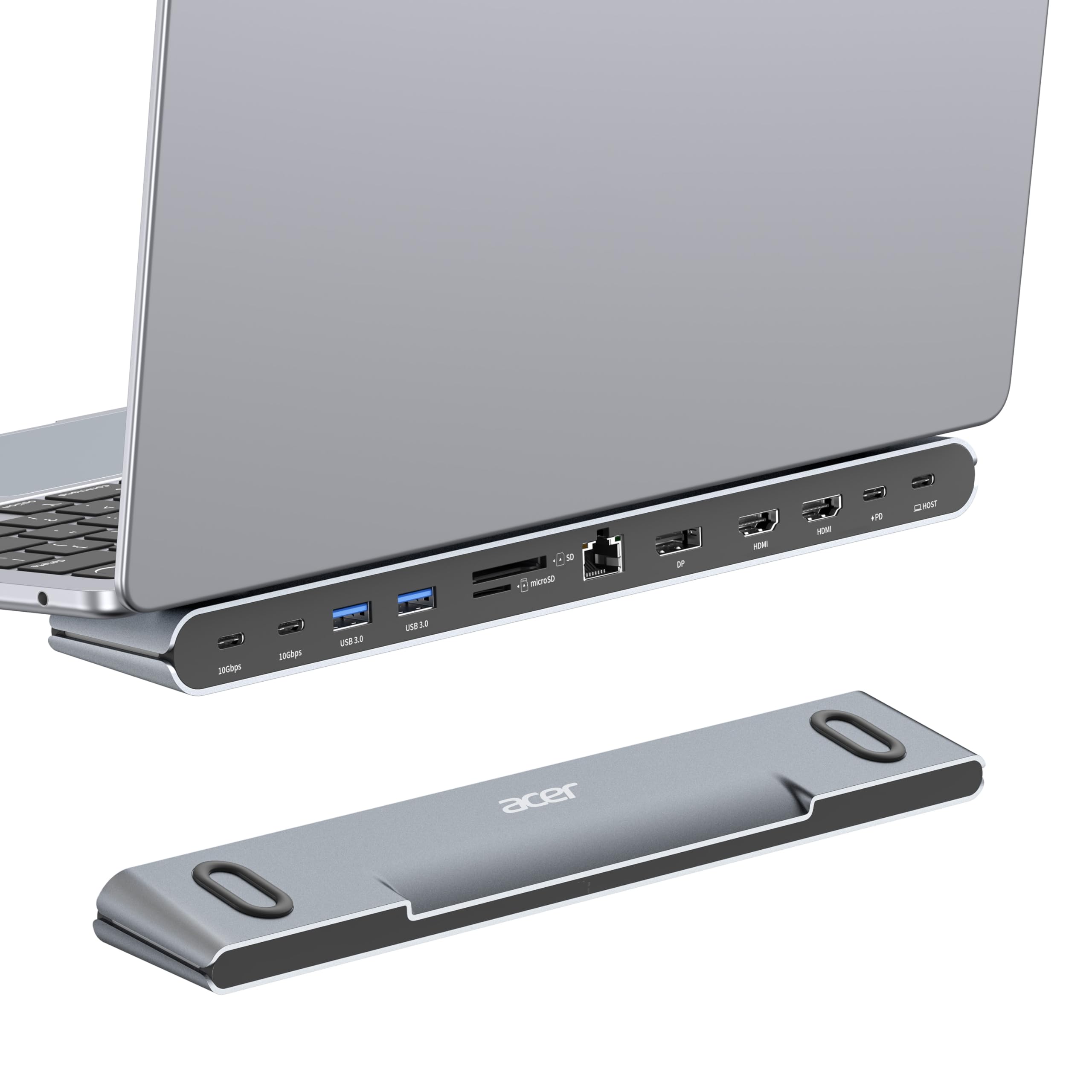
Two devices in one — a laptop riser and an 11-port dock that keeps your desk tidy.
Acer combined a dock and a laptop stand into a single silver chassis. Your laptop sits on top of the dock, angled up for a better viewing angle and improve for airflow underneath. The anti-slip silicone pads hold it steady. Underneath, you get 2 HDMI ports (4K@60Hz), 1 DisplayPort (8K@30Hz single display), 2 USB-C at 10Gbps, 2 USB-A at 5Gbps, Gigabit Ethernet, and SD/MicroSD slots at 104Mbps. The display setup flexes: single display up to 8K, dual at 4K@60Hz, or triple at 4K@60Hz plus 4K@60Hz plus 1080P@60Hz depending on each monitor’s capabilities. The 100W PD input delivers 85W to your laptop.
Buyers consistently call it well-built and sturdy, with the laptop-on-top design transforming a messy desk into a clean, professional setup. The dock runs cool even under load, and the port layout is organized and accessible. The most-discussed aspect is functionality, which gets mixed reactions — while many owners say it works great for months, a few report units failing after a few weeks. One owner noted that the rubber feet for the laptop came off due to heat and needed Gorilla Glue to reattach. A fair caveat: this dock works only with laptops that have DisplayPort Alt Mode over USB-C. macOS users should also know that macOS mirrors content across all external monitors — it does not extend to separate desktops.
What Stands Out
- Built-in laptop stand with anti-slip silicone and airflow
- Single display up to 8K@30Hz via DisplayPort
- SD/MicroSD slots for photographers
Be Aware
- Mixed reports on long-term reliability
- Rubber feet can detach with laptop heat
- macOS mirror only, no extended multi-monitor
Choose this if: You want a clean, improve desk setup and only need port expansion — not a separate monitor stand.
Think twice if: You need guaranteed reliability past a year or are a Mac user who hates mirrored displays.
6. Baseus Spacemate Docking Station, 11-in-1 USB-C Dock
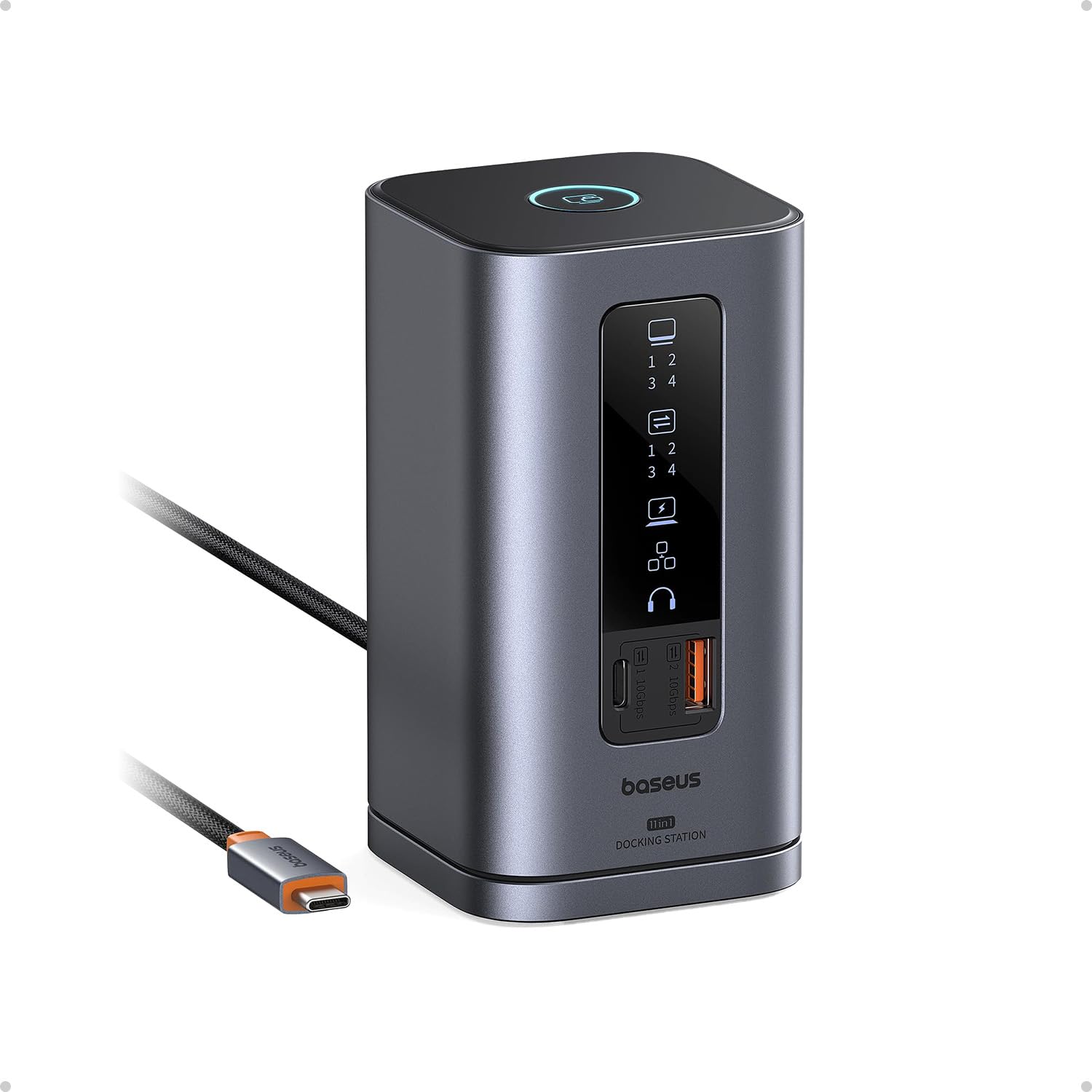
The upright aluminum dock that saves desk space and shows each port’s status on an LED screen.
Baseus took a different approach with the Spacemate: instead of a flat puck or a stand, this dock stands vertically on your desk, taking up only 2.59 by 2.59 inches of footprint. It rises 4.84 inches tall with a magnetic base that keeps it planted. The 80cm cable routes neatly, and the front LED screen shows the connection status of each port — useful for troubleshooting at a glance. You get 2 HDMI, 2 DisplayPort, 1 USB-C and 2 USB-A all at 10Gbps, plus a USB-A 2.0 port, 100W PD input (85W output), Gigabit Ethernet, and a 3.5mm AUX jack. A screen-lock button lets you secure sensitive information when you step away.
The dock earned recommendations from Forbes, ZDNet, and Tom’s Guide, and was shortlisted in the Innovation Awards. What owners praise most is functionality — it is easy to set up, drives multiple monitors without issues, and the upright design genuinely saves desk space. The compact vertical shape and indicator lights are frequently mentioned as standout features. The catch: the built-in USB-C cable is non-replaceable, so if it wears out, the whole unit goes. Some owners also report that the dock does not work with non-Thunderbolt laptops, getting stuck in a negotiation loop that shows “USB Billboard Device” in Windows. For Mac users, it only supports extended mode on one external display — the second and third monitors will mirror. A few units arrived with nonfunctional USB ports, though customer service is widely described as responsive and quick with replacements.
Best Bits
- Compact vertical design with small desk footprint
- LED status display per port
- Screen-lock button for privacy
Watch For
- Built-in cable is non-replaceable
- May not work with non-Thunderbolt laptops
- Mac only extends one external display
Great for: Windows users with Thunderbolt laptops who want a space-saving, visually informative dock.
Not for: Mac users who need extended multi-monitor or anyone who prefers replaceable cables.
7. Anker Nano 13-in-1 Laptop Docking Station with Detachable 6-in-1 Hub
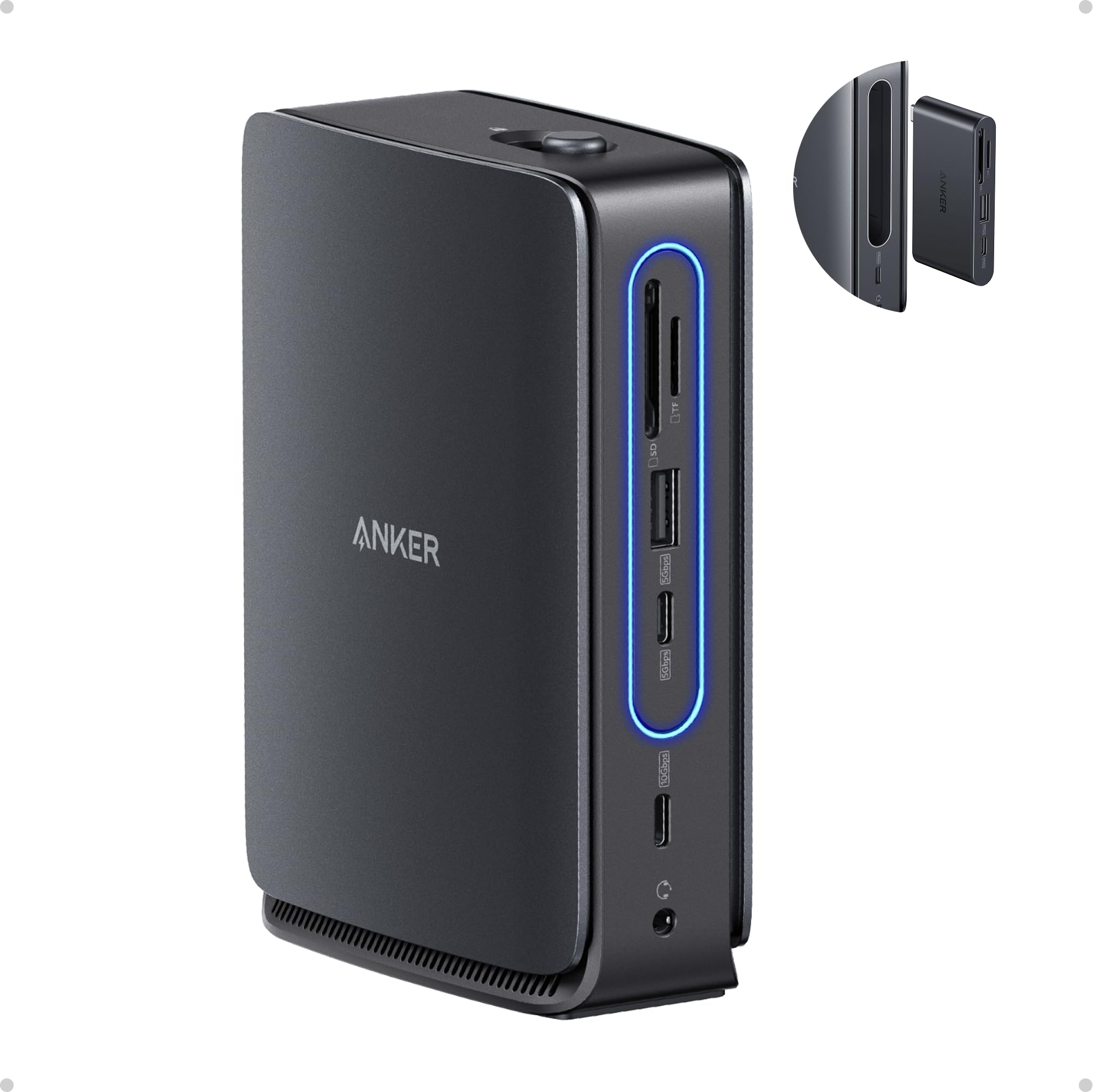
The dock that splits in two — keep the 7-port base at your desk and take the 6-port hub on the road.
This is the most clever design in the lineup. The Anker Nano comes as a 13-in-1 base station, but a 6-in-1 hub detaches from the front and works independently. You plug the base into your monitor, Ethernet, speakers, and power supply, then snap off the mini hub when you head to a meeting with just your laptop. The mini hub gives you USB-C data, USB-A, HDMI, SD card slot, and audio — enough to connect a presentation screen and a flash drive without returning to your desk. The base adds another HDMI, DisplayPort, two more USB-A, Ethernet, and a secondary card reader.
The 140W power adapter included in the box ensures stable performance under full load — a detail many docks skip. It charges your laptop at up to 100W through the dock. One USB-C data port transfers files at 10Gbps. Owners consistently praise compatibility across Dell, Lenovo, HP, and ASUS laptops, and the detachable hub gets called “double blessing” by Mac owners who use it for both desk and travel. The build is mostly plastic, which a few owners note feels less premium than the price suggests. Some report the mini hub pops out too easily in a bag. The power brick is also bulky, so the travel advantage is mostly about the mini hub itself, not the full kit.
Why It’s Clever
- Detachable 6-in-1 hub for on-the-go use
- 140W power adapter included for stable full-load charging
- Triple 1080P display support on Windows
Trade-offs
- Plastic build feels less premium than price suggests
- Mini hub may detach accidentally in a bag
- Bulkier than a dedicated travel dock
Reach for this if: You split your week between a home desk and conference rooms — one device does both jobs.
Skip if: You want a single all-metal dock that stays put and never moves.
8. Dell Pro Dock WD25 – USB-C with DP Alt Mode

The IT-managed dock that drives up to four displays and sips power on standby.
Dell designed the WD25 for the modern AI PC workplace, and it shows in the details. The dock supports native output to up to four high-resolution displays through 2 DisplayPort 1.4 ports, 1 HDMI 2.1 port, and additional USB-C video. It delivers up to 100W of power delivery to your laptop and features a 2.5Gb Ethernet port — a big step up from the standard Gigabit Ethernet found on most docks, ideal for large file transfers on office networks. The USB-C connector is designed to be more durable than previous Dell docks, and the cable routes left or right for flexible desk placement. It uses 65% post-consumer recycled materials and hits 72% lower power consumption on standby compared to older models.
Owners of current Dell laptops call it a no-brainer upgrade — it wakes the laptop with the dock’s power button (something cheaper docks cannot do) and drives three 4K monitors without breaking a sweat. MacBook Air M4 owners confirm it works via the dock’s HDMI and a separate USB-C-to-DP from the laptop’s Thunderbolt port for a second monitor. The build is professional quality, and the dock stays silent and cool. The value-for-money aspect is mixed — at this price point, some expect more ports than 10, while others argue the reliability and 2.5Gb Ethernet justify the cost. A few owners note it is not cheap, but they prefer it over cheaper docks that made weird sounds or threw “inadequate power supply” errors.
Enterprise Strengths
- Drives up to four high-res displays natively
- 2.5Gb Ethernet for faster wired networking
- 72% lower standby power vs. older docks
Considerations
- Premium price for a 10-port dock
- Best integration with Dell laptops
- No SD/TF card reader
Ideal for: Dell laptop owners in corporate environments who need rock-solid multi-display reliability and IT-managed firmware.
Not for: Budget-conscious buyers or anyone who needs a built-in card reader.
9. Anker Prime Docking Station, 14-Port with 160W Max Output

A 14-port hub with a real-time power display and 160W total system output for power users.
The Anker Prime is built for people who plug in everything at once and do not want to think about power budgets. The 14-port layout includes dual HDMI ports supporting up to 2K@60Hz (with a DP 1.4 laptop) or 1080p@60Hz (with DP 1.2), 10Gbps data transfer via USB-C, 3 USB-A ports, Gigabit Ethernet, and a 3.5mm audio jack. The standout feature is the real-time smart interface on the front — a small screen that shows total power draw and data transfer speed for each port, so you can see exactly how much juice your iPad is pulling or how fast your SSD is transferring. The total system output reaches 160W, meaning it can charge a demanding laptop, a tablet, and a phone simultaneously without slowing down.
Owners praise it as a rock-solid, reliable hub that handles multiple monitors and drives without issues. It is plug-and-play with no driver installation needed on Windows 10 and 11. The build quality is excellent, with a compact footprint that reduces desk clutter. The front charging ports deliver around 30W to a headset or iPad, which is enough for fast charging. One common note: it supports dual displays, not triple — and it will not handle a 5120×1440 super-ultrawide monitor. Some owners are disappointed by the lack of a DisplayPort or SD card reader. The screen mode resets on some configurations, and the included USB-C cable is only about 3 feet long, which limits placement options. A few owners mention a mild audio echo when using the dock’s headphone jack during calls.
What You Get
- 14 ports with real-time power/data display
- 160W total system output for multi-device charging
- 10Gbps data transfer on one USB-C port
What You Compromise
- Dual displays only — no triple or super-ultrawide
- No DisplayPort or SD card reader
- Short ~3ft included cable
Best for: Power users who want to see exactly how much juice their devices are drawing and need a non-Thunderbolt hub that just works.
Pass if: You need triple monitors, a DisplayPort, or an SD card slot.
Understanding the Specs
DisplayLink vs. Native Display
Most docking stations use your laptop’s native video output to drive external monitors. That works fine for Windows, but on macOS, native docks can only mirror (show the same content) on multiple external displays. DisplayLink is a different technology — it uses a small chip inside the dock and a driver on your laptop to create a virtual graphics card. This lets macOS users extend their desktop across three separate monitors, each showing different content. The trade-off is that you need to install a driver, and some paid streaming apps (like Netflix) block video output through DisplayLink for copy-protection reasons.
Power Delivery (PD) and Wattage
Power Delivery is the standard that lets your dock charge your laptop through the same USB-C cable that carries data and video. The wattage number tells you how fast it charges. Most laptops need at least 65W to charge at full speed while you work. A dock that outputs 85W to 100W covers nearly every ultrabook and most workstations. But the dock itself needs even more power input — a 100W input dock typically sends 85W to the laptop and keeps 15W for its own ports and peripherals. If you plug in multiple power-hungry USB devices, look for a dock with 140W or 160W total system capacity so nothing slows down.
FAQ
Will a docking station work with any laptop?
What is the difference between a Thunderbolt dock and a USB-C dock?
Why do some docks require a driver installation while others do not?
How many monitors can a docking station actually support?
Can I use a docking station with a desktop PC?
Will a docking station charge my laptop as fast as the original charger?
What does DisplayPort Alt Mode mean?
Can I use a docking station with my iPad or Android tablet?
How long do docking stations typically last?
What is the ideal number of USB ports on a dock?
Final Thoughts: The Verdict
If you want one dependable pick, the computer docking station winner is the TobenONE DisplayLink because it solves the hardest problem — true triple extended monitors on macOS — while delivering 18 ports and reliable 100W charging backed by exceptional customer support. If you run Windows and want real 10Gbps speeds without paying for features you don’t need, the WAVLINK 10Gbps is the budget champion. And for power users who need to charge everything at once and see exactly how much power each device draws, the Anker Prime brings a 160W total output and a smart display that no other dock in this roundup offers.
How We Picked
We do not accept paid placement. Every pick is matched to a real buyer and a real use-case; we do not hands-on test units.
Sources & Methodology
Specifications: manufacturer listings and product documentation. Review insights: verified customer reviews, as of July 2026. Pricing: not shown on this page (it changes often); check the current price via the retailer link.
As an Amazon Associate, WellFizz earns from qualifying purchases. This does not affect which products we feature.
Related Guides

Mo Maruf
I created WellFizz to bridge the gap between vague wellness advice and actionable solutions. My mission is simple: to decode the research and give you practical tools you can actually use.
Beyond the data, I am a passionate traveler. I believe that stepping away from the screen to explore new environments is essential for mental clarity and physical vitality.