Our readers keep the lights on and my smoothie glass nicely filled. As an Amazon Associate, I earn from qualifying purchases.
You edit a photo for an hour, export the file, and suddenly the sky looks like a different shade of blue on your phone. Or worse, you send a print to a client only to discover the greens turned to mud. That mismatch isn’t your editing skills — it’s your uncalibrated display lying to you. A dedicated colorimeter fixes that by creating an ICC profile tailored to your panel, making every screen in your workflow agree on what “true red” actually looks like.
I’m Mohammad Maruf — the founder and writer behind WellFizz. I’ve spent hundreds of hours analyzing colorimeter specifications, comparing sensor sensitivity across luminance ranges, and cross-referencing software compatibility to find which tool delivers the most reliable results for photo editors, video colorists, and design professionals.
If you want to stop fighting with inconsistent colors and finally trust what you see, this guide walks through the best color calibration tool for monitor work, explaining sensor types, luminance limits, and software ecosystems so you can pick the perfect device for your display setup.
How To Choose The Best Color Calibration Tool For Monitor
Picking a calibrator isn’t as simple as grabbing the cheapest puck. Your display technology — whether it’s a standard IPS panel, a mini-LED laptop, or a 10,000-nit HDR mastering monitor — determines how much luminance range and color accuracy the sensor needs to handle. The wrong tool either leaves tones crushed or fails to correct your screen at all.
Sensor type: Colorimeter vs. Spectrophotometer
A colorimeter reads red, green, and blue light through glass filters to measure your display’s output. It is fast, affordable, and perfectly matched for monitor calibration. A spectrophotometer measures the full spectral reflectance of physical surfaces — paints, prints, packaging — and costs considerably more. For monitor-only work, a colorimeter is the correct tool. Add a spectrophotometer only if you also need to build custom ICC profiles for print output or match physical paint swatches.
Luminance range and HL sensors
Older colorimeters cap out around 500 nits. If you own a modern HDR monitor, mini-LED backlight, or Apple XDR display hitting 1,600 nits peak, a standard sensor will clip highlights and deliver skewed gamma curves. High-luminance (HL) sensors — such as those in the Calibrite Display Pro HL and Display Plus HL — can measure up to 3,000 or even 10,000 nits, ensuring tone mapping stays intact and shadow detail isn’t lost.
Software ecosystem and patch set control
The software you use daily matters as much as the sensor. Entry-level tools like Spyder5EXPRESS ship with a guided wizard but limit you to basic white point and brightness adjustments. Mid-range and premium options from Calibrite and Datacolor give you custom patch sets, gamma curve selection (BT.1886 for Rec.2020 workflows), and validation tools that calculate Delta E drift. Third-party software like DisplayCAL or Colourspace can extend a budget colorimeter’s lifespan, but not all hardware works with every program — always confirm OS and API compatibility before buying.
Quick Comparison
On smaller screens, swipe sideways to see the full table.
| Model | Category | Best For | Key Spec | Amazon |
|---|---|---|---|---|
| Calibrite Display Plus HL | Colorimeter | HDR video mastering | 10,000 nit sensor ceiling | Amazon |
| Calibrite Display Pro HL | Colorimeter | Modern LCD/mini-LED/OLED | 3,000 nit sensor ceiling | Amazon |
| Spyder Photo/Video Kit | Kit | Hybrid photo-video workflow | SpyderPro + Checkr + Cube | Amazon |
| Wacom Color Manager | Colorimeter | Wacom Cintiq users | i1Profiler engine | Amazon |
| Datacolor Spyder4Pro | Colorimeter | Multi-monitor consistency | Double-shielded filters | Amazon |
| Datacolor Spyder5EXPRESS | Colorimeter | Entry-level desk setups | 5-minute calibration | Amazon |
| Nix Spectro L | Spectrophotometer | Print/paint matching | 31-channel M0/M1/M2 | Amazon |
| ASUS ProArt PA27JCV | Monitor | Built-in 5K accuracy | ΔE < 2 factory cal | Amazon |
| BenQ SW272Q | Monitor | Photographers needing Paper Color Sync | 99% Adobe RGB | Amazon |
In‑Depth Reviews
1. Calibrite Display Plus HL Monitor Calibration Colorimeter
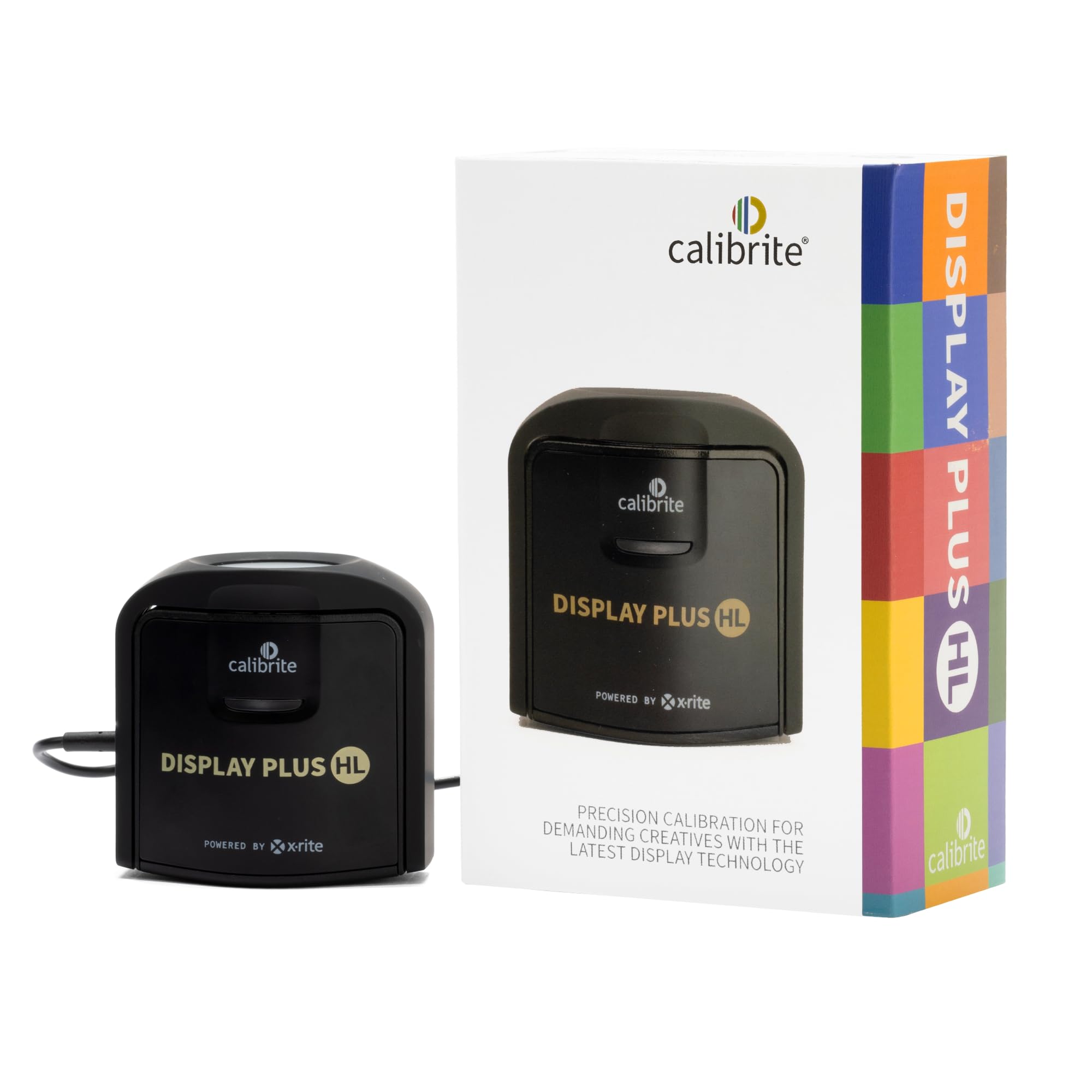
The Display Plus HL is built for serious HDR production. Its advanced high-luminance sensor reads up to 10,000 nits, so it can accurately profile the brightest Apple XDR panels, ASUS ProArt HDR references, and mini-LED studio monitors without clipping highlights. The optical path uses an adjustable counterweight clip that stays flush against the screen, eliminating light leaks that skew readings.
Calibrite PROFILER software ships in Basic and Advanced modes, giving you full control over white point, luminance target, contrast ratio, and gamma curve selection including BT.1886 for Rec.2020 workflows. Validation tools like Quick Check, Profile Validation, and Uniformity Check let you confirm Delta E drift before starting critical grading sessions. The sensor body is compact — slightly smaller than a deck of cards — and includes a 1/4-inch mount thread for tripod-based projector calibration.
Multiple reviewers confirmed it works with OLED panels from ASUS, Dell, and HP while maintaining sub-1 Delta E after calibration. The only repeated critique involves the software’s D65 color temperature target producing a warmer-than-expected result; selecting “native white point” as the target resolves this. For anyone grading HDR video or mastering in Dolby Vision, this is the most future-proof colorimeter available today.
Why it’s great
- Measures super-bright HDR panels up to 10,000 nits without clipping
- Professional validation tools: Quick Check, Uniformity Check, Profiler Manager
- Compact design with 1/4-inch tripod mount for projector profiling
Good to know
- D65 software target may produce warm results; use native white point instead
- Plastic housing feels lighter than competing premium meters
2. Calibrite Display Pro HL Monitor Calibration Colorimeter
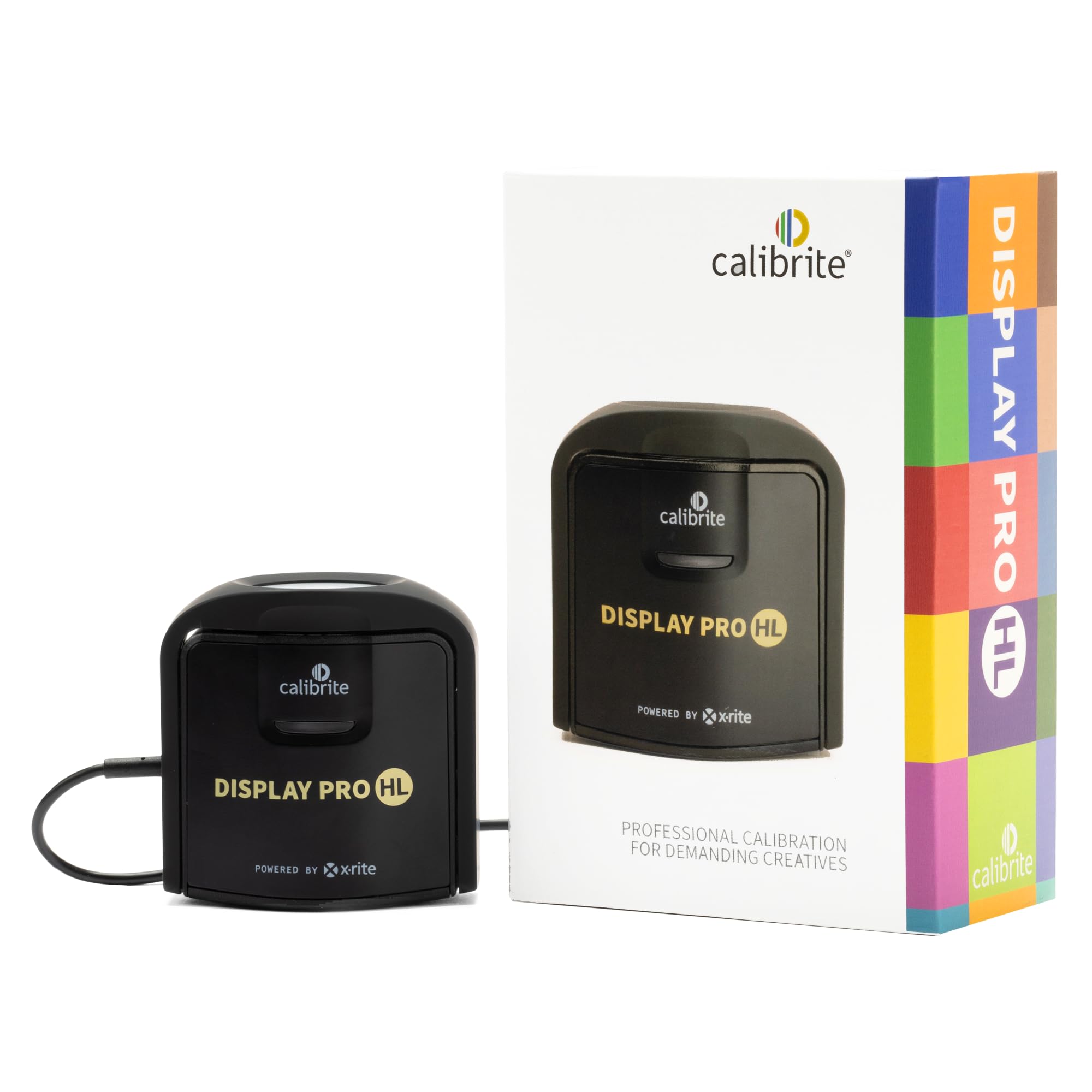
The Display Pro HL sits one step below the Plus model but still covers the vast majority of modern displays. It measures up to 3,000 nits, which comfortably handles mini-LED laptops, most HDR monitors, and high-end OLED panels found in creative workflows. The sensor uses the same HL optical architecture as its bigger sibling, meaning shadow detail and highlight roll-off remain accurate at high luminance levels.
PROFILER software offers both Basic and Advanced workflows. You can build custom patch sets from your own images, share presets across a team, and run flare correction to compensate for ambient screen glare. The package includes a USB-C cable with a USB-A adapter, a travel storage pouch, and the same 1/4-inch mount thread found on the Plus model. Crucially, the Pro HL works with third-party software like DisplayCAL, which some users prefer to avoid the green tint that occasionally appears in the bundled Profiler software.
User reports show a Samsung G7 achieving a Delta E of 0.7 at 120 nits after calibration. The device is marginally more compact than its predecessor, making it easy to carry between workstations. If you edit photos or cut video at 4K HDR without needing beyond 3,000-nit peak luminance, the Display Pro HL delivers professional-grade results without overspending on the Plus model.
Why it’s great
- HL sensor handles mini-LED and OLED displays up to 3,000 nits
- Flare correction reduces errors from ambient screen glare
- Supports DisplayCAL and other third-party calibration software
Good to know
- Bundled Profiler software can introduce a green cast on some panels
- Requires a dark room for the most accurate validation readings
3. Spyder Photo/Video Kit

The Spyder Photo/Video Kit bundles four essential color-management tools into one box: a SpyderPro colorimeter, a Spyder Checkr Video card, a Spyder Checkr Photo card set, and a Spyder Cube for white balance and exposure reference. This is not just a monitor calibrator — it’s an end-to-end system that ensures color accuracy from capture through post-production.
The colorimeter itself profiles your display in a few minutes using Datacolor’s software v6.1, which now supports mini-LED and OLED panels. After calibration, the Checkr Video card gives you an instant visual reference for skin tones and gray balance, while the Spyder Cube helps nail white balance in challenging mixed-lighting shoots. The kit saves you from buying each tool separately, and the Cube alone solves exposure headaches that a standard gray card simply cannot fix.
Reviewers highlight that the monitor calibration brings multiple screens into close agreement — though minor differences remain due to panel technology limits. The video target is small but portable, making it practical for on-location shoots. For hybrid shooters who both edit photos and grade video, this kit streamlines the entire pipeline under one Datacolor ecosystem.
Why it’s great
- Complete capture-to-edit color management in a single kit
- Spyder Cube provides better exposure reference than standard gray cards
- Software v6.1 supports the latest mini-LED and OLED displays
Good to know
- Color reference cards are small — best for close-up or controlled shooting
- Initial setup requires time to customize patch sets for your workflow
4. Wacom Color Manager (EODIS3-DCWA)

The Wacom Color Manager is essentially an X-Rite i1Display Pro colorimeter rebranded for Wacom’s ecosystem, and it is the only first-party calibrator that directly targets Cintiq pen displays. The core technology uses i1Profiler software, giving you full command over white point, luminance, contrast ratio, and gamma without the training wheels. It also supports the X-Rite Color TRUE mobile app, so you can calibrate iOS and Android tablets from the same puck.
For Cintiq users, this device solves the persistent green tint issue that plagues many Wacom panels out of the box. Multiple verified reviews report that after calibration, the worst color deviation sits within 3 Delta E units, with 97% of measurements within 1 Delta E. The puck hangs over the top bezel using a counterweight system, and the automated calibration takes about 10-15 minutes — a major improvement over manual adjustments.
The catch: modern Mac users running macOS Catalina or later face significant compatibility problems. The bundled software has not been updated by Wacom to run natively on Apple Silicon or newer operating systems, and the CD installer is unreadable on modern MacBook Pros. If you are on Windows or can rig the software through an older machine, the tool itself performs excellently. But Mac-only studios should look elsewhere.
Why it’s great
- Specifically calibrated for Wacom Cintiq panels — fixes green tint
- Uses professional i1Profiler engine with full gamma curve control
- Compatible with X-Rite Color TRUE app for mobile device calibration
Good to know
- Software does not run natively on macOS Catalina or later (Apple Silicon)
- CD-based installation requires an external optical drive
5. Datacolor Spyder4Pro S4P100 Colorimeter

The Spyder4Pro is an older generation that still competes well against entry-level options thanks to its double-shielded color filters. Datacolor claims a 26% improvement in average accuracy and 19% better unit-to-unit consistency over the Spyder3, and user tests confirm that the profiles it creates are nearly identical to the Spyder3, which validates its reliability for repeatable work.
It supports automated color and brightness calibration with a full-spectrum sensor and includes a ReCAL Assistant for quick recalibration as your monitor ages. The ambient light measurement ensures your brightness target aligns with the room conditions — useful if you switch between a dark editing suite and a brightly lit office. The software guides you through FullCAL, ReCAL, and CheckCAL modes with an intuitive wizard that beginners find straightforward while still offering advanced mode for manual white point and gamma tuning.
Users report dramatic improvements when calibrating dual 27-inch monitors and MacBook Pros side-by-side. The main limitation is that the sensor caps out at standard luminance levels, so it will struggle with HDR panels or ultra-bright displays. Also, the “before and after” reporting is sparse compared to modern tools. For a budget-friendly option that punches above its weight on standard IPS panels, the Spyder4Pro remains a solid choice.
Why it’s great
- Double-shielded filters improve accuracy and long-term stability
- Ambient light sensor optimizes brightness for your workspace
- Simple wizard mode with advanced options for experienced users
Good to know
- Does not support high-luminance HDR displays
- Reporting lacks detailed before/after metrics
6. Datacolor Spyder5EXPRESS (S5X100)

The Spyder5EXPRESS is the pure entry-level option, designed to get you from zero to a calibrated monitor in about five minutes without any technical tinkering. It uses Datacolor’s room light monitoring to automatically set optimal brightness, so you see fine shadow detail and highlight separation without needing a light meter. The “Before and After” evaluation lets you toggle between the uncalibrated and calibrated state using your own photographs, giving immediate visual feedback.
The software limits you to basic control — you cannot manually adjust white point, gamma curve, or patch set size. That simplicity is a feature for casual photographers who just want their laptop and desktop to look the same. The Display Analysis feature lets you evaluate and compare the performance of all connected monitors, helping you identify which panel is the weakest link. The puck itself is about the size of a demitasse cup, making it easy to stash in a laptop bag.
User feedback is mixed on speed: the calibration process and software installation both lean slow, requiring patience. Some users also note that the automatic brightness target can leave screens looking too dim for web design work — you can increase brightness manually after calibration if needed. Several reviewers successfully paired the Spyder5EXPRESS hardware with DisplayCAL/Argyll software to get advanced controls, dramatically improving consistency across multiple screens. For a low-cost introduction to color management, this tool gets the job done.
Why it’s great
- Fast five-minute guided calibration with no technical setup
- Room light monitoring sets optimal brightness automatically
- Hardware works with advanced third-party software like DisplayCAL
Good to know
- Limited manual control — no custom white point or gamma tuning
- Calibration and software installation process is notably slow
7. Nix Spectro L Spectrophotometer and Densitometer

The Nix Spectro L is a spectrophotometer, not a colorimeter. Instead of reading display light, it measures the spectral reflectance of physical surfaces — printed CMYK swatches, paint chips, textiles, and packaging materials. It uses a 9-channel sensor expanded to 31 channels for refined accuracy and supports M0, M1, and M2 measurement modes to handle optical brighteners in modern papers.
This tool is aimed squarely at professionals in print, packaging, and graphic arts who need to match a physical color to a digital standard. It outputs Delta E data, CMYK ink density, RGB, and HEX values directly to the Nix Toolkit mobile app. The cloud-enabled library lets you build custom color palettes and access over 200,000 paint shade references. Battery life exceeds that of many older portable spectros, and readings remain stable and consistent even after weeks of use.
Customers praise the device’s accuracy for practical applications — one user successfully measured HOA paint colors to prove a compliance violation. The main complaint involves the app’s batch scanning interface, which requires manual entry of color name and code for each patch with no auto-naming feature, and the Pro subscription costs extra. For monitor-only calibration, a colorimeter remains the right tool; the Nix Spectro L is for production floors and print shops.
Why it’s great
- 31-channel spectral engine with M0/M1/M2 measurement modes
- Excellent battery stability and consistent readings over time
- Cloud library with access to 200,000+ paint shades
Good to know
- Not designed for monitor calibration — only physical surface measurement
- Batch scanning app requires manual per-patch naming
- Pro features require a monthly subscription
8. ASUS ProArt Display 27” 5K HDR Professional Monitor (PA27JCV)

The ASUS ProArt PA27JCV is a 27-inch 5K monitor that ships factory-calibrated to Delta E < 2 and is Calman Verified. For creative professionals who want accurate color straight out of the box, this removes the immediate need for an external calibrator — though periodic recalibration through the monitor’s internal LUT remains recommended as the panel ages. It covers 99% DCI-P3 and 100% sRGB, making it suitable for both video and print workflows.
It includes an ambient light sensor and backlight sensor that adjust brightness and color temperature in real time, similar to True Tone on Apple displays. The USB-C port delivers 96W power delivery, so it can charge a MacBook Pro while carrying video signal. The 178-degree IPS panel offers wide viewing angles and supports HDR with a peak brightness of 400 nits. The three-month Adobe Creative Cloud bundle adds value for new subscribers.
Mac users find the 5K resolution offers perfect pixel doubling for macOS HiDPI, eliminating the scaling fuzziness that plagues lower-resolution panels. However, some reviewers report significant backlight bleed along the top edge and side vignetting — quality control inconsistencies that can affect critical work. The built-in KVM switch is also sluggish, taking 6-8 seconds to switch between sources. For a combined monitor-plus-calibration solution, this panel delivers accuracy but requires acceptance of its QC quirks.
Why it’s great
- 5K resolution provides perfect HiDPI scaling for macOS users
- Factory-calibrated Delta E < 2 with Calman Verification included
- USB-C with 96W power delivery simplifies desk cable management
Good to know
- Backlight bleed and side vignetting vary between individual units
- Built-in KVM switch is slow (6-8 seconds to switch inputs)
9. BenQ SW272Q 27-inch 2K Photographer Monitor

The BenQ SW272Q is built specifically for photographers who need to trust that their screen matches their prints. Its Nano Matte Panel is TUV-certified for anti-reflection and mimics paper texture, reducing glare that distorts perceived tones. The panel covers 99% Adobe RGB and 98% DCI-P3/Display P3, and with its 16-bit 3D LUT, it can display 1.07 billion colors for smooth gradations in skies and skin tones.
The headline feature is Paper Color Sync. You select your color gamut, printer model, and paper type, and the monitor simulates exactly how that combination will look on paper before you hit print. This eliminates the endless print-edit-print cycle. The SW272Q also supports hardware calibration via BenQ’s Palette Master Ultimate software, which calculates corrections inside the monitor’s internal LUT rather than the graphics card — preserving full dynamic range and reducing banding.
Photographers who upgraded from earlier SW-series models report that the build quality remains excellent, with adjustable height, tilt, swivel, and pivot all included. The included hood has a slot for a calibrator puck, so you can run Palette Master without removing the hood. The wireless remote puck lets you switch between color spaces — Adobe RGB, sRGB, Black & White — in one click. For still photographers who print their work, the SW272Q is the most practical monitor-calibration solution available.
Why it’s great
- Paper Color Sync simulates exact print output before you commit ink
- Hardware calibration via 16-bit 3D LUT preserves full dynamic range
- Nano Matte Panel with TUV anti-reflection reduces glare
Good to know
- 2K resolution (2560 x 1440) — lower pixel density than 4K or 5K panels
- No printed manual included; requires downloading online
FAQ
Do I need a calibrator if my monitor came pre-calibrated from the factory?
Can I use one calibrator for both my laptop and external monitor?
What is the difference between software calibration and hardware calibration?
Does a projector need the same calibration tool as a monitor?
Will a calibrator fix dead pixels or backlight bleed?
Final Thoughts: The Verdict
For most users, the best color calibration tool for monitor winner is the Calibrite Display Plus HL because it handles everything from standard IPS panels to the brightest HDR mastering displays with its 10,000-nit sensor ceiling, professional validation tools, and wide third-party software support. If you want precision for modern mini-LED and OLED panels without the top-tier price, grab the Calibrite Display Pro HL. And for photographers who print their work, nothing beats the BenQ SW272Q with its Paper Color Sync and hardware calibration LUT.

Mo Maruf
I created WellFizz to bridge the gap between vague wellness advice and actionable solutions. My mission is simple: to decode the research and give you practical tools you can actually use.
Beyond the data, I am a passionate traveler. I believe that stepping away from the screen to explore new environments is essential for mental clarity and physical vitality.