Our readers keep the lights on and my smoothie glass nicely filled. As an Amazon Associate, I earn from qualifying purchases.
Hours staring at curly braces, nested loops, and sprawling documentation demand a display that prioritises text clarity and reduces eye fatigue above all else. A standard office monitor treats code like another document, whereas a purpose-chosen display turns syntax highlighting into a crisp, readable landscape that lets you stay in flow for hours.
I’m Mohammad Maruf — the founder and writer behind WellFizz. My research for this guide involves combing through technical specifications, reading hundreds of real buyer experiences, and cross-referencing panel technologies to find the monitors that genuinely serve the unique demands of a developer’s workflow.
Whether you prefer an ultrawide canvas for side-by-side files or a high-density 4K panel for razor-sharp text, this analysis of the best coding monitor options breaks down exactly what matters for your setup.
How To Choose The Best Coding Monitor
Developers have different priorities than graphic designers or gamers. Text rendering and workspace flexibility take precedence over colour gamut or ultra-high frame rates. Focus on these three areas to find a monitor that turns coding from a chore into a genuine pleasure.
Aspect Ratio and Panel Width
The traditional 16:9 aspect ratio forces you to stack windows vertically, wasting horizontal space on a side panel or file tree. An ultra-wide 21:9 panel, or even a 3:2 ratio like the BenQ RD280U, gives you room for an editor on one side and a terminal or browser on the other without needing a second monitor. The extra width directly translates into fewer alt-tab moments and a more continuous reading line for long lines of code.
Resolution and Pixel Density
At 27 inches, a 1440p (2560×1440) panel provides decent text sharpness, but 4K (3840×2160) at the same size delivers noticeably crisper characters, which reduces squinting during extended sessions. However, scaling on some operating systems can cause issues — a monitor with native 200% scaling often looks perfect on macOS. For pure text work, a high pixel density is more beneficial than a high refresh rate, as it directly improves readability.
Connectivity and Desk Integration
A coding setup typically involves a laptop connected to a monitor, keyboard, mouse, and perhaps an external drive. A monitor with a built-in USB-C port delivering power (65W or more) acts as a hub, charging your laptop while passing data to peripherals. A KVM switch built into the monitor lets you control two computers — say, a work laptop and a personal desktop — with a single set of peripherals, saving significant desk clutter.
Quick Comparison
On smaller screens, swipe sideways to see the full table.
| Model | Category | Best For | Key Spec | Amazon |
|---|---|---|---|---|
| BenQ RD280U | Programming Specific | Dedicated coding workflow | 28.2″ 3:2 4K Nano Matte Panel | Amazon |
| Dell UltraSharp U2725QE | Premium Productivity | All-day mixed work & coding | 27″ 4K IPS Black, 120Hz, Thunderbolt 4 | Amazon |
| Dell 34 Plus S3425DW | Ultrawide Performance | Multi-window multitasking | 34″ VA, 120Hz, 95% DCI-P3 | Amazon |
| ASUS ProArt PA279CRV | Colour-Accurate 4K | Creative coding & frontend work | 27″ 4K IPS, ∆E < 2, 96W USB-C | Amazon |
| BenQ PD3225U | Mac Professional | Designers coding in macOS | 32″ 4K IPS Black, Thunderbolt 3 | Amazon |
| Samsung ViewFinity S50GC | Value Ultrawide | Budget-friendly wide coding | 34″ VA Ultrawide, 100Hz, HDR10 | Amazon |
| MSI MD342CQPW | Aesthetic Ultrawide | White-themed coding setups | 34″ VA, 120Hz, 98W USB-C Power | Amazon |
| LG 34WR55QK-B | Budget Ultrawide | Entry-level ultra-wide coding | 34″ VA, 100Hz, 65W USB-C PD | Amazon |
| MSI MPG 321URX | Top-Tier OLED | Ultimate contrast & colour work | 32″ 4K QD-OLED, 240Hz, 0.03ms | Amazon |
In‑Depth Reviews
1. BenQ RD280U 28.2″ 4K Programming Monitor

The BenQ RD280U is a rare breed: a monitor purpose-built for programmers. Its 28.2-inch 3:2 aspect ratio (3840×2560) delivers significantly more vertical screen real estate than a standard 16:9 panel, meaning you see more lines of code without scrolling. The exclusive Nano Matte panel dramatically reduces glare and reflections, making text appear on a paper-like surface that is far less fatiguing over a full workday.
Coding-specific features like dedicated coding modes adjust colour profiles to improve syntax differentiation, while the MoonHalo backlight casts a soft, task-appropriate glow behind the monitor. The built-in KVM switch and 90W USB-C power delivery let you dock a laptop cleanly, and the height-adjustable stand makes finding an ergonomic position effortless. At 60Hz, it is not a gaming monitor, but for text-centric work the panel’s sharpness and contrast are exceptional.
The main trade-off involves connectivity — HDMI 2.0 limits the refresh rate at native resolution, so a DisplayPort or USB-C cable is recommended for full 60Hz. The integrated speakers are best described as functional at best, and the KVM switching can feel slightly laggy during initial detection. Despite these quirks, the RD280U remains the single most thoughtfully designed monitor for a developer’s daily driver.
Why it’s great
- Unique 3:2 aspect ratio shows more code vertically.
- Nano Matte panel eliminates screen reflections for long sessions.
- Includes KVM and 90W USB-C for a clean desk setup.
Good to know
- 60Hz refresh rate is standard for productivity, not gaming.
- HDMI 2.0 caps refresh rate at 50Hz at native resolution.
- Built-in speakers are very weak.
2. Dell UltraSharp U2725QE 27″ 4K IPS Black
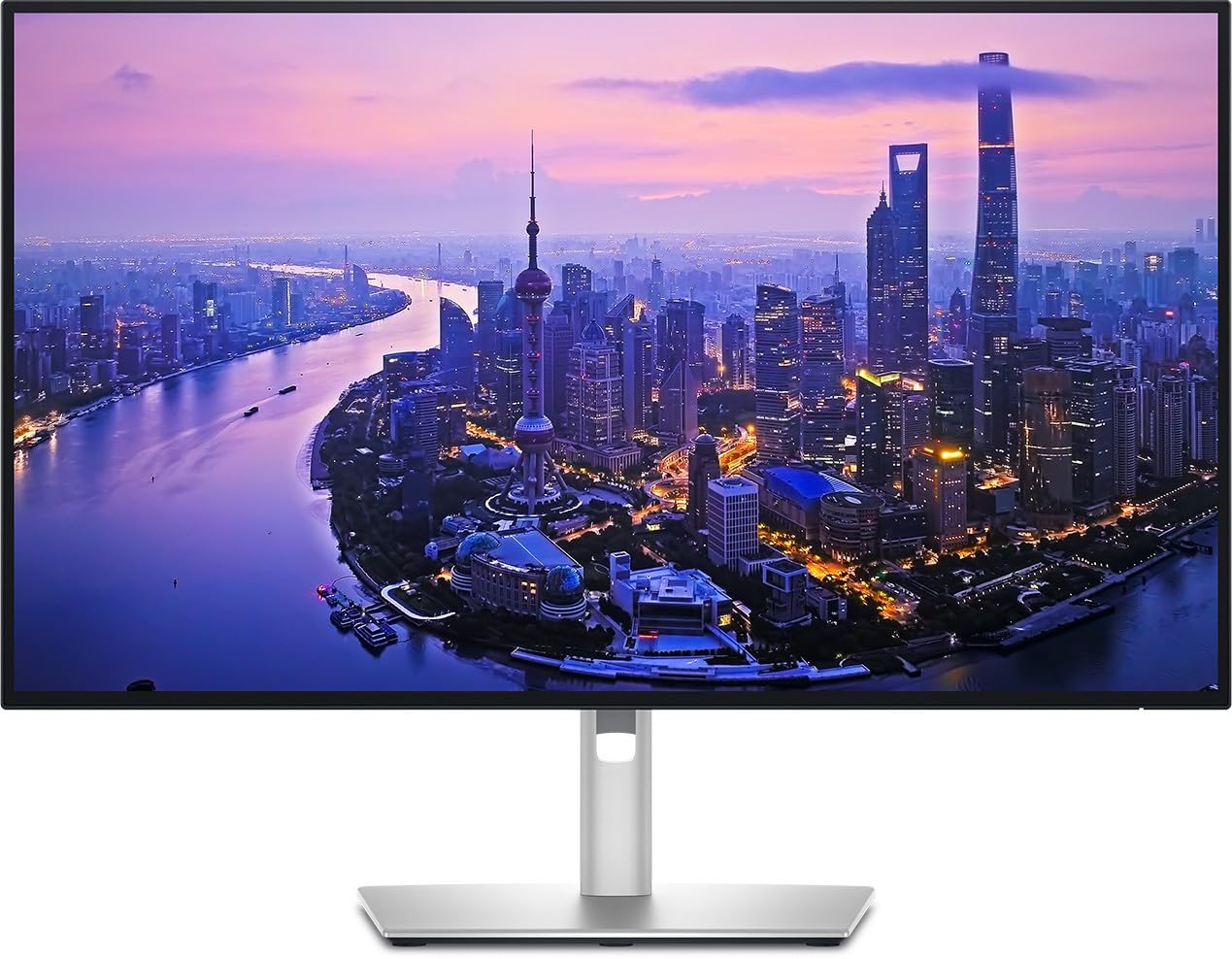
The Dell UltraSharp U2725QE combines a high-resolution 4K IPS Black panel with a 120Hz refresh rate, solving the typical compromise between text clarity and smooth motion. The IPS Black technology delivers deeper blacks and a 2000:1 contrast ratio, making code on a dark theme look rich and without the greyish haze common to conventional IPS monitors. Factory calibration to Delta E less than 1.5 ensures colour accuracy is exceptional out of the box.
Thunderbolt 4 connectivity is the highlight here: a single cable transmits video, data, and up to 140W of power to a laptop, which is enough for even the most demanding workstations. The built-in ambient light sensor automatically adjusts brightness, and ComfortView Plus reduces harmful blue light emissions to below 35% without washing out colours. The ergonomic stand offers full adjustability, including pivot, making it easy to switch between horizontal and vertical coding layouts.
The main downside is cost — this sits firmly in the premium segment. Some Mac users have reported a compatibility error message during initial setup, though the monitor functions correctly after acknowledging the prompt. The anti-glare coating is superb, but the absence of a built-in KVM at this price point is a notable omission for multi-device users.
Why it’s great
- IPS Black panel offers excellent contrast and deep blacks for dark themes.
- 120Hz refresh rate provides smooth scrolling in code and docs.
- Thunderbolt 4 with 140W PD simplifies a single-cable laptop setup.
Good to know
- Premium pricing positions it as a high-end investment.
- No built-in KVM for sharing peripherals.
- Some Mac users encounter a minor compatibility prompt at startup.
3. Dell 34 Plus S3425DW Curved UltraWide

The Dell 34 Plus S3425DW offers a generous 34-inch 21:9 curved VA panel at 3440×1440 resolution, creating an immersive workspace that reduces the need for multiple monitors. The 1500R curvature wraps the display gently around your field of view, minimising head movement when referencing documentation on one side while editing code on the other. With 99% sRGB and 95% DCI-P3 coverage, colours are vivid and true to life.
The 120Hz refresh rate and AMD FreeSync Premium support make for exceptionally smooth scrolling through long log files or rapid tabbing between windows. Dell’s ComfortView Plus technology keeps blue light emissions low without introducing a yellow tint. The inclusion of integrated speakers, which sound more detailed than most monitor speakers, is a welcome addition for developers who rely on system notifications or occasional media playback.
Port selection is limited to HDMI and USB-C with 65W power delivery — notably absent is a dedicated DisplayPort, which may matter for GPU owners. The VESA mount recesses the bracket slightly, requiring a specific third-party mount configuration. Some users note that the VA panel exhibits slightly narrower viewing angles than IPS, though for a single-user desk this rarely becomes an issue.
Why it’s great
- 34-inch ultra-wide canvas shows multiple full-size IDE windows side by side.
- 120Hz refresh rate delivers fluid scrolling through heavy codebases.
- Improved built-in speakers are genuinely usable for daily work.
Good to know
- No DisplayPort input; limited to HDMI and USB-C.
- VESA mount requires a recess-compatible bracket.
- VA panel has narrower viewing angles than IPS.
4. ASUS ProArt PA279CRV 27″ 4K Professional Monitor

The ASUS ProArt PA279CRV is the go-to choice for developers whose work crosses into frontend design, UI prototyping, or any field where colour accuracy matters. Its 27-inch 4K IPS panel covers 99% DCI-P3 and 99% Adobe RGB, and it comes factory-calibrated to Delta E < 2, which means colours appear exactly as intended across both code highlight themes and design mockups. The Calman Verified certification confirms professional-grade consistency.
On the connectivity front, the PA279CRV is generous: USB-C with 96-watt Power Delivery can charge a MacBook Pro at full speed, while a DisplayPort input and daisy-chaining capability let you expand your setup cleanly. The ergonomic stand supports tilt, swivel, pivot, and height adjustment, making it easy to position the monitor for a comfortable vertical alignment. The matte screen finish is especially helpful in well-lit rooms, cutting reflections without softening text sharpness.
At 60Hz, it is not built for high-refresh rate applications, so gamers or scroll-sensitive users might feel constrained. The On-Screen Display controls are managed through a joystick and tiny buttons on the back, which can be less intuitive than a dedicated remote or puck. For pure coding with a side of colour-critical design work, however, the PA279CRV offers exceptional value for its price point.
Why it’s great
- Factory-calibrated ∆E < 2 colour accuracy for frontend/design work.
- 96W USB-C PD charges laptops quickly with a single cable.
- Daisy-chaining support for multi-monitor setups.
Good to know
- 60Hz refresh rate limits smooth scrolling feel.
- OSD controls via rear buttons are not the most user-friendly.
- Not suitable for high-refresh-rate gaming.
5. BenQ PD3225U 32″ 4K Thunderbolt Monitor

The BenQ PD3225U is specifically tuned for Mac users who demand both coding efficiency and design-grade colour performance. Its 32-inch IPS Black panel achieves a 2000:1 contrast ratio, which makes dark mode in editors like VS Code or JetBrains look genuinely deep without the grey halo of standard IPS. The AQCOLOR technology, Pantone Validation, and Calman verification guarantee that colour-critical work — from UI design to video editing — stays accurate.
The 40Gb/s Thunderbolt 3 port acts as a powerhouse hub, delivering 85W charging, video, and data over a single cable to a MacBook. The M-Book mode matches the colour profile of Apple displays, ensuring a seamless visual transition between your laptop screen and the monitor. The included Hotkey Puck G2 provides easy hardware control over brightness and input switching, while the Display Pilot 2 software allows for custom workspace partitions without third-party tools.
The stand is anodised aluminium with full ergonomic adjustability, lending a premium feel that matches the price. The 60Hz refresh rate and 5ms response time are adequate for productivity but not for gaming. Some users report that the peak brightness of 250 nits feels insufficient in a brightly lit studio, and the KVM functionality, while present, requires using the Hotkey Puck to switch between sources.
Why it’s great
- IPS Black panel delivers 2000:1 contrast for excellent dark mode.
- Thunderbolt 3 with 85W PD and daisy-chaining for a clean Mac setup.
- M-Book mode matches MacBook colour profile seamlessly.
Good to know
- 60Hz refresh rate, not designed for high-speed gaming.
- 250 nits peak brightness may struggle in very bright rooms.
- Premium pricing reflects professional-grade features.
6. Samsung ViewFinity S50GC 34″ Ultrawide QHD

The Samsung ViewFinity S50GC brings an ultra-wide 34-inch 21:9 VA panel with QHD resolution (3440×1440) into a more accessible price tier without cutting essential features. The 100Hz refresh rate provides noticeably smoother scrolling through code and documentation compared to standard 60Hz panels, while AMD FreeSync keeps motion fluid. HDR10 support with over a billion colours adds visual depth without sacrificing the text sharpness coders rely on.
An ambient light sensor automatically adjusts brightness throughout the day, reducing the need to manually tweak settings as room lighting changes. Eye Saver Mode and flicker-free technology minimise strain during late-night coding marathons. The monitor supports Picture-in-Picture (PIP) and Picture-by-Picture (PBP), allowing you to view input from two different sources simultaneously — useful for monitoring server logs on one machine while developing on another.
Build quality reflects its value positioning: the stand feels slightly wobbly, especially if your desk is subject to bumps, and the built-in speakers are weak enough that most users will want external audio. Some buyers have reported that the protective film must be removed carefully from bottom to top to avoid leaving shadow marks on the screen edge. For the price, the S50GC delivers a genuinely wide coding canvas with smart ergonomic sensors.
Why it’s great
- 34-inch ultra-wide offers generous screen real estate at an accessible cost.
- Ambient light sensor adjusts brightness automatically for eye comfort.
- PIP/PBP enables viewing two input sources on one screen.
Good to know
- Stand feels slightly wobbly on uneven desks.
- Integrated speakers are weak and tinny.
- Protective film removal requires specific technique to avoid marks.
7. MSI Modern MD342CQPW 34″ White Curved UltraWide

The MSI Modern MD342CQPW distinguishes itself with a clean white finish that suits minimalist or light-themed desks, but it backs up the aesthetic with capable specs. Its 34-inch VA panel runs at a smooth 120Hz and offers 3440×1440 resolution, providing the ultra-wide canvas developers need without exceeding a mid-range budget. The 1500R curvature helps maintain peripheral awareness during long focus sessions.
Connectivity is a strong point: the USB-C port delivers 98 watts of power delivery, which is enough to charge most ultrabooks at full speed. The built-in KVM switch allows you to control two devices with one set of peripherals, and the height-adjustable stand includes a cable management channel for a tidy workspace. Anti-flicker and Low Blue Light technologies come standard, helping to reduce eye fatigue across a full workday.
The integrated speakers are relatively quiet, so external speakers or headphones are advisable for any audio-dependent tasks. The VESA mount compatibility supports arm setups, though some users note the bracket can be tight. A minor quibble: the auto-switch feature between connected devices can sometimes be overzealous, but manually toggling inputs through the OSD resolves this quickly.
Why it’s great
- White chassis design fits modern or light-themed workspaces perfectly.
- 98W USB-C PD charges a laptop rapidly while carrying video signal.
- 120Hz refresh rate with FreeSync Premium for fluid scrolling.
Good to know
- Built-in speakers are quiet and lack bass.
- Auto-switch between inputs can be slightly aggressive.
- VESA bracket may be tight for some aftermarket arms.
8. LG 34WR55QK-B 34″ UltraWide Curved Monitor
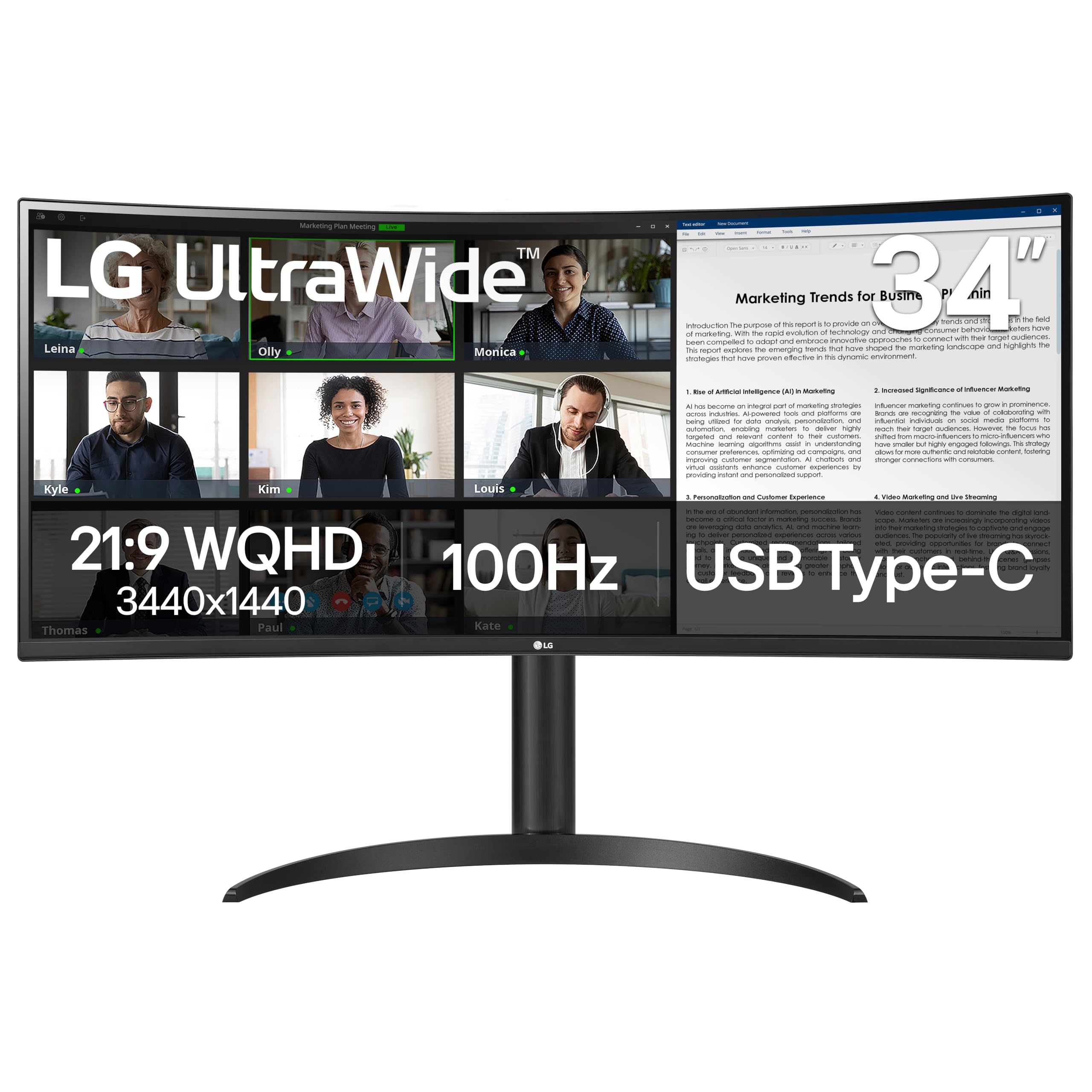
The LG 34WR55QK-B offers an affordable entry point into ultra-wide coding without asking you to compromise on resolution or ergonomics. The 34-inch VA panel delivers WQHD (3440×1440) with a 3000:1 contrast ratio, giving dark mode backgrounds real depth and making syntax-highlighted text pop. The 100Hz refresh rate, while not the fastest in this list, brings a noticeable improvement in scrolling smoothness compared to a standard office monitor.
LG includes a dedicated Reader Mode that reduces blue light specifically for reading text, which is a genuine benefit for developers who spend hours scanning code. The OnScreen Control software allows you to split the display into custom zones and supports Picture-by-Picture for viewing two input sources simultaneously. The USB-C port provides 65W power delivery, enough to charge many ultra-light laptops while keeping the desk uncluttered.
One clear omission: there are no built-in speakers, so you will need external speakers or headphones for any audio. The stand offers height and tilt adjustment, which is generous at this price point, but lacks swivel or pivot. For a developer on a tight budget who still wants the workflow benefits of an ultra-wide, the LG 34WR55QK-B delivers solid baseline performance.
Why it’s great
- 34-inch ultra-wide WQHD screen at a very accessible investment.
- Reader Mode reduces blue light for extended coding sessions.
- 65W USB-C PD simplifies laptop connectivity.
Good to know
- No built-in speakers — external audio is required.
- Stand lacks swivel and pivot adjustment.
- 100Hz is smooth but less than higher-tier options.
9. MSI MPG 321URX QD-OLED 32″ 4K Gaming Monitor

The MSI MPG 321URX sits at the very top of the performance pyramid with its 32-inch QD-OLED panel, offering a 4K UHD resolution at 240Hz with an astonishing 0.03ms response time. For a developer, the benefit is not the frame rate in games but the infinite contrast ratio: true blacks and zero backlight bleed make dark mode editors look phenomenal, with text appearing to float on the screen. The 99% DCI-P3 colour gamut ensures vibrant colour differentiation in syntax highlighting.
The monitor is equipped with HDMI 2.1 ports and a USB-C port with 90W power delivery, making it a viable hub for a modern laptop. The KVM switch and PiP/PbP functions are included, allowing you to display output from two machines simultaneously — useful for cross-platform debugging. OLED Care 2.0 provides active burn-in protection measures, and MSI offers a three-year warranty against burn-in, which addresses the primary concern for productivity users considering OLED.
The QD-OLED panel can exhibit a slight purple tint when ambient light hits it from specific angles, though this is rarely noticeable during normal use. Text rendering on a QD-OLED is generally very good but may not match the ultra-sharp clarity of a high-density IPS panel in some font rendering scenarios. For a developer who also games or values the absolute best contrast for dark themes, the MPG 321URX is a benchmark-defining choice.
Why it’s great
- Infinite contrast ratio delivers true blacks for perfect dark mode coding.
- 240Hz refresh rate provides the smoothest scrolling possible.
- Three-year burn-in warranty makes OLED a viable productivity investment.
Good to know
- QD-OLED can show a purple tint under direct ambient light.
- Text rendering may not be as razor-sharp as the best IPS panels.
- Premium cost reflects top-tier technology.
FAQ
Is a 4K monitor necessary for coding?
Does a curved screen help with programming?
Should I get an OLED monitor for coding?
Final Thoughts: The Verdict
For most users, the best coding monitor winner is the BenQ RD280U because its unique 3:2 aspect ratio and Nano Matte panel are purpose-built to reduce eye strain and show more code vertically. If you want the smoothest scrolling and deepest blacks for dark mode, grab the Dell UltraSharp U2725QE. And for the best value ultra-wide canvas that transforms multitasking, nothing beats the Dell 34 Plus S3425DW.

Mo Maruf
I created WellFizz to bridge the gap between vague wellness advice and actionable solutions. My mission is simple: to decode the research and give you practical tools you can actually use.
Beyond the data, I am a passionate traveler. I believe that stepping away from the screen to explore new environments is essential for mental clarity and physical vitality.