Our readers keep the lights on and my smoothie glass nicely filled. As an Amazon Associate, I earn from qualifying purchases.
Navigating a complex 3D scene with a standard office mouse is like sculpting marble with a butter knife. The lack of precision, the need to hunt for the middle-click, and the absence of a balanced weight distribution can turn hours of modeling into a frustrating exercise in wrist strain. A dedicated 3D modeling mouse changes everything by offering high DPI sensors for pixel-precise cursor placement, programmable buttons for macros, and an ergonomic silhouette designed for marathon sessions.
I’m Mohammad Maruf — the founder and writer behind WellFizz. I’ve spent years analyzing peripheral specifications, from optical sensor accuracy and polling rates to material durability and software ecosystems, to identify the tools that genuinely improve a professional modeler’s workflow.
To help you cut through the noise, I’ve tested and compared the most promising models on the market to bring you a definitive guide to the best 3d modeling mouse for your specific needs.
How To Choose The Best 3D Modeling Mouse
Selecting the right input device for 3D modeling, CAD, or sculpting goes beyond just tracking a cursor. The wrong choice can lead to chronic pain and reduced productivity. Here are the key factors to consider before you buy.
Sensor Precision and DPI Range
For 3D modeling, you need a sensor that offers both high precision for fine vertex edits and the ability to track on different surfaces. Look for a mouse with an optical sensor capable of at least 4000 DPI, which allows you to slow down for detailed work or speed up for navigating large scenes. Models with a DPI toggle button let you switch between precision and speed without entering a menu.
Ergonomics and Wrist Health
Modeling often requires hours of continuous clicking and dragging, which can strain the forearm, wrist, and hand. A standard mouse forces your hand into a pronated position. Ergonomic alternatives like vertical mice or trackballs can reduce muscle fatigue by promoting a more neutral handshake position or by eliminating the need to move the mouse altogether, making them a top priority for professionals suffering from or preventing RSI.
Programmable Buttons
A key feature of a professional 3D modeling mouse is the ability to assign common software commands—like undo, orbit, pan, or a specific tool—to side buttons. A minimum of 5-6 programmable buttons is recommended. This reduces hand travel away from the mouse, speeding up your workflow and keeping your focus on the model.
Quick Comparison
On smaller screens, swipe sideways to see the full table.
| Model | Category | Best For | Key Spec | Amazon |
|---|---|---|---|---|
| 3Dconnexion CadMouse Compact Wireless | Mid-Range | CAD Precision & Portability | 7 Programmable Buttons | Amazon |
| Contour Unimouse | Mid-Range | Custom Ergonomic Fit | Adjustable 35°-70° Tilt | Amazon |
| Logitech MX Master 3S | Premium | All-Day Comfort & Flow | 8K DPI / MagSpeed Scroll | Amazon |
| Logitech MX Ergo S | Premium | Thumb-Controlled Trackball | 20-Degree Fixed Tilt | Amazon |
| Kensington Expert Wireless Trackball | Mid-Range | Ambidextrous Desk Control | 55mm Ball / Scroll Ring | Amazon |
| Contour RollerMouse Pro3 | Premium | Zero-Movement Ergonomic | Rollerbar Cursor System | Amazon |
| ASUS ROG Harpe Ace Extreme | Premium | Ultra-Light High-Speed | 47g / 42K DPI Sensor | Amazon |
In‑Depth Reviews
1. 3Dconnexion CadMouse Compact Wireless
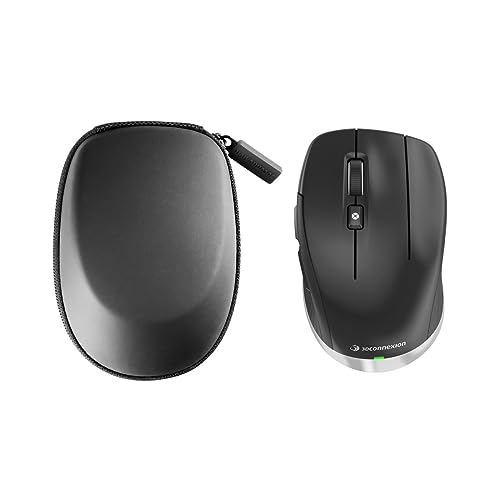
The 3Dconnexion CadMouse Compact Wireless is purpose-built for the CAD and 3D modeling professional. Its design prioritizes a low-profile body that encourages a relaxed hand position, preventing the fatigue that comes from gripping a larger, bulkier mouse during long sessions in SolidWorks or Blender. The seven-button layout is intelligently placed, giving you access to critical commands like undo and redo without moving your fingers.
Optical tracking is smooth and dependable across a variety of surfaces, ensuring that your cursor doesn’t skip during precise edge selection. The Bluetooth connectivity keeps your desk clutter-free while offering a reliable connection with a battery life that stretches for weeks on a single charge. This is a tool that understands the specific needs of a modeler.
User feedback consistently highlights the robust build quality and the immediate productivity bump from the programmable buttons. While it is a right-hand-only design, the dedicated cursor layer control in its software makes it a seamless companion for professionals who use the 3Dconnexion SpaceMouse lineup for navigation.
Why it’s great
- Ergonomic shape designed specifically for long CAD sessions.
- Seven well-placed programmable buttons for common modeling commands.
- Reliable wireless connection with excellent battery life.
Good to know
- Right-hand only orientation.
- Lacks a DPI toggle switch for on-the-fly sensitivity changes.
2. Contour Unimouse Ergonomic Vertical Mouse

The Contour Unimouse tackles the number one pain point for modelers who suffer from wrist pain: the forced pronation of a standard mouse. Its defining feature is a friction hinge that lets you set the tilt angle anywhere from 35 to 70 degrees, allowing you to find the exact position that relieves pressure on your forearm. The adjustable thumb support further customizes the fit for different hand sizes.
With six programmable buttons and a smooth scroll wheel, you can offload repetitive actions like switching between selection tools or rotating the view. The wireless 2.4GHz connection is stable and low-latency, and the rechargeable battery lasts up to 12 weeks on a single charge. This is a specialized tool for users who refuse to compromise on wrist health for the sake of performance.
Reviews indicate that for those with pre-existing conditions like tennis elbow or tendonitis, the Unimouse provides significant relief. The build quality is solid, though the rubberized coating on older models has been noted to peel over very long-term use. It is an investment in long-term health that many professionals find essential.
Why it’s great
- Highly adjustable tilt angle for a custom ergonomic fit.
- Large, customizable thumb rest for different hand sizes.
- Long-lasting rechargeable battery reduces cable clutter.
Good to know
- Ergonomic position takes a day or two to adapt to.
- Some users report a faint buzzing noise from the sensor.
3. Logitech MX Master 3S
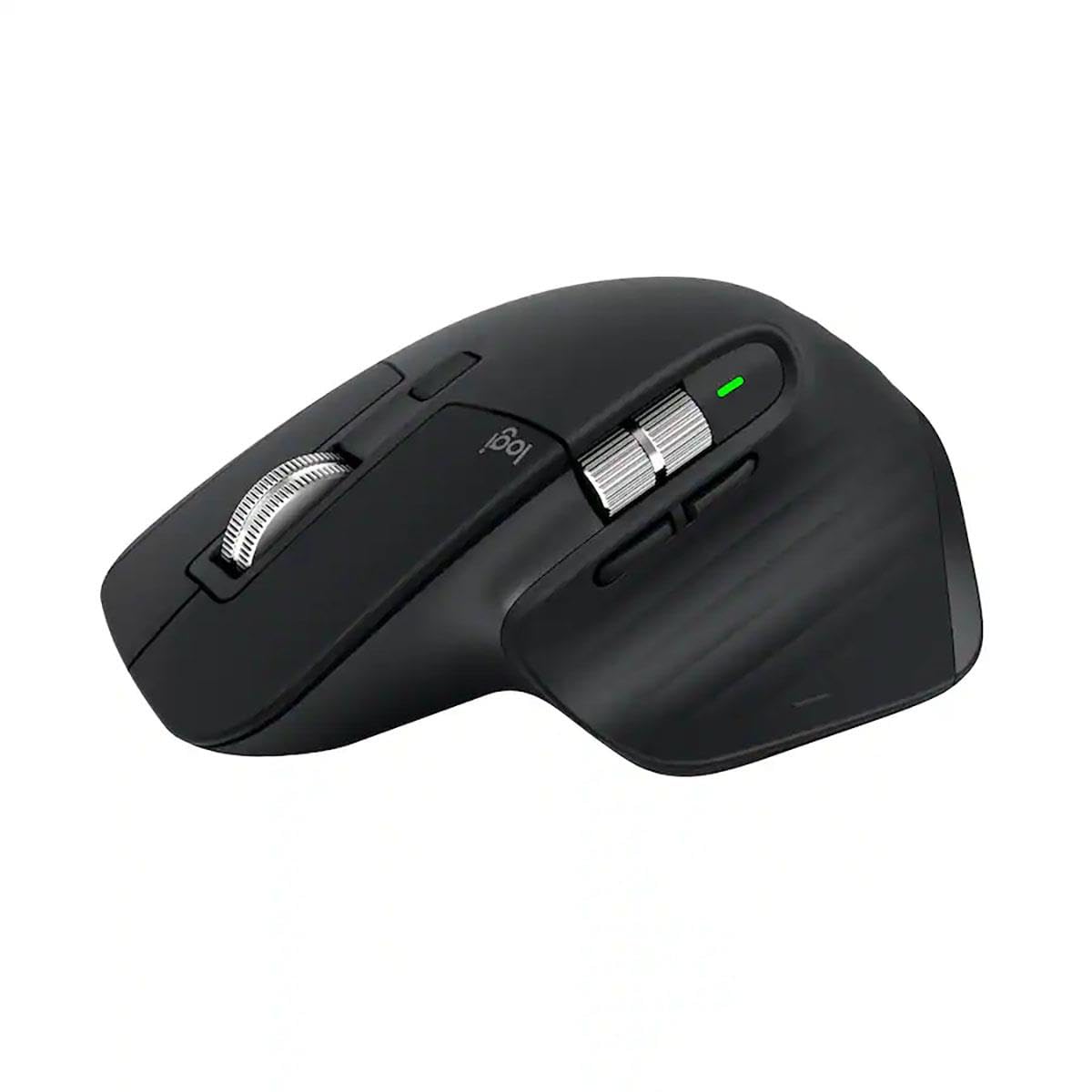
The Logitech MX Master 3S is a classic for a reason. Its 8000 DPI sensor tracks flawlessly on any surface, including glass, which is a huge bonus when working from different desks or coffee shops. The Darkfield sensor ensures that not a single pixel is skipped during precise poly-by-poly modeling. The MagSpeed electromagnetic scroll wheel is a standout feature, allowing you to hyper-scroll through long timelines or switch to a ratcheted feel for frame-by-frame analysis.
The ergonomic silhouette is sculpted to support a natural hand posture, and the thumb wheel and gesture button provide additional axes of control. Using Logi Options+, you can create app-specific profiles for Blender, Maya, or ZBrush, automatically remapping buttons when you switch applications. The quiet clicks are a welcome upgrade for working in shared studio spaces.
Customer reviews consistently praise its supreme comfort for all-day use and the smooth, almost silent scrolling. The main drawbacks are its right-hand-only orientation and the fact that the USB receiver is sold separately, requiring you to rely on Bluetooth or an existing Bolt receiver. It remains a top choice for the UI-focused artist or modeler who values versatility.
Why it’s great
- Best-in-class Darkfield sensor tracks on glass surfaces.
- MagSpeed scroll wheel is incredibly fast and precise.
- App-specific customization through Logi Options+ software.
Good to know
- USB receiver is not included in the box.
- Right-hand design only; no left-handed variant.
4. Logitech MX Ergo S Advanced Trackball

The Logitech MX Ergo S offers a different approach to ergonomics by eliminating mouse movement entirely. Instead of dragging a mouse across a pad, you use your thumb to roll a precision-machined trackball, leaving your arm stationary and reducing strain on your shoulder and elbow. The 20-degree fixed tilt promotes a more natural forearm posture, which research shows can reduce muscle strain by 27 percent.
The trackball provides excellent control, and the dedicated precision button instantly dials down the cursor speed, allowing you to place a vertex with extreme accuracy. With eight programmable buttons and support for Logi Options+ Smart Actions, you can build powerful macros for repetitive modeling tasks. The quick USB-C charging offers a full day of use from just a one-minute charge.
Users with chronic wrist issues report this mouse as a lifesaver, effectively eliminating the pain associated with conventional mice. The learning curve for the thumb trackball is real, typically taking a few days to master. It is best suited for users with medium to large hands, as the ball and hand rest can feel large for those with a smaller hand span.
Why it’s great
- Eliminates arm and wrist movement, reducing repetitive strain.
- Dedicated precision mode for fine vertex control.
- USB-C fast charging with exceptional battery life.
Good to know
- Requires a learning curve to master thumb-based cursor control.
- Best suited for medium to large hands.
5. Kensington Expert Wireless Trackball

For users who prefer a finger-operated trackball, the Kensington Expert Wireless is the gold standard. The large 55mm ball sits in the center, allowing you to use your index, middle, and ring fingers to execute precise cursor movements. This is fantastic for 3D modeling because you can make micro-adjustments with your fingertips while keeping your wrist completely still and relaxed.
The patented scroll ring is a unique and intuitive way to pan through orthographic views or scrub through a timeline without hunting for a wheel. The ambidextrous design means it works equally well for left-handed users. The four customizable buttons can be assigned with the KensingtonWorks software, though the software experience on macOS has been reported to be less polished than on Windows.
Users praise the build quality and the smooth, durable ball bearing action that feels premium even after years of use. The primary downsides include a lack of a dedicated DPI switch and a wrist rest that some find creates an upward angle that can aggravate carpal tunnel for certain users. It is a solid, comfortable alternative for those looking to eliminate desk clutter and arm movement.
Why it’s great
- Large 55mm ball allows for fine fingertip control.
- Patented scroll ring is intuitive and easy to use.
- True ambidextrous design fits left-handed users.
Good to know
- Only four programmable buttons, limiting macro potential.
- Software can be finicky on macOS platforms.
6. Contour RollerMouse Pro3

The Contour RollerMouse Pro3 redefines the mouse entirely. It sits directly in front of your keyboard, eliminating the need to reach out to a peripheral. You control the cursor by sliding a roller bar with any finger, a movement so minimal that it drastically reduces strain on the shoulder, neck, and wrist. For modelers suffering from severe carpal tunnel or RSI, this is often the only device that allows them to continue working.
It features built-in copy and paste buttons, along with five additional programmable shortcuts, which can be a massive time-saver when moving data between spreadsheets or geometry. The 10 adjustable cursor speed settings offer the flexibility to switch from a fast scroll through an entire scene to a slow crawl for detailed contour modeling. The leatherette memory foam wrist rest provides a comfortable base for all-day use.
Feedback from users is overwhelmingly positive, with many noting a complete disappearance of their previous pain within weeks. The trade-off is the price and the fixed wired connection. It also requires a significant amount of desk space in front of your keyboard. For those whose health is at stake, it pays for itself many times over by preventing medical costs and lost work time.
Why it’s great
- Completely eliminates reaching and gripping, a top solution for RSI.
- Built-in copy/paste and programmable buttons boost efficiency.
- Memory foam wrist rest provides excellent comfort for long sessions.
Good to know
- Requires dedicated desk space in front of the keyboard.
- Wired connection only, no wireless option available.
7. ASUS ROG Harpe Ace Extreme

The ASUS ROG Harpe Ace Extreme is an ultra-lightweight esports mouse that brings impressive specs to the modeling desk. Its 47-gram carbon fiber shell is incredibly light, making it feel almost weightless in the hand. This can be beneficial for rapid, sweeping camera movements in viewport navigation, reducing the fatigue of moving a heavy mouse across a large desk. The 42,000 DPI sensor provides an insane level of tracking resolution.
The 8000 Hz polling rate ensures that cursor input is registered with zero perceptible delay, which is crucial for real-time sculpting in applications like ZBrush where every micro-movement needs to translate instantly. The ROG optical micro switches are rated for 100 million clicks, guaranteeing longevity. The mouse also features a unique shape developed with esports pros for maximum stability during quick flicks.
While its build quality and speed are exceptional, its primary focus is on low-weight and high-speed performance, not long-term ergonomic wrist support. The glossy carbon fiber coating on some units has shown wear on the bottom skates. For a modeler who also games or who prioritizes a feather-light touch and instant response time above all else, this is a unique and compelling option.
Why it’s great
- Extremely lightweight at 47g, reducing arm fatigue.
- Industry-leading 42K DPI sensor and 8000 Hz polling rate.
- Premium carbon fiber shell and 100-million-click optical switches.
Good to know
- Ergonomic design is focused on speed, not wrist support.
- Some reports of durability issues with the coating and buttons.
FAQ
Can I use a gaming mouse for 3D modeling?
What is the benefit of a trackball over a vertical mouse for modeling?
How many programmable buttons do I really need for CAD?
Final Thoughts: The Verdict
For most users, the best 3d modeling mouse winner is the 3Dconnexion CadMouse Compact Wireless because its button layout and ergonomic design are purpose-built for the CAD workflow, offering the best balance of portability and professional features. If you want better wrist health and a custom tilt, grab the Contour Unimouse. And for severe RSI relief where you cannot move your arm at all, nothing beats the Contour RollerMouse Pro3.

Mo Maruf
I created WellFizz to bridge the gap between vague wellness advice and actionable solutions. My mission is simple: to decode the research and give you practical tools you can actually use.
Beyond the data, I am a passionate traveler. I believe that stepping away from the screen to explore new environments is essential for mental clarity and physical vitality.