Our readers keep the lights on and my smoothie glass nicely filled. As an Amazon Associate, I earn from qualifying purchases.
Specs are compiled from manufacturer listings and verified buyer reviews and can change over time — please confirm the key details on the product page before buying.
Buying your first drawing tablet is a gamble—you do not want to drop cash on a tool you might hate. You will find the best value here: tablets that give you the most critical drawing specs for the least money. These nine picks range from simple pen pads to screen displays to standalone Android slates.
I’m Mohammad Maruf — the founder and writer behind WellFizz. This guide is built by comparing the manufacturers’ published specifications and the patterns across verified customer reviews, so you get each pick’s real strengths and trade-offs instead of marketing spin.
The only thing that matters here is value: which of these tablets gets the most important drawing specs right for the lowest price. These nine options are the absolute best in the budget tablet for drawing category right now, from pure pen pads to full-on screen displays and standalone Android slates.
Our Picks at a Glance


How To Choose The Best Budget Tablet For Drawing
Picking a budget drawing tablet depends on understanding a few key specs that directly affect how your art feels and looks. Here is what you need to know before you spend a dime.
Pen Tablet vs. Pen Display: The First Big Choice
The most important decision is if you want a tablet without a screen (a pen tablet) or one with a screen (a pen display). A pen tablet, like the HUION Inspiroy 2, is a flat pad you plug into your computer. You draw on the pad while looking at your monitor. These are usually cheaper and more portable. A pen display, like the XP-PEN Artist12, lets you draw directly on a screen. This is more intuitive and mirrors traditional drawing, but costs more and has a bigger setup with cables.
Pressure Sensitivity: The Feel of Your Stroke
This spec tells you how many levels of pressure the pen can detect. A higher number means the tablet can tell the difference between a very light whisper of a stroke and a heavy, bold line. Most budget tablets offer 8192 levels, which is more than enough for smooth, professional-looking line art. Some premium options are now jumping to 16384 levels, offering even finer control for subtle shading.
Active Area and Resolution: Your Digital Canvas
The active area is the actual drawing surface measured in inches. A larger area gives you room for sweeping arm movements, while a smaller one limits you to wrist movement. The resolution (LPI or lines per inch) determines how precisely the tablet tracks your pen. A higher LPI, like 5080LPI, means smoother, more accurate cursor movement on screen. For a budget pick, look for at least an 8 x 5 inch active area and a high LPI rating.
Quick Comparison
| Model | Best For | Active Area | Pressure Sensitivity | Connectivity | Amazon |
|---|---|---|---|---|---|
| HUION Inspiroy 2 Large★ Best Overall | Best Overall Pen Tablet | 10.5 x 6.56 inches | PenTech 3.0 | USB-C | Amazon |
| XPPen Deco Pro LW 2ndWireless Pick | Wireless Freedom | 9 x 6 inches | 16K Levels | Bluetooth 5.0, USB | Amazon |
| XP-PEN Artist12Value Screen | Entry-Level Screen | 11.6 inches | 8192 Levels | HDMI, USB | Amazon |
| UGEE UE16 | Vivid Colors on a Screen | 15.4 inches | 16K Levels | USB-C (3-in-1) | Amazon |
| TCL NXTPAPER 11 Gen 2 | Standalone Android Slate | 11 inches | 4096 Levels | Wi-Fi, Bluetooth | Amazon |
| XP-PEN Artist 13.3 Pro V2 | Top-Tier Display Quality | 13.3 inches | 16K Levels | Dual USB-C, HDMI | Amazon |
| XENCELABS Drawing Tablet Bundle | Pro Shortcut Workflow | 10.33 x 5.8 inches | 8192 Levels | USB, Wireless | Amazon |
| HUION Kamvas 13 (Gen 3) | Balanced Screen Experience | 13.3 inches | 16384 Levels | 3-in-1 Cable, USB-C | Amazon |
| Lenovo Idea Tab | Versatile Student Tablet | 11 inches | Tab Pen Included | Wi-Fi, Bluetooth | Amazon |
In‑Depth Reviews
1. HUION Inspiroy 2 Large Drawing Tablet
The crowd-pleasing pen pad that gives beginners a pro-level starting point while staying affordable.
This is the tablet that shows up in so many reviews as the first pick for artists on a budget, and it is easy to see why. The active drawing area is a generous 10.5 x 6.56 inches, giving you plenty of room for sketching and line art without feeling cramped. The pen here is the PW110, a battery-free stylus using the upgraded PenTech 3.0, which buyers report feels “smooth” and “responsive” after a quick calibration, with no noticeable lag or wobble.
what separates it from other budget pads is the physical scroll wheel and the 3-set, 8-key shortcut cluster. You can program these for different apps, which speeds up your workflow significantly. It also works with Android devices (OS 6.0 or later) via the included USB-C OTG adapter, letting you draw on a phone or tablet. One recurring piece of feedback from a Linux user is that while the pen maps correctly, Huion’s software can mis-map the buttons to only the left third of the screen on certain systems.
The hardware is solid, lightweight at just 1.2 pounds, and slim enough to slide into a laptop bag. There is a minor but notable point from reviewers: the connection is Micro B, not USB-C, which feels a bit dated. Still, for the price, it is an exceptional starting point for digital art.
Why It Wins
- Large, spacious active area for comfortable arm movement.
- Battery-free stylus with great pressure tracking.
- Custom scroll wheel and programmable express keys speed up work.
- Works with Windows, Mac, Linux, and certain Android devices.
The Reality Check
- Some users report the software can be finicky on Linux and Android.
- Uses a Micro B connection instead of the more modern USB-C.
Your first tablet: This is the perfect entry-level tool for beginners and hobbyists who want a reliable, large-format pen tablet without needing a display.
Look elsewhere if: You need a plug-and-play experience on Linux or a wireless connection, as the cable and driver setup can be a hurdle.
2. XPPen Deco Pro LW 2nd
A premium pen pad that cuts the cord with a massive battery and a highly sensitive stylus.
The defining feature here is the wireless freedom. This tablet connects via Bluetooth 5.0, USB wireless receiver, or a wired USB-C connection, and it can pair with two devices at once. The large-capacity lithium battery (1000mAh/3.7V) is what really matters, giving you over 10 hours of use on a single charge. A senior 3D artist with 25 years of experience noted the value is excellent compared to overpriced competitors, though they found Bluetooth lag in Maya and ZBrush, which was solved by switching to the USB-C cable.
The X3 Pro Stylus is a highlight, offering 16K levels of pressure sensitivity and a 60-degree tilt function. This means you get incredible nuance in your lines, from the lightest sketch to the boldest fill. The active area is 9 x 6 inches (a 6% more gap than the HUION Inspiroy 2’s width), which is a comfortable middle ground. The included Mini Keydial remote with 10 customizable keys is a powerful tool for streamlining your workflow in apps like Photoshop and Blender.
A few owners on Mac noted that the driver installation requires accepting accessibility permissions and is not available in the App Store, which adds an extra step. Some also report the driver can cause minor menu glitches that a quick restart fixes.
The Wireless Advantage
- Truly wireless with a 10+ hour battery life.
- Excellent 16K pressure sensitivity and tilt for realistic strokes.
- Comes with a useful Mini Keydial remote for shortcuts.
- Large active area matches well with bigger monitors.
The Trade-Offs
- Bluetooth wireless is not compatible with Android or Linux.
- Driver setup on Mac can be a bit more involved than on Windows.
Cut the cord: This tablet is for the artist who hates being tethered and wants a professional-grade stylus with a high level of pressure sensitivity.
Only if wired works: If you primarily use Android or need a completely smooth Mac setup, you might find the wireless restrictions and driver quirks a bit annoying.
3. XP-PEN Artist12
The cheapest way to get a screen you can draw on directly, and it comes with a battery-free stylus.
This is the gateway to screen-based drawing for anyone on a tight budget. The 11.6-inch FHD IPS display (1920×1080) is a massive step up from a non-screen tablet, letting you watch your strokes appear right under the pen tip. The 8192 levels of pressure sensitivity on the battery-free P06 stylus are more than sufficient for detailed digital art, and the eraser on the end of the pen is a very convenient feature. The thing that wins people over is the build quality, which over 350 owners specifically praise, and the value for money, mentioned by over 220.
The pre-installed anti-glare screen protector is a nice touch, reducing reflections. The 6 customizable shortcut keys and a programmable touch bar make navigating your software easier. It is ideal for online education and remote work, functioning as an extended display for handwritten notes. The visual quality is noted as superior to most laptops, with a sleek, pencil-like stylus that is comfortable for long sessions.
However, the setup is the main hurdle. Many owners describe it as difficult, requiring multiple resets and cable checks. The connection requires both an HDMI and a USB-A port, and the 3-in-1 cable can be cumbersome. If a port is loose, you might see no image at all. This is a fantastic tool once it’s working, but beginners should be prepared for a bit of a struggle during the initial setup.
Drawing on a screen: If you are a hobbyist or student upgrading from a pen pad and want a direct drawing experience without spending a fortune, this is the most affordable entry point.
Skip it for simplicity: If a plug-and-play setup is your top priority, the driver and cable configuration can be a frustrating first experience compared to a simple pen tablet.
4. UGEE UE16

A huge 15-inch screen with color specs that rival monitors costing twice as much.
The biggest reason to pick the UE16 is its display. At 15.4 inches, it is the largest drawing screen on this list, and it covers 143% sRGB color gamut. This means the colors are incredibly vivid and accurate, making it a fantastic second monitor for color-critical design work as well as drawing. It also offers four color space modes (sRGB, Adobe RGB, DCI-P3, and Black & White) so you can switch between tasks like design, reading, or photo editing. The full-laminated screen helps reduce parallax, making your pen tip feel right on the image.
The U-Pencil stylus offers 16K levels of pressure sensitivity and includes two customizable hotkeys and a pressure-sensitive eraser. An important note from early buyers: the screen ships with a blue protective film. You must remove it to see the true, accurate colors. One owner mentioned a very slight buzzing sound at the power port, but something you would only notice in a dead-quiet room.
While the 8 physical shortcut keys and scroll wheel offer good tactile feedback, the nibs on the pen are reported to wear down quickly, especially if you have a heavy hand. The included extras will last, but you may need replacements within a year. It is compatible with Windows, Mac, Chrome OS, Android, and Linux.
Color accurate and huge: This is for the digital artist or designer who needs a large, color-rich display to work on, or who wants a great second monitor that also functions as a drawing canvas.
The main catch: The stylus nibs wear down faster than most, and you will want to remove the protective film immediately for accurate colors.
5. TCL NXTPAPER 11 Gen 2
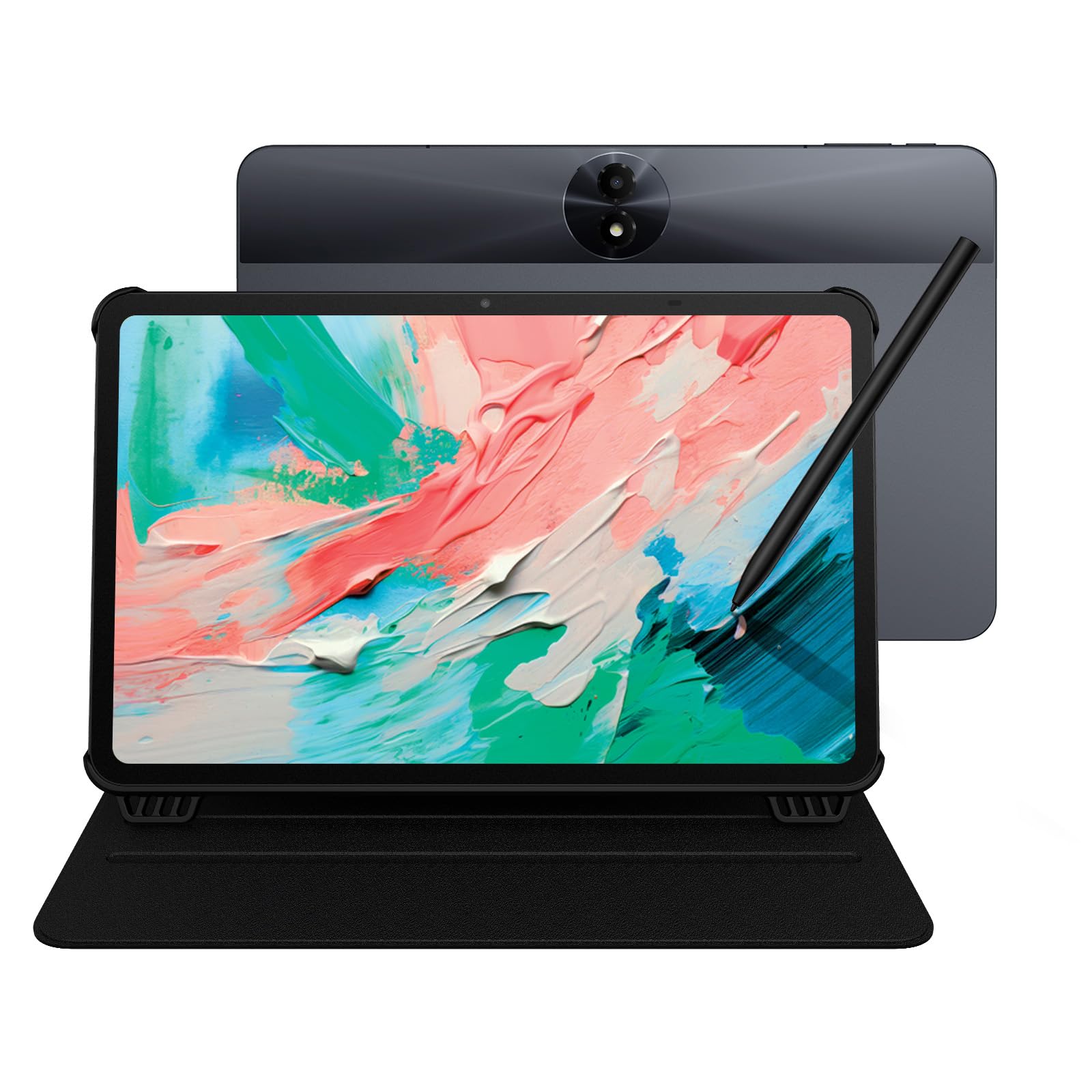
A full Android tablet that doubles as a drawing pad and an e-reader, all in one budget-friendly package.
This is not a peripheral for your computer — it is a standalone Android 15 tablet that you can draw on right from the start. The centerpiece is the 11-inch 2K (1920 x 1200) NXTPAPER 4.0 display. This is not a standard screen; it uses TÜV-certified low blue light and anti-glare technology to mimic the feel of paper, reducing eye strain significantly during long drawing sessions. The included T-PEN stylus features 4096 levels of pressure sensitivity, which is good for sketching, note-taking, and general art.
The device is powered by a MediaTek Helio G80 processor with 8GB + 8GB RAM and 128GB of storage (expandable up to 1TB). The 8000mAh battery is a huge selling point, easily lasting a full day of mixed use, and it even supports reverse charging for your phone. The device quality is what owners praise most, and the performance is noted as snappy. The flip case is included, and the overall feel is described as premium.
As a drawing tablet, the 4096 pressure levels are lower than the dedicated 16K tablets on this list, so it won’t match the nuance for professional line art. A few owners mention the speakers are mediocre and there is no headphone jack, and the plastic case feels a bit flimsy. The screen also has an issue with polarized sunglasses in portrait mode, which is a specific deal-breaker for some.
An all-in-one device: This is the best choice for students or casual artists who want a tablet for reading, browsing, and occasional drawing, all on a single device with a stunning battery life.
Not for pro art: If your main focus is professional-level digital painting with fine pressure control, a dedicated drawing tablet with 8192+ pressure levels will serve you much better.
6. XP-PEN Artist 13.3 Pro V2

A fully laminated screen with cinema-grade colors and the world’s first 16K pressure stylus, making digital art feel natural.
The Artist 13.3 Pro V2 makes a massive leap in display quality. The fully laminated screen eliminates the air gap between the glass and the LCD, which means there is virtually no parallax — your pen tip is exactly where the line appears. The 13.3-inch FHD (1920×1080) screen covers 95% P3 cinema-grade color gamut, which is a spec usually reserved for much more expensive monitors. The X3 Pro Smart Chip Stylus delivers a quantum leap to 16,384 (16K) levels of pressure sensitivity, which is 2x higher than the standard 8192 tablets.
The build quality is also a step up. The tablet has a premium, rigid metal back panel that looks sleek and helps dissipate heat. The iconic red dial roller and 8 customizable express keys are extremely useful for quickly adjusting brush size or zooming. It includes an ergonomic foldable stand, and it can toggle between Pen Display mode (drawing on screen) and Pen Tablet mode (screen off for traditional pad use), which saves laptop battery. Owners say the drawing feels “natural, like paper” and that the lines are “clean” with better thickness control.
The only real drawbacks are the cable management. While it supports a clutter-free single USB-C connection (if your device supports USB3.1 DP1.2), it still requires a computer to function and is not a standalone device. The screen is also noted by some to run a bit warm on the port side after three hours of use.
Professional colors, natural feel: This is for the serious hobbyist or professional who demands the lowest parallax and the best color accuracy from their budget drawing display.
One minor issue: The tablet is an upgrade in every way, but the port side can get warm during very long drawing marathons.
7. XENCELABS Drawing Tablet Bundle

A professional pen tablet that skips the screen but not the features, including a mind-boggling 40 programmable keys.
This is a pen tablet (no screen) that is built for pure workflow efficiency. The standout feature is the Quick Keys accessory, which gives you 5 sets of 8 keys — a total of 40 programmable functions. It includes a physical dial with 4 settings and an OLED display that shows you exactly what each key does at a glance. This allows you to create logical key groupings for different software, which is a massive time-saver. The active area is a 16:9 ratio 10.33 x 5.8 inches, matching industry standard displays.
You get two battery-free pens in the box: a wider 3-button pen with an eraser and a thinner 2-button pen. The inclusion of 8192 levels of pressure sensitivity and a very low 3G initial activation force means that even the lightest touch is captured. The tablet surface has just the right amount of friction, delivering fluid strokes that feel like traditional pen and paper. Professional artists have called it “the best pen tablet I’ve ever used,” praising its zero lag and the excellent build quality of the accessory.
The main caveat comes from macOS users. While the hardware is fantastic, the software control panel for macOS is described as a “B-” — it occasionally requires a restart after a click failure and is not perfectly stable yet. Also, the included pens feel slightly cheap to some, though they function perfectly well.
Workflow champion: This is the perfect tablet for professional artists who work in complex software and want dozens of shortcuts at their fingertips without looking at a keyboard.
Mac users beware: If you are on a Mac and rely on flawless driver behavior, the software is not quite as polished as the hardware deserves.
8. HUION Kamvas 13 (Gen 3)

A perfectly balanced 13.3-inch screen tablet with the latest PenTech 4.0 and fantastic color calibration.
The next step up for screen quality: the HUION Kamvas 13 (Gen 3) gives you factory-calibrated colors right from the start, with an average Delta E of less than 1.5. That means your greens, blues, and skin tones will match your computer monitor from the start, without manual tweaking. The 13.3-inch fully laminated display uses new Canvas Glass 2.0, which reduces glare and improves accuracy.
The PenTech 4.0 stylus is a highlight, offering 16384 levels of pressure sensitivity with a very light 2g IAF (Initial Activation Force). This means the tablet will register the absolute lightest touch, giving you incredible control for delicate shading. It includes 3 customizable pen side buttons and the tablet itself features 5 programmable shortcut keys and dual dial buttons for a fast workflow. Owners who have switched from an iPad say it feels fantastic for new digital artists, with no lag and a color match to their computer screen.
One of the main praises is the “buttery smooth” drawing surface and the lack of rainbow pixilation that can plague some etched glass. The screen is, however, rated at 200 nits, which is a bit dark for brightly lit rooms. The connection requires a 3-in-1 cable (HDMI, USB, power), which can be a bit cumbersome, though a full-featured USB-C cable is sold separately for a cleaner setup.
Color accurate and smooth: This is for the digital artist who wants a perfectly calibrated, high-pressure-sensitivity screen tablet with excellent customer support and a premium drawing feel.
The only downsides: The screen’s 200 nit brightness is a bit low for some, and the included 3-in-1 cable is a clutter risk unless you buy the separate USB-C cable.
9. Lenovo Idea Tab

A powerful student-focused Android tablet with a vivid 2.5K screen and a huge 256GB of storage.
The Lenovo Idea Tab is a standalone Android tablet designed for college students, and it comes with a Lenovo Tab Pen and a folio case in the box. The display is the star of the show: an 11-inch 2.5K (2560 x 1600) IPS touchscreen that runs at a smooth 90Hz refresh rate. This means scrolling, drawing, and watching videos feel incredibly fluid and responsive. The MediaTek Dimensity 6300 processor coupled with 8GB of RAM (which can be expanded virtually) handles multitasking and light creative work with ease.
The included stylus is a passive pen that works for note-taking, sketching, and basic drawing. The interface is enhanced with AI tools like “Circle to Search with Google” for instant look-ups and translation. The 256GB of internal storage is generous, and you can expand it further with a microSD card. The battery is a sturdy 7216 mAh, delivering up to 12 hours of YouTube playback, so it easily lasts a full day on campus. The quad Dolby Atmos-tuned speakers provide great sound for study breaks. The build quality and screen quality are the two most praised aspects by owners.
For drawing specifically, the stylus is fine for note-taking and casual sketching, but it does not have the high pressure sensitivity (8192+) or tilt functionality of dedicated drawing tablets. Owners also note that the included case feels a bit flimsy, and the tablet does not come with extra pen tips, which was a small frustration for some.
Your all-day study partner: This is the ideal tablet for a student who needs a device for everything—note-taking with the stylus, reading textbooks, streaming, and light drawing—all on a stunning 90Hz display.
Know the limits: The stylus is good for notes and sketches, not for professional-level digital art. If your primary goal is drawing, you will want a dedicated graphics tablet with higher pressure sensitivity.
Understanding the Specs
Active Area
The active area is the part of the tablet where your pen strokes are detected, measured in inches. A larger active area, like the 10.5 x 6.56 inches on the HUION Inspiroy 2, lets you make sweeping arm movements for big lines and detailed work without feeling confined. A smaller area, like 9 x 6 inches, forces you to use more wrist movement, which can be tiring for long sessions but is more portable.
Pressure Sensitivity Levels
This number (8192, 16384, etc.) tells you how many different levels of pressure the tablet can tell apart. The higher the number, the finer the control you have over your stroke. At 8192 levels, you can already create smooth, expressive lines from a whisper-thin hair to a bold, thick stroke. Jumping to 16384 levels gives you even more nuanced shading, but 8192 is considered professional-grade and more than enough for most artists.
FAQ
Do I need a drawing tablet with a screen or without a screen?
What does battery-free stylus mean and why does it matter?
Can I use a budget drawing tablet with my Android phone or tablet?
Is a 8192 pressure sensitivity level enough for professional drawing?
What does full lamination do for a drawing display?
How many shortcut keys do I really need for my workflow?
Can I use a drawing tablet as a second monitor?
What is a 3-in-1 cable and why is it used?
Which budget drawing tablet is best for a beginner who has never drawn digitally?
What does tilt function do on a drawing stylus?
Final Thoughts: The Verdict
For most people, the budget tablet for drawing winner is the HUION Inspiroy 2 Large because it combines a large, comfortable active area with a battery-free stylus and useful shortcut controls at a price that is tough to top. If you want the magic of drawing directly on a
Related Guides

Mo Maruf
I created WellFizz to bridge the gap between vague wellness advice and actionable solutions. My mission is simple: to decode the research and give you practical tools you can actually use.
Beyond the data, I am a passionate traveler. I believe that stepping away from the screen to explore new environments is essential for mental clarity and physical vitality.