Our readers keep the lights on and my smoothie glass nicely filled. As an Amazon Associate, I earn from qualifying purchases.
Specs are compiled from manufacturer listings and verified buyer reviews and can change over time — please confirm the key details on the product page before buying.
Architects spend hours clicking, zooming, and panning inside CAD software — and a standard mouse forces your wrist into an unnatural twist that adds up to real fatigue by mid-afternoon. The difference between a good day in Revit and a sore forearm often depends on the shape under your palm and the precision of the sensor tracking every micro-movement.
I’m Mohammad Maruf — the founder and writer behind WellFizz. This guide is built by comparing the manufacturers’ published specifications and the patterns across verified customer reviews, so you get each pick’s real strengths and trade-offs instead of marketing spin.
A vertical grip that keeps your hand in a relaxed handshake position or a scroll wheel that lets you fly through complex blueprints — the right computer mouse for architects saves your wrist without slowing down your workflow.
Our Picks at a Glance

How To Choose The Best Computer Mouse For Architects
Picking the wrong mouse for architectural work is a silent productivity killer. The right tool matches how you interact with software like AutoCAD, Revit, or SketchUp — not a general-office mouse that leaves you hunting for the middle-click every few seconds. Here are the three specs that separate a drafting-grade mouse from a desk ornament.
Ergonomic Shape and Vertical Options
A traditional flat mouse forces your forearm into a pronated (palm-down) position that strains tendons over an eight-hour day. Many architects now turn to vertical or contoured mice that keep your hand in a handshake orientation. This reduces twisting in the forearm and lowers the risk of repetitive strain injuries (RSI, or pain from doing the same motion over and over). Some models, like the Contour Unimouse, even let you adjust the tilt angle between 35° and 70° so you can find your personal balance.
Sensor Precision and DPI Range
In CAD work, you are constantly snapping to points, selecting thin lines, and making tiny nudges. A sensor with a high DPI (dots per inch, which measures how far the cursor moves per inch of mouse movement) rating — 4000 DPI and above — gives you finer cursor control without needing to jerk the mouse across your entire desk. Look for an optical or laser sensor that tracks reliably on different surfaces, including glass, so you aren’t hunting for a mouse pad every time you switch desks.
Scroll Wheel and Customizable Buttons
Zooming in and out of a floor plan or orbiting a 3D model is your most frequent action. A scroll wheel with free-spin or infinite-scroll mode lets you fly through long documents, while a notched ratchet mode gives you click-by-click precision for zooming. Extra programmable buttons (such as forward/back, middle-click, and app-specific shortcuts) let you bind common CAD commands like “undo,” “pan,” or “copy/paste” so you never lift your hand from the mouse to reach the keyboard.
Quick Comparison
| Model | Best For | Ergonomic Style | DPI Range | Button Count | Amazon |
|---|---|---|---|---|---|
| Logitech MX Master 3S★ Best Overall | All-day precision & scrolling | Contoured (right) | 8000 DPI | 5 | Amazon |
| Transformers Vertical ErgonomicBest Vertical | Budget vertical with on-screen display | Vertical 57° tilt | 800–4000 DPI (6 levels) | 10 | Amazon |
| Ergodriven Om VerticalValue Pick | Simple vertical with OLED setup | Vertical (right) | 1200–2400 DPI (4 levels) | 5 | Amazon |
| Keychron M6 Silent | Budget alternative to MX Master | Contoured (right) | 12,000 DPI | 5 | Amazon |
| Evoluent VM4S Small | Vertical mouse for small hands | Vertical (right, small) | 4 speeds | 6 | Amazon |
| Razer Pro Click Humanscale | Ergonomic multi-device work | Contoured (ambidextrous) | 5G Advanced Optical | 8 | Amazon |
| Contour Unimouse Wireless | Fully adjustable tilt & thumb rest | Vertical adjustable 35°–70° | Adjustable DPI | 7 | Amazon |
| 3Dconnexion CadMouse Pro | Dedicated CAD mouse | Contoured (ambidextrous) | 7200 DPI | 7 | Amazon |
| Logitech MX Ergo S | Trackball for tight desks | Trackball with 20° tilt | High-precision tracking | 6 | Amazon |
In‑Depth Reviews
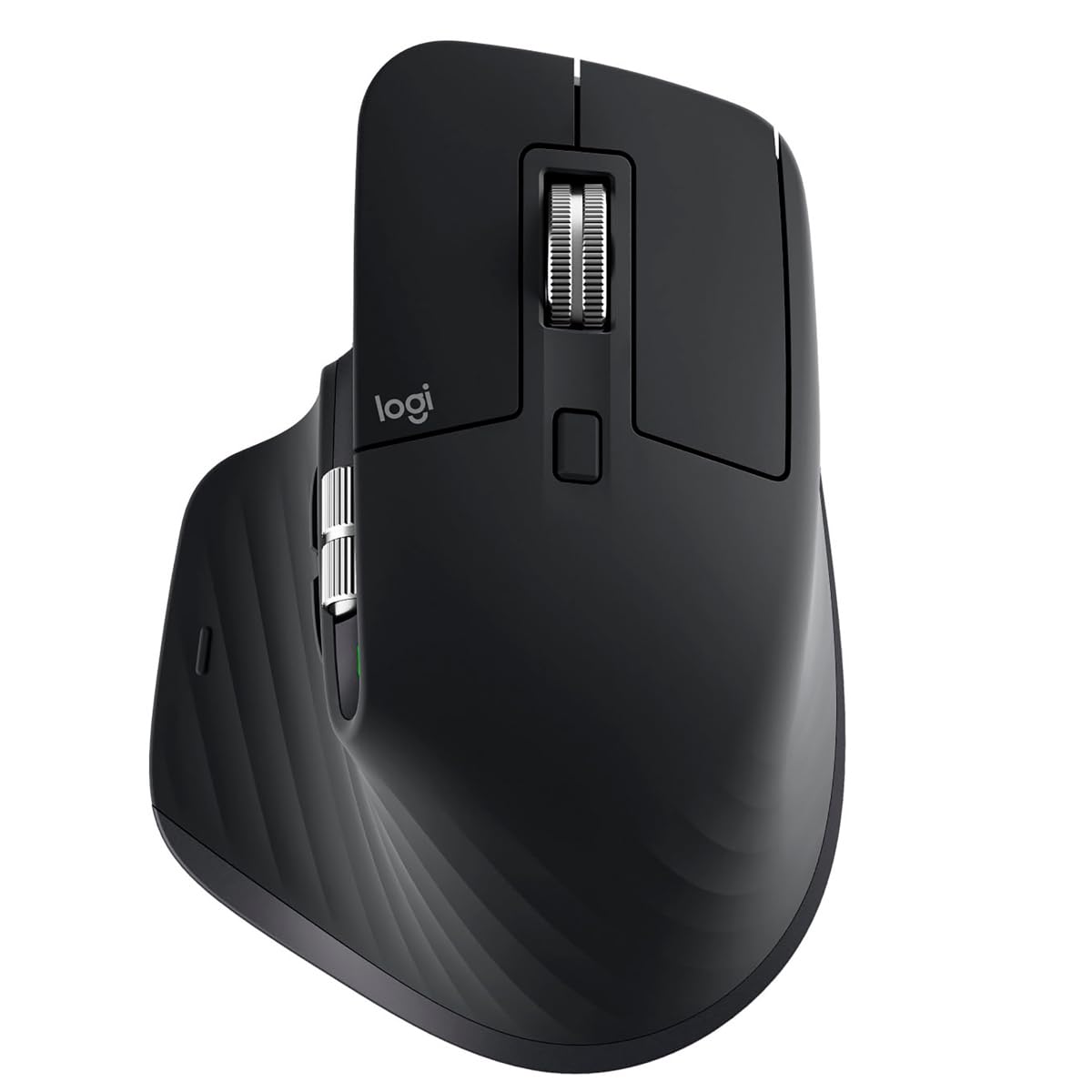
1. Logitech MX Master 3S
Our pick — 4.5★ from 900+ verified ratings; the strongest balance of quality and price.
The scroll wheel that glides through blueprints — plus an 8000 DPI sensor that tracks on glass.
You notice the MagSpeed scroll wheel within ten seconds of picking this up. It spins freely — 90% faster than a standard wheel — letting you fly through a hundred-page PDF or a massive floor plan with a single flick, then snaps into a notched ratchet mode for precision zooming when you need it. The side scroll wheel is a hidden gem for architects: it sweeps horizontally across wide spreadsheets or Revit schedules without reaching for the scroll bar.
The 8000 DPI Darkfield sensor (an optical sensor that works on nearly any surface, including clear glass) means you aren’t tied to a mouse pad. Buyers report the battery lasts for months — as buyers put it, “reliable after 4 years with 20% battery degradation (still >1 month charge).” The contoured silhouette places your wrist in a relaxed posture, and the five buttons are fully programmable through Logi Options+ so you can bind common CAD commands. The only recurring note: the Logitech Flow cross-computer feature can be finicky, requiring re-setup every couple of weeks for some users. At 7 inches long and 5.4 inches wide, it is significantly larger than a vertical alternative like the Transformers (4.54″ x 3.22″), so small-handed users may find it a stretch.
precise scroll wheel
- MagSpeed electromagnetic wheel — 90% faster scrolling through long drawings
- Darkfield 8000 DPI sensor tracks accurately on glass desks
- Months-long battery with USB-C charging (70-day rated life)
- Quiet Clicks reduce click noise by 90% without losing tactile feel
heavy build
- Large frame — cramped for smaller hands after hours
- Logitech Flow cross-computer feature sometimes requires re-setup
- No vertical tilt angle — less suitable for wrist-strain recovery than a true vertical mouse
professional flagship: If you spend all day in CAD or Revit and need a scroll wheel that keeps pace with your brain, this is the mouse — its 5 programmable buttons and 8000 DPI sensor handle precision and speed equally well.
casual use: You need a vertical handshake grip to relieve existing wrist pain — the MX Master 3S is contoured, not vertical, so a trackball or vertical mouse may serve you better.
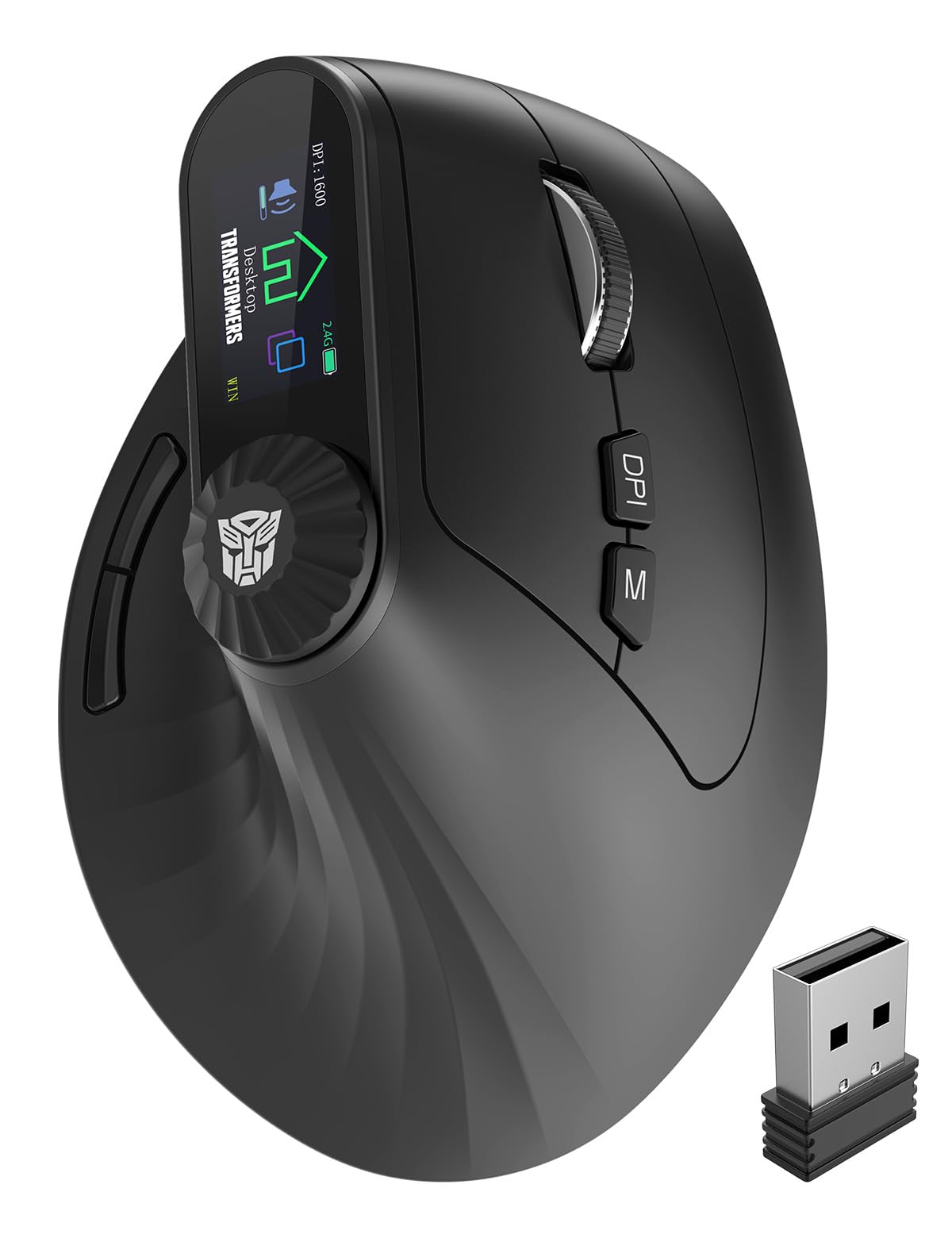
2. Transformers Vertical Ergonomic Mouse with LED Screen
A vertical 57° tilt that eases wrist strain — with a built-in LED screen showing DPI and battery at a glance.
Unlike a flat mouse that twists your forearm, this one places your hand in a handshake position, reducing pressure on the carpal tunnel (a narrow passage in your wrist that can cause pain when compressed). The LED screen is the standout a neat extra: it shows your current DPI setting (six levels from 800 up to 4000 DPI), battery level, and connection mode without needing any software. A physical knob on the side lets you zoom in and out or adjust volume — perfect for quickly sizing a viewport in CAD or Photoshop without keyboard shortcuts.
The 10 buttons give you a huge advantage over the Logitech MX Master 3S’s 5 buttons (a 2x gap), but the forward/back navigation keys do not work on Mac OS, so Mac users lose some functionality. The 500mAh rechargeable battery and pass-through charging mean you can keep working while it tops up. The most-discussed positives are ergonomics (16 mentions) and quality (16 mentions), though some buyers have reported connectivity issues — as one owner noted, “broke within a month: shows ‘connected’ but doesn’t connect properly despite full charge.” Keep in mind the 3-7 day adaptation period when moving from a traditional mouse.
budget wrist relief: If you feel forearm fatigue by lunch and want a vertical shape with a knob for zooming, this is a solid entry-level pick — especially if you work on Windows.
small hands: A few units have suffered early connection failure, so buy from a seller with a solid return policy if this is your daily driver for deadline weeks.
3. Ergodriven Om Vertical Ergonomic Mouse
A vertical mouse with an OLED screen and button remapping — no driver installation needed, even for CAD shortcuts.
The Ergodriven Om takes the complexity out of going vertical. The OLED screen lets you cycle through the 4 DPI settings (1200, 1600, 2000, 2400) on the device itself, and you can assign custom functions like copy/paste, undo, or mute to the 5 buttons in under 10 seconds — no software download required. Owners who work in CAD praise the vertical orientation for keeping the wrist in a neutral position during long sessions.
The battery life is rated at a solid 5 weeks on a single charge, and the included rechargeable battery ships with at least 50% charge so you can start using it immediately. The main trade-off from the review data is size: several users with larger hands found it caused wrist pain because the Om is too small for prolonged use. The sensor also has a higher-than-expected liftoff distance (over 1 inch), which can cause cursor drift when you lift and reposition the mouse. Still, the most-praised features are build quality (71 positive mentions) and comfort (69 positive mentions), making it a compelling entry point if your hands are on the smaller side.
Best if you are new to vertical mice: The straightforward setup and OLED screen eliminate guesswork, making this a low-risk trial for wrist pain relief — especially if you prefer smaller peripherals.
ergonomic starter: You have medium-to-large hands — the compact shell may cause discomfort over eight-hour days instead of solving it.
4. Keychron M6 Silent Wireless Gaming Mouse
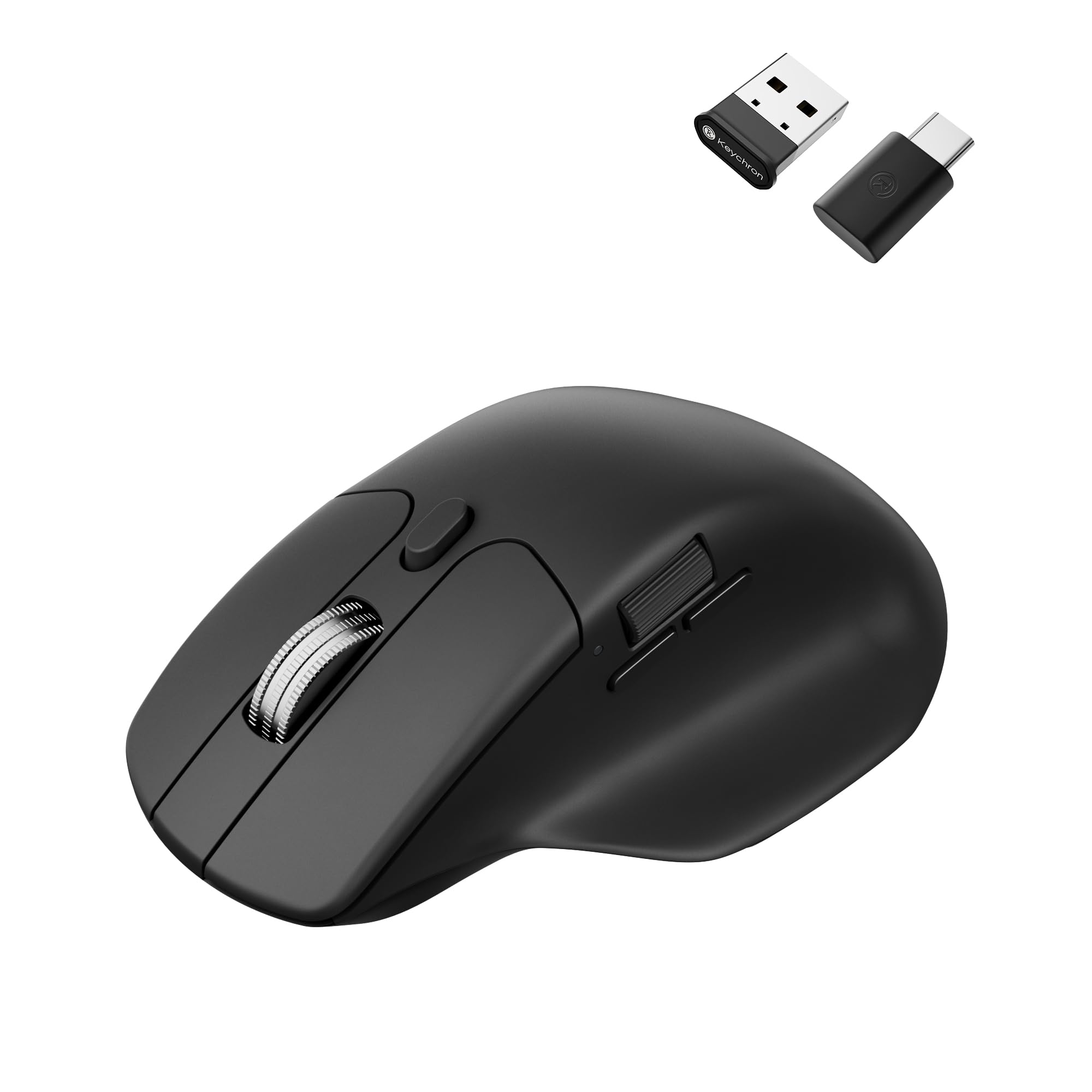
A lightweight 86g mouse that packs a 12,000 DPI PixArt 3311 sensor and a metal infinite-scroll wheel — for less than half the price of comparable premium options.
The Keychron M6 directly borrows the best feature of the Logitech MX Master 3S — an infinite scroll wheel — and adds a solid metal feel for durability. The wheel toggles between a frictionless free-spin mode for speeding through long documents and a tactile ratchet mode for precise step-by-step zooming. The PixArt 3311 optical sensor delivers up to 12,000 DPI with 300 IPS (inches per second, measuring how fast you can move the mouse without losing tracking) tracking speed, which is more than enough for high-resolution displays and pixel-level snapping in CAD.
At 86g it is noticeably lighter than the MX Master 3S, reducing fatigue during rapid back-and-forth movements across dual monitors. The 5 on-board memory profiles mean you can save your DPI settings, button mappings, and macros directly to the mouse and use them on any computer without installing software. Owners praise the “excellent ergonomic mouse for large hands (19×12 cm)” and note that the tall hump provides a vertical wrist position with precise control, which is helpful for those with RSI (repetitive strain injury). The side scroll wheel, however, is small and embedded — owners say it gives only about 4 notches per stroke, making horizontal scrolling less useful than on the MX Master 3S.
Perfect for the value-conscious architect: If you want a lightweight, high-DPI mouse with infinite scrolling and programmable on-board memory — but balk at the price of the MX Master 3S — this Keychron is a near-perfect alternative.
stealth gaming: You rely heavily on a side scroll wheel for horizontal panning — the M6’s wheel is too small and recessed for comfortable thumb use.
5. Evoluent VM4S Vertical Mouse Right Hand Small
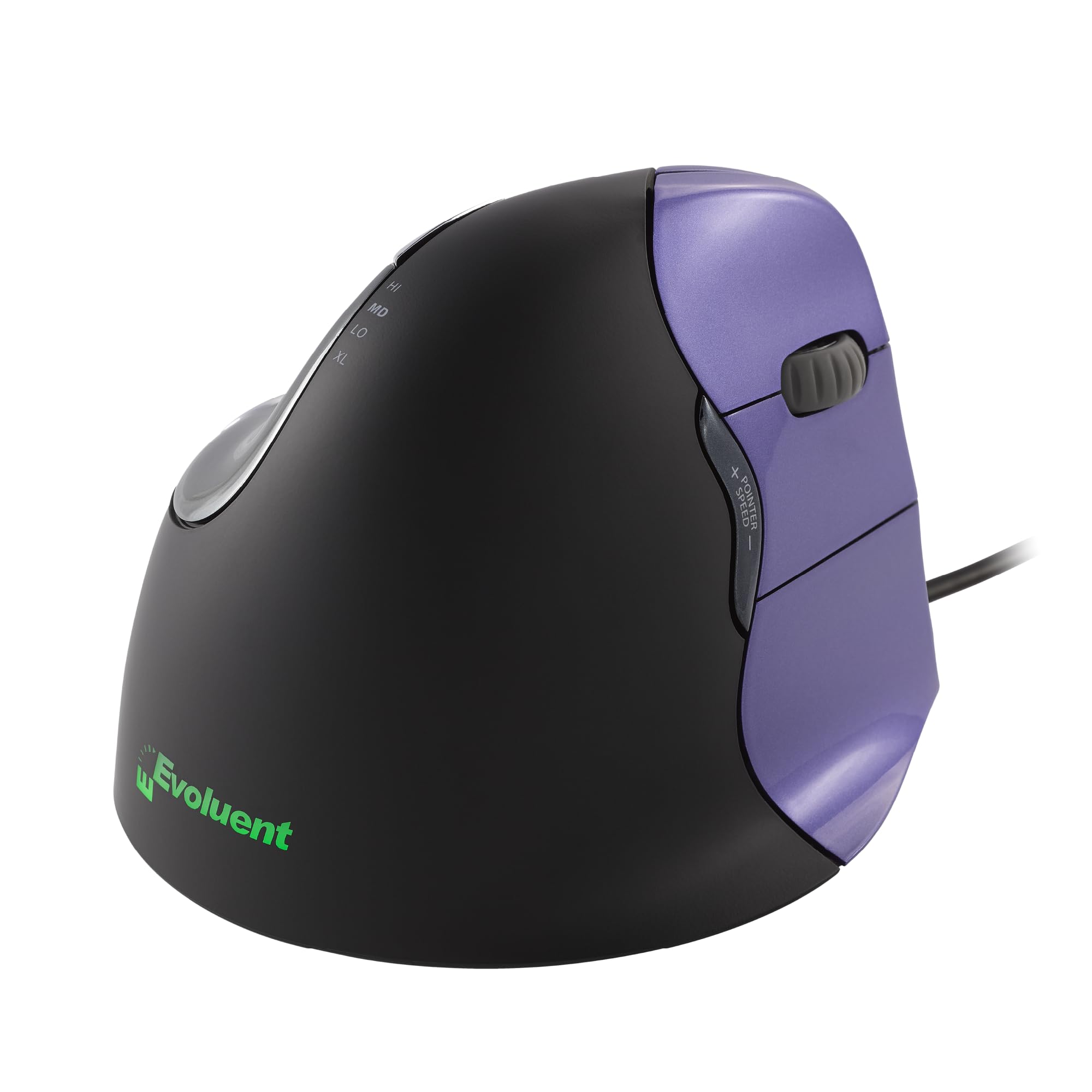
Invented in 1994 and refined for three decades — the Evoluent VM4S is the vertical mouse that an entire ergonomic category copied.
This is the wired specialist that professionals with wrist pain swear by. The vertical design supports your hand in a handshake position, and the wide lip prevents your pinky finger from scraping the desk — a detail smaller vertical mice often miss. The 6 customizable buttons in Windows (using the optional Evoluent Mouse Manager software) let you map middle-click, pan, or zoom to easy-to-reach thumb positions. The top-mounted button cycles through 4 pointer speeds with an indicator light, so you never hunt for settings mid-draft.
The most-cited positive is wrist comfort — mentioned by 188 owners, more than any other aspect in this guide. Animators, architects, and CAD users consistently report that Multiple CAD users report wrist swelling and tendonitis pain subsiding within about a week.. This wired USB mouse is plug-and-play with any system that supports a mouse, so no battery anxiety. The main trade-off: it only comes in a small size (for hands under 7 inches), and 65 reviewers flagged size as a mixed point, with some wanting a larger shell. The glossy finish also attracts fingerprints faster than matte alternatives.
small hand fit
- 188 owners cite wrist comfort as the top reason — wrist pain relief after ~1 week reported by multiple CAD users
- Pinky support lip prevents finger rubbing on the desk
- Wired USB — zero latency, no batteries to charge
- 6 customizable buttons via Evoluent Mouse Manager (Windows)
wired only
- Small size only — hands over 7 inches will feel cramped
- Glossy plastic finish shows smudges quickly
- Wired-only — not ideal for clean-desk cable-phobic setups
relief specialist: If you already have wrist or forearm pain and need a proven vertical mouse with decades of positive feedback, the Evoluent VM4S is the most focused solution on this list — especially for small-handed users.
left-handed: You prefer wireless freedom or have large hands — the small shell and USB cable may frustrate you in a modern multi-monitor setup.
6. Razer Pro Click Humanscale Wireless Mouse

A stylish ergonomic mouse from Razer and Humanscale — with 8 programmable buttons and up to 400 hours of battery life for marathon drafting sessions.
The Razer Pro Click is a rare collaboration between a gaming-peripheral maker (Razer) and an ergonomic furniture brand (Humanscale). The 8 programmable buttons give you more custom shortcuts than most architectural mice — you can bind orbit, pan, zoom, and undo without touching the keyboard. The 5G Advanced Optical Sensor delivers precise tracking, and multi-host connectivity lets you pair it with up to 4 devices, switching between your desktop and laptop with a button press.
This mouse has the widest gap between its positive and negative reviews of any pick here — 107 owners flagged reliability as a negative, with some reporting that the scroll wheel developed intermittent free-spinning or that the mouse stopped working after a few months. The scroll wheel is clicky-only (no free-spin mode), which is a letdown for architects who fly through long PDFs. It also uses Micro-USB with a proprietary cable casing, not USB-C, which feels dated.
Best for Windows-first architects who value button count: If you need 8 programmable buttons and multi-host switching on a Windows machine — and prefer a conventional shape over a vertical one — the Razer Pro Click is a stylish, comfortable option.
premium comfort: You want a free-spin scroll wheel for document scanning, need Mac support (full remapping requires Windows software), or plan to keep the same mouse for 3+ years without issues.
7. Contour Unimouse Ergonomic Vertical Mouse

The only mouse here that lets you dial in the exact tilt angle — from a shallow 35° to a steep 70° — plus a fully adjustable thumb rest that moves in every direction.
Fixed-angle vertical mice lock you into one posture, but the Contour Unimouse lets you change the tilt throughout the day to shift which muscles are engaged. The thumb support slides up/down, in/out, and forward/back, so you can find a grip that matches your hand size (medium to large) without compromising precision. The 7 programmable buttons and smooth scroll wheel give architects enough shortcuts for common CAD commands, and the battery lasts up to 12 weeks on a single charge — easily outlasting a full project cycle.
Owners specifically praise it for 3D CAD work and note it Owners note it helps with tendonitis.. The most-praised aspect is ergonomics (12 positive mentions), with owners reporting it “Owners mention it solves cramped hands.” and “feels and works great” for medium-large hands. The USB-C charging and included receiver range extender are thoughtful additions for a cluttered desk. The downsides: some users found the Unimouse too large for small hands, and a few Mac users reported laggy mouse-release events and driver issues that required third-party software like USB Overdrive to resolve.
Best for architects who need personalized ergonomics: If you have tried a standard vertical mouse and still felt discomfort, the Unimouse’s adjustable frame lets you fine-tune your grip — ideal for all-day CAD sessions where every degree of tilt matters.
customizable ergonomics: You have small hands, work exclusively on Mac, or prefer a plug-and-play experience without potentially needing third-party software for button mapping.
8. 3Dconnexion CadMouse Pro Wireless
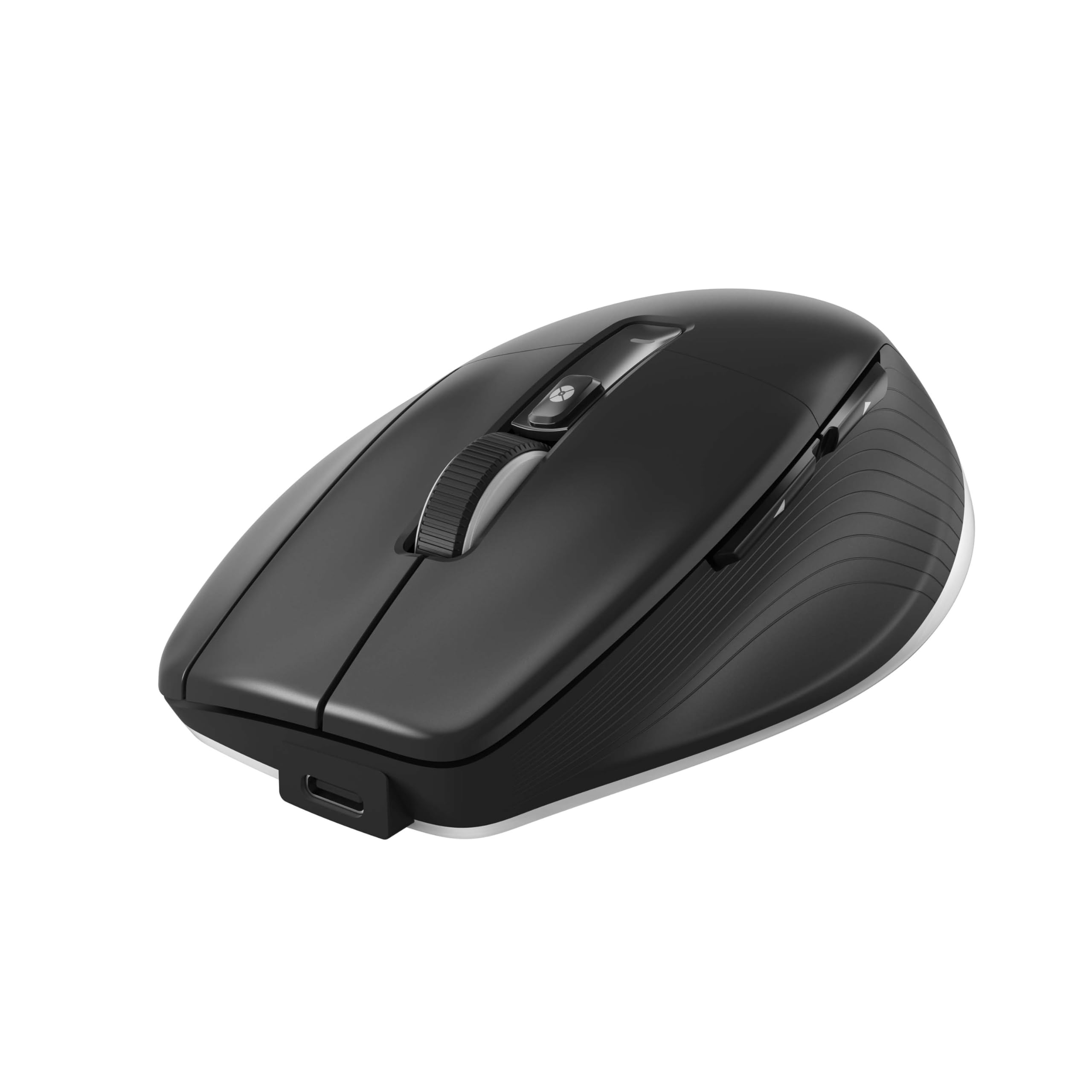
Built specifically for CAD — with a 7200 DPI optical sensor and a Smart Mouse Wheel that switches between precision and speed scrolling on the fly.
This is the one mouse on the list designed from the ground up for architectural software. The 3Dconnexion CadMouse Pro features three unique full-size mouse buttons, so you never have to rely on a fragile middle-click button for common CAD actions like orbit or pan. The Smart Mouse Wheel 2 auto-switches between free-spin and notched scrolling depending on how fast you turn it — faster flicks send you flying through drawings, while slow rolls give you click-by-click precision.
The 7200 DPI optical sensor is more than enough for high-DPI monitors, and connectivity options include 2.4 GHz RF, Bluetooth, and USB-C wired mode, so you can switch between battery-saving and low-latency modes. The main trade-off: you need the 3Dconnexion driver software to open up full CAD macro support, which introduces a learning curve for some users.
CAD essential: The three unique mouse buttons and Smart Mouse Wheel make it the fastest option for navigating 3D models — especially if you already use a 3Dconnexion SpaceNavigator alongside it.
general use: You only need a general-purpose ergonomic mouse for mixed tasks (web browsing, email, occasional CAD) — the CadMouse Pro’s specialised design and driver install may be overkill.
9. Logitech MX Ergo S Advanced Wireless Trackball

A trackball that stays put while your thumb does the moving —.
Architects working in tight cubicles or standing desks with limited mousing space often struggle with traditional mice. The MX Ergo S solves this by keeping the body stationary: you roll the thumb-operated trackball to move the cursor, which eliminates the need to sweep your entire arm across the desk. The 20-degree tilt positions your forearm in a more neutral posture, and. The sculpted rubber grip is comfortable for medium-to-large hands.
The 6 programmable buttons via Logi Options+ let you bind copy/paste, undo, or app-specific shortcuts — but the real selling point is the battery: up to 120 days on a full charge, and a 1-minute charge gives you 24 hours of use. The 80% quieter clicks are a bonus for shared studio spaces. Owners consistently report that Owners consistently report the trackball eliminated carpal tunnel pain and wrist strain., with one long-time user calling it “the best trackball mouse out there.” The trade-offs: it takes a few days to adapt to thumb-based tracking, the silicone coating attracts dust and may wear over time, and there is no built-in storage slot for the Logi Bolt wireless dongle.
trackball precision
- Stationary body — no arm sweeping needed for small desks
- 20-degree tilt positions forearm in a more neutral posture;
- 120-day battery life with quick USB-C charging
- Thumb-operated trackball gives precise control for tight spaces
learning curve
- Thumb-trackball learning curve — not instant for traditional mouse users
- Silicone coating collects dust and may degrade over months
- No onboard dongle storage — easy to misplace the Logi Bolt receiver
compact workspace: If your drafting desk is cluttered with blueprints, reference monitors, and coffee — and you need cursor control without moving your whole arm — the MX Ergo S trackball is the smartest space-saving ergonomic choice.
traditional mousers: If you rely on fast, sweeping movements in 3D modeling or dislike the feel of a thumb-operated trackball, a traditional contoured mouse (like the MX Master 3S) will feel more natural from the start.
Understanding the Specs
DPI — Dots Per Inch
This is a measure of how far the cursor moves for every inch you physically move the mouse. A higher DPI (like 8000 or 12,000) means the cursor moves farther with less hand movement, which lets you navigate a large ultrawide monitor without dragging your arm across the desk. For precision tasks like drawing a straight line or snapping to a vertex, lower DPI settings (1200–2400) give you finer control because each physical movement translates to a smaller cursor shift. Most good architectural mice offer adjustable DPI settings so you can switch between high-speed navigation and precise selection on the fly.
Scroll Wheel Modes — Free-Spin vs. Ratchet
A ratchet scroll wheel gives you a tactile, notched feel every time it moves one step — great for zooming one click at a time in CAD. A free-spin or infinite-scroll wheel releases that resistance so the wheel spins freely, letting you fly through a 500-page specification PDF with a single flick. Some mice (like the Logitech MX Master 3S and Keychron M6) let you toggle between both modes on the same wheel, so you get speed when you want it and precision when you need it.
FAQ
Is a vertical mouse better than a standard mouse for CAD work?
How many DPI do I need for architectural software?
What is the difference between a trackball mouse and a regular mouse for architects?
Can I use a gaming mouse for architectural CAD work?
How many programmable buttons does an architect actually need?
Should I choose a wired or wireless mouse for architectural work?
Will a compact mouse cause hand fatigue during long drafting sessions?
How long does a typical ergonomic mouse last before it needs replacing?
Final Thoughts: The Verdict
For most architects, the computer mouse for architects winner is the Logitech MX Master 3S because its MagSpeed scroll wheel, 8000 DPI Darkfield sensor, and months-long battery handle the blend of precision and speed that drafting demands — and the crowd of thousands of owners backs it up with a 4.5-star consensus. If you want a vertical shape for wrist strain relief, grab the Contour Unimouse for its adjustable 35°–70° tilt. And for a dedicated CAD powerhouse, the {“@context”: “https://schema.org”, “@graph”: [{“@type”: “ItemList”, “name”: “9 Best Computer Mouse For Architects”, “url”: “https://wellfizz.com/best-computer-mouse-for-architects/”, “numberOfItems”: 9, “itemListElement”: [{“@type”: “ListItem”, “position”: 1, “name”: “Logitech MX Master 3S”, “url”: “https://wellfizz.com/best-computer-mouse-for-architects/#product-1”}, {“@type”: “ListItem”, “position”: 2, “name”: “Transformers Vertical Ergonomic Mouse with LED Screen”, “url”: “https://wellfizz.com/best-computer-mouse-for-architects/#product-2”}, {“@type”: “ListItem”, “position”: 3, “name”: “Ergodriven Om Vertical Ergonomic Mouse”, “url”: “https://wellfizz.com/best-computer-mouse-for-architects/#product-3”}, {“@type”: “ListItem”, “position”: 4, “name”: “Keychron M6 Silent Wireless Gaming Mouse”, “url”: “https://wellfizz.com/best-computer-mouse-for-architects/#product-4”}, {“@type”: “ListItem”, “position”: 5, “name”: “Evoluent VM4S Vertical Mouse Right Hand Small”, “url”: “https://wellfizz.com/best-computer-mouse-for-architects/#product-5”}, {“@type”: “ListItem”, “position”: 6, “name”: “Razer Pro Click Humanscale Wireless Mouse”, “url”: “https://wellfizz.com/best-computer-mouse-for-architects/#product-6”}, {“@type”: “ListItem”, “position”: 7, “name”: “Contour Unimouse Ergonomic Vertical Mouse”, “url”: “https://wellfizz.com/best-computer-mouse-for-architects/#product-7”}, {“@type”: “ListItem”, “position”: 8, “name”: “3Dconnexion CadMouse Pro Wireless”, “url”: “https://wellfizz.com/best-computer-mouse-for-architects/#product-8”}, {“@type”: “ListItem”, “position”: 9, “name”: “Logitech MX Ergo S Advanced Wireless Trackball”, “url”: “https://wellfizz.com/best-computer-mouse-for-architects/#product-9”}]}, {“@type”: “Product”, “position”: 1, “name”: “Logitech MX Master 3S”, “image”: “https://m.media-amazon.com/images/I/51tJ0JISpeL.jpg”, “brand”: {“@type”: “Brand”, “name”: “Logitech”}, “url”: “https://www.amazon.com/dp/B0BS9VVQPD/?tag=wellfizzmo-20”, “offers”: {“@type”: “Offer”, “url”: “https://www.amazon.com/dp/B0BS9VVQPD/?tag=wellfizzmo-20”}}, {“@type”: “Product”, “position”: 2, “name”: “Transformers Vertical Ergonomic Mouse with LED Screen”, “image”: “https://m.media-amazon.com/images/I/61HcFnX1NfL.jpg”, “brand”: {“@type”: “Brand”, “name”: “Transformers”}, “url”: “https://www.amazon.com/dp/B0FS1WLY9K/?tag=wellfizzmo-20”, “offers”: {“@type”: “Offer”, “url”: “https://www.amazon.com/dp/B0FS1WLY9K/?tag=wellfizzmo-20”}}, {“@type”: “Product”, “position”: 3, “name”: “Ergodriven Om Vertical Ergonomic Mouse”, “image”: “https://m.media-amazon.com/images/I/71l+GEguXiL.jpg”, “brand”: {“@type”: “Brand”, “name”: “Ergodriven”}, “url”: “https://www.amazon.com/dp/B0DN7W49PL/?tag=wellfizzmo-20”, “offers”: {“@type”: “Offer”, “url”: “https://www.amazon.com/dp/B0DN7W49PL/?tag=wellfizzmo-20”}}, {“@type”: “Product”, “position”: 4, “name”: “Keychron M6 Silent Wireless Gaming Mouse”, “image”: “https://m.media-amazon.com/images/I/61uNL1L6NQL.jpg”, “brand”: {“@type”: “Brand”, “name”: “Keychron”}, “url”: “https://www.amazon.com/dp/B0FP2FN1KM/?tag=wellfizzmo-20”, “offers”: {“@type”: “Offer”, “url”: “https://www.amazon.com/dp/B0FP2FN1KM/?tag=wellfizzmo-20”}}, {“@type”: “Product”, “position”: 5, “name”: “Evoluent VM4S Vertical Mouse Right Hand Small”, “image”: “https://m.media-amazon.com/images/I/61b9ihzrK0L.jpg”, “brand”: {“@type”: “Brand”, “name”: “Evoluent”}, “url”: “https://www.amazon.com/dp/B004GXZ69W/?tag=wellfizzmo-20”, “offers”: {“@type”: “Offer”, “url”: “https://www.amazon.com/dp/B004GXZ69W/?tag=wellfizzmo-20”}}, {“@type”: “Product”, “position”: 6, “name”: “Razer Pro Click Humanscale Wireless Mouse”, “image”: “https://m.media-amazon.com/images/I/41aUhSr8nPL.jpg”, “brand”: {“@type”: “Brand”, “name”: “Razer”}, “url”: “https://www.amazon.com/dp/B08BQXL6DD/?tag=wellfizzmo-20”, “offers”: {“@type”: “Offer”, “url”: “https://www.amazon.com/dp/B08BQXL6DD/?tag=wellfizzmo-20”}}, {“@type”: “Product”, “position”: 7, “name”: “Contour Unimouse Ergonomic Vertical Mouse”, “image”: “https://m.media-amazon.com/images/I/61oBU2g44IL.jpg”, “brand”: {“@type”: “Brand”, “name”: “Contour”}, “url”: “https://www.amazon.com/dp/B0D2593YZ2/?tag=wellfizzmo-20”, “offers”: {“@type”: “Offer”, “url”: “https://www.amazon.com/dp/B0D2593YZ2/?tag=wellfizzmo-20”}}, {“@type”: “Product”, “position”: 8, “name”: “3Dconnexion CadMouse Pro Wireless”, “image”: “https://m.media-amazon.com/images/I/61fAMVds2DL.jpg”, “brand”: {“@type”: “Brand”, “name”: “3Dconnexion”}, “url”: “https://www.amazon.com/dp/B0BKHB9B7J/?tag=wellfizzmo-20”, “offers”: {“@type”: “Offer”, “url”: “https://www.amazon.com/dp/B0BKHB9B7J/?tag=wellfizzmo-20”}}, {“@type”: “Product”, “position”: 9, “name”: “Logitech MX Ergo S Advanced Wireless Trackball”, “image”: “https://m.media-amazon.com/images/I/61Xsc-lNsXL.jpg”, “brand”: {“@type”: “Brand”, “name”: “Logitech”}, “url”: “https://www.amazon.com/dp/B0D6PTR6MP/?tag=wellfizzmo-20”, “offers”: {“@type”: “Offer”, “url”: “https://www.amazon.com/dp/B0D6PTR6MP/?tag=wellfizzmo-20”}}, {“@type”: “FAQPage”, “mainEntity”: [{“@type”: “Question”, “name”: “Is a vertical mouse better than a standard mouse for CAD work?”, “acceptedAnswer”: {“@type”: “Answer”, “text”: “For many architects, yes — a vertical mouse keeps your hand in a handshake position, which A vertical mouse reduces forearm twist and lowers the risk of repetitive strain injuries. during long drafting sessions. However, it takes a few days to adjust (typically 3–7 days), and some users find they lose the fine motor control they had with a standard contoured mouse. If you already have wrist or forearm pain, a vertical mouse is worth trying. If you are pain-free, a contoured ergonomic mouse (like the Logitech MX Master 3S) may feel more natural from day one.”}}, {“@type”: “Question”, “name”: “How many DPI do I need for architectural software?”, “acceptedAnswer”: {“@type”: “Answer”, “text”: “For architectural work on standard 1080p or 1440p monitors, a DPI range of 1200 to 4000 is plenty. If you use a high-resolution ultrawide or 4K monitor, look for a mouse that can reach 6000–8000 DPI so you can move the cursor across the full screen without excessive arm movement. The sensor quality matters as much as the number — optical sensors (like Darkfield or PixArt 3311) track more reliably on different surfaces than older laser sensors.”}}, {“@type”: “Question”, “name”: “What is the difference between a trackball mouse and a regular mouse for architects?”, “acceptedAnswer”: {“@type”: “Answer”, “text”: “A trackball mouse keeps the body stationary while you roll a ball with your thumb or fingers to move the cursor. This is ideal if you use a small desk or standing desk with limited surface area — you never need to sweep your arm to reach the far edge of the screen. The trade-off is a learning curve (usually a few days) and slightly less speed for fast, sweeping movements in 3D modeling. For tasks like selecting vertices or clicking small UI elements, a trackball can be more precise than a regular mouse once you adapt.”}}, {“@type”: “Question”, “name”: “Can I use a gaming mouse for architectural CAD work?”, “acceptedAnswer”: {“@type”: “Answer”, “text”: “Yes — gaming mice often have high-DPI sensors (12,000 DPI and above) and programmable buttons that work well for CAD shortcuts. The Keychron M6 on this list is technically a \”gaming\” mouse that performs excellently for architectural work. Just check that the scroll wheel supports notched mode (not just free-spin) and that the software (if required for button mapping) is compatible with your operating system.”}}, {“@type”: “Question”, “name”: “How many programmable buttons does an architect actually need?”, “acceptedAnswer”: {“@type”: “Answer”, “text”: “Most architects find that 5–7 programmable buttons are enough to cover the core commands they use daily — typically: undo, pan, zoom (middle-click), copy, and paste. Adding a forward/back button for browser navigation or a dedicated button to toggle between DPI presets can speed up your workflow. More than 8 buttons can become confusing to reach without looking, so quality of placement matters more than raw count.”}}, {“@type”: “Question”, “name”: “Should I choose a wired or wireless mouse for architectural work?”, “acceptedAnswer”: {“@type”: “Answer”, “text”: “Modern wireless mice (using Bluetooth or a 2.4 GHz dongle) have lag-free performance that is indistinguishable from wired for CAD work. The convenience of a clean desk without a trailing cable usually outweighs the slight battery-management overhead. If you prefer a wireless model, look for one with at least a month of rated battery life so you aren’t charging mid-project. Wired mice are still a good fallback if you hate thinking about batteries or work in an IT-restricted environment where USB dongles are not allowed.”}}, {“@type”: “Question”, “name”: “Will a compact mouse cause hand fatigue during long drafting sessions?”, “acceptedAnswer”: {“@type”: “Answer”, “text”: “It depends on your hand size. Small vertical mice like the Evoluent VM4S (designed for hands under 7 inches) are perfect for smaller palms but can cause cramping in larger hands. Likewise, the Ergodriven Om was praised for comfort but flagged as too small by several owners with medium-large hands. Measure your hand length from wrist crease to middle fingertip, and compare it to the mouse dimensions before buying — a mouse that forces your hand into a claw grip will hurt during 8-hour days.”}}, {“@type”: “Question”, “name”: “How long does a typical ergonomic mouse last before it needs replacing?”, “acceptedAnswer”: {“@type”: “Answer”, “text”: “With daily use, a well-built ergonomic mouse typically lasts 2–3 years before the switches or scroll wheel begin to degrade. Logitech’s MX Master series is known for longevity — one owner reported 4 years of use with only 20% battery degradation. Cheaper models may show issues earlier, such as the Transformers vertical mouse that had some connectivity failures within a month. Look for a 2-year manufacturer warranty (offered by Ergodriven and Contour) as a sign of expected durability.”}}]}]}
Related Guides

Mo Maruf
I created WellFizz to bridge the gap between vague wellness advice and actionable solutions. My mission is simple: to decode the research and give you practical tools you can actually use.
Beyond the data, I am a passionate traveler. I believe that stepping away from the screen to explore new environments is essential for mental clarity and physical vitality.