Our readers keep the lights on and my smoothie glass nicely filled. As an Amazon Associate, I earn from qualifying purchases.
Specs are compiled from manufacturer listings and verified buyer reviews and can change over time — please confirm the key details on the product page before buying.
Your computer feels sluggish, runs out of room for games and photos, or takes forever to start up. You need a new internal drive, but the choice between an SSD (solid-state drive — no moving parts, very fast) and an HDD (hard disk drive — spins a magnetic disk, slower but cheaper per gigabyte) can be overwhelming. This guide compares seven top models — from lightning-fast NVMe sticks (tiny gum-stick-sized drives fitting into a motherboard slot, reading at up to 7,450 MB/s versus a SATA drive’s maximum of 550 MB/s) to massive spinning drives holding 8 TB — so you can match the right technology to your actual workload.
I’m Mohammad Maruf — the founder and writer behind WellFizz. This guide is built by comparing the manufacturers’ published specifications and the patterns across verified customer reviews, so you get each pick’s real strengths and trade-offs instead of marketing spin.
This roundup of the best computer hard drive options gives you an honest breakdown of what each drive actually delivers and where it falls short, if you need a new boot drive to revive a slow laptop or a deep archive for years of big projects.
Our Picks at a Glance


How To Choose The Best Computer Hard Drive
The first fork in the road is simple: do you want speed or capacity? An SSD gives you near-instant boot times and snappy application loading because it uses flash memory with no moving parts — so it is also shock-resistant and silent. An HDD spins a magnetic platter under a read/write head, which makes it slower (and a little audible), but you get multiple terabytes for much less money. Most smart desktop builds use one of each: a smaller, faster SSD for the operating system and key programs, plus a larger, slower HDD for games, photos, videos, and backups.
Form Factor First — Check Your Slot
The physical shape of the drive determines whether it will fit your machine at all. A 2.5-inch drive is the standard laptop size and also fits many desktop drive bays with a bracket. A 3.5-inch drive is exclusively for desktop towers — it is wider and thicker, designed for high capacity HDDs. An M.2 2280 drive (2280 means 22 mm wide by 80 mm long — think a short stick of gum) plugs directly into a slot on the motherboard; it is common in modern laptops and desktops and offers the fastest speeds (NVMe over PCIe). If you are upgrading a laptop, slim all-in-one, or anything compact, skip the 3.5-inch drives entirely — they will not physically fit.
Speed Interface: SATA vs NVMe
The connection type is the second big filter. SATA III (also called SATA 6 Gb/s — the cable standard for most drives) tops out at roughly 550-560 MB/s — that is the ceiling for any SATA SSD or traditional HDD. NVMe (Non-Volatile Memory Express — a protocol designed for fast flash storage) drives that plug into an M.2 slot over the PCIe bus (the high-speed data highway inside your computer) shatter that ceiling. The Samsung 990 PRO reads sequentially at up to 7,450 MB/s, compared with a SATA SSD’s maximum of around 550 MB/s. You feel that gap in massive file transfers, level loading in games, and video editing timelines. For a simple office or web-browsing machine, SATA is plenty. For a gaming rig, workstation, or anyone who hates waiting, NVMe is the move.
Cache Memory — The Drive’s Short-Term Memory
Cache memory (measured in MB) is a small amount of super-fast RAM (Random Access Memory — your computer’s temporary data storage) on the drive’s controller board. It stores frequently accessed data so the drive can retrieve it quickly without spinning the platter or searching the NAND flash (the memory chips inside an SSD). A 64 MB cache is typical for a 7200 RPM HDD and is fine for everyday file transfers. A 256 MB cache, found on larger 5400 RPM drives like the Seagate BarraCuda 4TB and 8TB models, helps sustain multi-gigabyte transfers without the speed dropping off a cliff. SSDs handle this differently — they use the NAND flash itself as a buffer via a pseudo-SLC (single-level cell — a faster, temporary cache mode) cache — so their cache numbers (like the 2 GB listed on the Samsung 990 PRO) refer to DRAM (Dynamic Random Access Memory — a fast memory chip) cache on the controller, which is critical for maintaining consistent random read/write performance.
Quick Comparison
| Model | Best For | Digital Storage Capacity | Form Factor | Data Transfer Rate | Amazon |
|---|---|---|---|---|---|
| Kingston A400 960GB SSD★ Best Overall | Reviving old PCs | 960 GB | 2.5-inch | 450 MB/s | Amazon |
| Samsung 990 PRO 2TB NVMeTop Performer | High-end gaming & workstations | 2 TB | M.2 2280 | 7,450 MB/s | Amazon |
| Bestoss 128GB SSD | Budget boot drive | 128 GB | 2.5-inch | 550 MB/s | Amazon |
| WD Blue 1TB HDD | Reliable daily storage | 1 TB | 3.5-inch | 6 Gb/s (SATA) | Amazon |
| Seagate BarraCuda 4TB HDD | Media archive | 4 TB | 3.5-inch | 190 MB/s | Amazon |
| Seagate BarraCuda 8TB HDD | Massive bulk storage | 8 TB | 3.5-inch | 190 MB/s | Amazon |
In‑Depth Reviews
1. Kingston 960GB A400 SATA3 2.5″ Internal SSD
Our pick — over 4.5★ from 205,000+ verified ratings; the strongest balance of quality and price.
The affordable workhorse that breathes life back into any old laptop or desktop.
This Kingston A400 is the drive owners turn to when their aging PC needs a second wind. With a sequential read speed of up to 500 MB/s and writes up to 450 MB/s, it is not the fastest drive on this list, but it is the most transformative for the money — a 2013 HP laptop owner reported it went from sluggish to smooth surfing and snappy boots after the swap. Buyers report that “Kingston 240GB A400 SSD revived an aging PC,” a sentiment echoed by hundreds of owners who call this the most cost-effective upgrade they have ever made.
The 960 GB capacity gives you room for your operating system, applications, and a healthy game library — from 128 GB to 960 GB. It is a 2.5-inch SATA drive, so it slides into nearly any laptop or desktop bay without adapters. The real catch here is that this is a DRAMless SSD (it has no dedicated memory chip on the controller to manage the flash translation layer — a table that maps where data sits), which means its performance can dip during heavy mixed workloads like moving huge files while running multiple applications. Most owners never hit that ceiling, but if you are editing 4K video or running virtual machines daily, you will want a drive with onboard DRAM. What wins people over is the reliability title — over 1,500 owners cite that as their top reason for picking this drive.
Installation is dead simple — plug in, format, and go. The 3-year limited warranty adds confidence for a part that often outlives the machine it is in. For a mainstream boot drive that balances price, capacity, and speed, this Kingston is the consensus champion for good reason.
Best for everyday upgrades: The A400 is the ideal drop-in replacement for any 2.5-inch HDD, cutting boot times from minutes to seconds without any special drivers or BIOS tweaks.
Your pick if: you want one drive to do it all — boot, apps, and storage — while staying affordable, and your system has a SATA port.
Think twice if: you push sustained mixed reads and writes (large data analysis, video production, server caching) where a DRAMless controller bottlenecks.
2. Samsung 990 PRO 2TB NVMe M.2 Internal SSD
The uncontested speed king for gamers and creators who hate loading screens.
The Samsung 990 PRO is in a different league from every other drive here. Its sequential read speeds hit 7,450 MB/s and writes reach 6,900 MB/s — compared with the Kingston A400’s 500 MB/s read and 450 MB/s write. You feel that gap the first time you launch a massive open-world game or scrub through a 4K timeline. The drive uses PCIe Gen4 through an M.2 2280 slot (the stick-of-gum form factor), so your motherboard must support that interface — most modern mid-range and premium boards do. As owners put it: “Works like dream. fast, lots of storage.” The thing that comes up most often in the reviews is reliability, with over 700 owners citing it, right ahead of raw speed.
The 2 TB capacity sits in the balance for power users who want both performance and headroom. Random read/write performance is significantly improved, which means opening dozens of browser tabs, loading game levels, or swapping between heavy applications feels instantaneous. An owner who built a TrueNAS server with two of these in a ZFS mirror called them “perfect high-performance NVMe pool for apps/containers” — but noted you need a third-party heatsink with a fan to prevent the drive from overheating and throttling (reducing speed to cool down) under sustained load.
The Samsung Magician software makes cloning your old drive or monitoring health a breeze — one owner cloned 220 GB of data in about an hour. If you are pairing this with a premium build and want the absolute fastest load times money can buy, the 990 PRO is the drive. Compatibility is mixed for some niche motherboards, so check your board’s supported NVMe list before ordering.
Heatsink note: This drive runs hot under heavy workloads — owners consistently recommend adding a third-party heatsink with a fan to keep speeds from dropping due to thermal throttling.
Reach for this if: you are building a top-tier gaming rig, a video editing workstation, or running virtual machines — places where every millisecond counts.
Look elsewhere if: your motherboard lacks a Gen4 M.2 slot, or your workload is basic browsing and office tasks — a SATA SSD will feel just as snappy for half the cost.
3. Seagate BarraCuda 8 TB Internal Hard Drive
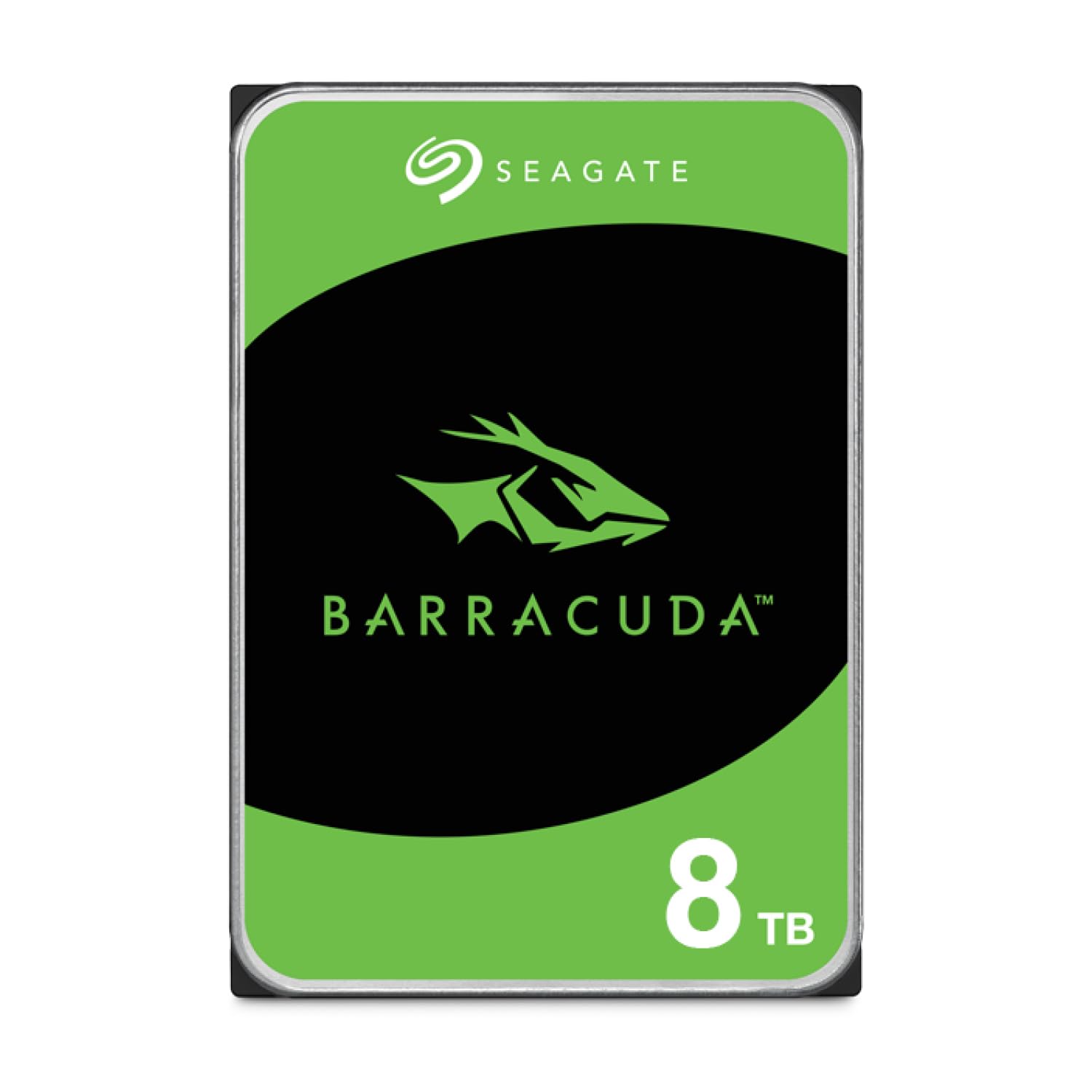
The deep archive that swallows whole libraries without complaint.
When you need to store raw video files, an entire Steam library, or years of family photos, this 8 TB Seagate BarraCuda is the right tool. It spins at 5400 RPM (revolutions per minute — slower than the 7200 RPM of the WD Blue, but quieter and more efficient for sequential reads). The 256 MB cache is four times larger than the 64 MB cache on a standard 7200 RPM 1 TB drive, which helps the drive keep up with sustained multi-gigabyte transfers without stuttering. The sustained transfer rate is 190 MB/s — fine for moving large media files, but noticeably slower than any SSD for booting or random access.
Owners consistently praise this drive for its value and reliability as a bulk storage solution. An IT specialist who uses these drives in customer builds noted: “Large capacity in a good price. Should last for another 7-10 years” and recommends using CrystalDiskInfo to monitor health. The crowd favorites are functionality and quality — over 1,000 owners cite each. That said, the speed and noise level are mixed among buyers: some find it whisper-quiet, while others notice the acoustic signature of a 5400 RPM platter in a quiet room. If you are looking for a primary boot drive for gaming, this is not the one — owners warn it is “best for bulk storage, not speed.” Stick it in a desktop as a secondary drive for media and backups, and it will serve you faithfully for years.
Seagate backs this with a 20-year innovation legacy and a Data Recovery Service option, which is a nice insurance policy for valuable data. The Frustration-Free Packaging means it arrives in just an anti-static bag — no cables or box — so you will need a SATA cable if you do not already have one.
Best for bulk storage
- Massive 8 TB capacity for media libraries and backups
- 256 MB cache smooths large transfers
- Tens of thousands of reviews confirm long-term reliability
Not for speed
- 5400 RPM is slow for booting or game loading — nearly any SSD demolishes it
- Some owners mention audible noise from the spinning platter
- Frustration-Free Packaging means no cables included
Your pick if: you need a cheap, cavernous secondary drive to hold everything that does not need to load instantly.
skip it if: you want a single drive for booting your OS and launching games — buy the Samsung 990 PRO or a SATA SSD instead.
4. Seagate BarraCuda 4TB Internal Hard Drive
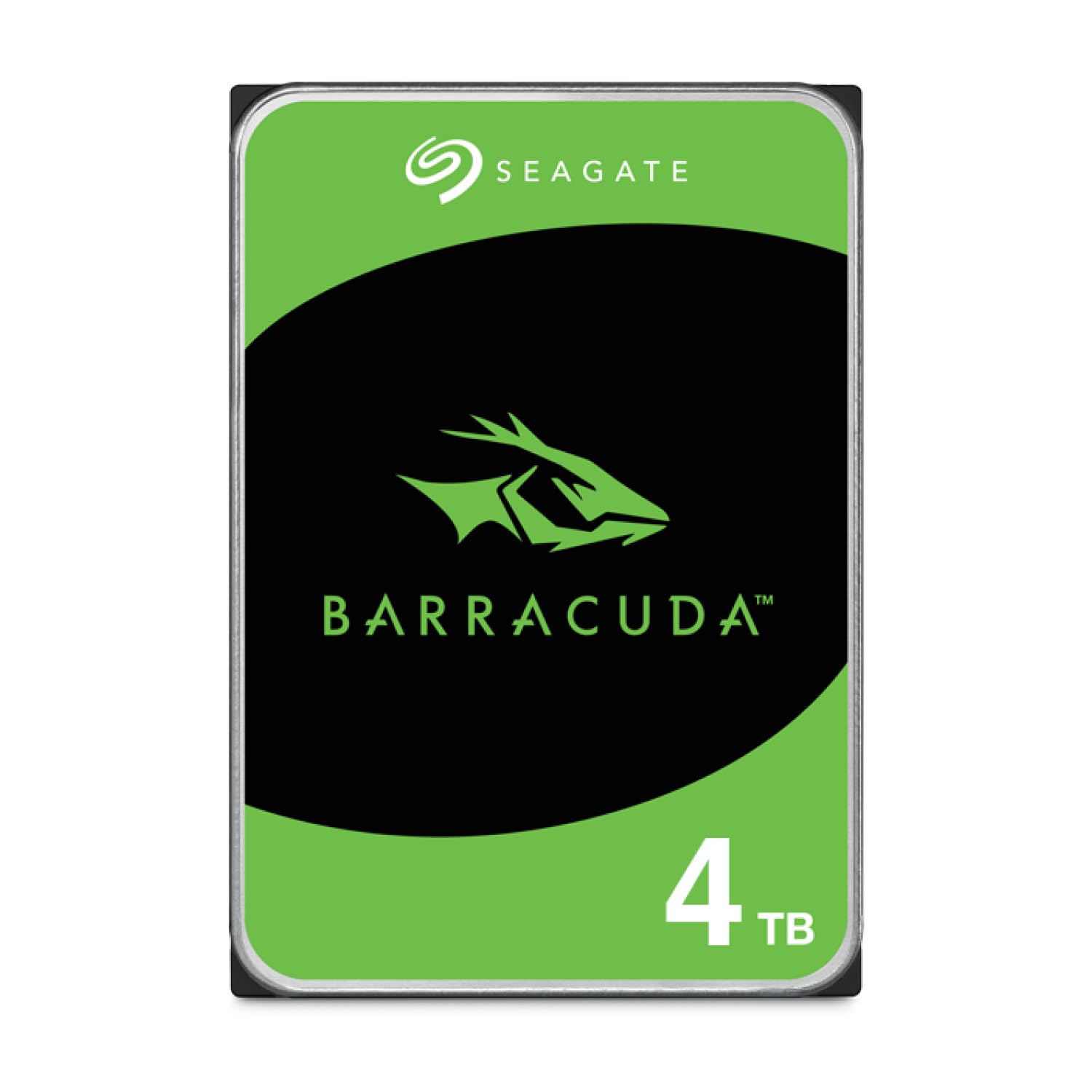
the balance between capacity and cost for desktop media archives.
The 4 TB BarraCuda is essentially the same drive as the 8 TB version above, but at a lower price point and with a smaller total capacity. It runs at 5400 RPM, has a 256 MB cache, and delivers the same 190 MB/s sustained transfer rate. Functionality is the top praise here — over 1,200 owners cite it — and quality is the second most-mentioned aspect. An owner who uses it as a PS5 external drive (via a SATA-to-USB adapter) confirmed it works perfectly for that purpose, though it is obviously slower than the console’s internal NVMe storage for loading games.
Owners emphasize that this drive is “not for speed-demanding tasks,” but it excells as a home for music, video files, photo libraries, and backups. One long-time user who previously ran 1 TB versions of the same family replaced it with this 4 TB and expects the same 7-10 year lifespan. Drive health monitoring via CrystalDiskInfo is a common recommendation from the community.
The reliability score is mixed — not because the drive is unreliable, but because some units have been reported arriving DOA (dead on arrival — not functioning from the start). This is a risk with any mechanical hard drive in shipping; the good news is that Seagate covers it under warranty, and Amazon’s return policy handles the replacement quickly. If you need a budget-friendly bulk storage drive that does not cost as much as the 8 TB version, this 4 TB option hits the balance.
Pair it smart: Use this as a secondary storage drive paired with a smaller SSD for your operating system — you get snappy boot times and a huge media library for much less than an all-flash setup.
Your pick if: you need 4 TB of backup or media storage on a budget and have a desktop tower with a free 3.5-inch bay.
Think twice if: you are storing critical data without a secondary backup — mechanical drives fail, so always pair this with a cloud or external backup plan.
5. Western Digital 1TB WD Blue HDD

The enduring 7200 RPM workhorse that has been a desktop staple for years.
It spins at 7200 RPM (faster than the 5400 RPM BarraCuda drives above), which gives it snappier random access times for the files you open regularly. The 64 MB cache is smaller than the 256 MB found on the bigger drives, but at 7200 RPM the platter reaches data faster, so the trade-off is minimal for general desktop use. Customers note a “reliable 1TB 7200rpm single-platter drive; actual capacity 931.5GB,” and note that its performance matches the WD Black drive — the main difference is the shorter warranty period.
The standout quality here is reliability — over 4,200 owners cite it as the number one reason they chose this drive. Performance comes in second with over 2,300 mentions. Noise is not an issue; owners call it quiet for a mechanical drive, though you will still hear the faint hum of a spinning platter in a silent room. The drive uses a SATA 6 Gb/s interface and delivers linear read speeds of 153-178 MB/s with a random access time of 15.7 ms average. It also comes with a free copy of Acronis True Image WD Edition cloning software, which makes migrating your old operating system easy.
Because this is a 3.5-inch drive, it only fits desktop towers — not laptops or small-form-factor PCs. Some reviewers point out occasional recognition issues on older operating systems (like needing proper 4 KB sector alignment when using Windows XP), but on modern Windows 10 and 11 it is plug-and-play. An owner who has relied on WD drives for years summarizes the strategy: put the operating system on one drive and data on a separate drive, so if the system drive fails, backups are quick to restore.
For the daily desktop: The WD Blue is the perfect single-drive solution for a general-use desktop — it is fast enough for everyday tasks, quiet, and proven over millions of installations.
Your pick if: you are building a budget desktop or need a reliable bulk storage drive with faster random access than a 5400 RPM alternative.
pass on it if: you are upgrading a laptop, need silent operation, or want the massive game-loading speeds only SSDs provide.
6. Bestoss 128GB SATA III SSD
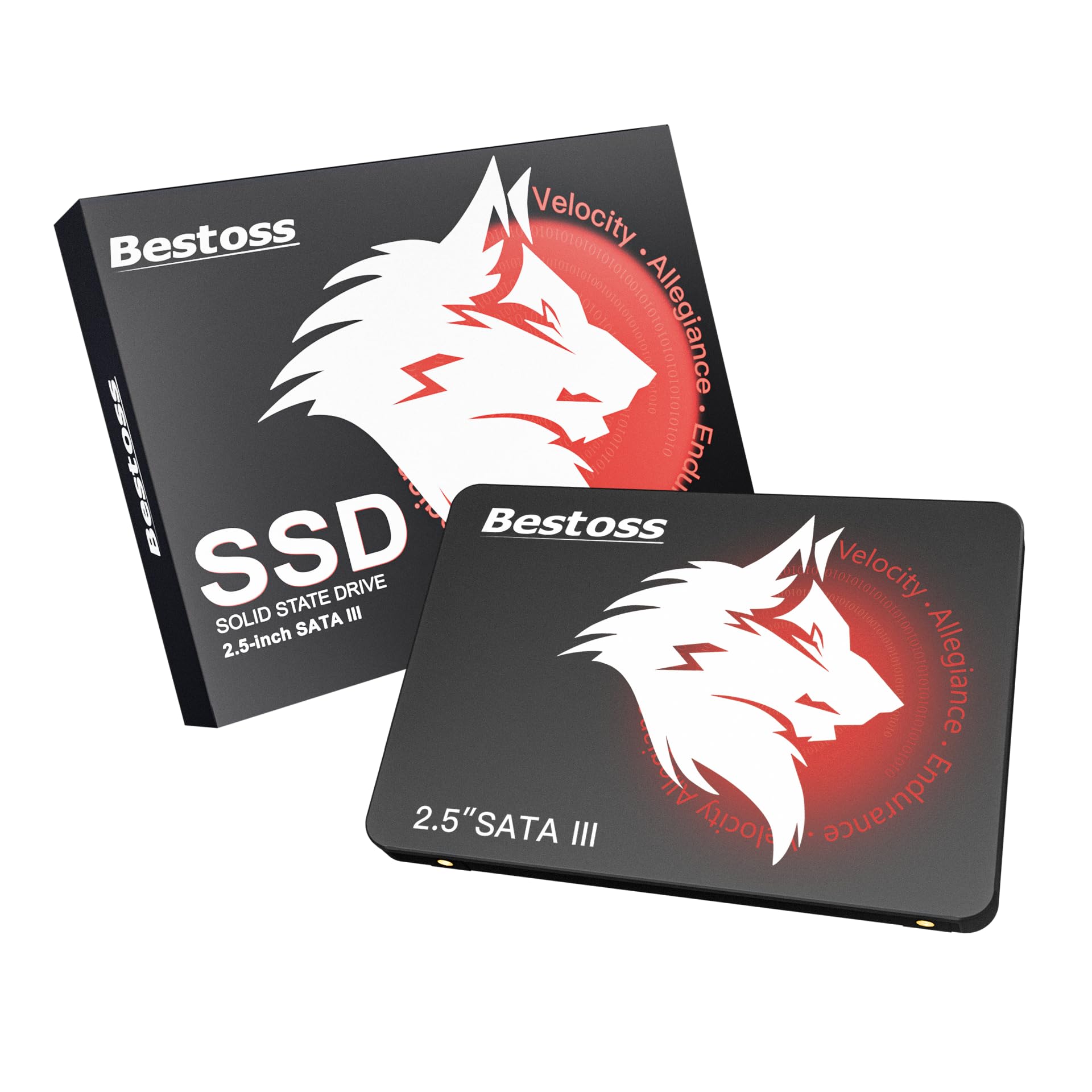
The entry-level SSD that makes an old PC feel new for next to nothing.
The Bestoss 128 GB SSD is the budget option that still delivers the essential SSD experience: instant boot times and snappy application launches. It uses TLC NAND flash (Triple-Level Cell — a durable type of flash memory that stores three bits per cell, offering better write endurance than cheaper QLC flash — Quad-Level Cell) and achieves read speeds up to 550 MB/s — the full maximum of a SATA III interface. A 128 GB drive in the SATA form factor is a direct competitor to the Kingston A400, but with a smaller capacity and a lower price point.
Functionality is the top praise among owners, with 33 buyers highlighting that it works exactly as expected. Performance comes in second with 20 mentions. One owner specifically called it “great budget drive for basic use” and noted it works well with older systems, while another is using it happily as an external SSD via a SATA-to-USB-C adapter. The drive is also popular with Raspberry Pi users — one owner called it “a great SSD for my raspberry pi.” If you have an old laptop with a spinning hard drive that takes five minutes to boot, this drive will cut that to under 30 seconds.
The downside is the capacity. 128 GB fills up fast — you can fit your operating system, a few major applications, and maybe one or two games before it is full. This is not a drive for storing a media library. It is the perfect boot drive if you are on a strict budget and can pair it with an external drive or cloud storage for everything else. The 3-year warranty and lifetime technical support from Bestoss add confidence for a budget brand.
For the tightest budgets: This is the cheapest way to experience the SSD upgrade difference — a night-and-day improvement over any HDD for boot speeds, even if storage space is tight.
Your pick if: you need to revive a very old laptop or desktop on a tight budget and are comfortable managing storage on a 128 GB boot drive.
Look elsewhere if: you need more than 128 GB for your operating system and applications — the Kingston 960 GB A400 is the right step up.
Understanding the Specs
Sequential Read/Write Speed
This number (measured in MB/s — megabytes per second) tells you how fast the drive can read or write one continuous stream of data — like a single large video file. For an SSD like the Samsung 990 PRO, speeds of 7,450 MB/s mean you can copy a 10 GB file in a second and a half. For a 5400 RPM HDD at 190 MB/s, that same file takes over 50 seconds. For everyday booting and loading programs, random access speed (how quickly the drive finds scattered bits of data) matters more, but sequential speed is the best benchmark for transferring big files.
Cache Memory
Cache is a small pool of super-fast memory that sits between the computer and the drive’s main storage. In an HDD, a larger cache (256 MB vs 64 MB) helps the drive hold onto frequently accessed data so it does not have to spin the platter around looking for it. In an SSD, the cache (often DRAM on the controller) is critical for managing where data is written inside the NAND flash — a DRAMless SSD can get sluggish during heavy multi-tasking because it has to use a bit of your computer’s main memory as a crutch. Drives with dedicated DRAM cache, like the Samsung 990 PRO with its 2 GB, deliver more consistent performance under random mixed workloads.
FAQ
Can I use a 3.5-inch hard drive in a laptop?
What is the difference between a SATA SSD and an NVMe SSD?
Will a 5400 RPM hard drive be fast enough for gaming?
How do I know if my computer has an M.2 slot?
Can I clone my old hard drive to a new SSD?
How long does a modern SSD or HDD typically last?
What does “DRAMless” mean on an SSD, and should I worry about it?
Is it worth paying more for an SSD instead of an HDD for a secondary storage drive?
Will an SSD improve my gaming performance beyond faster loading times?
Can I use an internal hard drive as an external drive?
Final Thoughts: The Verdict
For most buyers, the computer hard drive winner is the Kingston A400 960GB SSD because it combines spacious 960 GB capacity with SSD-level boot and load speeds at a price that undercuts premium alternatives — and over 200,000 owners have given it a near-perfect rating. If you want the absolute fastest loading for gaming and creative work, grab the Samsung 990 PRO 2TB NVMe, which reads at 7,450 MB/s and has the best random performance of any Gen4 drive. And for deep archives that swallow terabytes without a second thought, the Seagate BarraCuda 8TB HDD is the one to reach for — it costs far less per gigabyte than any SSD and will store your entire
Related Guides

Mo Maruf
I created WellFizz to bridge the gap between vague wellness advice and actionable solutions. My mission is simple: to decode the research and give you practical tools you can actually use.
Beyond the data, I am a passionate traveler. I believe that stepping away from the screen to explore new environments is essential for mental clarity and physical vitality.