Our readers keep the lights on and my smoothie glass nicely filled. As an Amazon Associate, I earn from qualifying purchases.
Specs are compiled from manufacturer listings and verified buyer reviews and can change over time — please confirm the key details on the product page before buying.
A designer’s mouse is not just a pointer — it is an extension of your hand. A bad one fights you: the cursor drifts, the wrist aches by lunch, the scroll wheel makes a tiny mistake that costs you a selection. The right one tracks precisely and stays comfortable through a 10-hour session.. This guide is built around the nine mice that actually deliver that.
I’m Mohammad Maruf — the founder and writer behind WellFizz. This guide is built by comparing the manufacturers’ published specifications and the patterns across verified customer reviews, so you get each pick’s real strengths and trade-offs instead of marketing spin.
You spend hours in Photoshop, Blender, or a complex spreadsheet, so you need a mouse that keeps your hand comfortable and your work fast. The best computer mouse for designers gives you adjustable DPI (dots per inch — how fast the cursor moves), programmable buttons you can set to shortcuts, and a shape that won’t leave your hand aching by 5 p.m.
Our Picks at a Glance
How To Choose The Best Computer Mouse For Designers
A designer mouse is different from a gaming or office mouse because precision, comfort, and customization are non-negotiable. You are not just clicking links — you are making pixel-perfect selections, zooming to 800%, and scrubbing through timelines for hours. Prioritize these specs.
DPI Versatility
DPI (dots per inch) tells you how far the cursor moves per inch of physical mouse movement. For designers, a wide adjustable range is key — a low DPI (800-1200) gives you pixel-level control for fine detail work, while a high DPI (3200+) lets you zip across multiple monitors without lifting the mouse. Look for a mouse that lets you change DPI on the fly with a dedicated button.
Button Count & Programmable Macros
More buttons mean fewer trips to the toolbar. A forward/back button is a minimum, but the best designer mice add a side scroll wheel for horizontal scrubbing and programmable buttons you can map to Undo, Brush Size, or Layer Toggle. The number of buttons (5, 6, 7, or 11) directly affects how much you can customize your workflow.
Ergonomic Shape & Wrist Health
Spending 8-12 hours a day on a mouse makes shape the single most important long-term factor. A standard flat mouse forces your forearm to twist, which over time can lead to repetitive strain. Ergonomic options include a traditional contoured shape, a vertical handshake position, or a trackball (where your hand stays still and you move the ball with your thumb). Each reduces a different kind of fatigue, so the right choice depends on where you feel the strain.
Quick Comparison
| Model | Best For | DPI | Buttons | Connectivity | Amazon |
|---|---|---|---|---|---|
| PHILIPS Ergonomic Wireless★ Best Overall | Silent Office Work | 4000 DPI | 5 | BT + 2.4G | Amazon |
| Logitech MX Master 3SAlso Great | Pro All-Rounder | 8000 DPI | 5 | BT + USB | Amazon |
| Logitech MX Master 4 for MacPro Pick | Apple Ecosystem | 8000 DPI | 7 | BT + USB | Amazon |
| Evoluent VM4S Small | Vertical Wrist Relief | 4 speeds | 6 | Wired USB | Amazon |
| Rapoo MT760 | Maximum Customization | 4000 DPI | 11 | BT + 2.4G | Amazon |
| CITLLA Ergonomic | Logitech MX Alternative | 4800 DPI | 7 | BT + 2.4G | Amazon |
| DELUX Seeker M618XSD | Vertical with OLED | 4000 DPI | 6 | BT + 2.4G + Wired | Amazon |
| Nulea M514 Trackball | Budget Trackball | 1000 DPI | 6 | BT + USB | Amazon |
In‑Depth Reviews
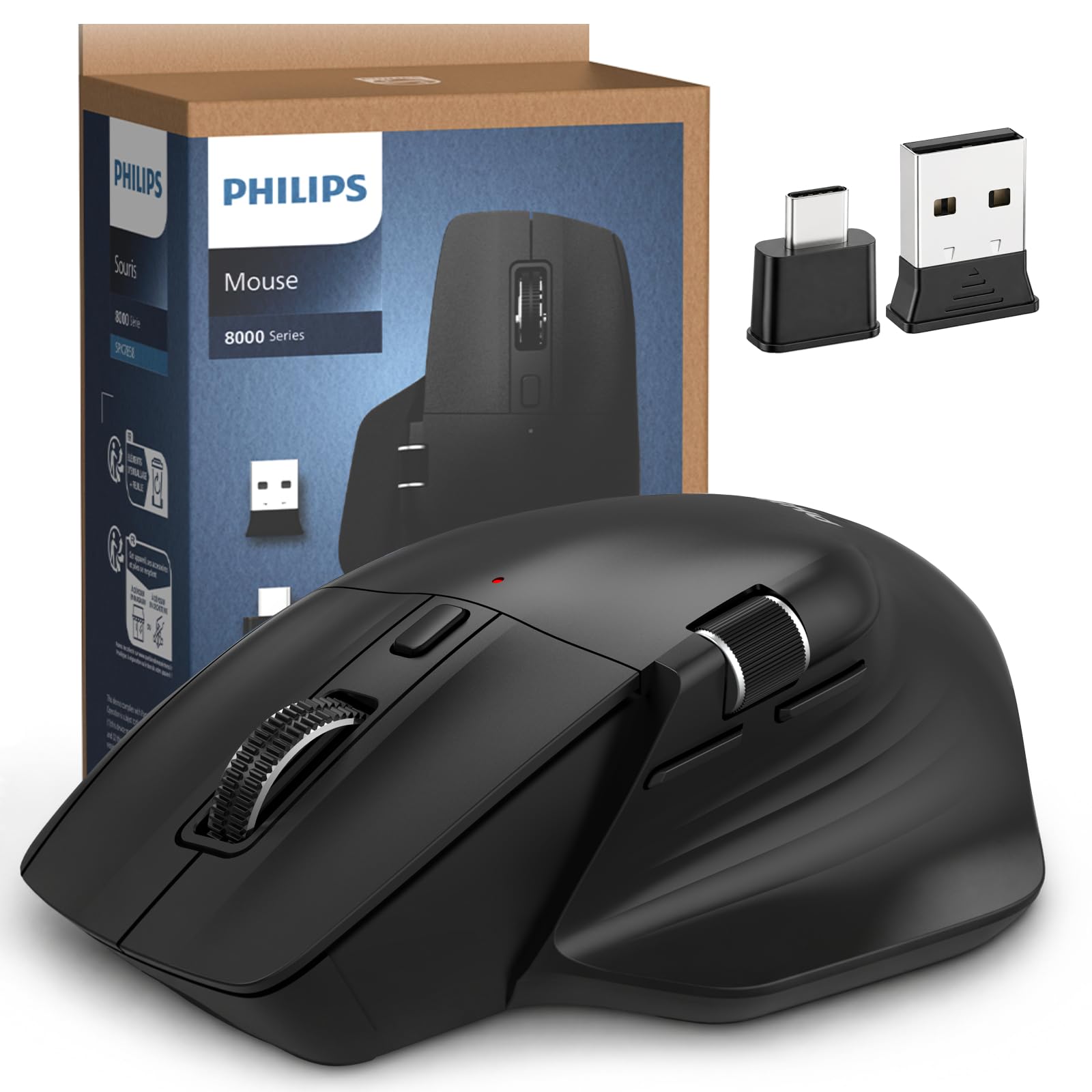
1. PHILIPS Ergonomic Wireless Mouse — Multi-Device
Our pick — over 4.5★ from 950+ verified ratings; the strongest balance of quality and price.
Library-quiet clicks and a 25-day battery in a shape that costs a fraction of what its features would suggest.
The PHILIPS ergonomic mouse punches well above its tier. It has 5 buttons, a contoured right-handed shell with an anti-slip thumb rest, and a side scroll wheel for horizontal spreadsheet work. The advanced optical sensor reaches 5-level adjustable DPI from 800 to 4000 — high enough for a dual-monitor design setup. The 500mAh battery delivers a claimed 25 days of heavy use (8 hours per day), and a 5-minute charge gives you 1 hour of emergency tracking. It connects to three devices via Bluetooth or the included dual USB-A/C receiver.
Owners call it “one of the best I have ever used” and note it beats mice costing significantly more in terms of battery life and utility. The build quality and silent clicks earn real praise. The recurring honest caveat is the scroll wheel texture — buyers report that the dotted texture (not ridged) can cause a blister after about 4 hours of continuous scrolling. It also requires a matte surface; it skips on glossy tabletops. At 97 grams, it is noticeably lighter than the Nulea trackball (151.5 grams), making it a lighter travel companion.
Why It’s a Steal
- Library-quiet left and right buttons — no click noise in a shared studio
- Three-device switching via Bluetooth and dual USB-A/C receiver
- 25-day battery with 5-min emergency top-up
- Side scroll wheel for horizontal timeline navigation
The Catch
- Scroll wheel dotted texture can cause finger irritation during long sessions
- Sensor skips on glossy surfaces — needs a matte mouse pad
Snag this if: silence is a priority, you work across three devices, and you want an ergonomic shape without spending premium money.
skip it if: your workflow depends on heavy continuous scrolling or you exclusively use a glossy desk surface.
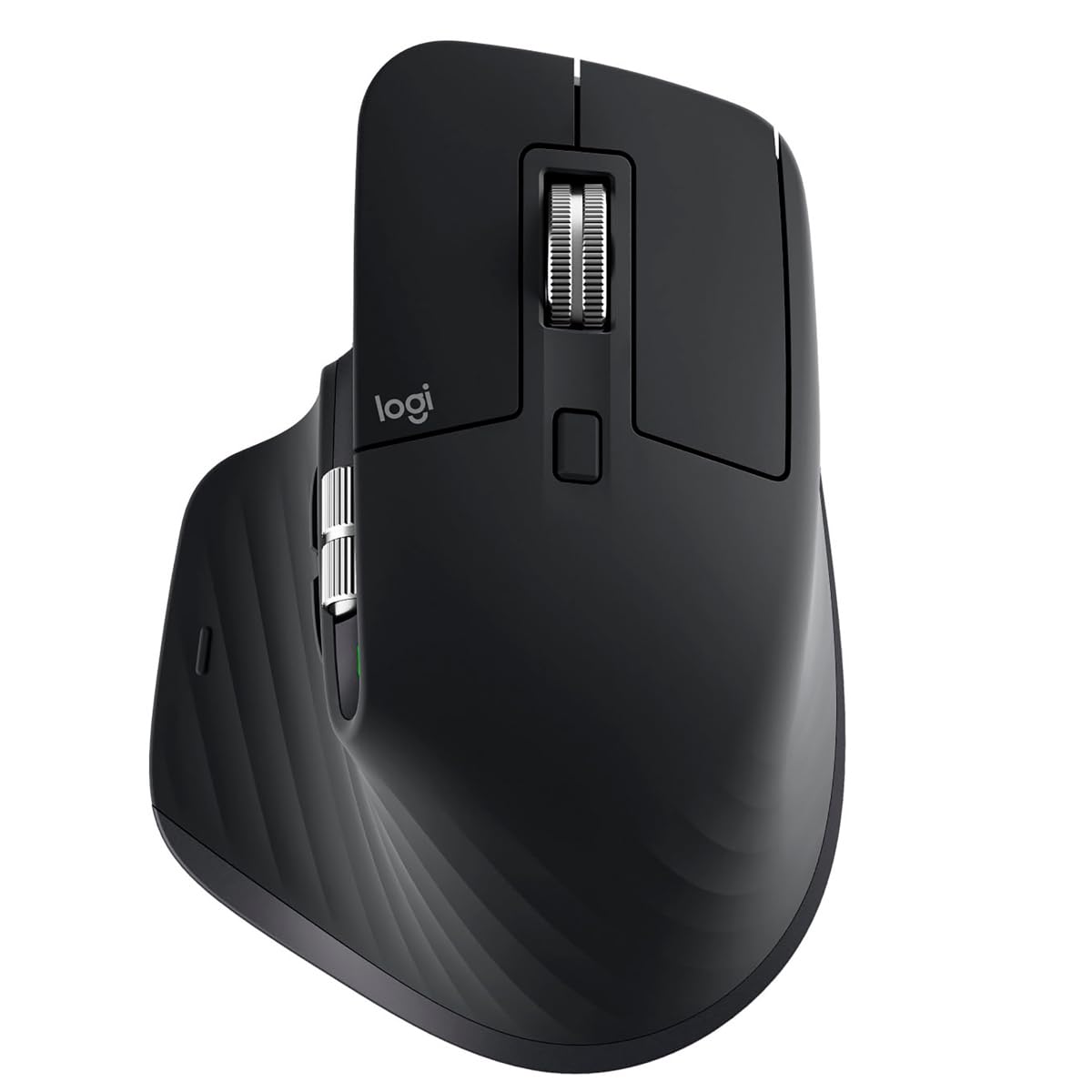
2. Logitech MX Master 3S — Black
The gold standard that designers measure all others against..
The MagSpeed scroll wheel spins freely for fast navigation and locks into notched mode for precision.. It spins freely for fast document navigation and locks into a precise notched mode when you slow down. For video editors scrubbing a timeline, that is a revelation. The side scroll wheel lets you zip across horizontal spreadsheets or timeline frames without ever reaching for a scrollbar.
The 8000 DPI Darkfield sensor tracks on glass, which matters when you are working from a coffee shop or a shared desk. Quiet Clicks reduce click noise by 90%, so late-night revisions do not wake anyone nearby. The silhouette is sculpted for a natural wrist posture, and the battery life stretches to 70 days per charge. What wins people over is the consistent precision across multiple monitors — the cursor simply goes exactly where you intend, every time.
One honest trade-off: the reliability is mixed for a small minority, with some owners reporting issues after a year. Given the strong positive consensus from nearly a thousand ratings, that is not a pattern — but the Logitech Flow cross-computer feature can be glitchy and sometimes needs re-setup.
Why It Dominates
- MagSpeed scrolling is ultra-quiet for timeline work
- 8000 DPI Darkfield sensor tracks on glass without a mouse pad
- Ergonomic shape with optimally placed thumb controls for all-day comfort
- Customizable App-specific profiles in Logi Options+ for Photoshop, Premiere, and more
The Fit Check
- Flow cross-computer file transfer is not perfectly reliable — expect to re-setup periodically
- No side scroll wheel placement suits right-handers only
Reach for this if: you want a single do-everything mouse for precision work, multi-monitor setups, and cross-platform use.
Look elsewhere if: you need a vertical grip for severe wrist pain or want a trackball to eliminate arm movement entirely.
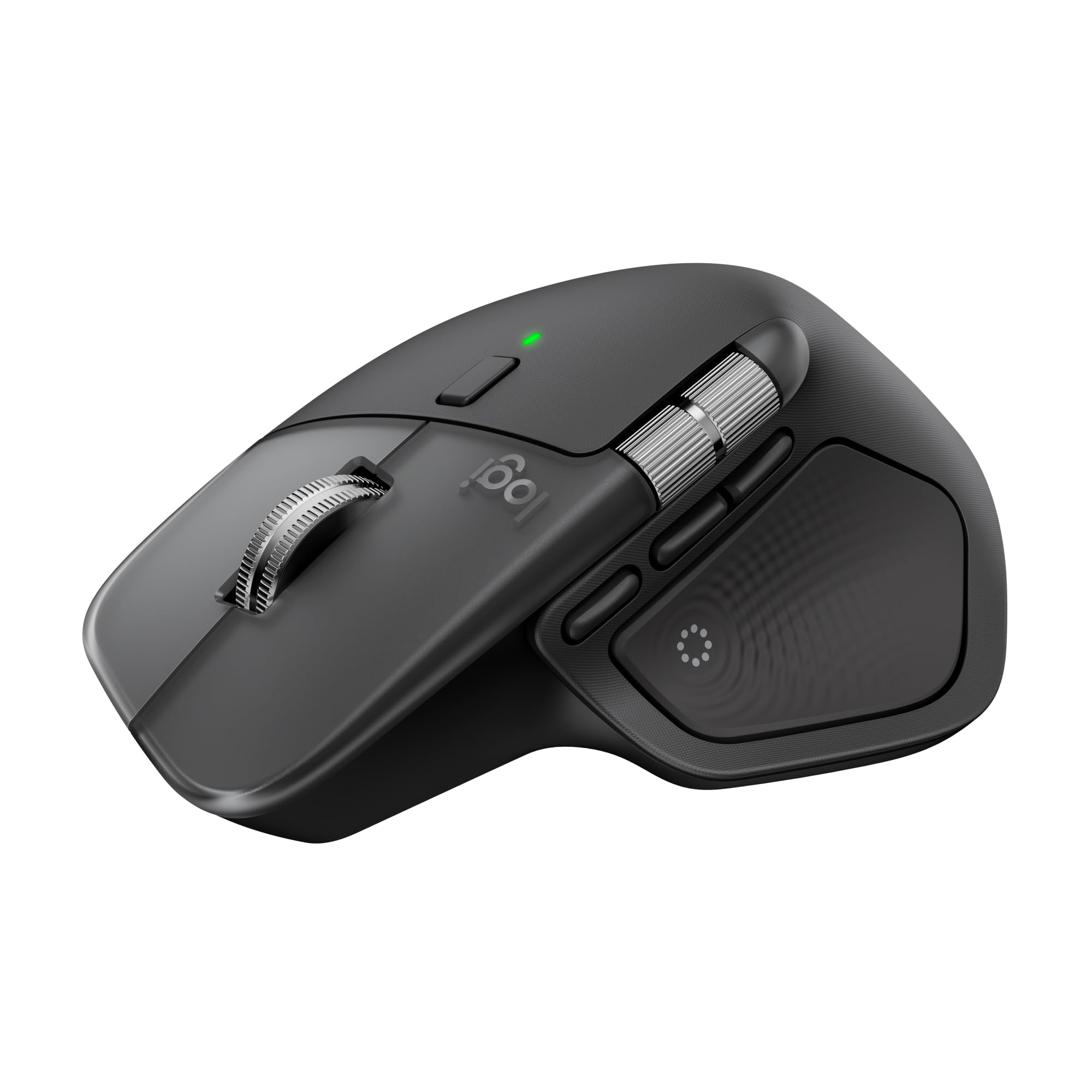
3. Logitech MX Master 4 for Mac — Space Black
The Mac-native master that upgrades the formula with haptic feedback and an app-specific actions overlay.
Logitech designed this one specifically for the Apple ecosystem — the Space Black finish matches your MacBook, and the Logi Options+ software integrates deeply with macOS. The headline feature is the Haptic Sense Panel, a customizable surface that gives you physical feedback for specific shortcuts and notifications. It is a tactile cue that keeps your eyes on the screen.
The Actions Ring is a dynamic overlay that adapts to each app, putting your most-used filters, adjustments, and shortcuts right at your cursor. The MagSpeed scroll wheel still handles 1,000 lines per second, and Quiet Clicks cut noise by 90%. The thumb scroll wheel reduces hand stress for fluid navigation across timelines. With 7 buttons, you get more customizability than the MX Master 3S, including three side buttons. The durability is also improved — the texture is a non-rubberized frosted plastic that holds up better over time than the rubberized coating on older models.
The “for Mac” version does not include a 2.4 GHz Logi Bolt dongle (a small USB receiver for a fast, stable wireless connection) in the box. If your workflow needs that low-latency dongle instead of Bluetooth, you will have to buy one separately. A few owners also note the thumb button can feel slightly slippery to find by touch.
Apple-First Precision: This mouse pairs smoothly with a MacBook Pro via Bluetooth and uses Logi-Flow (software that lets you move the cursor between a Mac and an iPad as if they were one screen). That makes it the easiest pick for a designer who works in macOS and iPadOS.
Go here for: a Mac-centric setup where you want haptic feedback, app-specific shortcuts, and the most premium build quality.
Think twice if: you need a wired or dongle-based connection from the start, or you prefer a rubberized grip texture.
4. Evoluent VM4S Small Vertical Mouse — Wired USB
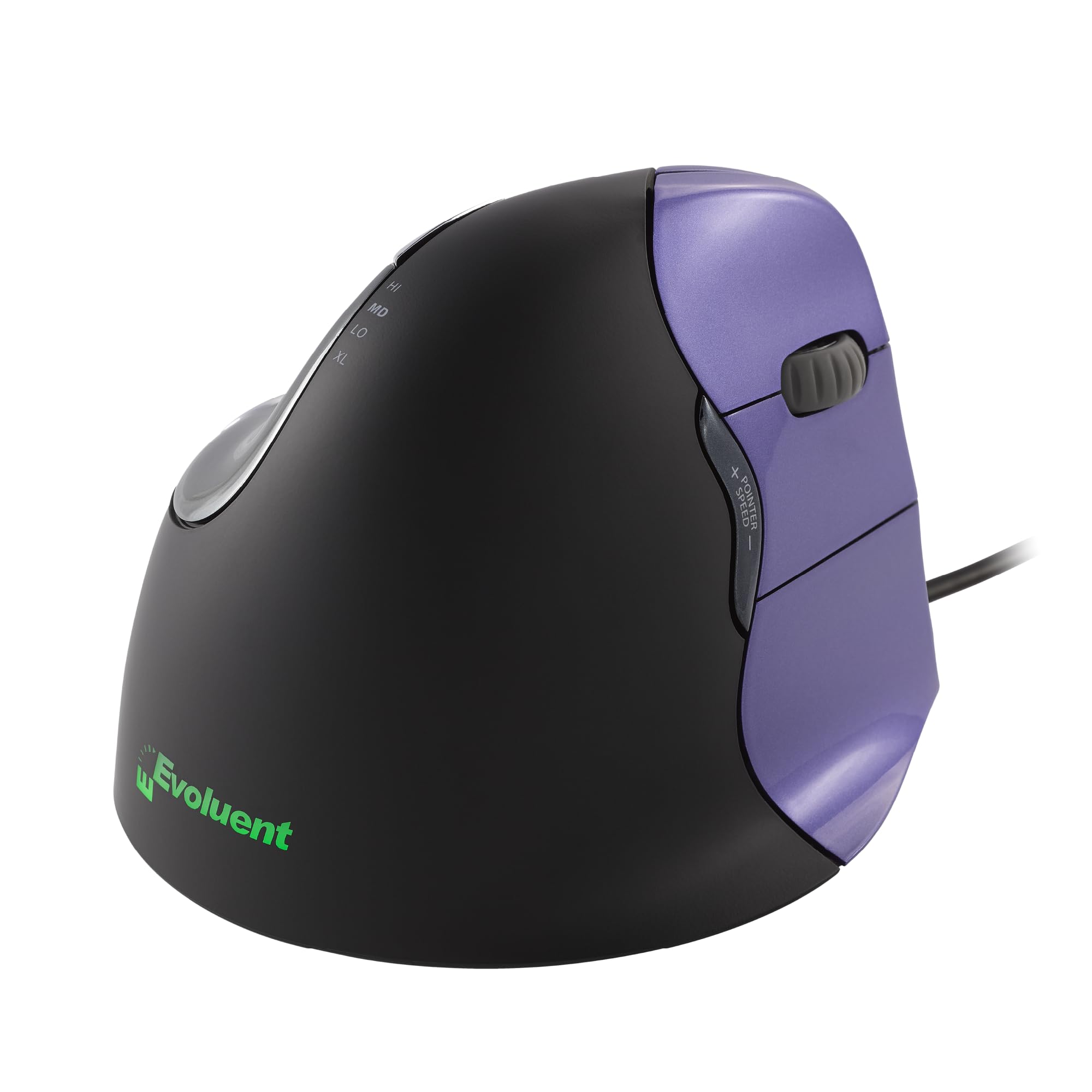
The inventor of the vertical mouse, with a small-hand-specific silhouette backed by 30 years of ergonomic refinement.
Jack Lo invented the vertical mouse in 1994, and the Evoluent VM4S is the direct descendant of that first design. The shape puts your hand in a neutral handshake position, reducing the forearm twist that causes repetitive strain. What makes this distinct from more recent vertical mice is the dedicated pinky support — a lip that prevents your smallest finger from rubbing against the desk, a detail that matters immensely during a 10-hour design session.
This version is the Small size, specifically sculpted for smaller hands, and owners with petite hands consistently report it resolved palm and wrist pain within a week. It offers 4 levels of pointer speed, 6 customizable buttons (via optional Evoluent software), and a precision sensor that tracks accurately on a wide variety of surfaces. It is a wired USB mouse, which means zero latency and no battery anxiety — a pro for designers who cannot afford a missed frame or a dropped connection.
The most-discussed aspect is wrist comfort — owners describe it as eliminating swelling and tendonitis. The trade-offs are the price (it sits in the premium tier), the bright logo light (which can be turned off), and a small learning curve of about 2 weeks as your hand adapts to the vertical orientation. The bottom thumb button placement also draws mixed feedback.
Proven Pain Relief: The consensus among owners is that this mouse eliminates wrist pain for small-handed users who found other ergonomic mice too large. Animators and CG professionals specifically praise the dedicated middle-mouse button for 3D viewport navigation.
Best for: a designer with small hands who is ready to commit to a vertical grip and wants the original, proven design.
Not ideal if: you need wireless, you have large hands, or you are looking for a cheaper entry point into vertical mice.
5. Rapoo MT760 Multi-Device — Light Grey

11 programmable buttons and 90 days of battery life — the productivity mouse with a button count that towers over the competition.
With 11 buttons, while the PHILIPS has 5. You can assign shortcuts, media keys, or macros to each one, mapping your entire design toolkit to your thumb and fingers. The bow-back ergonomic design with thumb support suits all grip styles, and owners with larger hands specifically praise the fit. The 800mAh battery is rated for 90 days of use, and the USB-C quick charge means you can top it up quickly.
It connects to up to 4 devices via Bluetooth 5.0 or the included 2.4 GHz dongle, with M+ Cross-Computer Technology that lets you move the cursor between screens on the same network. The side scroll wheel is a Hall magnetic induction design — smooth and precise. The DPI range offers 7 adjustable levels from 800 up to 4000. What owners come back to is the build quality, fast Bluetooth pairing, and the fact that the battery life is genuinely unreal (some report 60% remaining after months of use).
The scroll wheel has a notched ratchet feel, not a smooth free-spin mode.. For designers who want infinite scroll for long code files or timelines, the lack of a smooth mode is a loss. The Rapoo software is also not perfectly intuitive, and some owners found no manual for custom configuration.
Button Overload (In a Good Way): The 11 buttons make this the best pick for a designer who wants to eliminate keyboard shortcuts entirely. The horizontal scroll wheel, ergonomic back shape, and 90-day battery make it a serious MX Master alternative for office and design work.
Grab this for: massive customizability, a battery that lasts months, and a shape that fits larger hands perfectly.
Pass if: you need an infinite/free-spin scroll wheel or a completely plug-and-play setup with no software configuration.
6. CITLLA Ergonomic Bluetooth Mouse — Black
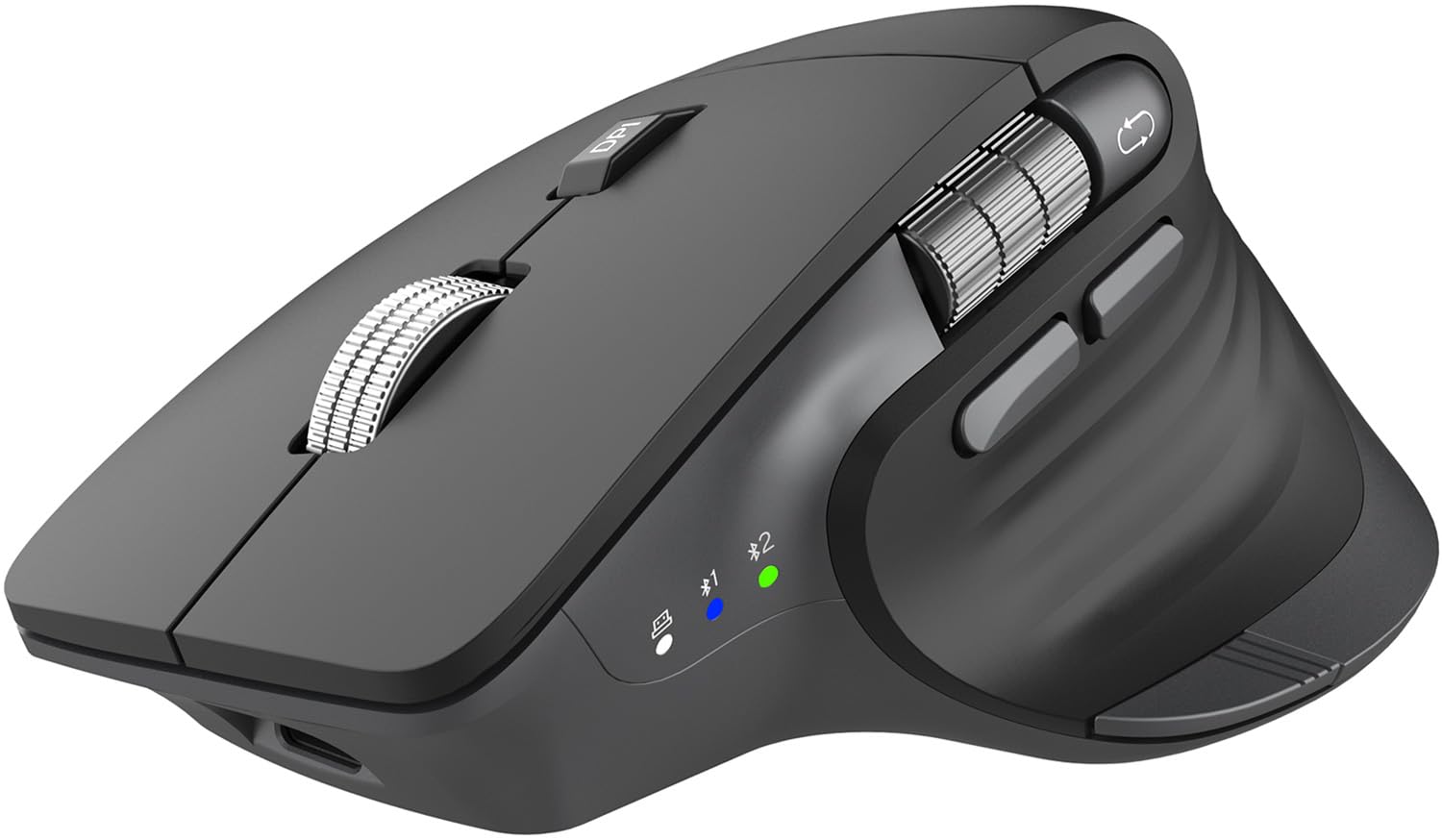
A near-clone of the Logitech MX Master 3S with a flying scroll wheel, at roughly half the price.
The CITLLA wireless mouse is designed to mimic the shape and feel of the Logitech MX Master 3S, and owners consistently confirm it feels nearly identical in the hand. It has a premium metal flying scroll wheel for fast document navigation, plus a dedicated thumb wheel for horizontal scrolling in Excel, video editing, or design work. The 4800 DPI sensor offers 5 levels of precision, and it connects to three devices (2 Bluetooth + 1 2.4 GHz receiver) with a One-Touch Return to Desktop button for Windows.
The build quality is the top positive aspect, with owners praising the ergonomics and smooth scrolling. It supports Windows, Mac, ChromeOS, Linux, iPadOS, and Android, and requires no software to function — plug and play across all platforms. The battery is rated for up to 60 days per charge via USB-C.
Some owners mention rapid battery drain, dropping from 100% to 92% in minutes and to roughly 40% after 2-3 weeks.. The enclosure feels slightly cheaply made to some, and it is noticeably lighter than the real Logitech. For Mac users, the forward/back buttons send Alt+Arrow commands instead of browser navigation — fixable with third-party software, but not native.
What Shines
- Feels nearly identical to the MX Master 3S for less than half the price
- Flying scroll wheel and horizontal thumb wheel for fast navigation
- 4800 DPI with 5 levels and broad OS compatibility
- One-Touch Desktop button for Windows
Reality Check
- Build quality is lighter and more plastic-feeling than the real Logitech
- Battery drain can be inconsistent across units
- Mac button mapping is not native — requires third-party app
Buy this if: you want the MX Master 3S shape and ergonomics but need to stay in a budget-friendly range.
Think twice if: reliability and battery consistency are your top priority, or you are a Mac user who needs native button mapping.
7. DELUX Seeker M618XSD — Vertical with OLED Screen

The only vertical mouse with a built-in OLED screen that tells you your DPI, battery, and connection mode at a glance.
The DELUX Seeker stands out visually with its integrated OLED display — no guessing what DPI you are on or how much battery remains. It shows DPI, remaining power, connection mode, and charging status in real time. The vertical design puts your hand in a handshake position, and it comes with a magnetic detachable wrist rest that lifts the wrist off the desk to prevent friction. The rubber-coated surface gives a skin-like feel. The 1000mAh battery is the largest in this lineup, rated for up to 2 weeks on a full charge.
The ergonomics are the most-praised aspect by a wide margin — 144 owners specifically call it out. The thumb scroll wheel provides 4-way scrolling, and the 5 DPI gears (800/1200/1600/2400/4000) can be pushed to 7200 DPI via the driver. The tri-mode connection (wired, 2.4 GHz, Bluetooth 5.0) gives you flexibility, and the RGB backlight sensor turns the light off automatically when you are holding the mouse.
The reliability and battery life get mixed reviews. Some customers note the wireless mode drops custom profiles after idle, requiring software re-activation. The forward/backward buttons and DPI button are placed in spots some find awkward. It also has limited Mac support — the forward and backward buttons and the driver are not available for macOS. The vertical shape takes a few days to adjust to, and some owners find the size too large for smaller hands.
OLED is Not a Gimmick: The screen solves a real annoyance — you always know your exact DPI setting and remaining charge without installing software. For designers who switch between fine-detail work and sweeping across monitors, that is genuinely useful.
Pick this if: you work in Windows and want a feature-packed vertical mouse with an OLED screen for instant spec visibility.
pass on it if: you are a Mac user, you have small hands, or you want the most reliable wireless profile retention.
8. Nulea M514 Wireless Trackball Mouse — Red
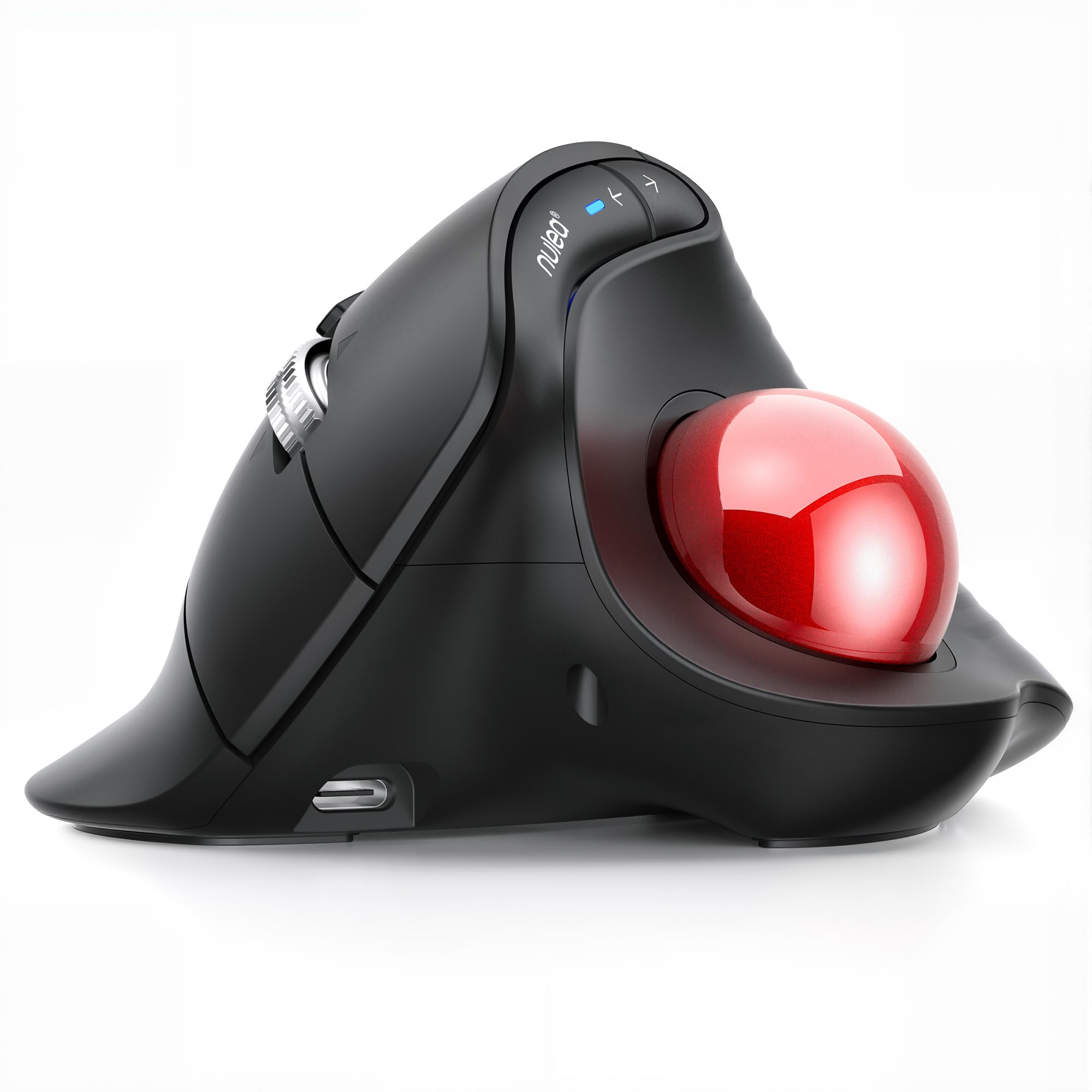
The lowest-risk entry into trackball ergonomics — a thumb-operated mouse that works on any surface, at a budget-friendly price.
The Nulea M514 combines a 65-degree vertical angle with a thumb-controlled trackball, creating a unique hybrid. The vertical angle keeps your wrist and arm naturally relaxed, while the trackball eliminates arm movement entirely. This makes it ideal for small workspaces — a café table or airplane seat tray is enough because the ball does the moving, not your arm. The smart infinite scroll wheel automatically switches between precise and fast modes based on scrolling speed.
Build quality is the most-praised aspect of this mouse. Owners describe it as well-built with excellent tracking, smooth bearings, and no lag. The hyperscroll feature is called “amazing.” It connects to 3 devices via Bluetooth or USB receiver, and the 3 adjustable DPI levels (600/800/1000) cover the essentials for design work. At 151.5 grams, it is noticeably heavier than the PHILIPS (97 grams), which some owners appreciate for stability and others find fatiguing.
The ergonomics are where opinions split. Some find the 65-degree angle comfortable, while others report it is not so hard on the wrist. The trackball layout is best for those without a premium trackball reference point, and the build quality, though praised, is acknowledged as inferior to the Logitech MX Ergo. A small number of owners note the button adjustment and button responsiveness are not perfect, and those with very small hands (sub-7-inch) may find finger strain on the scroll wheel.
Why It Wins Fans
- Great value trackball with smooth bearings and excellent tracking — no lag
- 65-degree vertical angle with thumb control for reduced arm movement
- Smart infinite scroll wheel switches between fast and precise modes
- Works on any small surface without a mouse pad
The Fit Nuance
- Build quality feels less premium than the Logitech MX Ergo
- Ergonomics are not universally comfortable — some find the thumb position awkward
- At 151.5 grams, it is heavy for extended carry
Best for: a designer curious about trackballs who wants a low-cost entry point with good build quality and smooth performance.
Consider spending more if: you have confirmed wrist pain that requires an ergonomic-certified trackball, or you need larger size accommodation.
Understanding the Specs
DPI — Dots Per Inch
This is the sensitivity of the sensor. A higher DPI (8000, as on the Logitech MX Master 3S) means the cursor moves farther with the same physical hand movement — useful if you have multiple monitors. A lower DPI (800-1200) is better for pixel-level selection because the cursor moves slowly and precisely. The best designer mice let you switch between them instantly with a button, so you can zoom across screens and then drop into fine-detail mode without opening settings.
Programmable Buttons
Each extra button is a shortcut you can map to a tool or action — Undo, Brush Size, Layer Toggle, or a macro. A mouse with 11 buttons (like the Rapoo MT760) can transform your workflow by keeping your most-used commands always under your thumb. A 5-button mouse (like the PHILIPS) covers the basics but will send you back to the keyboard for anything complex. The number you need depends on how many tools you use every minute.
Ergonomic Shape Types
You will encounter three main shapes in designer mice. A contoured mouse (like the Logitech MX series) supports the natural curve of your palm and keeps your wrist in a neutral position. A vertical mouse (like the Evoluent or DELUX) rotates your hand into a handshake posture, reducing forearm twist. A trackball mouse (like the Logitech MX Ergo S or Nulea) keeps your hand entirely still — you move the ball with your thumb, so your arm never moves at all. Each one relieves a different kind of strain.
Connectivity — Wired vs Wireless
Wired USB (like the Evoluent VM4S) offers zero latency and no battery concern, which matters for real-time precision work. Wireless options typically use Bluetooth or a 2.4 GHz USB dongle. Bluetooth is convenient for multiple devices but can have tiny input lag. A 2.4 GHz dongle (often included with multi-device mice) provides a more stable low-latency connection. Some designers prefer a mouse that can do both, so they have a backup if one connection drops.
FAQ
What DPI is best for design work?
What is the difference between a trackball and a vertical mouse for wrist pain?
Does a wired mouse have less lag than a wireless one for design work?
Can I use a gaming mouse for design work?
How do I map custom shortcuts to the buttons?
Is the Logitech MX Master 4 for Mac worth the premium over the MX Master 3S?
How long do rechargeable designer mice last on a single charge?
What is the difference between a standard scroll wheel and a flying scroll wheel?
Can I use a designer mouse on a Mac?
Is a heavier or lighter mouse better for design work?
Final Thoughts: The Verdict
For the majority of shoppers, the computer mouse for designers winner is the Logitech MX Master 3S. It combines 8000 DPI Darkfield tracking (works on glass and glossy surfaces), a MagSpeed scroll wheel (spins freely or clicks through lines), and a comfortable ergonomic shape — and it has the strongest owner consensus in this list. If you want the Mac-native version with haptic feedback (a subtle vibration when you scroll) and app-specific controls, grab the Logitech MX Master 4 for Mac. And for a designer who needs to eliminate arm movement entirely due to wrist or shoulder pain, the Logitech MX Ergo S is the one to reach for — a trackball with a 20-degree tilt that reduces muscle strain and a battery that lasts 120 days.
How We Picked
We do not accept paid placement. Every pick is matched to a real buyer and a real use-case; we do not hands-on test units.
Sources & Methodology
Specifications: manufacturer listings and product documentation. Review insights: verified customer reviews, as of July 2026. Pricing: not shown on this page (it changes often); check the current price via the retailer link.
As an Amazon Associate, WellFizz earns from qualifying purchases. This does not affect which products we feature.
Related Guides

Mo Maruf
I created WellFizz to bridge the gap between vague wellness advice and actionable solutions. My mission is simple: to decode the research and give you practical tools you can actually use.
Beyond the data, I am a passionate traveler. I believe that stepping away from the screen to explore new environments is essential for mental clarity and physical vitality.