Our readers keep the lights on and my smoothie glass nicely filled. As an Amazon Associate, I earn from qualifying purchases.
Specs are compiled from manufacturer listings and verified buyer reviews and can change over time — please confirm the key details on the product page before buying.
Choosing a laptop for computer engineering is different from picking one for general college work. You need raw processing power for compiling code, running virtual machines, and handling AI models — but you also need battery life that survives a full day of back-to-back labs and lectures. This guide looks at the real specs and what actual owners have found works best, so you can match a machine to your specific workload without wasting time on marketing hype.
I’m Mohammad Maruf — the founder and writer behind WellFizz. This guide is built by comparing the manufacturers’ published specifications and the patterns across verified customer reviews, so you get each pick’s real strengths and trade-offs instead of marketing spin.
The right laptop keeps you coding, compiling, and debugging without fighting your hardware. We focused exclusively on finding the best computers for computer engineering students, balancing processor power, memory capacity, and real-world battery endurance to match your demanding schedule.
Our Picks at a Glance
How To Choose The Best Computers For Computer Engineering Students
The biggest mistake students make is buying a standard ultrabook that looks sleek but chokes on a multi-module compile or a Linux virtual machine. Computer engineering demands a balance of CPU cores, memory bandwidth, and thermal headroom that a typical office laptop just doesn’t have.
Processor and Performance Headroom
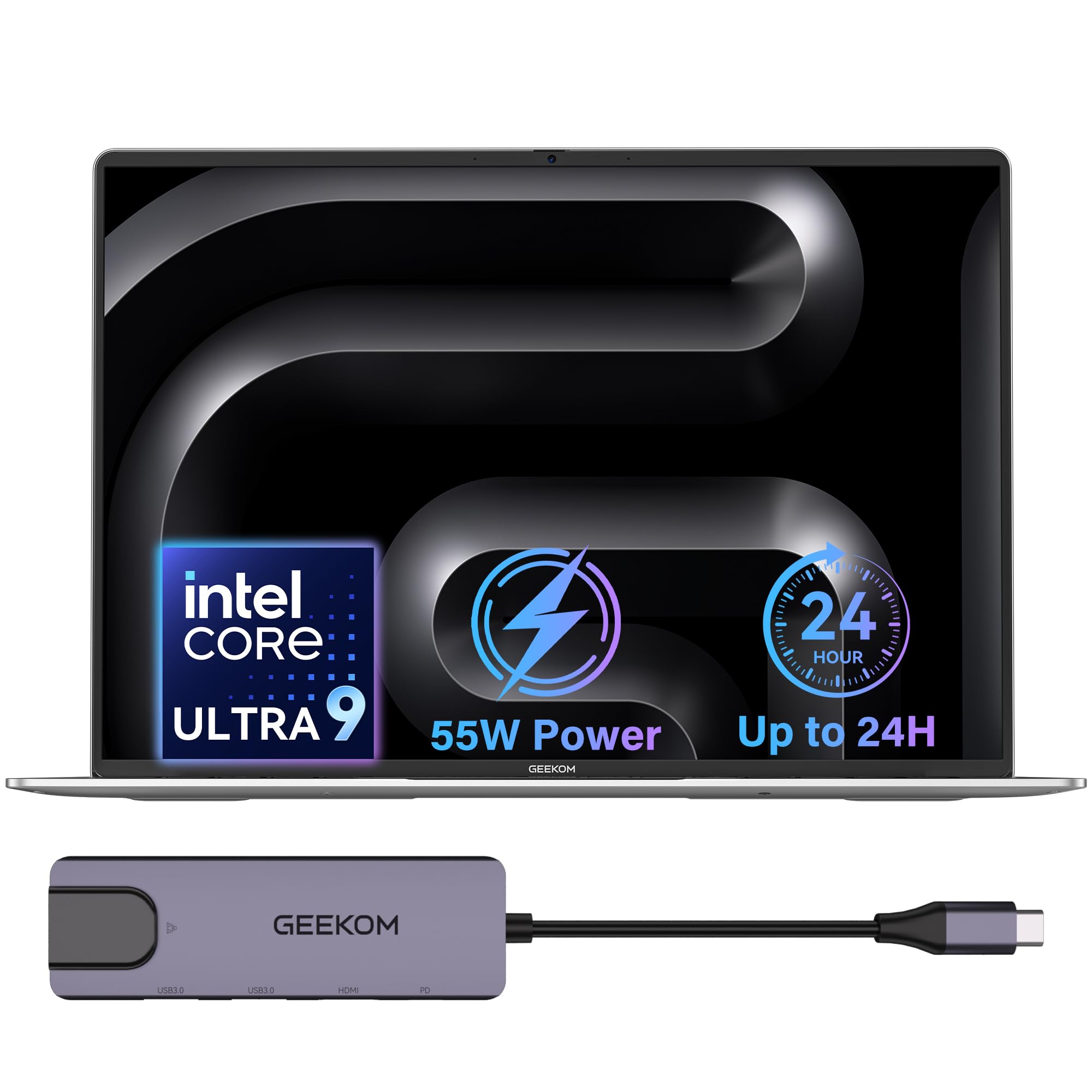
Your CPU does the heavy lifting. For compiling code, running simulations, and multitasking between IDEs, a modern high-performance chip like an Intel Core i5/i7/i9 (13th Gen or newer) or an AMD Ryzen 5/7/9 is your baseline. Look for a processor with a high boost clock speed — 4.5 GHz or above — which directly translates to faster compile times. The GEEKOM GeekBook M16, for example, uses an Intel Core Ultra 9 185H that sustains up to 55W, giving it near-desktop performance for compiling and rendering.
RAM and Storage for Development Workloads
16GB of RAM is the absolute starting point for computer engineering. If you plan on running virtual machines, Docker containers, or large AI models, 32GB or even 64GB becomes a necessity. The Dell Precision 3490 packs 64GB of DDR5 RAM, making it ideal for running multiple VMs simultaneously. For storage, a 1TB or larger PCIe Gen 4 SSD ensures your projects, simulators, and datasets don’t run out of space, while fast read/write speeds (up to 7,000MB/s) mean your IDE and projects launch instantly.
Battery Life and Portability
You cannot rely on finding an outlet in every lecture hall or library. A battery capacity of 50Wh or more is essential, but the real-world endurance depends on the efficiency of the CPU and the display. The GEEKOM GeekBook M16 leads this category with a massive 99.9Wh battery and intelligent power management, offering up to 24 hours of light use — at 24 hours versus 9 hours for some competitors. A lightweight chassis under 4 pounds also makes a huge difference when you’re carrying it across campus all day.
Quick Comparison
| Model | Best For | Processor | RAM / Storage | Battery Life | Amazon |
|---|---|---|---|---|---|
| GEEKOM GeekBook M16★ Best Overall | All-day battery & power | Intel Core Ultra 9 185H (5.1 GHz) | 16GB LPDDR5 / 512GB SSD | 24 hours | Amazon |
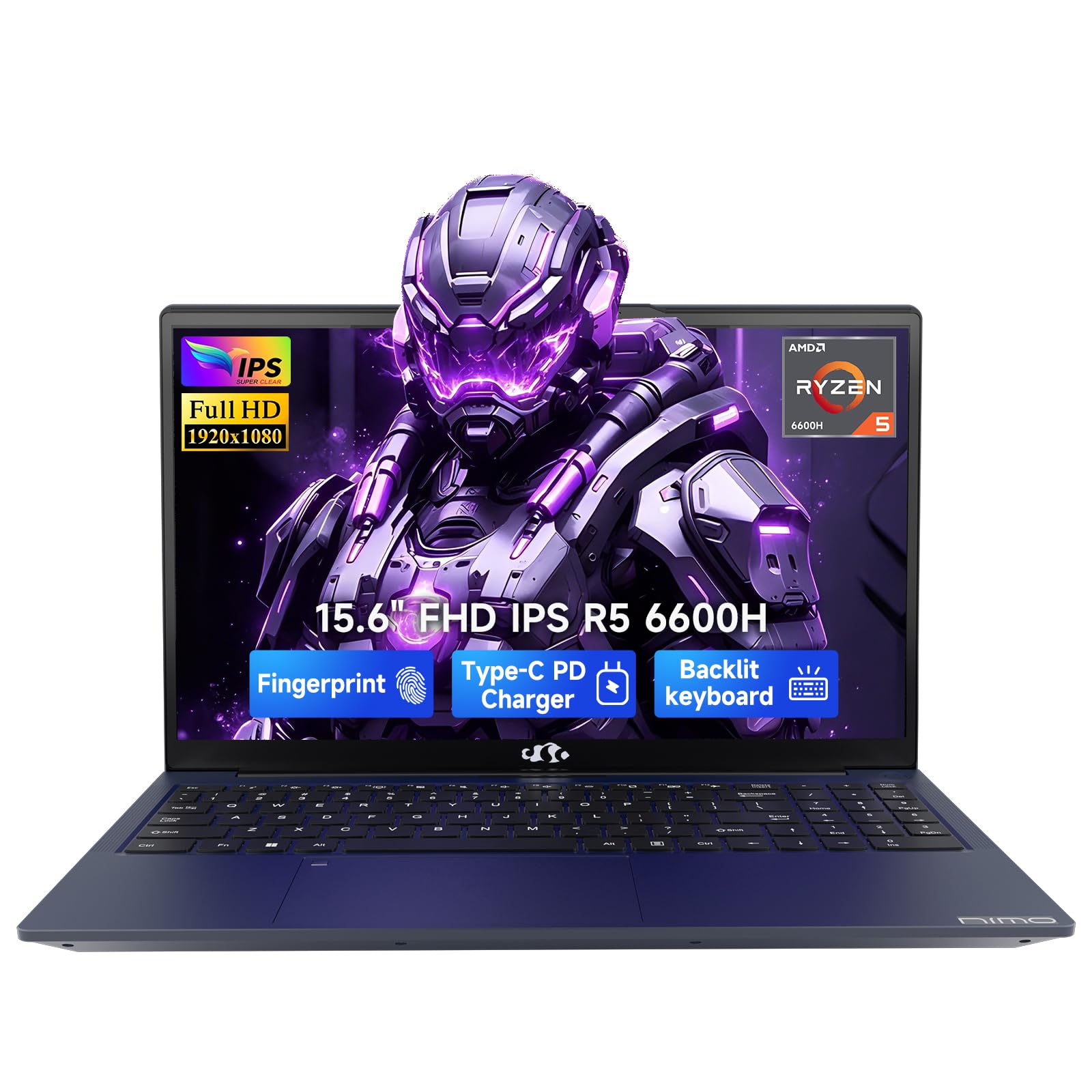
| NIMO 15.6″ AI-Creator-LaptopBest Value | Value & coding | AMD Ryzen 5 6600H (4.5 GHz) | 16GB DDR5 / 1TB SSD | 9 hours | Amazon |
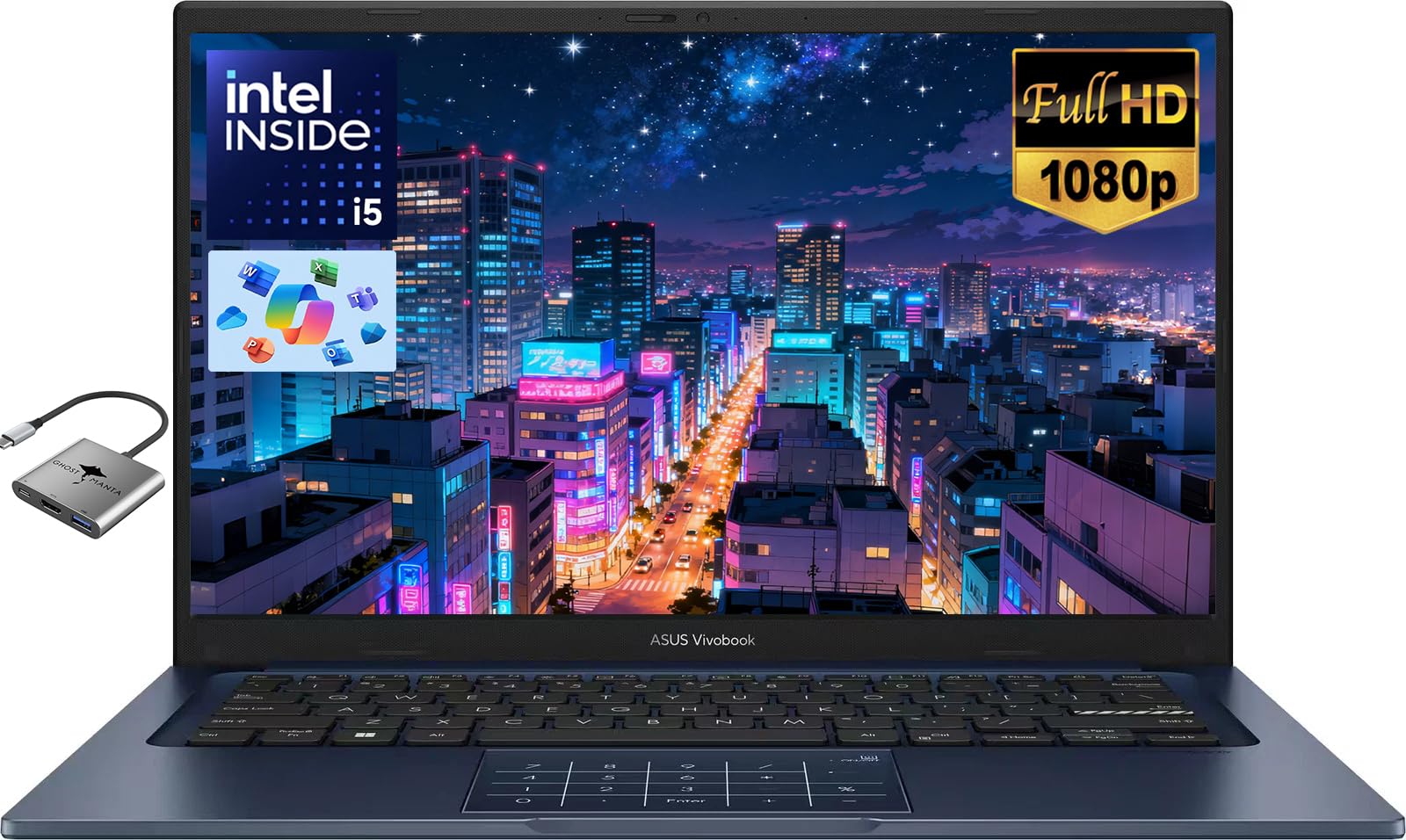
| ASUS Vivobook 14″Power Memory | Solid all-rounder | Intel Core i5-1334U (4.6 GHz) | 24GB DDR4 / 1TB SSD | 8 hours | Amazon |
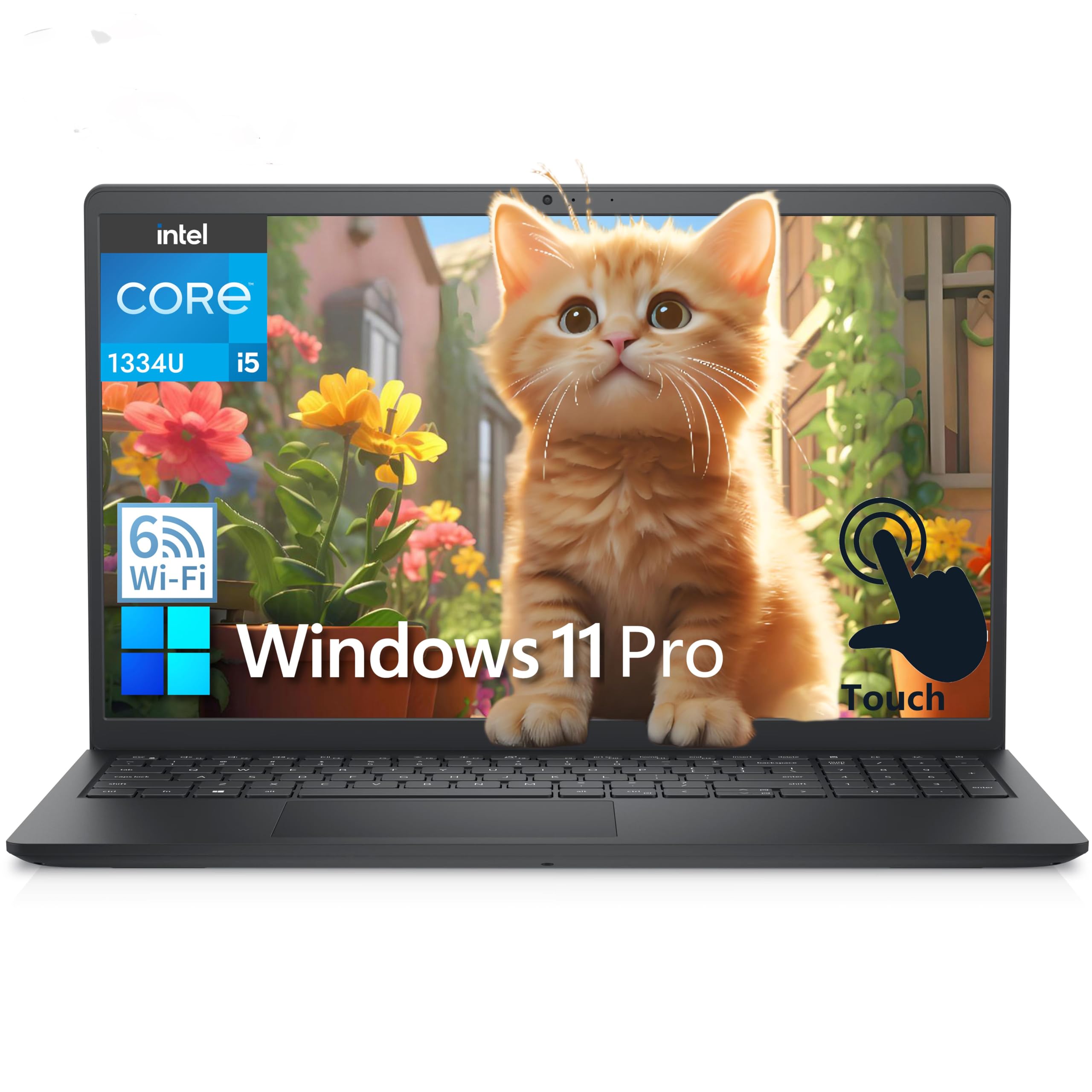
| Dell Inspiron 15 Touchscreen | Touchscreen productivity | Intel Core i5-1334U (4.6 GHz) | 32GB DDR4 / 1TB SSD | 9.25 hours | Amazon |
| Dell 15 Laptop | Basic daily driver | Intel Core i5-1334U (4.6 GHz) | 16GB DDR4 / 512GB SSD | — | Amazon |
| HP 17.3″ Business & Student | Massive screen & storage | AMD Ryzen 5 (4.3 GHz) | 32GB DDR4 / 1.5TB SSD | 9 hours | Amazon |
| Acer Aspire AI (2026) | AI-ready ultraportable | Intel Core Ultra 7 258V (4.8 GHz) | 32GB LPDDR5X / 1TB SSD | Long battery life | Amazon |
| GIGABYTE AERO X16 | Gaming & creation | AMD Ryzen AI 9 HX 370 | 32GB DDR5 / 1TB SSD | 14 hours | Amazon |
| Dell Precision 3490 | Engineering workstation | Intel Core Ultra 5 135H (4.6 GHz) | 64GB DDR5 / 2TB SSD | — | Amazon |
| ASUS ROG Strix SCAR 18 | Maximum performance | Intel Core Ultra 9 275HX | 32GB DDR5 / 2TB SSD | ~1.5 hours | Amazon |
| HP ZBook X G1i | Professional workstation | Intel Core Ultra 7 265H (5.3 GHz) | 64GB DDR5 / 2TB SSD | All-day | Amazon |
In‑Depth Reviews
1. GEEKOM GeekBook M16 Laptop, 16″ IPS
Our pick — over 4.5★ from 70+ verified ratings; the strongest balance of quality and price.
The laptop that keeps compiling long after every other machine has shut down.
The stand-out feature here is battery endurance. With a 99.9Wh battery and intelligent power management, this machine offers up to 24 hours of real-world use — at 24 hours versus the NIMO’s 9 hours. That means you can leave the charger at home through a full day of lectures, labs, and late-night coding sessions. “This is an amazing laptop, great price, fast, easy to use, light weight design, great quality,” as buyers consistently report.
Under the hood, the Intel Core Ultra 9 185H processor reaches a top speed of 5.1 GHz and sustains 55W of performance even when unplugged, thanks to GEEKOM’s Dynamic Tuning Technology. The 16-inch 16:10 IPS display gives you more vertical screen space for reading code. It also includes a USB4 port that supports 40Gbps transfer speeds and DisplayPort 2.1, so you can connect up to three external monitors — ideal for a multi-screen debugging setup.
The IceBlade 3.0 cooling system with dual fans increases air pressure by 50% and airflow by 28%, keeping the system quiet and cool while you run heavy compilers. The build is aerospace-grade aluminum alloy with a 180° hinge and a large haptic touchpad. While the 512GB SSD is a bit tight for a large project library, the available M.2 slot lets you add another drive later.
What wins people over
- Class-leading 24-hour battery life, so you never hunt for an outlet
- Powerful Intel Core Ultra 9 processor with 5.1 GHz boost speed for fast compiles
- Premium aluminum build with a 180° hinge and haptic touchpad
The honest trade-off
- 512GB SSD may fill up quickly with multiple IDEs, VMs, and project files
- Integrated Intel Arc graphics, so not for heavy 3D gaming or CUDA workloads
Reach for this if: you want one laptop that survives a full campus day and still has the CPU muscle for serious development work — the battery champ of this list.
Think twice if: you need a dedicated NVIDIA GPU for AI model training or high-end 3D rendering; this is a CPU-first machine.
2. NIMO 15.6″ AI-Creator-Laptop, Ryzen 5 6600H
Serious performance at a price that keeps your student loan in check.
The NIMO delivers an AMD Ryzen 5 6600H processor with a top speed of 4.5 GHz and 6 cores, which is a real step up in raw CPU power compared to the typical thin-and-light chips. Buyers call it “great for app development” and note it handles “AI coding and development” smoothly, even running games like Baldur’s Gate 3 at max graphics without a CPU bottleneck. Performance is the most-praised aspect, with owners confirming it handles multitasking and coding without hesitation.
It packs 16GB of DDR5 RAM and a generous 1TB PCIe Gen 4 SSD — giving you double the storage of the GeekBook M16 for your project files, Linux distros, and datasets. The 53.58Wh battery paired with a 100W PD fast charger gets you about 9 hours of use, which is solid for a day on campus as long as you grab a charge between classes. The 15.6-inch Full HD display gives you a larger canvas for splitting your IDE and documentation side-by-side.
The backlit US keyboard and fingerprint reader built into the touchpad are practical touches for late-night coding sessions. The main trade-off, as some owners note, is the build quality — the body feels a bit “cheaply made” compared to premium metal laptops. It also runs on Windows 11 Home, not Pro, which might matter if you need BitLocker or Remote Desktop for a server course.
Smart student pick: Tremendous CPU value for the money — the Ryzen 5 6600H punches well above its class for compiling and app development.
Best if you: need a fast processor and 1TB of storage on a tight budget and don’t mind a plastic chassis.
Look elsewhere if: premium build quality or an all-metal chassis is important to you.
3. ASUS Vivobook 14″ FHD, 24GB RAM 1TB SSD
A 14-inch workhorse with a balance of 24GB RAM for running multiple VMs.
The ASUS Vivobook strikes an interesting balance. It uses a 10-core Intel Core i5-1334U processor that boosts up to 4.6 GHz — a capable chip for compiling and everyday multitasking — and pairs it with 24GB of DDR4 RAM. Owners praise its quality and performance, calling it a “great value for money” machine that runs “just like advertised.”
The 1TB PCIe SSD provides ample storage for all your projects and software. The 14-inch Full HD display with ultra-narrow bezels is bright and portable, making it easy to carry from lab to lecture. Battery life is rated at up to 8 hours, which matches what buyers report seeing in daily use: “runs for about 6-8 hours.” It also features a numeric keypad — helpful if you frequently input numerical data for simulations — and a private webcam shutter for security.
The honest limitation here is the 720p webcam and Wi-Fi 5 connectivity, which are a generation behind. Some owners also note that the keyboard layout places the number pad very close to the main keys, so larger hands can accidentally brush it while typing. It’s a minor ergonomic quirk, but worth trying if you can.
Smart memory choice: The 24GB RAM is the real headline here — it gives you breathing room for VMs without jumping to the higher cost of 32GB.
Grab it if: you want a genuinely useful RAM upgrade for virtual machines and still want a slim, portable 14-inch chassis.
skip it if: you need the fastest Wi-Fi 6 or a higher-resolution webcam for hybrid classes.
4. Dell Inspiron 15 Touchscreen, 32GB RAM, 1TB SSD
A touchscreen powerhouse with 32GB RAM for serious multitasking.
The Dell Inspiron 15 is built for students who want to interact with their work in a more tactile way. The 15.6-inch Full HD touchscreen display is a standout feature that owners consistently praise, noting its “beautiful picture clarity.” That makes it great for annotating circuit diagrams, navigating CAD software, or simply scrolling through long code files. Performance is the most-mentioned positive aspect, and with 32GB of DDR4 RAM and a 1TB PCIe SSD, this machine is ready to handle multiple IDEs, database servers, and virtual machines all at once.
At its core, it runs a 13th Gen Intel Core i5-1334U processor that boosts up to 4.6 GHz, which is more than enough for compilers and everyday development. The battery life is listed at 555 minutes — roughly 9.25 hours — which is a solid full day of use. It also comes with Wi-Fi 6 and Windows 11 Pro, so you get better network performance and enterprise security features like BitLocker from the start.
One honest note from owners: the Realtek Wi-Fi card can have issues on the 5GHz band. Some users found a simple fix by disabling 5GHz mode and roaming aggressiveness in the device manager. The speakers are also bottom-firing, so the sound isn’t as crisp when the laptop is on a soft surface. Overall, a well-rounded touchscreen machine for students who need the extra RAM and display flexibility.
Touch advantage: The touchscreen isn’t a gimmick here — it genuinely helps with diagram markup and hardware lab work.
Perfect for: students who want a touch interface for reading, annotating, and navigating large projects, plus the RAM to run it all.
Note on Wi-Fi: a quick driver tweak may be needed for stable 5GHz connections.
5. Dell 15 Laptop, 16GB DDR4, 512GB SSD
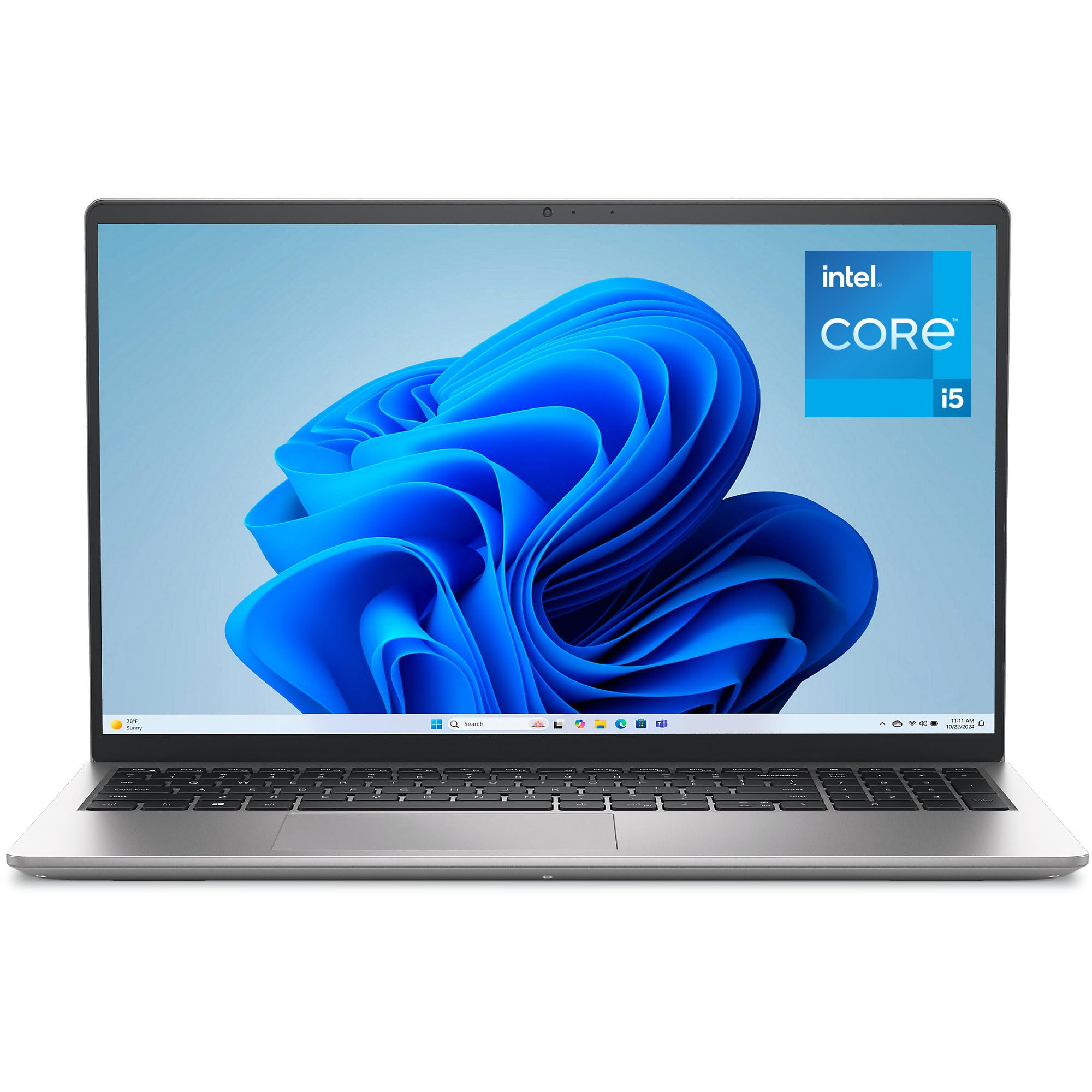
The everyday essential that keeps it simple and keeps it working.
The Dell 15 is the straightforward, no-nonsense choice. It uses the same Intel Core i5-1334U processor as the Vivobook and Inspiron above, so compiling performance is on par, but it keeps costs down by pairing it with 16GB of DDR4 RAM and a 512GB SSD. Build quality gets the most praise from owners, with many noting it feels “high-quality” and responsive for a basic daily driver. It boots fast and is easy to set up, making it a reliable machine for word processing, web browsing, and light coding.
The 15.6-inch Full HD display has a 120Hz refresh rate, which is unusually high for a budget laptop. That gives you smoother scrolling through code and documentation — a genuinely pleasant experience you won’t find on most 60Hz office laptops. Dell also includes ComfortView software, which helps reduce harmful blue light emissions to keep your eyes comfortable during long coding sessions. The lifted hinge provides an ergonomic typing angle, and there’s a separate numeric keypad for data entry.
Battery life gets a “mixed” reception from owners, with some saying it drains faster than expected. There’s no fingerprint reader, and the fan can get loud under sustained load. It runs Windows 11 Home, so you’ll miss BitLocker unless you upgrade. For a pure budget option, though, the 120Hz screen and solid brand support from Dell (including 1 Year Onsite Service) give it a strong argument.
Budget with a bonus: A 120Hz screen at this price is rare — your eyes will thank you after hours of reading documentation.
Best for: students who need a dependable, brand-name laptop for everyday work and appreciate a smoother display.
Consider elsewhere if: you need more than 16GB of RAM or consistently need more than 6-8 hours of battery.
6. HP 17.3″ FHD Business & Student, 32GB RAM
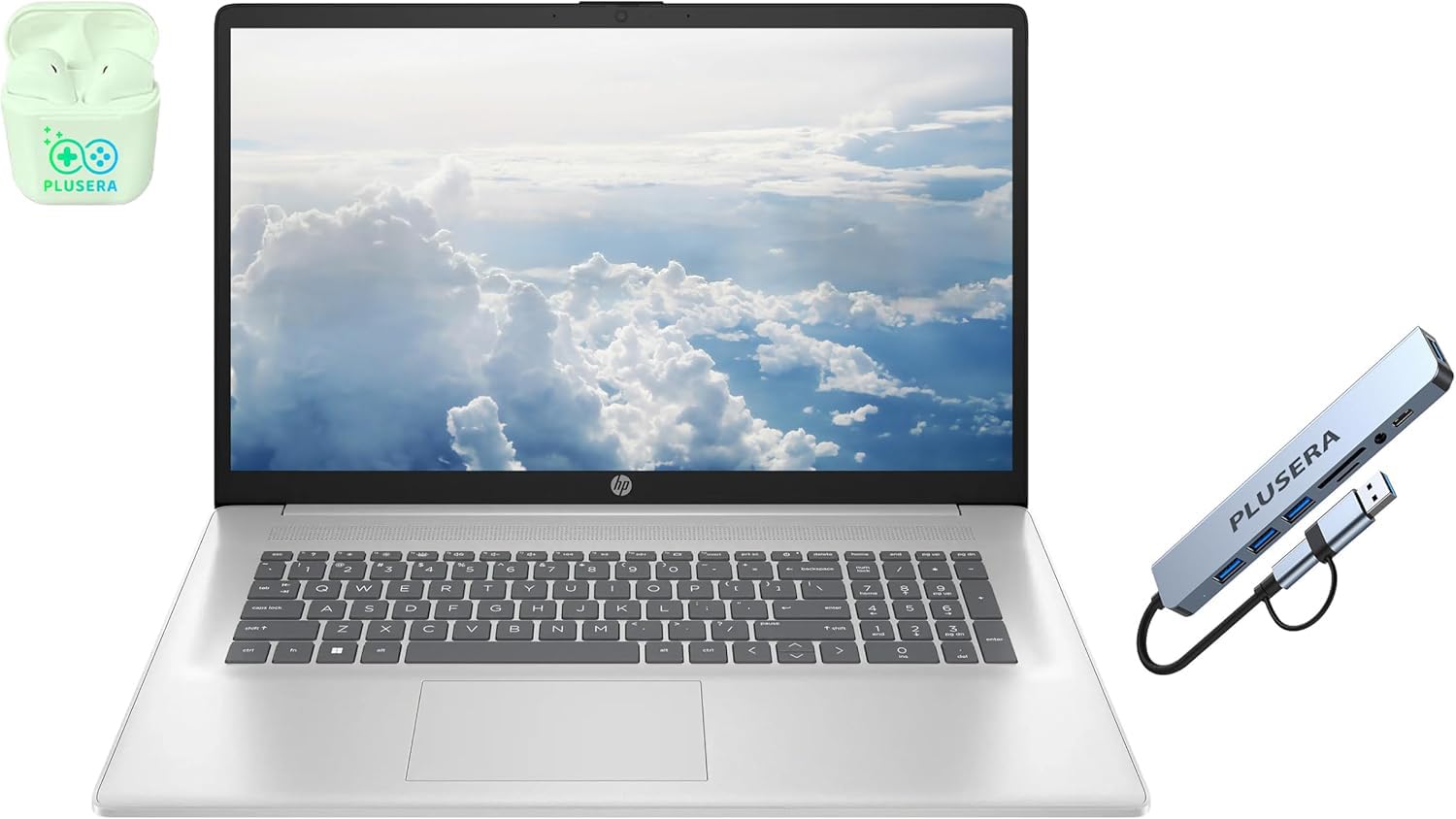
A massive 17.3-inch canvas with the RAM to fill it with windows.
Sometimes you just need more screen. The HP 17.3-inch laptop gives you a huge Full HD IPS display with 300 nits of brightness, which makes a real difference when you want to see your IDE, database schema, and a terminal window all at once without squinting. It’s powered by a 6-core AMD Ryzen 5 processor that boosts up to 4.3 GHz and is paired with 32GB of DDR4 RAM. That combination handles photo and video editing smoothly, as owners confirm, and gives you plenty of headroom for running multiple development environments. The total storage setup is 1.5TB — a 1TB SSD plus a 512GB docking station — so you have space for large datasets and multiple OS installs.
The battery life is rated at 9 hours, and owners mention it runs “fast” without “lagging on videos.” The laptop also comes with Windows 11 Pro, giving you Remote Desktop and BitLocker support. It’s not a touchscreen, and some owners mention the keyboard lacks a backlight, which is a bummer for late-night use. The build quality is good, but at this size and weight, it’s definitely a “stay-at-home base station” rather than a backpack-everywhere machine.
Big screen advantage: The 17.3-inch display and 32GB RAM make this a fantastic lab machine for running multiple VMs and databases side by side.
Go for this if: you want a desktop-replacement experience and value screen real estate over ultra-portability.
Pass if: you commute across campus daily; a 14- or 15-inch laptop will be much easier on your back.
7. Acer Aspire AI Laptop, Intel Core Ultra 7 258V

An AI-ready laptop that weighs just over 3 pounds.
The Acer Aspire AI is built for the next wave of computing. It uses the Intel Core Ultra 7 258V processor, which includes a dedicated NPU (Neural Processing Unit) capable of 47 TOPS (trillion operations per second). That means it can handle local AI tasks — like real-time video effects, background blur, and AI photo editing — without sending your data to the cloud. For a computer engineering student, this is a chance to play with local AI models, Copilot+ features, and machine learning workflows right on your laptop. It also uses Intel Arc 140V graphics with 8 Xe cores, which accelerates photo and 1080p video editing.
At just 3.09 lbs and 0.7 inches thin, this is the most portable premium machine on the list. It packs 32GB of LPDDR5X RAM and a 1TB PCIe SSD. The 14-inch Full HD touchscreen (1920×1200) supports stylus input, which is great for taking notes in engineering classes or drafting circuit diagrams. The included USB-C hub provides HDMI, USB-A, SD card, and Ethernet ports, so you don’t lose connectivity for the sake of thinness. Customers note “excellent battery life” and note it’s “better build quality and faster than previous Lenovo laptops.”
The one catch: the listing says “Lifetime Office 365,” but owners point out it’s actually the free online-only version with reduced features. That’s not a dealbreaker, but be aware you’ll need to buy the full version if you want the desktop apps. The fans can get loud under load, and the battery life under heavy use isn’t exceptional, but for an ultraportable that can handle AI tasks, it’s a very forward-looking pick.
Future-proof edge: The NPU lets you experiment with local AI and machine learning models right on your laptop — a huge plus if you’re studying AI or data science.
Ideal for: students who want a lightweight, AI-capable machine for the campus and are comfortable working on a 14-inch screen.
Note: the “Lifetime Office” is the free online version; budget for a full Office subscription if you need it.
8. GIGABYTE AERO X16, RTX 5070, Ryzen AI 9
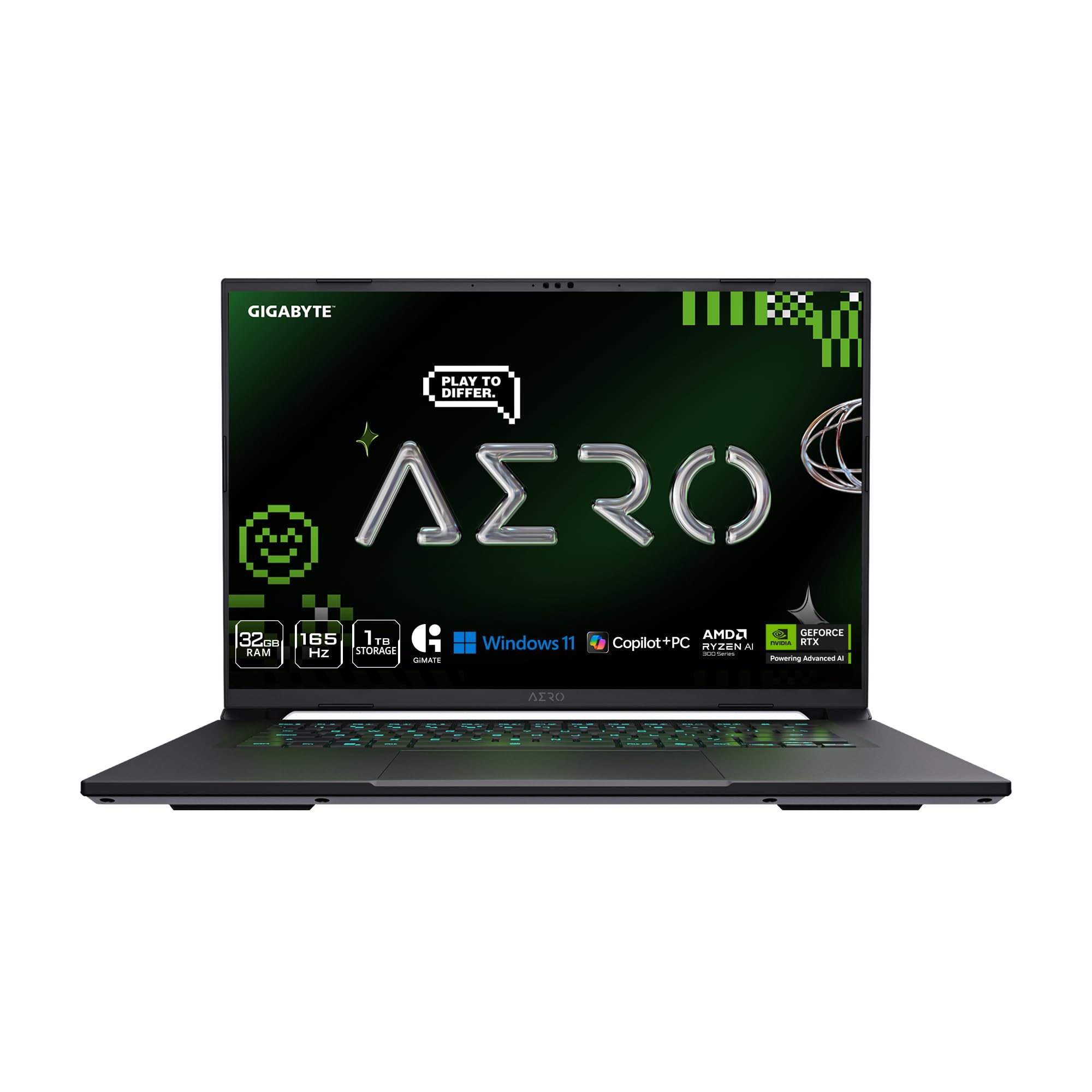
Desktop-grade GPU power in a chassis that’s just 0.65 inches thin.
The GIGABYTE AERO X16 is a serious step up in graphics capability. It combines an AMD Ryzen AI 9 HX 370 processor with an NVIDIA GeForce RTX 5070 laptop GPU (with 8GB of dedicated video memory), giving you the power to handle GPU-accelerated computing tasks like AI model training, CUDA programming, and 3D rendering. The 16-inch WQXGA (2560×1600) display runs at a buttery 165Hz, making both coding and gaming feel incredibly smooth. Owners praise its “top-tier gaming and work performance” and note it runs “cool with a cooling pad” and has “zero bugs or crashes.”
With 32GB of DDR5 RAM and a 1TB SSD, it handles multitasking and large projects easily. The battery life is rated at 14 hours, which is excellent for a laptop with this much GPU power. The build quality is premium aluminum, and it weighs just 4.18 lbs despite the 16-inch screen. It also includes the GiMATE AI assistant, which helps manage workflows. The RTX 5070 uses NVIDIA’s Blackwell architecture and supports DLSS 4, so it’s ready for the latest AI and gaming workloads.
The honest downside: a small number of reviewers point out a BIOS bug that prevents some games from launching. This seems to be a niche issue that may be resolved with a firmware update. The fan noise is noticeable under heavy GPU load, but owners say it’s “very quiet” during general use. If you need GPU compute power for AI or CUDA, this is the most affordable gateway on this list.
GPU-first pick: The RTX 5070 is the star here — it opens the door to CUDA programming, AI model training, and high-end 3D work that integrated graphics cannot handle.
Choose this if: your coursework involves deep learning, GPU computing, or 3D rendering and you want a laptop that’s thin enough to carry.
Avoid if: you only need a CPU for compiling and don’t need the extra cost and weight of a dedicated GPU.
9. Dell Precision 3490, 64GB RAM, 2TB SSD
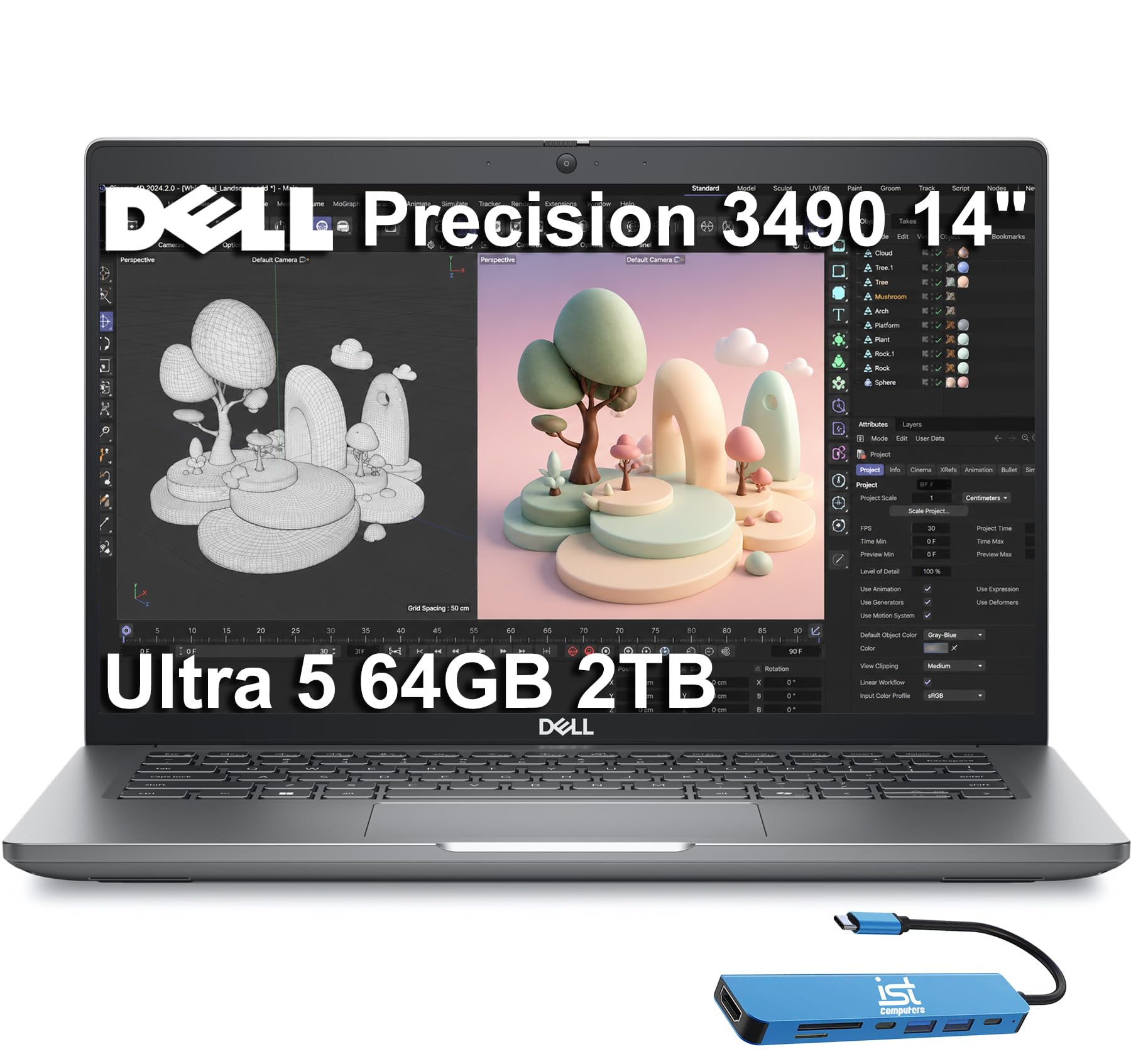
A true mobile workstation with 64GB of RAM for the most demanding engineering workflows.
The Dell Precision 3490 is built for the serious engineer. It packs a staggering 64GB of DDR5 RAM and a 2TB PCIe SSD, meaning you can run multiple heavy-duty virtual machines, large simulation datasets, and resource-intensive IDEs all at once without ever feeling a slowdown. The Intel Core Ultra 5 135H processor (14 cores, up to 4.6 GHz) handles the CPU work, and the 14-inch Full HD display with a 1080p HDR webcam and privacy shutter keeps your video calls crisp and secure. It also includes two Thunderbolt 4 ports for high-speed data and external display connectivity.
This machine is ISV certified, which means it’s tested and guaranteed to work reliably with professional engineering software like AutoCAD, SolidWorks, and MATLAB. Shoppers say it works “super bien” (very well) in production environments, running high-performance applications via its Thunderbolt ports without issue. The backlit keyboard, fingerprint reader, and MIL-STD 810H military-grade durability make it a rugged, secure workstation that can handle field work or a crowded backpack. It also comes with Windows 11 Pro and a 7-in-1 USB hub from IST Computers.
The main trade-off is that it uses integrated Intel graphics, not a dedicated NVIDIA GPU. For pure CPU and memory workloads — compiling, simulations, VMs — it’s phenomenal. For CUDA or heavy 3D rendering, you’d need the HP ZBook or GIGABYTE AERO. Also, a few owners noted the unit needed a Windows reinstall via Dell’s recovery tool to activate the OEM license correctly after the SSD upgrade. It’s a minor setup step, not a long-term flaw.
RAM for days: 64GB of DDR5 means you can run multiple full-scale VMs alongside your IDE without a single stutter — a true workstation experience.
Ideal for: graduate researchers, simulation engineers, and students running heavy VMs or large datasets who need ISV-certified reliability.
Skip for: GPU-accelerated workloads like deep learning or CUDA programming — consider the GIGABYTE AERO X16 instead.
10. ASUS ROG Strix SCAR 18 (2025), RTX 5090

Desktop replacement power with an 18-inch 240Hz Mini LED screen.
The ASUS ROG Strix SCAR 18 is the most powerful laptop on this list by a wide margin. It’s equipped with an Intel Core Ultra 9 275HX processor and an NVIDIA GeForce RTX 5090 laptop GPU running at a massive 175W TGP (Total Graphics Power). This is a machine built for the absolute bleeding edge of gaming, AI model training, and 3D rendering. The 18-inch ROG Nebula HDR display uses Mini LED technology with over 2,000 dimming zones, a 240Hz refresh rate, and 100% DCI-P3 color coverage — making it stunning for both gaming and color-accurate creative work. Build quality is the most-praised aspect from owners, who say it “feels high-end.”
It comes with 32GB of DDR5-5600MHz memory and a 2TB PCIe Gen 4 SSD with raw throughput up to 7,000MB/s. The advanced ROG Intelligent Cooling system uses an end-to-end vapor chamber and tri-fan technology, with Conductonaut extreme liquid metal on the CPU, to keep the system cool and quiet under massive loads. It also features a MUX Switch for tune gaming performance and tool-free access to customize RAM, SSD, and fans. The three-month PC Game Pass is a bonus for downtime.
However, the SCAR 18 has a significant flaw that’s been widely reported by owners: random black screen crashes in games after 5-40 seconds of play, especially with the RTX 5090 variant. Some owners had to cap the core clock to fix it, reducing performance significantly. A few owners also reported horrendous factory liquid metal application, requiring a thermal paste fix. Battery life is also very poor — buyers report just 1.5 hours of light use. It’s an extremely powerful machine, but it comes with real reliability risks that you should be aware of. For a computer engineering student, this is massive overkill unless you are also doing heavy AI model training or 3D rendering that specifically needs this GPU.
Raw performance beast: The RTX 5090 and 240Hz Mini LED display are class-leading, but the reliability and battery trade-offs are significant for a student’s daily life.
Only for: students who need the absolute maximum GPU compute power for AI/ML or 3D rendering and have a very high tolerance for potential driver issues.
Not for: general engineering coursework, compiling, or anyone who needs reliable daily performance and real battery life.
11. HP ZBook X G1i, RTX PRO 1000, 64GB RAM
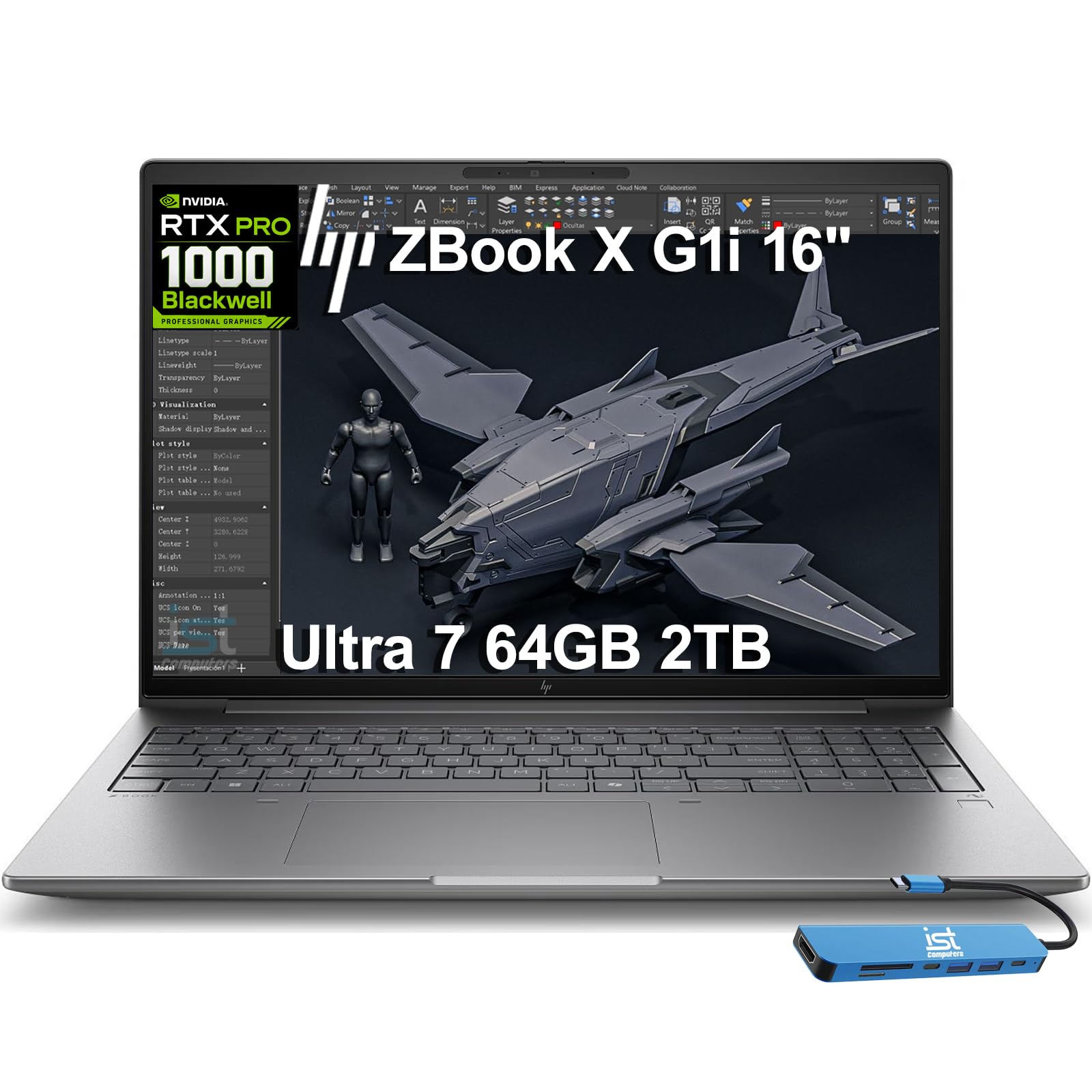
The professional-grade workstation built for the most demanding engineering and AI development workflows.
The HP ZBook X G1i is the ultimate professional mobile workstation. It combines an Intel Core Ultra 7 265H processor (boosting up to 5.3 GHz, 16 cores) with an NVIDIA RTX PRO 1000 Blackwell GPU featuring 8GB of GDDR7 dedicated memory. This is a certified workstation, meaning it’s ISV certified to work flawlessly with professional engineering software like AutoCAD, SolidWorks, Revit, ANSYS, and MATLAB. The combination of 64GB of DDR5 RAM and a 2TB PCIe SSD means you can load and work on massive simulation datasets without any lag. Owners confirm it’s “very fast booting up and processing software applications,” handling “video editing and animation well.”
The 16-inch WUXGA (1920×1200) IPS display is anti-glare with 300 nits brightness, making it comfortable for long hours of work. It also features a 5MP IR privacy-shutter webcam with AI Noise Suppression and HP Dynamic Voice Leveling for crisp video calls. Connectivity is top-tier: 2x Thunderbolt 4, Wi-Fi 7, and Bluetooth 5.4. The 83Wh battery supports all-day productivity, and the HP Wolf Pro Security (1 year) provides enterprise-grade protection. It also comes with a 3-year warranty from HP on the base components.
The primary barrier is the cost — this is the most expensive laptop on the list, positioned for professional engineers and researchers rather than undergraduate budgets. A small number of owners reported a blue screen after a Windows update, though this appears to be an isolated software issue rather than a hardware defect. For a computer engineering student who is serious about research, AI development, or heavy CAD work, this is the most capable and reliable tool you can buy, but it’s a significant investment.
Certified power: ISV certifications for SolidWorks, AutoCAD, and MATLAB mean your professional software is guaranteed to run without hitches — it’s a workstation first, laptop second.
Best for: graduate researchers, doctoral students, and those doing serious CAD, simulation, or AI work who need guaranteed ISV compatibility and a professional warranty.
Overkill if: your main workload is C++ compilation, web development, or general coursework — a mid-range laptop like the NIMO or GeekBook will serve you better for less.
Understanding the Specs
Processor Cores and Boost Clock
Your CPU is the engine that compiles your code and runs your simulations. A processor’s boost clock speed (measured in GHz) determines how fast a single core can run, which directly affects how quickly a compiler finishes a build. However, multi-core performance is just as important: a 6-core or 8-core processor can compile multiple projects or run several virtual machines at the same time. For computer engineering, look for a modern chip with a boost clock of 4.5 GHz or higher and at least 6 cores — this gives you a good balance of single-threaded speed for compilers and multi-threaded power for parallel tasks like simulation or running Docker containers.
RAM and Storage for Development
RAM is the workspace where your operating system and applications keep data they are actively using. For computer engineering, 16GB is the absolute starting point — it lets you run an IDE, a couple of browser tabs with documentation, and a virtual machine simultaneously. 32GB or 64GB opens the door to running multiple VMs, large Docker setups, or in-memory databases for data science work. Storage speed matters too: a PCIe Gen 4 SSD offers read speeds up to 7,000MB/s, meaning your IDE and projects launch almost instantly. Aim for at least 1TB of storage if you plan to keep multiple OS installs, datasets, and project files locally.
FAQ
How much RAM do I really need for computer engineering?
Do I need a dedicated GPU for computer engineering?
Is an Intel or AMD processor better for compiling code?
What is the” target=”_blank” rel=”noopener”>CPU boost clock speed and why does it matter for compilers?
What is an NPU and do I need one for computer engineering?
Can I use a gaming laptop for computer engineering?
What does ISV certification mean for a laptop?
How much storage do I need as a computer engineering student?
Is Windows 11 Pro worth it for a student over Home?
Final Thoughts: The Verdict
For most students, the computers for computer engineering students winner is the GEEKOM GeekBook M16 because its 99.9Wh battery and powerful Intel Core Ultra 9 processor let you compile and code all day without hunting for power outlets — and the build quality feels genuinely premium. If you want great CPU value and a full 1TB of storage on a tighter budget, grab the NIMO 15.6″ AI-Creator-Laptop. And if you need a dedicated GPU for CUDA programming or heavy AI model training, the GIGABYTE AERO X16 with its RTX 5070 is the most portable gateway to GPU-accelerated computing.
How We Picked
We do not accept paid placement. Every pick is matched to a real buyer and a real use-case; we do not hands-on test units.
Sources & Methodology
Specifications: manufacturer listings and product documentation. Review insights: verified customer reviews, as of July 2026. Pricing: not shown on this page (it changes often); check the current price via the retailer link.
As an Amazon Associate, WellFizz earns from qualifying purchases. This does not affect which products we feature.
Related Guides

Mo Maruf
I created WellFizz to bridge the gap between vague wellness advice and actionable solutions. My mission is simple: to decode the research and give you practical tools you can actually use.
Beyond the data, I am a passionate traveler. I believe that stepping away from the screen to explore new environments is essential for mental clarity and physical vitality.