Our readers keep the lights on and my smoothie glass nicely filled. As an Amazon Associate, I earn from qualifying purchases.
Specs are compiled from manufacturer listings and verified buyer reviews and can change over time — please confirm the key details on the product page before buying.
Finding a cheap USB-C docking station that actually drives dual monitors, charges your laptop, and transfers files without glitching usually feels like a gamble. Most budget docks either skimp on video bandwidth (how much screen data the cable can carry at once) or drop connections when you plug in a fourth peripheral — this guide sorts the genuinely capable hubs from the ones that just look the part, with every spec and real-owner headache pulled straight from the data.
I’m Mohammad Maruf — the founder and writer behind WellFizz. This guide is built by comparing the manufacturers’ published specifications and the patterns across verified customer reviews, so you get each pick’s real strengths and trade-offs instead of marketing spin.
if you need dual 4K output for a Windows workstation or a compact hub that leaves your desk tidy, these seven models represent the most reliable options for anyone shopping for a cheap usb-c docking station that delivers where it counts.
Our Picks at a Glance
How To Choose The Best Cheap USB-C Docking Station
The number of ports on a dock is the first thing you see, but it is not the most important detail. A cheap USB-C docking station with 12 ports but only 5Gbps data lanes (the speed data moves through the cable) can feel slower than a compact 7-port model with 10Gbps throughput (the maximum data that can pass per second). Start with the connection speed your laptop supports, then match the video output ports to your monitor setup.
Dual Monitor Support and DP Alt Mode
If you plan to run two external screens, you need a dock that supports MST (Multi-Stream Transport, a technology that lets one USB-C cable send two separate video feeds). On macOS, most budget docks can only mirror the same image to both monitors, so Mac users should check the fine print before buying. The laptop’s USB-C port must also support DisplayPort Alt Mode (DP Alt Mode, a feature that lets the USB-C cable carry video signals) for video signals to pass through; a charging-only USB-C port will not output video no matter how many HDMI ports the dock has.
Power Delivery Pass-Through
A dock with a 100W PD input (Power Delivery, the standard for delivering power through a USB-C cable) can deliver up to 85W to your laptop while leaving 15W for the hub’s own operation and connected peripherals. The wall charger and cable are almost never included with budget docks, so factor that into your total cost. If the dock requires separate power for Ethernet (the wired internet connection) or certain ports, the listing typically calls that out — one Acer reviewer noted the dock needed A/C power before the wired internet port would work.
Data Transfer Speed Expectations
Docks labeled 10Gbps use a USB 3.2 Gen 2 controller and can move a 1GB file in about one second. The more common 5Gbps standard (USB 3.0/3.1 Gen 1) is still fast for documents and photos but will feel slower with large video files or backups (copies of your data to keep it safe). Both speeds are usually plenty for keyboards, mice, and card readers.
Quick Comparison
| Model | Best For | Port Count | Data Speed | Max Video Output | Amazon |
|---|---|---|---|---|---|
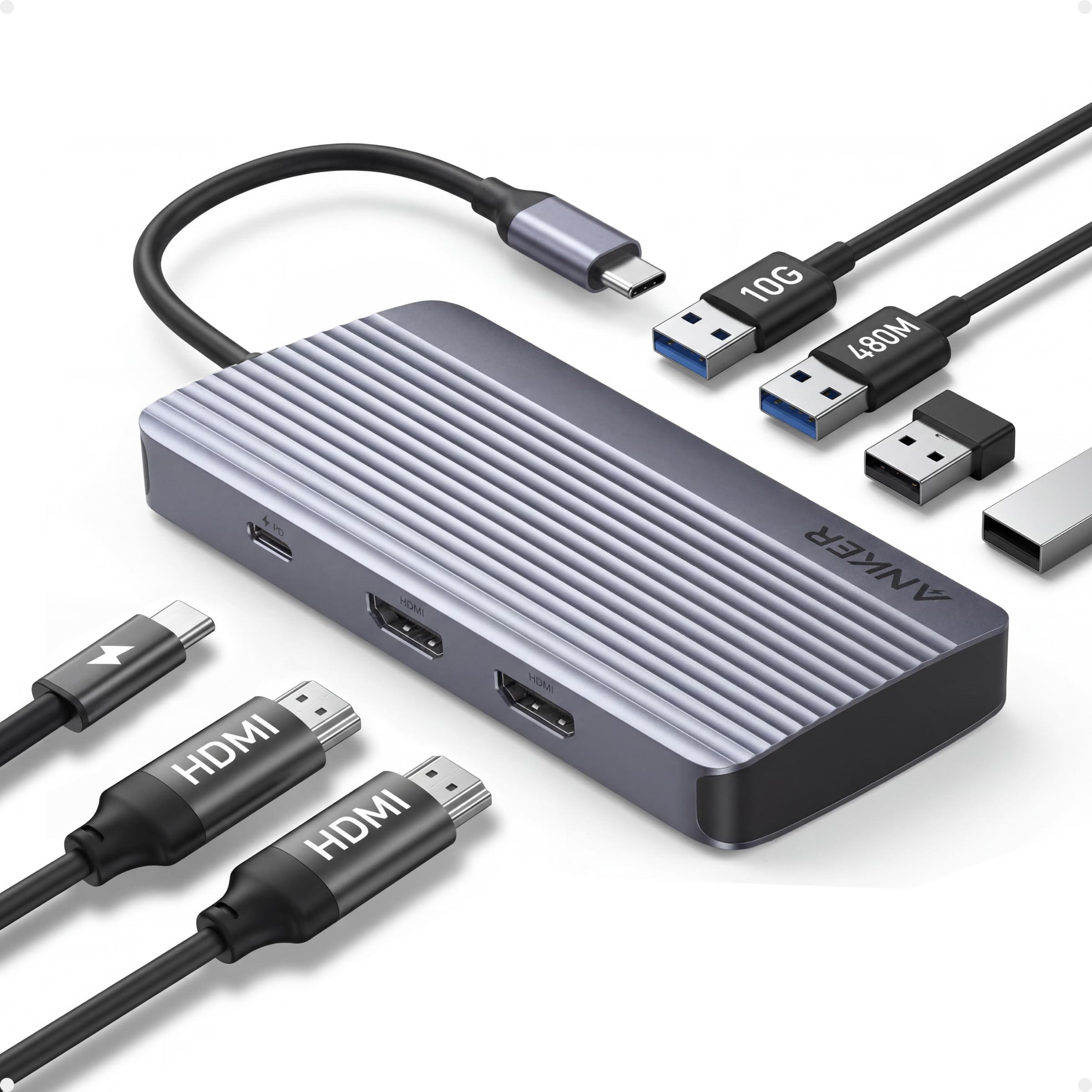
| Anker 7-in-1 Dual HDMI★ Best Overall | Reliable daily driver | 7 | 10 Gbps | 1080p@60Hz | Amazon |
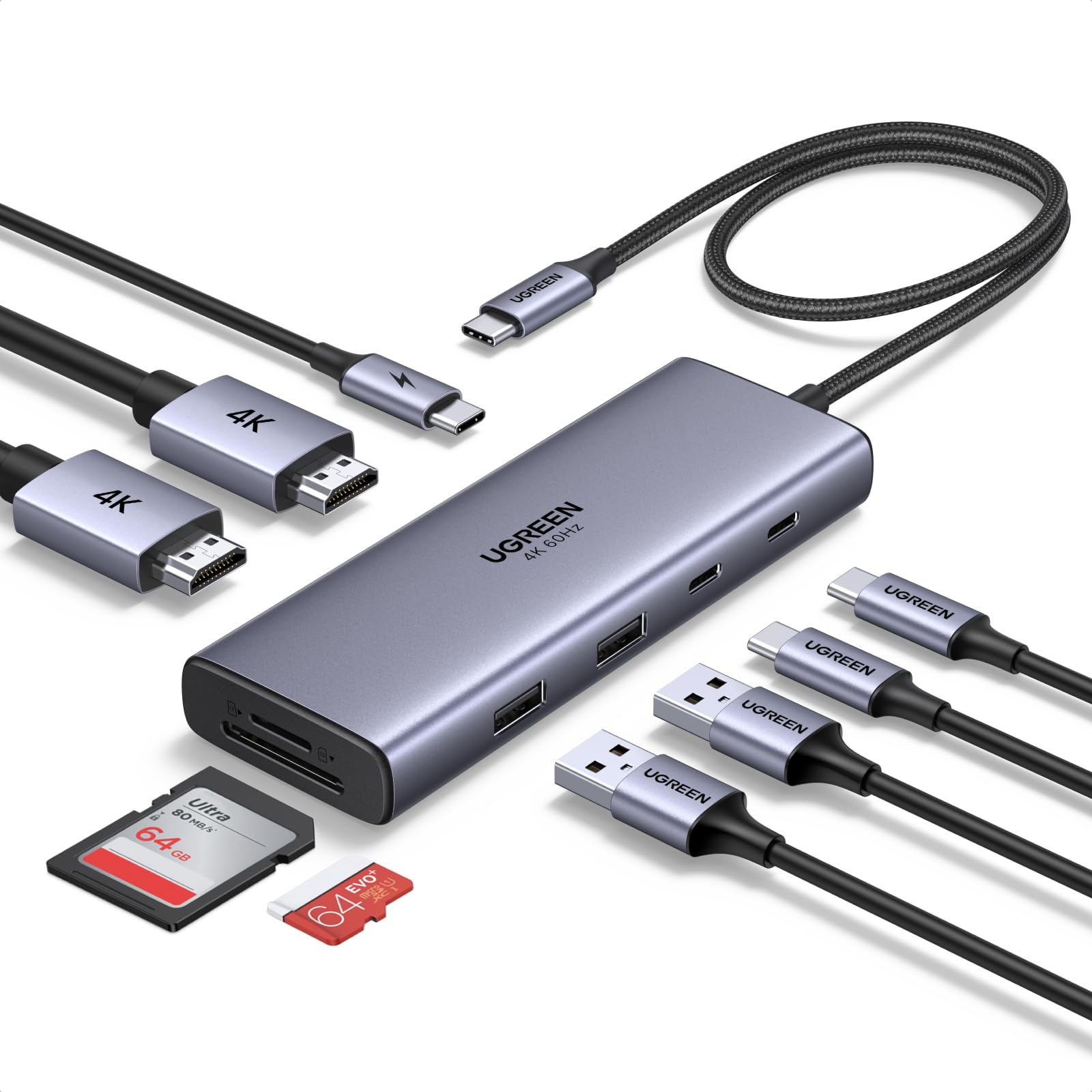
| UGREEN 9-in-1 Revodok ProAlso Great | Dual 4K Windows setup | 9 | 5 Gbps | Dual 4K@60Hz | Amazon |
| Anker Nano 8-in-1 | 10Gbps across all ports | 8 | 10 Gbps | Dual 4K@60Hz | Amazon |
| Acer 8-in-1 (10Gbps) | Fast file transfers | 8 | 10 Gbps | Single 4K@60Hz | Amazon |
| Selore&S-Global 8-in-1 | MacBook mirroring | 8 | 5 Gbps | Dual 4K@60Hz (Windows only) | Amazon |
| WAVLINK 12-in-1 | Triple display Windows workstation | 12 | 5 Gbps | Triple 1080p@60Hz | Amazon |
| Acer 6-in-1 | Budget Ethernet hub | 6 | 5 Gbps | Single 4K@60Hz | Amazon |
In‑Depth Reviews
1. Anker 7-in-1 USB-C Hub with Dual HDMI
A 10Gbps hub that keeps your desk simple and your dual screens stable — most of the time.
Anker is a name buyers trust for accessories that just work, and this 7-in-1 hub delivers exactly that for most setups. You get a 10Gbps data port for moving large files quickly, two HDMI ports for a pair of 1080p@60Hz screens, 3 USB-A data ports, and 85W pass-through charging through the 100W PD input. The aluminum enclosure is compact — 4.5 inches long — and stays cool even during extended use, with several reviewers remarking that the build quality feels premium for the price. The 10Gbps transfer speed is at 10Gbps versus the Acer 6-in-1 hub’s 5Gbps.
The honest catch is that not every unit delivers flawless dual-monitor performance. One reviewer noted “major dual monitor disconnection issues” that forced a return, and another noted occasional screen flickering. These appear to be edge cases — most owners are happy with a “flawless dual monitor” experience on their HP Victus or Dell laptops — but if absolute video stability is mission-critical for your workflow, this is the one risk to weigh against the low price.
Why it wins
- 10Gbps data port is twice as fast as common 5Gbps hubs
- Compact aluminum build with strong brand reputation
- 85W pass-through charging keeps a work laptop topped up
The known weak point
- Some users report intermittent dual-monitor disconnections
- Video output is capped at 1080p@60Hz, not 4K
Reach for this if: you want a reliable, compact hub with fast file transfer speeds and don’t need 4K monitors.
Look elsewhere if: stable dual 4K output or zero-video-glitch performance is your non-negotiable.
2. UGREEN 9-in-1 Revodok Pro USB C Docking Station
A dual-4K dock that proves you do not need a high budget for crisp extended displays.
This UGREEN dock drives two external monitors at 4K@60Hz each through its pair of HDMI ports, which is uncommon at this price tier and makes it the prime pick for anyone building a dual-screen Windows setup without spending premium money. The 9 ports include two 5Gbps USB-C data ports, a USB-A 3.0, a USB-A 2.0, and an SD/TF card reader that hits up to 170MB/s — noticeably faster than the 104MB/s readers on most budget hubs. The 15-inch cable is also a thoughtful extra, giving you more slack to hide the hub behind a monitor.
You do need to understand what this device actually is. As one reviewer put it, this is a hub, not a true docking station — it relies entirely on pass-through charging from your laptop’s USB-C port. The 100W PD input delivers up to 85W to your laptop, with 15W reserved for the hub itself. That is enough to keep a Dell XPS or ThinkPad charged during a workday, but the hub does not supply its own power. On macOS, both external monitors will show the same image (mirror mode only), so Mac users lose the extended desktop benefit.
What stands out
- Dual 4K@60Hz output for a crisp extended workspace on Windows
- SD/TF card reader reaches 170MB/s, beating most budget docks
- Solid metal shell and a generous 15-inch cable
What to watch
- Mac users get identical images on both screens, not an extended desktop
- USB data ports max out at 5Gbps, not the 10Gbps some competitors offer
Grab it for: a clean dual-4K Windows desk with fast SD card transfers.
Think twice if: you need 10Gbps data speeds on every USB port or macOS extended display support.
3. Anker Nano 8-in-1 Laptop Docking Station
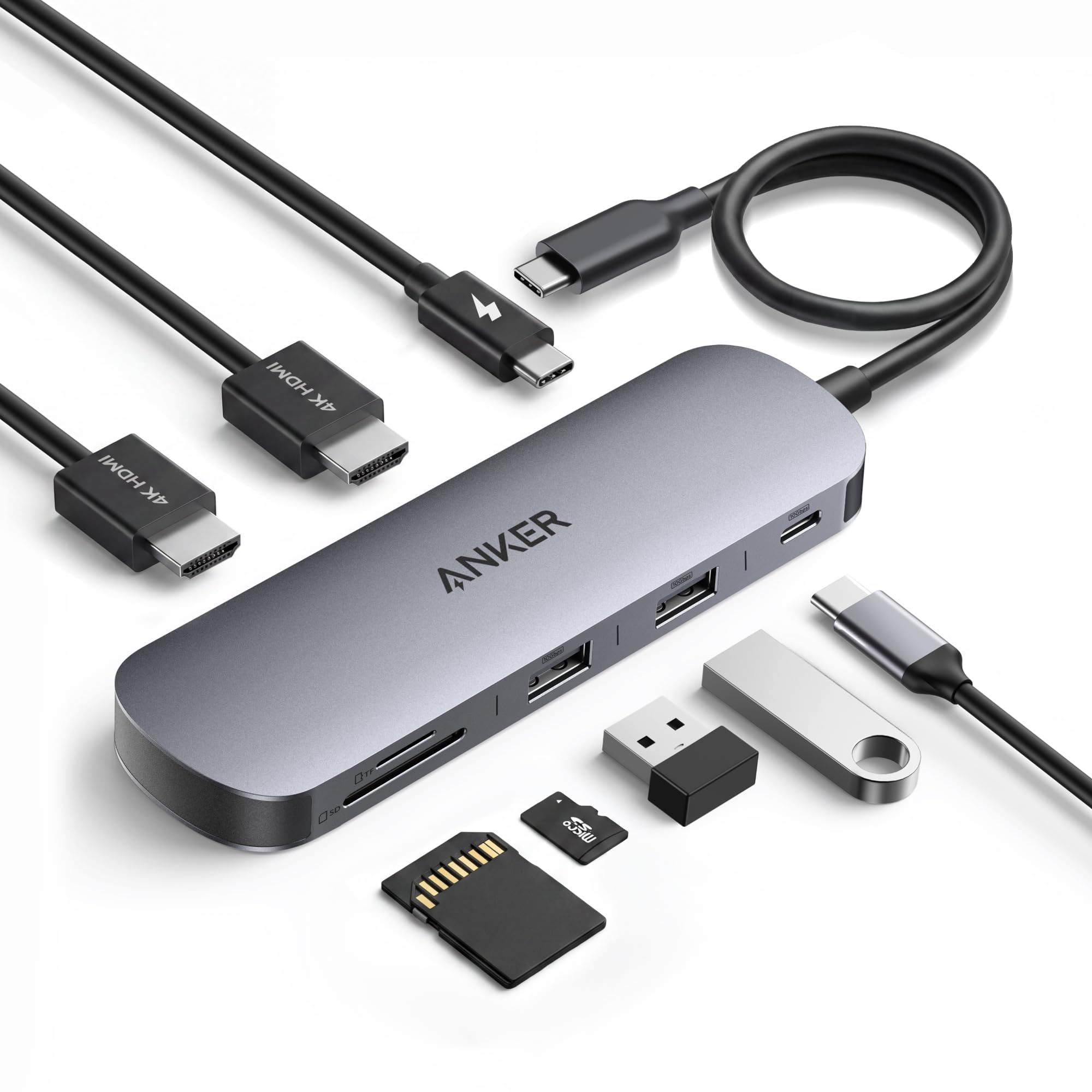
Every USB port runs at 10Gbps — a rare spec that makes file transfers feel instant across the board.
Most budget docks reserve the fast lane for one port. The Anker Nano delivers 10Gbps on all three of its data USB ports — one USB-C and two USB-A — so you can plug in an external SSD (a super-fast external drive), a flash drive, and a card reader, and every transfer runs at full speed. The dual HDMI ports support up to dual 4K@60Hz on Windows laptops with DP 1.4 (DisplayPort version 1.4, the standard that carries high-resolution video) and DSC 3:1 compression (Display Stream Compression, a technology that shrinks video data so the cable can handle it — specifically a 3:1 ratio that compresses three pixels into one), which makes this a proper workstation hub for a fraction of what a Thunderbolt dock costs. The 85W pass-through charging (100W PD input) keeps a Dell XPS or Lenovo ThinkPad powered through a heavy workload.
As with most docks this compact, there is an operating system asterisk. The USB ports are data-only, so they will not charge a phone or tablet. One buyer mentioned the dock worked well with two 2K monitors at 60Hz and praised the build quality, calling it “top notch finish.” The SD/TF card slots hit 104MB/s, which is standard for the category but a step behind the UGREEN’s faster reader.
The standout spec
- All three USB data ports run at 10Gbps — no bottleneck port
- Dual 4K@60Hz on Windows with DP 1.4 DSC support
- Aluminum shell and compact 5.5-inch footprint
The limitations
- Mac users get mirrored displays, not an extended desktop
- USB ports are data-only — no charging output for peripherals
Ideal for: Windows power users who transfer large files from multiple drives and need dual 4K monitors.
Not for: macOS users who want independent external displays or need USB ports that charge devices.
4. Acer 8 in 1 USB C Hub (10Gbps)
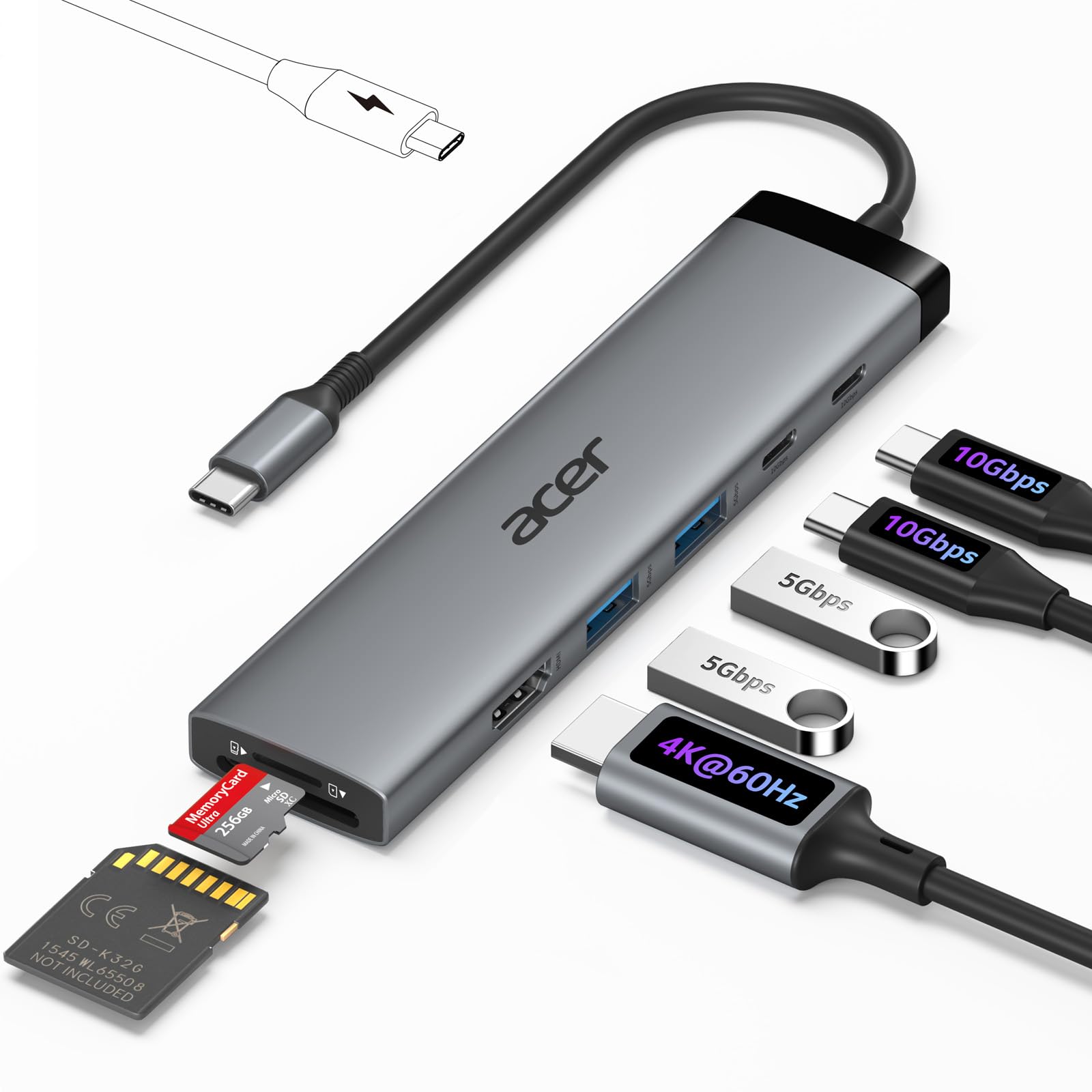
This 8-port hub moves data at 10Gbps and packs an extra USB-C data port that most budget docks skip.
The Acer 8-in-1 gives you two USB-C 3.2 data ports at 10Gbps each, plus two USB-A 3.0 ports at 5Gbps — a flexible port layout that lets you keep a fast SSD and a fast flash drive running at full speed simultaneously. It outputs 4K@60Hz through a single HDMI port, so it is best suited for a one-monitor setup or mirroring a laptop screen to a larger display. The 100W PD port delivers up to 90W to your laptop, which is 5W more than most rivals in this price range.
Buyers report it “works exactly as promised” with MacBook Neo models, connecting external monitors and printers without fuss. The plastic enclosure keeps weight down to 118 grams, which is 22 grams heavier than the Acer 6-in-1 but still light enough to toss in a laptop bag. A few owners note a nagging “underpowered” message from the system when pushing multiple peripherals and charging simultaneously — not a dealbreaker, but it suggests the hub runs close to its power limit in heavy use. Compared to the Acer 6-in-1, this dock has 8 ports compared to 6, and data transfer at 10Gbps compared to 5Gbps.
What you get
- Two 10Gbps USB-C data ports for fast simultaneous transfers
- 90W laptop charging (slightly above the typical 85W)
- Lightweight plastic build at 118 grams
What you give up
- Single HDMI port — no dual-monitor support
- Some users see a low-power warning during heavy use
Best suited for: anyone who needs blazing 10Gbps file transfers across multiple USB-C devices and charges a single 4K monitor.
skip it if: you need dual external monitors or a full metal enclosure for daily carry.
5. Selore&S-Global 8-in-1 USB C Docking Station Dual HDMI

A popular MacBook companion that extends two monitors on Windows but mirrors them on macOS.
With over 21,000 ratings and a 4.4-star average, this Selore hub is among the most-reviewed budget docks on the market. It packs 8 ports including dual HDMI, a 100W PD input with 85W output, USB-C and USB-A data ports at 5Gbps, and an SD/microSD card slot. On Windows laptops with DP 1.4, you can extend your desktop across two 4K@60Hz monitors — a real productivity booster for a dock in this tier. Buyers who use it for daily office work report it “exceeds expectations,” driving a pair of 4K and 24-inch monitors with no lag.
The big limitation for Apple users is that macOS only supports mirrored output across the two HDMI ports — both screens will show the same image, so you lose the extended desktop advantage. Several buyers also note that the dock uses both USB-C ports on the laptop, which can block simultaneous charging unless you plug the power into the dock itself. One unlucky owner reported a defective HDMI port that showed no signal on two MacBooks, though the return process was straightforward.
Why it is popular
- Over 21,000 ratings with strong overall satisfaction
- Dual 4K@60Hz extended desktop on Windows via MST
- Includes SD/microSD card reader for photographers
The macOS drawback
- MacBooks mirror the same image on both HDMI outputs
- Some units ship with a defective HDMI port
Perfect for: Windows users who want an affordable dual-4K workstation hub with a proven track record.
Not ideal for: Mac users who need independent external displays or want to avoid potential port defects.
6. WAVLINK 12-in-1 Triple Display USB C Docking Station

A 12-port dock with dual DisplayPort and HDMI for a triple-screen Windows command center.
If you want more screens than a typical budget hub can manage, the WAVLINK 12-in-1 is the answer. It has one HDMI and two DisplayPort outputs, letting you run a single 4K@60Hz display or three 1080p@60Hz screens simultaneously on Windows laptops with DP 1.4. That triple-monitor setup is rare in this price range and makes this dock a solid pick for stock traders, programmers, or anyone who lives in spreadsheets across multiple panels. It also includes Gigabit Ethernet (wired internet at up to 1000Mbps), 2x USB 3.0, 2x USB 2.0, SD/TF card slots at 104MB/s, and a 2-in-1 audio/mic jack.
The reliability picture is mixed. A buyer who runs two 1080p monitors called it “perfect for the price” and a “perfect affordable docking station,” praising the versatile port selection. However, another reviewer reported that after two months, charging slowed and USB connections became intermittent — a durability concern if you plan to leave this dock plugged in permanently. Multiple owners also mention the short cable as an annoyance, and the dock needs DP 1.4 to output video at all (it fails completely on DP 1.2 hosts).
The big advantage
- Triple 1080p@60Hz extended display on Windows with DP 1.4
- Includes DisplayPort outputs, not just HDMI — useful for older monitors
- Gigabit Ethernet for a stable wired internet connection
Watch out for
- Some units develop connection issues after a couple of months
- Requires DP 1.4 — no video output on DP 1.2 laptops
- Short cable limits placement flexibility
Choose this for: a triple-monitor Windows desk with Ethernet, if your laptop supports DP 1.4.
Avoid if: you need long-term reliability or your laptop uses an older DisplayPort version.
7. Acer 6 in 1 USB C Hub with Ethernet
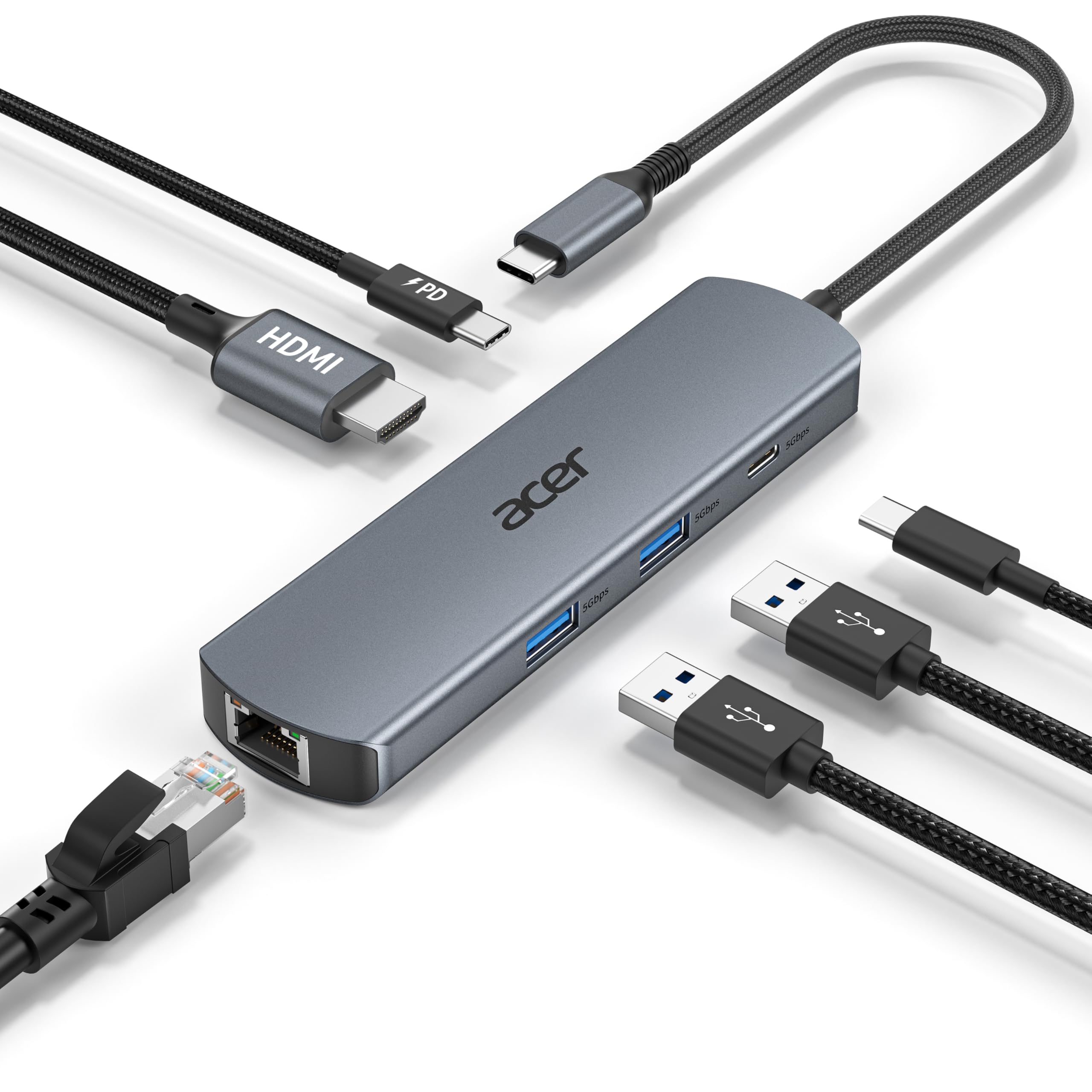
A compact 6-port hub that trades speed for a built-in Ethernet jack and a very low entry cost.
This Acer hub is the leanest pick on the list, and that simplicity is its strength. You get exactly what you need for a basic desk: a 4K@60Hz HDMI port, Gigabit Ethernet, 100W PD charging with 85W output, two USB-A 3.1 ports, and one USB-C data port — all running at 5Gbps. Reviewers consistently call it “plug and play” with no drivers needed, and Mac users transitioning from Windows appreciate how smoothly it handles the four most essential connections. At 5.28 inches long and 0.55 inches thick, it is also one of the slimmest docks here.
The trade-off is clear: this hub has 6 ports compared to the Acer 8-in-1’s 8 ports (a 33% difference), and the data transfer rate is 5Gbps versus the 10Gbps on the pricier Acer. That is fine for keyboards, mice, and standard file copies, but large video backups will feel slower. One buyer’s note is important to remember: “It does need A/C power for the Ethernet port to work” — so if you plan to use the wired internet connection, factor in an available power outlet nearby. The USB-C PD port supports charging only, not data or video.
What works
- Built-in Gigabit Ethernet for a stable wired connection
- Slim and portable — just 5.28 x 1.38 x 0.55 inches
- True plug-and-play on Windows, macOS, and Chrome OS
Where it cuts corners
- 5Gbps data speed is half the pace of 10Gbps competitors
- Ethernet port requires separate A/C power to function
- No SD card slot — photographers need an extra reader
Best for: a no-fuss travel hub that adds Ethernet and a 4K monitor to a laptop with minimal bulk.
Pass on it if: you need faster than 5Gbps file transfers, an SD card slot, or dual external monitors.
Understanding the Specs
Data Transfer Rate (5Gbps vs 10Gbps)
This number tells you how fast files move between your dock and your peripherals. A 10Gbps port (USB 3.2 Gen 2) can transfer a 1GB file in about one second; a 5Gbps port (USB 3.0/3.1 Gen 1) takes roughly two seconds for the same job. For everyday documents, photos, and music, the difference is barely noticeable. For video editors who shuttle large 4K files to an external SSD, 10Gbps saves noticeable time on every batch transfer. Most budget docks offer a single 10Gbps port as the headline feature, while secondary ports run at 5Gbps.
Power Delivery (PD) and Pass-Through Charging
Power Delivery is the standard that lets your dock charge the laptop through the same USB-C cable that carries video and data. A dock with a 100W PD input can deliver up to roughly 85W to your laptop, with the remaining power running the dock itself. That 85W is enough to charge a 13-inch or 14-inch work laptop at a reasonable pace. The wall charger and cable are almost never included at this price point, so check that your existing charger supplies at least the wattage the dock needs to deliver full power to your laptop.
Dual Monitor Support and MST
The number of HDMI or DisplayPort outputs on the dock does not guarantee extended display capability — check the fine print for MST support.
DP Alt Mode and Thunderbolt Compatibility
DisplayPort Alt Mode (DP Alt Mode) is the feature baked into a laptop’s USB-C port that allows video signals to travel through it. Without DP Alt Mode, plugging a dock into a USB-C port will give you data and charging but no image on an external monitor. Almost every dock on this list works with Thunderbolt 3, 4, or 5 ports as well, since Thunderbolt includes DP Alt Mode natively. If your laptop has a USB-C port that supports only data and charging (common on budget Chromebooks and some older Windows models), the dock’s video ports will not work.
FAQ
Will any cheap USB-C docking station work with my MacBook Pro for dual monitors?
Do I need a separate charger for the USB-C docking station to work?
What is the difference between a USB-C hub and a docking station?
Can I charge my phone or tablet through the USB ports on a cheap dock?
How do I know if my laptop supports video output over USB-C?
Why does my USB-C docking station get hot during use?
Can I use a USB-C docking station with a Thunderbolt 3 or Thunderbolt 4 port?
How long should a budget USB-C docking station last?
What cable do I need to connect a USB-C docking station to my laptop?
Can I daisy-chain multiple monitors through a cheap USB-C docking station?
Final Thoughts: The Verdict
For most people, the best cheap usb-c docking station is the UGREEN 9-in-1 Revodok Pro because it delivers true dual 4K@60Hz extended desktop on Windows with a fast 170MB/s SD card reader and a solid aluminum build for a low price. If you want 10Gbps data on every USB port for fast file transfers across multiple drives, grab the Anker Nano 8-in-1. And for a basic hub that adds Ethernet and a reliable 4K monitor connection with minimal fuss, the Acer 6-in-1 is the budget-friendly pick that gets the fundamentals right.
How We Picked
We do not accept paid placement. Every pick is matched to a real buyer and a real use-case; we do not hands-on test units.
Sources & Methodology
Specifications: manufacturer listings and product documentation. Review insights: verified customer reviews, as of July 2026. Pricing: not shown on this page (it changes often); check the current price via the retailer link.
As an Amazon Associate, WellFizz earns from qualifying purchases. This does not affect which products we feature.
Related Guides

Mo Maruf
I created WellFizz to bridge the gap between vague wellness advice and actionable solutions. My mission is simple: to decode the research and give you practical tools you can actually use.
Beyond the data, I am a passionate traveler. I believe that stepping away from the screen to explore new environments is essential for mental clarity and physical vitality.