Our readers keep the lights on and my smoothie glass nicely filled. As an Amazon Associate, I earn from qualifying purchases.
Specs are compiled from manufacturer listings and verified buyer reviews and can change over time — please confirm the key details on the product page before buying.
Choosing a monitor for video editing depends on one thing: do the colors on the screen match what your footage actually looks like? If they don’t, you are guessing at every grade, every exposure tweak, and every skin-tone correction. This guide walks through ten models built for that exact job, covering what matters most — color accuracy, resolution, refresh rate, connectivity, and real-world usability.
I’m Mohammad Maruf — the founder and writer behind WellFizz. This guide is built by comparing the manufacturers’ published specifications and the patterns across verified customer reviews, so you get each pick’s real strengths and trade-offs instead of marketing spin.
Whether you cut on a MacBook Pro or a custom PC, the right computer monitor for video editing keeps your timeline looking faithful and your eyes comfortable through long sessions.
Our Picks at a Glance


How To Choose The Best Computer Monitor For Video Editing
When you are editing video, the monitor is your window into the final product. A screen that shifts colors or clips highlights can make you push a grade too far, only to see it fall apart on another display. Here are the specs that separate a solid editing monitor from a compromise.
Color Gamut and Accuracy (sRGB, Rec.709, DCI-P3)
Color gamut is the range of colors a monitor can show. For video editing, look for 100% sRGB and 100% Rec.709 coverage — that is the broadcast standard for most video. Wider gamuts like DCI-P3 (used in cinema) give you more room for HDR grading. The Delta E (ΔE) number tells you how far the monitor’s colors stray from the true reference: a Delta E under 2 means the difference is invisible to the human eye. Factory calibration reports add an extra layer of confidence.
Resolution: 4K vs QHD
4K UHD (3840 x 2160) gives you four times the pixels of 1080p, so you can see fine detail in your footage and fit more of your timeline on screen without scrolling. QHD (2560 x 1440) is still a step up from 1080p and can be easier on your graphics card, but the 50% pixel gap between QHD and 4K means you will lose some detail in fine textures and text. For serious color work, 4K is the standard.
Panel Type: IPS Is the Standard
IPS (In-Plane Switching) panels deliver consistent color and brightness across wide viewing angles. That matters when you lean in to check a shadow detail or share the screen with a client. VA panels have deeper blacks but shift color off-angle, and TN panels wash out fast. For video editing, IPS is the safe choice.
Connectivity: USB-C with Power Delivery
A single USB-C cable that carries video, data, and charges your laptop (at 60W, 65W, or 90W) cuts cable mess and keeps your MacBook topped up during a render. HDMI and DisplayPort are fine for desktop PCs, but if you work on a laptop, USB-C with power delivery is a serious productivity gain.
Refresh Rate: 60Hz vs 120Hz
Video editing does not need high refresh rates — most footage is 24, 30, or 60 frames per second. A 60Hz monitor works perfectly for editing. A 120Hz monitor adds smooth cursor movement and can double as a gaming screen, but it is not a requirement for color work. Never trade color accuracy for extra hertz.
Quick Comparison
| Model | Best For | Resolution | Color Gamut | Connectivity | Amazon |
|---|---|---|---|---|---|
| LG 32UN650-W★ Best Overall | Value 32″ 4K for editing | 3840 x 2160 | DCI-P3 95% | HDMI, DP | Amazon |
| ASUS ProArt PA279CVAlso Great | Pro color work on a budget | 3840 x 2160 | 100% sRGB / Rec.709 | USB-C 65W PD, HDMI, DP | Amazon |
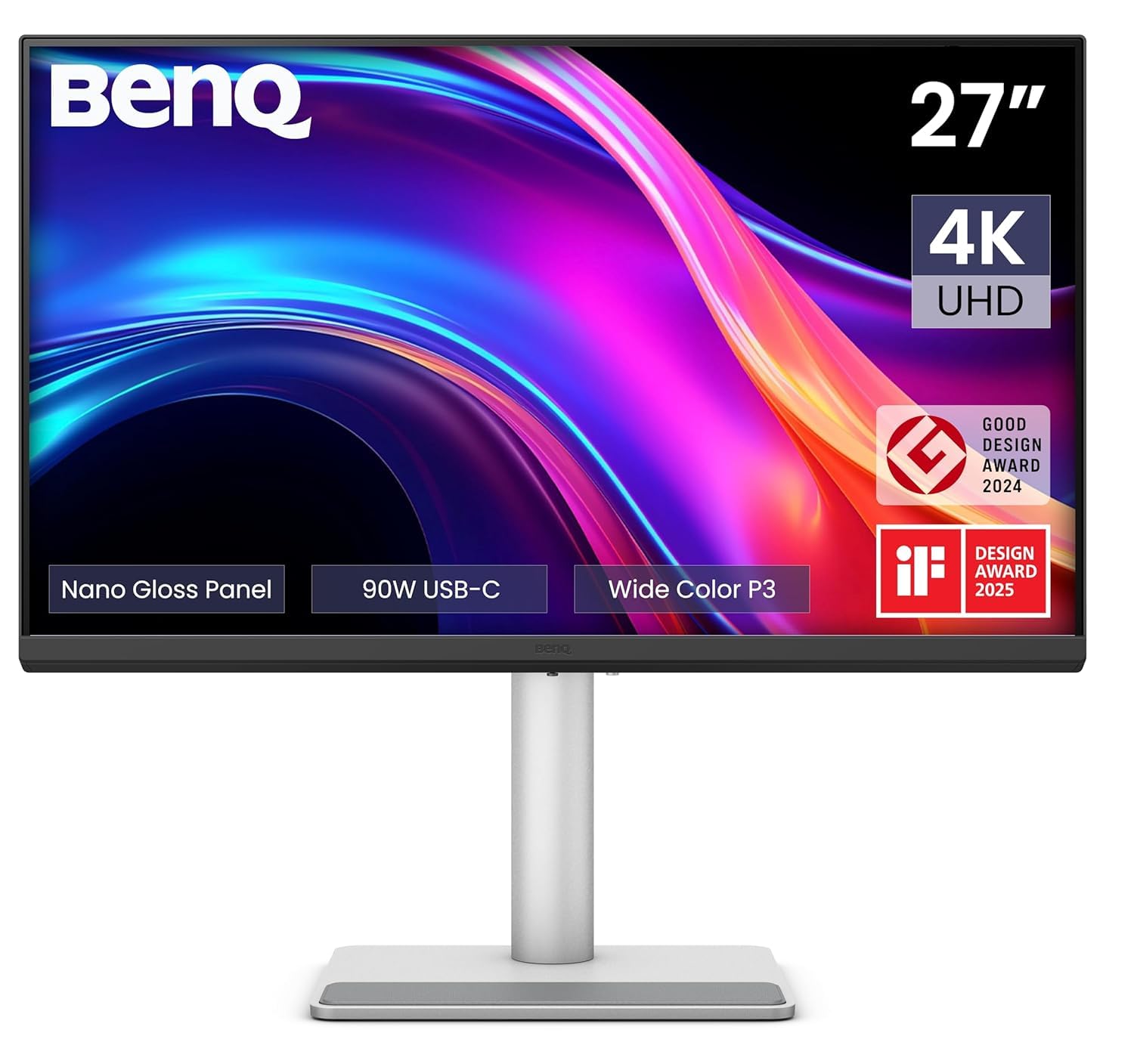
| BenQ MA270UPMac Match | MacBook color matching | 3840 x 2160 | P3 wide gamut | Dual USB-C 90W/15W | Amazon |
| Dell S2725QS | Smooth 120Hz plus 4K | 3840 x 2160 | 99% sRGB | HDMI, DP | Amazon |
| Dell S2725QC | USB-C all-in-one | 3840 x 2160 | 99% sRGB | USB-C 100W, HDMI | Amazon |
| LG 32UP83A-W | Large 32″ 4K with USB-C | 3840 x 2160 | DCI-P3 95% | USB-C 60W PD, HDMI, DP | Amazon |
| BenQ PD3205U | Professional color certification | 3840 x 2160 | 99% sRGB / Rec.709 | USB-C 90W, HDMI, DP | Amazon |
| Samsung ViewFinity S8 S80D | Sharp 4K with simple setup | 3840 x 2160 | HDR10 | HDMI, DP, USB-A | Amazon |
| INNOCN 27C1U-D | Budget 4K with USB-C | 3840 x 2160 | 1.07B colors, Delta E < 2 | USB-C 65W, HDMI, DP | Amazon |
| ASUS ProArt PA278CV | QHD for tight budgets | 2560 x 1440 | 100% sRGB / Rec.709 | USB-C 65W PD, HDMI, DP | Amazon |
In‑Depth Reviews
1. LG 32UN650-W 32” UHD IPS Monitor
Our pick — 4.5★ from 750+ verified ratings; the strongest balance of quality and price.
A large 32-inch 4K screen with wide color that undercuts most rivals on price.
The LG 32UN650-W packs a 32-inch 4K IPS panel with DCI-P3 95% color gamut and HDR10 compatibility into a sub- monitor. That is a big screen with cinema-grade color coverage at a price that makes it tempting for editors on a tight budget.
Owners mention it is excellent for photo and video editing, calibrates easily, and has great color and brightness from the start. One reviewer using it for Photoshop and Premier said the color was good after calibration, and that the metal stand feels solid. The height-adjustable stand and 3-side virtually borderless design make it easy to place in a multi-monitor setup. The AMD FreeSync support handles light gaming like World of Warcraft or MOBAs.
The 60Hz refresh rate is standard for editing monitors — it is a 2.0x gap slower than the Dell S2725QS’s 120Hz, so you lose the fluid cursor feel. There are no USB ports, so you will need a separate hub for peripherals. The built-in speakers are basic and largely unused by buyers. For a pure color-accurate editing screen at 32 inches on a budget, this is a strong value play.
Value Proposition
- 32-inch 4K IPS with DCI-P3 95% at a low price
- Height-adjustable stand with solid build
- Calibrates easily for photo and video work
Compromises
- 60Hz refresh rate — no high refresh option
- No USB ports or USB-C
- 1000:1 contrast ratio is lower than some rivals
Best for: The budget-conscious editor who wants a large 32-inch 4K display with wide color gamut for grading — the 32UN650-W delivers the most screen per dollar in this list.
One buyer’s note: The power cord is short, so you may need an extension or a nearby outlet.
2. ASUS ProArt Display PA279CV 27” 4K HDR
Factory-calibrated 4K that lands pro color without the pro price tag.
For video editors who need accurate color from the start, this ASUS ProArt hits important marks: it covers 100% sRGB and 100% Rec.709, and it ships with a factory calibration report so you get a Delta E under 2 straight from the start. That means skin tones and color bars look right before you even touch a calibration puck. The USB-C port delivers 65W of power to your laptop while passing video and data through a single cable.
Buyers report it works well with DaVinci Resolve on an Nvidia GPU, and one noted the split-screen feature from two HDMI ports makes comparing a camera feed to your timeline easier. The included three-month Adobe Creative Cloud subscription is a nice bonus for anyone starting a project. The 60Hz refresh rate is plenty for editing — you are not trading color accuracy for gaming speed.
Where it trails the BenQ PD3205U is on size and certification: the ASUS is a 27-inch panel, and while it is Calman Verified, it does not carry Pantone validation. The on-screen menu adjustment ticks are very small, so dialing in a tint fix takes patience.
Color Credentials
- Factory-calibrated Delta E < 2 with report included
- 100% sRGB and 100% Rec.709 coverage
- USB-C with 65W power delivery
Trade-Offs
- 60Hz refresh rate only
- 27-inch screen — smaller than 32-inch rivals
- No Pantone validation
Who it fits: Editors who want a reliable, calibrated 4K display without jumping to premium pricing — the PA279CV earns its keep on a color-accurate desk.
One real hitch: A few buyers mention a slight green tint from the start that needed a small menu adjustment to fix.
3. BenQ MA270UP 27” 4K Monitor for MacBook
A MacBook companion that mirrors the Studio Display’s color for a fraction of the price.
The BenQ MA270UP is tuned specifically for MacBooks, using BenQ’s own color tuning to match the P3 wide color gamut of a MacBook Pro or Air. That means video shot on a Mac and graded on this monitor should look nearly identical. It connects via a single USB-C cable and delivers 90W of power to keep your laptop charged during long renders — plus a second USB-C port that provides 15W to charge an iPad or iPhone on the side.
Owners mention that it wakes and sleeps with the Mac without any handshake glitches, and one reviewer using it beside an Apple Studio Display said the difference is not jarring. The 400-nit brightness is noticeably higher than the 350-nit class common in this range, helping you see highlight detail more clearly. The 2000:1 contrast ratio is double what most IPS monitors in this list offer, which gives blacks more depth on screen.
The catch: there are no built-in speakers and no webcam, so you will need external gear for client calls. The stand feels a bit plasticky compared to the all-metal build of the ASUS ProArt models. If your workflow is Mac-based and color consistency between your laptop and monitor matters most, this is a strong contender.
Mac-First Design
- P3 wide color gamut tuned for MacBook displays
- Dual USB-C with 90W + 15W power delivery
- 2000:1 contrast ratio for deeper blacks
What’s Missing
- No built-in speakers or camera
- Stand build quality feels mid-range
- No factory calibration report included
Ideal setup: If you edit on a MacBook Pro or MacBook Air and want your monitor’s colors to match your laptop’s screen without a second thought, this is your pick.
Reality check: A buyer running two MA270UPs with a Mac Studio hit a Thunderbolt drive recognition issue that required unplugging both monitors to resolve.
4. Dell 27 Plus 4K Monitor S2725QS

4K resolution meets a 120Hz refresh rate — smooth for editing, smoother for gaming.
The Dell S2725QS delivers 3840 x 2160 resolution at 120Hz, which is a 2.0x gap over the 60Hz most editing monitors run. That higher refresh rate makes cursor movement feel fluid and keeps the timeline scrolling without stutter. For video editors who also game, this monitor pulls double duty. The 1500:1 contrast ratio is better by 50% than the 1000:1 you get on the LG 32UN650-W, so shadows look deeper and highlights hold more detail.
Customers note the 99% sRGB coverage and ComfortView Plus blue light reduction (keeping emissions at or below 35%) help during all-day sessions without washing out colors. The built-in speakers have been re-engineered for better frequency response and output power compared to the previous Dell generation, so you can review audio edits without desktop speakers. The 0.03ms response time is ultra-low, but some reviewers point out minor ghosting in fast-paced games.
Where it falls short for pure color work: it does not carry the same Delta E < 2 factory calibration you get from an ASUS ProArt or BenQ PD series. The sRGB mode is decent, but you are relying on the panel’s native accuracy rather than a verified report. If your primary need is calibrated video grading, the lack of a certification is a real gap.
Dual-Duty Appeal
- 3840 x 2160 at 120Hz with FreeSync Premium
- 1500:1 contrast ratio — deeper blacks than 1000:1 rivals
- Improved built-in speakers
Color Caveats
- No factory calibration report or Delta E spec
- sRGB 99% is good but not certified
- Some ghosting reported in competitive gaming
Best for: The editor who wants a sharp 4K screen for timelines and a fast 120Hz panel for after-hours gaming — it is a versatile desk companion.
One buyer’s note: A persistent yellow tint on one unit caused migraines and could not be corrected through the menu, though most shoppers say good color from the start.
5. Dell S2725QC 27” 4K USB-C Monitor

One USB-C cable carries video, data, and 100W of power — a true single-cable desk.
The S2725QC shares the same 3840 x 2160 IPS panel, 99% sRGB coverage, and 1500:1 contrast ratio as the S2725QS above, but swaps the DisplayPort input for a USB-C port that delivers 100W of power — enough to charge a MacBook Pro at full speed while passing video and data. That single cable is a serious advantage for laptop users who want to dock with one plug. The 120Hz refresh rate and FreeSync Premium keep motion smooth.
Buyers highlight the dual USB-C setup that allows daisy-chaining a second monitor from one laptop, and the KVM-like functionality for switching between a MacBook and a PC. The built-in speakers are described as surprisingly good, eliminating the need for an external soundbar for casual audio review. The anti-glare screen and ergonomic stand with height, pivot, swivel, and tilt adjustments make long editing sessions more comfortable.
Like the S2725QS, it lacks a factory calibration report. The color accuracy is good but not verified, which matters for critical grading. The recessed VESA mount requires M4x10mm spacers for some monitor arms — a minor annoyance if you plan to mount it.
Single-Cable Setup
- USB-C with 100W power delivery
- 120Hz refresh rate with FreeSync Premium
- Daisy-chain two monitors from one laptop
Limitations
- No factory calibration report
- Recessed VESA mount needs spacers
- Stand slightly wobbly according to some buyers
Perfect for: The laptop editor who wants a clean desk with a single cable for power, display, and peripherals — the S2725QC delivers that better than any other monitor in this list short of the premium BenQ models.
One bump: Assembly instructions were unclear enough that a buyer needed YouTube help to set it up.
6. LG 32UP83A-W 32” 4K UHD Monitor
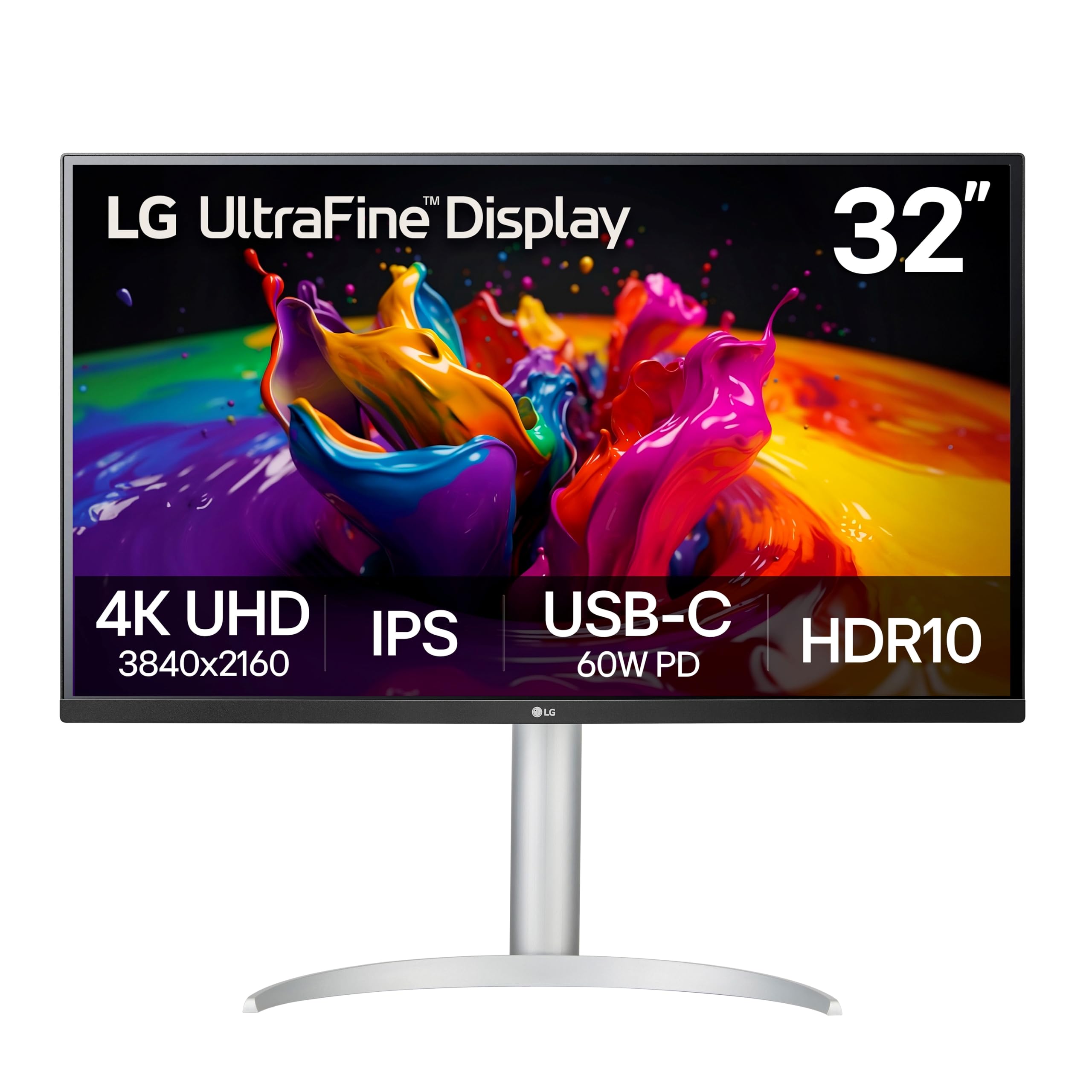
A 32-inch canvas with wide color and USB-C convenience for editors who need more real estate.
The LG 32UP83A-W gives you a 32-inch 4K IPS panel with DCI-P3 95% color gamut coverage, which is the cinema color space used in HDR grading. That means you can grade in a wider palette than sRGB can show, and the HDR10 support lets you preview how highlights and shadows will look on HDR displays. The USB-C port delivers 60W of power — enough to charge a MacBook Air or a 13-inch Pro during use.
Buyers report it works well with a MacBook Pro for coding and general productivity, and one reviewer noted that the 32-inch size replaces dual 27-inch monitors for multitasking. The ergonomic stand supports height, tilt, and pivot adjustments. OnScreen Control software lets you split the screen into zones and adjust settings with a mouse click. The Black Stabilizer and Dynamic Action Sync features are aimed at gaming, but the 60Hz refresh rate and DCI-P3 95% coverage mean this is a color-focused display first.
The HDR mode has a known green tint issue in daily desktop use, though it looks fine when playing HDR content. The built-in speakers are weak — buyers describe the sound as poor. And like many monitors in this tier, it lacks a factory calibration report with a Delta E figure, so you will want to calibrate it yourself if you need precise color.
Wide Color Reach
- DCI-P3 95% for cinema-grade color grading
- 32-inch 4K IPS panel with USB-C 60W PD
- Ergonomic stand with full adjustability
Shortcomings
- HDR mode has green tint in desktop use
- Weak built-in speakers
- No factory calibration report included
Who it suits: Editors who want a large 32-inch 4K display for timelines and a wide DCI-P3 gamut for HDR previews — the 32UP83A-W is a solid all-rounder for under.
One caveat: It does not auto-detect inputs; you must manually switch between HDMI, DisplayPort, and USB-C.
7. BenQ PD3205U 32” 4K Designer Monitor

Pantone-validated color on a 32-inch 4K panel, with a Hotkey Puck for quick switching.
The BenQ PD3205U carries both Calman Verified and Pantone Validated certifications, plus Pantone SkinTone validation — meaning it has passed independent tests for color accuracy on skin tones. That matters for video editors who grade interviews, commercials, or any content with people. The 31.5-inch IPS panel covers 99% sRGB and 99% Rec.709, and ships with a factory calibration report. The USB-C port delivers 90W of power, while the KVM switch and DualView feature let you view two color modes side by side.
Buyers upgrading from a 27-inch 1440p monitor say the extra resolution and size eliminate window overlap in Lightroom and Premiere. The Hotkey Puck G2 lets you switch between input modes and color profiles without diving into menus. The anti-glare coating and uniform brightness make long sessions easier on the eyes. One buyer mentioned that it works well with a Mac Mini M2 via USB-C to DisplayPort and wakes quickly from sleep.
The speakers are a weak point — buyers describe them as barely adequate and tinny. The stand on the base version does not allow portrait rotation; you need to buy an Ergo Arm for that. It is also the most expensive monitor in this list, so it is aimed at professionals who need certified accuracy rather than casual editors.
Pro Certifications
- Pantone Validated and Calman Verified
- 99% sRGB and Rec.709 coverage
- USB-C with 90W power delivery
Downsides
- Weak built-in speakers
- No portrait rotation on standard stand
- Premium price point
For the professional: If your client work requires Pantone-validated color and you need a 32-inch canvas with a quick-switch Hotkey Puck, the PD3205U earns its higher cost.
Reality check: A buyer noted the speakers are terrible and tinny — plan on external audio for any sound work.
8. Samsung 27” ViewFinity S8 S80D 4K

A tool-free stand and sharp 4K make this one of the easiest monitors to set up and start editing.
The Samsung ViewFinity S8 S80D uses an Easy Setup Stand that requires no tools or screws — you snap it together and it is ready. The 27-inch 4K UHD (3840×2160) IPS panel delivers crisp text and fine detail for timelines, and the HDR10 support provides better contrast for darks and brights. The 1000:1 contrast ratio and 350 cd/m² brightness are standard for the price tier. The stand supports height, tilt, swivel, and 90-degree pivot for portrait-mode document reading.
Buyers using it with a Mac Mini M4 report sharp text and good contrast, with one noting they prefer it at 2560×1440 scaled resolution for readability. The TÜV-certified Eye Saver Mode reduces blue light and flicker, which helps during all-day editing. The connectivity includes HDMI, DisplayPort, and USB-A ports, plus a USB-B upstream port for the built-in hub. It carries a 3-year warranty.
There are no built-in speakers and no USB-C port with power delivery, so you cannot charge a laptop through the monitor. The menu buttons are controlled by a single joystick that some buyers found confusing initially. One owner reported the base of the stand sits 7 inches above the desk, which created an ergonomic issue for their setup. For pure 4K editing on a budget with easy assembly, this is a clean option, but the lack of USB-C and speakers is limiting.
low-maintenance Build
- Tool-free stand assembly
- 4K UHD IPS panel with HDR10
- TÜV-certified Eye Saver Mode
Omissions
- No built-in speakers
- No USB-C with power delivery
- Stand base height may be too tall for some desks
Who it works for: Editors who want a straightforward 4K monitor that sets up in seconds and does not need USB-C charging — the S80D is a solid, fuss-free display.
One buyer’s frustration: The single-button menu system is confusing and takes time to learn.
9. INNOCN 27” 4K USB-C Monitor 27C1U-D

An ultra-budget 4K USB-C monitor that surprises with its color fidelity and Mac compatibility.
The INNOCN 27C1U-D offers a 27-inch 4K IPS panel with a Delta E under 2, 1.07 billion colors (8-bit + FRC), and HDR400 certification — all at a price that undercuts most rivals. The USB-C port delivers 65W of power, so you can charge a MacBook while displaying video through a single cable. The 400-nit brightness is higher than most monitors in this tier, making it easier to judge highlight detail in HDR content.
Customers note it works flawlessly with an M2 MacBook Air via USB-C, charging the laptop and auto-turning on when the Mac wakes. One reviewer described the color and sharpness as comparable to an OLED display, and noted the high brightness helps in a well-lit room. The stand supports height, swivel, tilt, and 90-degree pivot for portrait mode, and the VESA mount is 75×75 compatible.
The built-in speakers are poor — buyers describe them as not great and recommend external audio. Some users report a peculiarity where the monitor does not wake up after the Mac goes to sleep and needs to be re-connected or power-cycled. The HDR400 certification is entry-level; it adds some dynamic range but does not match the HDR performance of premium displays. If your budget is tight and you need a 4K USB-C monitor for editing, this is a compelling entry point.
Bang for Buck
- Delta E < 2 with 1.07B colors
- USB-C with 65W power delivery
- 400-nit brightness — higher than most budget options
Cuts
- Poor built-in speakers
- Possible wake-from-sleep issue with MacBooks
- Entry-level HDR400 certification
For the budget editor: If you need a 4K USB-C monitor with Delta E < 2 color accuracy and you can work around a minor sleep quirk, the INNOCN 27C1U-D delivers remarkable value.
One buyer’s tip: No DisplayPort cable is included in the box, though the USB-C cable is provided.
10. ASUS ProArt Display PA278CV 27” QHD

Calman-verified color in a QHD panel that skips 4K but keeps professional-grade accuracy.
The ASUS ProArt PA278CV is a 27-inch QHD (2560 x 1440) IPS monitor that covers 100% sRGB and 100% Rec.709, with a Delta E under 2 and Calman Verification. The resolution is a step down from 4K — it has about 50% fewer pixels than the 3840 x 2160 panel in the Dell S2725QS — but the color accuracy is factory-certified. The USB-C port delivers 65W of power and supports DisplayPort daisy-chaining, so you can link up to four displays in a row.
Buyers rave about the color accuracy from the start, with one calling it an absolute masterpiece. Another reviewer using it for Adobe AfterEffects and Photoshop said it is perfect for creative software and handles light gaming well. The ergonomic stand offers height, tilt, swivel, and 90-degree pivot, making it easy to switch to portrait mode for coding or vertical video. The five-year warranty (with online registration) is one of the longest in this list.
The 60Hz refresh rate is fine for editing, but buyers looking for a gaming monitor with 120Hz and above should look elsewhere. The QHD resolution means less screen real estate compared to 4K — you lose fine detail in text and video previews. It is also the most expensive QHD monitor here, making sense only if you specifically need Calman-verified color on a non-4K display, or if your system cannot drive a 4K panel smoothly.
Certified Accuracy
- Calman Verified with Delta E < 2
- 100% sRGB and Rec.709 coverage
- USB-C 65W PD with DisplayPort daisy-chaining
Resolution Trade
- QHD 2560 x 1440 — less detail than 4K
- 60Hz refresh rate only
- Costs more than some 4K alternatives
Ideal if: You need a professionally calibrated monitor for sRGB/Rec.709 work and your system prefers QHD over 4K for performance reasons.
Reality check: The ASUS ProArt PA278CV is a color-accurate QHD monitor at a price where you could buy a 4K panel — make sure you need the certification, not just the resolution.
Understanding the Specs
Delta E (ΔE) and Color Accuracy
Delta E is a number that measures how much a monitor’s displayed color differs from the true reference color. A Delta E under 2 means the human eye cannot perceive the difference — that is the gold standard for video editing. Monitors with Calman Verification or Pantone Validation have been tested by an independent lab. Factory calibration reports include the Delta E of your specific unit, so you know exactly what you are getting.
Color Gamut: sRGB, Rec.709, and DCI-P3
sRGB is the standard color space for web content and most computer displays. Rec.709 is the broadcast video standard — if you are editing for TV or YouTube, you want 100% Rec.709 coverage. DCI-P3 is the wider cinema color space used in HDR movies and high-end displays. A monitor with DCI-P3 95% coverage can show more colors than one with only 100% sRGB, but you need a color-managed workflow to use it properly.
Resolution: 4K (3840×2160) vs QHD (2560×1440)
4K UHD has 4x the pixels of 1080p, which makes fine details in your footage visible and gives you room for a full timeline, preview, and tool panels on one screen. QHD has about 2.3x the pixels of 1080p — it is sharper than 1080p but you lose fine detail. For video editing, 4K is the recommended resolution because it matches modern camera output and lets you check focus and texture without zooming in.
USB-C with Power Delivery
USB-C carries video, data, and power in one cable. Power Delivery (PD) is the wattage rating — 60W charges a 13-inch MacBook Pro slowly, 65W to 90W charges it at full speed, and 100W can charge a 16-inch MacBook Pro at full speed. The higher the PD wattage, the fewer cables you need. If you work on a laptop, a monitor with USB-C PD is a major convenience that keeps your desk clean and your battery topped up.
FAQ
Does a video editing monitor need to be 4K?
Do I need a high refresh rate like 120Hz for video editing?
What is Delta E and why does it matter?
Can I use a gaming monitor for video editing?
Is an IPS panel always better than VA for video editing?
Does USB-C with power delivery need a special cable?
What is HDR10 and do I need it for editing?
How important is the height-adjustable stand for editing?
Do built-in speakers matter on a video editing monitor?
What is the difference between sRGB and Rec.709?
Final Thoughts: The Verdict
For most buyers, the computer monitor for video editing winner is the ASUS ProArt PA279CV because it combines 4K resolution, 100% Rec.709 color coverage, factory-calibrated Delta E < 2 accuracy, and USB-C with 65W power delivery into one balanced package. If you want MacBook color matching with P3 gamut and 2000:1 contrast, grab the BenQ MA270UP. And for a large 32-inch canvas that gives you the most screen real estate for the price, the standout is the LG 32UN650-W.
How We Picked
We do not accept paid placement. Every pick is matched to a real buyer and a real use-case; we do not hands-on test units.
Sources & Methodology
Specifications: manufacturer listings and product documentation. Review insights: verified customer reviews, as of July 2026. Pricing: not shown on this page (it changes often); check the current price via the retailer link.
As an Amazon Associate, WellFizz earns from qualifying purchases. This does not affect which products we feature.
Related Guides

Mo Maruf
I created WellFizz to bridge the gap between vague wellness advice and actionable solutions. My mission is simple: to decode the research and give you practical tools you can actually use.
Beyond the data, I am a passionate traveler. I believe that stepping away from the screen to explore new environments is essential for mental clarity and physical vitality.