Our readers keep the lights on and my smoothie glass nicely filled. As an Amazon Associate, I earn from qualifying purchases.
Specs are compiled from manufacturer listings and verified buyer reviews and can change over time — please confirm the key details on the product page before buying.
I’m Mohammad Maruf — the founder and writer behind WellFizz. This guide is built by comparing the manufacturers’ published specifications and the patterns across verified customer reviews, so you get each pick’s real strengths and trade-offs instead of marketing spin.
Quick Picks
- ASUS ProArt Display 32” 6K Professional Monitor — Best Overall
- ASUS ProArt Display 32” 4K HDR Computer Monitor — Studio Grade HDR
- ASUS ProArt Display 27” 4K HDR Professional — Value Color Champ
- BenQ PD3225U 32 Inch 4K IPS Black UHD — MacBook Match
- LG 27UP850K-W 27-inch Ultrafine 4K UHD IPS — Budget Champion
- ALOGIC Clarity Pro Touch 27” 4K Touchscreen — Touch Creative
How To Choose The Best Computer Screen For Graphic Design
Not every 4K monitor is built for creative work. A gaming monitor can look punchy in a store but shift every skin tone green once you start editing. You need to focus on a few specs that define a true design monitor: color accuracy, panel technology, and connectivity that does not force you to juggle dongles.
Color Gamut and Accuracy
The color gamut defines how many colors the screen can show. For print design, a high Adobe RGB coverage (over 99%) is crucial. For web and video, DCI-P3 is the standard. Look for a Delta E (ΔE) value of less than 2 — this is a measurement of how far the displayed color is from the intended color. A lower number means the screen is more accurate right from the start, saving you from buying a separate calibrator immediately.
Panel Type and Contrast Ratio
IPS (In-Plane Switching) panels are the industry standard for design because they keep colors consistent even when you are not looking dead-on at the center. A newer technology called IPS Black doubles the contrast ratio without the color shift of a VA panel, giving you much better black levels in a dark room — helpful when you need to judge shadow detail in a photo.
Connectivity and Power Delivery
A design monitor that charges your laptop over a single USB-C cable simplifies your whole desk. Look for monitors with at least 85W or 90W of power delivery — enough to keep a MacBook Pro running at full performance without a separate charger. Thunderbolt 4 or USB-C with DisplayPort Alt Mode also lets you daisy-chain a second monitor with a single cable.
Quick Comparison
| Model | Best For | Color Gamut | Contrast Ratio | Connectivity | Amazon |
|---|---|---|---|---|---|
| ASUS ProArt PA32QCV | 6K Retina-level Sharpness | 98% DCI-P3 | 1000:1 | Dual Thunderbolt 4, HDMI 2.1 | Amazon |
| ASUS ProArt PA32UCR-K | Professional HDR Grading | 98% DCI-P3 | 1000:1 | USB-C, HDMI | Amazon |
| ASUS ProArt PA279CRV | Mid-Range All-Rounder | 99% DCI-P3 | 3,000:1 | USB-C 96W PD, DisplayPort, HDMI | Amazon |
| BenQ PD3225U | MacBook Pro Users | 98% P3 | 2000:1 | Thunderbolt 3 85W, USB Hub | Amazon |
| LG 27UP850K-W | Budget-Friendly First Pick | 95% DCI-P3 | 1200:1 | USB-C 90W PD, DisplayPort, HDMI | Amazon |
| ALOGIC Clarity Pro Touch | Touchscreen Interactivity | 97% DCI-P3 | 1,000:1 | USB-C 65W PD, 8-in-1 Hub | Amazon |
In‑Depth Reviews
1. ASUS ProArt Display 32” 6K Professional Monitor (PA32QCV)
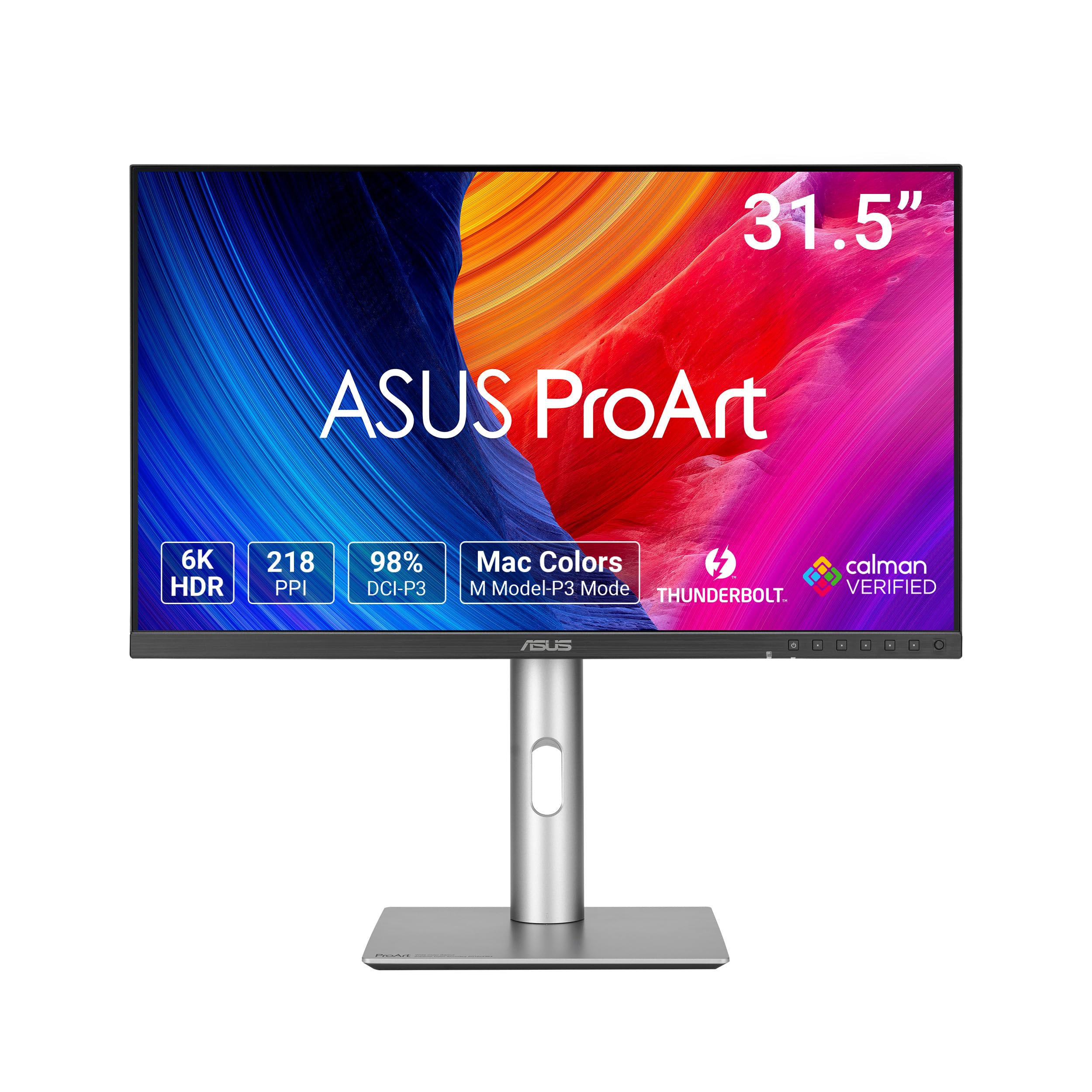
You get Retina-clear 6K resolution that makes fine typography and vector lines look crisp under your cursor.
The single number that justifies the price is the 6K resolution (6016 x 3384) on a 31.5-inch screen. That density means you can work on a full UI layout at native scaling without squinting — text edges that look soft on a standard 4K (3840 x 2160) screen appear razor-sharp here. It also hits 98% DCI-P3 (the color space for video and modern displays) and is Calman Verified with a factory Delta E < 2, so the color you pick in Photoshop is what you get on screen. Buyers confirm the 6K panel delivers outstanding text sharpness and Retina-like clarity for coding and layout work.
Connectivity is future-proof: dual Thunderbolt 4 ports with 96W Power Delivery let you charge a MacBook Pro and daisy-chain a second monitor through a single desk cable. The built-in Auto KVM (a feature that lets you switch between two computers using the same keyboard and mouse) saves time if you run both a PC and a Mac.
One trade-off the reviews highlight is slow input switching and wake-up time, and the built-in speakers are weak. This is a pure design tool, not a multimedia hub. It is heavier and pricier than 4K alternatives, but for serious design work, the text sharpness and color accuracy beat any standard 4K panel — including the LG 27UP850K-W.
Retina-level sharpness verified: Buyers confirm the 6K panel delivers outstanding text sharpness and Retina-like clarity for coding and layout work.
The Mac match: The M Model-P3 color preset mode matches the color performance of a MacBook display, so you don’t get a jarring color shift when you plug in your laptop.
Reach for this if: you work with fine typography, UI design, or photo editing where pixel-level sharpness and color matching to a MacBook display matter more than gaming refresh rates.
Look elsewhere if: you need fast input switching, strong built-in speakers, or a budget-friendly 4K panel for occasional use.
2. ASUS ProArt Display 32” 4K HDR Computer Monitor (PA32UCR-K)

A mini-LED backlight that peaks at 1000 nits so you can actually judge HDR (High Dynamic Range) highlights and deep shadows.
The ASUS PA32UCR-K is built for anyone who grades HDR video or works with high-dynamic-range photo content. The mini-LED backlight (a grid of tiny LEDs for precise brightness control) delivers a peak brightness of 1,000 nits — enough to show specular highlights that look blown out on a typical 400-nit design monitor. The mini-LED uses 576 local-dimming zones. A color grader reports the monitor sustains about 1200 nits in real use, calling the color “mind blowing” for reds “not possible on any other display.” The same reviewer notes that while the 576 local-dimming zones produce some blooming, they find it a smaller compromise than OLED’s brightness limitations for grading work.
It covers 99.5% Adobe RGB and 98% DCI-P3, and it ships with a Delta E < 1 factory calibration — meaning the color deviation is invisible to the naked eye — and an X-rite i1 Display Pro calibrator in the box for re-calibration. Some buyers report a frustrating calibration process with the included X-rite software, and one reviewer called the monitor “outdated” for serious color management. The chassis feels a bit thin for the price, and the menu buttons are on the back near the heat vent. But if you need true HDR without spending on an Apple Pro Display XDR, this monitor delivers that capability at a fraction of the cost.
Real HDR Power
- 1000 nits peak brightness for HDR editing
- Includes X-rite i1 Display Pro calibrator in the box
- 99.5% Adobe RGB for print-focused work
Setup Hurdles
- Calibration software requires significant manual setup
- Local dimming blooming noticeable on dark UI backgrounds
- Slow wake-up from sleep (8-10 seconds)
HDR grading specialist: This is the pick if you need to edit HDR10 and HLG content and want a monitor that holds its color at 1000 nits without melting your budget.
Skip for print-only: If you only do print design and never touch video, the extra cost and setup effort of the mini-LED backlight are not worth it — a standard IPS panel will serve you better.
3. ASUS ProArt Display 27” 4K HDR Professional Monitor (PA279CRV)

A 27-inch ProArt that brings 99% DCI-P3 (the wide color space for video) and a 3,000:1 contrast ratio to the mid-range battleground.
This ASUS ProArt sits in a unique balance: it gives you the same 99% DCI-P3 and 99% Adobe RGB coverage as monitors costing twice as much, but in a compact 27-inch 4K (3840 x 2160) package. The key spec that separates it from the LG 27UP850K-W is the contrast ratio of 3,000:1 — at 3000:1 versus the LG’s 1200:1, meaning dark areas in your photos and videos look properly black rather than washed-out gray.
Owners mention it is great for semi-pro video and photo editing with true color saturation, and the premium stand feels much more solid than the LG’s plastic build. It is Calman Verified with a Delta E < 2 factory calibration, so you can trust the color from the first power-up. The USB-C port delivers 96W of power to your laptop — enough for a 16-inch MacBook Pro to run at full speed without an extra charger.
The main compromise is the 60Hz refresh rate, which means it is not designed for competitive gaming. A few buyers mention you need to change the default power settings to prevent wake-up connection issues, but once configured, it runs reliably. For a mid-range monitor that punches well above its price in color coverage and stand quality, this is the one to beat.
Contrast leader: At a 3,000:1 contrast ratio, this monitor shows richer blacks than the LG 27UP850K-W’s 1200:1 — a big deal when editing low-light photography or film.
Worth the tweak: One buyer notes that setting Power Saving to Normal and disabling deep sleep prevents wake issues, calling it “great once configured.”
Best for semi-pros: Reach for this if you are a freelance designer who needs pro-level color accuracy (99% Adobe RGB) and a premium stand but cannot justify a monitor yet.
One caveat: The power settings require a one-time tweak to avoid connectivity hiccups, and the 60Hz rate rules out serious gaming on the same screen.
4. BenQ PD3225U 32 Inch 4K IPS Black UHD Thunderbolt Monitor

A 32-inch IPS Black panel with 2000:1 contrast that matches the color science of your MacBook Pro.
The BenQ PD3225U is the monitor most thoughtfully designed for the Mac ecosystem. Its M-Book mode matches the color performance of a MacBook display, so the shift between your laptop screen and external monitor is nearly smooth. It uses IPS Black technology (an IPS panel that doubles the usual contrast ratio) to achieve a 2000:1 contrast ratio — compared to a standard 1000:1 IPS panel — giving you richer blacks without the color shift that VA panels introduce.
Color accuracy is factory-calibrated to Delta E ≤ 2, with 98% P3 and 100% sRGB (the standard color space for web content) coverage. The Thunderbolt 3 port delivers 40Gb/s bandwidth (the speed limit for data transfer) and 85W of power delivery to charge your MacBook through a single cable. It supports daisy-chaining for a multi-monitor setup. The Hotkey Puck — a physical dial that lets you switch between color modes and adjust brightness — is a practical win over the on-screen menus of the ASUS PA279CRV.
After a year of use, one reviewer reports it still performs well for professional AV work including web design, photo editing, and color grading. The main downsides are the 250-nit brightness (which feels dim in a bright studio compared to the ASUS PA32UCR-K’s 1000 nits) and mediocre built-in speakers. It is also priced above the ASUS PA279CRV, so the value depends on how much the Thunderbolt 3 integration and IPS Black contrast matter to you.
Mac-First Design
- M-Book mode matches MacBook color profile closely
- 2000:1 IPS Black contrast for deep blacks
- Thunderbolt 3 with 85W power delivery and daisy-chain
Brightness and Sound
- 250 nits is too dim for brightly lit studios
- Speakers are mediocre, as several customers note
- KVM switch on side ports is not used by everyone
Ideal for Mac creatives: If you use a MacBook Pro and want a 32-inch 4K monitor that talks to your laptop through a single Thunderbolt cable with accurate color matching, this is the most polished option.
Not for HDR work: At 250 nits peak brightness, this monitor cannot display true HDR content — look at the ASUS PA32UCR-K if you need HDR editing capability.
5. LG 27UP850K-W 27-inch Ultrafine 4K UHD IPS Computer Monitor

A 4K IPS monitor that hits the essential design specs at a price that leaves room for a calibrator.
The LG 27UP850K-W is the entry-level professional monitor that gives you solid 4K resolution (3840 x 2160), 95% DCI-P3 color gamut, and USB-C with 90W Power Delivery — all critical features for a graphic design setup — without the premium price tag. It supports VESA DisplayHDR 400 (the entry-level HDR certification, meaning it hits 400 nits peak brightness), which means it can handle basic HDR content, though the 1200:1 contrast ratio is typical for a standard IPS panel and falls short of the deeper blacks on the ASUS PA279CRV (3,000:1).
The ergonomic stand with tilt, height, and pivot adjustment is a practical feature that many budget monitors omit. One buyer mentions using it as a second monitor for graphic design and web browsing, noting the USB-C cable to an M1 MacBook Air “works great.” Another reviewer praised the bright, vivid image and decent speakers for a monitor in this price class. The white color also makes it a clean visual match for a Mac-centric desk.
It lacks factory calibration (no Delta E claim), so you will want to budget for a separate calibrator to trust the color for client work.
USB-C convenience: One reviewer noted using the monitor with an M1 MacBook Air via USB-C, calling setup a breeze and praising the sharp text at default resolution.
Color gap vs ASUS PA279CRV: At 95% DCI-P3, this LG offers 95% DCI-P3 versus the ASUS PA279CRV’s 99%, which matters for critical print design and gradient-heavy work.
Perfect for budget-conscious designers: This is the monitor to get if you are starting out in graphic design and need a 4K screen with USB-C charging and good-enough color for non-critical work.
Not ready for print studio: Without a factory calibration report and with the narrower color gamut, it is not accurate enough for professional print proofing without a separate calibrator.
6. ALOGIC Clarity Pro Touch 27” 4K Touchscreen Monitor

A 4K touchscreen monitor that turns your desktop into a giant iPad for sketching and annotating.
The ALOGIC Clarity Pro Touch is the only monitor in this list with a 10-point touchscreen (it registers up to ten fingers at once), a feature that changes how you interact with design software. You can zoom, pan, and rotate your canvas with your fingers, or use a stylus for direct digital sketching on the 27-inch 4K IPS panel. It covers 97% DCI-P3, 99% Adobe RGB, and 100% sRGB, with a contrast ratio of 1,000:1 — solid color coverage for a touch-focused display, though not as wide as the ASUS PA279CRV.
The 8-in-1 USB hub includes two HDMI ports, DisplayPort, USB-C with 65W Power Delivery, and two USB-A ports, making it a central docking station for your laptop and peripherals. It also has a retractable 8MP 4K webcam built into the top bezel — a nice touch for video calls, though one buyer mentioned the camera quality is “pretty bad.”
The main downside for graphic designers is the price. At a premium tier, you get a touchscreen that one reviewer described as “like a giant iPad,” but the color accuracy and contrast do not match the ASUS ProArt or BenQ PD3225U for the same money. If you need touch interactivity for presentations or illustration work, this is the only real option. If you just need accurate color for print and web work, the ASUS PA279CRV gives you better specs for less.
Touch First
- 10-point touchscreen for direct canvas interaction
- Includes 8MP retractable 4K webcam
- 97% DCI-P3 and 99% Adobe RGB color coverage
Design Trade-offs
- 1,000:1 contrast ratio is standard, not deep
- Webcam quality is poor according to buyers
- Premium price for a touch feature many designers do not need
For touch-native illustrators: Pick this if you sketch, annotate, or present directly on screen and a touch interface is a must-have for your workflow.
Not for color-critical work: If your priority is accurate color for print or video grading, the ASUS ProArt or BenQ monitors deliver better specs for a similar or lower price.
Understanding the Specs
Color Gamut: sRGB vs DCI-P3 vs Adobe RGB
The color gamut is the range of colors a monitor can show. sRGB is the standard for web content — every browser assumes sRGB. DCI-P3 is a wider gamut used for video and modern displays (like the MacBook Pro screen). Adobe RGB is even wider, covering more greens and reds for professional print photography. A design monitor should cover at least 95% DCI-P3 or 99% sRGB. If you do print work, look for 99% Adobe RGB. The percentage tells you exactly how much of each color space the panel can display — higher is more accurate.
Delta E (ΔE) Value: What It Means
Delta E is a single number that tells you how far the displayed color deviates from the intended color. A Delta E of less than 2 is considered excellent for professional work — the difference is invisible to the naked eye. Monitors that are factory-calibrated (like the ASUS ProArt series) ship with a report showing their Delta E for each color space. A Delta E of 1 is better than 2, and a Delta E of 0.5 is even better. If the data does not list a Delta E, you will need to calibrate the monitor yourself with a separate device to trust the color.
Contrast Ratio and Panel Type
Contrast ratio is the difference between the brightest white and the darkest black a monitor can display. A standard IPS panel has a ratio around 1000:1 or 1200:1. IPS Black technology pushes this to 2000:1, giving you noticeably richer blacks for editing in a dark room. Higher contrast is especially helpful for judging shadow detail in low-light photography and film without crushing the dark areas into pure black. VA panels can reach 3000:1 or more, but they shift color when you move your head, which is why IPS remains the standard for design work.
USB-C Power Delivery and Daisy-Chaining
USB-C Power Delivery (PD) lets you charge your laptop through the monitor using a single cable. Look for at least 85W to keep a 16-inch MacBook Pro running at full performance (lower wattage will charge slowly or drain the battery under load). Thunderbolt 3 or 4 adds up to 40Gb/s bandwidth, which also allows daisy-chaining — connecting a second monitor through the first one without plugging into your laptop again. This keeps your desk cleaner and means you only need to plug one cable when you sit down.
FAQ
Is 4K enough for graphic design or do I need 5K or 6K?
What is the difference between IPS, IPS Black, and VA panels for design work?
How often should I calibrate a design monitor?
Can I use a gaming monitor for graphic design?
What is DisplayHDR 400 and do I need it for design?
Will a USB-C monitor with 65W charge my 16-inch MacBook Pro?
What is the ideal monitor size for graphic design: 27 or 32 inches?
How important is factory calibration for a design monitor?
Can I daisy-chain two 4K monitors through Thunderbolt?
Final Thoughts: The Verdict
If you want one dependable pick, the computer screen for graphic design winner is the ASUS ProArt PA279CRV because it delivers 99% DCI-P3 color gamut, a 3,000:1 contrast ratio, factory calibration, and 96W USB-C power delivery at a mid-range price. If you want 6K sharpness for UI design and fine typography, grab the ASUS ProArt PA32QCV. And for HDR video grading and true 1000-nit brightness, the ASUS ProArt PA32UCR-K is the monitor that delivers studio-grade performance without the Apple Pro Display price tag.
How We Picked
We do not accept paid placement. Every pick is matched to a real buyer and a real use-case; we do not hands-on test units.
Sources & Methodology
Specifications: manufacturer listings and product documentation. Review insights: verified customer reviews, as of July 2026. Pricing: not shown on this page (it changes often); check the current price via the retailer link.
As an Amazon Associate, WellFizz earns from qualifying purchases. This does not affect which products we feature.
Related Guides

Mo Maruf
I created WellFizz to bridge the gap between vague wellness advice and actionable solutions. My mission is simple: to decode the research and give you practical tools you can actually use.
Beyond the data, I am a passionate traveler. I believe that stepping away from the screen to explore new environments is essential for mental clarity and physical vitality.