Our readers keep the lights on and my smoothie glass nicely filled. As an Amazon Associate, I earn from qualifying purchases.
Specs are compiled from manufacturer listings and verified buyer reviews and can change over time — please confirm the key details on the product page before buying.
An engineering monitor has one job that a standard office screen cannot do: show you every hairline detail in a CAD model, a 3D render, or a spreadsheet full of numbers, without blurring or color-shifting at the edges. The wrong monitor leaves you squinting, recalibrating, and second-guessing whether that fillet radius actually matches the spec. This guide breaks down exactly which panel tech, resolution, and color coverage matter for real engineering work — and which monitors deliver them without costing a fortune.
I’m Mohammad Maruf — the founder and writer behind WellFizz. This guide is built by comparing the manufacturers’ published specifications and the patterns across verified customer reviews, so you get each pick’s real strengths and trade-offs instead of marketing spin.
You need a computer monitor for engineering that shows you every hairline detail in a CAD model without blurring at the edges. The wrong screen makes you squint, recalibrate, and second-guess your work. Here is how to pick the right one.
Quick Picks
- BenQ PD3225U 32 Inch 4K IPS Black — Best Overall
- ASUS ProArt Display PA279CRV — Best Value Color
- Dell S2725QS 27 Plus 4K Monitor — Budget Powerhouse
- BenQ MA270UP 27” 4K Monitor for MacBook — Mac Engineering Companion
- LG 27US500-W Ultrafine 27-Inch 4K Monitor — Entry-Level 4K
- LG 45GX950A-B 45-inch 5K2K OLED — Ultra-Wide Simulation
How To Choose The Best Computer Monitor For Engineering
Picking a monitor for engineering means balancing three things: enough sharpness to read tiny callouts at a glance, a panel that keeps colors consistent across the whole screen, and connectivity that lets you plug in a workstation without dongles. Here is what to look for.
Resolution and Screen Size
For engineering drawings and multilayer spreadsheets, 4K (3840 x 2160) at 27 inches is the real starting point. At that size, you get roughly 163 pixels per inch (PPI), which makes 8-point font in a spec sheet readable without zooming in and out every few seconds. A 32-inch 4K panel drops to about 140 PPI, still sharp, but gives you more physical space for side-by-side tool palettes and reference drawings. Anything below 1440p will feel cramped and force you to scroll horizontally, which kills workflow speed.
Panel Technology and Contrast
IPS (In-Plane Switching) remains the standard for engineering because it keeps color and brightness stable when you look at the screen from an angle — important when you lean over to show a colleague a cross-section. Newer IPS Black technology pushes the contrast ratio to 2000:1, which means deeper blacks and less backlight bleed around dark-mode CAD interfaces. Standard IPS at 1000:1 is fine for most drafting work, but if you review renders or photo-realistic simulations, the extra contrast helps separate shadow details.
Color Accuracy and Gamut
If your work involves reviewing product renders or preparing technical documentation with color-coded layers, factory-calibrated color matters. Look for monitors that cover at least 99% sRGB and 90% DCI-P3 and come with a Delta E (a measure of color error; lower is better) value under 2. For pure drafting, a wider gamut is a nice bonus but not critical — the priority is uniform brightness across the panel so you don’t mistake a shadow for a missing line.
Connectivity and Ergonomic Adjustability
Your engineering workstation may have a mix of outputs, so a monitor with USB-C that delivers power (PD — Power Delivery) can replace a separate docking station. Look for at least 85-96W of USB-C PD to charge a laptop. An ergonomic stand with height, tilt, and pivot adjustment saves your neck during long modeling sessions. A 150mm height range is a good target so you can align the top of the screen with your eye level.
Quick Comparison
| Model | Best For | Screen Size | Resolution | Color Gamut | Amazon |
|---|---|---|---|---|---|
| BenQ PD3225U | Color-critical CAD & design | 32 inch | 4K (3840 x 2160) | 98% P3 / 100% sRGB | Amazon |
| ASUS ProArt PA279CRV | Pre-calibrated color work | 27 inch | 4K (3840 x 2160) | 99% DCI-P3 / Adobe RGB | Amazon |
| Dell S2725QS | Budget 4K with 120Hz | 27 inch | 4K (3840 x 2160) | 99% sRGB | Amazon |
| BenQ MA270UP | MacBook integration | 27 inch | 4K (3840 x 2160) | P3 Wide Color Gamut | Amazon |
| LG 27US500-W | Entry-level 4K drafting | 27 inch | 4K (3840 x 2160) | 90% DCI-P3 | Amazon |
| LG 45GX950A-B | Ultra-wide simulation | 45 inch | 5K2K (5120 x 2160) | 98.5% DCI-P3 | Amazon |
In‑Depth Reviews
1. BenQ PD3225U 32 Inch 4K IPS Black

The 32-inch workspace where schematic lines stay razor-sharp even in the corners.
You get a 2000:1 contrast ratio from the IPS Black panel on this BenQ — that is twice the depth of the standard 1000:1 you get on the LG 27US500-W, so dark toolbars in an FEA simulation do not wash out into gray. The 32-inch 4K (3840 x 2160) screen offers 19% more diagonal space than a 27-inch panel, which translates directly to more room for side-by-side reference drawings and fewer tab switches.
The factory calibration with Delta E ≤ 2 and 98% P3 coverage means the colors in a photorealistic render look the same on this screen as they will on the client’s reference monitor. Buyers report that the built-in KVM switch makes it easy to share a keyboard and mouse between a MacBook and a PC workstation — one owner mentioned using it for “pro AV work” after a year with no issues. The Thunderbolt 3 connection (40Gb/s bandwidth) handles video, data, and 85W charging over a single cable, so your desk stays free of clutter.
The honest trade-off? At 250 nits brightness, this monitor is not built for sunlit rooms — owners mention that photo and design work can be “tough in bright daylight.” It is also a premium investment, aimed at engineers who spend full days in color-critical modeling or simulation work and need a reference-grade panel, not a casual home-office screen.
Built for Precision
- 2000:1 IPS Black contrast for richer blacks in dark-mode UIs and simulations
- 32-inch 4K panel gives you 19% more screen area than a 27-inch monitor
- Thunderbolt 3 delivers 40Gb/s bandwidth with 85W laptop charging
- Factory-calibrated to Delta E ≤ 2 with 98% P3 and 100% sRGB coverage
The Real Limits
- 250 nits peak brightness can feel dim in a well-lit room or near windows
- Built-in speakers are poor — buyers recommend external ones
Grab this if: you run CAD, FEA, or design review all day and need a large, color-accurate screen that doubles as a Thunderbolt dock.
Think twice if: you work near large windows and need a brighter panel, or you are on a tight budget.
2. ASUS ProArt Display PA279CRV

Factory-calibrated color accuracy that makes a render look the same on every screen.
Where the BenQ PD3225U leans on sheer screen size and Thunderbolt bandwidth, the ASUS ProArt PA279CRV wins on out-of-the-box color precision for a lower investment. It covers 99% of both DCI-P3 and Adobe RGB — a 10% wider DCI-P3 gamut than the LG 27US500-W’s 90% — and ships factory-calibrated to a Delta E under 2. One buyer confirmed their unit measured an average Delta E of 0.4, which is reference-grade color straight from the box.
The 27-inch 4K (3840 x 2160) IPS panel delivers consistent brightness across the entire screen, so a gradient in a rendered surface looks smooth from edge to edge. Connectivity is generous: DisplayPort over USB-C with 96-watt Power Delivery (enough to charge a 16-inch MacBook Pro while driving the display), plus HDMI, a DisplayPort daisy-chain output, and a built-in USB hub. The ergonomic stand allows tilt, swivel, pivot, and height adjustment — a must for long parametric modeling sessions.
One thing to note: this panel runs at 60Hz, not 120Hz. If you also do light gaming or scroll through massive assemblies, the lower refresh rate is fine; if you are used to a smoother desktop experience, it may feel slightly sluggish. Buyers also note the button-based menu control is less convenient than a joystick.
Color-Lab Ready
- 99% DCI-P3 and 99% Adobe RGB coverage for renders and color-critical designs
- Factory pre-calibrated to Delta E < 2 — one user measured 0.4 on arrival
- USB-C with 96W Power Delivery charges a laptop and connects peripherals
- Full ergonomic stand with height, pivot, swivel, and tilt
What It Lacks
- 60Hz refresh rate limits smoothness for fast-paced simulation scrolling or gaming
- Button-based OSD menu is less intuitive than a joystick
Ideal for: engineers who review renders, prepare color-coded technical documents, or need a pre-calibrated second screen for design approval.
Not for: anyone who wants a high refresh rate for gaming or smooth 3D viewport rotation.
3. Dell S2725QS 27 Plus 4K Monitor

A 4K 120Hz panel that keeps text crisp without emptying your budget.
This Dell monitor brings a combination most engineering screens miss at this level: 4K resolution and a 120Hz refresh rate for under. The 1500:1 contrast ratio and 350 nits brightness make it noticeably punchier than a standard 1000:1 office monitor — buyers call the display “crisp” and note that “350 nits, 1500:1 contrast, crisp text” are the standout qualities. The 99% sRGB coverage covers drafting and spreadsheet work well, though it does not reach the wider P3 gamut of the ASUS ProArt.
The 120Hz refresh rate is a real bonus for engineers who rotate 3D assemblies or scroll through long code files — the extra smoothness reduces eye fatigue compared to a standard 60Hz screen. The ComfortView Plus feature cuts harmful blue light emissions to ≤35% while keeping color accuracy intact, so late-night modeling sessions strain your eyes less. The stand includes height, tilt, swivel, and pivot adjustment, giving you full control over your viewing angle.
A few buyers reported a persistent yellow tint that caused issues, and some noticed slight ghosting in fast-moving games. For pure engineering work — schematics, CAD, coding — this is an outstanding value, but if color-critical render review is your primary task, the ASUS ProArt above offers better factory calibration.
Everyday Workhorse
- 4K (3840 x 2160) at 120Hz provides smooth viewport navigation and sharp text
- 1500:1 contrast ratio with 350 nits brightness for a vibrant, readable display
- ComfortView Plus reduces blue light to ≤35% without shifting colors
- Full ergonomic stand with height, pivot, swivel, and tilt adjustments
Trade-Offs
- 99% sRGB coverage only — not suitable for wide-gamut color-critical workflows
- A few units show yellow tint or color calibration inconsistencies per buyer reports
Your pick if: you want a bright, smooth 4K screen for daily drafting, coding, and 3D viewport work without spending for a professional color monitor.
Look elsewhere if: you need factory-calibrated DCI-P3 color for render review and product visualization.
4. BenQ MA270UP 27” 4K Monitor for MacBook
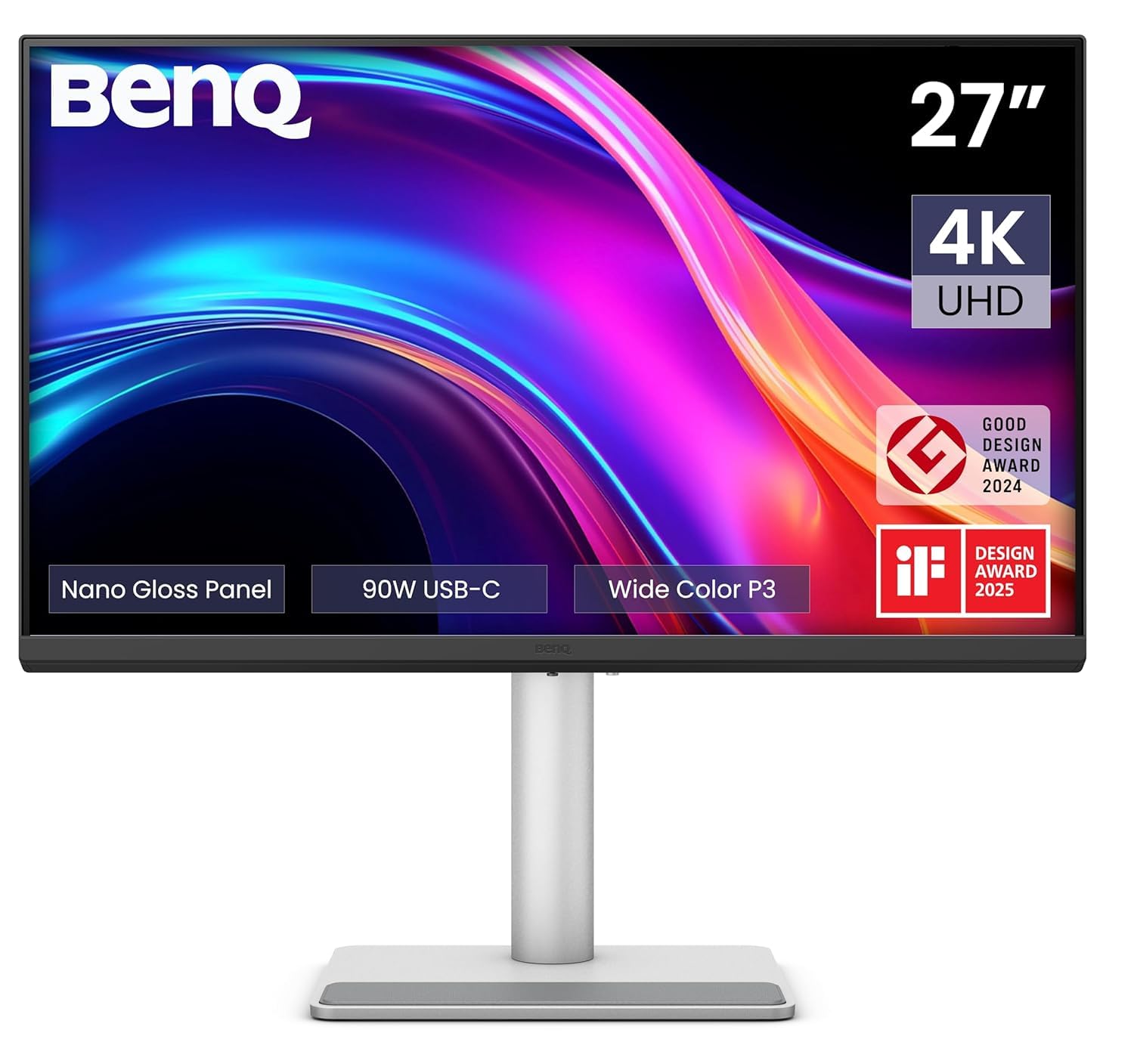
The Mac-native monitor that mirrors your laptop screen’s color and brightness.
If you do engineering on a MacBook Pro — running Xcode, Fusion 360, or MATLAB — this BenQ monitor is built specifically to match the MacBook display behavior. The Mac Color Match feature syncs the P3 wide color gamut to your laptop’s screen, so a color-coded stress plot looks identical on both. The 400 nits brightness is notably higher than the BenQ PD3225U’s 250 nits, and one reviewer confirmed it is “very bright (brighter than M1 Max MacBook).”
The dual USB-C ports deliver 90W Power Delivery to your MacBook and 15W to charge an iPad or iPhone, while the USB hub keeps a mouse and external drive connected. The 2000:1 contrast ratio (same IPS Black tech as the larger PD3225U) makes dark-mode code editors and FEA simulations look deep and professional. The height and tilt adjustable stand lets you dial in a comfortable eye level during long simulation runs.
The catch: it has no built-in speakers or webcam, and the stand, while functional, feels a bit cheap compared to the premium image quality. A few buyers mentioned a VESA mount screw falling inside the unit, though it did not affect performance. This monitor is best for Mac-based engineers who want a single-cable docking experience and color consistency without paying for an Apple Studio Display.
Made for Mac
- Mac Color Match syncs P3 gamut and brightness to MacBook Pro/Air displays
- 400 nits brightness — customers note it outshines the M1 Max MacBook screen
- Dual USB-C with 90W PD and a USB hub for a single-cable desktop setup
- 2000:1 contrast ratio for deep blacks in dark-mode engineering UIs
Mac-Only Trade-Offs
- No built-in speakers or webcam — you need external peripherals
- Stand build quality feels cheaper than the monitor’s premium image quality
Perfect for: MacBook Pro engineers who need a color-matched second display with a single USB-C cable for video, data, and charging.
skip it if: you use a Windows workstation or need built-in speakers for conference calls.
5. LG 27US500-W Ultrafine 27-Inch 4K Monitor

The no-frills 4K panel that gets the resolution right for a tight budget.
You get 4K clarity without wide color gamut or a high refresh rate on this LG monitor. The 27-inch IPS panel delivers 3840 x 2160 resolution with a 1000:1 contrast ratio — half the depth of the BenQ PD3225U’s 2000:1 — but at a price that makes it accessible for a home office or a student setup. Reviewers point out that “10 point font at 200% scale perfectly clear and good size,” which is exactly what you need for reading dimension callouts and spec sheets.
It covers 90% of the DCI-P3 color space, which is decent for basic render review and spreadsheet color-coding. The borderless design and slim profile look clean on a desk, and the ergonomic stand lets you tilt the screen to a comfortable angle. Connectivity includes 2 HDMI ports and a DisplayPort, plus a reader mode that reduces blue light for late-night reading.
The downsides are clear at this price: the 1000:1 contrast ratio means dark CAD interfaces look slightly washed out compared to IPS Black panels, and the stand offers tilt only — no height or swivel adjustment. Some buyers found the large power adapter blocks adjacent outlets and the included 4-foot cable is too short. For pure drafting and coding on a budget, this is the smart pick; for color-sensitive render work, spend more on the ASUS ProArt.
Budget 4K Clarity
- 4K (3840 x 2160) resolution makes small text and schematics clearly readable
- 90% DCI-P3 color coverage for decent render and photo viewing
- Borderless design looks sleek and takes up minimal desk space
- Reader mode and flicker-free tech reduce eye strain during long sessions
Where It Cuts Corners
- 1000:1 contrast ratio — dark UI elements appear less deep than premium panels
- Tilt-only stand — no height or swivel adjustment for ergonomic setups
- Short 4-foot power cable and bulky adapter may be inconvenient
Best suited for: engineering students or home CAD setups on a tight budget where 4K sharpness is the top priority.
Not for: anyone who spends full days on color-critical renders, or who needs height-adjustable ergonomics.
6. LG 45GX950A-B 45-inch 5K2K OLED
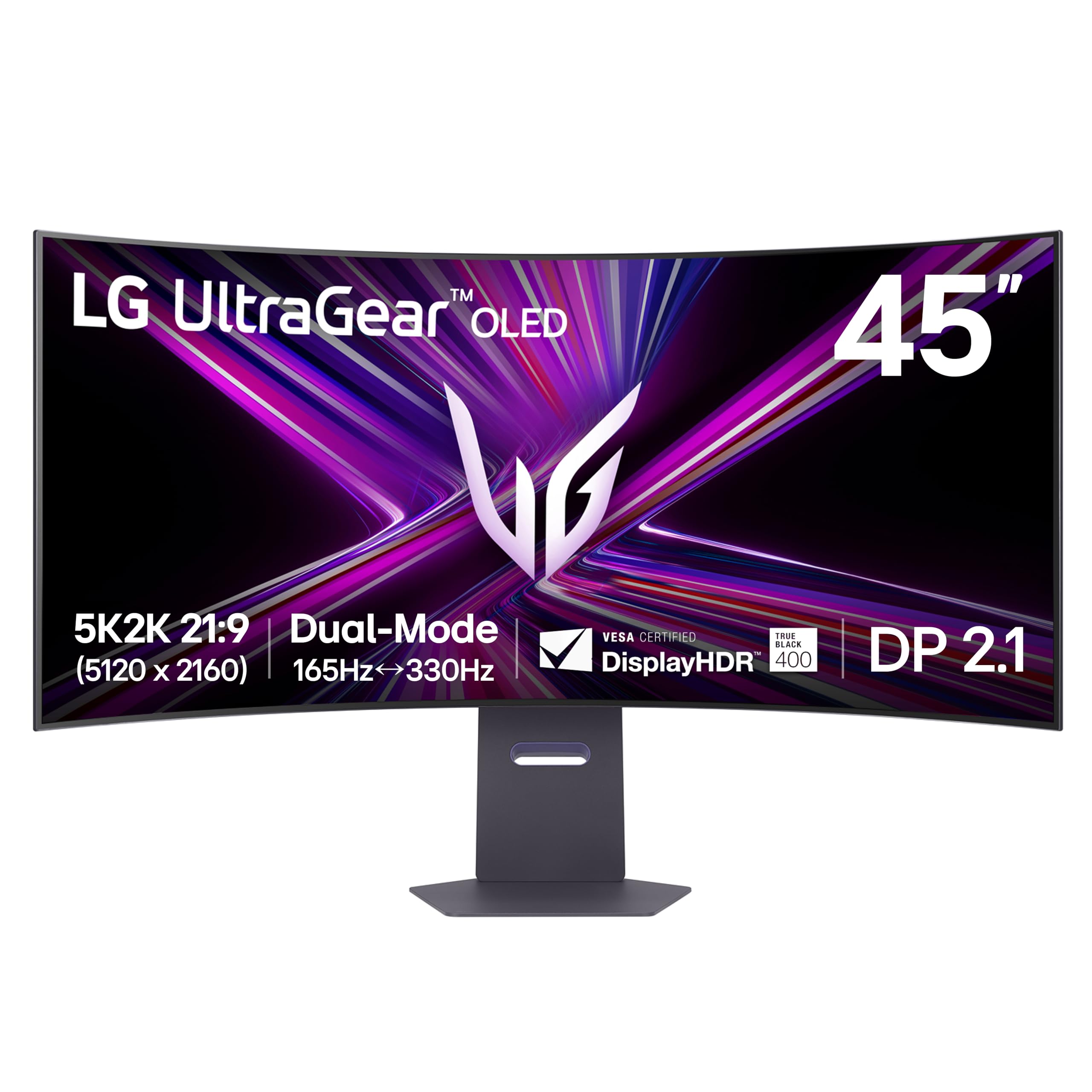
An ultra-wide 45-inch OLED canvas for running simulations, schematics, and toolbars side by side.
You get 5120 x 2160 resolution across a 45-inch curved surface with an 800R curve (a pronounced curve that matches your field of view) that wraps the image around your view. The 125 PPI (pixels per inch) provides sharp text clarity with reduced color fringing, so multi-line code and fine schematics stay readable. The 165Hz refresh rate and 0.03ms GtG response time (Grey-to-Grey, a measure of how fast a pixel changes between shades of gray) make rotating 3D models feel instant.
The OLED panel delivers a 1.5M:1 contrast ratio and up to 1300 nits peak brightness, with 98.5% DCI-P3 color coverage. That means blacks are truly black and highlights in a simulation result pop with detail. The Dual Mode feature lets you switch between native 5K2K at 165Hz and a Wide Full HD mode at 330Hz for smooth gaming, though shoppers say the scaling in dual mode “is terrible.” Connectivity includes DisplayPort 2.1, two HDMI 2.1 ports, and USB-C with 90W Power Delivery.
The honest catch is the price and GPU requirement — buyers report you need at least an RTX 5080 to drive games at this resolution, and for engineering work, a high-end workstation GPU is similarly necessary. The OLED panel is also susceptible to burn-in if static toolbar elements stay in the same position for hours, so this monitor is best suited for engineers who alternate between modeling and simulation rather than sitting on a single static UI all day. A few buyers mentioned sleep-mode quirks and awkward input switching.
Massive Canvas
- 45-inch 5K2K (5120 x 2160) OLED with 125 PPI for sharp, ultra-wide multitasking
- 1.5M:1 contrast ratio and up to 1300 nits peak brightness for vivid simulation visuals
- 165Hz refresh rate with 0.03ms GtG response for silky-smooth viewport rotation
- USB-C with 90W PD, DisplayPort 2.1, and dual HDMI 2.1 connectivity
Realities to Consider
- Premium price and requires a high-end GPU to drive full resolution
- OLED burn-in risk if static UIs are displayed for very long hours
- Some owners mention sleep-mode issues and awkward input switching
Reach for this if: you run multi-window simulation environments and want an rich, ultra-wide canvas with premium contrast.
Think twice if: you need the monitor for 8+ hours of static CAD UIs daily, or you are on a limited workstation budget.
Understanding the Specs
Contrast Ratio
This number tells you how much separation exists between the brightest white and the darkest black your monitor can show. A standard IPS panel gives you about 1000:1 — fine for bright office drafting. IPS Black technology pushes that to 2000:1, making dark-mode CAD toolbars and simulation backgrounds look deep and rich instead of washed out. OLED panels go far beyond, reaching 1.5M:1, but carry a burn-in risk if you keep static menus on screen all day.
Color Gamut (sRGB and DCI-P3)
Color gamut is the range of colors a monitor can display, measured against industry standards. sRGB covers the typical web and office color space — 99% sRGB is plenty for pure drafting and coding. DCI-P3 is a wider gamut used for HDR content and product renders; 90-99% DCI-P3 matters if you review photorealistic visualizations or color-coded stress plots where every subtle shade carries meaning. Delta E (ΔE) measures color error — a value under 2 means the screen is factory-calibrated to show colors almost exactly as intended.
Resolution and Pixel Density
Resolution is the total pixel count (3840 x 2160 for 4K), but pixel density — measured in PPI (pixels per inch) — determines how sharp tiny text and fine lines look. For engineering, 27-inch 4K yields about 163 PPI, enough to read 8-point font without zooming. A 32-inch 4K drops to roughly 140 PPI, offering more space but slightly lower peak sharpness. Ultra-wide 5K2K at 45 inches hits 125 PPI, balancing space with clarity.
USB-C Power Delivery
Power Delivery (PD) lets a single USB-C cable carry video signal to the monitor while charging your laptop at the same time. For engineering workstations, look for at least 85W PD to keep a 16-inch MacBook Pro or a high-end Dell Precision running without a separate power brick. Lower wattage (like 15W) is only enough for a phone or tablet — it will not keep a laptop battery from draining during heavy modeling sessions.
FAQ
What resolution do I need for engineering CAD work?
Is an IPS panel better than OLED for engineering monitors?
How important is color accuracy for an engineering monitor?
Can I use a gaming monitor for engineering work?
Do I need a monitor with USB-C Power Delivery?
What screen size is best for engineering?
How does contrast ratio affect engineering work?
Is a curved monitor good for CAD and engineering?
What refresh rate do I need for engineering monitors?
Are built-in speakers important on an engineering monitor?
Final Thoughts: The Verdict
Across the board, the computer monitor for engineering winner is the BenQ PD3225U because its 32-inch 4K IPS Black panel delivers 2000:1 contrast, Thunderbolt 3 connectivity, and factory-calibrated color that makes CAD work and render review equally enjoyable. If you want pre-calibrated color accuracy at a lower investment, grab the ASUS ProArt PA279CRV for its 99% DCI-P3 coverage and 96W USB-C charging. And for an ultra-wide simulation powerhouse, the LG 45GX950A-B offers a massive 45-inch OLED canvas that pairs sharp text with rich contrast for multi-window engineering environments.
How We Picked
We do not accept paid placement. Every pick is matched to a real buyer and a real use-case; we do not hands-on test units.
Sources & Methodology
Specifications: manufacturer listings and product documentation. Review insights: verified customer reviews, as of July 2026. Pricing: not shown on this page (it changes often); check the current price via the retailer link.
As an Amazon Associate, WellFizz earns from qualifying purchases. This does not affect which products we feature.

Mo Maruf
I created WellFizz to bridge the gap between vague wellness advice and actionable solutions. My mission is simple: to decode the research and give you practical tools you can actually use.
Beyond the data, I am a passionate traveler. I believe that stepping away from the screen to explore new environments is essential for mental clarity and physical vitality.