Our readers keep the lights on and my smoothie glass nicely filled. As an Amazon Associate, I earn from qualifying purchases.
Specs are compiled from manufacturer listings and verified buyer reviews and can change over time — please confirm the key details on the product page before buying.
Waiting for files to copy or games to load is a waste of your time. The right drive changes how fast your computer feels, but the wrong pick leaves you stuck watching a progress bar. This guide breaks down the real trade-offs between speed, capacity, and price so you can match a drive to what you actually do with it.
I’m Mohammad Maruf — the founder and writer behind WellFizz. This guide is built by comparing the manufacturers’ published specifications and the patterns across verified customer reviews, so you get each pick’s real strengths and trade-offs instead of marketing spin.
Whether you are upgrading a slow laptop, adding bulk storage for your media library, or building a high-end workstation, you need honest answers. Here is what matters when choosing the computer storage that fits your workflow and budget.
Quick Picks
- Samsung 990 PRO SSD 2TB — Best Overall
- Kingston NV3 1TB — Top Performer
- SANDISK 1TB Extreme Portable SSD — Rugged Pick
- Crucial BX500 1TB — Best Value SATA SSD
- Seagate BarraCuda 8 TB Internal HDD — Massive Storage Pick
- Seagate Portable 2TB External HDD — Simple External Backup
- WD 2TB Elements Portable External HDD — Entry-Level External
How To Choose The Best Computer Storage
Buying storage starts with one question: do you need speed, space, or portability? Internal drives like SSDs and NVMe sticks make your computer feel fast because they load your operating system and games in seconds. External hard drives give you terabytes of room for backups and media at a lower cost but move data at a slower pace. Pick the type that solves the problem you have right now.
Match Speed to Your Workload
Read and write speeds, measured in megabytes per second (MB/s) or gigabits per second (Gb/s), tell you how quickly data moves. A SATA SSD (which connects via the same cable as an old hard drive) like the Crucial BX500 reads at up to 540MB/s — enough to boot Windows in seconds and launch most apps without waiting. An NVMe drive (a type that plugs directly into your motherboard’s PCIe slot) like the Samsung 990 PRO hits up to 7,450 MB/s, which matters if you edit 4K video, run large databases, or reload into a game after dying. A mechanical hard drive at 130MB/s to 190MB/s works fine for storing photos and movies but will feel slow as your main boot drive.
Physical Fit Matters
Your computer only accepts certain shapes. A 2.5-inch SATA drive fits inside most laptops and desktops that have a spare drive bay. An M.2 2280 stick (a small, flat rectangle measuring 22mm wide and 80mm long) slides into a tiny slot on modern motherboards and is about the size of a stick of gum — check that your motherboard has an M.2 slot before buying. External drives connect over USB and work with any computer, but the connection speed limits them: USB 3.0 tops out at about 5 Gb/s, while USB 3.2 Gen 2 can reach 10 Gb/s.
Quick Comparison
| Model | Best For | Type | Capacity | Speed | Amazon |
|---|---|---|---|---|---|
| Samsung 990 PRO SSD | High-end gaming & workstations | Internal NVMe M.2 | 2 TB | Up to 7,450 MB/s | Amazon |
| Kingston NV3 1TB | Fast everyday computing | Internal NVMe M.2 | 1 TB | Up to 6,000 MB/s | Amazon |
| SANDISK 1TB Extreme Portable SSD | Rugged on-the-go storage | External Portable SSD | 1 TB | Up to 1,050 MB/s | Amazon |
| Crucial BX500 1TB | Budget system upgrade | Internal SATA SSD | 1 TB | Up to 540 MB/s | Amazon |
| Seagate BarraCuda 8 TB | Massive desktop bulk storage | Internal HDD | 8 TB | 190 MB/s | Amazon |
| Seagate Portable 2TB | Simple external backup | External HDD | 2 TB | 130 MB/s | Amazon |
| WD 2TB Elements | Budget external storage | External HDD | 2 TB | 130 MB/s | Amazon |
In‑Depth Reviews
1. Samsung 990 PRO SSD 2TB

The ceiling smasher for anyone who needs their PC to move as fast as their brain.
If your work or play involves loading massive files, compiling code, or jumping into games without a second of waiting, this is the drive that takes the limit off. The Samsung 990 PRO reads at up to 7,450 MB/s and writes at up to 6,900 MB/s over the PCIe Gen4 interface (a high-speed connection lane on modern motherboards), which is the fastest lane available for a consumer SSD. For context, that is 7,450 MB/s versus the Seagate Portable 2TB external hard drive at 130 MB/s — a gap you feel the first time you copy a 50GB game folder. Capacities run from 1TB to 4TB, so you can match the size to your library.
Buyers report using two of these in a TrueNAS build for apps and virtual machines, calling it “a perfect high-performance NVMe pool.” They also mention that the drive runs cool under normal use, but if you plan to hammer it with heavy video editing or 3D rendering, a third-party heatsink or your motherboard’s own M.2 heatsink is a smart precaution. The Samsung Magician software makes health monitoring and firmware updates simple, which adds confidence over the long haul.
The single catch is price — this is a premium investment, and one reviewer noted it has “become way more expensive due to ram shortage.” For a daily desktop or a PS5 expansion slot, though, nothing in this list touches its raw throughput.
Speed king verdict: Buy this if you demand the fastest load times for gaming, video editing, or professional work and have a motherboard with a PCIe Gen4 M.2 slot ready. Look elsewhere if your budget is tight or your computer only supports SATA or PCIe Gen3 drives.
Who needs this: High-end gamers, video editors, data analysts, and anyone building a workstation that cannot afford a bottleneck.
Smart check: Your motherboard must have an M.2 2280 slot with PCIe Gen4 support — double-check before buying.
2. Kingston NV3 1TB
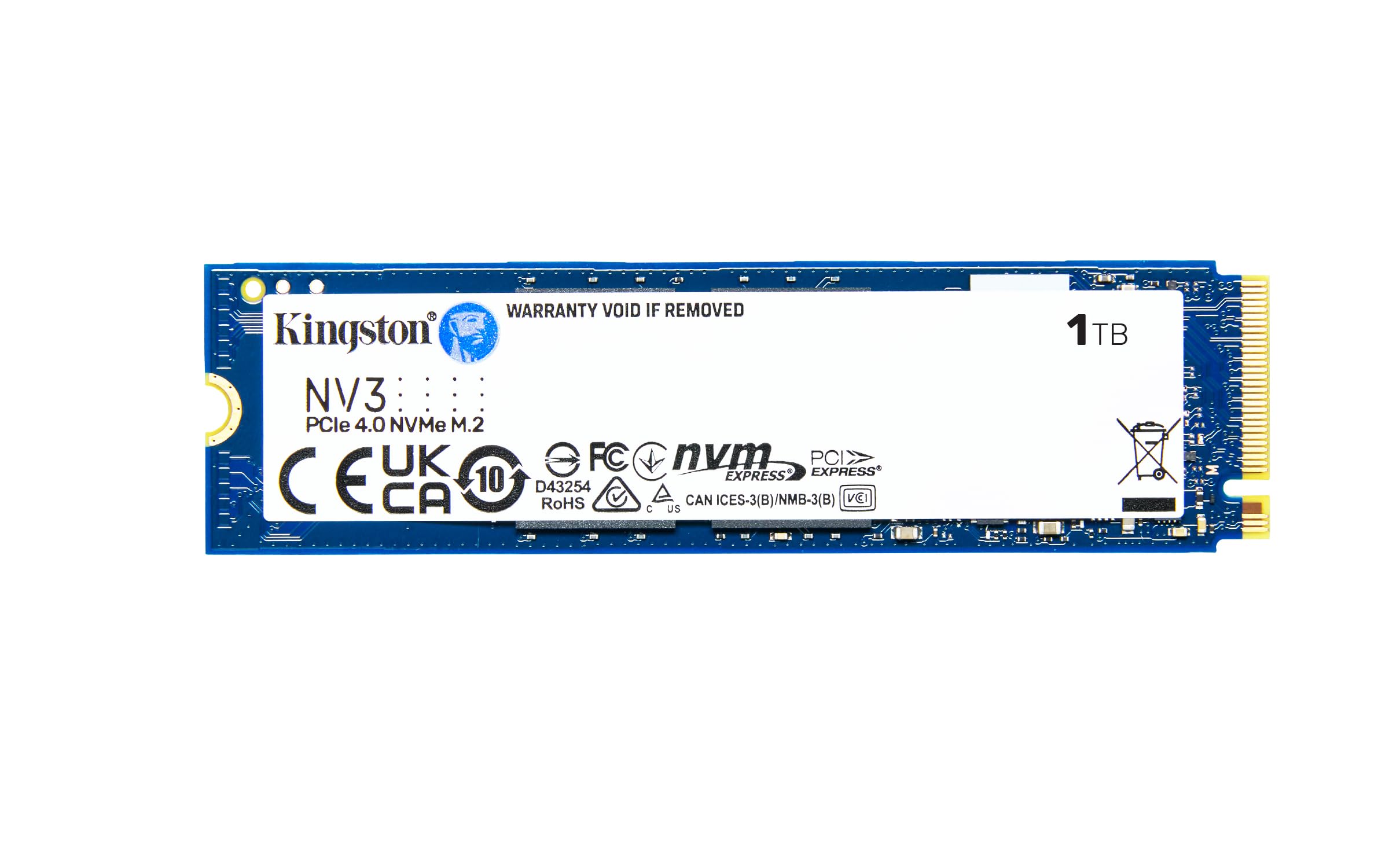
Near-flagship speed at a price that makes sense for a daily driver.
The Kingston NV3 sits right in the balance of the NVMe market: it uses the same PCIe 4.0 Gen 4×4 interface as the Samsung 990 PRO but lands at a lower investment, making it the right pick for a mainstream gaming rig or a fast boot drive. With read speeds up to 6,000 MB/s, it loads Windows in a handful of seconds and lets you jump into games while your friends are still on the loading screen. Capacities go up to 4TB, giving you room to grow.
Where the Samsung 990 PRO pulls ahead is in sustained write speed and random performance (the 55% improvement over the 980 PRO it claims), so if you constantly move huge video files or run heavy databases, the extra cost matters. For everyday use — school, work, gaming, and file transfers — the NV3 delivers nearly the same immediate-feel speed without pushing your budget into flagship territory. The M.2 2280 form factor fits any modern desktop or laptop with an available slot.
What works
- 6,000 MB/s reads feel instant for games and boot-up
- PCIe 4.0 ready for current-gen motherboards
- Available up to 4TB for growing libraries
- Shock-resistant design adds durability
What to weigh
- Top write speeds fall short of the Samsung 990 PRO for heavy workloads
- Best for everyday computing, not specialized workstation pushes
Smart money pick: Ideal for gamers and general users who want PCIe 4.0 speed without paying the absolute premium. skip it if your motherboard lacks an M.2 slot or you are limited to SATA connections.
3. SANDISK 1TB Extreme Portable SSD

Tough enough to survive a drop from a bunk bed and fast enough to edit video on the go.
Not every storage need is inside a desktop tower. The SanDisk Extreme Portable SSD brings NVMe performance to your backpack with read speeds up to 1,050 MB/s and write speeds up to 1,000 MB/s over USB 3.2 Gen 2 (a fast USB standard), so you can work with large project files directly from the drive without copying them to an internal disk first. The USB-C connection means it works with modern laptops, tablets, and even phones, while the included password protection with 256-bit AES hardware encryption (a strong data-scrambling method) keeps your private content locked if the drive gets lost.
What makes this drive different from a basic external hard drive is its toughness. It is rated for drops from up to 3 meters and carries an IP65 rating, meaning it is sealed against dust and can handle water splashes — so a rain shower or a tumble off your desk is not a disaster. There is even a carabiner loop to clip it to your belt loop or backpack. Compared to the Seagate Portable 2TB external HDD at 130 MB/s, this drive reaches up to 1,050 MB/s for moving files.
On-the-go verdict: Perfect for photographers, videographers, and professionals who carry large files between locations and need a drive that can take real abuse. pass on it if you only need a cheap backup drive and speed is not a priority.
Reach for this if: You edit video off an external drive, travel often, or work in dusty or outdoor environments.
4. Crucial BX500 1TB

The budget upgrade that gives a five-year-old laptop a second life.
If your old computer takes forever to boot and feels sluggish opening apps, a SATA SSD like the Crucial BX500 is the single most effective upgrade you can make. It reads at up to 540 MB/s, connects through the standard SATA interface (6 Gb/s), and comes in a 2.5-inch form factor that fits into the same bay your old mechanical hard drive occupied. Owners mention that “boot times reduced to under 15 seconds” after swapping in this drive, and they note “silent operation” and “easy installation.” One owner called it “a good, affordable SATA SSD from a formerly good brand” and recommended it for reviving older machines.
Compared to the Seagate BarraCuda 8TB internal HDD at 190 MB/s, the BX500 reads at up to 540 MB/s, which is exactly what you want for an operating system drive.
The catch, as several buyers point out, is that write speeds can slow down when you move many large files at once, so this drive works best as a boot drive or a media drive rather than a scratch disk for heavy video editing. The 3-year limited warranty from Crucial and Micron’s 40-year track record with NAND give you confidence it will last.
Great for
- Dropping boot times to under 15 seconds from a cold start
- Silent, vibration-free operation compared to a spinning hard drive
- Simple swap-in installation for any desktop or laptop with a 2.5-inch bay
Not ideal for
- Sustained heavy writes like video editing or large database work
- If your computer only has an M.2 slot, this SATA drive will not fit without an adapter
Budget champion: The go-to for anyone on a tight budget who wants a huge speed jump from a mechanical hard drive. Look elsewhere if you need NVMe-level speed or your computer has no room for a 2.5-inch drive.
5. Seagate BarraCuda 8 TB Internal HDD
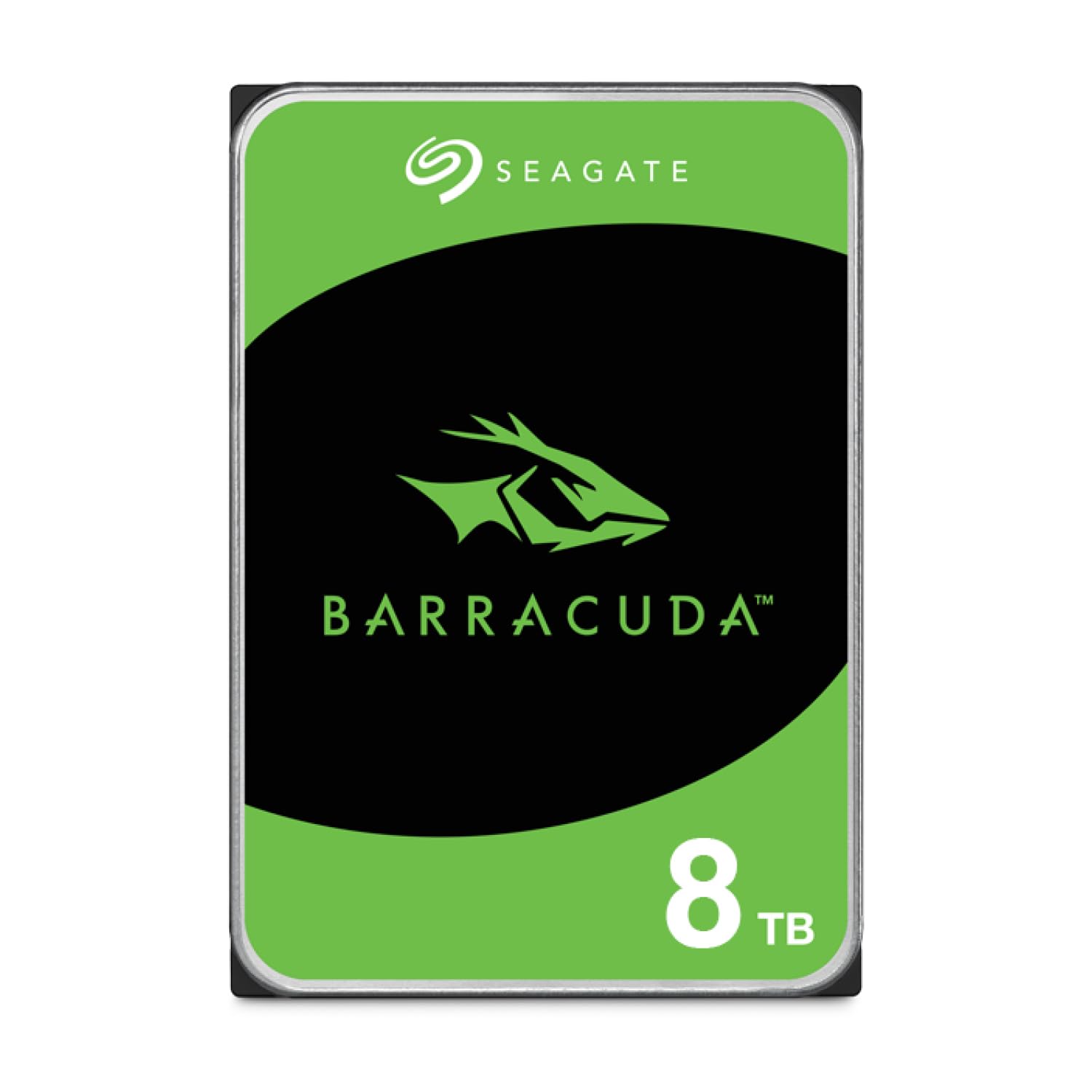
Eight terabytes of room so you never have to shuffle files again.
Speed is not always the priority — sometimes you just need a giant vault to hold your movie collection, game library, backup images, and years of photos. The Seagate BarraCuda 8TB is a 3.5-inch mechanical hard drive that spins at 5,400 RPM (revolutions per minute, a measure of how fast the internal platter turns) and reads at up to 190 MB/s, with a 256MB cache to keep frequently accessed data handy. That is eight times the capacity of the Crucial BX500 1TB, so it solves a completely different problem: bulk storage, not boot speed. Buyers describe it as “massive storage, reliable, fast data access” and call it “perfect for combining multiple hard drives of data.”
One buyer mentioned it is “good capacity and reliability, but slower than 7200 RPM drives,” which is the honest trade-off here. At 5400 RPM, the BarraCuda prioritizes quiet operation and low power draw over maximum speed, so it is an excellent secondary drive for media and backups but not the drive you want your operating system on. If you need the same capacity in a faster-spinning variant, Seagate offers 7200 RPM models in the BarraCuda Pro line. This one comes in Frustration-Free Packaging, meaning you get just the anti-static bag and the drive — no cables or box.
Bulk storage verdict: The right call if you need to store your entire Steam library, a decade of family photos, and nightly PC backups on a single internal drive. it’s not for you if you need a fast boot drive or your desktop only accepts 2.5-inch drives.
Who this fits: Desktop users who need a massive secondary drive for media, games, and backups. The 3.5-inch form factor requires a standard desktop drive bay — it will not fit in a laptop.
6. Seagate Portable 2TB External HDD
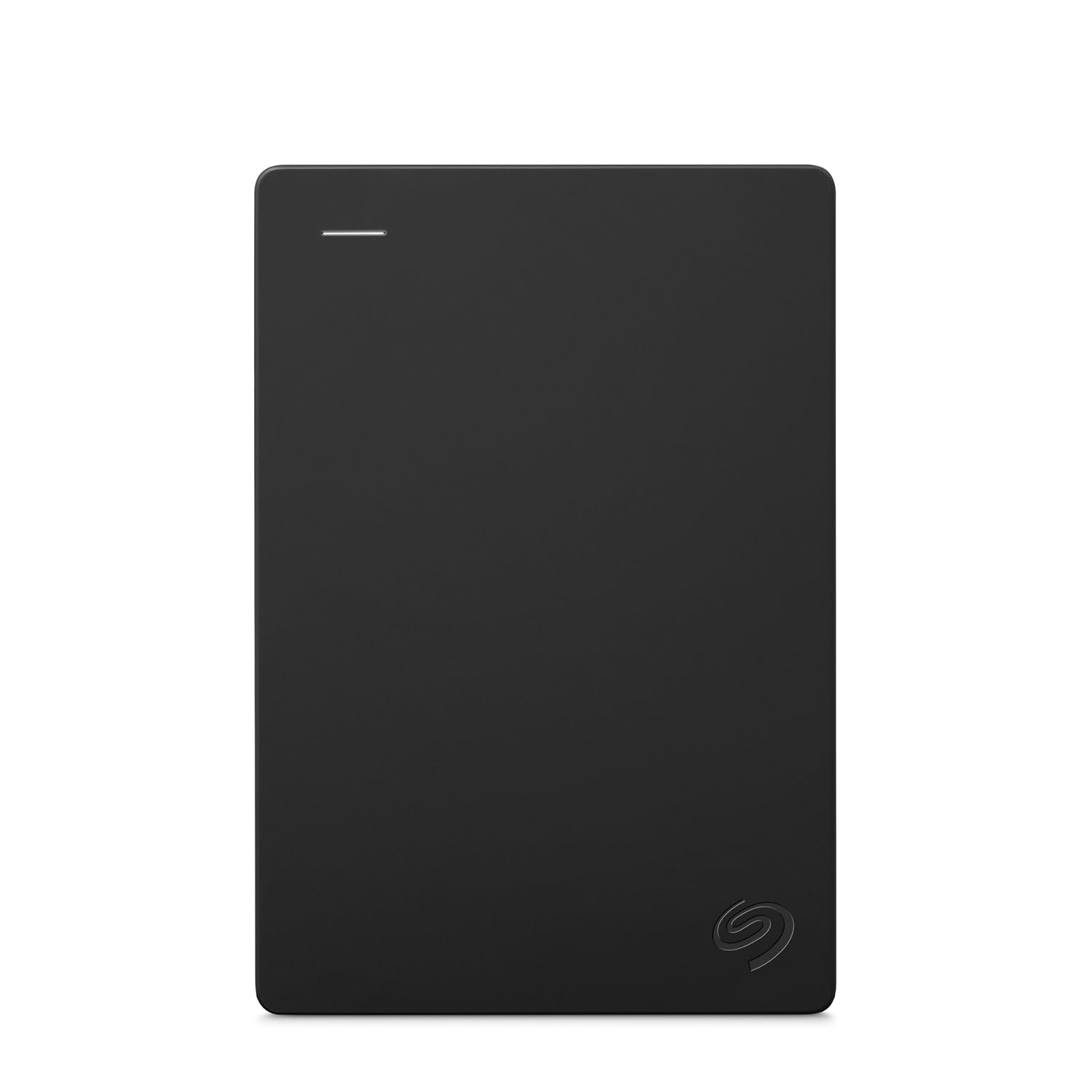
Carry 2TB of documents and movies in your pocket with zero setup fuss.
Sometimes you just want to drag and drop files onto a drive and be done. The Seagate Portable 2TB is a USB 3.0 external hard drive that works with Windows, Mac, PlayStation, and Xbox right from the start — no software installation needed. It transfers data at 130 MB/s, which is the slowest speed on this list, but that is fine for its intended job: backing up your Documents folder, carrying your movie collection between devices, or offloading old projects from your laptop. The drive comes with an 18-inch USB 3.0 cable and includes a 1-year Rescue Service for data recovery if something goes wrong.
Compared to the SanDisk Extreme Portable SSD above at 1,050 MB/s, the Seagate transfers data at 130 MB/s when moving big files.
That gap shows up when you copy a 20GB folder — you will wait a couple of minutes instead of 15 seconds. The trade-off is a lower entry point into the 2TB storage tier for people who do not want to spend much. Just keep in mind that a mechanical hard drive has moving parts inside, so it is more vulnerable to drops and bumps than an SSD.
Good for
- Simple plug-and-play backups on PC, Mac, and consoles
- 2TB of portable storage at a practical price
- 1-year Rescue Service for data recovery if the drive fails
Know this
- 130 MB/s is slow for moving large files or editing video directly from the drive
- Mechanical parts mean it is less durable than an SSD if dropped
Budget backup pick: Choose this for a simple, low-hassle external drive to store documents, media, and game backups. look elsewhere if you need fast transfer speeds or plan to edit files directly off the external drive.
7. WD 2TB Elements Portable External HDD

A small, light drop-in companion for students and home users who just need extra space.
The WD 2TB Elements shares a lot of DNA with the Seagate Portable above — it is a USB 3.2 Gen 1 (which is the same as USB 3.0 for practical purposes) external hard drive with a 5 Gb/s interface, housed in a compact plastic enclosure that is easy to toss in a backpack. It supports plug-and-play expandability on Windows and Mac, and WD also offers versions with up to 6TB capacity, so the line can grow with you. The small size and light weight make it an easy add-on for someone who is not ready to invest in an SSD yet just needs to move a school project or a photo library.
The main difference from the Seagate Portable is the interface naming: WD lists USB 3.2 Gen 1 at 5 Gb/s, while the Seagate is listed as USB 3.0. In real-world use, file transfer speeds from a mechanical drive are dominated by the drive’s own read/write limits — do not expect a huge speed jump. Both are mechanical hard disks, so both are best kept on a desk rather than tossed around. For the same capacity, the Seagate includes a 1-year Rescue Service, which the WD does not mention in its features, so if data recovery confidence matters, that is a point in Seagate’s direction.
No-fuss backup verdict: A straightforward external drive for anyone who needs extra storage without worrying about speed. The deciding factor against the similar Seagate Portable is the lack of a Rescue Service plan — if free data recovery is important, go with Seagate.
Reach for this if: You want a basic, low-cost external HDD for storing documents and media and do not need the fastest transfer speeds. Look elsewhere if you need ruggedness, speed, or the included data recovery service from Seagate.
Understanding the Specs
Form Factor
The physical shape of the drive determines where it can go. A 2.5-inch SATA drive fits into standard laptop and desktop drive bays. An M.2 2280 is a thin stick that slides into a dedicated slot on modern motherboards — it is 22mm wide and 80mm long. 3.5-inch drives are larger, used only in desktop towers, and usually hold more terabytes. Portable external drives sit in a small enclosure and connect over USB, so they work with any computer.
Transfer Speed
Measured in MB/s (megabytes per second) or Gb/s (gigabits per second), this tells you how fast data moves to and from the drive. For context: 1 GB/s is about 8 Gb/s. A drive reading at 540 MB/s (like a SATA SSD) can copy a 1GB file in about 2 seconds, while a 130 MB/s mechanical drive takes more than 7 seconds for the same task. Your computer’s connection also matters — a SATA III port maxes out at 6 Gb/s, while PCIe Gen4 slots support speeds over 7,000 MB/s.
Solid State Drive (SSD) vs Hard Disk Drive (HDD)
An SSD uses flash memory chips with no moving parts, so it is silent, fast, and resistant to shock. An HDD uses spinning magnetic platters and a moving read/write head, so it is slower and more fragile but offers much more storage per dollar. If you are choosing a boot drive for your operating system, always pick an SSD. If you are storing large media archives you rarely touch, an HDD gives you more terabytes for your money.
Capacity
Measured in gigabytes (GB) or terabytes (TB), this is how much data the drive can hold. One terabyte stores roughly 250,000 photos, 500 hours of HD video, or about 20 to 30 modern video games. A 1TB drive is a good starting point for a boot drive with a handful of games. Jump to 4TB or 8TB if you are a content creator or a hardcore gamer with a large library. Your OS and apps benefit from a fast internal drive, while a large external HDD works well for backups.
FAQ
Can I use an external hard drive as my main boot drive for Windows?
Will any M.2 SSD fit in my laptop or desktop?
How long does a typical SSD or HDD last?
What does the RPM number mean on a hard drive?
Is a portable SSD worth the extra money over a portable HDD?
Can I use an internal SSD in an external enclosure to make my own portable drive?
What is the difference between SATA and NVMe SSDs?
Will a PlayStation 5 accept any M.2 SSD?
Final Thoughts: The Verdict
For most people, the best computer storage winner is the Samsung 990 PRO 2TB because it delivers peak PCIe Gen4 speeds for gaming, video editing, and heavy multitasking. If you want fast everyday performance without the flagship price tag, grab the Kingston NV3 1TB. And for a rugged external drive that travels with you, the standout is the SANDISK 1TB Extreme Portable SSD.
How We Picked
We do not accept paid placement. Every pick is matched to a real buyer and a real use-case; we do not hands-on test units.
Sources & Methodology
Specifications: manufacturer listings and product documentation. Review insights: verified customer reviews, as of July 2026. Pricing: not shown on this page (it changes often); check the current price via the retailer link.
As an Amazon Associate, WellFizz earns from qualifying purchases. This does not affect which products we feature.

Mo Maruf
I created WellFizz to bridge the gap between vague wellness advice and actionable solutions. My mission is simple: to decode the research and give you practical tools you can actually use.
Beyond the data, I am a passionate traveler. I believe that stepping away from the screen to explore new environments is essential for mental clarity and physical vitality.