Our readers keep the lights on and my smoothie glass nicely filled. As an Amazon Associate, I earn from qualifying purchases.
Setting up a dual-monitor workstation sounds simple until you plug in your laptop and one screen stays black, the resolution caps at 1080p, or the whole system flickers when you move a window. That’s when you realize your laptop’s single USB-C port wasn’t designed to push high-resolution video to two displays while charging your machine and running your peripherals. A dedicated dock bridges that gap, but the wrong one introduces lag, connection drops, or outright incompatibility with your operating system.
I’m Mohammad Maruf — the founder and writer behind WellFizz. I’ve spent hundreds of hours parsing display protocols, power delivery standards, and port configurations to separate the docks that genuinely deliver dual 4K from those that just advertise it.
This guide distills that research into a clear, actionable list of the best options available right now for anyone searching for the best docking station for dual monitors.
How To Choose The Best Docking Station For Dual Monitors
Not every dock that claims dual-monitor support actually delivers it with your specific laptop. The protocol your laptop uses to send video over USB-C determines whether your second screen works natively or requires driver-based workarounds. Understanding that single difference saves you from buying a dock that leaves you with one live monitor and one mirror.
Thunderbolt vs. USB-C vs. DisplayLink – The Protocol Decision
If your laptop has a Thunderbolt 4 or USB4 port, you can run dual displays natively through a Thunderbolt dock — no extra drivers, no latency. Standard USB-C docks that lack Thunderbolt certification can only output one display natively; for dual monitors, they must use DisplayLink or SiliconMotion emulation software, which introduces slight compression artifacts and higher CPU usage. For base M1/M2 MacBooks, even Thunderbolt docks cannot natively support dual external displays — only DisplayLink-based docks solve that limitation.
Power Delivery – Not All Watts Are Usable
A dual-monitor dock often becomes the charging hub for your laptop. Look for docks delivering at least 85W to 100W of passthrough power — lower wattage units may trickle-charge your machine during heavy use, causing the battery to drain even while plugged in. Premium docks include their own power adapters (up to 180W) to guarantee enough headroom for video output, data transfer, and charging simultaneously.
Port Layout – The Physical Realities of Cable Management
Count your required ports before buying. A dual-monitor setup with a wired mouse, keyboard, Ethernet, and an external drive needs at least four USB-A ports plus two HDMI or DisplayPort outputs. Docks with forward-facing ports are easier to access but clutter your desk; rear-facing ports support cleaner cable runs. Consider whether you need an integrated laptop stand within the dock to save desk space.
Quick Comparison
On smaller screens, swipe sideways to see the full table.
| Model | Category | Best For | Key Spec | Amazon |
|---|---|---|---|---|
| Plugable TBT4-UD5 | Thunderbolt 4 | Native dual 4K on Mac/Win | 2x HDMI, 96W PD, 40Gbps | Amazon |
| Dell Pro Dock WD25 | USB-C / DP Alt | Dell PC ecosystem | 1x HDMI, 1x DP, 100W PD | Amazon |
| TobenONE 14-in-1 (UDS020P) | SiliconMotion USB-C | MacBook M1-M5 dual monitors | 2x HDMI 4K30, 65W PD, VGA | Amazon |
| MOKiN MODK2403 | USB-C Universal | Triple-display flexibility | 3x HDMI, 2x DP, 100W PD | Amazon |
| Baseus Nomos Air 12-in-1 | USB-C Universal | Budget dual 4K setup | 2x HDMI 4K60, 100W PD | Amazon |
| TobenONE DisplayLink (UDS033) | DisplayLink USB-C | Triple/quad 4K on Mac/Win | 3x HDMI, 3x DP, 100W PD | Amazon |
| WAVLINK RC-UG39PD8 | DisplayLink USB-C | Quad monitor workstations | 4x HDMI, 4x DP, 100W PD | Amazon |
In‑Depth Reviews
1. Plugable Thunderbolt 4 Dock TBT4-UD5

The Plugable TBT4-UD5 earned Wirecutter’s Best Thunderbolt Dock distinction for a reason: it delivers native dual 4K 60Hz output through its two HDMI ports without requiring DisplayLink drivers or any emulation layer. On M3 Pro/Max, M4, and Windows Thunderbolt 4 hosts, both monitors appear as directly connected displays — zero compression, zero input lag. The 96W certified power delivery keeps even a fully loaded 16-inch MacBook Pro topped off during sustained video encoding sessions.
With 13 total ports including a downstream Thunderbolt 4 port that supports 8K single-display setups up to 40Gbps, this dock handles high-speed storage transfers without bottlenecking. The SD/microSD card reader runs at UHS-II speeds, and the Gigabit Ethernet port delivers consistent 1Gbps throughput. Build quality feels dense and solid with a compact footprint that stays cool even after hours of dual-monitor operation.
The only real trade-off is the host cable position — the Thunderbolt cable exits the front of the unit rather than the back, which complicates cable management for desk setups that hide wires behind the monitor. Also, base M1 and M2 MacBooks cannot natively drive two external displays from a Thunderbolt dock; those users need a DisplayLink solution instead. For anyone with Thunderbolt 4 hardware, this remains the most reliable dual-monitor dock tested.
Why it’s great
- Native dual 4K 60Hz on compatible systems (no drivers, no lag)
- 96W certified power delivery handles full-load laptop charging
- Thunderbolt 4 downstream port supports 8K display or high-speed storage
Good to know
- Thunderbolt cable exits the front, not the back, complicating cable routing
- Does not support dual external displays on base M1/M2 MacBooks
- Premium price reflects Thunderbolt certification and build quality
2. Dell Pro Dock WD25

Dell’s Pro Dock WD25 is engineered for the corporate AI PC workplace, with native support for up to four high-resolution displays on compatible Dell systems. It uses a USB-C connector with DisplayPort Alt Mode, so you get one HDMI port and one DisplayPort output right out of the box. The ambidextrous USB-C cable can route left or right, a detail that makes a real difference when your desk setup forces a specific cable path.
Power efficiency stands out here — Dell claims up to 72% reduction in standby power consumption compared to previous generation docks, and the unit runs virtually silent during operation. The robust USB-C connector is designed for the constant plugging and unplugging that happens in hot-desking or shared workstation environments. With six USB ports split between high-speed and standard throughput, you can keep a mouse, keyboard, webcam, and external drive connected simultaneously.
The WD25 does not include DisplayPort to HDMI adapters, so factor that into your cabling plan if your monitors only accept HDMI. It also works with non-Dell PCs, but some advanced power management and display features are optimized for Dell laptops running Windows 10 or 11. Non-Dell USB-C laptops may see reduced display count or need a driver update for full multi-monitor functionality.
Why it’s great
- Near-silent operation with excellent power efficiency in standby
- Ambidextrous cable routing simplifies desk cable management
- Up to four display support on compatible Dell systems
Good to know
- Only one HDMI port built-in; second monitor requires DP-to-HDMI adapter
- Advanced features optimized for Dell ecosystem
- No built-in SD card reader
3. TobenONE 14-in-1 MacBook Docking Station UDS020P

This TobenONE dock solves a problem that Apple’s Silicon Macs notoriously create: driving multiple external displays from a base M1, M2, M3, M4, or the latest M5 and MacBook Neo. It uses SiliconMotion InstantView drivers to bypass Apple’s single-display limitation, letting you run two 4K 30Hz monitors or one 4K and one 1080p VGA display. The vertical laptop stand design saves significant desk space while improving airflow around your MacBook’s chassis.
Port selection is generous for the price — six USB ports split between 5Gbps USB-C and USB-A 3.0, plus two USB 2.0 ports reserved for keyboard and mouse to avoid radio interference with 2.4GHz wireless peripherals. The built-in 65W power adapter handles most MacBook Air and 13-inch Pro charging needs, though larger 16-inch Pro models may drain slowly under heavy load. The aluminum body dissipates heat effectively, staying noticeably cooler than many plastic docks during extended use.
The InstantView driver is emulation-based, not a true hardware extension, so you may notice slight window movement lag and occasional flickering when rapidly dragging windows between monitors. Streaming services like Netflix and Hulu are blocked over the extended displays due to the driver’s screen recording functionality. This dock works best for productivity workflows — spreadsheets, coding, document editing — rather than video playback or gaming on secondary screens.
Why it’s great
- Enables dual external monitors on base M1-M5 MacBooks that normally restrict to one
- Vertical stand design saves desk space and improves laptop airflow
- Includes 65W power adapter; no separate laptop charger needed
Good to know
- InstantView driver adds slight input lag and screen flicker during window movement
- Streaming services are blocked over extended displays
- Only 4K 30Hz on both HDMI ports; no 4K 60Hz option
4. MOKiN Triple Display Docking Station MODK2403
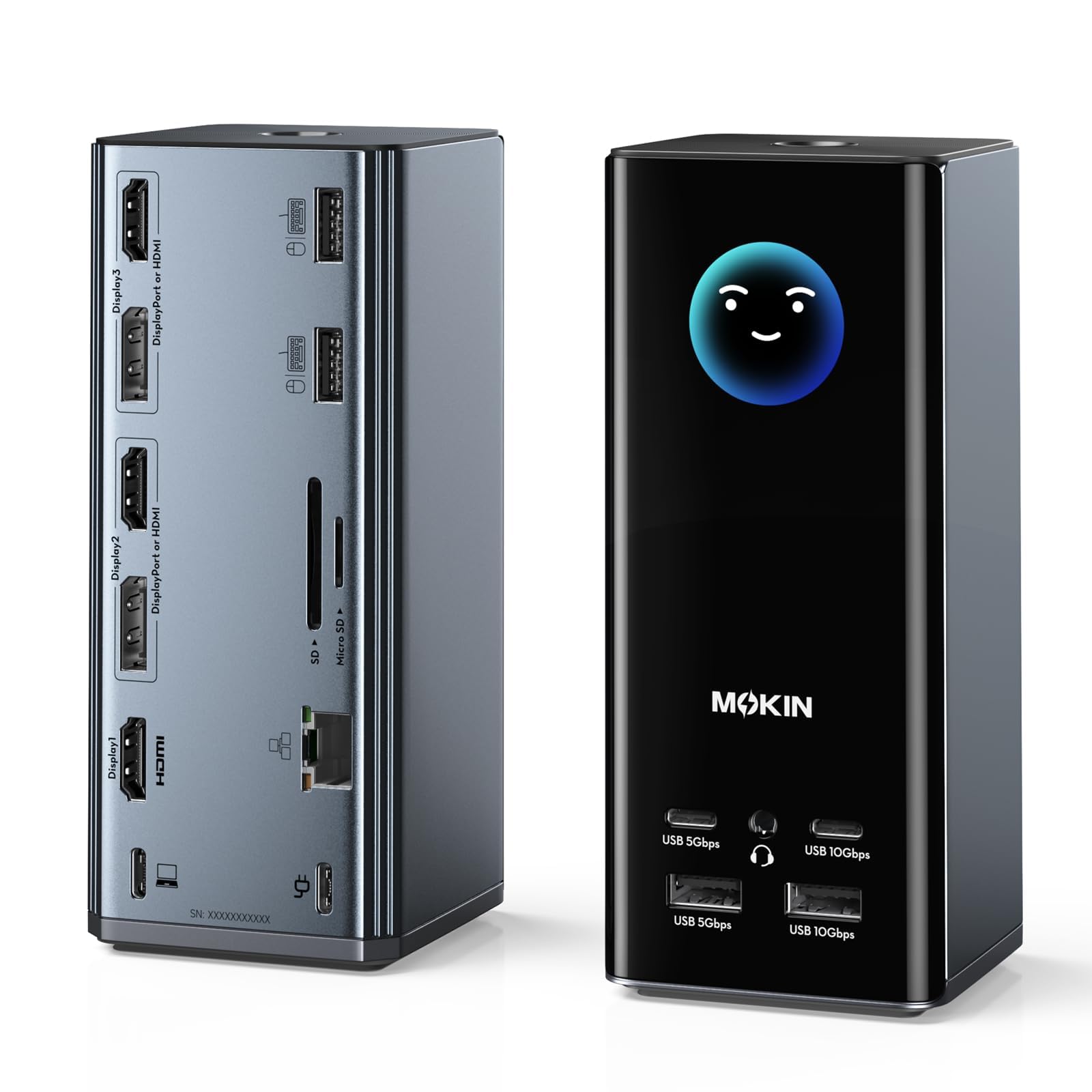
The MOKiN MODK2403 stands out for its video port flexibility — with three HDMI and two DisplayPort ports, you can mix and match display connections in configurations like 2 HDMI+DP, 2 DP+HDMI, or all three HDMI. On Windows systems with USB-C that supports DisplayPort Alt Mode, this dock drives three independent 4K 60Hz monitors. For dual-monitor users, that means you can choose your preferred cable type without being locked into a single standard.
An integrated LCD screen displays real-time info including charging wattage, connected display resolutions, and port activity status — a genuinely useful tool for diagnosing connection issues without digging into system settings. The weather display feature syncs local forecasts when connected to WiFi, and the privacy lock button disables screens with a double-tap, useful for sensitive financial or legal work. Silicone suction cups on the base keep the tower-style dock planted even with heavy cabling attached.
There are two serious concerns. First, the dock broadcasts an open WiFi SSID for the weather display that has documented security vulnerabilities — any IT department or security-conscious user should disable this feature entirely. Second, multiple reports indicate the dock fails completely after a month of use, requiring warranty replacement. Reliability varies significantly between units, making this a higher-risk pick than premium alternatives.
Why it’s great
- Unmatched video port flexibility — choose any combo of 3 HDMI and 2 DP
- Built-in LCD screen shows real-time charging wattage and display resolution
- Privacy lock button instantly blanks screens for sensitive work
Good to know
- Open WiFi SSID for weather display presents security risks in corporate environments
- Inconsistent long-term reliability; some units fail within weeks
- Tower form factor is prone to tipping with bulky cables attached
5. Baseus Nomos Air 12-in-1 Docking Station

The Baseus Nomos Air delivers a clean dual 4K 60Hz experience from a compact chassis that fits in a laptop bag side pocket. Its two HDMI ports output native 4K resolution simultaneously on Windows laptops with full-featured USB-C, Thunderbolt, or USB4 ports. The 10Gbps USB-C and USB-A ports handle large file transfers without bottlenecking — a 4GB video file moves in roughly four seconds, making this a strong pick for video editors and photographers working on the go.
Build quality is above average for its tier, with a brushed aluminum body, braided USB-C host cable, and a top-mounted display lock button that lets you disconnect without physically unplugging. The Gigabit Ethernet port delivers stable wired connectivity for remote work scenarios where WiFi signal fluctuates. The 100W PD input supports fast laptop charging, though you must supply your own 100W power adapter — the dock ships without one.
A notable quality control issue surfaced with early production units where internal screws snapped out of the box, causing the back panel to detach. Customer support has been responsive with full refunds for affected units, but the defect rate suggests batch variability. If you receive a working unit, performance is consistent and reliable for daily dual-monitor productivity.
Why it’s great
- True dual 4K 60Hz output from a compact, travel-friendly chassis
- 10Gbps USB ports transfer large files with minimal wait time
- Top-mounted display lock button simplifies device swaps
Good to know
- No power adapter included — requires separate 100W USB-C charger
- Quality control issues reported with broken internal screws on some units
- Not compatible with base M1/M2 MacBooks for dual display without DisplayLink
6. TobenONE DisplayLink Docking Station UDS033

This TobenONE dock uses DisplayLink’s chipset to drive up to three independent 4K 60Hz displays on macOS and up to four on Windows — all through a single USB-C cable. For users stuck with base M-series MacBooks that natively support only one external display, the UDS033 unlocks the multi-monitor workstation experience without switching to a different laptop. The included 120W power adapter delivers a full 100W to the host laptop and reserves 18W for fast-charging a phone via the front USB-C port.
Port density is exceptional: six USB ports (four 10Gbps USB 3.1 and two Type-C), three HDMI, three DisplayPort, SD/TF card readers, Gigabit Ethernet, and a 3.5mm audio jack. The compact metal housing dissipates heat effectively — a common weakness of DisplayLink docks under sustained load. Customer support has a strong reputation for replacing problematic units quickly, with multiple reviewers citing responsive lifetime technical support that extends beyond the standard warranty period.
DisplayLink requires driver installation and macOS accessibility permissions, and it introduces two notable limitations: streaming services like Netflix are blocked over extended displays due to HDCP constraints, and some users report the HDMI 3 port losing signal after several months (a quirk TobenONE acknowledges and replaces). The driver also prevents the MacBook from recognizing the lid-closed state on some firmware versions, requiring a quick lid open/close to re-sync.
Why it’s great
- Enables three 4K 60Hz displays on base M-series MacBooks that otherwise limit to one
- 120W power adapter included — no separate laptop charger required
- Excellent customer support reputation with lifetime technical assistance
Good to know
- DisplayLink driver blocks Netflix and other streaming services over extended displays
- HDMI 3 port has a known long-term signal loss issue on some units
- Lid-closed detection bug on certain MacBook firmware versions
7. WAVLINK Universal USB-C Docking Station RC-UG39PD8

The WAVLINK RC-UG39PD8 is built for users who need more than dual monitors — it supports up to four independent displays at 4K 60Hz or a single ultrawide at 5K 1440p. With four HDMI and four DisplayPort outputs, you can configure any combination without being forced into a specific adapter setup. The 180W power adapter provides plenty of headroom for the 100W laptop charging plus simultaneous power to all connected peripherals, preventing the throttling issues common with lower-wattage docks.
Networking is a step above the competition with a 2.5 Gigabit Ethernet port, ideal for transferring large files on a local network or for users who work with centralized storage servers. The SD 4.0 card reader supports UHS-II speeds for fast camera card transfers. The dock’s flat-top design offers a convenient surface for placing external drives or your phone, and the included cable holder helps organize the rear cabling.
Reliability is the main concern here — multiple users report random screen flickering, Ethernet disconnects, and charging failures developing after several months of use. While initial performance is strong, the dock appears to degrade over time for a subset of users. The DisplayLink driver requirement means macOS users face the same streaming service restrictions (Netflix, Max are blocked) and must grant extensive permissions during setup. Port positioning also makes cable management awkward; better to place the dock sideways for rear access.
Why it’s great
- Quad 4K 60Hz display support from a single USB-C connection
- 2.5 Gigabit Ethernet for faster local network transfers than standard docks
- 180W power adapter ensures ample headroom for charging and peripherals
Good to know
- Long-term reliability issues reported including flickering and Ethernet drops
- DisplayLink driver blocks streaming services on all extended displays
- Port placement on rear requires awkward positioning for cable access
FAQ
Can a standard USB-C dock support dual monitors without DisplayLink?
Does a DisplayLink dock slow down gaming or video editing performance?
Why does my MacBook Pro not show two external displays with a Thunderbolt dock?
What is the practical difference between 4K 30Hz and 4K 60Hz on a dock?
Can I use a DisplayLink dock with a Windows laptop that already has multiple video ports?
Final Thoughts: The Verdict
For most users, the docking station for dual monitors winner is the Plugable TBT4-UD5 because it delivers native dual 4K 60Hz without driver overhead or input lag, with reliable 96W charging and Thunderbolt 4 certification that future-proofs your setup. If you use a base M-series MacBook and need dual external displays, grab the TobenONE DisplayLink UDS033 — it’s the only reliable way around Apple’s single-display limit. And for a compact, budget-friendly dual-monitor setup on Windows, nothing beats the Baseus Nomos Air for its 4K 60Hz performance and travel-friendly size.

Mo Maruf
I created WellFizz to bridge the gap between vague wellness advice and actionable solutions. My mission is simple: to decode the research and give you practical tools you can actually use.
Beyond the data, I am a passionate traveler. I believe that stepping away from the screen to explore new environments is essential for mental clarity and physical vitality.