Our readers keep the lights on and my smoothie glass nicely filled. As an Amazon Associate, I earn from qualifying purchases.
A desk with three monitors unlocks a level of multitasking that dual-screen setups can only hint at. You can keep your main project front and center while a spreadsheet, a slack channel, and a reference browser all stay visible without tabbing. The catch is that a standard laptop port can’t drive that many displays on its own — which is precisely why a purpose-built hub exists.
I’m Mohammad Maruf — the founder and writer behind WellFizz. Every dock below was selected after cross-referencing chipset specs, port counts, power delivery ratings, and real-world user feedback across Windows and macOS environments to pinpoint the models that actually deliver stable triple-screen performance.
This guide breaks down the top contenders to help you find the right docking station for 3 monitors based on your laptop platform, peripheral load, and budget tier.
How To Choose The Best Docking Station For 3 Monitors
Picking the wrong dock often leads to flickering displays, unrecognized monitors, or a laptop that slowly drains even while plugged in. The three decisions below will filter out 90% of incompatible options before you ever add a cart.
Your Laptop’s Video Output Protocol
Intel-based Windows laptops and recent MacBook Pros with native multi-stream transport (MST) can often drive three monitors through a single USB-C Alt Mode cable without extra driver software. Apple Silicon Macs (M1 through M5) natively support only one external display, so a dock with a DisplayLink chipset is mandatory for triple-screen extended mode on those machines. If you own a MacBook Air or a base-model MacBook Pro, the dock must include a DisplayLink graphics adapter — check the chipset name in the specs, not just the marketing copy.
Port Configuration and Resolution Ceiling
A dock with three HDMI ports sounds perfect on paper, but the real spec is how many ports can run at 4K 60Hz simultaneously. Many budget docks downclock secondary ports to 4K 30Hz or 2K 60Hz when all three are occupied. Look for explicit language like “3x 4K 60Hz” or “1x 4K + 2x 2K” in the technical details. Also confirm whether the dock offers DisplayPort outputs — some monitors lack HDMI inputs, and DP-to-HDMI adapters can introduce signal instability if the dock wasn’t designed for them.
Power Delivery and Adapter Capacity
A docking station for 3 monitors handles the laptop, the displays, and several peripherals simultaneously, so the included power adapter must deliver enough wattage to cover all of it. A 100W adapter that provides 85W to the laptop is fine for a 13-inch ultrabook, but a 15-inch workstation under heavy load may draw 130W or more. When the dock’s power supply is undersized, the laptop either charges slowly or drains while connected. Compare the adapter’s total wattage (130W or 150W are common in mid-range docks) against your laptop’s original charger rating.
Quick Comparison
On smaller screens, swipe sideways to see the full table.
| Model | Category | Best For | Key Spec | Amazon |
|---|---|---|---|---|
| Plugable 12-in-1 | Premium | High-res triple 4K setups | 3x HDMI + 3x DisplayPort | Amazon |
| Anker Prime DL7400 | Premium | Power users who want a smart display | 140W PD input, 2.5GbE | Amazon |
| TobenONE 18-in-1 | Premium | Quad 4K on Windows | 3x HDMI + 3x DP | Amazon |
| Anker Nano 13-in-1 | Mid-Range | Users who need a detachable travel hub | Detachable 6-in-1 hub | Amazon |
| WAVLINK 15-in-1 (WL-63PD25) | Mid-Range | Mixed Mac/Windows offices | 3x HDMI + 2x DP | Amazon |
| WAVLINK 15-in-1 (B0FCXBMS1K) | Mid-Range | Budget triple-display for Mac/Windows | 130W power adapter | Amazon |
| Auimce 15-in-1 MacBook Dock | Mid-Range | Legacy USB-A laptop support | Works with USB-A host ports | Amazon |
| Baseus Spacemate 11-in-1 | Budget | Compact desk with 2x DP + 2x HDMI | upright design, LED display | Amazon |
In‑Depth Reviews
1. Plugable 12-in-1 USB C Triple Monitor Docking Station

The Plugable 12-in-1 stands out because it offers three HDMI ports and three DisplayPort outputs simultaneously, giving you total flexibility to mix cable types without adapters. Each port can run at 4K 60Hz on Windows, and the DisplayLink chipset makes triple extended displays possible on M-series Macs that natively cap at one external screen.
Build quality is sturdy with a compact footprint, and the 100W Power Delivery passthrough keeps most 13- and 14-inch laptops charged throughout the workday. Users report that the included USB-C cable must support both data and video — using a generic phone cable will break the third display. The 2.5Gbps Ethernet port is a nice bonus for wired networking over the typical 1GbE.
One trade-off is that the dock supplies only 60W to the upstream port in some configurations, which can slowly drain a high-performance 16-inch workstation if it’s under heavy load. Also, macOS users must install the DisplayLink driver before any display extends — the process is straightforward but adds a step compared to native MST docks on Windows.
Why it’s great
- Three HDMI and three DP ports for unmatched monitor-cable flexibility
- Reliable triple 4K 60Hz output on both Windows and macOS (with drivers)
- Lifetime support and two-year warranty from a reputable brand
Good to know
- Power delivery may fall short for 16-inch laptops under sustained load
- Requires a high-quality USB-C cable; not all cables support display
2. Anker Prime Docking Station (DL7400)
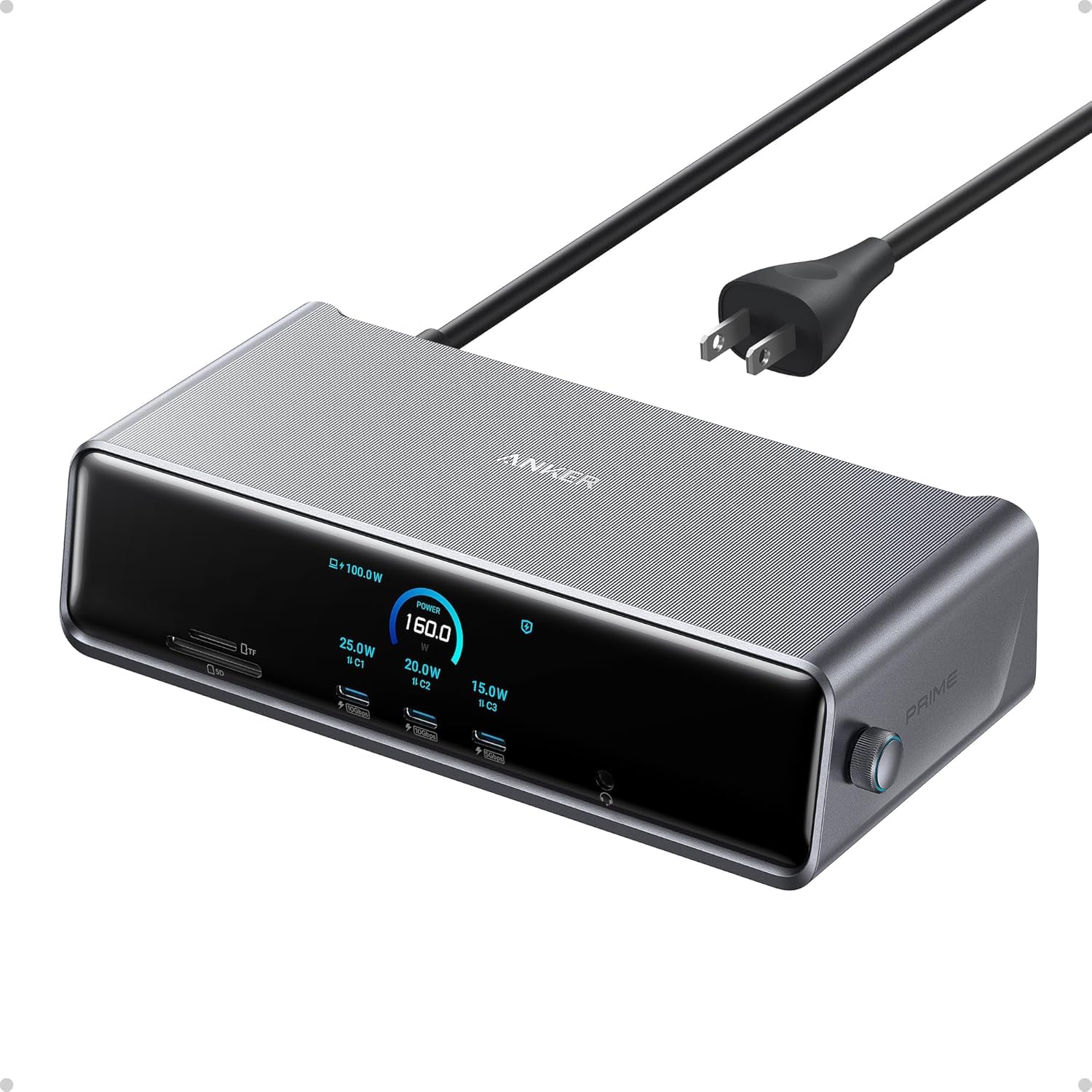
Anker’s Prime DL7400 brings a 1.5-inch smart display that shows real-time charging wattage, port activity, and even a built-in fan speed readout — a genuine productivity aid if you like monitoring your setup at a glance. It supports triple 4K 60Hz output on Windows via DisplayLink, and the 140W upstream power delivery can fully charge even a 16-inch MacBook Pro or a demanding Windows workstation.
The port selection is generous: two front-facing 100W USB-C ports for fast phone charging, two HDMI plus one DisplayPort for displays, a 2.5Gbps Ethernet port, SD/TF card slots, and separate audio I/O. The integrated cooling fan keeps the DisplayLink chipset from throttling under extended multi-display use, a smart design choice that many cheaper docks omit.
On the downside, the dock requires the latest DisplayLink driver installation before any monitors extend, and DRM-protected streaming services like Netflix or Prime Video may show a black screen while audio plays — a known DisplayLink limitation that can be worked around by disabling hardware acceleration in your browser. The plastic build also feels less premium than the all-metal competitors at this tier.
Why it’s great
- 140W PD input powers high-draw laptops without battery drain
- Smart display provides live charging and fan-speed data
- Active cooling prevents DisplayLink throttling during long sessions
Good to know
- DisplayLink can block DRM-protected streaming content
- Setup involves a driver download and several manual settings tweaks
3. TobenONE DisplayLink Docking Station 3 Monitors

TobenONE’s offering is one of the few docks that can drive three 4K 60Hz displays on macOS and up to four 4K displays on Windows when the laptop supports MST natively. The six video outputs — three HDMI and three DisplayPort — let you mix and match your existing monitor cables without buying new adapters, a convenience that saves both desk space and hassle.
The included 120W power adapter delivers up to 100W to the host laptop and an extra 18W to a front USB-C port for phone charging, so your phone gets topped up while the computer stays at full charge. USB 3.2 Gen 2 ports offer 10Gbps data speeds, and the SD/TF card reader is handy for photographers moving files without a separate reader.
A common complaint is that the dock sometimes thinks the laptop lid is open when it’s actually closed, forcing the user to open and re-close the lid to get the displays to behave correctly. The DisplayLink chipset also prevents playback of protected 4K streaming content on the extended monitors, a detail that affects anyone who uses their workstation for Netflix or Amazon Prime Video in downtime.
Why it’s great
- Quad 4K output on Windows for ultra-wide financial or creative workflows
- 120W adapter ensures consistent laptop charging under heavy load
- Broad compatibility with Thunderbolt 5, 4, 3, USB4, and USB-C hosts
Good to know
- Lid-closed behavior can be buggy and requires occasional replugging
- Blocked DRM streaming is a known DisplayLink limitation
4. Anker Nano 13-in-1 Docking Station
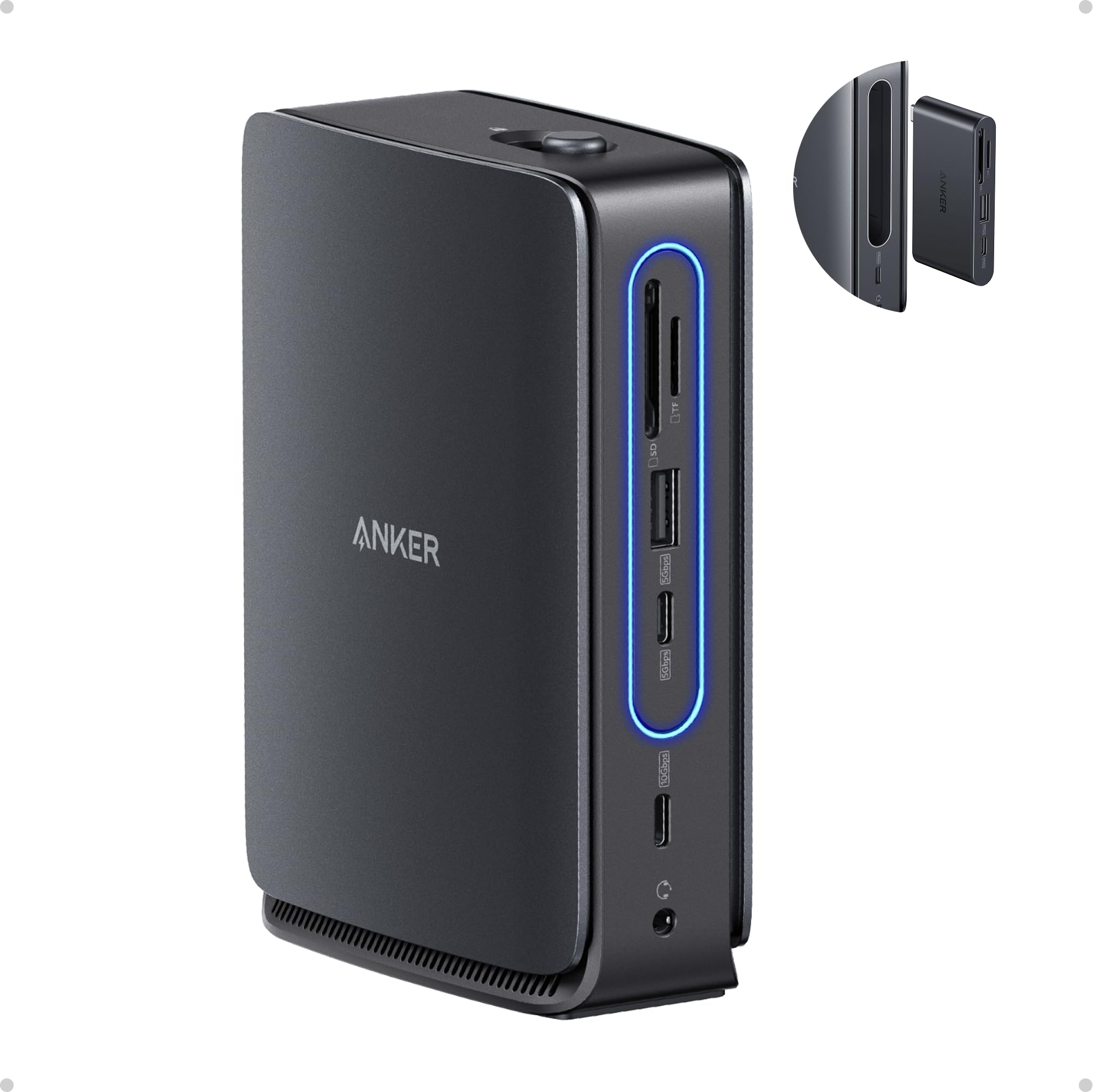
The Anker Nano 13-in-1 solves a problem that most docks ignore: it splits into a detachable 6-in-1 hub so you can grab a few essential ports and leave the main dock at your desk. When connected, the full unit provides triple-screen output via two HDMI and one DisplayPort, supporting up to 4K on each. The detachable hub gives you one HDMI out on the go, making it a genuinely flexible solution for someone who splits time between a home office and a coworking space.
The included 140W power adapter keeps the dock fully fed, delivering up to 100W to the laptop. Data speeds hit 10 Gbps through the USB-C 3.2 Gen 2 ports, and the front-mounted SD/TF slot is well-placed for quick card access. The design runs cool even after hours of triple-display use, thanks to the aluminum chassis that doubles as a heat sink.
On macOS, all external monitors mirror the same content — you cannot extend three separate screens on a Mac with this dock as configured. The plastic construction of the detachable hub feels lighter than the main unit, and some users note that the mini-hub pops out a bit too easily from the main dock when tugged.
Why it’s great
- Detachable hub is ideal for hot-desk or travel workflows
- 140W adapter provides ample headroom for stable power delivery
- Compact footprint with cool operation even under sustained use
Good to know
- Triple extended monitors not supported on macOS — mirroring only
- Detachable hub can disconnect unintentionally if the cable is snagged
5. WAVLINK USB-C Triple Monitor Docking Station (WL-63PD25)

WAVLINK’s WL-63PD25 delivers three HDMI and two DisplayPort outputs, giving you five video ports to play with even though the dock maxes out at three active displays. The supported resolution is 4K 60Hz on one port plus 2K 60Hz on the other two — a practical ceiling that still looks crisp on standard QHD monitors and matches what most office workflows actually need.
The 130W power adapter provides plenty of headroom, and the six 10Gbps USB ports (two USB-C and four USB-A) let you connect fast SSDs, webcams, and backup drives simultaneously without speed bottlenecks. Gigabit Ethernet adds a stable network connection for video calls and large file transfers, which is helpful when office Wi-Fi is congested.
A few units have exhibited screen blackouts after extended use, and the dock requires the DisplayLink driver to be manually set to auto-launch in the system tray — otherwise the displays stop working after a reboot. The included 130W adapter is a chunky brick, and the short fixed cable can make cable routing awkward on a deep desk.
Why it’s great
- Excellent port count for the price: five video outs and six USB ports
- 130W adapter ensures consistent laptop power under heavy loads
- Broad hardware compatibility across Dell, HP, Lenovo, and MacBooks
Good to know
- Some units experience intermittent display dropouts that require a reset
- Windows sleep/wake can be finicky without a BIOS tweak on some laptops
6. WAVLINK DisplayLink Docking Station 3 Monitors (B0FCXBMS1K)

This 15-in-1 WAVLINK dock uses the DisplayLink 6350 chipset to drive three displays at 4K 60Hz on the primary HDMI port and 2K 60Hz on the other two. It’s a particularly good match for Apple Silicon Mac users who need more than one external monitor — reviewers consistently report that it works out of the box after the DisplayLink driver install, with no flickering or random disconnects.
The 130W power adapter is a welcome inclusion at this tier, providing up to 100W PD to the host laptop while leaving enough overhead for the dock’s own circuitry. The front SD/TF card reader transfers at 104 MB/s, making it genuinely usable for photographers previewing images directly from the card. The unit is compact enough to slide under a laptop stand without taking up extra desk space.
One note for Mac users: the dock must be plugged into a USB-C port that supports video output for the Alt Mode HDMI port to work at 4K 60Hz. If your MacBook’s only USB-C ports are Thunderbolt, you’re fine, but the manual isn’t clear about this distinction. Additionally, the dock lacks a power button, so a cold boot may require unplugging and replugging the upstream cable.
Why it’s great
- Reliable triple-display performance on M1-M5 MacBooks after driver setup
- 130W adapter keeps laptops fully charged during intensive tasks
- SD/TF card reader handles full-size and microSD at usable speeds
Good to know
- No power button makes manual reset necessary after some disconnects
- Alt Mode HDMI port requires the laptop’s USB-C port to support video
7. Auimce 15-in-1 MacBook Docking Station 3 Monitors
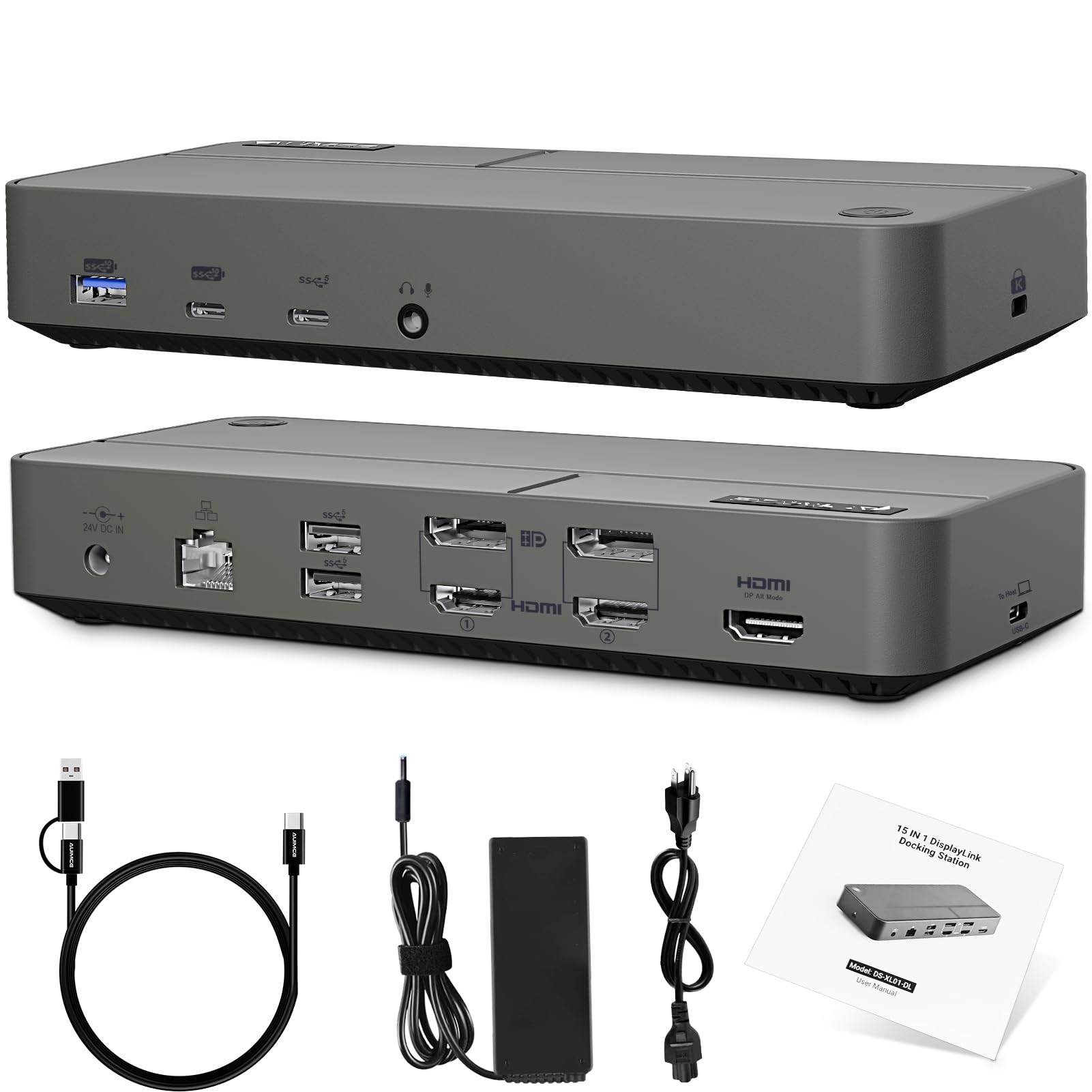
The Auimce 15-in-1 dock is unique because its DisplayLink chipset works over a standard USB-A 3.0 port, not just USB-C. This makes it one of the very few options that can add triple-display support to older laptops that lack a USB-C port with Alt Mode — a lifesaver in corporate fleets running older ThinkPads or Dell Latitudes.
The video output suite includes three HDMI and two DisplayPort, and you can mix them into four different combinations to match your monitor inputs. The included USB-A adapter head lets you connect through a USB-A port and still get three external displays, though in that mode the third HDMI and both DP ports are available while the primary HDMI acts as the main signal path. A 130W power adapter supplies up to 100W PD to the host laptop.
Negative feedback centers on the very short integrated cable — about 6.5 inches — which makes the dock hang awkwardly from a laptop stand. When disconnected, the display settings sometimes reset, so you may need to rearrange window positions each time you reconnect. A small percentage of M5 MacBook owners report that the DisplayPort and HDMI ports are detected but show no picture, a compatibility gap that hasn’t been fully resolved.
Why it’s great
- Works over USB-A, making it compatible with older non-USB-C laptops
- Four display output combinations for flexible monitor cabling
- 130W adapter supports stable laptop charging
Good to know
- Short cable forces awkward positioning with laptop stands
- Not fully compatible with all M5 MacBooks — check reviews for your specific model
8. Baseus Spacemate 11-in-1 USB-C Docking Station

The Baseus Spacemate adopts a vertical upright design with a magnetic base, so it occupies almost zero desk footprint — a standout feature if you work from a small kitchen table or a cramped cubicle. It packs two HDMI and two DisplayPort, letting you run three 4K screens on Windows, and includes a small LED digital display that shows the connection status of each port.
Data transfer hits 10 Gbps through the USB 3.2 Gen 2 ports, and the 100W PD input keeps most 13-inch ultrabooks charged through the day. The 80-centimeter cable is longer than average, giving you flexibility in positioning the dock away from the laptop. The base unit is aluminum with a sleek matte finish that looks more expensive than its price point suggests.
Notable drawbacks include the omission of a power adapter — you must supply your own 100W USB-C charger. macOS systems cannot extend three separate displays; they only mirror or extend one external monitor. Some customers received units that failed within a week, though the seller’s replacement process was widely praised as quick and hassle-free.
Why it’s great
- Vertical design saves significant desk space
- LED screen gives clear port activity feedback
- Two DP and two HDMI ports offer flexible monitor cabling
Good to know
- No power adapter included — you must supply a 100W USB-C charger
- MacOS supports only one external monitor, not three
FAQ
Why does my MacBook only mirror when I connect a three-monitor dock?
Can I use a triple-monitor dock with a USB-A port instead of USB-C?
Will a three-monitor dock work with a gaming laptop?
Final Thoughts: The Verdict
For most users, the docking station for 3 monitors winner is the Plugable 12-in-1 because it offers the widest cable flexibility with three HDMI and three DisplayPort outputs, reliable triple 4K performance, and lifetime support at a price that undercuts many premium rivals. If you value a smart display and active cooling for long work sessions, grab the Anker Prime DL7400. And for a budget-friendly compact design that saves desk space, nothing beats the Baseus Spacemate 11-in-1, assuming you already own a 100W charger.

Mo Maruf
I created WellFizz to bridge the gap between vague wellness advice and actionable solutions. My mission is simple: to decode the research and give you practical tools you can actually use.
Beyond the data, I am a passionate traveler. I believe that stepping away from the screen to explore new environments is essential for mental clarity and physical vitality.