Our readers keep the lights on and my smoothie glass nicely filled. As an Amazon Associate, I earn from qualifying purchases.
Every stroke you make on a drawing pad is a negotiation between your hand, the stylus, and the screen. When parallax creates a gap between the pen tip and the digital ink, that negotiation breaks. Artists serious about line accuracy know this tension well—it’s the difference between a tool that feels like a natural extension of your arm and one that constantly reminds you you’re drawing on glass.
I’m Mohammad Maruf — the founder and writer behind WellFizz. After spending over 80 hours analyzing pressure sensitivity curves, screen lamination types, color gamut coverage, and driver stability across the current landscape of pen displays, I’ve built this guide around the specs that actually matter to working artists.
Whether you are a professional illustrator, a hobbyist exploring digital painting, or a student building your first serious setup, finding the right hardware changes everything. This guide cuts through the noise to help you choose the right drawing pad for artists based on real-world performance data and verified user experiences.
How To Choose The Best Drawing Pad For Artists
Artists don’t just draw on a surface—they feel it. The right drawing pad balances three critical factors: how accurately the stylus tracks your hand, how the screen displays your colors, and how the entire system integrates with your existing software. Understanding these core specs will prevent expensive mistakes.
Pressure Sensitivity and Initial Activation Force
Pressure sensitivity determines how the tablet registers changes in pen pressure. Most modern tablets offer 8192 levels or the newer 16384 levels. While 16384 sounds twice as precise, the more important spec is the initial activation force (IAF)—measured in grams. A lower IAF means the tablet registers the lightest brush stroke, which is critical for delicate shading and thin line work. Look for an IAF of 3 grams or less for responsive sketching.
Screen Lamination and Parallax
Full lamination bonds the glass directly to the LCD panel, eliminating the air gap between them. This removes parallax, the visual offset between the pen tip and the cursor on screen. Non-laminated screens create a noticeable gap that throws off precision, especially at angles. Anti-glare etched glass adds a paper-like texture that reduces reflective glare, but some coatings introduce a slight sparkle effect that can be distracting. Test this if you work under strong studio lights.
Color Accuracy and Gamut Coverage
For artists who print or export for digital display, color accuracy is non-negotiable. Look for sRGB coverage above 99% for web work, Adobe RGB coverage above 90% for print, and DCI-P3 coverage above 90% for video and cinematic work. A delta-E (ΔE) rating below 2 indicates excellent factory calibration. Tablets without factory calibration reports may require manual profiling to match your monitor.
Quick Comparison
On smaller screens, swipe sideways to see the full table.
| Model | Category | Best For | Key Spec | Amazon |
|---|---|---|---|---|
| XP-PEN Artist Pro 19 Gen2 | Pen Display | Professional 4K work | 18.4″ 4K, 16384 pressure, 98% P3 | Amazon |
| Wacom Cintiq 16 | Pen Display | Trusted brand, color-critical work | 16″ 2.5K, 8192 pressure, 100% sRGB | Amazon |
| HUION Kamvas Pro 16 4K | Pen Display | Detail-oriented illustrators | 15.6″ 4K, 8192 pressure, 120% sRGB | Amazon |
| Wacom Intuos Pro Large | Pen Tablet | Non-screen drawing, multi-monitor | Large area, 8192 pressure, Bluetooth | Amazon |
| HUION Kamvas 13 Gen 3 | Pen Display | Portable mid-range screen | 13.3″ FHD, 16384 pressure, 99% sRGB | Amazon |
| XP-PEN Artist 13.3 Pro V2 | Pen Display | All-around 16K performance | 13.3″ FHD, 16384 pressure, 95% P3 | Amazon |
| XPPen Artist13.3 Pro V2 (Alternate) | Pen Display | Entry-level 16K with dial | 13.3″ FHD, 16384 pressure, AG film | Amazon |
| UGEE UE12 | Pen Display | Budget-friendly screened tablet | 11.6″ FHD, 16K pressure, 124% sRGB | Amazon |
| HUION Inspiroy 2 Large | Pen Tablet | Entry-level non-screen drawing | 10.5×6.56″, 8192 pressure, scroll wheel | Amazon |
In‑Depth Reviews
1. XPPen Artist Pro 19 Gen2 Drawing Tablet

The Artist Pro 19 Gen2 is a massive 18.4-inch 4K UHD canvas with Calman-verified color accuracy at delta-E under 1.5. The full-laminated AG etched glass eliminates parallax while reducing blue light exposure, earning TÜV SÜD certification for eye comfort during marathon sessions. The 16384-level pressure sensitivity from the X3 Pro chipset delivers an initial activation force of just 3 grams, registering the lightest feather strokes without any jitter.
What truly sets this model apart is the included dual-stylus system—a X3 Pro Roller Stylus with a rotating wheel for quick brush resizing and a X3 Pro Slim Stylus with removable buttons for accidental press protection. The ACK05 wireless shortcut keyboard adds ten customizable keys plus a physical dial, all connected via Bluetooth 5.0. The 1.07 billion color depth and 98% Display P3 coverage make this suitable for both print and cinematic workflows.
Build quality is exceptional, though the unit is heavy and not designed for portability. The matte layer reduces glare without washing out colors, and the dual USB-C ports allow easy switching between devices. This is a desktop-centric tool for professionals who need maximum screen real estate, color fidelity, and pen responsiveness—it doubles as a high-end secondary monitor.
Why it’s great
- Incredible 4K resolution with Calman-verified color accuracy
- Dual stylus system with 23 included nibs covers every drawing style
- Wireless shortcut keyboard with physical dial improves workflow speed
Good to know
- Very heavy and not convenient for travel or lap use
- No touchscreen support; relies entirely on pen and shortcut keys
- Menu system for brightness and volume takes time to learn
2. Wacom Cintiq 16 Drawing Tablet

Wacom’s Cintiq 16 brings a 16-inch IPS display with 2.5K WQXGA resolution (2560 x 1600) that delivers noticeably sharper visuals than standard 1080p panels. The 100% sRGB and 99% DCI-P3 coverage with 8-bit color depth ensures your digital art matches what you see on modern monitors. The Pro Pen 3 features 8192 pressure levels with tilt support and three shortcut keys, though the pen body feels lighter than previous Wacom models.
The built-in fold-out legs provide a 20-degree working angle out of the box, but no adjustable stand is included—you will need to purchase one separately for ergonomic comfort. Connection is via USB-C with DisplayPort Alt Mode or Thunderbolt 3/4, which keeps cable management clean for modern laptops. The anti-glare glass does a solid job reducing reflections without introducing the rainbow sparkle effect seen on some etched screens.
Where the Cintiq 16 falls short is its stripped-down accessory package. The Pro Pen 3 included lacks the eraser found on previous Pro Pen 2, and the absence of shortcut buttons on the tablet body means you rely entirely on keyboard shortcuts or a separate remote. For professionals who prioritize brand reliability, color accuracy, and a mature driver ecosystem, this remains a strong contender despite the premium price.
Why it’s great
- Sharp 2.5K resolution with excellent out-of-box color calibration
- Mature Wacom driver ecosystem with broad software compatibility
- Anti-glare glass minimizes reflections without sparkle artifacts
Good to know
- No adjustable stand included; requires separate purchase
- Pro Pen 3 lacks built-in eraser and feels light compared to Pro Pen 2
- No shortcut buttons on the tablet body; relies on keyboard or external remote
3. HUION Kamvas Pro 16 4K UHD Drawing Tablet
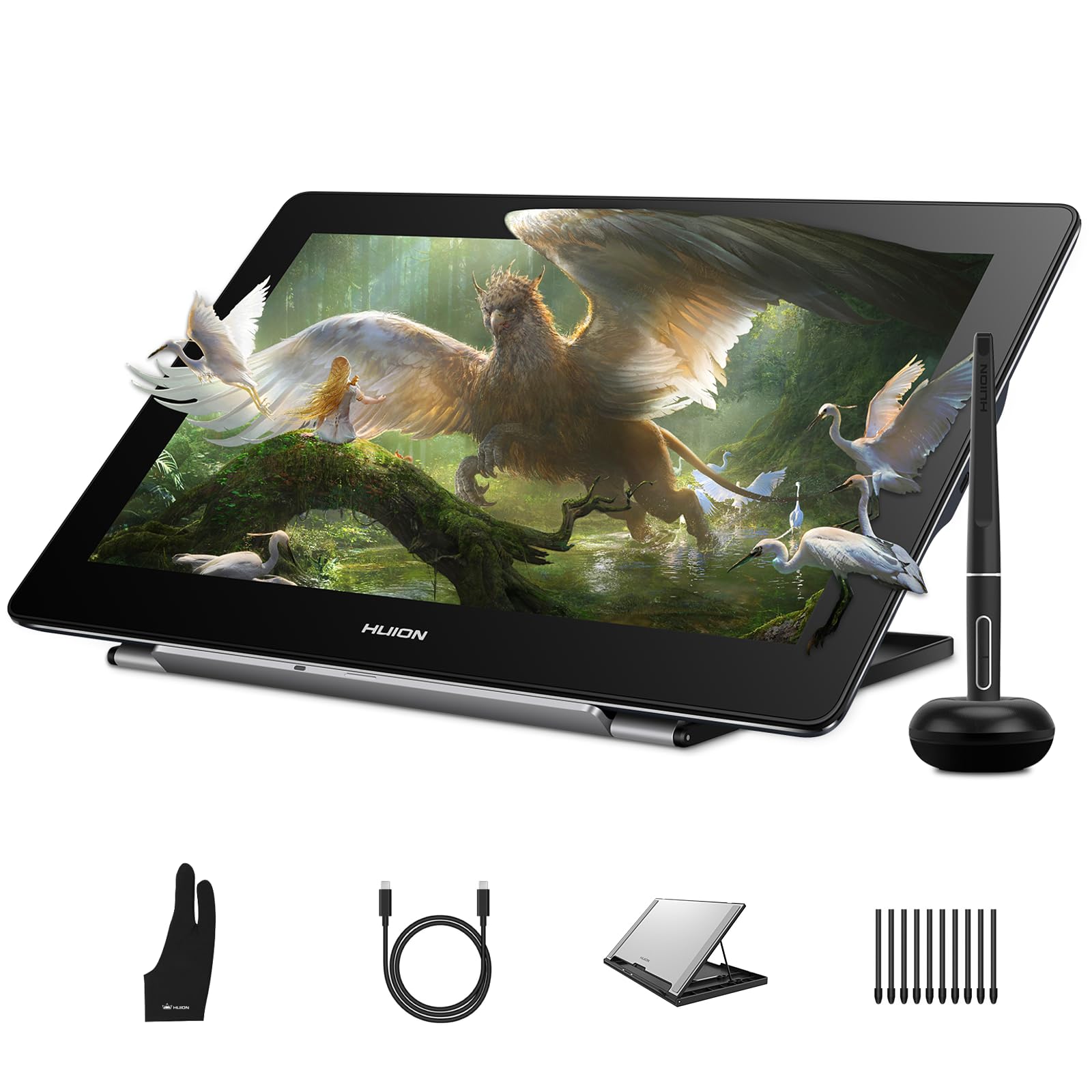
The Kamvas Pro 16 4K delivers a true 3840×2160 resolution on a 15.6-inch screen, offering pixel density that makes 4K texture work and photo retouching genuinely practical. The full-laminated anti-glare screen eliminates parallax, while the 120% sRGB color gamut and 16.7 million display colors provide vibrant coverage for print and digital output. The included foldable stand adjusts from 20 to 80 degrees for comfortable ergonomics.
The PenTech 3.0 stylus (PW517) offers 8192 pressure levels with ±0.3mm accuracy at the center, and tracking remains solid even at the screen edges. The dual USB-C ports allow plug-and-play connectivity with Windows, Mac, Linux, and Android devices without needing adapters. The driver software, while functional, has been reported to occasionally cause saturation shifts during color adjustments.
One practical downside is the cable length—approximately 4 feet—which limits desk layout flexibility. The stand’s plastic legs feel less premium than the metal alternatives on higher-end models, and the lack of touch gestures on Mac means you lose the pinch-to-zoom convenience many artists rely on. For the price point, this offers the best 4K value for print and 3D artists who need pixel-level precision without moving to an 18-inch form factor.
Why it’s great
- True 4K resolution on a manageable 15.6-inch screen for detail work
- Full lamination with anti-glare coating for zero-parallax drawing
- Dual USB-C ports support easy device switching
Good to know
- Cable length is short (~4ft); may require extensions for flexible setups
- Plastic stand legs feel less durable than metal alternatives
- No touch gesture support on Mac; driver software can be buggy
4. Wacom Intuos Pro Large Bluetooth (2025 Edition)

The Intuos Pro Large is a pen tablet—no screen, just a drawing surface—designed for artists who prefer to look at their monitor while drawing. The 16:9 active area (14.8 x 9.9 inches) mirrors modern monitor proportions, making it ideal for multi-monitor setups. The Pro Pen 3 offers 8192 pressure levels with customizable grip options (slim, straight, or flared) and adjustable balance weights for personalized comfort.
The build uses magnesium alloy construction with a 4mm thin profile, making it remarkably portable for its active area size. Bluetooth 5.3 connectivity works flawlessly on macOS, though Windows 11 users have reported intermittent connection issues that may require driver updates. The ten ExpressKeys and two mechanical dials provide extensive shortcut customization without needing a separate keyboard.
This generation removes touch sensitivity, which some artists used for gestures. The surface lacks the hand-rest bevels that previous models had, but the smooth texture feels excellent under prolonged use. For artists who work primarily on a large monitor and want the most accurate pen-to-cursor mapping without screen parallax, this remains the benchmark non-screen tablet, provided you are on macOS or willing to troubleshoot Windows drivers.
Why it’s great
- Large 16:9 active area perfectly matches modern monitor layouts
- Magnesium alloy build is ultra-thin and surprisingly portable
- Customizable Pro Pen 3 with swappable grips and balance weights
Good to know
- No touch sensitivity; dropped from previous generation
- Windows 11 Bluetooth connectivity still has driver compatibility issues
- Premium price tag with no screen; not for artists who need direct drawing
5. HUION Kamvas 13 (Gen 3) Drawing Tablet

The Kamvas 13 (Gen 3) strikes an almost ideal balance between price, portability, and performance. The 13.3-inch full-laminated screen uses HUION’s Canvas Glass 2.0—an anti-sparkle coating that reduces rainbow artifacts while maintaining a paper-like texture. Color accuracy is factory-calibrated with an average delta-E below 1.5, covering 99% sRGB and Rec.709, which is impressive for a mid-range pen display.
The PenTech 4.0 stylus delivers 16384 levels of pressure sensitivity with a 2-gram initial activation force, responding to the lightest intentional touch. The dual dial buttons and five programmable shortcut keys streamline navigation without breaking your drawing flow. The included ST300 adjustable stand supports multiple angles for comfortable long sessions.
Where this tablet compromises is brightness—around 200 nits, which feels dim compared to premium models. The 3-in-1 cable connection can be awkward for desk port placement, and the port side of the tablet does warm up after extended use. Windows users on Linux have reported that the wheels and dials have limited functionality outside of the official driver. For its price point, however, this delivers the best all-around experience for artists moving from a pen tablet to a screened display.
Why it’s great
- Excellent build quality with anti-sparkle Canvas Glass 2.0 surface
- 16384 pressure sensitivity and 2g IAF for precise, responsive strokes
- Factory-calibrated color with delta-E under 1.5 out of the box
Good to know
- Screen brightness is only 200 nits; feels dim in bright rooms
- 3-in-1 cable design can complicate desk cable management
- Wheels and dials have limited functionality on Linux without full driver support
6. XP-PEN Artist 13.3 Pro V2 Drawing Tablet (2025)

The Artist 13.3 Pro V2 from XP-PEN brings industry-leading 16384 pressure sensitivity via the X3 Pro smart chip, effectively doubling the resolution of standard 8192-level tablets. The fully laminated 13.3-inch FHD screen eliminates parallax, while the 95% DCI-P3 cinema-grade color gamut covers 99% sRGB and 89% Adobe RGB. The pre-applied anti-glare film provides a natural paper resistance that reduces eye strain.
The iconic red dial roller wheel and eight customizable express keys offer tactile shortcut control that feels intuitive even for beginners. The premium metal back panel dissipates heat faster than plastic competitors, keeping the screen cool during extended sessions. This model supports dual-mode switching between pen display mode and pen tablet mode (screen off), which saves laptop battery and reduces neck strain when needed.
Setup requires a firmware update via Windows or Mac before the tablet works fully with Chromebook or Android devices, and without that update, the shortcut buttons and dial will not function on those platforms. The included foldable stand is sturdy but offers limited angle adjustment. For artists who want the highest pressure sensitivity available at a mid-range price, this is the best value proposition on the market.
Why it’s great
- Industry-first 16384 pressure sensitivity with X3 Pro smart chip
- Cinema-grade 95% P3 color coverage for accurate color reproduction
- Metal back panel provides excellent heat dissipation during long sessions
Good to know
- Requires firmware update via Windows/Mac before Android/Chromebook use
- Shortcut buttons and dial do not function on Chromebook without full driver
- Foldable stand has limited angle adjustment range
7. XPPen Artist13.3 Pro V2 Drawing Tablet (Alternate SKU)

This alternate SKU of the XP-PEN Artist 13.3 Pro V2 shares the same core hardware—13.3-inch FHD full-laminated screen with AG film, 16384 pressure sensitivity via the X3 Pro chip, and the signature red dial—but is bundled with the S01 foldable stand instead of the metal-backed version. The display covers 125% sRGB area ratio and 95% P3 coverage, with 250 cd/m² brightness and a 1000:1 contrast ratio that produces crisp, vivid images.
The updated driver interface is designed with beginners in mind, offering clear setup instructions and intuitive configuration for brightness, contrast, and color temperature adjustments (Windows only). The red dial reduces wrist strain by allowing natural hand positioning while controlling brush size, zoom, and navigation. The pen holder mounts securely to the display edge for quick access during sessions.
The main drawback is that the included pen can scratch the screen over time, so purchasing a screen protector is recommended. Some users have reported pen misalignment unless both displays are set to the same resolution (1080p), which is a driver bug rather than a hardware flaw. For artists seeking a reliable entry point into 16K drawing with a clean setup experience, this delivers consistent performance at a competitive price.
Why it’s great
- Easy, beginner-friendly driver setup with clear on-screen instructions
- Red dial reduces wrist strain with natural hand positioning
- 125% sRGB area ratio for vibrant, punchy color output
Good to know
- Pen can scratch the screen; a screen protector is recommended
- Pen misalignment driver bug when using dual monitors at different resolutions
- Brightness and color adjustments only available on Windows
8. UGEE UE12 11.6 Inch Drawing Tablet with Screen

The UGEE UE12 offers an 11.6-inch FHD full-laminated display at an entry-level price point, making it one of the most affordable screened tablets available. The zero-parallax construction provides a paper-like drawing experience, while the 124% sRGB color gamut and support for three color spaces (sRGB, Adobe RGB, DCI-P3) give you flexibility depending on your output needs. The 16K-level pressure sensitivity and 60-degree tilt recognition are competitive with tablets costing significantly more.
The PW517-style battery-free stylus includes eight replacement nibs and two programmable hot keys, though users report that the stock nibs wear down relatively quickly, especially for those with a heavy hand. The eight concave-convex shortcut keys support blind operation, making it easy to switch tools without looking down. Dual Type-C ports allow blind plug-in and flexible connection—single USB-C for direct connection or the included 3-in-1 cable for compatibility with older computers.
Some units have exhibited intermittent touch issues where a portion of the screen becomes unresponsive for days or weeks before resolving spontaneously, which points to quality control variability. The 3-in-1 cable has an awkward bent plug that can be finicky to position. For absolute beginners or artists on a tight budget who need a screened tablet, this represents the most affordable entry point, but be aware of potential longevity concerns.
Why it’s great
- Full-laminated 11.6-inch screen at the most budget-friendly price
- 124% sRGB with three color space modes for output flexibility
- 16K pressure sensitivity and tilt recognition punch above its class
Good to know
- Nibs wear down quickly; replacements may be needed within months
- Intermittent screen responsiveness issues reported on some units
- 3-in-1 cable with bent plug can be awkward to connect securely
9. HUION Inspiroy 2 Large Drawing Tablet

The Inspiroy 2 Large is a pen tablet (no screen) that delivers a 10.5 x 6.56-inch active area with HUION’s PenTech 3.0 technology, offering smooth tracking with minimal lag and wobble. The PW110 digital pen features a slimmer body with a soft silicone grip and accessible side buttons for better ergonomics compared to previous generations. The battery-free stylus means you never need to charge the pen, and the nib replacement is straightforward.
The unique programmable scroll wheel and three sets of eight customizable press keys provide extensive shortcut options that can be configured for different applications—switch between Photoshop settings, Clip Studio Paint brushes, and Krita commands with a single toggle. The tablet works with Mac, PC, Linux, and Android devices (OS 6.0 or later) via USB-C, making it one of the most versatile non-screen tablets for multi-platform users. It is slim and lightweight enough to fit in a laptop bag for on-the-go creation.
The main limitation is the driver software—while the hardware is solid, the HUION software maps tablet buttons to the left third of the screen by default, which can be confusing for new users. The pen lacks a distinctive shape, so it can rotate in your hand during use, and some users report the pressure sensitivity jumps from 1% to 40% rather than offering a smooth gradient. For absolute beginners who want a reliable, affordable introduction to digital drawing, this is the best starting point available.
Why it’s great
- Battery-free stylus with slim ergonomic grip reduces hand fatigue
- Programmable scroll wheel and three sets of shortcut keys boost productivity
- Lightweight and portable; fits easily in a laptop bag
Good to know
- Driver software has a learning curve with default button mapping
- Pen rotates in hand due to lack of distinctive shape
- Pressure sensitivity curve can feel abrupt at low pressure ranges
FAQ
What is the difference between a pen tablet and a pen display?
Do I need 16384 pressure sensitivity or is 8192 enough?
Can I use a drawing pad with my Android phone or tablet?
Should I buy a drawing pad with a glossy or matte screen?
Final Thoughts: The Verdict
For most users, the drawing pad for artists winner is the HUION Kamvas 13 (Gen 3) because it delivers the best balance of 16384 pressure sensitivity, factory-calibrated color, and a portable 13.3-inch form factor at a mid-range price that artists can justify. If you want the highest pressure sensitivity and cinema-grade color on a 13.3-inch display, grab the XP-PEN Artist 13.3 Pro V2. And for professional artists who need 4K resolution, dual stylus support, and maximum screen real estate, nothing beats the XPPen Artist Pro 19 Gen2.

Mo Maruf
I created WellFizz to bridge the gap between vague wellness advice and actionable solutions. My mission is simple: to decode the research and give you practical tools you can actually use.
Beyond the data, I am a passionate traveler. I believe that stepping away from the screen to explore new environments is essential for mental clarity and physical vitality.