Our readers keep the lights on and my smoothie glass nicely filled. As an Amazon Associate, I earn from qualifying purchases.
Animation demands more than just a screen you can draw on. It requires a tablet that keeps pace with rapid frame flipping, maintains consistent line weight across hundreds of drawings, and offers pressure sensitivity fine enough to breathe life into every smudge, smear, and in-between. A sluggish cursor or a lagging stroke will destroy your workflow faster than any software limitation.
I’m Mohammad Maruf — the founder and writer behind WellFizz. I have spent countless hours studying the hardware specifications, driver ecosystems, and real-world performance data that separate animation-capable drawing tablets from those that merely claim to be.
Whether you are frame-by-frame key framing or rigging characters in digital puppetry, the best drawing tablet for animation must deliver low-latency input, high pressure resolution, and a durable surface that survives thousands of hours of repetitive strokes.
How To Choose The Best Drawing Tablet For Animation
Animation places unique demands on a drawing tablet that static digital painting does not. The device must handle rapid, repetitive strokes across many layers without introducing drift or jitter. Prioritize pressure resolution, screen responsiveness, and build quality over extraneous features like excessive storage or camera specs.
Pressure Sensitivity and Initial Activation Force
For frame-by-frame animation, the stylus must register extremely light feather strokes (used for smears and motion lines) as well as heavy blocking strokes. Look for 8,192 levels as a baseline and 16,384 levels for superior nuance. Equally important is the initial activation force — a pen that requires 3g or less to trigger a mark prevents the fist frame of a scene from looking robotic.
Full Lamination and Parallax
Non-laminated screens have an air gap between the glass and the LCD panel. That gap creates parallax — a visual offset between where the pen tip appears to touch and where the cursor actually registers. In animation, where you place the same type of stroke hundreds of times, even a 1mm offset destroys muscle memory. Prioritize fully laminated displays or AG Nano Etched Glass that eliminate this gap entirely.
Standalone vs. Tethered Setup
Some tablets run their own operating system (Android, for example) and work without a computer. Others are pen displays that require a laptop or desktop. For animation on public transit or during studio commutes, a standalone device like the Wacom MovinkPad Pro 14 is invaluable. For production pipelines that rely on Toon Boom Harmony or TVPaint, a tethered pen display with accurate color and large workspace is the standard.
Quick Comparison
On smaller screens, swipe sideways to see the full table.
| Model | Category | Best For | Key Spec | Amazon |
|---|---|---|---|---|
| Wacom Cintiq Pro 22 | Premium Tethered | Professional 4K frame-by-frame work | 4K UHD, 120Hz, 10-bit touch | Amazon |
| HUION KAMVAS Pro 27 | Premium Tethered | Large canvas 4K animation and color grading | 4K UHD 27″, 98% Adobe RGB | Amazon |
| Wacom MovinkPad Pro 14 | Standalone | On-the-go animation without a computer | 14″ OLED, 3K, 12GB RAM | Amazon |
| XPPen Artist Pro 22 Gen2 | Mid-Range Tethered | Color-critical animation with large workspace | 2.5K QHD, Delta E<1, 99% Adobe RGB | Amazon |
| HUION Kamvas Pro 16 V2 | Mid-Range Tethered | Balanced 15.6″ studio work | 16K pressure, Smart Touch Bar | Amazon |
| Wacom Cintiq 22 | Mid-Range Tethered | Reliable 21.5″ HD for in-betweens | 8192 pressure, Pro Pen 2 | Amazon |
| XP-PEN Artist 13.3 Pro V2 (1st) | Entry Tethered | First pen display for animation students | 16K pressure, 95% P3 | Amazon |
| XPPen Artist13.3 Pro V2 (2nd) | Entry Tethered | Budget-friendly framed pen display | 16K pressure, Red Dial | Amazon |
| PicassoTab A10 | Entry Standalone | Kids and beginners learning animation apps | 10″ screen, Android 14, 6GB RAM | Amazon |
In‑Depth Reviews
1. Wacom Cintiq Pro 22

The Cintiq Pro 22 is the industry standard for a reason. Its 4K UHD 120Hz display delivers near-zero latency that matters immensely when flipping between frames at 24 fps. The 10-bit color depth (over 1 billion colors) ensures that your animation color palettes transfer accurately to final renders, and the 10-point multi-touch support lets you pinch and rotate the canvas without lifting the Pro Pen 3.
Wacom’s Pro Pen 3 offers 8,192 levels of pressure sensitivity plus customizable grips and a weighted balance system. The pen’s 3 side switches allow fast access to undo, onion skin visibility, or frame toggle without reaching for the keyboard. The etched glass surface reduces glare and provides consistent friction across thousands of repetitive strokes.
The separate Easy Stand offers fixed-angle ergonomics, although many professional animators pair this tablet with an aftermarket monitor arm. The fan noise remains minimal even during extended rendering sessions, and the USB-C connectivity with DP alt mode simplifies cable management in a production workspace.
Why it’s great
- 4K 120Hz display with 10-bit color for smooth, accurate playback
- Customizable Pro Pen 3 with adjustable weight and button plates
- Near-zero parallax with etched anti-glare glass
Good to know
- Requires a separate stand or monitor arm — not included
- Premium price reflects professional-grade hardware, not value tier
2. HUION KAMVAS Pro 27

The Kamvas Pro 27 offers a massive 27-inch 4K canvas with 98% Adobe RGB coverage and 3D LUT hardware calibration that holds Delta E under 1.5. For animators working on color-critical projects or feature film backgrounds, this display provides room to view the full scene without constant zooming, while the ultra-fine anti-glare Canvas Glass 2.0 prevents sparkle and eye fatigue.
Huion’s PenTech 4.0 brings 16,384 pressure levels and an initial activation force of just 2g. The standard and slim PW600 pens both offer tilt auto-alignment that eliminates cursor offset at the screen edges — a common pain point when animating near the frame boundary. The retraction distance is under 0.35mm, so every feather stroke lands exactly where intended.
Multi-touch gestures (swipe, pinch, rotate) allow fast canvas navigation without keyboard shortcuts. The top-mounted cable exit keeps wires out of the drawing zone, and the included wireless express key remote adds 8 programmable buttons for hiding overlays, toggling onion skin, or switching between brush tools.
Why it’s great
- Oversized 27-inch 4K display ideal for scene-level animation
- PenTech 4.0 with 2g activation force for ultra-light strokes
- Hardware-calibrated Delta E<1.5 for print and cinema color matching
Good to know
- Cables are relatively short — may require extensions for desktop setups
- Stand is sturdy but lacks locking mechanism for frequent angle changes
3. Wacom MovinkPad Pro 14
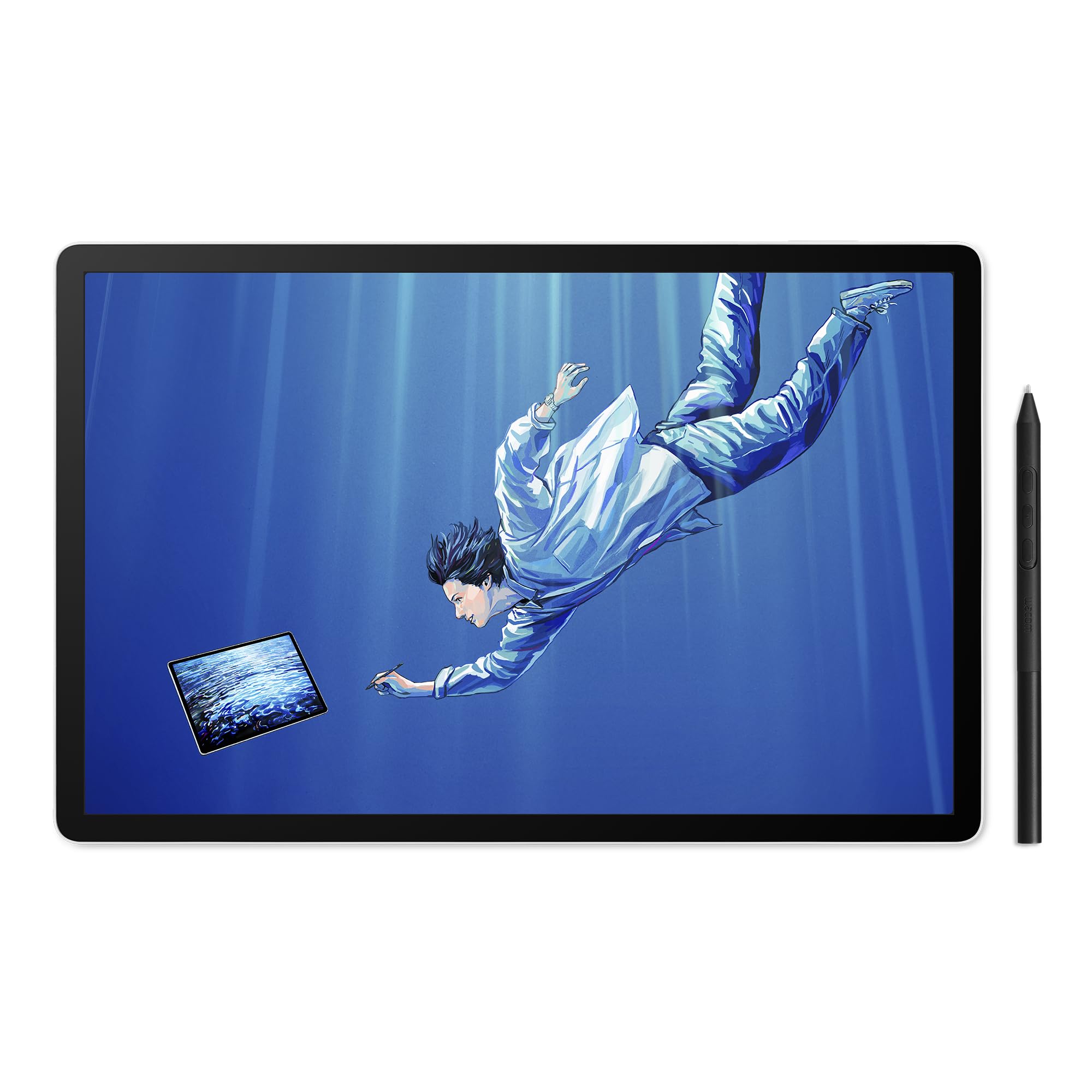
The MovinkPad Pro 14 is a true standalone animation tablet running Android 15. Its 14-inch OLED display delivers 3K resolution with 100% sRGB and DCI-P3 coverage, meaning blacks are truly black and colors pop without backlight bleed. The Snapdragon 8s Gen 3 processor and 12GB RAM keep frame-by-frame animation apps like Clip Studio Paint running smoothly without freezing.
Wacom’s Slim Pro Pen 3 offers 8,192 pressure levels and never needs charging. The battery-free design is critical for animation field work where stopping to charge a stylus disrupts flow. The Premium Texture etched glass provides a paper-like resistance that helps maintain consistent stroke weight during long sequences.
Storage is generous at 256GB with microSD expansion, allowing you to store hundreds of animation project files locally. The device supports Windows and macOS pen display mode via USB-C, giving you the flexibility to use it as a standalone artist tool on the train and as a second screen in the studio.
Why it’s great
- Fully standalone — no computer needed for animation apps
- OLED panel with true blacks and wide color gamut
- Battery-free Pro Pen 3 with 8,192 sensitivity
Good to know
- No included protective case — third-party required for transport
- Processor may lag with very complex textured brush effects
4. XPPen Artist Pro 22 Gen2

The Artist Pro 22 Gen2 delivers a 21.5-inch 2.5K QHD display with 137 PPI — a 33% increase in pixel density over standard Full HD. This higher resolution means you can keep your animation canvas zoomed out and still see fine line details. The panel is Calman Verified with Delta E under 1, which is exceptional for a mid-range pen display and critical for color-accurate animation exports.
XPPen’s X3 Pro smart chip stylus supports 16,384 pressure levels and 60-degree tilt for natural shading. The included felt nibs mimic the texture of traditional pencil on paper, which many animators prefer for rough sketching and character design. The ACK05 wireless Keydial adds 40 programmable shortcuts plus a physical dial for brush sizing and layer scrolling.
The AG Nano Etched Glass surface is fully laminated, eliminating parallax while reducing glare. DC dimming technology reduces screen flicker during long sessions, and the 1000:1 contrast ratio makes line art appear crisp against the background — essential for clean-up animation and final line testing.
Why it’s great
- 2.5K resolution with 137 PPI for detailed canvas visibility
- Delta E<1 color accuracy for print and broadcast color matching
- Includes wireless Keydial with 40 programmable shortcuts
Good to know
- Some units report overly warm color presets out of the box
- USB-C display function unreliable on certain individual units
5. HUION Kamvas Pro 16 V2

The Kamvas Pro 16 V2 packs professional-grade features into a 15.6-inch form factor. Its PenTech 4.0 PW600A stylus delivers 16,384 pressure levels and an ultra-low activation force, making it excellent for animators who need to lay down faint underdrawings before committing to clean lines. The full-laminated anti-glare display reduces parallax to near zero and provides a paper-like surface texture.
Huion’s Smart Touch Bar replaces traditional scroll wheels — you can zoom, pan, and adjust brush size with a single finger swipe. The 6 customizable Express Keys let you map frame toggle, onion skin, undo, and save without leaving the surface. At just 0.453 inches thick and 2.65 pounds, this tablet is easy to slip into a laptop bag for studio commutes.
The included ST200 aluminum stand offers six tilt angles from 14.5 to 45 degrees, promoting ergonomic wrist posture. The 3-in-1 cable system keeps the desk clean, and the recessed USB-C port locks the cable securely to prevent accidental disconnects during intense animation sprints.
Why it’s great
- 0.35mm retraction distance for precise edge-to-edge strokes
- Smart Touch Bar provides tactile control without keyboard
- Ultra-slim and lightweight design for portable animation
Good to know
- Display brightness caps at 200 nits — dim for brightly lit studios
- Port side can get warm after three hours of continuous use
6. Wacom Cintiq 22
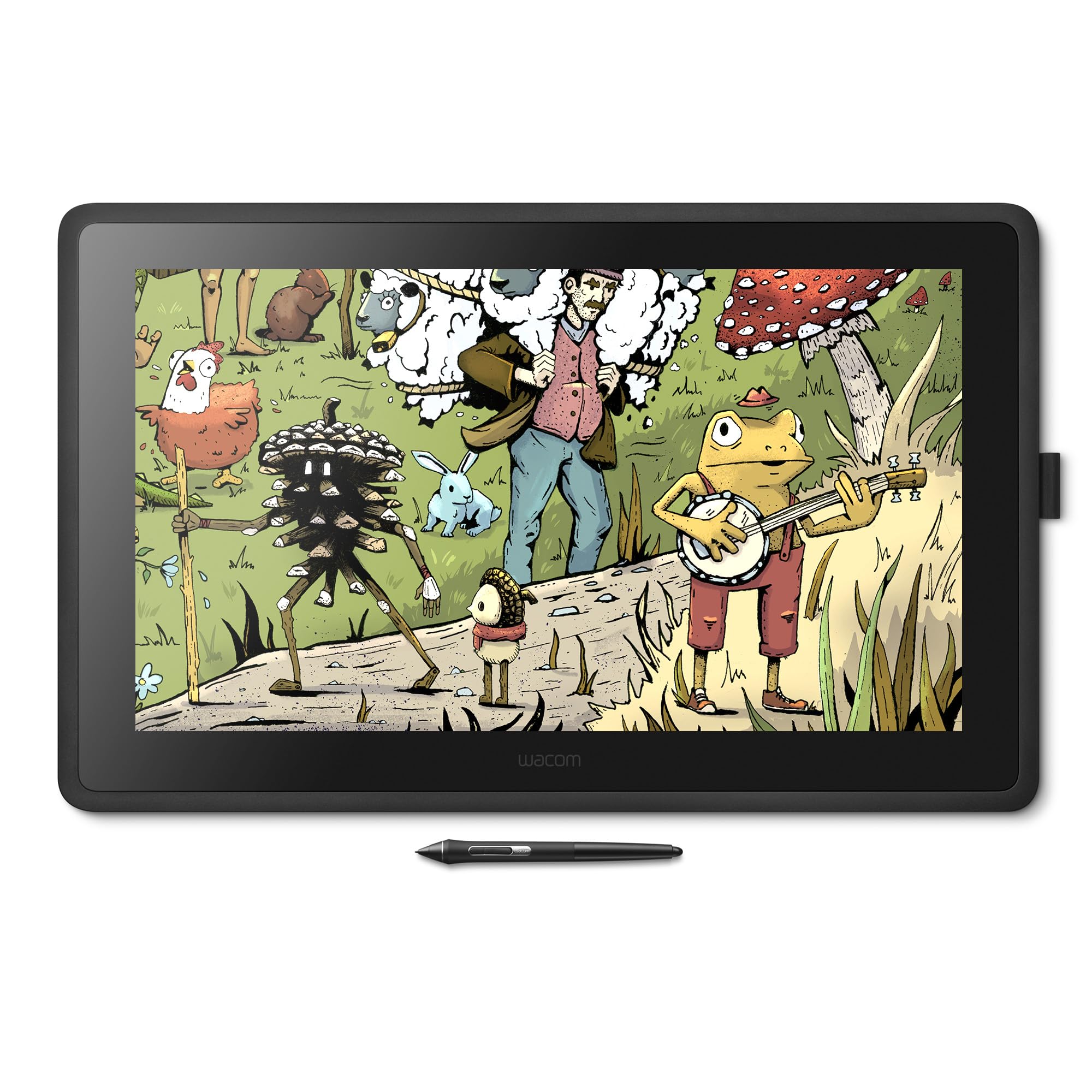
The Wacom Cintiq 22 proves that a classic design can still compete. Its 21.5-inch Full HD display offers uniform brightness and the anti-glare etched glass that Wacom is known for — no sparkle, no rainbow distortion, just a consistent surface that feels like drawing on fine paper. The Pro Pen 2 delivers 8,192 pressure levels with virtually lag-free tracking and tilt recognition.
For animation in-betweens and rough keyframes, the Cintiq 22 provides a large enough workspace to see the entire shot without zooming. The built-in adjustable stand offers multiple angles and feels rock-solid — no wobble when you lean into a heavy stroke. The build quality is excellent, with a metal-reinforced chassis that can survive the bumps of studio life.
One limitation is the 72% Adobe RGB coverage, which is noticeably lower than modern competitors. For color-critical broadcast animation, this may require an external reference monitor. Additionally, the Cintiq 22 relies on a 3-in-1 HDMI/USB/power cable rather than single USB-C, so cable management requires more planning.
Why it’s great
- Rock-solid adjustable stand with no wobble
- Zero anti-glare sparkle — consistent surface texture
- Pro Pen 2 with proven reliability and tilt recognition
Good to know
- 72% Adobe RGB coverage — not ideal for color-graded animation
- No mini-HDMI cable included; separate purchase often required
7. XP-PEN Artist 13.3 Pro V2 (Dual USB-C)

The XP-PEN Artist 13.3 Pro V2 features a clutter-free dual USB-C design that allows a single cable connection to compatible devices with USB 3.1 DP1.2 ports. This makes it exceptionally portable for animation students moving between dorm, studio, and classroom. The 13.3-inch 1920×1080 full-laminated display delivers 95% P3 color gamut — surprisingly wide for an entry-level pen display.
The X3 Pro smart chip stylus offers 16,384 pressure levels (2x the standard 8,192), which allows animation students to practice pressure-sensitive line weight from day one. The battery-free pen includes a built-in digital eraser on the tail, saving time when cleaning up rough sketches. Center accuracy of ±0.4mm ensures lines stay on target even near the screen corners.
The red dial roller wheel and 8 customizable Express Keys help new animators build muscle memory for frame navigation and brush resizing. The package includes a foldable stand, glove, and pen holder with 8 nib replacements — everything needed to start animating immediately after driver installation.
Why it’s great
- Single USB-C cable for clean, portable setup
- 16K pressure sensitivity at a student-friendly price point
- Included foldable stand and complete accessory kit
Good to know
- 3-in-1 cable required for devices without USB 3.1 DP1.2 support
- Some units require firmware update via Windows/Mac before Android use
8. XPPen Artist13.3 Pro V2 (Red Dial)

The Red Dial variant of the Artist 13.3 Pro V2 prioritizes ergonomic control with a physical scroll wheel that lets you adjust brush size, navigate frames, and zoom without lifting the stylus. The 8 customizable Express Keys provide one-touch access to onion skin, undo, save, and frame advance — functions that animators use hundreds of times per session. The dial reduces wrist strain because you avoid the repetitive thumb stretch to keyboard shortcuts.
The fully laminated AG screen offers 99% sRGB and 89% Adobe RGB coverage with 250 cd/m² brightness. The 1000:1 contrast ratio makes line art appear crisp, and the 178-degree viewing angle ensures the display looks consistent whether you are working flat on a desk or angled on the included S01 foldable stand. The X3 Pro stylus supports 16K pressure with 60-degree tilt for natural shading in character animation.
Driver setup is beginner-friendly with clear on-screen instructions. The tablet supports Windows, macOS, Chrome OS, Android, and Linux — making it the most OS-flexible option in this list. For animation students who switch between a school Chromebook and a personal MacBook, this compatibility eliminates driver headaches.
Why it’s great
- Physical Red Dial reduces wrist strain during long animation sessions
- Six-OS compatibility — works with Chromebooks and Linux
- Full-laminated display with anti-glare film and 178° viewing angle
Good to know
- Pen nibs can scratch the screen; a screen protector is recommended
- Driver bug may require both displays set to 1080p for pen alignment
9. PicassoTab A10
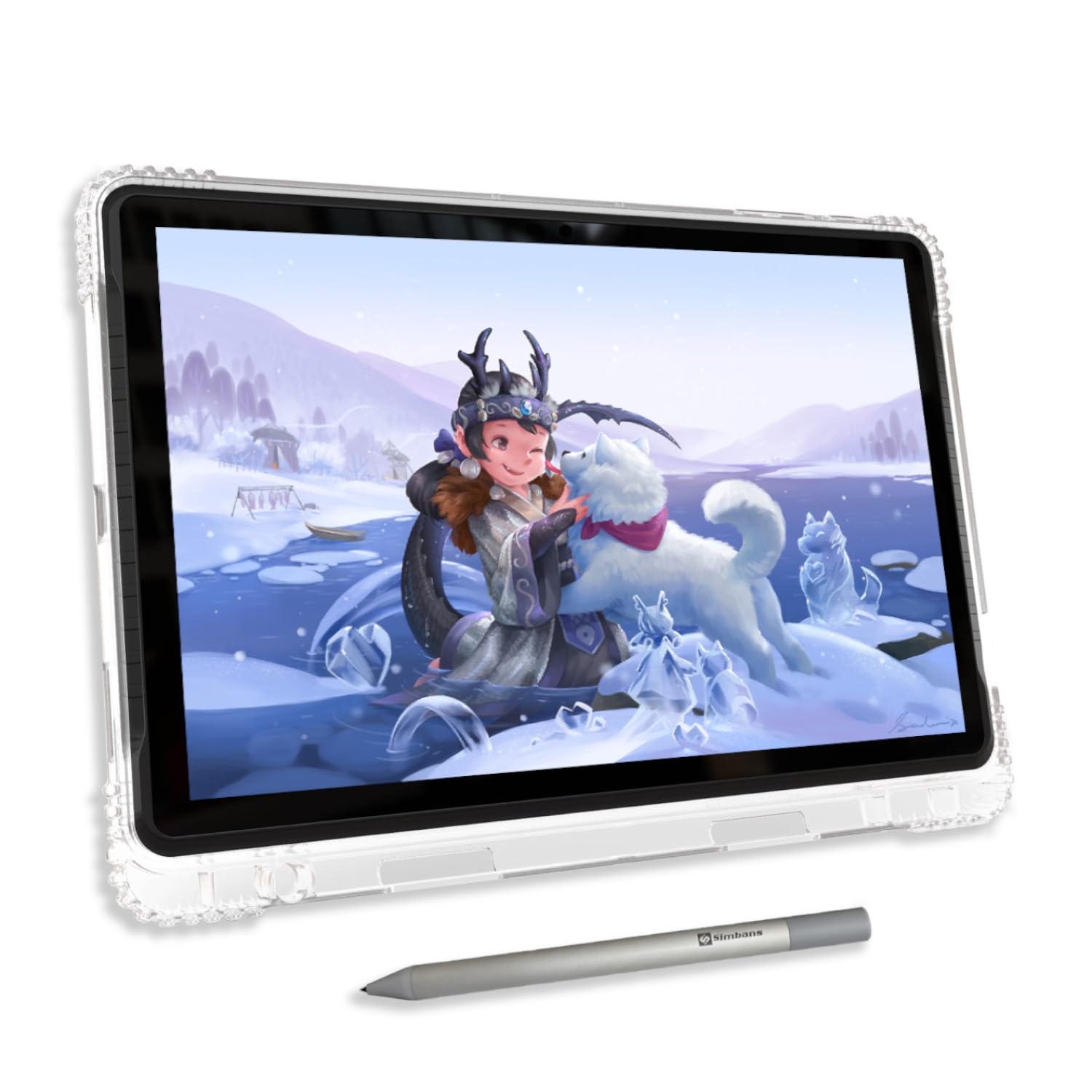
The PicassoTab A10 is a standalone Android 14 tablet designed specifically for young artists and animation beginners who do not own a computer. It comes with FlipaClip pre-installed — a popular frame-by-frame animation app — along with Infinite Painter and the Concepts app with a lifetime Pro upgrade. This eliminates the need to purchase software separately before learning the basics of keyframes and timelines.
The 10-inch fully laminated IPS display offers 4096 levels of pressure sensitivity via the Picasso Pen 3. Palm rejection is effective for small hands, and the anti-glare finish allows use in various lighting conditions. The octa-core processor, 6GB of RAM, and 128GB storage (expandable to 1TB) provide enough power for 2D animation projects with moderate layer counts.
The package includes a protective case, screen protector, glove, spare stylus battery, and a three-region charger (US, UK, EU plugs). The Artixo Lifetime VIP Upgrade provides step-by-step animation tutorials, making this a turnkey solution for parents who want their child to learn animation without dealing with complex driver installations or subscription fees.
Why it’s great
- Fully standalone — no computer or internet required for basic animation
- Pre-installed FlipaClip with lifetime Pro drawing apps
- Complete accessory kit including case, protector, and charger set
Good to know
- 4096 pressure levels limit fine line weight variation
- Default pen nib is hard and may scratch the screen over time
FAQ
What is the difference between a pen display and a standalone tablet for animation?
How much pressure sensitivity do I really need for 2D animation?
Will a drawing tablet work with Clip Studio Paint EX for animation?
Final Thoughts: The Verdict
For most users, the best drawing tablet for animation winner is the Wacom Cintiq Pro 22 because its 4K 120Hz display and customizable Pro Pen 3 provide the speed and precision that frame-by-frame animation demands. If you want true standalone portability for animating without a computer, grab the Wacom MovinkPad Pro 14. And for color-critical animation on a large canvas, nothing beats the HUION KAMVAS Pro 27 with its hardware-calibrated 4K display and 16K pressure sensitivity.

Mo Maruf
I created WellFizz to bridge the gap between vague wellness advice and actionable solutions. My mission is simple: to decode the research and give you practical tools you can actually use.
Beyond the data, I am a passionate traveler. I believe that stepping away from the screen to explore new environments is essential for mental clarity and physical vitality.