Our readers keep the lights on and my smoothie glass nicely filled. As an Amazon Associate, I earn from qualifying purchases.
The gap between what your hand intends and what the screen registers is the single biggest enemy of digital art. A slight parallax offset, a muddy color gradient, or a pen tip that skips on a fast stroke can break your workflow instantly. Finding a drawing computer that eliminates these friction points is the difference between fighting your tools and forgetting they are there.
I’m Mohammad Maruf — the founder and writer behind WellFizz. I’ve spent hundreds of hours analyzing drawing tablet hardware, from full-laminated displays and etched glass surfaces to color gamut coverage and pressure-curve linearity, to separate genuine performance from marketing noise.
Whether you are upgrading a cramped setup or buying your first dedicated creative tool, this guide walks through the critical specs and real-world trade-offs that define the current generation of drawing computer hardware so you can invest with confidence.
How To Choose The Best Drawing Computer
The market is flooded with pen displays that look great on a spec sheet but feel frustrating after a week of daily use. Focusing on a few foundational criteria will save you from buyer’s remorse.
Display Technology and Surface Feel
The two biggest factors for drawing comfort are full-lamination and surface texture. Full-laminated screens remove the air gap between the glass and the LCD, reducing parallax — the visible offset between the pen tip and the cursor — to near zero. Combined with an anti-glare etched glass surface that mimics the tooth of paper, this pairing creates the most natural drawing experience. Avoid older non-laminated models where the pen appears to hover above the mark.
Color Accuracy and Resolution
Your monitor is the final output reference for your work. A display covering at least 99% sRGB is the baseline for web and social media content. For print photography or film work, target 90%+ Adobe RGB or 95%+ DCI-P3 respectively. Resolution also matters: 1080p is acceptable for smaller 16-inch panels, but 2.5K or 4K UHD becomes essential on larger 20+ inch screens where lower pixel density makes fine details look soft.
Pen Performance and Pressure Curve
Pressure sensitivity levels (8,192 vs. 16,384) are less impactful than the linearity of the pressure curve. A pen that registers the lightest feather stroke without needing excessive force and reaches full opacity smoothly is what separates a natural tool from a frustrating one. Tilt support (at least 60 degrees) is equally important for shading and brush rotation in programs like Clip Studio Paint or Photoshop.
Quick Comparison
On smaller screens, swipe sideways to see the full table.
| Model | Category | Best For | Key Spec | Amazon |
|---|---|---|---|---|
| XPPen Artist Pro 19 Gen2 | Premium | 4K Color-Critical Work | 18.4″ 4K UHD / 96% Adobe RGB / Dual 16K Pen | Amazon |
| XPPen Artist Ultra 16 | Premium | OLED Touch + 4K | 15.6″ 4K OLED / 99% Adobe RGB / 16K Pen + Touch | Amazon |
| Wacom Cintiq Pro 27 | Premium | Industry Standard Professional | 27″ 4K UHD / 120 Hz / 99% Adobe RGB / 8K Pen | Amazon |
| XPPen Artist 22R Pro | Mid-Range | Large Workspace + Shortcuts | 21.5″ FHD / 120% sRGB / 20 Keys + 2 Dials | Amazon |
| UPERFECT Delta Pro Touch | Mid-Range | Portable Dual Screen + Stylus | 16″ 2.5K / 100% sRGB / Pressure-Sensitive Touch | Amazon |
| EHOMEWEI X2 Air | Mid-Range | Portable Dual Touch Display | 2×14.2″ 2.5K / 100% sRGB / 90 Hz Touch | Amazon |
| HUION KAMVAS 22 | Mid-Range | Large Entry-Level Screen | 21.5″ FHD / 120% sRGB / 8K Pen + Adjustable Stand | Amazon |
| Wacom Intuos Pro Medium | Mid-Range | Pen-Only Desktop Pro | Medium / 8.7×5.8″ Active / Bluetooth 5.3 / 8K Pen | Amazon |
| Blackview Screen Extender | Mid-Range | Triple Screen Mobility | 14″ FHD / 300 nits / USB-C Plug & Play | Amazon |
| HUION KAMVAS Pro 16 | Value | Reliable Mid-Size Pen Display | 15.6″ FHD / 120% sRGB / Anti-Glare / 8K Pen | Amazon |
| XPPen Artist 15.6 Pro | Value | Budget-Friendly 15.6″ Pen Display | 15.6″ FHD / 120% sRGB / 8K Pen + Red Dial | Amazon |
In‑Depth Reviews
1. XPPen Artist Pro 19 Gen2 Drawing Tablet

The Artist Pro 19 Gen2 is XPPen’s strongest argument yet against Wacom’s premium lock. Its 18.4-inch 4K UHD panel packs 1.07 billion colors with Calman verification and a Delta E under 1.5, making it a genuine tool for photographers and print designers who cannot afford color drift. The full-laminated AG etched glass delivers minimal parallax and a paper-like drag that holds up in bright ambient light thanks to TÜV SÜD certification.
XPPen includes two styluses — the X3 Pro Roller Stylus with a built-in wheel and the lighter X3 Pro Slim Stylus — both offering 16,384 pressure levels and 60-degree tilt. The bundled ACK05 wireless shortcut remote adds ten customizable keys and a physical dial, earning a Good Design Award for its ergonomic layout. The 220 RPS report rate ensures zero perceptible lag even during rapid inking.
Dual USB-C connections and HDMI input make switching between a MacBook, Windows laptop, or Android tablet seamless. The metal frame is heavy at roughly 7.5 pounds, so this is a dedicated studio device, not a travel companion. For artists who demand 4K precision and factory-calibrated color, this is the standout value proposition in the premium tier.
Why it’s great
- Calman-verified 4K display with 96% Adobe RGB and <1.5 Delta E for print-accurate color.
- Dual stylus system (Roller and Slim) gives flexibility for different grip preferences.
- Wireless ACK05 remote with physical dial reduces reliance on keyboard shortcuts.
Good to know
- Heavy build makes it unsuitable for regular travel or lap use.
- No integrated touch gesture support — navigation relies on remote or keyboard.
- On-screen menu for brightness and volume takes time to learn.
2. XPPen Artist Ultra 16 Touchscreen Drawing Tablet

The Artist Ultra 16 brings an AMOLED panel to the drawing tablet space, a rare feature that fundamentally changes the viewing experience. With a 100,000:1 contrast ratio and sub-1ms response time, blacks are truly black and color pop is noticeable even next to high-end IPS displays. The 3840×2160 UHD resolution on a 15.6-inch panel makes individual pixels invisible — ideal for photorealistic rendering and fine linework.
Multi-touch support is the headline addition here, allowing pinch-to-zoom, rotate, and swipe gestures directly on the canvas. XPPen’s X-Touch interaction includes a customizable exclusion zone to prevent palm rejection issues — a persistent pain point on touch-enabled pen displays. The dual stylus kit mirrors the Pro 19 Gen2’s approach: an X3 Smart Chip Pro and a Slim Stylus, both with 16K pressure and 60-degree tilt.
The ACK05 shortcut remote is included again, and the reversible USB-C connections handle video, data, and power through a single cable with compatible hosts. The anti-glare etched glass and AF coating reduce fingerprints and reflections. For artists who want the deepest contrast possible combined with responsive multi-touch navigation, this is currently the most advanced option in its class.
Why it’s great
- 4K OLED panel delivers infinite contrast and vibrant, true-to-life colors with 99% Adobe RGB coverage.
- Responsive multi-touch with customizable palm rejection area streamlines navigation.
- Dual 16K pressure styluses and ACK05 remote offer exceptional out-of-box value.
Good to know
- Not VESA mount compatible, limiting ergonomic arm setup options.
- Touch function requires Windows 10 or later and macOS 12 or later.
- Aluminum stand attachment uses foam adhesive that may loosen over time.
3. Wacom Cintiq Pro 27 Creative Pen Display

The Cintiq Pro 27 is the reference standard for professional studios, and its price reflects that positioning. The 27-inch 4K UHD panel runs at 120 Hz, doubling the refresh rate of previous Cintiq models, which makes brush strokes appear smoother and reduces eye fatigue during long sessions. Color coverage hits 99% Adobe RGB and 98% DCI-P3 with 10-bit depth, satisfying the strictest output requirements for print, video, and animation pipelines.
Wacom’s Pro Pen 3 is the most customizable pen on the market — you can swap the included grips, adjust the weight and center of balance, and reconfigure the three side switches. The 8,192 pressure levels may seem modest next to XPPen’s 16K claims, but the pressure curve linearity and initial activation force remain the benchmark that competitors chase. The multi-touch implementation, while functional, is best reserved for basic zoom and pan gestures rather than full canvas interaction.
Build quality is exceptional with a magnesium alloy frame and four integrated 1/4-inch mount points for attaching accessories like a phone holder or Wacom’s extension table. The ExpressKeys are located along the top edge, keeping the drawing surface clean. The included stand has some wobble at the default angle, so mounting on an Ergotron or similar arm is a common upgrade. For commercial studios where tool reliability and color fidelity are non-negotiable, the Cintiq Pro 27 justifies its premium.
Why it’s great
- 27-inch 4K panel with 120 Hz refresh provides the smoothest, most responsive drawing surface available.
- Pro Pen 3 offers unparalleled ergonomic customization with adjustable weight, balance, and grip.
- Industry-standard color accuracy with 99% Adobe RGB and 10-bit depth for professional output.
Good to know
- Premium price places it well above comparable-spec competitors.
- Stand has noticeable wobble; a third-party arm is recommended for stable use.
- Fan noise is present at higher brightness levels, though generally unobtrusive.
4. XPPen Artist 22R Pro Drawing Tablet

The Artist 22R Pro is designed for artists who want a large canvas without jumping to 4K pricing. Its 21.5-inch 1080p display is spacious enough to keep palettes and reference images open alongside the main canvas, and the 120% sRGB gamut (90% Adobe RGB) provides decent color for web and social media work. The anti-glare film cuts reflections effectively in studio lighting, and the 1000:1 contrast ratio gives images acceptable depth.
The defining feature here is the control array: 20 customizable shortcut keys — ten on each side — plus two Red Dial wheels. The dials are mapped to common actions like zoom, brush size, and scroll, dramatically reducing hand movement away from the canvas. Both left- and right-handed users will find the symmetrical layout comfortable. The PA2 battery-free stylus delivers 8,192 pressure levels and 60-degree tilt with a 220 RPS report rate that keeps strokes accurate at speed.
The adjustable stand supports angles from 16 to 90 degrees, and the cable management slot keeps the desk tidy. The unit weighs 7 kilograms, so it stays planted but is not portable. For animators or illustrators who work in complex software with frequent tool switching, the 22R Pro’s shortcut density can shave hours off a weekly workflow.
Why it’s great
- 20 shortcut keys and two Red Dials eliminate constant keyboard reliance for tool switching.
- Large 21.5-inch screen provides ample room for multi-window workflows.
- Wide angle stand (16° to 90°) and cable management improve ergonomic flexibility.
Good to know
- FHD resolution at 21.5 inches can appear less sharp than 2.5K or 4K alternatives.
- Heavy construction makes it a desk-bound device with limited portability.
- Stand offers only a single preset angle rather than infinitely adjustable lock.
5. UPERFECT Delta Pro Touch Portable Monitor
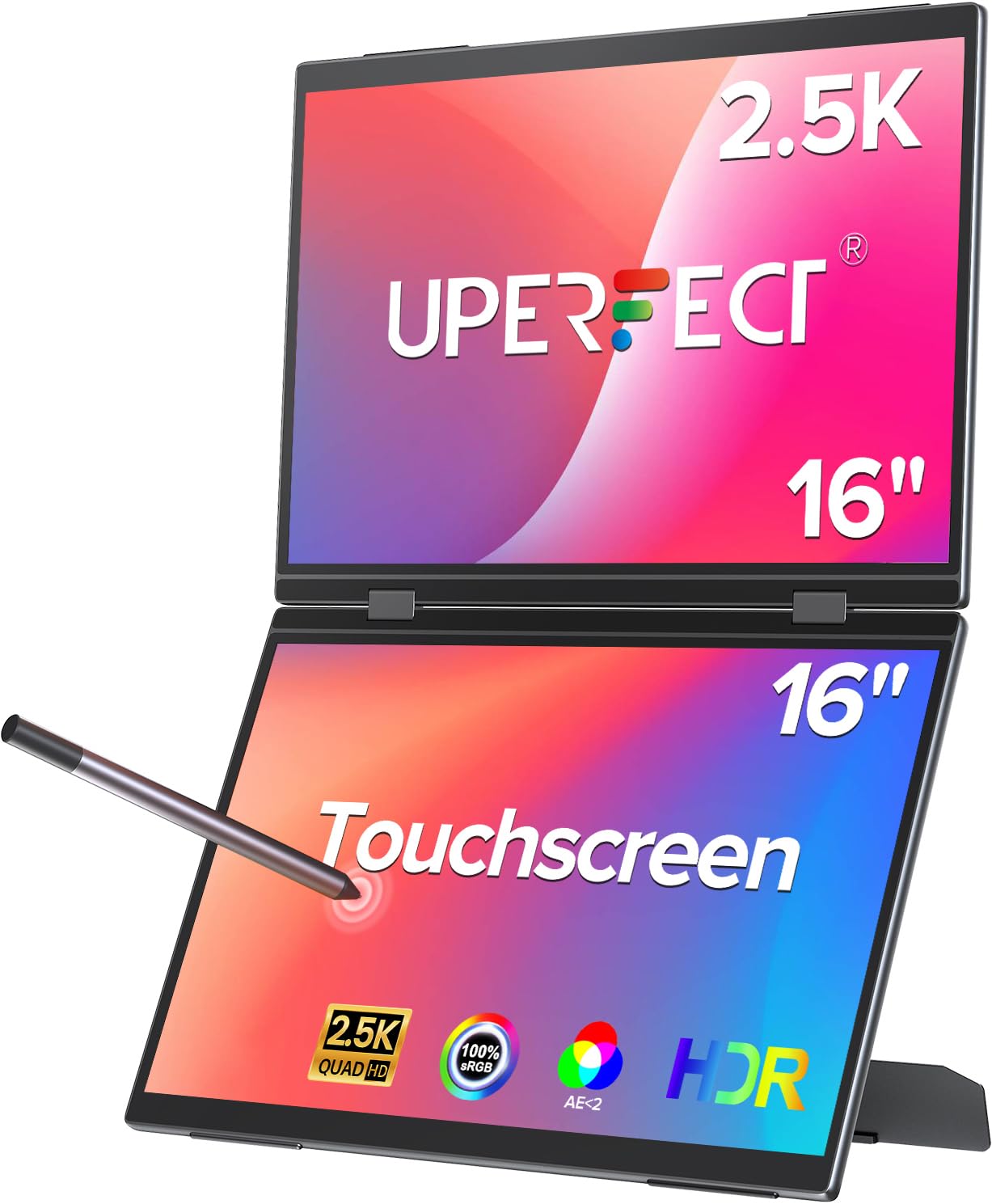
The Delta Pro Touch occupies a unique niche: a portable dual-screen monitor with pressure-sensitive touch input. Its stacked vertical design places two 16-inch panels one above the other, creating a tall workspace that is excellent for coding, document comparison, and long-format canvas work. Each panel runs at 2560×1600 resolution, delivering 78% more pixels than standard 1080p portable monitors for noticeably sharper text and fine lines.
The included Microsoft MPP-certified stylus supports 4,096 levels of pressure sensitivity, making it suitable for note-taking, annotation, and light sketching rather than professional illustration. The pressure-sensitive touch layer is a first for portable monitors in this form factor, allowing natural writing and drawing without needing a separate pen display. The 400-nit brightness and 16:10 aspect ratio provide ample screen real estate in both landscape and portrait orientation.
Connectivity is straightforward via USB-C with DisplayPort Alt Mode, supporting Mac, Windows, and Chromebook devices. The integrated stand and sleek metal body keep the weight reasonable at roughly 2.2 pounds for the pair. Some users have reported reliability issues with the top monitor connection over time, though customer support has been responsive in resolving hardware faults. For mobile professionals who need dual screens with stylus input in a single package, the Delta Pro Touch is a versatile companion.
Why it’s great
- Unique stacked dual-screen design provides a tall workspace ideal for coding and document editing.
- 2.5K resolution on each panel delivers sharp text and fine detail beyond typical 1080p.
- MPP-certified stylus with pressure sensitivity enables natural note-taking and light sketching.
Good to know
- Pressure sensitivity is limited to 4,096 levels, less suited for professional digital art.
- Some units have exhibited connectivity failures on the top monitor panel.
- Reliance on DisplayPort Alt Mode may limit compatibility with older laptops.
6. EHOMEWEI X2 Air Portable Dual Touchscreen Monitor
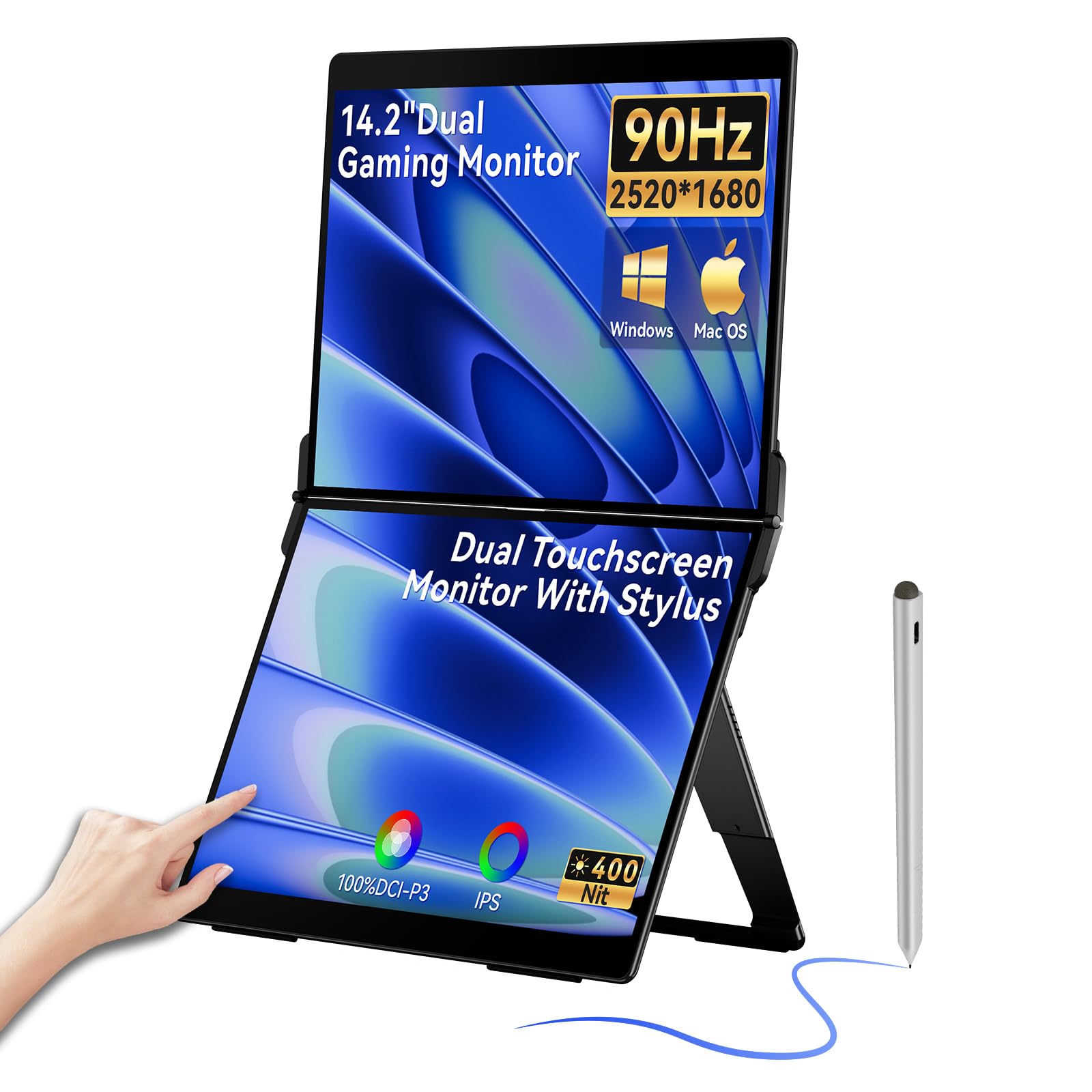
The EHOMEWEI X2 Air is a dual-panel portable monitor that prioritizes display quality and touch responsiveness. Each of the two 14.2-inch LG IPS panels delivers 2520×1680 resolution at a smooth 90 Hz refresh rate, making cursor movement and scrolling feel fluid. The 100% sRGB color coverage and 1500:1 contrast ratio provide rich, accurate colors that hold up well in side-by-side comparisons with premium laptop screens.
The 10-point multi-touch support extends to the included stylus, enabling direct on-screen annotation and simple drawing tasks. The matte anti-glare surface is effective at reducing reflections in coffee shop or co-working environments, and the 400-nit brightness remains readable in moderate daylight. The ultra-slim aluminum chassis weighs only 3.17 pounds for the pair, making it genuinely portable.
Connectivity is handled through USB-C and HDMI ports with Thunderbolt compatibility for seamless Mac integration. The integrated kickstand supports both landscape and portrait orientations. Some users have reported that top monitor connectivity depends on the host computer’s USB-C bandwidth — systems without full-featured USB-C may require a separate HDMI connection for the second screen. For creative professionals who want a responsive second display with touch capability for on-the-go review and markup, the X2 Air is a strong contender.
Why it’s great
- Dual 2.5K screens with 90 Hz refresh rate offer unusually smooth visuals for a portable monitor.
- LG IPS panels with 100% sRGB and 1500:1 contrast deliver vibrant, accurate colors.
- Lightweight aluminum build at 3.17 pounds makes travel and setup effortless.
Good to know
- Single USB-C connection may not power both screens on some laptops without external power.
- Bulky kickstand and hinge design reduce overall portability compared to clamshell designs.
- Top panel connectivity can be inconsistent depending on host port specifications.
7. HUION KAMVAS 22 Drawing Tablet

The KAMVAS 22 is Huion’s straightforward offering for artists who want a large drawing surface without the cost of a 4K panel. The 21.5-inch 1080p display covers 120% sRGB with a 1000:1 contrast ratio, delivering vivid colors that are suitable for web illustration, concept art, and graphic design. The anti-glare matte film reduces reflections effectively and provides a subtle paper-like drag that artists generally prefer over glossy surfaces.
The PW517 battery-free stylus uses PenTech 3.0 with a lowered magnetic core for improved nib stability and 8,192 pressure levels with 60-degree tilt. The nib feels more secure in the barrel compared to earlier Huion pens, reducing the wobble that sometimes affected fine line control. The two programmable side buttons are easy to reach during use. The included adjustable stand supports angles from 20 to 80 degrees, a wider range than many competitors at this tier.
Connectivity is flexible with dual USB-C ports, a standard HDMI input, and a USB-A port for peripheral attachment. The KAMVAS 22 also supports connection to Android devices with USB 3.1 Gen1 and DP 1.2, adding mobile sketching capability. The build quality is sturdy, though the 8.6-pound weight means it stays on the desk. Some users note that color accuracy out of the box benefits from calibration against a reference monitor. For beginners or budget-constrained artists who need a large screen, the KAMVAS 22 delivers excellent real estate per dollar.
Why it’s great
- 21.5-inch screen provides generous workspace at a very accessible price point.
- PW517 pen offers stable nib performance with 8K pressure sensitivity and tilt.
- Adjustable stand with 20° to 80° range improves ergonomic posture during long sessions.
Good to know
- FHD resolution on a 21.5-inch panel is less sharp than 2.5K or 4K alternatives.
- Color accuracy out of the box may require calibration for color-critical work.
- No touch input or multi-gesture support included.
8. Wacom Intuos Pro Medium Bluetooth (2025 Edition)

The Intuos Pro Medium (2025) is a pen tablet, not a pen display — you draw on the tablet surface while looking at your computer monitor. This form factor remains the choice of many professionals who prefer the ergonomics of looking straight ahead rather than down at a screen, and it eliminates the weight and cost of an integrated display. The new Pro Pen 3 included here is Wacom’s most advanced stylus, offering 8,192 pressure levels with tilt support and fully customizable balance, grip, and button layout.
The tablet itself measures just 4mm at its thinnest and weighs 14.56 ounces, making it genuinely portable. The active area of 8.7 x 5.8 inches is large enough for fluid strokes but small enough to fit beside a laptop. The magnesium alloy frame feels premium and durable. Bluetooth 5.3 connectivity works flawlessly on macOS with dual-channel support for switching between two paired computers, though some Windows 11 users have reported occasional connectivity drops.
The top-mounted controls include ten customizable ExpressKeys and two mechanical dials — one for scroll and one for zoom or brush size — that speed up common actions without moving your hand from the drawing area. The 16:9 aspect ratio matches modern widescreen monitors, and the small footprint leaves desk space for a keyboard. For professionals who already own a high-quality monitor and prefer the arm-forward drawing posture, the Intuos Pro Medium remains the standard to beat.
Why it’s great
- Pro Pen 3 offers unmatched customization with swappable grips, weight, and button configurations.
- Ultra-slim magnesium alloy design (4mm) is highly portable and desk-friendly.
- Bluetooth 5.3 and dual mechanical dials enhance wireless workflow efficiency.
Good to know
- Requires looking away from your hand to the monitor, which takes adjustment for new users.
- Bluetooth connectivity may be unstable on some Windows 11 configurations.
- No touch sensitivity on the tablet surface itself.
9. Blackview Laptop Screen Extender (DCM5)
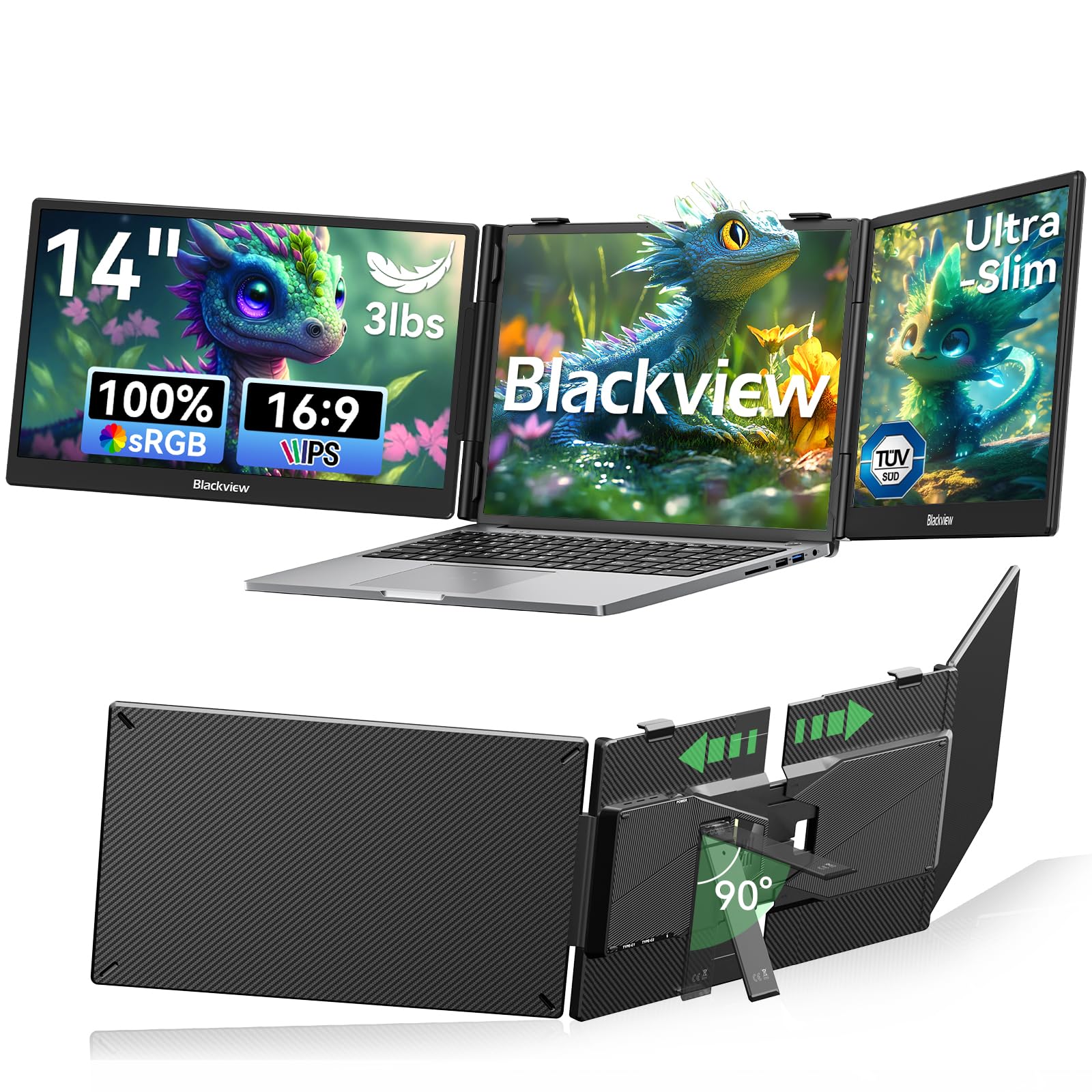
The Blackview DCM5 is a portable dual-screen extender that attaches directly to your laptop, creating a triple-monitor workstation without the need for separate stands or additional desk space. Its two 14-inch 1080p IPS panels provide 300 nits of brightness and 1200:1 contrast, delivering clear, readable visuals that are adequate for reference images, palettes, and timeline editing during digital art workflows.
Setup is genuinely plug-and-play: connect via USB-C or HDMI to unlock mirror, extend, or portrait mode with no driver installation required. The 6-point mounting system and 90-degree adjustable strand keep the screens stable at various angles, and the 3-pound total weight keeps the rig manageable for travel. The clips fit laptops from 13 to 17.3 inches, including MacBooks, Dell XPS, and Lenovo ThinkPads.
The anti-glare coating and TÜV SÜD eye-care certification reduce strain during long sessions. The glossy screen finish is prone to reflections in direct light, and the extender adds noticeable weight to your laptop bag. For digital artists who need extra screen real estate for tool panels and reference material while on the move, the Blackview DCM5 converts any laptop into a portable workstation without the usual cable mess.
Why it’s great
- Attaches directly to your laptop, creating a triple-screen setup without desk space.
- True plug-and-play via USB-C with no drivers needed for fast setup.
- Lightweight 3-pound design fits 13 to 17.3-inch laptops for broad compatibility.
Good to know
- Glossy screen finish reflects ambient light in bright environments.
- Adds noticeable bulk and weight to your laptop for everyday carrying.
- FHD resolution is adequate but not as sharp as higher-resolution alternatives.
10. HUION KAMVAS Pro 16 Drawing Tablet

The KAMVAS Pro 16 is a well-rounded mid-size pen display that balances screen quality, build, and price. Its 15.6-inch full-laminated IPS panel runs at 1080p with 120% sRGB color gamut volume (92% Adobe RGB) and a 1000:1 contrast ratio, producing vibrant, accurate colors that satisfy most illustration and design work. The anti-glare glass provides a subtle paper-like texture that reduces fingerprints and reflections while maintaining clarity.
The PW507 battery-free pen supports 8,192 pressure levels with 60-degree tilt recognition and virtually lag-free tracking. The pen body is lightweight with two customizable side buttons that are easy to press without shifting grip. The six shortcut keys on the display frame are programmable per application, and the touch bar allows for quick zoom and brush size adjustments without keyboard use.
The included ST200 adjustable stand supports angles from 20 to 60 degrees, and the 3-in-1 USB-C cable keeps desk clutter manageable. Initial setup can be confusing due to the lack of printed directions, and some users on M1 Macs have needed multiple driver installations. For artists seeking a reliable, full-laminated pen display at a competitive price, the KAMVAS Pro 16 remains a top recommendation.
Why it’s great
- Full-laminated anti-glare screen with 120% sRGB provides vibrant, accurate color reproduction.
- PW507 pen delivers responsive 8K pressure sensitivity with 60-degree tilt and low latency.
- Adjustable stand (20° to 60°) and 3-in-1 USB-C cable simplify desk setup.
Good to know
- Setup instructions are minimal, leading to a potentially confusing first experience.
- M1 Mac users may need to reinstall drivers multiple times before the tablet is recognized.
- No screen protectors are readily available for this specific model.
11. XPPen Artist 15.6 Pro Drawing Tablet

The Artist 15.6 Pro is XPPen’s entry-level full-laminated pen display that punches well above its price point. The 15.6-inch 1080p display covers 120% sRGB with 88% NTSC and offers a full-laminated structure that minimizes parallax, making the cursor appear directly under the pen tip. The 178-degree viewing angle ensures consistent color from various positions, which is helpful for collaborative reviews.
The PA2 battery-free stylus provides 8,192 levels of pressure sensitivity with 60-degree tilt and a 220 RPS report rate. The pen has a slight ballpoint-like weight that many users find natural, and the eight customizable express keys — plus the Red Dial — allow for quick access to brush size, zoom, and scroll functions. The Red Dial is a highlight at this price tier, offering smooth tactile feedback that reduces the need for keyboard shortcuts.
The slim 11mm profile and smart screen-brightness button add polish, and the 3-in-1 cable system keeps the connection tidy. The stand offers only a single preset angle, which some users find restrictive. Setup is straightforward on Windows, but M1 Mac users may encounter driver sensitivity. For those entering digital art on a budget or adding a second display for sketching, the Artist 15.6 Pro offers the best value-to-performance ratio in its segment.
Why it’s great
- Full-laminated display with 120% sRGB delivers excellent color and minimal parallax at this price.
- Red Dial and eight express keys improve workflow efficiency for tool switching.
- PA2 pen feels natural with ballpoint-like weight and smooth pressure response.
Good to know
- Stand offers only a single fixed angle, limiting ergonomic adjustment.
- M1 Mac users may require multiple driver installation attempts.
- Screen surface can show glare in brightly lit rooms despite anti-glare coating.
FAQ
Is a pen display or a pen tablet better for beginners?
What is the difference between 8,192 and 16,384 pressure sensitivity levels?
Can I use a drawing tablet as my primary computer monitor?
Does a drawing tablet work with a phone or tablet?
Final Thoughts: The Verdict
For most users, the drawing computer winner is the XPPen Artist Pro 19 Gen2 because it packs a Calman-verified 4K display with 96% Adobe RGB coverage into an 18.4-inch workspace at a fraction of the price of equivalent Wacom models, all while including dual 16K styluses and a wireless shortcut remote. If you want the deepest contrast and responsive multi-touch, grab the XPPen Artist Ultra 16 with its stunning 4K OLED panel and customizable palm rejection. And for the budget-conscious artist who needs a reliable, full-laminated pen display, nothing beats the XPPen Artist 15.6 Pro, which delivers solid 120% sRGB color, an 8K pen, and the innovative Red Dial control wheel at an entry-level price.

Mo Maruf
I created WellFizz to bridge the gap between vague wellness advice and actionable solutions. My mission is simple: to decode the research and give you practical tools you can actually use.
Beyond the data, I am a passionate traveler. I believe that stepping away from the screen to explore new environments is essential for mental clarity and physical vitality.