Our readers keep the lights on and my smoothie glass nicely filled. As an Amazon Associate, I earn from qualifying purchases.
The jump from paper to pixel should feel natural, not like learning to write all over again. That gap between intention and the screen is exactly what a great drawing tablet closes — translating wrist flicks and subtle pressure changes into clean, responsive digital lines. The right tablet melts into your workflow, letting the tool disappear so only the art remains.
I’m Mohammad Maruf — the founder and writer behind WellFizz. My research digs into the measurable specs that define a tablet’s drawing feel: pressure curves, parallax thickness, surface texture, and driver maturity across multiple operating systems.
Whether you are upgrading from a mouse-and-trackpad setup or adding a secondary display to your studio, choosing the right drawing tablet for digital art comes down to understanding what each tier of hardware actually delivers in pen response, color accuracy, and workspace integration.
How To Choose The Best Drawing Tablet For Digital Art
A buying guide for a drawing tablet must focus on the interaction between your hand and the digital canvas. The industry is flooded with pressure-level numbers and color-gamut percentages, but the real test is in the daily drawing experience — how the pen glides, how the cursor follows, and how long you can work without fighting the hardware.
Pen Display or Pen Tablet — The First Fork in the Road
A pen display lets you draw directly on a screen, mimicking traditional media where the mark appears under your nib. A pen tablet offers a larger active area for fewer desk dollars but requires the eye-hand coordination of looking at the monitor while drawing on the pad. Professionals who do high-precision inking or detailed painting tend to prefer pen displays. Animators and concept artists who value a larger gestural workspace often choose pen tablets. The decision shapes everything else — budget, portability, and setup complexity.
Pressure, Tilt, and Initial Activation Force — The Real Pen Feel
Pressure sensitivity numbers (4K, 8K, 16K) are marketing shorthand. What actually determines drawing feel is the initial activation force (IAF) — the minimum pressure required to register a mark. A lower IAF (2 grams or less) catches feather-light strokes. Tilt support up to 60 degrees is essential for shading and calligraphy. A battery-free pen is a non-negotiable for any serious artist; recharging your stylus mid-session kills creative flow. Look for pens with side buttons that can be mapped to undo or brush size — these small conveniences compound into significant workflow gains.
Parallax, Lamination, and Surface Texture — The Visual Gap
Parallax is the distance between the pen nib and the display pixels. Full lamination eliminates that air gap, bringing the cursor directly under the nib. Anti-glare etched glass reduces distracting reflections in bright studio lighting while also adding a subtle paper-like drag. Without these features, you compensate for cursor offset and fight glare — two friction points that add up during long sessions. A fully laminated, anti-glare screen should be the baseline for any pen display you consider.
Color Accuracy and Driver Maturity
A digital art tablet is a color-critical tool. sRGB coverage of 99% or higher ensures your digital paintings look consistent across monitors and prints. Factory calibration with a Delta E under 2 guarantees the on-screen colors match the intended output. Driver support is equally important — poor drivers introduce diagonal line wobble, inconsistent pressure curves, or complete failure with software updates. Wacom, Huion, and XP-Pen have mature drivers for Windows and macOS. If you use Linux or ChromeOS, check for explicit driver support before purchasing.
Quick Comparison
On smaller screens, swipe sideways to see the full table.
| Model | Category | Best For | Key Spec | Amazon |
|---|---|---|---|---|
| HUION Inspiroy Dial 2 | Pen Tablet | Efficient multi-monitor workflow | Dual Dials + Bluetooth 5.0 | Amazon |
| XP-Pen Artist 12 3rd | Pen Display | Ultra-portable with dual dials | 16K pressure, AG etched glass | Amazon |
| HUION Kamvas 13 (Gen 3) | Pen Display | Premium color accuracy on the go | 16K pressure, dual dial, 99% sRGB | Amazon |
| XP-Pen Artist 13.3 Pro V2 | Pen Display | Wide color gamut studio work | 16K pressure, 125% sRGB coverage | Amazon |
| UGEE UE12 | Pen Display | Budget-friendly screened tablet | Full-lamination, 124% sRGB | Amazon |
| HUION KAMVAS Slate 11 | Standalone | No-computer-needed portability | Android 14, 8000mAh battery | Amazon |
| Wacom Intuos Pro Medium | Pen Tablet | Professional desk ecosystem | Pro Pen 3, dual mechanical dials | Amazon |
| Frunsi RubensTab T8 | Standalone | Beginners on a tight budget | Android 13, 4GB+64GB | Amazon |
| Wacom Cintiq 16 | Pen Display | Professional studio work | 2.5K, 100% sRGB, Pro Pen 3 | Amazon |
In‑Depth Reviews
1. HUION Kamvas 13 (Gen 3)

The Kamvas 13 Gen 3 represents a clear leap in the mid-range pen display segment. Its 16384 pressure levels from the PenTech 4.0 engine give you a massive dynamic range — from the faintest sketch line to a heavy brush fill. The anti-sparkle Canvas Glass 2.0 reduces glare more aggressively than standard etched glass, making this a strong choice for bright studio environments where reflections break concentration.
Color accuracy sits at Delta E under 1.5 with 99% sRGB coverage, backed by a factory calibration report. That level of consistency out of the box matters for anyone moving between multiple displays. The dual dial and five programmable buttons sit naturally under the non-dominant hand, and the included ST300 stand provides a comfortable 20-degree drawing angle. The 13.3-inch full-laminated screen keeps parallax to a minimum, so the cursor stays where you expect it.
Some users report the 3-in-1 cable is less flexible than a single USB-C connection for port placement, and the screen brightness caps around 200 nits — not an issue in controlled lighting but noticeable in very bright rooms. The tablet also runs warm near the port side during extended sessions. For the asking price, the combination of pen feel, color fidelity, and build quality is exceptional.
Why it’s great
- Excellent pen sensitivity with 2g IAF captures subtle strokes
- Factory color calibration with Delta E under 1.5 for accuracy
- Dual dials and custom keys streamline workflow
Good to know
- Brightness is capped at 200 nits for bright rooms
- 3-in-1 cable can be bulky for certain desk layouts
- Warm spot on port side after a few hours of use
2. XP-Pen Artist 12 3rd
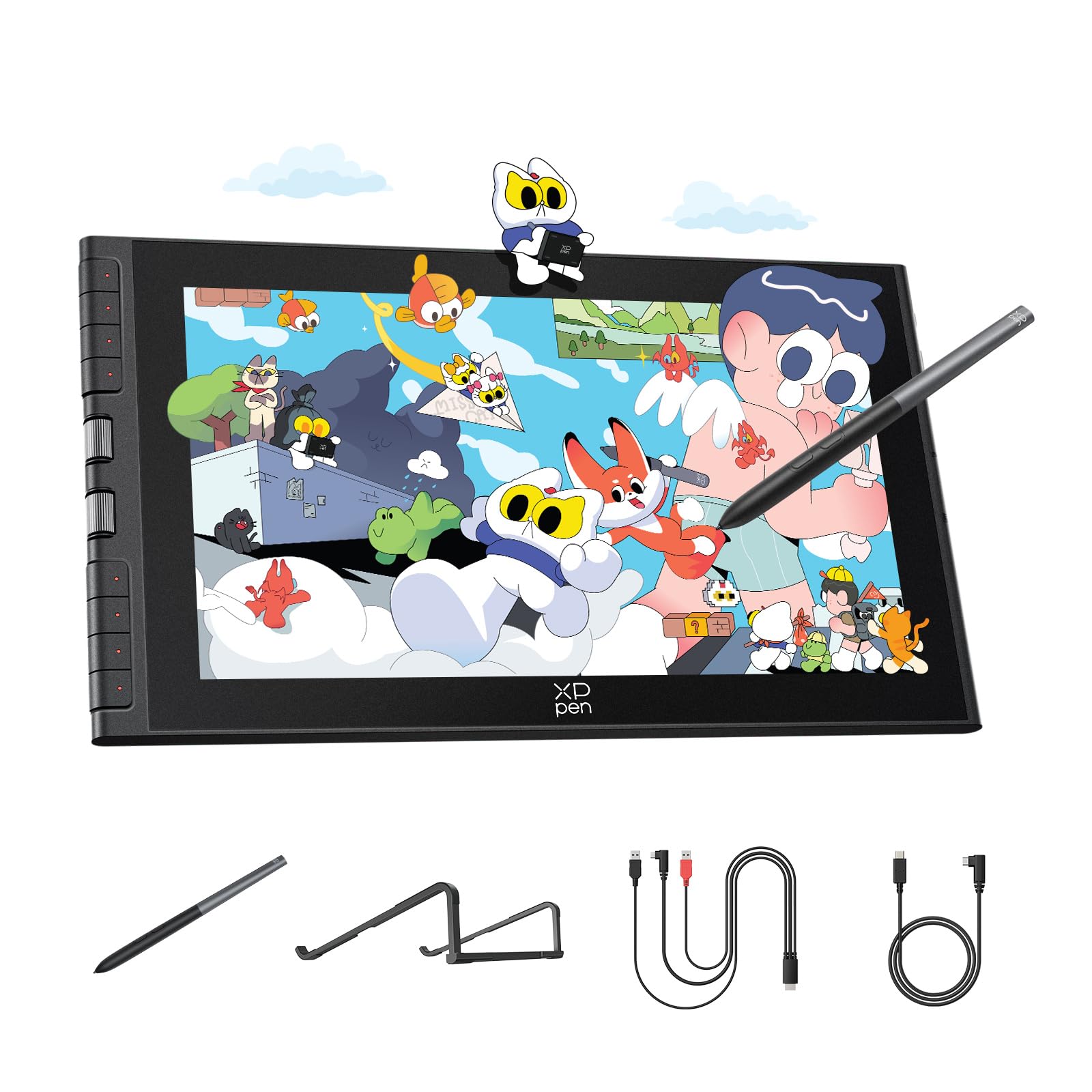
At 1.58 pounds with an 11.9-inch screen, the Artist 12 3rd packs premium features into a genuinely portable frame. The X4 chip pen delivers 16,384 pressure levels with a 2g initial activation force, which translates to exceptional control during detail work like feathering and cross-hatching. The AG etched glass provides a paper-like drag that resists fingerprints and cuts glare by an estimated 85 percent — important for artists who work in coffee shops or other uncontrolled lighting.
The dual X-Dial wheels are a standout for efficiency. One wheel can control brush size while the other manages canvas zoom, which saves considerable time compared to keyboard shortcuts. Factory calibration hits Delta E under 1.5 with 99% sRGB, and the full-lamination keeps parallax nearly invisible. It works with Windows, macOS, Android, ChromeOS, and Linux out of the box, and the foldable stand is included.
The 11.9-inch diagonal feels tight for artists used to 13-inch or larger screens; multi-monitor setups may find the active area limiting. Some users needed a firmware update to get full function on Android and ChromeOS, and the 3-in-1 cable remains a minor friction point. For the price, this is a remarkably capable pen display that rivals more expensive models in pen precision.
Why it’s great
- 16K pressure sensitivity with low 2g activation force
- Dual X-Dial wheels speed up brush and zoom control
- AG etched glass reduces glare and resists fingerprints
Good to know
- Small active area compared to 13-inch models
- Firmware update required for full Android/ChromeOS function
- 3-in-1 cable adds desk clutter
3. HUION Inspiroy Dial 2

The Inspiroy Dial 2 is a screenless pen tablet that compensates for the lack of a display with exceptional workflow hardware. The dual physical dials give you instant analog control over brush size, zoom, and scroll — functions that normally require memorizing keyboard shortcuts. The symmetrical design works equally well for left-handed users, and the 10.5 x 6.56-inch active area pairs naturally with large or multi-monitor setups where a pen display would feel cramped.
PenTech 3.0 delivers 60-degree tilt recognition and a high-friction textured surface that simulates paper resistance. Bluetooth 5.0 provides up to 18 hours of wireless use, and the battery-free pen means no charging breaks. The tablet works with macOS, Windows, Android, Linux, and ChromeOS, including support for ibisPaint on iOS. The aluminum frame gives it a premium feel at a fraction of the price of Wacom’s Intuos Pro line.
The soft nibs included in the box wear down faster than felt nibs, and the box design can cause the tablet to power on during storage, draining the battery before first use. Wireless connectivity can occasionally stutter on certain computers, though a firmware update typically resolves this. For artists who prefer a larger gestural workspace without the cost of a pen display, this is a strong contender.
Why it’s great
- Dual dials provide intuitive analog control for brush and zoom
- Long 18-hour Bluetooth battery life
- Aluminum frame and symmetrical design for left and right hands
Good to know
- Nibs wear faster than felt alternatives
- Battery can drain during storage due to box design
- Occasional Bluetooth stutter on some computers
4. XP-Pen Artist 13.3 Pro V2

The Artist 13.3 Pro V2 targets color-critical work with an impressive 125% sRGB, 107% Adobe RGB, and 95% DCI-P3 coverage. That wide gamut makes it suitable for photographers, illustrators, and designers who output to print or video and need to preview accurate colors. The X3 Pro smart chip stylus offers 16K pressure levels with a 90-millisecond response rate and 20 percent improved accuracy over the previous generation — specs that translate to minimal input lag during fast strokes.
The Red Dial quick key and eight customizable shortcut keys provide extensive hands-on control without reaching for a keyboard. The full-laminated AG film screen reduces parallax and glare, and the 250 cd/m² brightness is a step above the Kamvas 13 Gen 3 for brighter environments. The included S01 foldable stand offers a stable working angle. Compatibility spans Windows, macOS, ChromeOS, Android (USB 3.1 with DP 1.2), and Linux with driver support.
Driver bugs have been reported when using dual monitors with different resolutions — the pen can misalign unless both displays match at 1080p. The 13.3-inch size is a sweet spot for portability, but some users find it slightly long for standard backpacks. The screen is also prone to scratches without a protector, so plan accordingly. For artists who prioritize color fidelity over every other spec, this model delivers serious value.
Why it’s great
- Exceptional color gamut coverage for professional work
- 16K pressure stylus with fast response and improved accuracy
- 8 shortcut keys plus Red Dial for hands-on workflow
Good to know
- Driver can misalign pen in multi-monitor setups with mixed resolutions
- Screen requires a protector to avoid scratches
- Length can be awkward for backpack transport
5. UGEE UE12

The UE12 brings a fully laminated 11.6-inch FHD screen to a price point where most competitors still use air-gapped panels. The zero-parallax design eliminates that distracting gap between nib and cursor, and the 124% sRGB color gamut provides vivid saturation that punches above the price. The battery-free stylus offers 16K-level pressure sensitivity with 60-degree tilt recognition, and the 8 replaceable nibs included in the package extend the life of the pen.
The eight customizable shortcut keys feature a concave-convex design that makes blind operation easy — you can feel which button you are pressing without looking. Dual Type-C ports allow flexible plug orientation, and the 3-in-1 cable supports connection to computers, Android phones, and tablets that support USB-C video output. The UE12 works with Windows, macOS, Android, and ChromeOS, and it supports major creative software.
The included nibs are soft and wear down noticeably faster than harder alternatives, which means you will need replacements within the first year — especially if you draw with heavy pressure. A small number of units have exhibited a faint buzzing sound at the power port, though this does not affect performance. The 11.6-inch screen is a meaningful step down from 13-inch models if you are used to a larger drawing area. For artists on a tight budget who refuse to compromise on screen laminations, this is the best entry-level pen display available.
Why it’s great
- Full-lamination for zero parallax at an entry-level price
- 124% sRGB provides vivid, accurate color
- Dual Type-C ports for flexible connection options
Good to know
- Soft nibs wear down quickly with heavy drawing pressure
- 11.6-inch screen is smaller than typical 13-inch alternatives
- Occasional faint buzzing sound from power port
6. HUION KAMVAS Slate 11

The Kamvas Slate 11 is a standalone Android 14 tablet purpose-built for digital art. The 10.95-inch FHD+ screen (1920×1200) with 99% sRGB delivers sharp visuals, and the 90Hz refresh rate keeps the displayed strokes smooth during fast sketching. The full-laminated anti-glare screen uses nano-etched glass to provide a paper-like texture while resisting fingerprints — a thoughtful choice for artists who want to draw without an external display.
The H-Pencil stylus offers 4096 pressure levels with 60-degree tilt recognition. While the pressure resolution is lower than the 8K and 16K pens from Wacom and XP-Pen, the real-world drawing feel benefits from Huion’s line-drawing algorithms that minimize line offset. The tablet ships with Clip Studio Paint and ibisPaint X pre-installed, plus free memberships. The 8-core CPU, 8GB RAM, and 128GB storage (expandable to 1TB) provide enough headroom for multitasking with art and productivity apps.
Some units have arrived with a faulty pen that causes choppy input or palm rejection issues — Huion’s customer service has generally been responsive with replacements. The tablet can also run warm near the left side during extended use. The 4096 pressure levels feel adequate for sketching and painting but may not satisfy illustrators who need the gradation control of higher-end systems. For a no-compromise standalone setup that avoids the computer tether, this is a capable option.
Why it’s great
- Runs Android 14 with pre-installed Clip Studio Paint and ibisPaint X
- Full-laminated anti-glare screen with paper-like texture
- Powerful 8000mAh battery for all-day drawing
Good to know
- 4096 pressure levels lag behind premium pen displays
- Some units suffered from pen and palm rejection issues
- Can get warm on the left side during long sessions
7. Wacom Intuos Pro Medium

The Intuos Pro Medium (2025 edition) is the gold standard for pen tablets — a screenless device that prioritizes pen precision and workflow efficiency. The Pro Pen 3 supports 8192 pressure levels, tilt, and virtually lag-free tracking. The pen itself is customizable with interchangeable grips, a balance weight, and button covers, letting you dial in the exact weight and feel you prefer. The textured drawing surface provides natural friction without the wear of hard plastic surfaces.
The tablet features 10 ExpressKeys and two mechanical dials at the top edge, placing essential shortcuts within easy reach without looking down. The 16:9 aspect ratio matches modern monitors perfectly, and the active area is large relative to the overall footprint — 8.7 x 5.8 inches inside a chassis that measures 4mm at its thinnest. Bluetooth 5.3 offers reliable wireless connectivity with dual-device switching, and the magnesium alloy build feels durability tested for studio and travel use.
The 2025 model dropped touch sensitivity entirely, a change that disappoints artists who used gestures for zoom and rotate. Bluetooth on Windows 11 has been reported as less stable than on macOS, with occasional connection drops. The Pro Pen 3, while excellent, lacks the dedicated eraser tip that many Wacom veterans prefer. For professionals who prioritize pen feel and ecosystem maturity above all else, this remains the benchmark.
Why it’s great
- Customizable Pro Pen 3 with interchangeable grips and weights
- 10 ExpressKeys and dual dials for efficient hands-free control
- Ultra-thin magnesium design with excellent build quality
Good to know
- No touch sensitivity in this generation
- Pro Pen 3 lacks a dedicated eraser tip
- Bluetooth stability on Windows 11 can be inconsistent
8. Frunsi RubensTab T8

The RubensTab T8 is a standalone drawing tablet designed specifically for beginners and young artists. The 8-inch FHD display with 1200×800 resolution is compact enough for a backpack and runs Android 13 out of the box, which means access to SketchBook, ArtFlow, ibisPaint X, and even Clip Studio Paint through the Google Play Store. The MTK quad-core CPU with 4GB RAM and 64GB storage provides enough processing power for most 2D drawing apps, and the 4000mAh battery is rated for up to 20 hours of drawing.
The included stylus offers 2048 pressure levels, which is entry-level by modern standards but functional for learning line weight and basic shading. The tablet ships with a detachable keyboard, screen protector, and cleaning cloth — a generous bundle that removes the need for additional purchases. Customer service has been noted as responsive and helpful for warranty replacements.
With heavy brushes in SketchBook, users report some lag and diagonal line wobble that requires line smoothing to compensate. The 2048 pressure sensitivity lacks the subtlety needed for professional work. Battery life in real-world drawing apps like SketchBook is closer to 3.5 hours than the advertised 20. This is a learning tool, not a professional instrument — ideal for a middle schooler or an absolute beginner testing the waters of digital art without a computer.
Why it’s great
- Standalone Android tablet eliminates need for a computer
- Complete bundle includes case, keyboard, and screen protector
- Entry-level price makes it accessible for beginners
Good to know
- 2048 pressure sensitivity is too limited for professional work
- Noticeable lag and wobble with complex brushwork
- Real-world battery life is significantly shorter than advertised
9. Wacom Cintiq 16

The Cintiq 16 sets a new resolution standard for Wacom’s pen display lineup with a 2.5K WQXGA panel (2560 x 1600) that delivers noticeably sharper text and finer line detail than 1080p competitors. The 16-inch IPS display covers 100% sRGB and 99% DCI-P3 — a color space that matters for illustrators and animators who output to video or digital cinema. The Pro Pen 3 offers 8192 pressure levels with 60-degree tilt, and Wacom’s driver maturity means zero diagonal wobble and consistent pressure curves out of the box.
The build-in fold-out legs provide an instant 20-degree angle without needing a separate stand, and the USB-C connection supports DisplayPort Alt Mode and Thunderbolt 3/4 for a clean single-cable setup on compatible computers. The anti-glare glass reduces reflections without introducing the sparkle effect that some etched screens produce. The pen holder mounts to either side of the display for convenient access.
This model does not include shortcut buttons, stand, or mini-HDMI adapter — all of which are sold separately. The Pro Pen 3 in this package lacks the interchangeable weights and grips of the standalone version, making it feel less premium than expected at this price point. The non-laminated glass introduces a slight parallax gap between nib and pixels, which may be noticeable if you are used to a fully laminated display. For professionals who demand Wacom’s driver reliability and color accuracy in a larger studio format, the Cintiq 16 is a powerful choice.
Why it’s great
- Sharp 2.5K resolution for detailed linework and text
- 100% sRGB and 99% DCI-P3 for color-critical projects
- Mature, reliable Wacom drivers with zero diagonal wobble
Good to know
- No built-in shortcut buttons or stand included
- Pro Pen 3 lacks interchangeable weights and grips in this package
- Non-laminated glass introduces noticeable parallax
FAQ
Do I need a pen display or a pen tablet for professional digital art?
Is 16K pressure sensitivity noticeably better than 8K?
What color gamut spec should I look for in a drawing tablet?
Can I use an Android tablet as a drawing tablet for PC?
Final Thoughts: The Verdict
For most users, the drawing tablet for digital art winner is the HUION Kamvas 13 (Gen 3) because it combines high-precision PenTech 4.0, factory-calibrated color accuracy, and dual-dial controls at a price point that undercuts premium alternatives while matching their core performance. If you want a wide color gamut for print and video work, grab the XP-Pen Artist 13.3 Pro V2. And for a professional studio setup with mature driver support and no screen, nothing beats the Wacom Intuos Pro Medium.

Mo Maruf
I created WellFizz to bridge the gap between vague wellness advice and actionable solutions. My mission is simple: to decode the research and give you practical tools you can actually use.
Beyond the data, I am a passionate traveler. I believe that stepping away from the screen to explore new environments is essential for mental clarity and physical vitality.