Our readers keep the lights on and my smoothie glass nicely filled. As an Amazon Associate, I earn from qualifying purchases.
Splitting time between snapping cursor movements in Osu! and sketching clean line art puts a unique strain on a beginner’s gear. Most cheap input devices introduce enough lag or jitter to ruin both a combo streak and a delicate brush stroke, forcing you to choose between gaming and creating instead of enjoying both on one pad. The real solution lies in finding a tablet with a high report rate, raw pen responsiveness, and a driver ecosystem that handles dual-use scenarios without constant tweaking.
I’m Mohammad Maruf — the founder and writer behind WellFizz. I’ve spent years analyzing the intersection of competitive peripheral performance and accessible creative hardware, comparing report rates, pressure curves, and driver stability across dozens of entry-level models to separate genuine value from marketing noise.
Whether you are chasing high-AR jumps in Osu! or shading a detailed illustration, the best beginner drawing tablet for osu and drawing must balance lightning-fast cursor tracking with reliable pressure control, and the models below represent the sharpest options currently available at accessible price points.
How To Choose The Best Beginner Drawing Tablet For Osu And Drawing
Picking a tablet that serves both Osu! and digital art requires looking past the price tag. The wrong choice can mean input lag during streams or a scratchy surface that destroys your nibs in a week. Here are the three factors that matter most for a dual-purpose beginner setup.
Report rate and raw input latency
In Osu!, a tablet’s report rate (measured in reports per second, or RPS) determines how often the cursor updates its position. A rate of 220 RPS or higher ensures smooth, responsive aim during fast jumps and streams, while lower rates produce noticeable stutter. For drawing, high report rates also translate to fluid strokes without visible segmentation. Always check whether a tablet allows raw input through drivers or third-party tools like OpenTabletDriver for maximum responsiveness.
Active area size and hand scaling
OSU! players often prefer smaller active areas (around 4×6 inches) so they can cover the entire screen with minimal wrist movement, which reduces fatigue during long sessions. Artists typically want a slightly larger area for expressive, sweeping lines. A tablet around 6×4 inches hits a sweet spot: compact enough for Osu! precision but roomy enough for comfortable sketching. Avoid oversized models unless you plan to adjust area settings frequently, as they force your Osu! aim to become a full-arm motion.
Stylus technology and surface feel
Battery-free electromagnetic resonance (EMR) styluses are essential — you never need to pause a session to charge the pen. Pressure sensitivity of 8192 levels is the baseline for decent line variation in art, while 16384 levels grants finer control at the cost of requiring a lighter touch. Surface texture matters more than most beginners realize: a glossy surface lets the pen slide fast for Osu! but can feel slippery for inking, whereas a textured surface offers drawing control but accelerates nib wear. Choose the surface feel that matches your primary use case, and be ready to buy replacement nibs either way.
Quick Comparison
On smaller screens, swipe sideways to see the full table.
| Model | Category | Best For | Key Spec | Amazon |
|---|---|---|---|---|
| XPPen Deco 640 | Premium | Competitive Osu! | 16384 Pressure Levels / 220 RPS | Amazon |
| Huion Inspiroy 2 Small | Premium | Versatile creative | Scroll wheel / PenTech 3.0 | Amazon |
| XP-Pen Deco 01 V3 | Mid-Range | Large area for art | 10″ active area / 16384 levels | Amazon |
| Wacom Intuos Small | Mid-Range | Brand reliability | EMR tech / 6×3.7″ area | Amazon |
| Huion HS64 | Mid-Range | Budget Osu! start | 6.3×4″ area / 5080 LPI | Amazon |
| UGEE S640 | Budget | Ultra-portable | 6.5×4″ area / 10 hot keys | Amazon |
| GAOMON WH851 | Premium | Wireless freedom | Bluetooth 5.0 / 18h battery | Amazon |
In‑Depth Reviews
1. XPPen Deco 640 Drawing Tablet
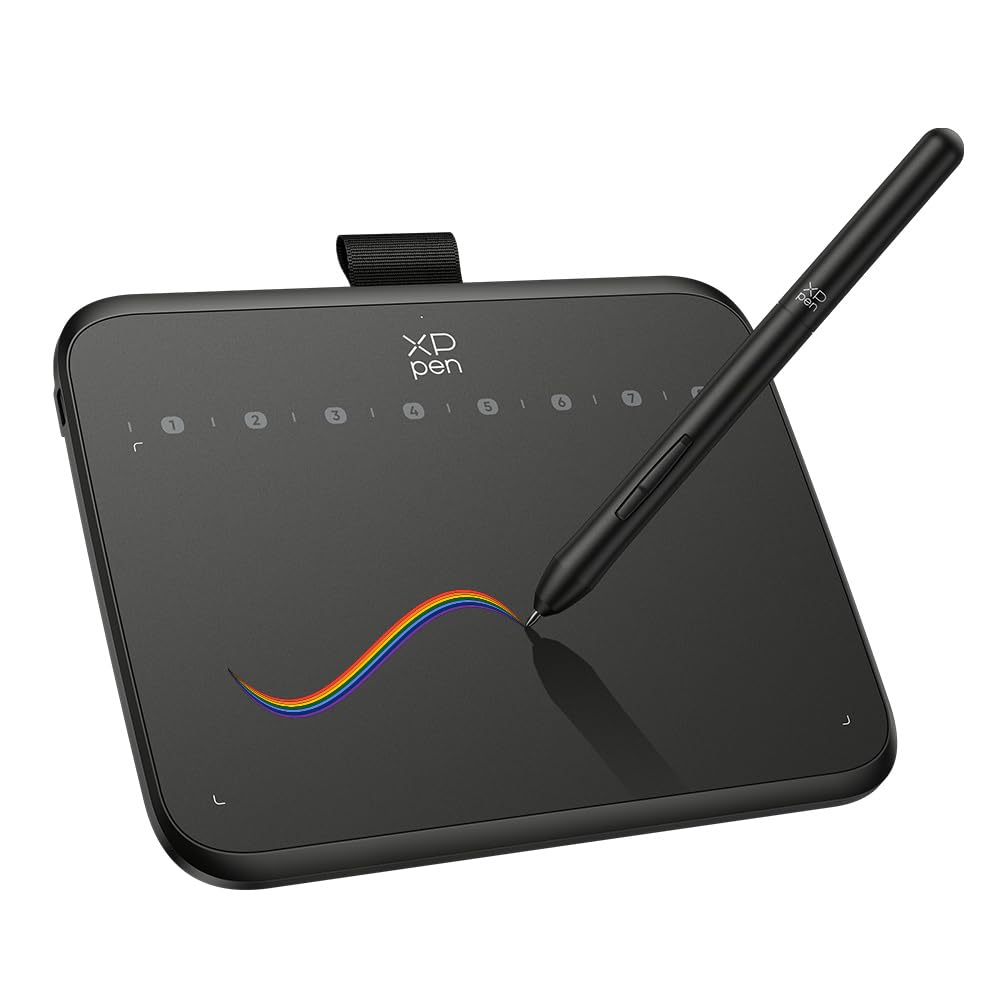
The Deco 640 is engineered from the ground up for the dual-life of an Osu! player and artist. Its flagship feature is the industry-leading 16384 pressure sensitivity levels, which register the subtlest finger changes during drawing while the 220 RPS report rate keeps cursor tracking buttery smooth during 300 BPM Osu! maps. The 6×4 inch active area hits the ideal compromise between Osu!-ready compactness and sufficient canvas space for sketching, and the 60° tilt support adds natural shading capability that cheaper tablets omit entirely.
Setup is straightforward on Windows, Mac, and Android thanks to the USB-C connection, and the battery-free stylus eliminates the hassle of charging mid-session. The included 10 replacement nibs and tip clip show that XP-Pen expects this tablet to see heavy use. Most user complaints center on driver behavior — specifically that the mapping resets after system wake, requiring a quick driver restart — but the underlying hardware jitter is minimal compared to similarly-priced competitors.
The lightweight 0.37-pound body and 0.3-inch thickness make it exceptionally portable, slipping into a laptop sleeve without adding noticeable bulk. For beginners who want a tablet that feels responsive in Osu! and precise in Clip Studio Paint right out of the box, the Deco 640 delivers the cleanest balance of speed and sensitivity in this price bracket.
Why it’s great
- 16384 pressure levels provide exceptional line control for sketching
- 220 RPS report rate delivers near-zero lag in Osu!
- Compact 6×4 inch area optimizes both gaming and drawing
Good to know
- Driver mapping resets after computer wake from sleep
- Surface texture may feel slightly slick for artists preferring heavy tooth
2. Huion Inspiroy 2 Small Drawing Tablet

The Inspiroy 2 Small brings a feature rarely seen on beginner tablets: a physical scroll wheel. This dial can be programmed for canvas zoom, brush size, or volume control, giving artists and Osu! players a hardware shortcut that reduces reliance on keyboard binds. The underlying PenTech 3.0 stylus PW110 is noticeably slimmer than previous Huion pens, with a soft silicone grip that reduces hand fatigue during long drawing sessions, while the 8192 levels of pressure deliver accurate, wobble-free lines with no noticeable lag.
The 6.3 x 3.9 inch active area is slightly narrower than some competitors, but the scroll wheel and six customizable press keys compensate by keeping common commands off the keyboard. Compatibility spans Windows 7+, macOS 10.12+, Linux, and Android 6.0+ via USB-C OTG, making it one of the most versatile tablets for multi-platform users. The USB-C connection itself is a welcome modern touch, and the included OTG adapter ensures smooth hookup to phones and tablets.
Some users note that the button mapping does not automatically rotate when the tablet is flipped for left-handed use, requiring a manual restart of the driver software. The rubber feet are also on the small side, causing the tablet to slide slightly on smooth desk surfaces. Despite these minor ergonomic quirks, the combination of a scroll wheel, excellent pen ergonomics, and reliable driver performance makes the Inspiroy 2 Small a strong choice for creative beginners who also dabble in Osu!.
Why it’s great
- Physical scroll wheel speeds up canvas zoom and brush adjustments
- Slimmer pen body with silicone grip improves comfort over long sessions
- USB-C connectivity with OTG adapter works across multiple platforms
Good to know
- Button mapping does not auto-rotate for left-handed orientation
- Small rubber feet allow slipping on smooth desks
3. XP-Pen Deco 01 V3 Drawing Tablet

The Deco 01 V3 is the largest tablet on this list with a 10-inch active area, giving artists plenty of real estate for broad strokes and detailed illustrations. It uses the same X3 Smart Chip stylus technology found in XP-Pen’s higher-end models, delivering 16384 pressure levels and 60° tilt support that make shading feel natural and immediate. The 220 RPS report rate carries over from the smaller Deco 640, ensuring Osu! players still get snappy cursor response despite the larger surface.
XP-Pen includes a generous accessory bundle: 10 replacement nibs, a stylus stand, a drawing glove, and a protective film. The edge-backlit surface is a thoughtful addition for low-light gaming sessions, though the 8mm ultra-slim body and 0.73-pound weight keep it portable enough for a backpack. The ambidextrous layout with eight programmable keys works equally well for left- and right-handed users, and the USB-C cable provides stable data transfer with a single connection.
Some Osu! players find the 10-inch area too large for flick-heavy playstyles unless they shrink the mapped area in drivers, and the included upright pen holder adds clutter on small desks. Linux support is excellent — plug-and-play with Digimend drivers — but Windows users occasionally report that the button mapping software conflicts with certain UWP apps. For artists who prioritize canvas space over absolute portability, the Deco 01 V3 offers premium features at a mid-range cost.
Why it’s great
- 10-inch active area provides ample room for detailed drawing
- X3 Smart Chip stylus delivers smooth 16384-level response with tilt
- Generous accessory bundle including glove, stand, and protective film
Good to know
- Large area may feel oversized for Osu! without area scaling
- Upright pen holder takes up desk space; some find it cumbersome
4. Wacom Intuos Small Graphics Drawing Tablet
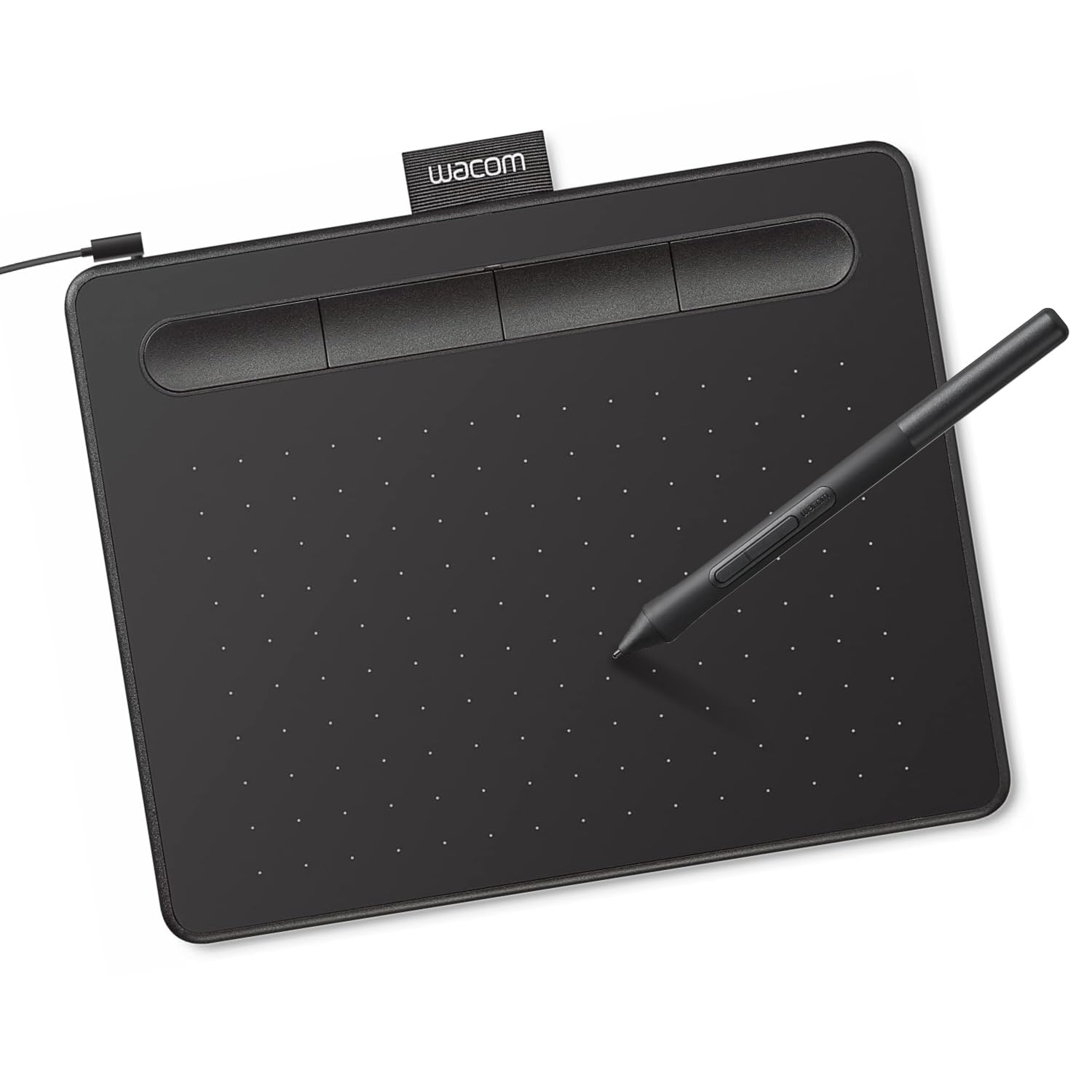
The Wacom Intuos Small carries the brand legacy that professional illustrators have trusted for decades, and it shows in the build quality. The active area measures 6 x 3.7 inches — compact by design — and the battery-free EMR stylus provides the famous “pen on paper” feel that Wacom has refined over 40 years. The 4096 levels of pressure sensitivity are lower than the current competition, but the implementation is mature and consistent, with no dead zones or erratic jumps at the lightest touch.
For Osu! players, the Intuos Small works exceptionally well with OpenTabletDriver and Hawku drivers, which unlock raw input with near-zero smoothing. The 4 customizable ExpressKeys are enough for basic shortcuts like undo or save, though users who want more keys will miss the 6-8 key layouts on competing tablets. The included two-year subscription to Clip Studio Paint Pro adds real value for beginners serious about digital art, and the plug-and-play compatibility with Chromebook makes it a flexible option for students.
The main downside is the micro-USB port — unusual in a world moving to USB-C — and the lack of Bluetooth on the base model. Mac users should also note that a USB-A to USB-C adapter is required and not included. The 133 Hz refresh rate is adequate for most Osu! players but feels less snappy than the 220 RPS competitors. Still, for those who value rock-solid driver stability and a proven ecosystem over headline specs, the Wacom Intuos Small remains a sensible entry point.
Why it’s great
- Industry-leading EMR pen feel with minimal input smoothing
- Includes two-year Clip Studio Paint Pro subscription
- Strong compatibility with OpenTabletDriver for low-latency Osu! use
Good to know
- Only 4096 pressure levels compared to 8192+ competitors
- Micro-USB port instead of USB-C; no USB-C adapter included for Mac
5. Huion HS64 Beginner Graphics OSU Tablet

The Huion HS64 is designed explicitly as an entry-level tablet that works without fuss for both Osu! and basic drawing. Its 6.3 x 4 inch active area is nearly identical to the XP-Pen Deco 640, offering a compact surface that Osu! players gravitate toward for quick aim adjustments. The PW100 battery-free stylus delivers 8192 levels of pressure sensitivity with a resolution of 5080 LPI, providing enough detail for clean line art and shading, though the lack of tilt support limits advanced sketching techniques.
One of the HS64’s strongest selling points is its plug-and-play functionality: it can replace a mouse without installing any driver, making it immediately useful for Osu! on a school or work computer where you can’t install software. The four customizable express keys are easy to assign via the Huion driver, and the included OTG adapter allows connection to Android phones running Osu!droid. The slim and lightweight design makes it barely noticeable in a bag, perfect for students who move between classrooms.
Some users report that the micro-USB connection feels dated compared to newer USB-C tablets, and the driver setup on Windows can occasionally be finicky — requiring a restart after initial installation. The surface texture is smooth, which helps with fast pen movement in Osu! but offers less friction for precise inking. For the price, the HS64 is a capable, no-frills gateway into dual-use tablet life, especially for those who prioritize immediate Osu! readiness over artistic depth.
Why it’s great
- Plug-and-play mouse replacement works without any driver install
- Compact 6.3×4 inch area is ideal for Osu! flick aiming
- Includes OTG adapter for Android device compatibility
Good to know
- Micro-USB connection feels outdated; driver setup can require a restart
- Smooth surface may feel slippery for detailed line work
6. UGEE S640 Graphics Drawing Tablet

The UGEE S640 is the lightest and most portable model on this list at just 280 grams, with an active area of 6.5 x 4 inches that sits comfortably in the Goldilocks zone for Osu! and casual drawing. Its standout feature is the ten customizable hot keys — the highest count among budget tablets — which allow you to map everything from eraser to zoom without touching the keyboard. The 8192 levels of battery-free stylus pressure provide a functional baseline for digital sketching, though the pen lacks tilt detection.
Compatibility is broad, covering Windows 7+, macOS 10.10+, Android 6.0+, Chrome OS 88+, and Linux via the optional driver. The driver installation is truly optional for basic use, as the tablet works in plug-and-play mode for cursor control and Osu! right away.
The main trade-offs are visible at the hardware level: the build uses more plastic than metal, and the surface shows wear faster than mid-range competitors. Some users note that the pen requires a specific rotation angle to avoid accidental side-button presses. For ultra-budget shoppers who want maximum shortcut keys in a featherlight frame, the S640 delivers surprising utility, especially for Osu! players who rely heavily on tablet-side keybinds for quick retry and pause mapping.
Why it’s great
- Ten customizable hot keys — the most in this price range
- Ultra-light 280g design fits easily in any bag
- Plug-and-play mode works for instant Osu! use without drivers
Good to know
- Plastic build feels less durable than metal-frame alternatives
- Pen side buttons require angled grip to avoid accidental presses
7. GAOMON WH851 Bluetooth Drawing Tablet
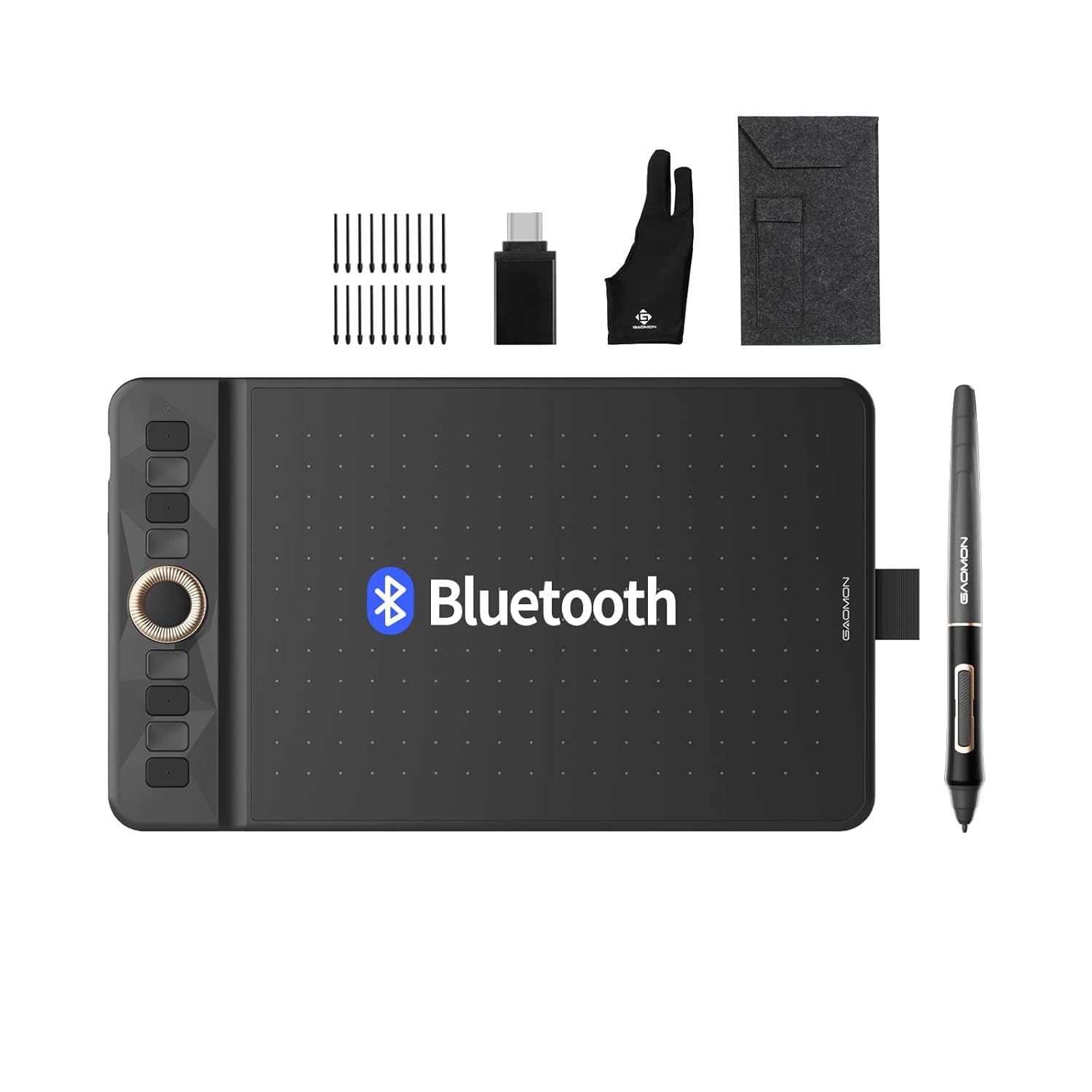
The GAOMON WH851 breaks from the pack by offering both wired USB-C and wireless Bluetooth 5.0 connectivity, backed by an 18-hour battery that keeps you drawing or gaming for days without reaching for a cable. The 8 x 5 inch active area is one of the larger options in this lineup, providing generous space for artists while still being manageable for Osu! players who scale the mapping area down. The AP519 battery-free stylus supports 16384 pressure levels and 60° tilt, matching the top-tier spec of premium competitors.
The intuitive center dial is the WH851’s secret weapon — it can be toggled between driver mode (for brush size and layer scrolling) and radial mode (for quick tool selection), radically reducing how often you reach for keyboard shortcuts. The eight customizable press keys flanking the dial add further shortcut density. Aspect ratio adjustment supports 16:10 or 20:10 modes, which helps when mirroring to wide monitors for Osu! or connecting to tablets for drawing.
The surface texture is a double-edged sword: it provides a pleasant moderate friction that helps with controlled line work, but multiple users report that it wears down pen nibs noticeably faster than Huion’s textured surfaces, and the surface itself can develop a worn patch within the first week of heavy use. Some Osu! players note that Bluetooth introduces a small amount of input latency compared to wired mode, so competitive play is best done with the USB-C cable connected. For beginners who value cable-free desktop organization and a large drawing area, the WH851 offers unique versatility.
Why it’s great
- Bluetooth 5.0 with 18-hour battery allows untethered use for days
- Center dial with dual-mode control streamlines creative workflow
- 8×5 inch active area provides generous canvas for detailed art
Good to know
- Wireless mode introduces slight latency; best for Osu! in wired mode
- Surface texture accelerates nib wear and may show wear quickly
FAQ
Can I use any drawing tablet for Osu! or do I need a specific gaming model?
What active area size is best for a beginner using Osu! and drawing?
Do I need tilt support in a stylus for Osu! or basic drawing?
Final Thoughts: The Verdict
For most users, the best beginner drawing tablet for osu and drawing winner is the XP-Pen Deco 640 because it combines the highest 220 RPS report rate with 16384 pressure levels and a compact 6×4 inch area that serves both activities equally well. If you want the convenience of a physical scroll wheel and the most ergonomic stylus for long creative sessions, grab the Huion Inspiroy 2 Small. And for wireless freedom with a large canvas that lets you roam away from your desk, nothing beats the GAOMON WH851.

Mo Maruf
I created WellFizz to bridge the gap between vague wellness advice and actionable solutions. My mission is simple: to decode the research and give you practical tools you can actually use.
Beyond the data, I am a passionate traveler. I believe that stepping away from the screen to explore new environments is essential for mental clarity and physical vitality.