Our readers keep the lights on and my smoothie glass nicely filled. As an Amazon Associate, I earn from qualifying purchases.
The gap between a sketch on paper and a digital canvas shrinks or expands based on one component: the stylus in your hand. A cheap tip that skips, a barrel that feels hollow, or a pressure curve that ignores your lightest stroke—these are the frustrations that kill momentum for every Android artist. Finding a pen that actually responds like a tool, not a toy, is the real challenge.
I’m Mohammad Maruf — the founder and writer behind WellFizz. I’ve spent the last decade cross-referencing tablet drivers, pressure curves, latency figures, and nib durability reports to separate the few high-performing styluses from the overwhelming number of mediocre ones on the market.
Whether you are a pro illustrator, a student taking digital notes, or a beginner learning line art, choosing the wrong input tool means wasting your time. This guide cuts through the marketing fluff to identify the best android drawing stylus for your specific workflow and budget.
How To Choose The Best Android Drawing Stylus
Not every pen works with every Android tablet. The stylus you pick must match the digitizer layer inside your device. This is the single most important compatibility check most buyers skip.
Understand the Two-Standard Landscape
Android tablets split into two camps: active electrostatic (AES) standards used by major brands like Lenovo and Samsung, and Wacom’s EMR (electromagnetic resonance) protocol used by many third-party drawing tablets. A stylus built for one flatly will not work on the other. If you own a Samsung Galaxy Tab, you need an EMR Wacom-based pen. If you own a general Android tablet, you may need a USB-powered drawing tablet that includes its own digitizer.
Pressure Sensitivity is Not a Gimmick
Entry-level pens offer 1024 or 4096 pressure levels. Premium units push to 8192 and beyond. More levels allow the software to detect subtler changes in force, translating to smoother taper on your brush strokes and more organic shading. If you draw with any kind of traditional pencil pressure, aim for at least 4096. For professional illustration, 8192 or 16384 is the baseline.
Tilt, Latency, and Palm Rejection
60 degrees of tilt recognition gives you natural brush-angle effects in programs like Clip Studio Paint. Low latency (under 20 milliseconds) ensures the line appears instantly under the tip. Palm rejection prevents accidental marks when your hand rests on the screen. A quality drawing tablet bundles hardware and software that handle all three without user tweaking.
Quick Comparison
On smaller screens, swipe sideways to see the full table.
| Model | Category | Best For | Key Spec | Amazon |
|---|---|---|---|---|
| Wacom MovinkPad 11 | Standalone Tablet | Professional illustration on the go | 8192 pressure levels, battery-free Pro Pen 3 | Amazon |
| HUION KAMVAS Slate 11 | Standalone Tablet | All-in-one Android 14 drawing pad | 90Hz refresh rate, 4096 pressure, full lamination | Amazon |
| TCL NXTPAPER 11 Gen 2 | Standalone Tablet | Eye-friendly reading and sketching | NXTPAPER 4.0 anti-glare, 4096 T-PEN | Amazon |
| XPPen Deco 01 V3 | USB Drawing Pad | Desktop and Android phone sketching | 16384 pressure levels, 10×6.25 inch active area | Amazon |
| XPPen IT640 | USB Drawing Pad | Portable OSU gaming and travel | 16384 pressure, 6.4×4 inch compact size | Amazon |
| PicassoTab X | Standalone Tablet | Budget-friendly beginner art learning | 10 inch Android 10, included stylus | Amazon |
| Callsky-Tab Ctab 12 | Standalone Tablet | Large-screen drawing and note-taking | 4096 pressure stylus, 12 inch 2K display | Amazon |
In‑Depth Reviews
1. Wacom MovinkPad 11

Wacom’s MovinkPad 11 is the closest you can get to a traditional sketchbook without hauling a laptop. Its anti-glare etched glass screen eliminates distracting reflections, and the slim barrel of the Pro Pen 3 feels natural for long sessions. The pen delivers 8,192 pressure levels with three customizable buttons and stores replacement nibs inside the barrel—a detail that reveals Wacom’s understanding of field use.
The Android 14 operating system runs Clip Studio Paint Debut with a two-year license included. The Quick Draw feature launches Wacom Canvas instantly when you tap and hold the pen, mimicking the immediacy of paper. At just 1.3 pounds, this unit slips into any bag and lasts through a full day of work on a single charge, making it a true mobile studio.
Some users note that the processor can lag when applying heavy liquefy effects or textured brushes, and the charging speed is on the slower side. But for pure drawing performance—accuracy, latency, palm rejection—this is the benchmark other tablets are measured against.
Why it’s great
- Battery-free pen eliminates charging breaks
- Anti-glare matte screen feels like paper
- Best-in-class palm rejection
Good to know
- Slower processor for heavy effects
- Premium price point
- No included protective case
2. HUION KAMVAS Slate 11

Huion brings standalone capability that rivals Wacom at a lower cost. The KAMVAS Slate 11 runs Android 14 with an 8-core processor, 8GB of RAM, and 128GB of expandable storage. Its 10.95-inch FHD+ display operates at a 90Hz refresh rate, which makes strokes appear instantly without ghosting. The full-laminated anti-glare screen minimizes parallax, so the ink appears exactly where the tip touches.
The H-Pencil stylus offers 4096 pressure levels and 60-degree tilt recognition. Huion has refined its line-drawing algorithms to prevent offset, and the included leather case adds protection without adding bulk. Pre-installed apps like Clip Studio Paint and ibisPaint X with free trial memberships reduce the friction of getting started.
A small fraction of units have arrived with defects, and the case lacks a closure band, but the build quality and display clarity are impressive for the price. This is a legitimate option for intermediate artists who want a dedicated drawing environment without paying for the Wacom name.
Why it’s great
- 90Hz refresh rate for fluid strokes
- Full-laminated anti-glare display reduces parallax
- Strong multitasking RAM and expandable storage
Good to know
- Some units have QC issues
- Case has no closure band
- Heavier than comparable models
3. TCL NXTPAPER 11 Gen 2
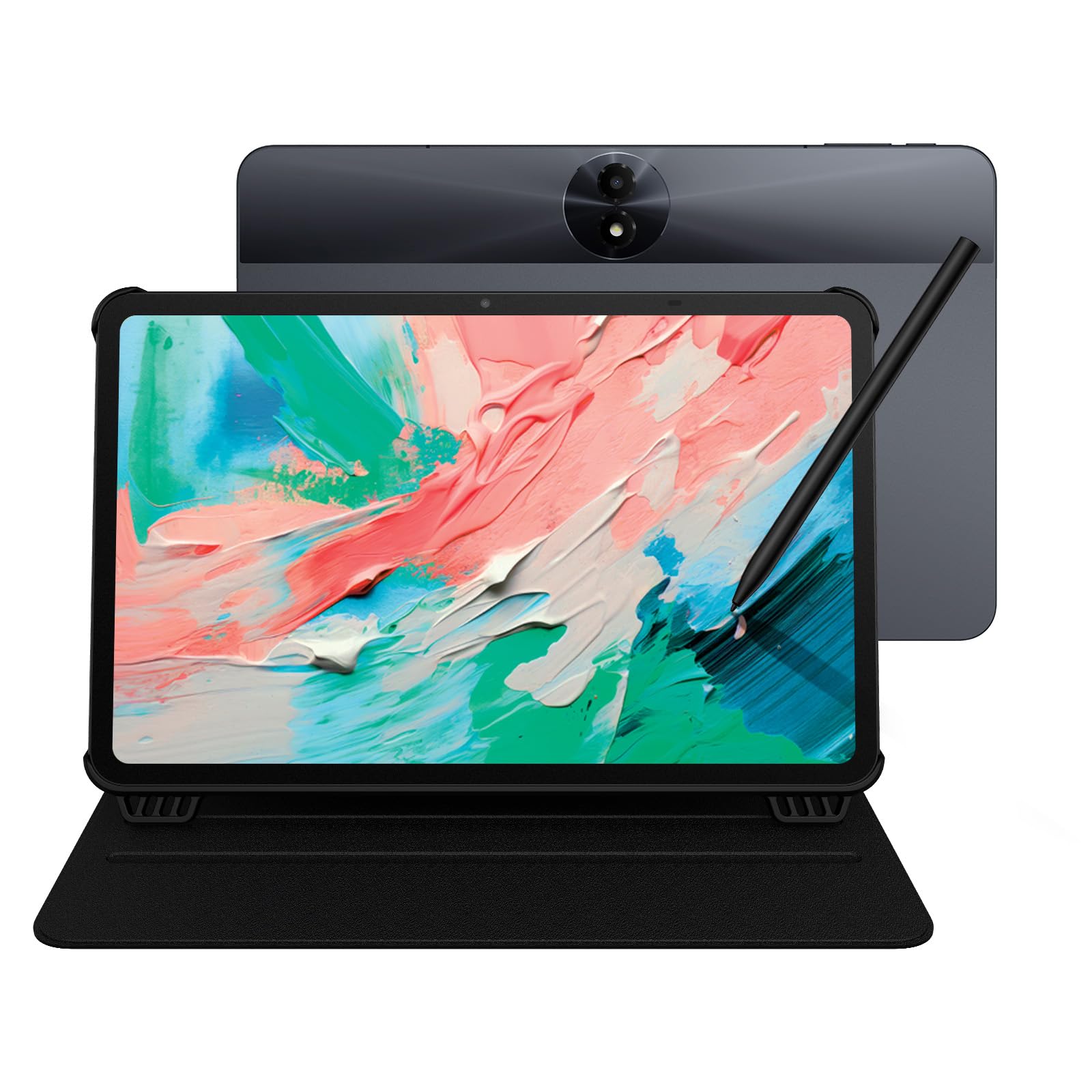
TCL’s NXTPAPER 11 Gen 2 is designed for artists who also read, browse, and take notes for hours. The 11-inch 2K display uses NXTPAPER 4.0 technology: a TÜV-certified low-blue-light, anti-glare screen that drastically reduces eye strain. The included T-PEN stylus provides 4096 pressure levels and tilt support, delivering smooth lines for sketching, note-taking, and annotation.
The MediaTek Helio G80 processor paired with 8GB plus 8GB of virtual RAM handles daily multitasking, streaming, and light drawing without issue. Battery life is strong at 8000mAh, and the reverse charging feature lets you top off your phone in a pinch. The three VersaView modes—Regular, Ink Paper, and Color Paper—tailor the screen’s color temperature and saturation for different tasks.
It is not the fastest tablet for complex brush effects, and the speakers lack bass, but the paper-like display quality makes this the best option for long drawing sessions that would normally cause eye fatigue.
Why it’s great
- Eye-friendly matte display reduces glare
- Long battery life with reverse charging
- VersaView modes for reading and drawing
Good to know
- Mediocre speaker quality
- Slow boot time
- Weak GPU for heavy apps
4. XPPen Deco 01 V3

The XPPen Deco 01 V3 is a USB-connected graphics tablet that punches well above its price bracket. Its 10×6.25-inch active area provides room for full-arm drawing motion, and the battery-free stylus delivers 16,384 pressure levels and 60-degree tilt support—a spec that rivals tablets costing three times as much. The surface has enough texture to feel like paper without wearing down nibs too fast.
Setup is straightforward across Windows, macOS, Chrome OS, and Android 10 and above. The included USB-C to USB-C cable plus adapters ensure you can connect to a phone or laptop without hunting for dongles. Eight customizable express keys speed up your workflow, and the included glove and protective film add value.
The drivers can be buggy on some systems, and the USB port placement makes the cable prone to bending. But for the combination of pressure sensitivity, tilt, and large drawing area, this is the best value proposition for Android users who don’t need a standalone screen.
Why it’s great
- Massive 16384 pressure levels for shading
- Large active area encourages full-arm drawing
- Works with Android phones via OTG
Good to know
- USB port prone to cable stress
- Drivers can be buggy
- Not a standalone screen tablet
5. XPPen IT640
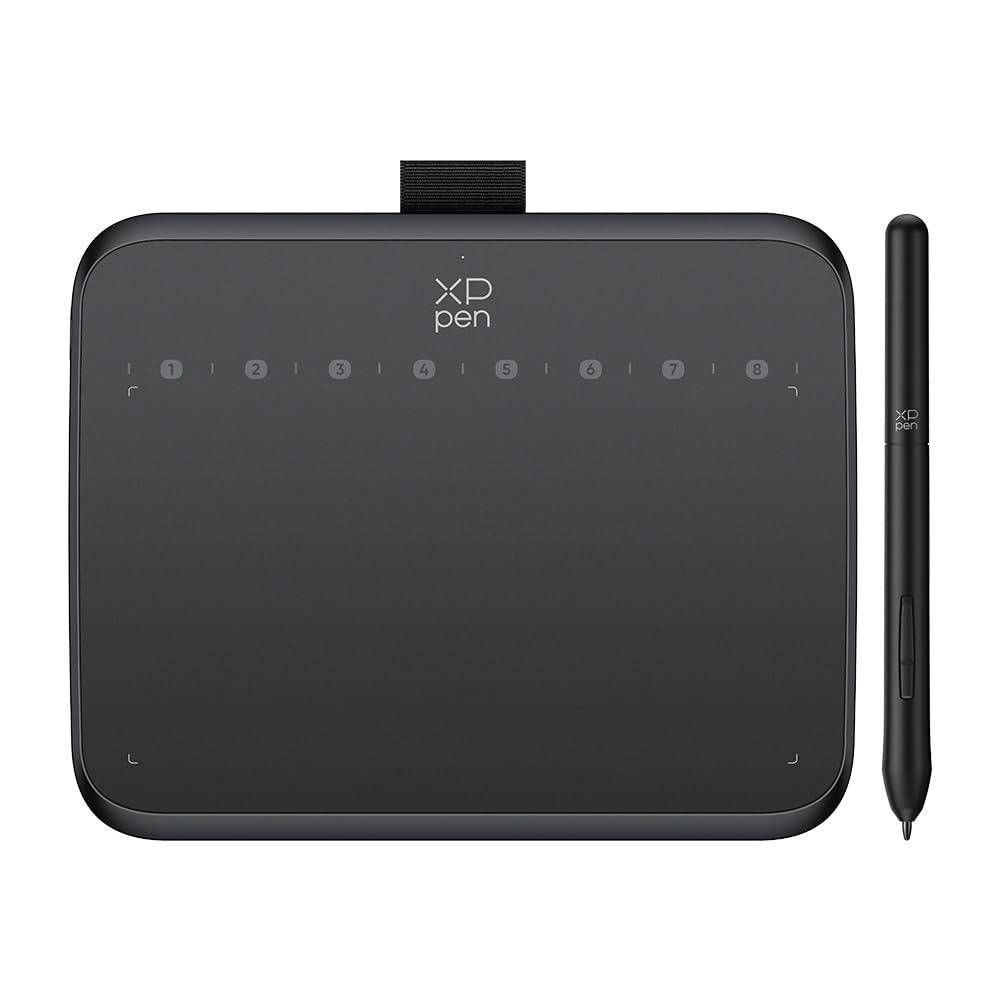
The XPPen IT640 brings flagship-level pressure sensitivity—16,384 levels—into a 6×4-inch footprint smaller than a sheet of paper. This makes it the ideal companion for Android phone users who want to sketch on the go. The OTG adapter connects directly to your phone, and the battery-free stylus means you never have to pause a session to charge the pen.
Eight programmable soft keys are packed into the slim bezel, allowing quick access to undo, brush size, and eraser without touching the keyboard. The surface provides a solid grip, and initial tests show low cursor latency in both drawing apps and OSU gaming. Despite its small size, the active area is responsive enough for detailed illustration work once you adjust to the scale.
The build feels lightweight, and some units arrive with a bent USB-C port. Driver installation on Linux and macOS requires careful attention. But for beginners, travelers, and OSU players who value portability without sacrificing pressure fidelity, this is the most versatile compact tablet available.
Why it’s great
- Extremely compact and travel-friendly
- Battery-free stylus with 16384 pressure levels
- 8 customizable hotkeys for faster workflow
Good to know
- USB-C port may arrive bent
- Pen feels lightweight and plastic
- Smaller active area requires adjustment
6. Callsky-Tab Ctab 12
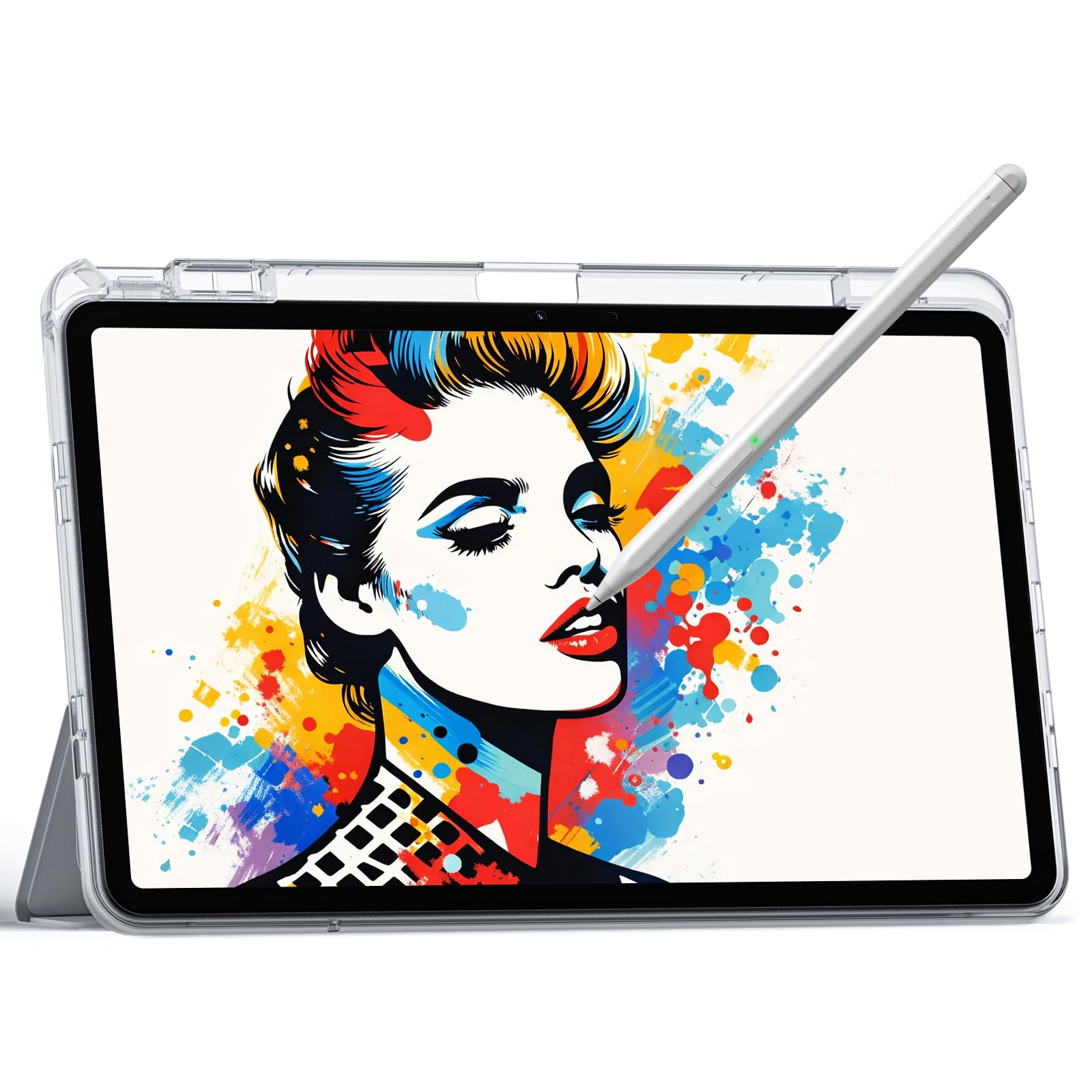
The Ctab 12 from Callsky-Tab offers a massive 12-inch 2K IPS screen in an affordable standalone tablet package. The included stylus supports 4096 pressure levels and magnetic attachment to prevent loss. With a T616 octa-core processor, 16GB of RAM, and 256GB of expandable storage, the tablet handles multitasking, digital art apps, and video streaming without stuttering.
The 8000mAh battery delivers about 6 hours of active use, and the included flip case provides three viewing angles. The anti-glare screen finish reduces reflections, although it is not as matte as a dedicated drawing tablet. The rechargeable pen performs well for sketching and note-taking, with better accuracy than most budget standalones.
The stylus is adequate rather than excellent—the tip feels slightly hard, and the pressure curve is less refined than Wacom or Huion pens. The battery life is also shorter than advertised under heavy use. But for a large-screen Android 15 canvas with a bundled stylus, this is a solid entry-level drawing setup.
Why it’s great
- Large 12-inch 2K display for detail work
- High RAM and storage capacity
- Includes flip case and drawing glove
Good to know
- Stylus pressure curve is less refined
- Battery drains faster than rated
- No pre-installed drawing software
7. PicassoTab X
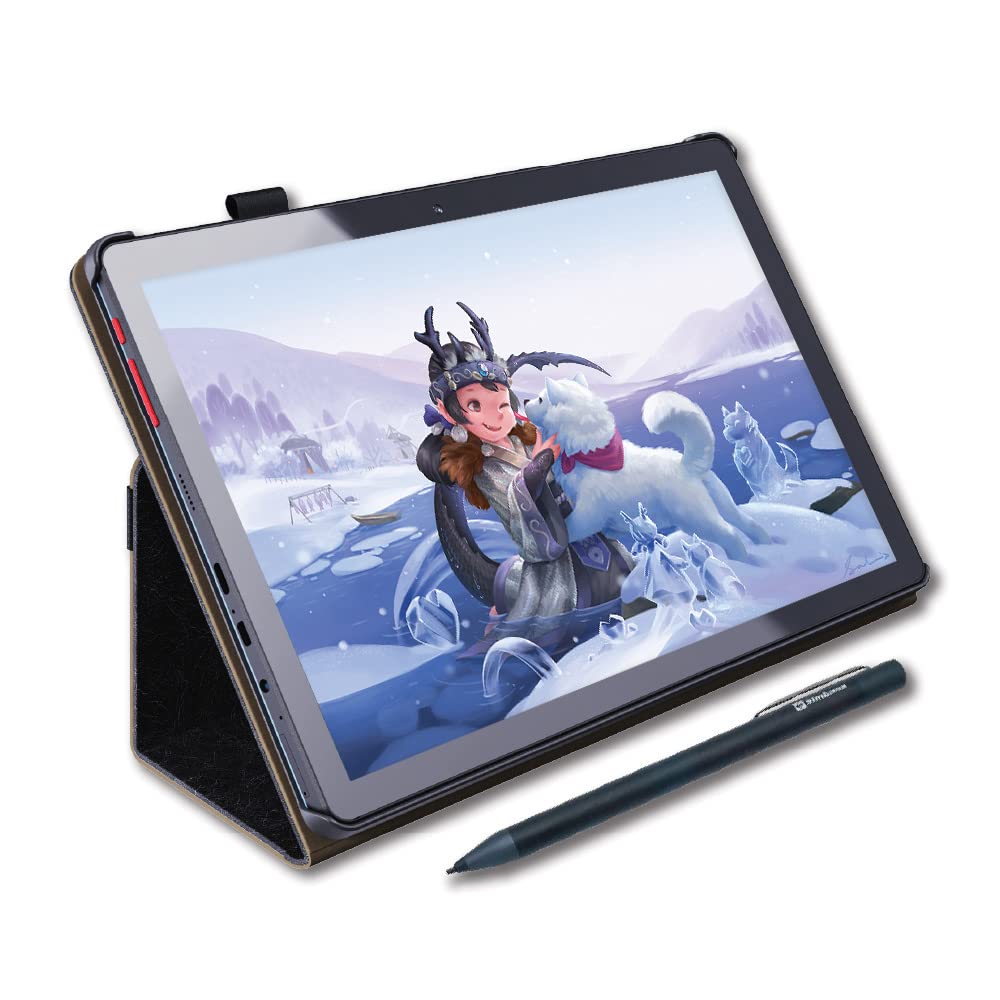
The PicassoTab X by Simbans is a standalone Android 10 tablet designed as an all-in-one starter kit for new digital artists. It comes pre-loaded with drawing and animation apps, includes a tablet case, a drawing glove, a screen protector, and an active stylus. The 10-inch IPS HD screen offers a 1280×800 resolution, which is adequate for learning but noticeably less sharp than higher-end displays.
The MediaTek quad-core processor and 64GB of storage are sufficient for running basic drawing apps from the Play Store and browsing the internet. The included stylus works for casual sketching, note-taking, and simple animation. Setup is simple: charge the tablet, connect to Wi-Fi, and start drawing.
The stylus runs on AAAA batteries—an outdated approach that adds cost and inconvenience. The screen sensitivity is inconsistent, and the pen tip feels blunt, making fine detail work frustrating. Some units fail to power on after a few months. This tablet works for absolute beginners who want to explore digital art without a large investment, but it will frustrate anyone with higher ambitions.
Why it’s great
- Standalone device—no computer needed
- Comes with case, stylus, and pre-installed apps
- Low entry cost for exploring digital art
Good to know
- Stylus uses disposable AAAA batteries
- Screen sensitivity and resolution are low
- Long-term reliability is inconsistent
FAQ
Does any stylus work with any Android tablet?
Do I need a battery-free stylus?
Is a high refresh rate important for drawing?
Final Thoughts: The Verdict
For most users, the best android drawing stylus winner is the Wacom MovinkPad 11 because it combines a professional battery-free pen, an anti-glare screen, and the most accurate palm rejection in a portable package. If you want the best pressure-to-price ratio, grab the XPPen Deco 01 V3. And for a standalone Android drawing tablet that balances performance and affordability, nothing beats the HUION KAMVAS Slate 11.

Mo Maruf
I created WellFizz to bridge the gap between vague wellness advice and actionable solutions. My mission is simple: to decode the research and give you practical tools you can actually use.
Beyond the data, I am a passionate traveler. I believe that stepping away from the screen to explore new environments is essential for mental clarity and physical vitality.