Our readers keep the lights on and my smoothie glass nicely filled. As an Amazon Associate, I earn from qualifying purchases.
The gap between the sketch in your head and the line on the screen comes down to a single spec: pressure sensitivity. An art drawing tablet that registers a featherlight tick differently from a firm push determines whether your brushwork feels digital or fluid. With standalone Android options competing against high-end PC-connected displays, the market now offers distinct tiers where parallax, color gamut, and battery life are the real dividing lines.
I’m Mohammad Maruf — the founder and writer behind WellFizz. I study the chipset architecture, laminated display construction, and pressure curve data that separate a capable tool from a frustrating one in the digital art workflow.
Whether you need a portable sketchpad that works on a bus or a studio-grade monitor with 16K resolution, this guide cuts through the specs to find the best art drawing tablet for your specific style of work.
How To Choose The Best Art Drawing Tablet
Choosing the right tablet starts with one hard question: do you need a standalone device or a computer-connected pen display? Standalone tablets like the XP-Pen Magic Drawing Pad run Android and need no laptop, while pen displays like the Wacom Cintiq 16 are precision monitors that require a PC. After that, three specs determine performance in the real world.
Pressure Sensitivity and Initial Activation Force
Pressure levels (8192 vs 16384) dictate nuance. The higher the level count, the finer the gradation between light and heavy strokes. But the real usability metric is the initial activation force (IAF) — how much finger weight is needed to register a mark. Tablets with an IAF of 2g or 3g respond to the faintest brush touch, which matters for delicate ink work and skin shading in portraits.
Full-Lamination vs Non-Laminated Screens
Laminated screens bond the glass to the LCD panel, eliminating the air gap. The result is near-zero parallax — your pen tip touches the mark directly instead of offsetting away from it. Non-laminated displays create a floating cursor effect that can throw off line precision, especially at the edges of the screen. Every recommended pen display in this list uses full lamination.
Color Accuracy and Screen Resolution
If you export work to print or digital portfolios, color fidelity matters. Look for 99% sRGB coverage as a baseline standard. The Wacom Cintiq Pro 17 pushes to 100% DCI-P3 with 10-bit color, while budget standalone models often fall below 95% sRGB. Resolution determines how much detail you see: 1080p on a 13-inch screen is sharp enough for most line artists, but 2K and 4K screens reveal gradation in gradients and subtle textures.
Quick Comparison
On smaller screens, swipe sideways to see the full table.
| Model | Category | Best For | Key Spec | Amazon |
|---|---|---|---|---|
| Wacom Cintiq Pro 17 | Pen Display | Professional studio work | 4K 120Hz 10‑bit Touch | Amazon |
| XP‑Pen Magic Drawing Pad | Standalone | Portable on‑the‑go art | 16K pressure, 8000mAh | Amazon |
| HUION Kamvas Pro 16 V2 | Pen Display | Mid‑range studio display | 16K pressure, 15.6″ Full‑Lam | Amazon |
| HUION Kamvas 13 (Gen 3) | Pen Display | Compact desktop creation | 16K with dual dials | Amazon |
| XPPen Artist13.3 Pro V2 (Upgraded) | Pen Display | Value color‑accurate drawing | 16K, 95% P3 color gamut | Amazon |
| XP‑PEN Artist 13.3 Pro V2 | Pen Display | Entry‑level screened tablet | 16K pressure and foldable stand | Amazon |
| Wacom Cintiq 16 | Pen Display | Industry‑standard reliability | 2.5K, 100% sRGB, Pro Pen 3 | Amazon |
| UGEE Pad UT2 | Standalone | Android artists on a budget | 2K screen, 7000mAh battery | Amazon |
| Frunsi T8 RubensTab | Standalone | First art tablet for beginners | Android 13, 2048 levels | Amazon |
In‑Depth Reviews
1. Wacom Cintiq Pro 17

The Wacom Cintiq Pro 17 sets the bar for professional pen displays. Its 17.3-inch Ultra HD 4K display runs at 120 Hz, delivering near-zero latency that makes fast brush strokes feel instantaneous. The 10-bit color panel covers 100% DCI-P3, a vital spec for illustrators and concept artists who need print-ready accuracy straight out of the box.
The Pro Pen 3 uses 8192 pressure levels but Wacom’s real advantage is the IAF curve — every gram of force corresponds to a predictable line width, a consistency third-party drivers rarely match. The built-in multi-touch support and eight ExpressKeys reduce reliance on keyboard shortcuts, though the stand has a slight wobble that pushes many users toward an Ergotron arm.
Real battery capacity isn’t relevant here since this is a tethered pen display. It draws power via USB-C and requires a laptop or desktop running Windows, Mac, or Linux. The fan noise is nearly inaudible during normal use, and the etched glass surface provides just enough tooth to feel like marker on cardstock.
Why it’s great
- 4K resolution at 120 Hz eliminates cursor lag
- 10-bit color with 100% DCI-P3 for professional output
- Pro Pen 3 adjusts weight and center of balance
Good to know
- Requires separate stand purchase for tilt adjustment
- Side switches on the pen can be accidentally triggered
- Included stand has noticeable wobble at full height
2. XP‑Pen Magic Drawing Pad

The XP‑Pen Magic Drawing Pad is a standalone Android 14 tablet built specifically for digital artists. Unlike general-purpose slates, its 12.2-inch AG-etched screen is calibrated to mimic paper tooth, and the included X3 Pro Slim Stylus delivers 16,384 levels of pressure with 60 degrees of tilt recognition. You do not need a computer, which makes this a true sketchbook replacement.
The 2160×1440 resolution at a 3:2 aspect ratio matches standard drawing paper proportions, and the 115% sRGB gamut covers more color space than many budget pen displays. The 8 GB of RAM and 256 GB internal storage expandable via microSD means large Clip Studio Paint files load without stutter. The 8000 mAh battery delivers around thirteen hours of continuous drawing — enough for a full day of outdoor sketching.
Tilt support is decent, though not as precise as Wacom’s Pro Pen 2. The Android ecosystem lacks a direct ProCreate equivalent, but Clip Studio Paint, Infinite Painter, and Concepts run smoothly. The TÜV Rheinland certified screen reduces eye strain during long sessions, and the matte finish resists fingerprint smudging well.
Why it’s great
- True standalone operation with no computer required
- 16K pressure stylus with no charging needed
- Long 13-hour battery life for all-day work
Good to know
- Poor tilt tracking compared to Wacom Pro Pen series
- Android drawing apps lack ProCreate quality
- Keyboard accessory described as mediocre
3. HUION Kamvas Pro 16 V2

The Kamvas Pro 16 V2 is a tethered pen display aimed at the gap between entry-level and professional hardware. At 15.6 inches with full-laminated anti-glare glass, it offers minimal parallax and a natural drawing feel. The PenTech 4.0 pen produces 16,384 levels of pressure with an IAF of 2g, registering the lightest tick without skipping.
The display covers 120% sRGB and 99% Rec.709, giving you accurate color for print and digital publishing. Six customizable express keys and a Smart Touch Bar streamline the workflow — you can zoom, scroll, and adjust brush size without reaching for the keyboard. The recessed USB-C port locks the cable securely to prevent accidental disconnections during intense drawing sessions.
At 2.65 pounds and 0.453 inches thick, this is one of the slimmest 15.6-inch pen displays on the market. The included ST200 aluminum stand offers six tilt angles between 14.5 and 45 degrees. Some users report the screen feels slightly warm after three hours of continuous use, but the metal backing dissipates heat better than plastic alternatives.
Why it’s great
- Near-zero parallax from full-laminated construction
- 16K PenTech 4.0 stylus with 2g activation force
- Smart Touch Bar and keys speed up navigation
Good to know
- Not a standalone device — requires a computer
- Screen can warm up during extended sessions
- 3-in-1 cable management can be tricky with tight desk setups
4. HUION Kamvas 13 (Gen 3)

The Kamvas 13 (Gen 3) brings dual-dial control to the compact pen display format. The two physical dials sit alongside five programmable press keys, letting you map volume, brush size, zoom, and undo without lifting your hand. The 13.3-inch fully laminated display uses Canvas Glass 2.0 with an anti-sparkle coating that reduces glare more aggressively than earlier Huion models.
PenTech 4.0 delivers 16,384 pressure levels with an IAF of 2g, and the included PW600L pen has three side buttons for quick tool switching. The screen covers 99% sRGB and Rec.709 with average DeltaE of less than 1.5 — factory calibrated, so you can trust color straight out of the box. The 1920×1080 resolution on a 13-inch panel is crisp enough for detailed line work without needing GPU scaling.
The ST300 adjustable stand supports six angles and folds flat for transport. Some users note the screen brightness is around 200 nits, which is adequate for dim studios but washes out in brightly lit rooms. The 3-in-1 cable works well for older laptops, but the full-featured USB-C cable is sold separately.
Why it’s great
- Dual-dial controls reduce reliance on keyboard shortcuts
- Factory calibrated color with DeltaE under 1.5
- Anti-sparkle glass eliminates screen rainbow effects
Good to know
- Screen brightness at 200 nits limits use in bright rooms
- Requires computer for operation
- Full-featured USB-C cable is sold separately
5. XPPen Artist13.3 Pro V2 (Upgraded)

This upgraded version of the XPPen Artist13.3 Pro V2 prioritizes color accuracy above other features in its class. The 13.3-inch full-laminated IPS panel covers 125% sRGB area ratio and 95% DCI-P3, making it a strong choice for animators and illustrators who export to print. The AG film reduces reflections without softening the image, and the 178-degree viewing angle keeps colors consistent when you lean in for detail work.
The X3 Pro stylus uses the XPPen smart chip to deliver 16,384 pressure levels with a response rate that is 1.5 times faster than previous generation pens. The red dial quick key and eight customizable shortcut keys simplify the interface for beginners while still offering enough control for intermediate users. The AC42 foldable stand provides stable support and allows 90 degrees of tilt adjustment.
The 1000:1 contrast ratio improves shadow detail in dark illustrations, and the 250 cd/m² brightness is usable in moderate ambient lighting. The driver software now includes a simplified one-click installation process that walks through brightness, contrast, and temperature settings. Some users report pen alignment drift when the display and main monitor run at different resolutions.
Why it’s great
- 95% DCI-P3 gamut for print-accurate color
- Full-lamination eliminates parallax entirely
- Red dial and eight shortcut keys for quick actions
Good to know
- Pen alignment drifts if monitor resolutions mismatch
- Not a standalone tablet; requires a computer
- Some users report surface scratches from the pen nib
6. XP‑PEN Artist 13.3 Pro V2

The XP‑PEN Artist 13.3 Pro V2 marks the first time 16,384 pressure levels have been available at this price tier. The X3 Pro Smart Chip stylus has an ultra-low activation force that captures every tick, and the built-in digital eraser on the tail works naturally for correcting strokes without switching tools. The battery-free design means no charging or pairing — just pick up and draw.
The 13.3-inch FHD screen is fully laminated and covered with anti-glare film to cut reflections. The 99% sRGB and 89% Adobe RGB coverage handles most illustration workflows, though wide-gamut P3 is absent. The red dial roller and eight express keys give you tactile shortcuts, and the foldable S01 stand holds the tablet securely at ergonomic angles.
Dual USB-C ports offer flexible connectivity — a full-featured USB-C cable is included, while a 3-in-1 HDMI cable is sold separately for older laptops. The package includes a glove, cleaning cloth, and eight replacement nibs. Some users note that the driver on Android and Chromebook disables the shortcut buttons, but performance on Windows and Mac is solid.
Why it’s great
- Industry-standard 16K pressure at a low entry cost
- Battery-free stylus with built-in eraser
- Dual USB-C for clean single-cable setups
Good to know
- Shortcut keys do not work on Android or Chromebook
- Requires computer connection; not standalone
- 3-in-1 HDMI cable is not included in the box
7. Wacom Cintiq 16

The Wacom Cintiq 16 updates the classic 16-inch form factor with a sharper 2560×1600 WQXGA resolution. The IPS panel covers 100% sRGB and 99% DCI-P3 with 8-bit color depth, producing smooth gradients without banding. The Pro Pen 3 retains Wacom’s trademark 8192 pressure levels and adds customizable grips and a weighted balance piece that lets you fine-tune the feel in your hand.
Built-in fold-out legs provide a 20-degree working angle without an external stand, making this a strong choice for cramped desks. The USB-C connection streamlines the cable situation — single-cable operation works with any modern laptop that supports DisplayPort Alt Mode or Thunderbolt 3/4. The anti-glare etched glass prevents sparkle artifacts that plague some matte displays.
Reviewers consistently praise the pen feel and cursor precision that define the Wacom ecosystem. The downsides are real: no included stand beyond the fold-out legs, and the Pro Pen 3 buttons feel stiff compared to the previous Pro Pen 2. The lack of shortcut buttons on the tablet itself means you rely on keyboard shortcuts or on-screen menus.
Why it’s great
- Excellent color accuracy with 99% DCI-P3 coverage
- True single USB-C cable operation on modern laptops
- Premium pen feel with adjustable weight and center of balance
Good to know
- No shortcut buttons on the tablet body
- Pen buttons are stiff and uncomfortable for some users
- Fold-out legs offer only one fixed angle
8. UGEE Pad UT2
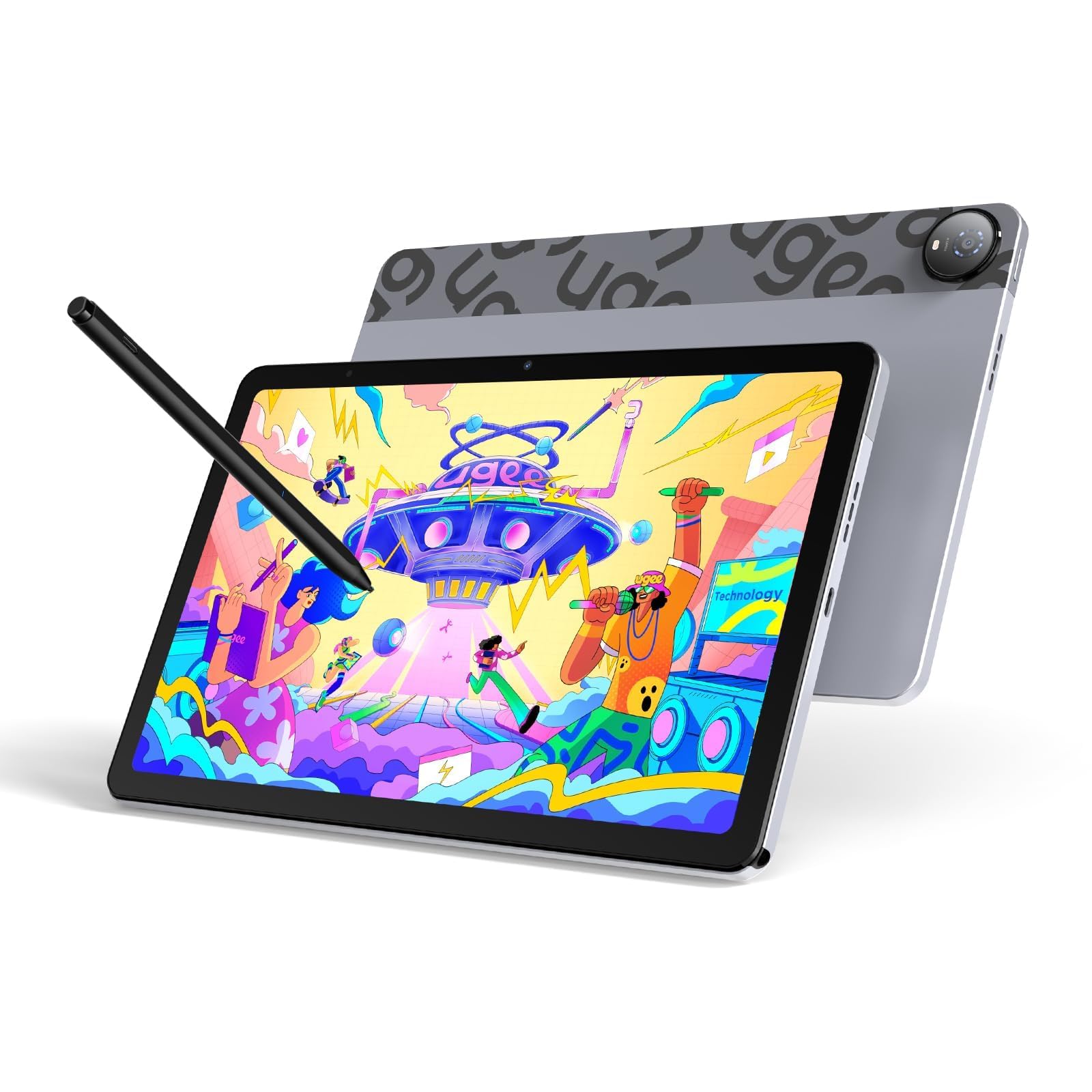
The UGEE Pad UT2 is a standalone Android 14 drawing tablet that prioritizes portability without sacrificing screen quality. The 10.36-inch display runs at 2000×1200 resolution (277 PPI), which is noticeably sharper than standard FHD on this form factor. The nano-etched matte glass eliminates glare and gives the surface a paper-like tooth that the included stylus grips naturally.
Under the hood, the Mediatek Helio G99 octa-core processor and 6 GB of RAM handle Clip Studio Paint, Krita 6.0, and Medibang Paint without stutter. The 7000 mAh battery delivers nine-plus hours of continuous drawing, and 18W fast charging brings it to 50% in about an hour. The leather case stand adjusts from 15 to 75 degrees, turning any surface into a makeshift drafting table.
The stylus requires charging and uses a cap press to activate, which is less convenient than battery-free Wacom pens. The 4096 pressure levels are enough for most Android drawing apps but fall short of the 8192 baseline found on most pen displays. The 100% sRGB color gamut is accurate, though the 2K brightness is on the lower end for outdoor use.
Why it’s great
- True standalone Android tablet with no computer needed
- 2K resolution at 277 PPI for sharp line detail
- Nine-plus hour battery life supports full work sessions
Good to know
- Stylus needs charging and cap press activation
- Only 4096 pressure sensitivity, lower than premium models
- Eraser function has a high failure rate reported
9. Frunsi T8 RubensTab

The Frunsi T8 RubensTab is an Android 13 standalone tablet designed specifically for beginners and young artists. The 8-inch 1200×800 display is compact enough to fit in a small bag, and the included detachable keyboard and stylus make it a complete starter kit. Pre-installed drawing apps like SketchBook and ibis Paint X reduce the friction of finding and configuring software.
The MTK quad-core processor with 4 GB of RAM and 64 GB of storage handles basic drawing apps with minimal lag, though Clip Studio Paint will start to stutter with large brush layers. The 4000 mAh battery delivers around 3.5 to 4 hours under active drawing load, which is lower than the standalone competitors but acceptable for short practice sessions and travel.
The 2048 levels of pressure sensitivity are a generation behind the market standard, but for a child learning to trace or a student doing rough sketching, the precision gap is less noticeable. Customer reviews highlight the solid customer service and responsive pen feel. The lack of palm rejection and a pressure-sensitivity control app are the biggest functional limitations.
Why it’s great
- Complete beginner kit with stylus, keyboard, and case
- Standalone Android, no computer required
- Excellent customer support and easy warranty replacement
Good to know
- Only 2048 pressure sensitivity, limited for professional use
- Battery life around 3.5 hours under drawing load
- No palm rejection or pressure control software included
FAQ
Do I need 16K pressure sensitivity or is 8192 enough?
Can I use a pen display without a computer?
What does the initial activation force (IAF) mean for drawing?
How important is sRGB coverage for digital artists?
Can I use a drawing tablet for other tasks like note-taking or video editing?
Final Thoughts: The Verdict
For most users, the best art drawing tablet winner is the HUION Kamvas Pro 16 V2 because it delivers 16K pressure sensitivity and full-lamination clarity on a 15.6-inch canvas at a price that undercuts Wacom while matching the core experience. If you want a portable standalone system for drawing without a laptop, grab the XP‑Pen Magic Drawing Pad. And for professionals who need 4K resolution and 10-bit color at 120 Hz, nothing beats the Wacom Cintiq Pro 17.

Mo Maruf
I created WellFizz to bridge the gap between vague wellness advice and actionable solutions. My mission is simple: to decode the research and give you practical tools you can actually use.
Beyond the data, I am a passionate traveler. I believe that stepping away from the screen to explore new environments is essential for mental clarity and physical vitality.